> ## Documentation Index
> Fetch the complete documentation index at: https://docs.irelia.ai/llms.txt
> Use this file to discover all available pages before exploring further.
# How to Create a WhatsApp Template in Irelia
> Build your first WhatsApp template message inside Irelia.ai, submit it to Meta for approval, and get it ready to send — whether you're starting new conversations or following up with existing leads.
\~5 minutes setup
***
The 24-hour rule and why templates are required
Where to create templates depending on your use case
Prerequisites before starting
Condensed steps for experienced users
Complete walkthrough (Steps 1–4)
Verify everything is ready
Common issues, answers, and fixes
***
### Introduction
You've built your AI agent, connected WhatsApp, and you're ready to start reaching out to prospects. To do that — to send the first outbound message that kicks off a conversation — you need a WhatsApp template.
Templates are how every business on WhatsApp starts outbound conversations. Meta requires them to keep the platform safe and spam-free, and Irelia makes creating and submitting them straightforward. In about five minutes, you'll have a template submitted, and once Meta approves it, you'll be ready to start sending.
This article walks you through the entire process — from understanding *why* templates exist to submitting your first one for approval.
**This article covers how to *create* a template.** For guidance on how to *write* effective template messages that earn replies and protect your account, see the companion guide: [WhatsApp Template Best Practices — How to Write Messages That Get Replies and Stay Compliant](/Guide-eng/WhatsApp-Template-Best-Practices).
**By the end of this guide, you'll have:**
✅ A clear understanding of why WhatsApp requires templates and when they're needed
✅ A template created inside Irelia with your message content and dynamic variables
✅ That template submitted to Meta for approval
✅ The knowledge to track its status and take next steps once it's approved
## 💡 Why WhatsApp Templates Exist
WhatsApp protects its users from unwanted messages with a strict rule called the **24-hour messaging window**.
Here's how it works: when a contact messages you (or replies to a message you sent), a 24-hour window opens. During that window, your AI agent can send **free-form messages** — any text, in any format, with no restrictions. This is how your agent carries on natural conversations, asks qualifying questions, and responds to inquiries.
But the moment that 24-hour window closes — meaning 24 hours have passed since the contact's last message — free-form messaging stops. To message that contact again, you **must** use an approved template.
| Situation | What You Can Send |
| :---------------------------------------------- | :--------------------------------------------- |
| Contact messaged you **less than 24 hours ago** | Anything — free-form messages, no restrictions |
| Contact messaged you **more than 24 hours ago** | Only approved **template messages** |
| Contact has **never messaged you** (outbound) | Only approved **template messages** |
This means templates are required in two key scenarios:
* **Starting a new conversation** — When you reach out to a contact who hasn't messaged you yet (outbound). This is the most common use case: a lead fills out a form, and your AI agent sends the first WhatsApp message using a template.
* **Re-engaging a silent contact** — When a lead stopped replying and the 24-hour window expired. You send a follow-up template to bring them back into the conversation.
Templates exist to keep WhatsApp a trusted messaging platform. Unlike email or SMS, WhatsApp is a personal space — people use it to talk with friends and family. Meta takes that seriously: every template is reviewed before it can be sent, ensuring businesses don't flood users with unwanted messages. Once approved, your template becomes a reusable message you can send to any number of contacts.
**Respect the channel.** WhatsApp's quality controls aren't just bureaucracy — they protect your account too. If contacts report your messages, Meta can restrict or ban your WhatsApp Business Account. Treat WhatsApp like a personal conversation, not a broadcast channel, and you'll stay in good standing. See the [WhatsApp Template Best Practices guide](/Guide-eng/WhatsApp-Template-Best-Practices) for the rules that keep your account safe.
**The 24-hour window reopens every time the contact replies.** So once your template earns a response, your AI agent is back in free-form mode — able to have a natural conversation without any restrictions. That's why writing a template that gets replies is so important. See the [WhatsApp Template Best Practices guide](/Guide-eng/WhatsApp-Template-Best-Practices) for proven frameworks.
## 🚪 Two Entry Points, One Process
You can create a WhatsApp template from two places inside your agent's settings. The creation process is identical — but *where* you start determines *how* you'll use the template later.
### From the Trigger tab — for conversation starters
Open your agent and click the **Trigger** tab. This is where you create templates for **starting new conversations** — the first outbound message a prospect receives.
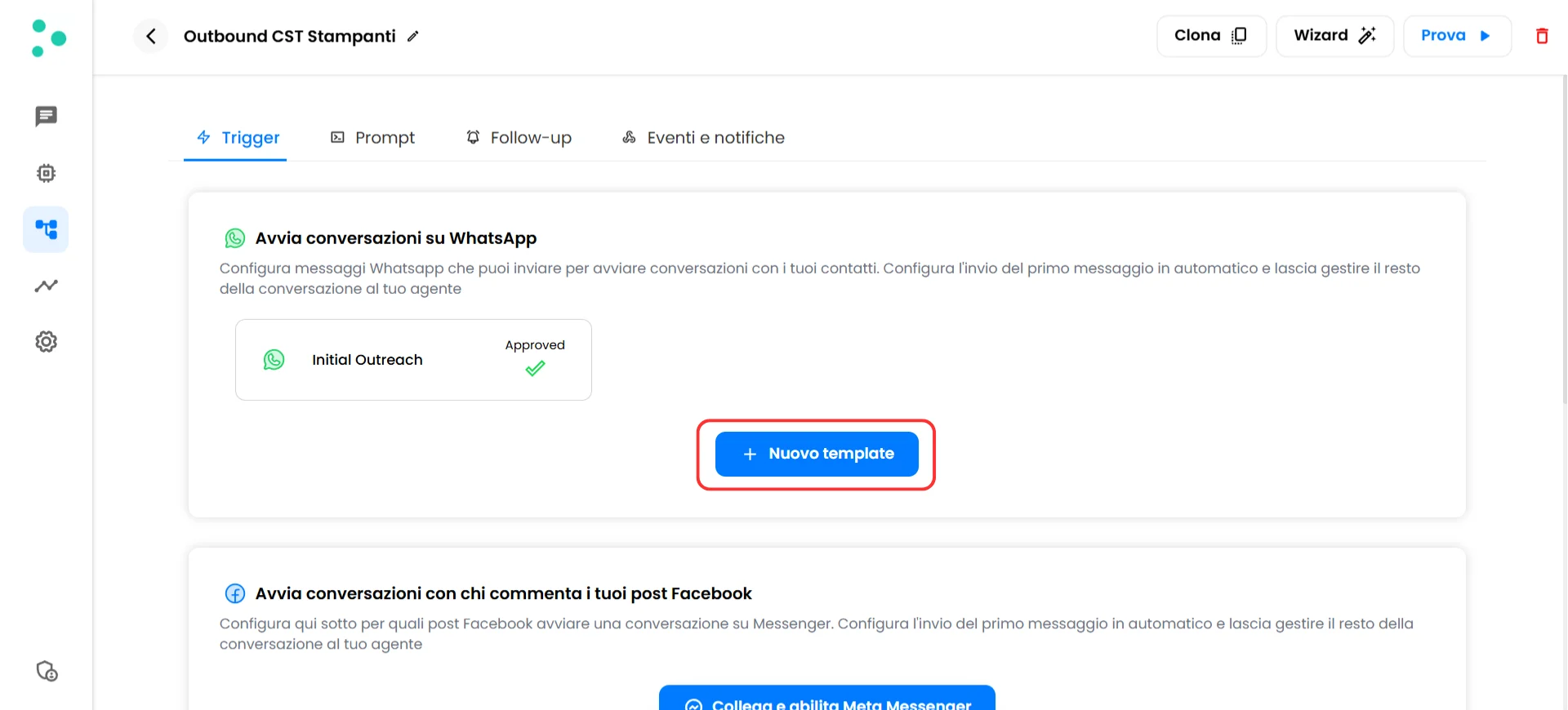 Once approved, a template created here can be sent through any of these methods:
* [**Irelia Forms**](/Guide-eng/How-to-Use-Irelia-Forms-to-Capture-Leads-and-Start-WhatsApp-Conversations) — A landing page with a contact form that triggers the template automatically
* [**Meta Instant Forms**](/Guide-eng/Connect-Meta-Instant-Forms) — A native integration that sends the template to leads from your Facebook and Instagram ad campaigns
* [**API / automation**](/Guide-eng/Send-WhatsApp-Templates-Automatically) — Connect Zapier, Make.com, Go High Level, or any other platform to trigger the template from your existing tools
### From the Follow-up tab — for re-engagement messages
Open your agent and click the **Follow-up** tab. This is where you create templates for **follow-up sequences** — messages sent automatically to contacts who stopped replying.
Once approved, a template created here can be sent through any of these methods:
* [**Irelia Forms**](/Guide-eng/How-to-Use-Irelia-Forms-to-Capture-Leads-and-Start-WhatsApp-Conversations) — A landing page with a contact form that triggers the template automatically
* [**Meta Instant Forms**](/Guide-eng/Connect-Meta-Instant-Forms) — A native integration that sends the template to leads from your Facebook and Instagram ad campaigns
* [**API / automation**](/Guide-eng/Send-WhatsApp-Templates-Automatically) — Connect Zapier, Make.com, Go High Level, or any other platform to trigger the template from your existing tools
### From the Follow-up tab — for re-engagement messages
Open your agent and click the **Follow-up** tab. This is where you create templates for **follow-up sequences** — messages sent automatically to contacts who stopped replying.
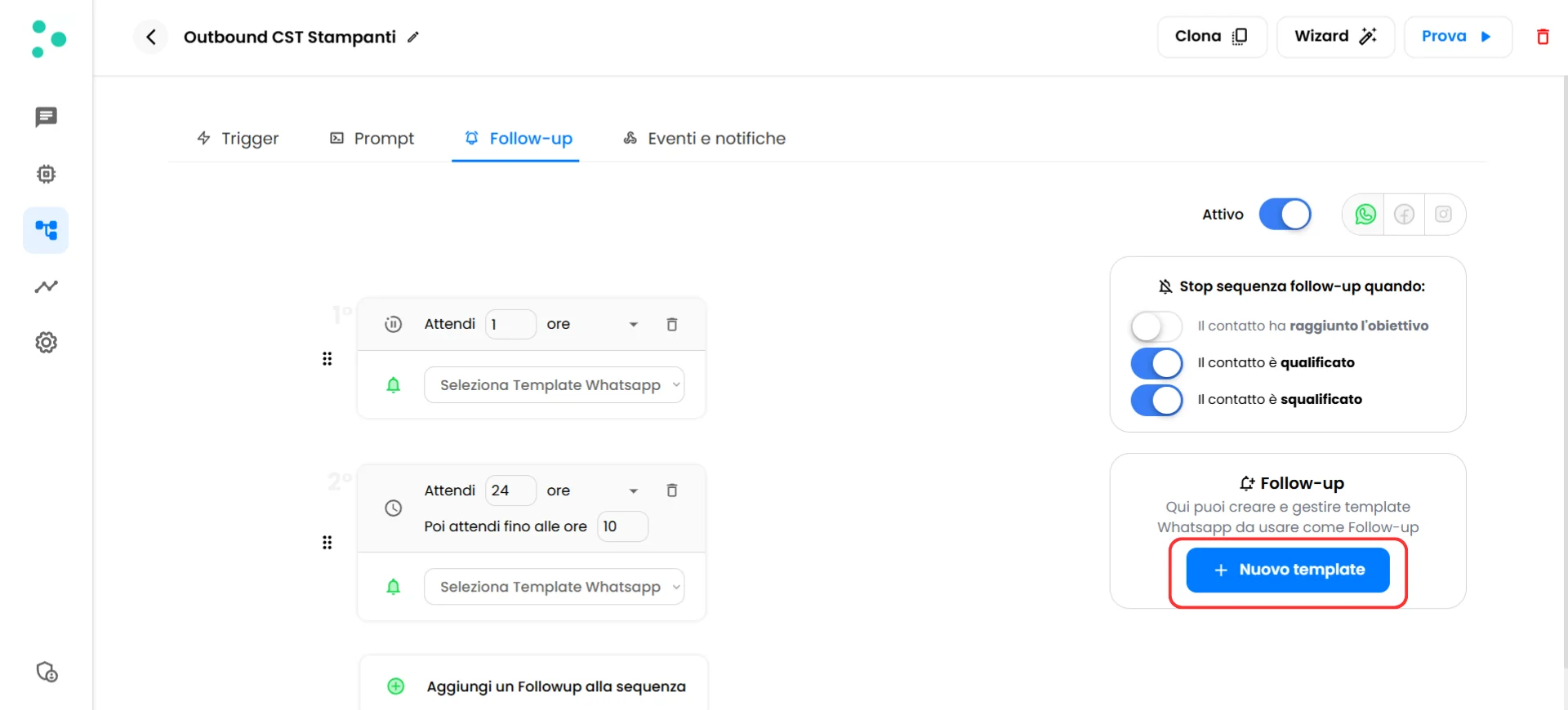 Templates created here are used exclusively within Irelia's automatic follow-up system. They can't be sent via API, Irelia Forms, or Meta Instant Forms. However, you can also send any template manually from the [chat panel](/Guide-eng/the-Chat-Panel) when the 24-hour window has expired on a conversation — regardless of which tab it was created in.
**Not sure which tab to use?** If you're reaching out to leads for the first time, use the **Trigger** tab. If you want to automatically re-engage contacts who went silent, use the **Follow-up** tab. You'll likely need templates in both places.
### What You'll Do
1. **Click "+ New template"** from the Trigger or Follow-up tab (\~30 seconds)
2. **Name your template and write your message** (\~2 minutes)
3. **Add example values** for any dynamic variables (\~1 minute)
4. **Submit to Meta** and track the approval status (\~1 minute)
## 📋 What You'll Need
* An Irelia.ai account with at least one active AI agent Required
* A connected WhatsApp channel — [learn how to connect WhatsApp to Irelia here](/Guide-eng/How-to-Connect-WhatsApp-Business-to-Irelia.ai) if you haven't yet Required
* Your message content ready (or use one of Irelia's pre-built templates as a starting point) Optional
**No coding required.** If you can type a WhatsApp message, you can do this.
## ⚡ Quick Path (Experienced Users)
Already comfortable with Irelia? Here's the condensed version:
1. **Navigate** → Open your agent → **Trigger** tab (for conversation starters) or **Follow-up** tab (for re-engagement) → Click **"+ New template"**
2. **Name it** → Enter a descriptive template name
3. **Write it** → Type your message in the content field (or click a pre-fill option). Use `{{1}}`, `{{2}}`, etc. for dynamic variables. Don't skip numbers, don't add spaces inside the braces
4. **Confirm** → Click **"Confirm message"**
5. **Add examples** → Fill in a sample value for each variable (e.g., `Mario` for `{{1}}`)
6. **Submit** → Click **"Send to Meta for approval"**
7. **Wait** → Template appears with **"Pending"** status. It usually switches to **"Approved"** within a few minutes — the status updates automatically
Need more detail? Continue with the full guide below.
## 🔧 Step-by-Step Setup
\~30 seconds
1. Log into your Irelia.ai dashboard
2. Open the agent you want to create the template for
3. Choose where to create it based on your use case:
* For **conversation starters** → Click the **Trigger** tab
* For **follow-up messages** → Click the **Follow-up** tab
4. Click the blue **"+ New template"** button
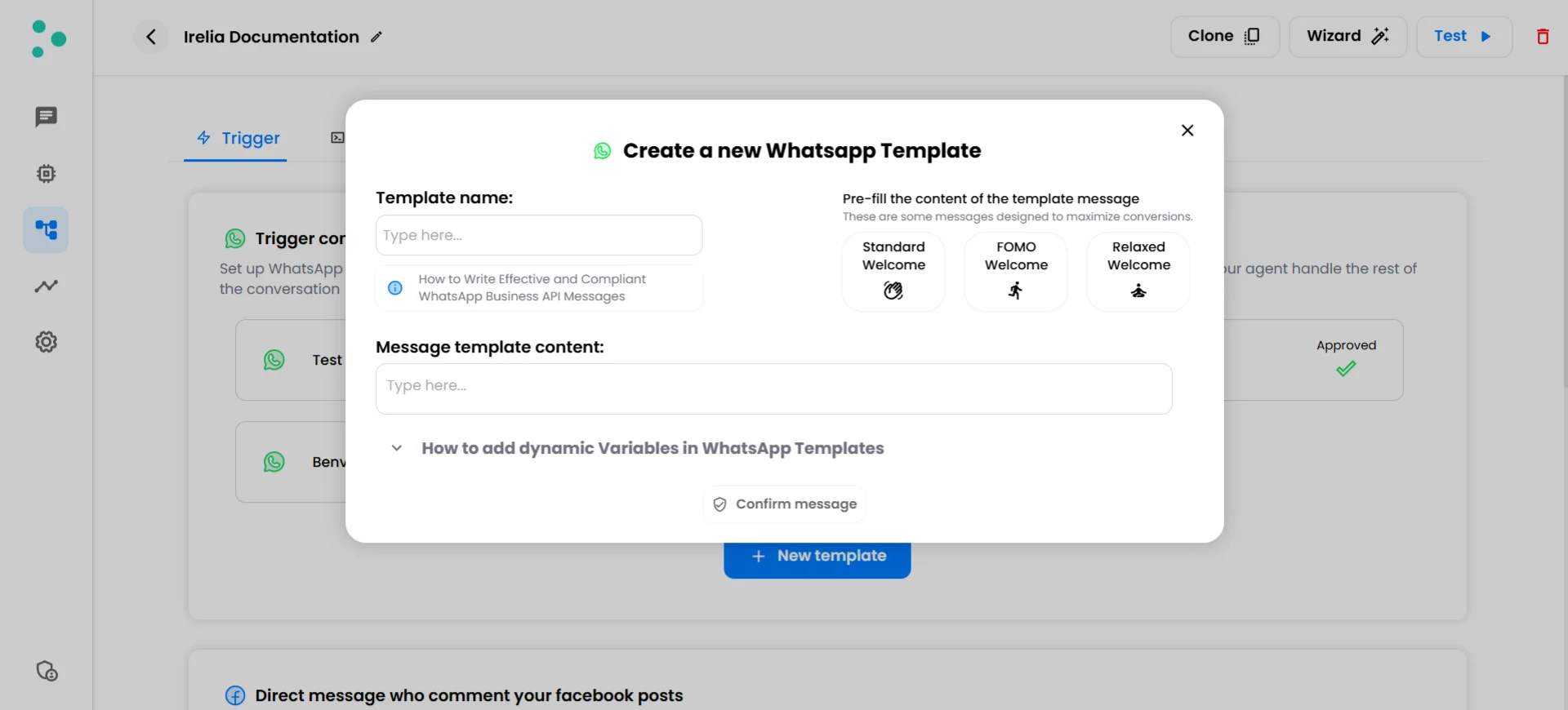
The **"Create a new Whatsapp Template"** popup will appear.
Templates created here are used exclusively within Irelia's automatic follow-up system. They can't be sent via API, Irelia Forms, or Meta Instant Forms. However, you can also send any template manually from the [chat panel](/Guide-eng/the-Chat-Panel) when the 24-hour window has expired on a conversation — regardless of which tab it was created in.
**Not sure which tab to use?** If you're reaching out to leads for the first time, use the **Trigger** tab. If you want to automatically re-engage contacts who went silent, use the **Follow-up** tab. You'll likely need templates in both places.
### What You'll Do
1. **Click "+ New template"** from the Trigger or Follow-up tab (\~30 seconds)
2. **Name your template and write your message** (\~2 minutes)
3. **Add example values** for any dynamic variables (\~1 minute)
4. **Submit to Meta** and track the approval status (\~1 minute)
## 📋 What You'll Need
* An Irelia.ai account with at least one active AI agent Required
* A connected WhatsApp channel — [learn how to connect WhatsApp to Irelia here](/Guide-eng/How-to-Connect-WhatsApp-Business-to-Irelia.ai) if you haven't yet Required
* Your message content ready (or use one of Irelia's pre-built templates as a starting point) Optional
**No coding required.** If you can type a WhatsApp message, you can do this.
## ⚡ Quick Path (Experienced Users)
Already comfortable with Irelia? Here's the condensed version:
1. **Navigate** → Open your agent → **Trigger** tab (for conversation starters) or **Follow-up** tab (for re-engagement) → Click **"+ New template"**
2. **Name it** → Enter a descriptive template name
3. **Write it** → Type your message in the content field (or click a pre-fill option). Use `{{1}}`, `{{2}}`, etc. for dynamic variables. Don't skip numbers, don't add spaces inside the braces
4. **Confirm** → Click **"Confirm message"**
5. **Add examples** → Fill in a sample value for each variable (e.g., `Mario` for `{{1}}`)
6. **Submit** → Click **"Send to Meta for approval"**
7. **Wait** → Template appears with **"Pending"** status. It usually switches to **"Approved"** within a few minutes — the status updates automatically
Need more detail? Continue with the full guide below.
## 🔧 Step-by-Step Setup
\~30 seconds
1. Log into your Irelia.ai dashboard
2. Open the agent you want to create the template for
3. Choose where to create it based on your use case:
* For **conversation starters** → Click the **Trigger** tab
* For **follow-up messages** → Click the **Follow-up** tab
4. Click the blue **"+ New template"** button
The **"Create a new Whatsapp Template"** popup will appear.
 \~2 minutes
#### Choose a template name
Type a name in the **"Template name"** field. This name is for your reference inside Irelia — your contacts won't see it. Make it descriptive so you can easily recognize it later (e.g., "Welcome — Dental Promo" or "Follow-up 1 — Reminder").
#### Write (or pre-fill) your message
You have two options for writing the template content:
**Option A — Write from scratch.** Click the **"Message template content"** field and type your message. This is the actual text your contacts will receive on WhatsApp.
**Option B — Start from a pre-fill.** Click one of the three cards in the upper-right corner of the popup — **"Standard Welcome"**, **"FOMO Welcome"**, or **"Relaxed Welcome"**. Each one fills the content field with a proven message structure designed to maximize conversions. You can edit the pre-filled text to match your specific offer and tone.
**Not sure what to write?** The pre-fill options follow the best practices from our [WhatsApp Template Best Practices guide](/Guide-eng/WhatsApp-Template-Best-Practices). Start with one of them and customize it — it's faster than writing from scratch and gives you a strong foundation.
#### Add dynamic variables (optional)
Dynamic variables are placeholders that get replaced with real contact data when the message is sent. For example, `Hi {{1}}!` becomes `Hi Gianluca!` at the time of delivery.
To use them, type `{{1}}` where you want the first data field, `{{2}}` for the second, and so on.
**Variable rules:**
* Always start from `{{1}}` and go in order — don't skip numbers
* Use exactly two curly braces with no spaces: `{{1}}` is correct
* `{{ 1 }}`, `{1}`, `{{x}}`, and `{x}` are all **incorrect** and will cause errors
Here are some examples of how variables look in practice:
| Template text | What the contact receives |
| :------------------------------------- | :---------------------------------- |
| `Hi {{1}}! Are you in {{2}}?` | Hi Gianluca! Are you in Rome? |
| `Hi {{1}}, your order {{2}} is ready.` | Hi Marco, your order #123 is ready. |
Click the expandable section **"How to add dynamic Variables in WhatsApp Templates"** inside the popup for a quick reference while you're writing.
**Avoid placing a variable at the very start of your message** — for example, `{{1}}, how are you?` with nothing before it. This pattern increases the chance of Meta rejecting your template. Start with a word like "Hi" or "Hey" before the first variable.
#### Before you continue
Make sure the **"Confirm message"** button at the bottom of the popup is **clickable** (not grayed out). If it's disabled, the most likely cause is that you already have another template with the same name or the same message content. Each template must have a **unique name** and **unique content**.
\~1 minute
1. Click the **"Confirm message"** button at the bottom of the popup
The popup will update. Your message is now locked in place, and a new section appears: **"Enter examples for the variables."**
\~2 minutes
#### Choose a template name
Type a name in the **"Template name"** field. This name is for your reference inside Irelia — your contacts won't see it. Make it descriptive so you can easily recognize it later (e.g., "Welcome — Dental Promo" or "Follow-up 1 — Reminder").
#### Write (or pre-fill) your message
You have two options for writing the template content:
**Option A — Write from scratch.** Click the **"Message template content"** field and type your message. This is the actual text your contacts will receive on WhatsApp.
**Option B — Start from a pre-fill.** Click one of the three cards in the upper-right corner of the popup — **"Standard Welcome"**, **"FOMO Welcome"**, or **"Relaxed Welcome"**. Each one fills the content field with a proven message structure designed to maximize conversions. You can edit the pre-filled text to match your specific offer and tone.
**Not sure what to write?** The pre-fill options follow the best practices from our [WhatsApp Template Best Practices guide](/Guide-eng/WhatsApp-Template-Best-Practices). Start with one of them and customize it — it's faster than writing from scratch and gives you a strong foundation.
#### Add dynamic variables (optional)
Dynamic variables are placeholders that get replaced with real contact data when the message is sent. For example, `Hi {{1}}!` becomes `Hi Gianluca!` at the time of delivery.
To use them, type `{{1}}` where you want the first data field, `{{2}}` for the second, and so on.
**Variable rules:**
* Always start from `{{1}}` and go in order — don't skip numbers
* Use exactly two curly braces with no spaces: `{{1}}` is correct
* `{{ 1 }}`, `{1}`, `{{x}}`, and `{x}` are all **incorrect** and will cause errors
Here are some examples of how variables look in practice:
| Template text | What the contact receives |
| :------------------------------------- | :---------------------------------- |
| `Hi {{1}}! Are you in {{2}}?` | Hi Gianluca! Are you in Rome? |
| `Hi {{1}}, your order {{2}} is ready.` | Hi Marco, your order #123 is ready. |
Click the expandable section **"How to add dynamic Variables in WhatsApp Templates"** inside the popup for a quick reference while you're writing.
**Avoid placing a variable at the very start of your message** — for example, `{{1}}, how are you?` with nothing before it. This pattern increases the chance of Meta rejecting your template. Start with a word like "Hi" or "Hey" before the first variable.
#### Before you continue
Make sure the **"Confirm message"** button at the bottom of the popup is **clickable** (not grayed out). If it's disabled, the most likely cause is that you already have another template with the same name or the same message content. Each template must have a **unique name** and **unique content**.
\~1 minute
1. Click the **"Confirm message"** button at the bottom of the popup
The popup will update. Your message is now locked in place, and a new section appears: **"Enter examples for the variables."**
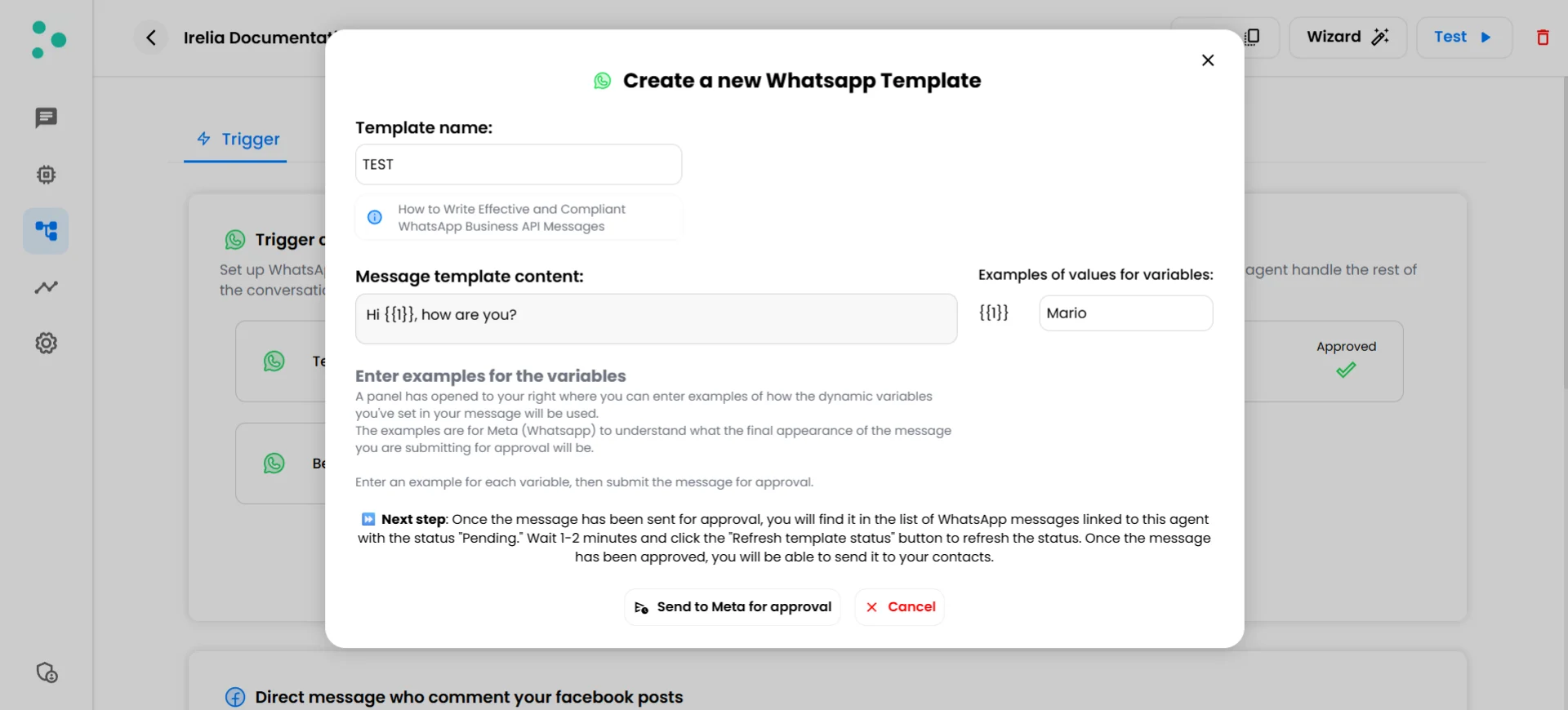 2. In the **"Examples of values for variables"** panel on the right, enter a realistic sample value for each variable (e.g., `Mario` for `{{1}}`, `Rome` for `{{2}}`)
**Why are examples needed?** Meta uses these examples to understand what your dynamic variables will contain when the message is actually sent. They review the template with the examples filled in to make sure the complete message makes sense and complies with their policies. Pick realistic values — not test data like "aaa" or "123."
\~1 minute
1. Click the **"Send to Meta for approval"** button
You'll be taken back to the template list (in the Trigger or Follow-up tab, depending on where you started). Your new template appears with a **"Pending"** status and a yellow clock icon.
2. In the **"Examples of values for variables"** panel on the right, enter a realistic sample value for each variable (e.g., `Mario` for `{{1}}`, `Rome` for `{{2}}`)
**Why are examples needed?** Meta uses these examples to understand what your dynamic variables will contain when the message is actually sent. They review the template with the examples filled in to make sure the complete message makes sense and complies with their policies. Pick realistic values — not test data like "aaa" or "123."
\~1 minute
1. Click the **"Send to Meta for approval"** button
You'll be taken back to the template list (in the Trigger or Follow-up tab, depending on where you started). Your new template appears with a **"Pending"** status and a yellow clock icon.
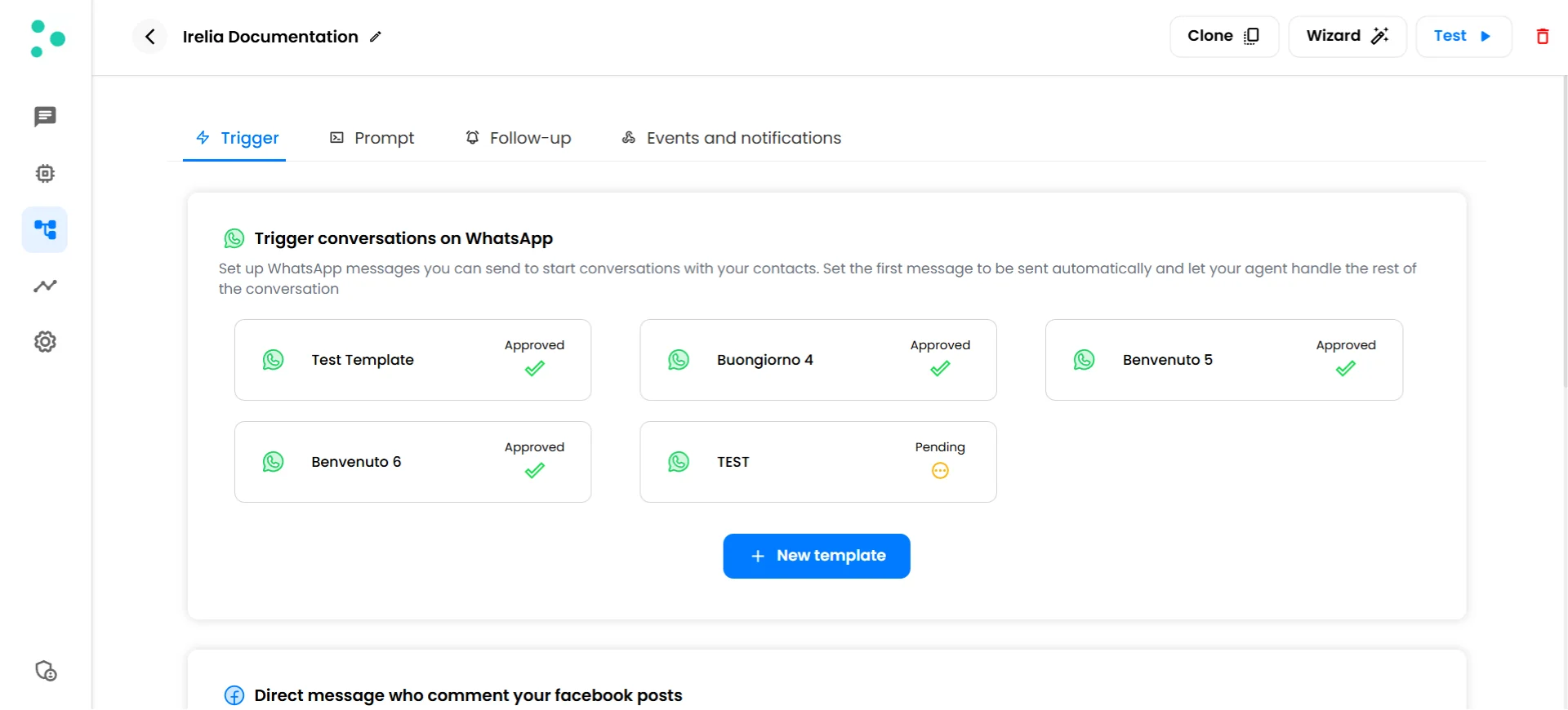 2. The status updates automatically — most templates are approved within **a few minutes**. You don't need to refresh the page.
**Some templates can take longer.** In rare cases, Meta's review can take **24 hours or more**. If you're in a hurry, you can create another template with a small tweak to the content and submit that one instead — it may go through faster.
The status will change to one of two results:
| Status | What It Means | What to Do |
| :------------- | :--------------------------------------------------- | :------------------------------------------------------------------------------------------------------------------------------------------- |
| ✅ **Approved** | Meta has approved your template — it's ready to send | Set up your [sending method](/Guide-eng/How-to-Start-Conversations-with-Irelia) or [follow-up sequence](/Guide-eng/How-to-Set-Up-Follow-ups) |
| ❌ **Rejected** | Meta found an issue with your template | Review the [common rejection reasons](#how-to-avoid-your-template-getting-rejected) below, fix the issue, and create a new template |
**Congratulations!** Once your template is approved, you've completed the creation process. The next step depends on where you created it — read the "What's Next" section below.
## What's Next — After Approval
### Templates created in the Trigger tab
Once a template in the Trigger tab is approved, clicking on it opens the **"Set up the sending of the WhatsApp template"** panel. This is where you choose *how* to send the template to your contacts.
2. The status updates automatically — most templates are approved within **a few minutes**. You don't need to refresh the page.
**Some templates can take longer.** In rare cases, Meta's review can take **24 hours or more**. If you're in a hurry, you can create another template with a small tweak to the content and submit that one instead — it may go through faster.
The status will change to one of two results:
| Status | What It Means | What to Do |
| :------------- | :--------------------------------------------------- | :------------------------------------------------------------------------------------------------------------------------------------------- |
| ✅ **Approved** | Meta has approved your template — it's ready to send | Set up your [sending method](/Guide-eng/How-to-Start-Conversations-with-Irelia) or [follow-up sequence](/Guide-eng/How-to-Set-Up-Follow-ups) |
| ❌ **Rejected** | Meta found an issue with your template | Review the [common rejection reasons](#how-to-avoid-your-template-getting-rejected) below, fix the issue, and create a new template |
**Congratulations!** Once your template is approved, you've completed the creation process. The next step depends on where you created it — read the "What's Next" section below.
## What's Next — After Approval
### Templates created in the Trigger tab
Once a template in the Trigger tab is approved, clicking on it opens the **"Set up the sending of the WhatsApp template"** panel. This is where you choose *how* to send the template to your contacts.
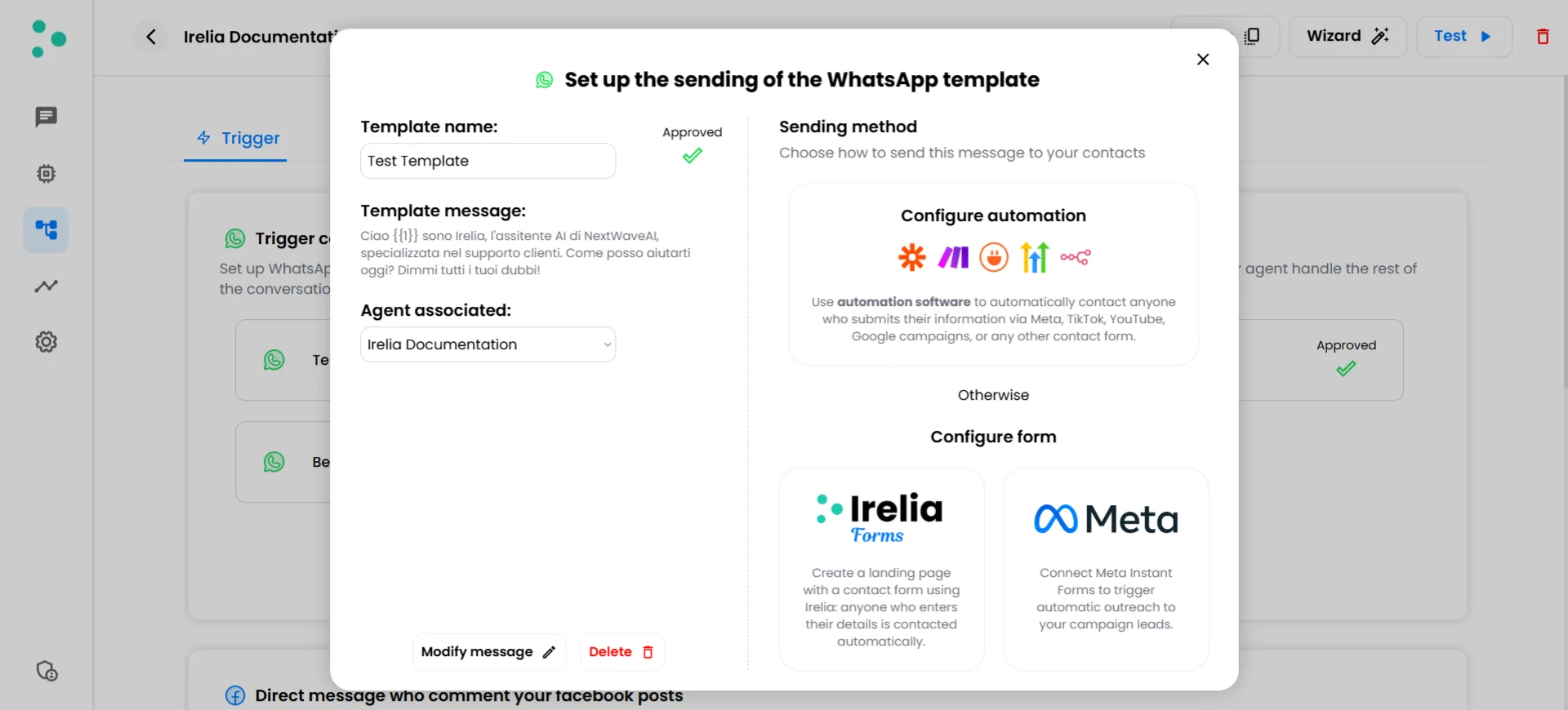 You have three sending methods available:
| Sending Method | Best For | Setup Guide |
| :--------------------- | :----------------------------------------------------------------- | :-------------------------------------------------------------------------------------------------------------- |
| **Irelia Forms** | Landing pages, email campaigns, Google Ads, QR codes, website CTAs | [How to Use Irelia Forms](/Guide-eng/How-to-Use-Irelia-Forms-to-Capture-Leads-and-Start-WhatsApp-Conversations) |
| **Meta Instant Forms** | Facebook and Instagram ad campaigns (Lead Ads) | [How to Connect Meta Instant Forms](/Guide-eng/Connect-Meta-Instant-Forms) |
| **API / Automation** | Zapier, Make.com, Go High Level, CRM events, custom workflows | [Send WhatsApp Templates via API](/Guide-eng/Send-WhatsApp-Templates-Automatically) |
**You can use multiple methods simultaneously.** Irelia Forms, Meta Instant Forms, and API automations all work independently — enable as many as you need.
### Templates created in the Follow-up tab
Once a follow-up template is approved, it becomes available in the follow-up sequence builder. You can add it to your automatic follow-up sequence, where it will be sent to contacts who stop replying — at the timing intervals you define.
See [How to Set Up Follow-Up Sequences](/Guide-eng/How-to-Set-Up-Follow-ups) for the full configuration guide.
### Changing the associated agent
At any time, you can change which agent owns a template. Click on the template to open its configuration panel, then use the **"Agent associated"** dropdown to select a different agent. This is useful when you want to reuse a template across different agent configurations.
## How to Avoid Your Template Getting Rejected
Meta reviews every template for compliance with their messaging policies. Most rejections come from a few common issues:
* **Typos and grammar mistakes** — Proofread your message carefully before submitting. Obvious errors signal low quality to Meta's review process.
* **Variable at the very start** — Starting your message with a placeholder (like `{{1}}, how are you?`) without any text before it increases rejection risk. Always open with a word or greeting first.
* **Promotional or spammy language** — Messages that read like marketing blasts rather than conversations are more likely to be rejected. Keep the tone natural and conversational.
* **Prohibited content** — Templates promoting restricted products, containing misleading claims, or using URL shorteners (like bit.ly) will be rejected. See Meta's [template guidelines](https://developers.facebook.com/docs/whatsapp/message-templates/guidelines/) for the full list.
If your template is rejected, don't worry — you can create a new one with the corrected content and submit it again. There's no penalty for rejections.
**Want to write templates that get approved *and* get replies?** Our [WhatsApp Template Best Practices guide](/Guide-eng/WhatsApp-Template-Best-Practices) covers proven frameworks for both conversation starters and follow-up messages.
## Editing and Deleting Templates
### Editing a template
You can modify a template's message content after it's been created. Click on the template and use the **"Modify message"** button to make changes.
**You can't edit a template while it's in "Pending" status.** Wait for Meta to approve or reject it first. Rejected templates can be edited and resubmitted. Approved templates can be edited too — but with the limits described below.
**Editing limits:** You can edit a template **once every 24 hours**. If you try to edit more frequently, your change will be **queued** and processed automatically at the first available moment after the 24-hour waiting period ends.
**Important side effect:** When you edit a template, it will be **removed from any active follow-up sequence** it's part of and **disconnected from any Meta Instant Forms integration**. You'll need to re-add it to your follow-up sequence or reconnect it to your form after the edit is processed and re-approved.
### Deleting a template
To delete a template, click on it and use the **"Delete"** button. Deleted templates are permanently removed and can't be recovered. If the template was part of a follow-up sequence, it will be automatically removed from that sequence.
## ✅ Quick Checklist
* Chose the correct tab — **Trigger** for conversation starters, **Follow-up** for re-engagement
* Template name is descriptive and unique
* Message content is written and finalized
* Dynamic variables (if used) start from `{{1}}` and are sequential
* Realistic example values provided for all variables
* Template submitted via **"Send to Meta for approval"**
* Template status changed to **"Approved"** (if rejected, review and resubmit)
* Sending method configured (Trigger tab) *or* follow-up sequence updated (Follow-up tab)
✅ **All checked? Your template is live and ready to go!**
## 🛠️ Troubleshooting & FAQs
**What this means:** Irelia detected a conflict with an existing template.
**How to fix it:**
**Step 1: Check for duplicate names**
* Each template must have a unique name. If another template already uses the same name, rename yours to something different
**Step 2: Check for duplicate content**
* Two templates can't have the exact same message body. If you're creating a variation, change enough of the content to make it distinct
**What this means:** Meta's review is taking longer than usual.
**How to fix it:**
**Step 1: Wait — the status updates automatically**
* Most templates are approved within a few minutes, but Meta's review can occasionally take **24 hours or more**. You don't need to refresh the page — the status updates on its own
**Step 2: Create an alternative template**
* If you need to move forward and can't wait, create a new template with a small tweak to the content (even a minor wording change) and submit it. The new one may go through faster
**Step 3: Check your Meta Business Manager**
* In rare cases, issues with your Meta Business Manager (unverified business, policy violations on other products) can delay template reviews. Make sure your Business Manager is in good standing
**What this means:** Meta found an issue with the template content or structure.
**How to fix it:**
**Step 1: Review the common rejection reasons**
* Check the [rejection reasons list](#how-to-avoid-your-template-getting-rejected) above and identify which one applies
**Step 2: Edit and resubmit**
* Click on the rejected template and use the **"Modify message"** button to fix the issue. Once you've corrected the content, submit it again for approval. You can also create a brand-new template if you prefer to start fresh
The creation process is identical — the difference is in how and where you can use them:
| Feature | Trigger Template | Follow-up Template |
| :------------------------------ | :----------------------------------------------- | :-------------------------------- |
| **Purpose** | Start new conversations (outbound) | Re-engage silent contacts |
| **Created in** | Trigger tab | Follow-up tab |
| **Sending methods** | Irelia Forms, Meta Instant Forms, API/automation | Automatic follow-up sequence only |
| **Manual send from chat panel** | ✅ Yes (when 24h window expires) | ✅ Yes (when 24h window expires) |
No — a template lives in either the Trigger tab or the Follow-up tab, and that determines how it can be sent. If you need the same message for both purposes, create it in both tabs as two separate templates.
There's no Irelia-imposed limit on the number of templates you can create. However, Meta may have limits based on your WhatsApp Business Account tier. In practice, you can create as many as your campaigns require.
Most templates are reviewed and approved within **a few minutes**. Occasionally, it can take **24 hours or more**. The status updates automatically — you don't need to refresh the page. If you can't wait, create another template with a small tweak to the content and submit it — it may go through faster. If your templates are consistently stuck in pending, check your Meta Business Manager for any account-level issues.
Yes, but with restrictions. You can edit a template **once every 24 hours**. Editing a template removes it from any active follow-up sequence and disconnects it from any Meta Instant Forms integration. The edited template goes through Meta's approval process again.
The template is **automatically removed** from the sequence when you edit it. After the edit is approved, you'll need to re-add it to your follow-up sequence manually.
No — the tab where a template is created determines its use case permanently. If you need the same message in the other tab, create a new template there with the same content.
Every template is linked to an AI agent — the agent that will handle the conversation. You can change the associated agent at any time by clicking on the template and using the **"Agent associated"** dropdown — no need to recreate the template.
This also means that sending a template associated with a different agent to an existing lead will **transfer that lead to the new agent's conversation flow**. For example, if a lead is currently talking with Agent X, and you send them a template that belongs to Agent Y, that lead is now handled by Agent Y. See [How to Start Conversations with Irelia](/Guide-eng/How-to-Start-Conversations-with-Irelia) for more on how agent routing works across all sending methods.
**Irelia.ai Support:**
* Contact support in the WhatsApp priority support group or send an email to [info@irelia.ai](mailto:info@irelia.ai)
* Include: a screenshot of your template creation popup, the template name, the error or status you're seeing, and what you expected vs. what happened
You have three sending methods available:
| Sending Method | Best For | Setup Guide |
| :--------------------- | :----------------------------------------------------------------- | :-------------------------------------------------------------------------------------------------------------- |
| **Irelia Forms** | Landing pages, email campaigns, Google Ads, QR codes, website CTAs | [How to Use Irelia Forms](/Guide-eng/How-to-Use-Irelia-Forms-to-Capture-Leads-and-Start-WhatsApp-Conversations) |
| **Meta Instant Forms** | Facebook and Instagram ad campaigns (Lead Ads) | [How to Connect Meta Instant Forms](/Guide-eng/Connect-Meta-Instant-Forms) |
| **API / Automation** | Zapier, Make.com, Go High Level, CRM events, custom workflows | [Send WhatsApp Templates via API](/Guide-eng/Send-WhatsApp-Templates-Automatically) |
**You can use multiple methods simultaneously.** Irelia Forms, Meta Instant Forms, and API automations all work independently — enable as many as you need.
### Templates created in the Follow-up tab
Once a follow-up template is approved, it becomes available in the follow-up sequence builder. You can add it to your automatic follow-up sequence, where it will be sent to contacts who stop replying — at the timing intervals you define.
See [How to Set Up Follow-Up Sequences](/Guide-eng/How-to-Set-Up-Follow-ups) for the full configuration guide.
### Changing the associated agent
At any time, you can change which agent owns a template. Click on the template to open its configuration panel, then use the **"Agent associated"** dropdown to select a different agent. This is useful when you want to reuse a template across different agent configurations.
## How to Avoid Your Template Getting Rejected
Meta reviews every template for compliance with their messaging policies. Most rejections come from a few common issues:
* **Typos and grammar mistakes** — Proofread your message carefully before submitting. Obvious errors signal low quality to Meta's review process.
* **Variable at the very start** — Starting your message with a placeholder (like `{{1}}, how are you?`) without any text before it increases rejection risk. Always open with a word or greeting first.
* **Promotional or spammy language** — Messages that read like marketing blasts rather than conversations are more likely to be rejected. Keep the tone natural and conversational.
* **Prohibited content** — Templates promoting restricted products, containing misleading claims, or using URL shorteners (like bit.ly) will be rejected. See Meta's [template guidelines](https://developers.facebook.com/docs/whatsapp/message-templates/guidelines/) for the full list.
If your template is rejected, don't worry — you can create a new one with the corrected content and submit it again. There's no penalty for rejections.
**Want to write templates that get approved *and* get replies?** Our [WhatsApp Template Best Practices guide](/Guide-eng/WhatsApp-Template-Best-Practices) covers proven frameworks for both conversation starters and follow-up messages.
## Editing and Deleting Templates
### Editing a template
You can modify a template's message content after it's been created. Click on the template and use the **"Modify message"** button to make changes.
**You can't edit a template while it's in "Pending" status.** Wait for Meta to approve or reject it first. Rejected templates can be edited and resubmitted. Approved templates can be edited too — but with the limits described below.
**Editing limits:** You can edit a template **once every 24 hours**. If you try to edit more frequently, your change will be **queued** and processed automatically at the first available moment after the 24-hour waiting period ends.
**Important side effect:** When you edit a template, it will be **removed from any active follow-up sequence** it's part of and **disconnected from any Meta Instant Forms integration**. You'll need to re-add it to your follow-up sequence or reconnect it to your form after the edit is processed and re-approved.
### Deleting a template
To delete a template, click on it and use the **"Delete"** button. Deleted templates are permanently removed and can't be recovered. If the template was part of a follow-up sequence, it will be automatically removed from that sequence.
## ✅ Quick Checklist
* Chose the correct tab — **Trigger** for conversation starters, **Follow-up** for re-engagement
* Template name is descriptive and unique
* Message content is written and finalized
* Dynamic variables (if used) start from `{{1}}` and are sequential
* Realistic example values provided for all variables
* Template submitted via **"Send to Meta for approval"**
* Template status changed to **"Approved"** (if rejected, review and resubmit)
* Sending method configured (Trigger tab) *or* follow-up sequence updated (Follow-up tab)
✅ **All checked? Your template is live and ready to go!**
## 🛠️ Troubleshooting & FAQs
**What this means:** Irelia detected a conflict with an existing template.
**How to fix it:**
**Step 1: Check for duplicate names**
* Each template must have a unique name. If another template already uses the same name, rename yours to something different
**Step 2: Check for duplicate content**
* Two templates can't have the exact same message body. If you're creating a variation, change enough of the content to make it distinct
**What this means:** Meta's review is taking longer than usual.
**How to fix it:**
**Step 1: Wait — the status updates automatically**
* Most templates are approved within a few minutes, but Meta's review can occasionally take **24 hours or more**. You don't need to refresh the page — the status updates on its own
**Step 2: Create an alternative template**
* If you need to move forward and can't wait, create a new template with a small tweak to the content (even a minor wording change) and submit it. The new one may go through faster
**Step 3: Check your Meta Business Manager**
* In rare cases, issues with your Meta Business Manager (unverified business, policy violations on other products) can delay template reviews. Make sure your Business Manager is in good standing
**What this means:** Meta found an issue with the template content or structure.
**How to fix it:**
**Step 1: Review the common rejection reasons**
* Check the [rejection reasons list](#how-to-avoid-your-template-getting-rejected) above and identify which one applies
**Step 2: Edit and resubmit**
* Click on the rejected template and use the **"Modify message"** button to fix the issue. Once you've corrected the content, submit it again for approval. You can also create a brand-new template if you prefer to start fresh
The creation process is identical — the difference is in how and where you can use them:
| Feature | Trigger Template | Follow-up Template |
| :------------------------------ | :----------------------------------------------- | :-------------------------------- |
| **Purpose** | Start new conversations (outbound) | Re-engage silent contacts |
| **Created in** | Trigger tab | Follow-up tab |
| **Sending methods** | Irelia Forms, Meta Instant Forms, API/automation | Automatic follow-up sequence only |
| **Manual send from chat panel** | ✅ Yes (when 24h window expires) | ✅ Yes (when 24h window expires) |
No — a template lives in either the Trigger tab or the Follow-up tab, and that determines how it can be sent. If you need the same message for both purposes, create it in both tabs as two separate templates.
There's no Irelia-imposed limit on the number of templates you can create. However, Meta may have limits based on your WhatsApp Business Account tier. In practice, you can create as many as your campaigns require.
Most templates are reviewed and approved within **a few minutes**. Occasionally, it can take **24 hours or more**. The status updates automatically — you don't need to refresh the page. If you can't wait, create another template with a small tweak to the content and submit it — it may go through faster. If your templates are consistently stuck in pending, check your Meta Business Manager for any account-level issues.
Yes, but with restrictions. You can edit a template **once every 24 hours**. Editing a template removes it from any active follow-up sequence and disconnects it from any Meta Instant Forms integration. The edited template goes through Meta's approval process again.
The template is **automatically removed** from the sequence when you edit it. After the edit is approved, you'll need to re-add it to your follow-up sequence manually.
No — the tab where a template is created determines its use case permanently. If you need the same message in the other tab, create a new template there with the same content.
Every template is linked to an AI agent — the agent that will handle the conversation. You can change the associated agent at any time by clicking on the template and using the **"Agent associated"** dropdown — no need to recreate the template.
This also means that sending a template associated with a different agent to an existing lead will **transfer that lead to the new agent's conversation flow**. For example, if a lead is currently talking with Agent X, and you send them a template that belongs to Agent Y, that lead is now handled by Agent Y. See [How to Start Conversations with Irelia](/Guide-eng/How-to-Start-Conversations-with-Irelia) for more on how agent routing works across all sending methods.
**Irelia.ai Support:**
* Contact support in the WhatsApp priority support group or send an email to [info@irelia.ai](mailto:info@irelia.ai)
* Include: a screenshot of your template creation popup, the template name, the error or status you're seeing, and what you expected vs. what happened