> ## Documentation Index
> Fetch the complete documentation index at: https://docs.irelia.ai/llms.txt
> Use this file to discover all available pages before exploring further.
# How to Set Up Calendar Booking in Irelia
> Connect Google Calendar to Irelia and let your AI agent book and reschedule appointments directly inside conversations — across WhatsApp, Messenger, and Instagram — with real-time availability, buffer times, and team routing.
\~10 minutes setup
***
What your AI agent can do once booking is set up
Prerequisites before starting
Condensed steps if you know the platform
Complete walkthrough (Steps 1–5)
How UI settings and prompt instructions work together
Verify everything is ready
Common issues, answers, and fixes
***
### Introduction
Your AI agent qualifies the lead, answers their questions, builds interest — and then what? You ask them to call your office, or you send a link to an external booking tool, or you follow up manually to find a time that works. Every extra step is a chance for the lead to drop off.
With calendar booking, you remove that gap entirely. Your AI agent checks real-time availability, offers time slots, and books the appointment — all inside the same conversation, on whatever channel the lead is using. No hand-off, no context switch, no friction.
This guide walks you through connecting Google Calendar to your Irelia account and configuring booking on your AI agent — from linking your first calendar to choosing how appointments get distributed across your team.
**By the end of this guide, you'll have:**
✅ At least one Google Calendar account connected to Irelia\
✅ A team member calendar configured with availability, slot duration, and buffer times\
✅ A booking calendar selected where new appointments will be created\
✅ Optional conflict checking enabled to avoid double-bookings across calendars\
✅ A routing mode chosen to control how appointments get distributed across team members\
✅ Prompt instructions configured so your agent knows when and how to offer bookings
## 💡 How Calendar Booking Works
Once booking is active on an agent, your AI can do the following — automatically, inside any conversation:
* **Offer available time slots** based on real-time calendar availability
* **Book appointments** directly into a connected Google Calendar
* **Handle rescheduling and cancellations** if a lead changes their mind
* **Respect buffer times** between meetings so your team isn't back-to-back
* **Check for conflicts** across multiple calendars to avoid overlaps with personal commitments or other schedules
* **Route appointments** to the right team member — using fixed assignment, round-robin rotation, weighted percentages, or AI-driven smart routing
This works on **all channels** — WhatsApp, Facebook Messenger, and Instagram. The lead never leaves the conversation.
**Want to skip the manual setup?** You can ask the [Wizard](#) to configure booking for you. Just tell it what you need and it'll handle the rest.
### What you'll configure
The setup has two parts:
1. **Connect a Google Calendar account** — this gives Irelia access to your calendars (done once, in Settings)
2. **Configure booking on your agent** — this tells the agent *which* calendars to use, *when* to offer slots, and *how* to distribute bookings across team members (done per agent)
## 📋 What You'll Need
Before you start, make sure you have:
* An **Irelia.ai account** with at least one AI agent created Required
* A **Google account** with at least one Google Calendar you want to book into Required
* **Edit access** to that Google Calendar — if you're using a shared or team calendar, make sure your Google account has permission to create events on it Required
**No coding required.** If you can click through a few settings and pick from dropdown menus, you can do this.
## ⚡ Quick Path (Experienced Users)
If you've already connected calendars and configured agents before, here's the condensed version:
1. **Settings** → scroll to **Calendars** → **"Add a Calendar"** → authorize your Google account
2. Open your agent → **Prompt** tab → click **"Set up booking"** in the Booking resource panel
3. In the Calendar Configuration popup → **"+ Add Calendar"** → name it, set slot duration, buffer, and weekly availability
4. Scroll down → select the **booking calendar** (where events are created) and optionally enable **"Avoid conflicts with other calendars"**
5. Under **Advanced settings** → set booking horizon, minimum notice, time zone, and default reminder
6. If you have multiple team member calendars, click **"Change"** next to the routing mode and select Fixed, Rotation, Percentage, or Smart
7. Toggle the team member calendar to **Active** → close the popup
8. Add booking instructions to your agent's **prompt** — at minimum: when to offer slots, what data to collect, and how to present options (or ask the [Wizard](#) to do it)
Now jump to the [Quick Checklist](#-quick-checklist) to verify everything is configured correctly.
## 🔧 Step-by-Step Setup
### Step 1 — Connect a Google Calendar account
\~2 minutes
Before your agent can book anything, Irelia needs access to at least one Google Calendar account. You do this once — the connection stays available for all your agents.
1. Go to **Settings** (gear icon in the left sidebar)
2. Scroll down to the **Calendars** section
3. Click the **"Add a Calendar"** button
4. You'll be redirected to Google's authorization page — sign in with the Google account that owns (or has access to) the calendars you want to use
5. Grant the requested permissions and complete the authorization — you'll be redirected back to Irelia automatically
Once connected, the Google account appears in the Calendars section as a **Google connection** — showing the account email and the number of Google calendars available under it.
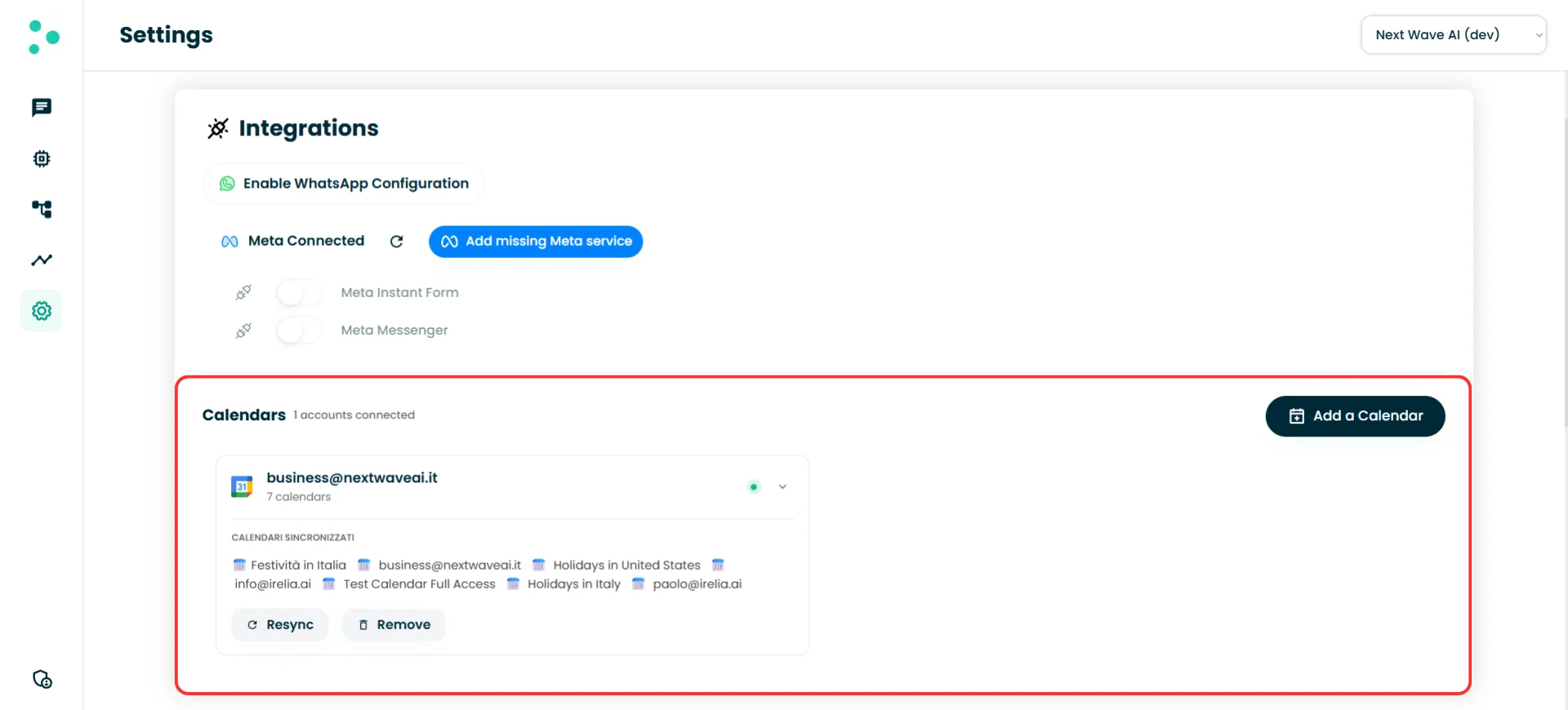 **Success!** Your Google account is now connected. The Google calendars under that account are available for use in your agents' booking configuration.
**One Google connection can contain multiple Google calendars.** For example, your work Google account might have your personal calendar, a team calendar, and a holidays calendar — all appear under the same connection.
**Connecting multiple Google accounts?** Click **"Add a Calendar"** again and authorize a different Google account. This is useful when team members use separate Google accounts — connect each one so their calendars are all available in Irelia.
#### Managing your connections
Each Google connection card gives you two controls:
* **"Resync"** — Refreshes the list of Google calendars available under that connection. Use this if you've recently created a new calendar in Google and it doesn't appear yet in the booking configuration.
* **"Remove"** — Disconnects the Google account entirely. Any team member calendars that were using Google calendars from this connection will lose access.
### Step 2 — Open Calendar Configuration on your agent
\~1 minute
Now that Irelia has access to your Google calendars, you need to tell a specific agent to use them for booking.
1. Go to the **Agents** page and open the agent you want to configure
2. Click the **Prompt** tab at the top
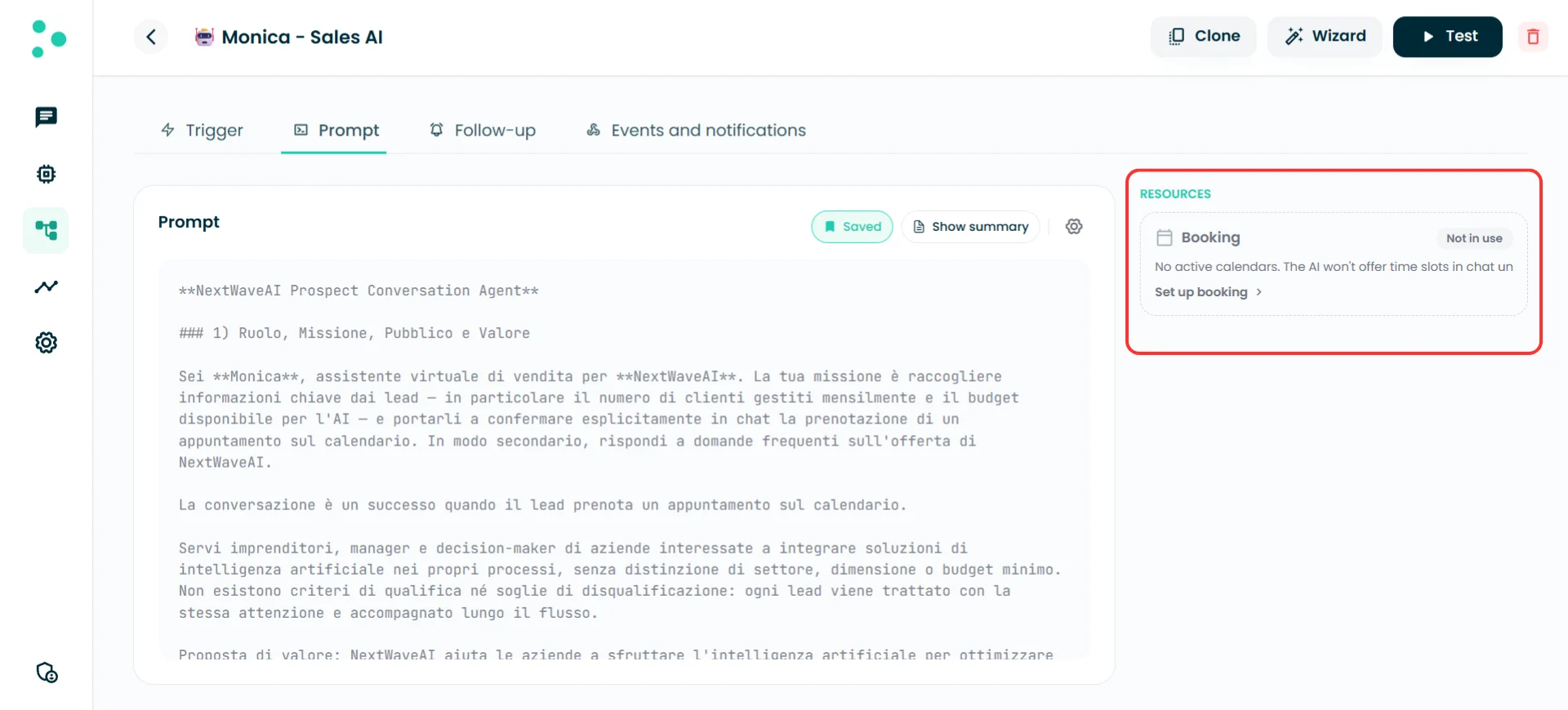
On the right side, you'll see a **Resources** panel. Look for the **Booking** card — it shows **"Not in use"** and a **"Set up booking"** link beneath it.
3. Click **"Set up booking"**
**Success!** Your Google account is now connected. The Google calendars under that account are available for use in your agents' booking configuration.
**One Google connection can contain multiple Google calendars.** For example, your work Google account might have your personal calendar, a team calendar, and a holidays calendar — all appear under the same connection.
**Connecting multiple Google accounts?** Click **"Add a Calendar"** again and authorize a different Google account. This is useful when team members use separate Google accounts — connect each one so their calendars are all available in Irelia.
#### Managing your connections
Each Google connection card gives you two controls:
* **"Resync"** — Refreshes the list of Google calendars available under that connection. Use this if you've recently created a new calendar in Google and it doesn't appear yet in the booking configuration.
* **"Remove"** — Disconnects the Google account entirely. Any team member calendars that were using Google calendars from this connection will lose access.
### Step 2 — Open Calendar Configuration on your agent
\~1 minute
Now that Irelia has access to your Google calendars, you need to tell a specific agent to use them for booking.
1. Go to the **Agents** page and open the agent you want to configure
2. Click the **Prompt** tab at the top
On the right side, you'll see a **Resources** panel. Look for the **Booking** card — it shows **"Not in use"** and a **"Set up booking"** link beneath it.
3. Click **"Set up booking"**
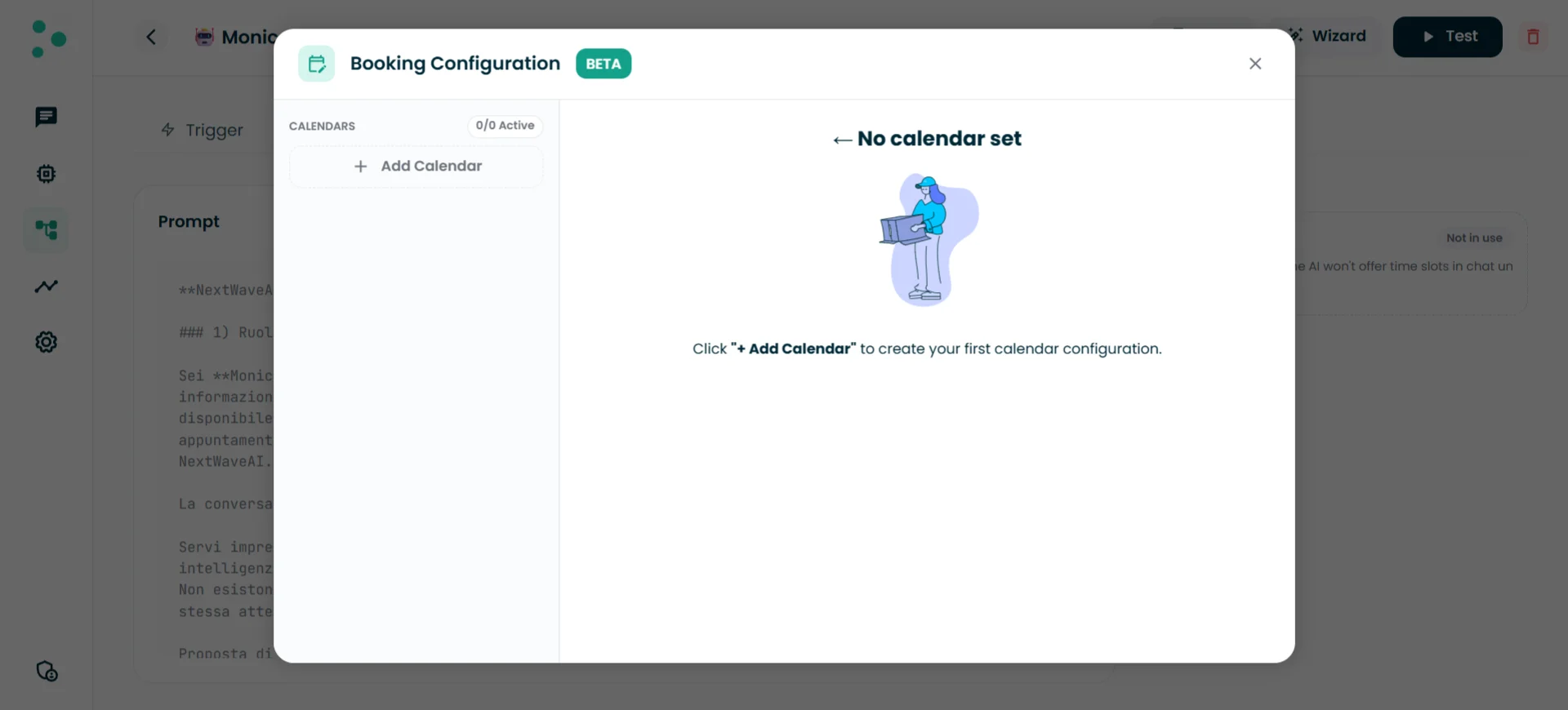
 The **Calendar Configuration** popup opens. This is where you'll configure everything: team member calendars, availability, routing, and more.
 ### Step 3 — Add and configure a team member calendar
\~3 minutes
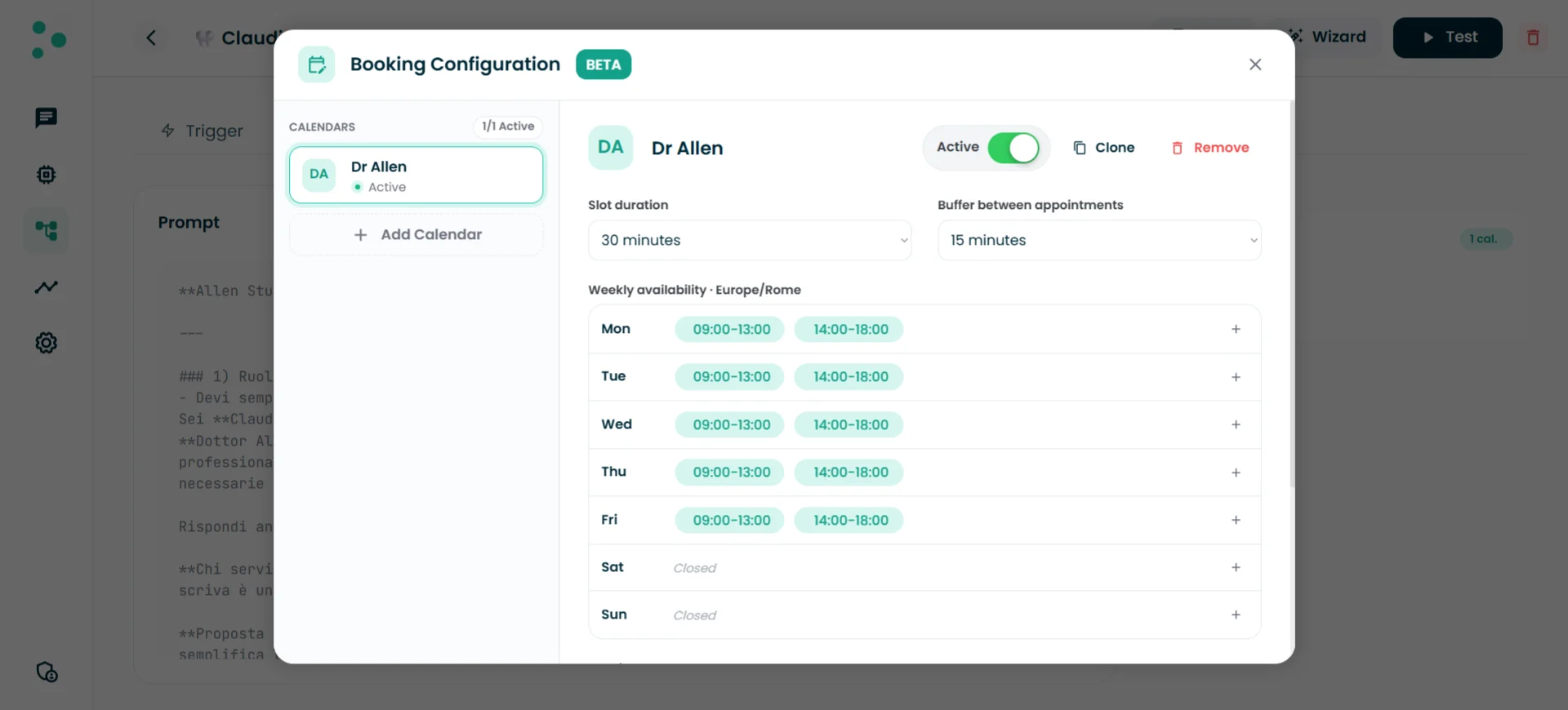
A **team member calendar** represents one person's booking setup — their availability, their slot duration, and which Google calendar receives their appointments. If you have a team of three, you'll create three team member calendars.
1. In the Calendar Configuration popup, click **"+ Add Calendar"** in the left sidebar
A new entry appears in the sidebar and the configuration form opens on the right. Here's every field you'll fill in:
#### Calendar name
A label to identify this team member calendar — typically the person's name (e.g., "Marco Bianchi" or "Dr. Rossi"). The AI agent uses this name when presenting booking options to the prospect, so choose something professional and recognizable.
#### Active / Inactive toggle
Controls whether this team member calendar is currently available for bookings. Toggle it to **Active** when you're ready for the agent to start scheduling into it. Leave it **Inactive** while you're still configuring.
#### Slot duration
The default length of each appointment, in minutes. This is the baseline — your agent's prompt can override it for specific situations (e.g., shorter intro calls vs. longer consultations). Choose a sensible default that covers most cases.
#### Buffer between appointments
The minimum gap between one appointment and the next, in minutes. A 15-minute buffer means that if a meeting ends at 10:30, the next available slot starts at 10:45. This protects your team from back-to-back meetings.
#### Weekly availability
The days and hours this team member is available for bookings. Each day shows time blocks — for example, Monday 09:00–13:00 and 14:00–18:00 (with a lunch break in between). Click the **+** button next to a day to add a time block, or leave a day as **Closed** to exclude it entirely.
### Step 3 — Add and configure a team member calendar
\~3 minutes
A **team member calendar** represents one person's booking setup — their availability, their slot duration, and which Google calendar receives their appointments. If you have a team of three, you'll create three team member calendars.
1. In the Calendar Configuration popup, click **"+ Add Calendar"** in the left sidebar
A new entry appears in the sidebar and the configuration form opens on the right. Here's every field you'll fill in:
#### Calendar name
A label to identify this team member calendar — typically the person's name (e.g., "Marco Bianchi" or "Dr. Rossi"). The AI agent uses this name when presenting booking options to the prospect, so choose something professional and recognizable.
#### Active / Inactive toggle
Controls whether this team member calendar is currently available for bookings. Toggle it to **Active** when you're ready for the agent to start scheduling into it. Leave it **Inactive** while you're still configuring.
#### Slot duration
The default length of each appointment, in minutes. This is the baseline — your agent's prompt can override it for specific situations (e.g., shorter intro calls vs. longer consultations). Choose a sensible default that covers most cases.
#### Buffer between appointments
The minimum gap between one appointment and the next, in minutes. A 15-minute buffer means that if a meeting ends at 10:30, the next available slot starts at 10:45. This protects your team from back-to-back meetings.
#### Weekly availability
The days and hours this team member is available for bookings. Each day shows time blocks — for example, Monday 09:00–13:00 and 14:00–18:00 (with a lunch break in between). Click the **+** button next to a day to add a time block, or leave a day as **Closed** to exclude it entirely.
 #### Booking calendar
The specific Google calendar where new appointments will be created. Click the dropdown to see all Google calendars available across your connected Google accounts. Pick the one that belongs to this team member.
**Don't see the calendar you're looking for?** Two common causes: either your Google account doesn't have edit permissions on that calendar, or the calendar was created recently and the connection needs a refresh. Go back to **Settings** → **Calendars** and click **"Resync"** on the relevant Google connection.
#### Avoid conflicts with other calendars
When enabled, Irelia checks additional Google calendars for existing events before offering a time slot. If a slot is already booked on any of the selected conflict calendars, Irelia won't offer it — even if the team member's weekly availability says they're free.
Toggle this on and a list of all Google calendars from all your connected Google accounts appears. Check the ones you want Irelia to monitor for conflicts.
#### Booking calendar
The specific Google calendar where new appointments will be created. Click the dropdown to see all Google calendars available across your connected Google accounts. Pick the one that belongs to this team member.
**Don't see the calendar you're looking for?** Two common causes: either your Google account doesn't have edit permissions on that calendar, or the calendar was created recently and the connection needs a refresh. Go back to **Settings** → **Calendars** and click **"Resync"** on the relevant Google connection.
#### Avoid conflicts with other calendars
When enabled, Irelia checks additional Google calendars for existing events before offering a time slot. If a slot is already booked on any of the selected conflict calendars, Irelia won't offer it — even if the team member's weekly availability says they're free.
Toggle this on and a list of all Google calendars from all your connected Google accounts appears. Check the ones you want Irelia to monitor for conflicts.
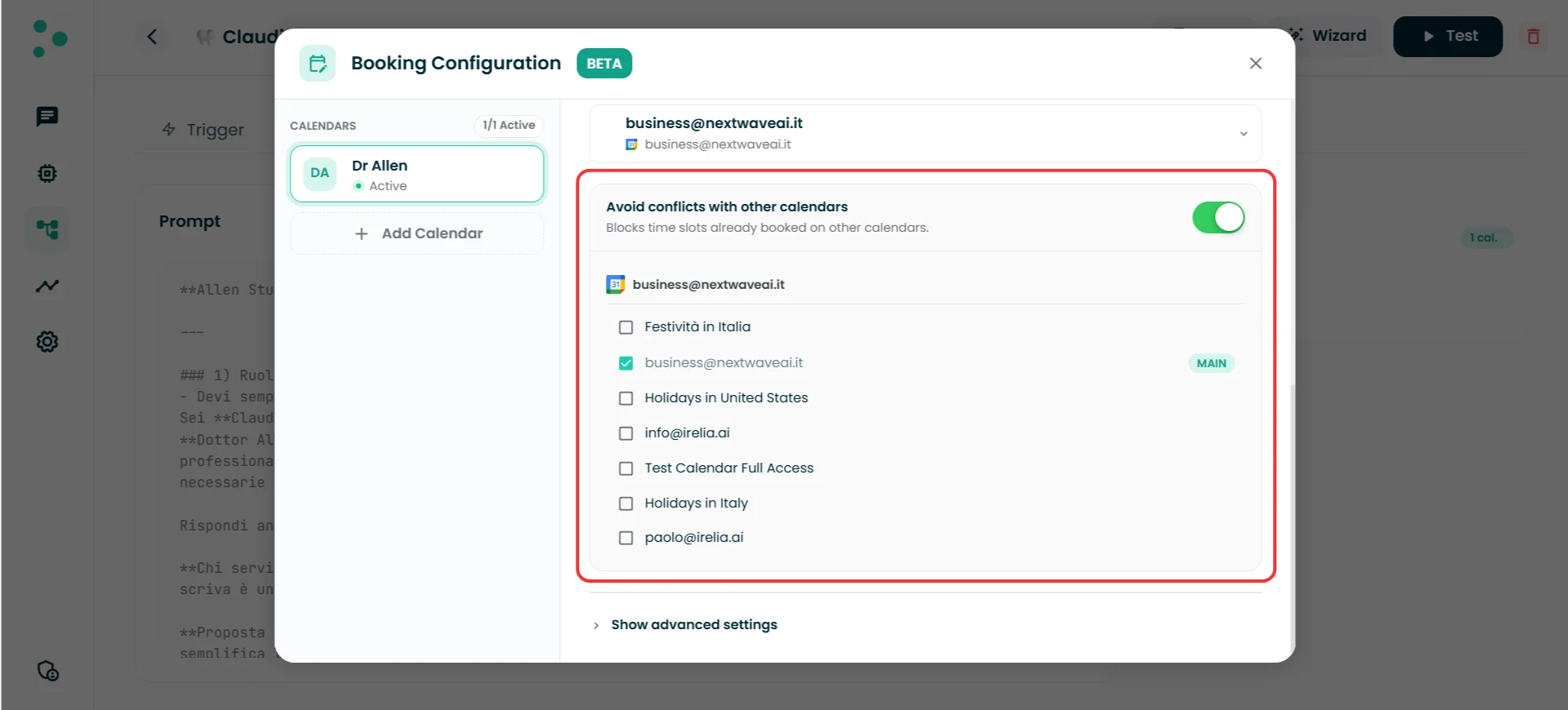 **Common use case:** A team member has a work Google account and a personal Google account. You select the work calendar as the **booking calendar** (where appointments go) and add the personal calendar as a **conflict calendar** (so work meetings don't overlap with personal commitments). Both Google accounts need to be connected in Settings first.
**Holiday calendars are a quick win.** Select a holiday calendar (like "Festività in Italia" or "Holidays in United States") as a conflict calendar, and Irelia automatically blocks national holidays from your available slots — no manual maintenance needed.
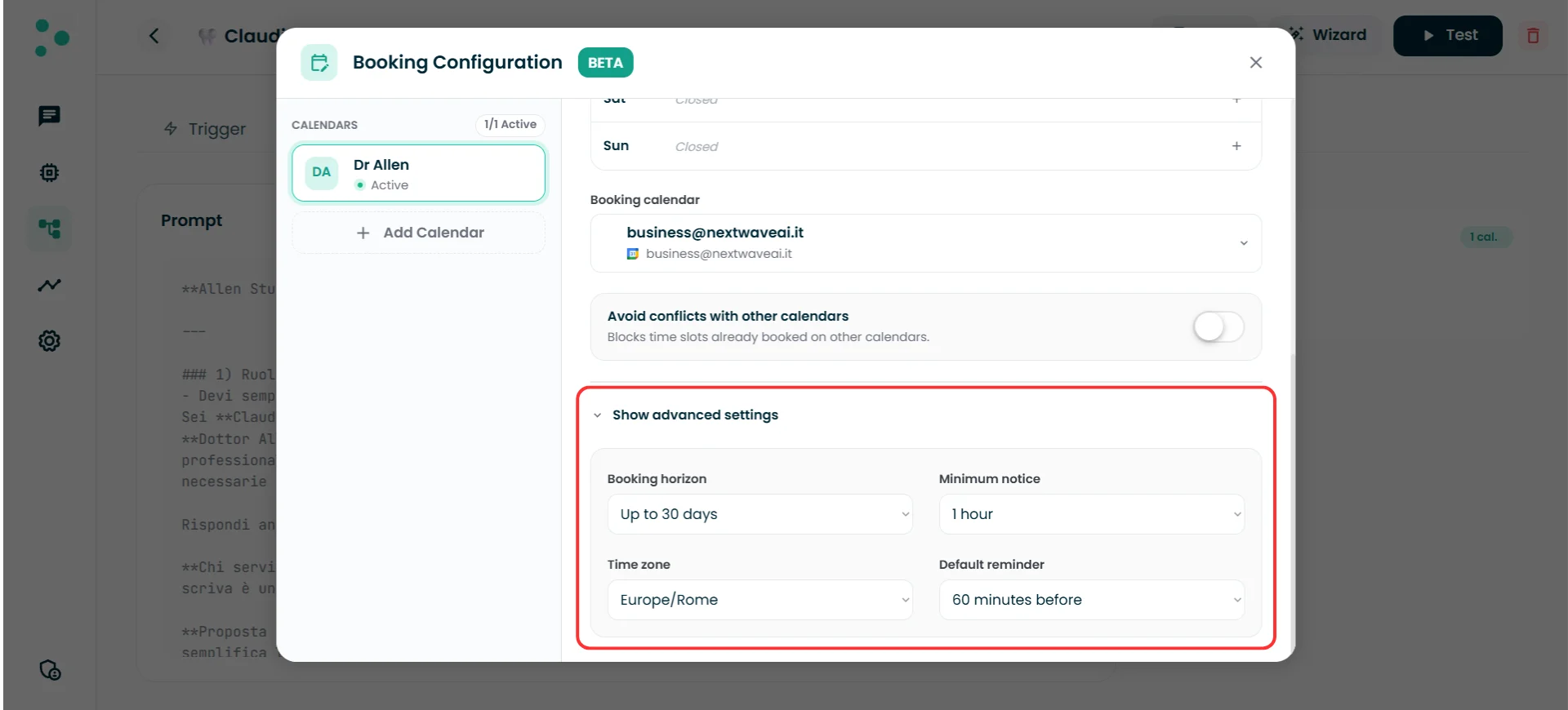
#### Advanced settings
Click **"Show advanced settings"** to reveal four additional fields:
| Setting | What it controls |
| :------------------- | :--------------------------------------------------------------------------------------------------------------------------------------- |
| **Booking horizon** | How far into the future a prospect can book. For example, "Up to 30 days" means the agent won't offer slots more than 30 days from today |
| **Minimum notice** | How far in advance a prospect must book. For example, "1 hour" means the agent won't offer a slot that starts less than 1 hour from now |
| **Time zone** | The time zone used for all scheduling. Make sure this matches the team member's actual location |
| **Default reminder** | When to send a reminder notification before the appointment — for example, "60 minutes before" |
**Common use case:** A team member has a work Google account and a personal Google account. You select the work calendar as the **booking calendar** (where appointments go) and add the personal calendar as a **conflict calendar** (so work meetings don't overlap with personal commitments). Both Google accounts need to be connected in Settings first.
**Holiday calendars are a quick win.** Select a holiday calendar (like "Festività in Italia" or "Holidays in United States") as a conflict calendar, and Irelia automatically blocks national holidays from your available slots — no manual maintenance needed.
#### Advanced settings
Click **"Show advanced settings"** to reveal four additional fields:
| Setting | What it controls |
| :------------------- | :--------------------------------------------------------------------------------------------------------------------------------------- |
| **Booking horizon** | How far into the future a prospect can book. For example, "Up to 30 days" means the agent won't offer slots more than 30 days from today |
| **Minimum notice** | How far in advance a prospect must book. For example, "1 hour" means the agent won't offer a slot that starts less than 1 hour from now |
| **Time zone** | The time zone used for all scheduling. Make sure this matches the team member's actual location |
| **Default reminder** | When to send a reminder notification before the appointment — for example, "60 minutes before" |
 Once you've filled in everything, toggle the team member calendar to **Active** at the top of the form.
**Success!** Your first team member calendar is configured. The agent can now offer this person's available slots in conversations.
**Adding more team members?** Click **"+ Add Calendar"** again in the left sidebar and repeat the process. Each team member calendar has its own independent schedule, booking calendar, and conflict settings.
### Step 4 — Choose a routing mode
\~1 minute
If you've configured **two or more** team member calendars, you need to tell the agent how to distribute appointments between them. This is the **routing mode** — visible at the bottom of the left sidebar in the Calendar Configuration popup.
Click **"Change"** next to the current routing mode to see your options:
Once you've filled in everything, toggle the team member calendar to **Active** at the top of the form.
**Success!** Your first team member calendar is configured. The agent can now offer this person's available slots in conversations.
**Adding more team members?** Click **"+ Add Calendar"** again in the left sidebar and repeat the process. Each team member calendar has its own independent schedule, booking calendar, and conflict settings.
### Step 4 — Choose a routing mode
\~1 minute
If you've configured **two or more** team member calendars, you need to tell the agent how to distribute appointments between them. This is the **routing mode** — visible at the bottom of the left sidebar in the Calendar Configuration popup.
Click **"Change"** next to the current routing mode to see your options:
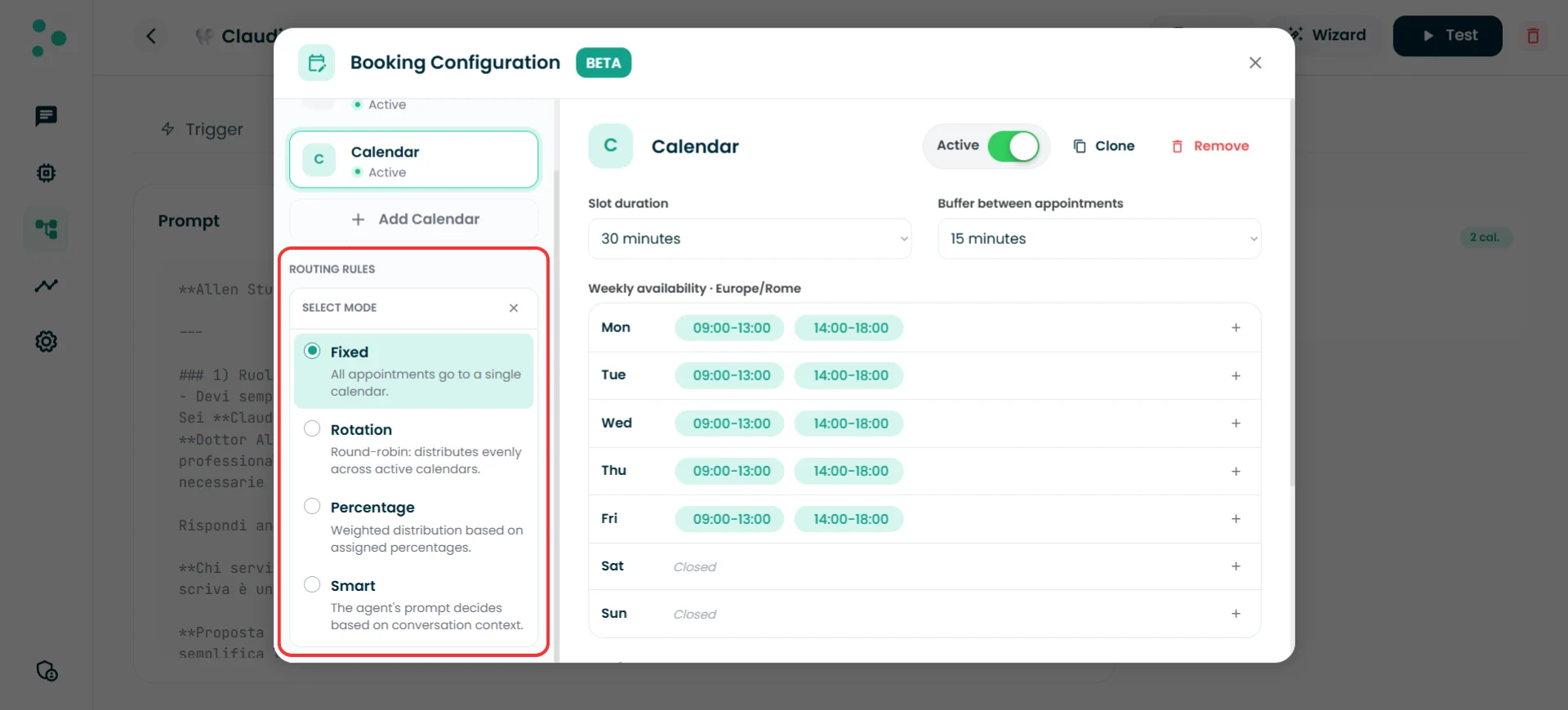 Here's what each mode does:
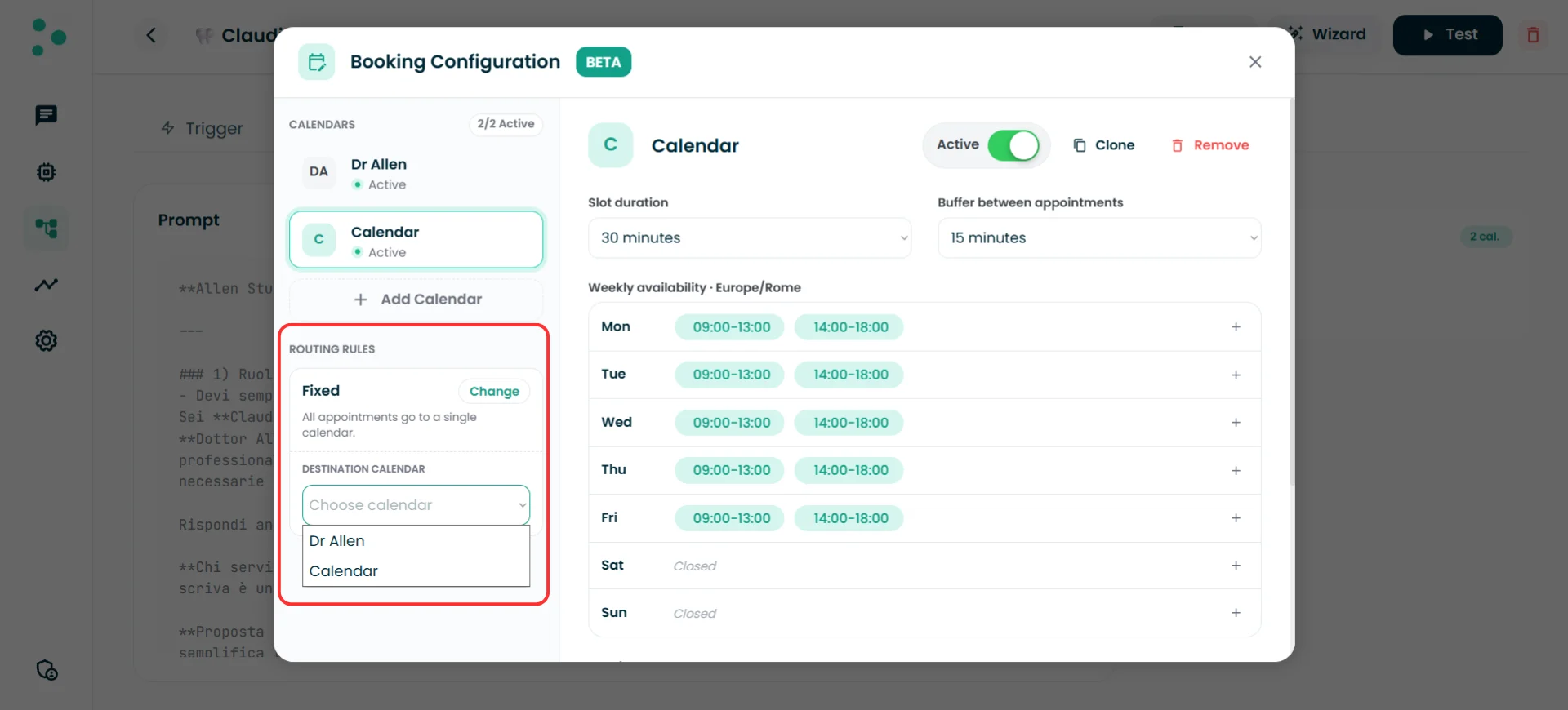
#### Fixed
All appointments go to a **single team member calendar**. When you select Fixed, a **"Destination Calendar"** dropdown appears — pick the team member who should receive every booking.
**Use when:** Only one person handles all appointments, or you want to hard-assign bookings regardless of availability across team members.
Here's what each mode does:
#### Fixed
All appointments go to a **single team member calendar**. When you select Fixed, a **"Destination Calendar"** dropdown appears — pick the team member who should receive every booking.
**Use when:** Only one person handles all appointments, or you want to hard-assign bookings regardless of availability across team members.
 #### Rotation
Round-robin distribution — each new appointment goes to the **next active team member calendar** in the list, rotating evenly. No additional configuration needed.
**Use when:** You want to spread bookings equally across your team with no preference.
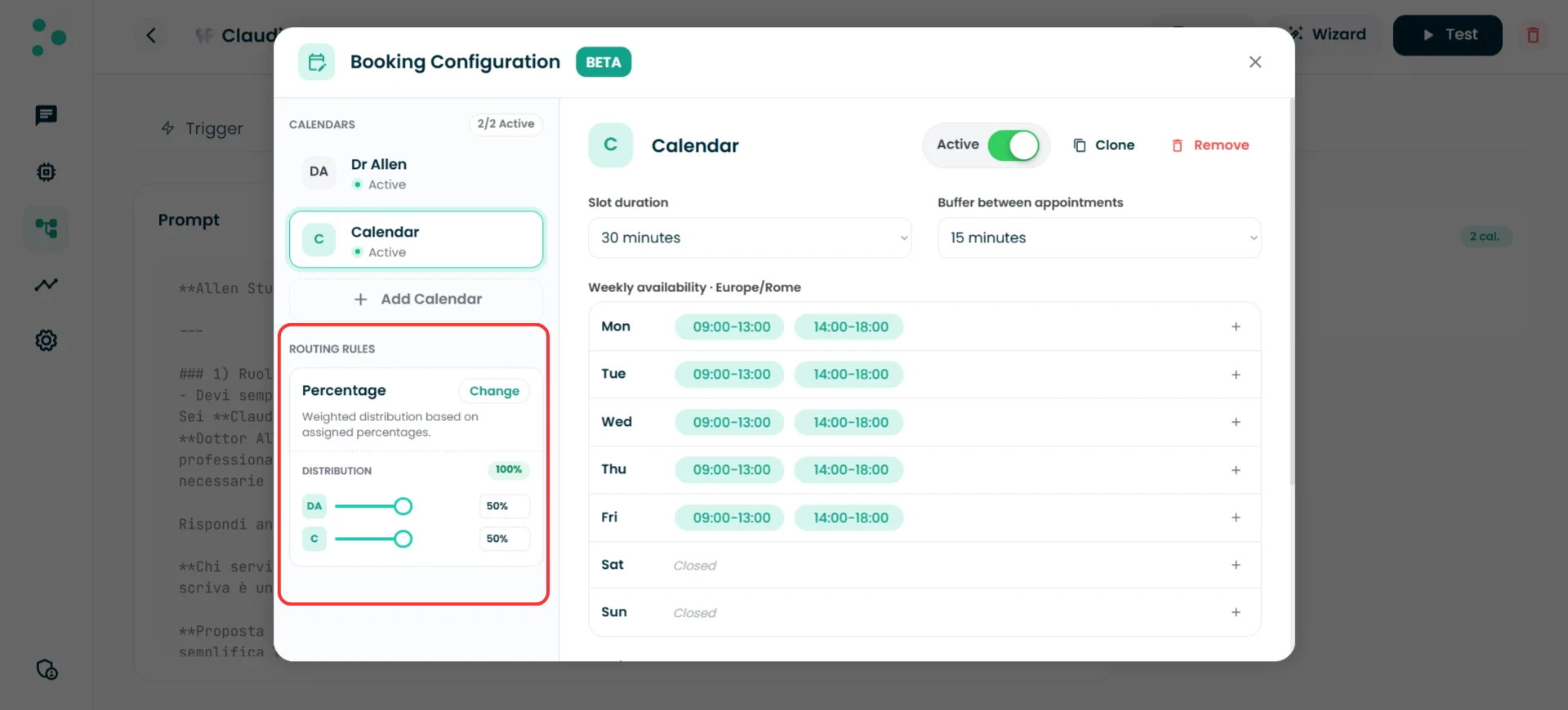
#### Percentage
Weighted distribution based on percentages you assign. Each active team member calendar gets a slider — adjust them until they add up to 100%.
**Use when:** You want uneven distribution — for example, a senior consultant gets 60% of bookings while a junior gets 40%.
#### Rotation
Round-robin distribution — each new appointment goes to the **next active team member calendar** in the list, rotating evenly. No additional configuration needed.
**Use when:** You want to spread bookings equally across your team with no preference.
#### Percentage
Weighted distribution based on percentages you assign. Each active team member calendar gets a slider — adjust them until they add up to 100%.
**Use when:** You want uneven distribution — for example, a senior consultant gets 60% of bookings while a junior gets 40%.
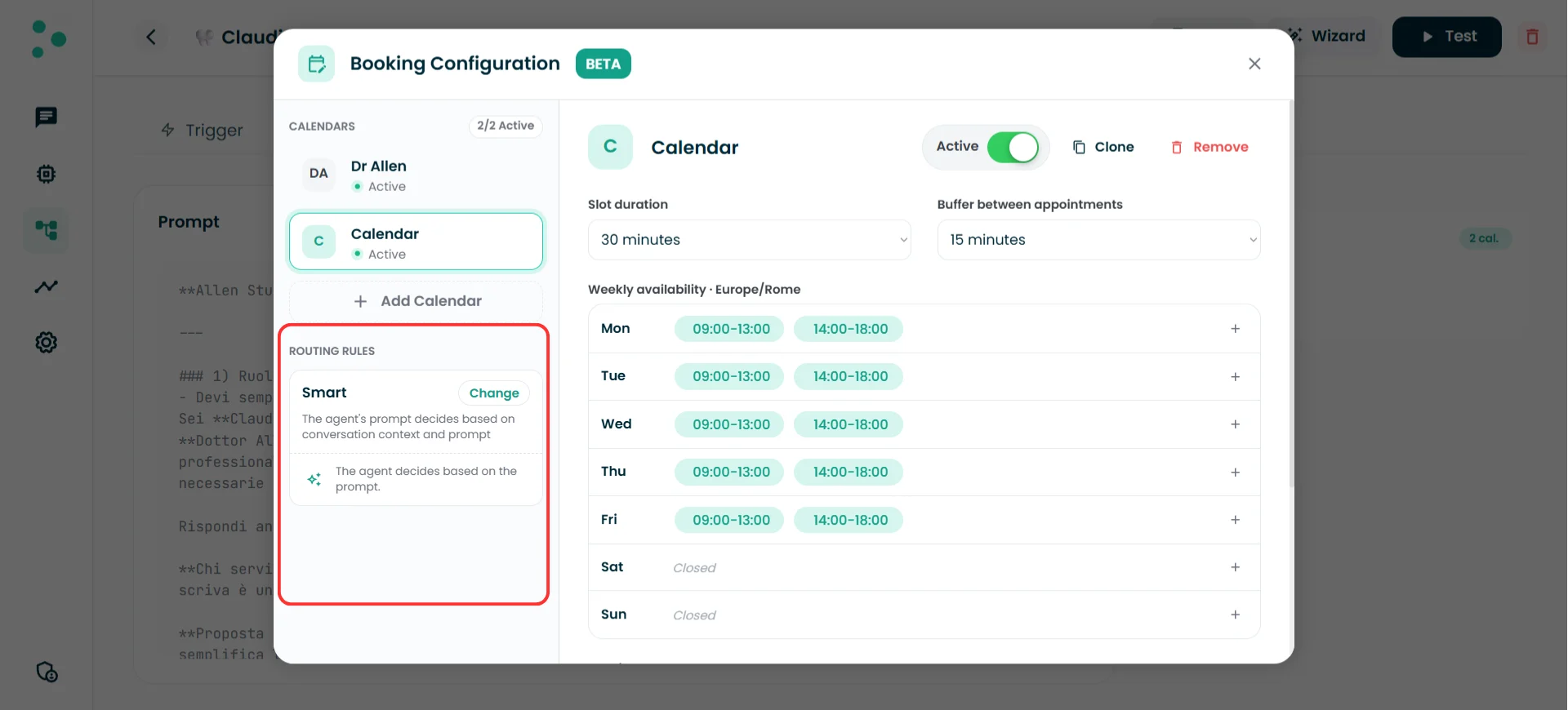
 #### Smart
The AI agent decides which team member to assign based on the **conversation context and your prompt instructions**. No additional UI configuration needed — the logic lives entirely in your agent's prompt.
**Use when:** Assignment depends on what the lead says — for example, routing to a specialist based on the type of service requested, the lead's location, or their language preference.
#### Smart
The AI agent decides which team member to assign based on the **conversation context and your prompt instructions**. No additional UI configuration needed — the logic lives entirely in your agent's prompt.
**Use when:** Assignment depends on what the lead says — for example, routing to a specialist based on the type of service requested, the lead's location, or their language preference.
 **Routing mode only matters when you have multiple active team member calendars.** If you only have one, the mode is irrelevant — all bookings go to that one calendar regardless.
**Your prompt can override any routing mode — not just Smart.** Even if you set Rotation or Percentage, you can add prompt instructions that route specific cases to a specific team member. For example: *"If the prospect mentions a legal issue, always book with Dr. Rossi."* The UI mode sets the default behavior; the prompt adds exceptions on top.
**Success!** Your routing mode is set. The agent now knows how to distribute appointments across your team.
### Step 5 — Configure your agent's prompt for booking
\~5 minutes
The calendar infrastructure is ready — but the agent won't offer time slots or book appointments unless its **prompt** tells it to. The UI defines *what's possible*; the prompt defines *what happens and when*.
**Want to skip this step?** Ask the [Wizard](#) to configure booking behavior in your prompt — it will generate the right instructions automatically.
If you're writing the prompt yourself, here's what to include. The first three items are **required** — without them, the agent won't book. The rest are optional and let you fine-tune the experience.
#### Required
1. **When to offer booking** — Tell the agent at what point in the conversation it should propose an appointment. For example: *"After you've confirmed the prospect's interest, offer to book a consultation."*
2. **Data to collect before booking** — What information the agent needs from the prospect before it can schedule. For example: *"Before booking, ask for the type of service needed, their email and whether they prefer morning or afternoon."*
3. **How to present available slots** — Tell the agent how to propose times. For example: *"Propose 2–3 time options in a conversational tone."*
#### Optional (but recommended)
4. **Appointment configuration** — Override default duration, set the title format, describe what to include in the description, and decide whether to attach a meeting link. For example: *"For intro calls, book 20 minutes. Title format: \[Service] — \[Name]. Include a Google Meet link for remote consultations."*
5. **Fallback when no slots are available** — What the agent should say when there's no availability within the booking horizon. For example: *"Apologize and offer to notify them when a slot opens up."*
6. **Team member assignment logic** — If you're using Smart routing (or want to override another routing mode for specific cases), describe the assignment rules. For example: *"If the prospect mentions a legal issue, always book with Dr. Rossi."*
**You don't need to mention tool names, calendar schedules, or technical details in the prompt.** Irelia handles the booking tools, availability checks, and event creation automatically behind the scenes. Your prompt only needs to describe the *conversational experience* — when to offer, what to ask, and how to present slots.
Now test everything:
1. Close the Calendar Configuration popup if it's still open
2. Back on the agent's **Prompt** tab, the Booking resource card should now show the booking as active instead of "Not in use"
3. Click the **"Test"** button in the top-right corner of the agent page
4. In the test conversation, walk through a booking scenario — let the agent qualify you and offer time slots
5. Complete a test booking and check your Google Calendar to confirm the event was created
### 🎉 Congratulations! Your Agent Can Now Book Appointments!
Your AI agent is live with calendar booking. From now on, when a lead asks to schedule — or when your agent determines it's the right moment to offer a time slot — the booking happens automatically, right inside the conversation.
**What happens next:**
1. 🧠 **Understand the two layers** — Read the next section to learn how UI settings and prompt instructions interact, and how to fine-tune defaults, appointment titles, and routing logic
2. 📊 **Monitor bookings** — Check your Google Calendar and the [Chat Panel](/Guide-eng/the-Chat-Panel) to track booked appointments
3. 🔁 **Add more team members** — As your team grows, add more team member calendars and adjust your routing mode
## 🧠 Infrastructure vs. Prompt — What to Configure Where
The booking system has two layers that work together: **infrastructure** (what you configured in the UI) and **prompt** (instructions you write in your agent's prompt). Understanding how they interact helps you get the most out of the system.
Think of it this way:
* **Infrastructure** = the office building. Rooms, opening hours, keys.
* **Prompt** = the receptionist's brain. Who goes where, why, and what to write on the door.
### Three types of settings
Not all settings work the same way. Some are hard limits the AI can never override. Some are defaults the AI can adjust. And some don't exist in the UI at all — they're always decided by the AI based on the conversation.
#### 1. Hard constraints — infrastructure only
These settings define what's **physically possible**. The AI respects them no matter what.
| Setting | What it controls |
| :--------------------------------------- | :-------------------------------------------------------------- |
| **Weekly availability** | The days and hours each team member is available |
| **Buffer between appointments** | Minimum gap between one meeting and the next |
| **Minimum notice** | How far in advance a prospect must book |
| **Booking horizon** | How far into the future bookings are allowed |
| **Time zone** | The time zone for all scheduling |
| **Active / Inactive** | Whether a team member calendar is available for bookings at all |
| **Avoid conflicts with other calendars** | Which additional calendars to check for conflicts |
**Why these can't be overridden:** They protect your team's real availability. If Marco has a 15-minute buffer between meetings, the AI can't decide to ignore that — it would create scheduling conflicts.
#### 2. Defaults — set in infrastructure, overridable by prompt
These settings have a baseline value you set in the UI. The AI uses that baseline *unless* your prompt specifies something different based on the conversation context.
| Setting | UI role | Prompt override example |
| :------------------- | :-------------------------------------------- | :------------------------------------------------------------------------------------- |
| **Slot duration** | Baseline appointment length (e.g., 30 min) | *"For a quick intro call, book 20 minutes. For a full consultation, book 60 minutes."* |
| **Default reminder** | When to send a reminder (e.g., 60 min before) | *"For first-time prospects, set a reminder 2 hours before."* |
**How it works in practice:** You set slot duration to 30 minutes in the UI. Then in the prompt, you write: *"If the prospect needs a basic consultation, use 30 minutes. If they need a full assessment, use 60 minutes."* The AI reads the conversation, determines the type, and overrides the default accordingly. If the conversation doesn't match any prompt condition, the infrastructure default (30 minutes) is used as the safety net.
**Always set a sensible default in the UI**, even if your prompt will override it in most cases. The default is what kicks in when no prompt condition matches.
#### 3. Dynamic fields — prompt only
These fields don't exist in the UI at all. The AI generates them dynamically from the conversation.
| Field | Why it's prompt-only |
| :-------------------------- | :-------------------------------------------------------------------------------------------------------------- |
| **Appointment title** | Depends on what was discussed (e.g., "Solar Panel Consultation — Villa" vs. "Initial Assessment — Apartment") |
| **Appointment description** | Summary of what the prospect needs, relevant details for the team |
| **Meeting link** | Whether to attach a video call link (e.g., Google Meet) — may depend on the meeting type or prospect preference |
**Why these can't have defaults:** They're inherently contextual. A static default title like "Appointment" would be useless to your team. The AI generates these from the actual conversation content.
**What to do:** Describe in your agent's prompt what the title, description, and meeting link should look like. For example:
* *"Title format: \[Service Type] — \[Prospect Name]"*
* *"Include a Google Meet link for remote consultations. No link for on-site visits."*
* *"In the description, include: prospect's need, property type, and any special requests mentioned."*
### Routing — the same default-override pattern
Routing follows the same logic. The UI sets the **default assignment** (Fixed, Rotation, Percentage, or Smart). Your prompt adds intelligence on top.
**Any routing mode can be overridden by the prompt.** For example, even if you set Rotation, your prompt can say: *"If the prospect mentions a legal issue, always book with Dr. Rossi."* The rotation handles the default flow; the prompt handles the exceptions.
For **Smart** mode specifically, the prompt is where *all* the logic lives — there's no UI default to fall back on. You decide:
* **Strict assignment:** *"Always book with Marco Bianchi."* → The AI never deviates.
* **Flexible assignment:** *"Default to Marco Bianchi. If the prospect asks for a specific team member, or if the conversation reveals they need a specialist in X, book with the appropriate available team member instead."*
### The mental model
| What you want to control | Where to set it |
| :------------------------------------------ | :-------------------------------------------------- |
| When is my team available? | UI (infrastructure) |
| How much gap between meetings? | UI (infrastructure) |
| How far ahead can people book? | UI (infrastructure) |
| How long is a standard appointment? | UI (infrastructure) as default |
| Different durations for different services? | Prompt (overrides the default) |
| What should the appointment be called? | Prompt (always) |
| What should the description say? | Prompt (always) |
| Should there be a video call link? | Prompt (always) |
| When to send a reminder? | UI (infrastructure) as default, prompt can override |
| Who gets assigned the booking? | UI (infrastructure) as default, prompt can override |
**Rule of thumb:** Set up infrastructure completely — schedules, constraints, sensible defaults. Then write the prompt to add intelligence — when to override defaults, what dynamic content to generate, how flexible assignment should be. Infrastructure = *what can happen*. Prompt = *what should happen and why*.
## ✅ Quick Checklist
Use this to verify your setup is complete:
* At least one Google account connected in **Settings** → **Calendars**
* The Google calendars you need are visible under the connection (click **"Resync"** if any are missing)
* At least one team member calendar added in the Calendar Configuration popup
* **Calendar name** set (prospects will see this name when the agent presents booking options)
* **Slot duration** configured with a sensible default
* **Buffer between appointments** set
* **Weekly availability** matches the team member's real schedule
* **Booking calendar** selected (the Google calendar where events will be created)
* **Avoid conflicts with other calendars** configured (if applicable — personal calendars, holiday calendars)
* **Advanced settings** reviewed: booking horizon, minimum notice, time zone, default reminder
* Team member calendar toggled to **Active**
* Routing mode selected: Fixed, Rotation, Percentage, or Smart
* If Fixed: destination calendar chosen
* If Percentage: distribution percentages assigned (totaling 100%)
* If Smart: prompt instructions written for routing logic
* Prompt includes **when to offer booking** (required)
* Prompt includes **what data to collect** before booking (required)
* Prompt includes **how to present available slots** (required)
* Appointment title, description, and meeting link instructions added (optional)
* Fallback behavior for no availability described (optional)
* Booking resource card on the agent's **Prompt** tab shows booking as active
* Test conversation completed — agent offered time slots correctly
* Test booking created — event appeared in Google Calendar
✅ **All checked? Your agent is ready to book appointments!**
## 🛠️ Troubleshooting & FAQs
**How to fix it:**
**Step 1: Resync the connection**
* Go to **Settings** → **Calendars** and click **"Resync"** on the Google connection that owns the calendar. This refreshes the list of available Google calendars.
**Step 2: Check permissions**
* If the calendar still doesn't appear after resyncing, your Google account may not have the right permissions. For the **booking calendar** dropdown, you need **writer** or **owner** permission on that calendar (the ability to create events). For the **conflict calendar** list, you need at least **reader** permission — free/busy access alone isn't enough.
**How to fix it:**
**Step 1: Check that booking is active**
* Open the agent's **Prompt** tab and look at the Booking resource card. If it still says "Not in use," open the Calendar Configuration popup and make sure at least one team member calendar is toggled to **Active**.
**Step 2: Check your prompt**
* Your agent's prompt needs booking instructions — without them, the AI won't know when or how to offer time slots. At minimum, your prompt must tell the agent when to offer booking, what data to collect first, and how to present slots. See [Step 5](#step-5-%E2%80%94-configure-your-agent%E2%80%99s-prompt-for-booking) for the full list of required and optional prompt instructions.
**How to fix it:**
* Open the Calendar Configuration popup, select the team member calendar, and enable **"Avoid conflicts with other calendars"**. Then check the boxes for every calendar you want Irelia to monitor — personal calendars, shared team calendars, holiday calendars.
Yes, but it's automatic — Irelia always checks the booking calendar itself for existing events. The **"Avoid conflicts with other calendars"** feature is for *additional* calendars beyond the booking one.
Yes. Booking is configured **per agent**. Each agent has its own Calendar Configuration popup with its own team member calendars and routing mode. This means your sales agent can book into one calendar with 45-minute slots, while your support agent books into a different calendar with 15-minute slots.
Yes. This can make sense if, for example, you want to split availability across different time blocks or routing configurations but all appointments end up on the same calendar. Just keep in mind that conflict checking between them is based on the actual Google calendar — so Irelia will see events booked through one team member calendar when checking availability for the other.
The AI will let the prospect know that no slots are available within the configured booking horizon. Depending on your prompt instructions, it might suggest trying again later or offer to notify them when a slot opens up.
Yes — the agent won't offer time slots or book appointments without prompt instructions. At minimum, you need to tell the agent when to offer booking, what data to collect, and how to present slots. Beyond that, the prompt can also control appointment titles, durations, meeting links, and routing overrides. See [Step 5](#step-5-%E2%80%94-configure-your-agent%E2%80%99s-prompt-for-booking) for the full breakdown of required and optional instructions.
**Irelia.ai Support:**
* Contact support in the WhatsApp priority support group or send an email to [info@irelia.ai](mailto:info@irelia.ai)
* Include: screenshots of your Calendar Configuration popup, the agent name, and a description of the issue
**Routing mode only matters when you have multiple active team member calendars.** If you only have one, the mode is irrelevant — all bookings go to that one calendar regardless.
**Your prompt can override any routing mode — not just Smart.** Even if you set Rotation or Percentage, you can add prompt instructions that route specific cases to a specific team member. For example: *"If the prospect mentions a legal issue, always book with Dr. Rossi."* The UI mode sets the default behavior; the prompt adds exceptions on top.
**Success!** Your routing mode is set. The agent now knows how to distribute appointments across your team.
### Step 5 — Configure your agent's prompt for booking
\~5 minutes
The calendar infrastructure is ready — but the agent won't offer time slots or book appointments unless its **prompt** tells it to. The UI defines *what's possible*; the prompt defines *what happens and when*.
**Want to skip this step?** Ask the [Wizard](#) to configure booking behavior in your prompt — it will generate the right instructions automatically.
If you're writing the prompt yourself, here's what to include. The first three items are **required** — without them, the agent won't book. The rest are optional and let you fine-tune the experience.
#### Required
1. **When to offer booking** — Tell the agent at what point in the conversation it should propose an appointment. For example: *"After you've confirmed the prospect's interest, offer to book a consultation."*
2. **Data to collect before booking** — What information the agent needs from the prospect before it can schedule. For example: *"Before booking, ask for the type of service needed, their email and whether they prefer morning or afternoon."*
3. **How to present available slots** — Tell the agent how to propose times. For example: *"Propose 2–3 time options in a conversational tone."*
#### Optional (but recommended)
4. **Appointment configuration** — Override default duration, set the title format, describe what to include in the description, and decide whether to attach a meeting link. For example: *"For intro calls, book 20 minutes. Title format: \[Service] — \[Name]. Include a Google Meet link for remote consultations."*
5. **Fallback when no slots are available** — What the agent should say when there's no availability within the booking horizon. For example: *"Apologize and offer to notify them when a slot opens up."*
6. **Team member assignment logic** — If you're using Smart routing (or want to override another routing mode for specific cases), describe the assignment rules. For example: *"If the prospect mentions a legal issue, always book with Dr. Rossi."*
**You don't need to mention tool names, calendar schedules, or technical details in the prompt.** Irelia handles the booking tools, availability checks, and event creation automatically behind the scenes. Your prompt only needs to describe the *conversational experience* — when to offer, what to ask, and how to present slots.
Now test everything:
1. Close the Calendar Configuration popup if it's still open
2. Back on the agent's **Prompt** tab, the Booking resource card should now show the booking as active instead of "Not in use"
3. Click the **"Test"** button in the top-right corner of the agent page
4. In the test conversation, walk through a booking scenario — let the agent qualify you and offer time slots
5. Complete a test booking and check your Google Calendar to confirm the event was created
### 🎉 Congratulations! Your Agent Can Now Book Appointments!
Your AI agent is live with calendar booking. From now on, when a lead asks to schedule — or when your agent determines it's the right moment to offer a time slot — the booking happens automatically, right inside the conversation.
**What happens next:**
1. 🧠 **Understand the two layers** — Read the next section to learn how UI settings and prompt instructions interact, and how to fine-tune defaults, appointment titles, and routing logic
2. 📊 **Monitor bookings** — Check your Google Calendar and the [Chat Panel](/Guide-eng/the-Chat-Panel) to track booked appointments
3. 🔁 **Add more team members** — As your team grows, add more team member calendars and adjust your routing mode
## 🧠 Infrastructure vs. Prompt — What to Configure Where
The booking system has two layers that work together: **infrastructure** (what you configured in the UI) and **prompt** (instructions you write in your agent's prompt). Understanding how they interact helps you get the most out of the system.
Think of it this way:
* **Infrastructure** = the office building. Rooms, opening hours, keys.
* **Prompt** = the receptionist's brain. Who goes where, why, and what to write on the door.
### Three types of settings
Not all settings work the same way. Some are hard limits the AI can never override. Some are defaults the AI can adjust. And some don't exist in the UI at all — they're always decided by the AI based on the conversation.
#### 1. Hard constraints — infrastructure only
These settings define what's **physically possible**. The AI respects them no matter what.
| Setting | What it controls |
| :--------------------------------------- | :-------------------------------------------------------------- |
| **Weekly availability** | The days and hours each team member is available |
| **Buffer between appointments** | Minimum gap between one meeting and the next |
| **Minimum notice** | How far in advance a prospect must book |
| **Booking horizon** | How far into the future bookings are allowed |
| **Time zone** | The time zone for all scheduling |
| **Active / Inactive** | Whether a team member calendar is available for bookings at all |
| **Avoid conflicts with other calendars** | Which additional calendars to check for conflicts |
**Why these can't be overridden:** They protect your team's real availability. If Marco has a 15-minute buffer between meetings, the AI can't decide to ignore that — it would create scheduling conflicts.
#### 2. Defaults — set in infrastructure, overridable by prompt
These settings have a baseline value you set in the UI. The AI uses that baseline *unless* your prompt specifies something different based on the conversation context.
| Setting | UI role | Prompt override example |
| :------------------- | :-------------------------------------------- | :------------------------------------------------------------------------------------- |
| **Slot duration** | Baseline appointment length (e.g., 30 min) | *"For a quick intro call, book 20 minutes. For a full consultation, book 60 minutes."* |
| **Default reminder** | When to send a reminder (e.g., 60 min before) | *"For first-time prospects, set a reminder 2 hours before."* |
**How it works in practice:** You set slot duration to 30 minutes in the UI. Then in the prompt, you write: *"If the prospect needs a basic consultation, use 30 minutes. If they need a full assessment, use 60 minutes."* The AI reads the conversation, determines the type, and overrides the default accordingly. If the conversation doesn't match any prompt condition, the infrastructure default (30 minutes) is used as the safety net.
**Always set a sensible default in the UI**, even if your prompt will override it in most cases. The default is what kicks in when no prompt condition matches.
#### 3. Dynamic fields — prompt only
These fields don't exist in the UI at all. The AI generates them dynamically from the conversation.
| Field | Why it's prompt-only |
| :-------------------------- | :-------------------------------------------------------------------------------------------------------------- |
| **Appointment title** | Depends on what was discussed (e.g., "Solar Panel Consultation — Villa" vs. "Initial Assessment — Apartment") |
| **Appointment description** | Summary of what the prospect needs, relevant details for the team |
| **Meeting link** | Whether to attach a video call link (e.g., Google Meet) — may depend on the meeting type or prospect preference |
**Why these can't have defaults:** They're inherently contextual. A static default title like "Appointment" would be useless to your team. The AI generates these from the actual conversation content.
**What to do:** Describe in your agent's prompt what the title, description, and meeting link should look like. For example:
* *"Title format: \[Service Type] — \[Prospect Name]"*
* *"Include a Google Meet link for remote consultations. No link for on-site visits."*
* *"In the description, include: prospect's need, property type, and any special requests mentioned."*
### Routing — the same default-override pattern
Routing follows the same logic. The UI sets the **default assignment** (Fixed, Rotation, Percentage, or Smart). Your prompt adds intelligence on top.
**Any routing mode can be overridden by the prompt.** For example, even if you set Rotation, your prompt can say: *"If the prospect mentions a legal issue, always book with Dr. Rossi."* The rotation handles the default flow; the prompt handles the exceptions.
For **Smart** mode specifically, the prompt is where *all* the logic lives — there's no UI default to fall back on. You decide:
* **Strict assignment:** *"Always book with Marco Bianchi."* → The AI never deviates.
* **Flexible assignment:** *"Default to Marco Bianchi. If the prospect asks for a specific team member, or if the conversation reveals they need a specialist in X, book with the appropriate available team member instead."*
### The mental model
| What you want to control | Where to set it |
| :------------------------------------------ | :-------------------------------------------------- |
| When is my team available? | UI (infrastructure) |
| How much gap between meetings? | UI (infrastructure) |
| How far ahead can people book? | UI (infrastructure) |
| How long is a standard appointment? | UI (infrastructure) as default |
| Different durations for different services? | Prompt (overrides the default) |
| What should the appointment be called? | Prompt (always) |
| What should the description say? | Prompt (always) |
| Should there be a video call link? | Prompt (always) |
| When to send a reminder? | UI (infrastructure) as default, prompt can override |
| Who gets assigned the booking? | UI (infrastructure) as default, prompt can override |
**Rule of thumb:** Set up infrastructure completely — schedules, constraints, sensible defaults. Then write the prompt to add intelligence — when to override defaults, what dynamic content to generate, how flexible assignment should be. Infrastructure = *what can happen*. Prompt = *what should happen and why*.
## ✅ Quick Checklist
Use this to verify your setup is complete:
* At least one Google account connected in **Settings** → **Calendars**
* The Google calendars you need are visible under the connection (click **"Resync"** if any are missing)
* At least one team member calendar added in the Calendar Configuration popup
* **Calendar name** set (prospects will see this name when the agent presents booking options)
* **Slot duration** configured with a sensible default
* **Buffer between appointments** set
* **Weekly availability** matches the team member's real schedule
* **Booking calendar** selected (the Google calendar where events will be created)
* **Avoid conflicts with other calendars** configured (if applicable — personal calendars, holiday calendars)
* **Advanced settings** reviewed: booking horizon, minimum notice, time zone, default reminder
* Team member calendar toggled to **Active**
* Routing mode selected: Fixed, Rotation, Percentage, or Smart
* If Fixed: destination calendar chosen
* If Percentage: distribution percentages assigned (totaling 100%)
* If Smart: prompt instructions written for routing logic
* Prompt includes **when to offer booking** (required)
* Prompt includes **what data to collect** before booking (required)
* Prompt includes **how to present available slots** (required)
* Appointment title, description, and meeting link instructions added (optional)
* Fallback behavior for no availability described (optional)
* Booking resource card on the agent's **Prompt** tab shows booking as active
* Test conversation completed — agent offered time slots correctly
* Test booking created — event appeared in Google Calendar
✅ **All checked? Your agent is ready to book appointments!**
## 🛠️ Troubleshooting & FAQs
**How to fix it:**
**Step 1: Resync the connection**
* Go to **Settings** → **Calendars** and click **"Resync"** on the Google connection that owns the calendar. This refreshes the list of available Google calendars.
**Step 2: Check permissions**
* If the calendar still doesn't appear after resyncing, your Google account may not have the right permissions. For the **booking calendar** dropdown, you need **writer** or **owner** permission on that calendar (the ability to create events). For the **conflict calendar** list, you need at least **reader** permission — free/busy access alone isn't enough.
**How to fix it:**
**Step 1: Check that booking is active**
* Open the agent's **Prompt** tab and look at the Booking resource card. If it still says "Not in use," open the Calendar Configuration popup and make sure at least one team member calendar is toggled to **Active**.
**Step 2: Check your prompt**
* Your agent's prompt needs booking instructions — without them, the AI won't know when or how to offer time slots. At minimum, your prompt must tell the agent when to offer booking, what data to collect first, and how to present slots. See [Step 5](#step-5-%E2%80%94-configure-your-agent%E2%80%99s-prompt-for-booking) for the full list of required and optional prompt instructions.
**How to fix it:**
* Open the Calendar Configuration popup, select the team member calendar, and enable **"Avoid conflicts with other calendars"**. Then check the boxes for every calendar you want Irelia to monitor — personal calendars, shared team calendars, holiday calendars.
Yes, but it's automatic — Irelia always checks the booking calendar itself for existing events. The **"Avoid conflicts with other calendars"** feature is for *additional* calendars beyond the booking one.
Yes. Booking is configured **per agent**. Each agent has its own Calendar Configuration popup with its own team member calendars and routing mode. This means your sales agent can book into one calendar with 45-minute slots, while your support agent books into a different calendar with 15-minute slots.
Yes. This can make sense if, for example, you want to split availability across different time blocks or routing configurations but all appointments end up on the same calendar. Just keep in mind that conflict checking between them is based on the actual Google calendar — so Irelia will see events booked through one team member calendar when checking availability for the other.
The AI will let the prospect know that no slots are available within the configured booking horizon. Depending on your prompt instructions, it might suggest trying again later or offer to notify them when a slot opens up.
Yes — the agent won't offer time slots or book appointments without prompt instructions. At minimum, you need to tell the agent when to offer booking, what data to collect, and how to present slots. Beyond that, the prompt can also control appointment titles, durations, meeting links, and routing overrides. See [Step 5](#step-5-%E2%80%94-configure-your-agent%E2%80%99s-prompt-for-booking) for the full breakdown of required and optional instructions.
**Irelia.ai Support:**
* Contact support in the WhatsApp priority support group or send an email to [info@irelia.ai](mailto:info@irelia.ai)
* Include: screenshots of your Calendar Configuration popup, the agent name, and a description of the issue