> ## Documentation Index
> Fetch the complete documentation index at: https://docs.irelia.ai/llms.txt
> Use this file to discover all available pages before exploring further.
# How to Set Your Default Inbound Agent
> Configure which AI agent automatically handles new inbound conversations on WhatsApp and Messenger — so every prospect who messages you first reaches the right agent with the right conversation flow.
\~1 minute setup
***
Prerequisites before starting
Condensed steps if you know the platform
Complete walkthrough (Steps 1–2)
Verify your setup is complete
Common questions & fixes
***
### Introduction
A prospect messages your WhatsApp number or Facebook Page — but the *wrong* agent responds. Your support agent is greeting a sales lead, or your generic onboarding bot is handling prospects who should be getting a tailored pitch. The culprit? Your **default inbound agent** isn't set to the right one.
Irelia.ai automatically assigns a default inbound agent during initial setup so you're covered from day one. But as you create specialized agents, refine flows, or delete older ones, that original default may no longer be the best fit. In rarer cases — if you've deleted the auto-assigned agent — you might have **no** default at all, leaving inbound messages completely unanswered.
The fix is simple: check which agent is handling inbound, and change it if needed.
**By the end of this guide, you'll have:**
✅ A clear understanding of what the default inbound agent does and why it matters
✅ The ability to check which agent is currently your default — at a glance or in detail
✅ Your default inbound agent set to the right one for WhatsApp, Facebook, or both
### How This Works
Think of it this way: you have a team of specialists, and the **default inbound agent** is the one stationed at the front door. If the wrong person is greeting visitors, sales leads get a support script. If *nobody* is at the door, visitors walk into an empty lobby and leave.
* 🔀 **One default per channel.** WhatsApp and Messenger each get their own separate default. You can assign the same agent to both, or use different agents.
* 🔒 **Only one agent per channel.** Setting a new default automatically replaces the old one.
* 🌐 **Covers all inbound entry points.** Direct WhatsApp messages, Facebook Page DMs, and [webchat widget](/Guide-eng/How-to-Set-Up-the-Irelia.ai-WhatsApp-Widget-on-Your-Website) conversations all route through this setting.
* ⚙️ **Auto-assigned during setup.** Irelia assigns one automatically during initial configuration — this guide helps you verify it's the right one.
### What You'll Do
1. **Open the Default inbound agent bar** at the top of the Agents list (\~30 seconds)
2. **Choose your agent** for each channel from its dropdown (\~30 seconds)
## 📋 What You'll Need
* An Irelia.ai account with at least one agent created Required
* At least one channel connected ([WhatsApp](/Guide-eng/How-to-Connect-WhatsApp-Business-to-Irelia.ai) or [Messenger](/Guide-eng/How-to-Connect-Meta-Messenger-and-Instant-Forms-to-Irelia.ai)) Required
**That's it.** No coding, no external tools, no technical setup.
## ⚡ Quick Path (Experienced Users)
Already comfortable navigating Irelia? Here's the condensed version:
**To check the current default:**
1. Go to **"Settings"** → **"Agent"** section
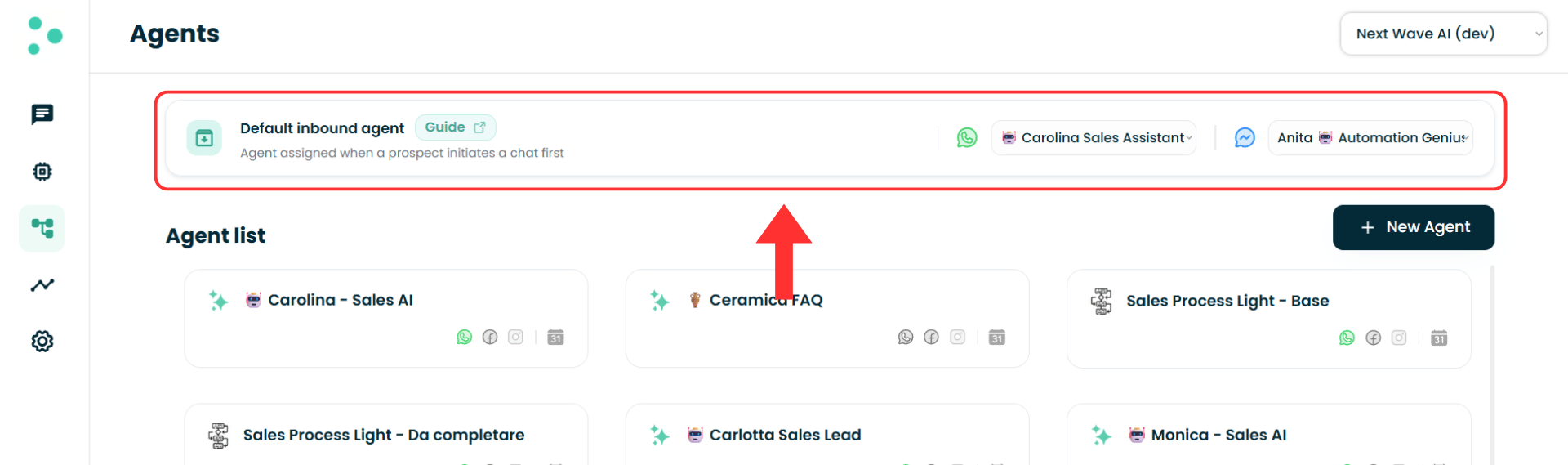
2. At the top of the Agents list, the **"Default inbound agent"** bar shows the current agent for each channel inside its dropdown
**To change the default:**
3. In the bar, open the dropdown for the channel you want — **WhatsApp** or **Messenger**
4. Select the agent you want to handle inbound for that channel
5. The dropdown updates to the agent you picked — the change is live immediately
Need more detail? Continue with the full guide below.
## 🔧 Step-by-Step Setup
\~30 seconds
1. Go to **"Settings"** → **"Agent"** section
2. At the top of the Agents list, find the **"Default inbound agent"** bar
The bar has one dropdown per connected channel — **WhatsApp** and **Messenger** — each showing the agent currently handling inbound for that channel.
 \~1 minute
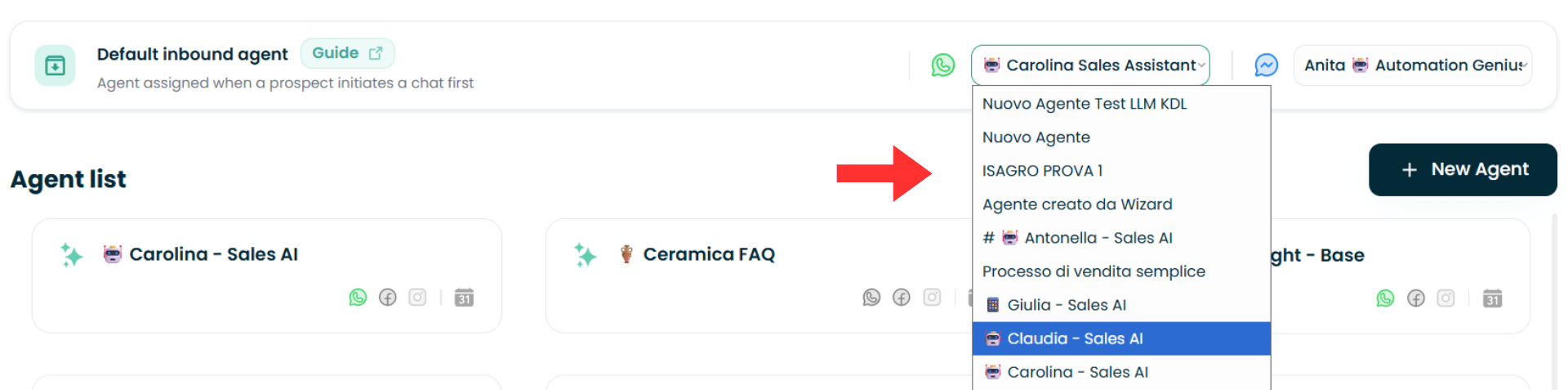
1. To set the **WhatsApp** inbound agent, open the **WhatsApp** dropdown and select your agent
2. To set the **Messenger** inbound agent, open the **Messenger** dropdown and select your agent
3. To use the same agent on both channels, select it in both dropdowns
Your choice saves immediately — the dropdown closes and shows the agent you picked. There's no separate save step.
\~1 minute
1. To set the **WhatsApp** inbound agent, open the **WhatsApp** dropdown and select your agent
2. To set the **Messenger** inbound agent, open the **Messenger** dropdown and select your agent
3. To use the same agent on both channels, select it in both dropdowns
Your choice saves immediately — the dropdown closes and shows the agent you picked. There's no separate save step.
 **Using different agents for different channels?** You don't have to use the same agent everywhere — for example, a sales-focused agent on WhatsApp and a support-focused agent on Messenger. Just pick the agent you want in each channel's dropdown.
**Important:** Each channel always points to one agent. Selecting a new agent replaces the previous default for that channel. And if you **delete** the agent currently set as a channel's inbound default, that channel stops responding to new inbound leads until you pick another agent in the bar.
**Success!** Your default inbound agent is now active. Any new inbound conversation on that channel will be routed to this agent automatically.
### 🎉 You're All Set!
✅ Inbound prospects on your configured channel(s) now reach the right agent with the right flow
**Using different agents for different channels?** You don't have to use the same agent everywhere — for example, a sales-focused agent on WhatsApp and a support-focused agent on Messenger. Just pick the agent you want in each channel's dropdown.
**Important:** Each channel always points to one agent. Selecting a new agent replaces the previous default for that channel. And if you **delete** the agent currently set as a channel's inbound default, that channel stops responding to new inbound leads until you pick another agent in the bar.
**Success!** Your default inbound agent is now active. Any new inbound conversation on that channel will be routed to this agent automatically.
### 🎉 You're All Set!
✅ Inbound prospects on your configured channel(s) now reach the right agent with the right flow
✅ No inbound message goes unanswered on channels where you've set a default
From now on, when someone messages your WhatsApp number or Facebook Page for the first time → Irelia routes the conversation to your default inbound agent → who greets, qualifies, and engages them automatically, 24/7.
### 🔎 How to Check Your Current Default Inbound Agent
Checking is now instant. The **"Default inbound agent"** bar shows your current defaults directly — no need to scan the agent list.
1. Go to **"Settings"** → **"Agent"** section
2. Look at the **"Default inbound agent"** bar at the top of the Agents list
Each channel's dropdown displays the agent currently handling its inbound conversations.
Because the bar always shows the live setting, this is also the fastest way to confirm a change took effect — the dropdown updates the moment you select a new agent.
## ✅ Quick Checklist
Use this to verify your setup is complete:
* Opened the **"Default inbound agent"** bar at the top of the Agents list
* Selected an agent in the **WhatsApp** dropdown (if needed)
* Selected an agent in the **Messenger** dropdown (if needed)
* The **WhatsApp** dropdown shows the agent you want handling WhatsApp inbound
* The **Messenger** dropdown shows the agent you want handling Messenger inbound (if applicable)
✅ **All checked? You're good to go!**
## 🛠️ Troubleshooting & FAQs
**What this means:** The auto-assigned default from your initial setup is still active after you've created better-suited agents.
**Solution:** Open the **"Default inbound agent"** bar at the top of the Agents list and check which agent the channel's dropdown shows. Select the correct agent from the dropdown — the old default is automatically replaced.
**Possible causes:**
1. The agent set as inbound default for that channel was deleted — so no agent is handling new inbound leads
2. The default agent is misconfigured
**Solution:** Open the **"Default inbound agent"** bar and select a valid agent from the channel's dropdown. If an agent is already selected, verify it has a [Knowledge Base](/Guide-eng/How-to-Train-Your-AI-Agent-with-the-Knowledge-Base-in-Irelia.ai) and conversation flow configured.
**Solution:** It's no longer inside the agent. Go to **"Settings"** → **"Agent"** section — the **"Default inbound agent"** bar sits at the very top of the Agents list, above your agent cards.
**Solution:** The bar only shows dropdowns for connected channels. If you only see WhatsApp, you haven't connected a [Facebook Page](/Guide-eng/How-to-Connect-Meta-Messenger-and-Instant-Forms-to-Irelia.ai) yet (or vice versa). Connect the missing channel in **"Channels Configuration"** first.
Open **"Settings"** → **"Agent"** section. The **"Default inbound agent"** bar at the top of the Agents list shows the current agent for each channel inside its dropdown. See [How to Check Your Current Default Inbound Agent](#-how-to-check-your-current-default-inbound-agent).
Yes. In the **"Default inbound agent"** bar, select the same agent in both the WhatsApp and Messenger dropdowns.
Yes, at any time. In the **"Default inbound agent"** bar, open the channel's dropdown and pick a different agent. The change takes effect immediately.
**Irelia.ai Support:**
* Contact support in the WhatsApp priority support group or send an email to [info@irelia.ai](mailto:info@irelia.ai)
* Include: a screenshot of the **"Default inbound agent"** bar at the top of your Agents list, which channel is affected, and what you expected vs. what happened