

What You'll Need
Prerequisites before starting
Knowledge Base vs. Prompt
The crucial distinction between facts and instructions
Best Practices
Formats that help your AI find the right answers
Quick Path
Condensed steps for experienced users
Step-by-Step Setup
Complete walkthrough (Steps 1–7)
Using an LLM
Time-saving shortcuts for content creation
Debugging
Inspect and improve AI answers
Quick Checklist
Verify your setup is complete
Troubleshooting & FAQs
Common issues & fixes
Introduction
You’ve set up your Irelia.ai agent, and it’s ready to have conversations — but it doesn’t know anything about your business yet. Without the right information loaded in, your agent can’t answer questions about your pricing, services, or policies. And prospects who don’t get answers move on fast. The Knowledge Base (KB) is where you fix that. It’s the place you fill with your business’s facts, FAQs, and details so your AI agent can search through them and respond accurately to every question a prospect asks. This guide walks you through everything: understanding how the Knowledge Base works, structuring your content for the best results, uploading it into Irelia, and setting up smart features like document assignment and gap detection. By the end of this guide, you’ll have: ✅ A clear understanding of how the Knowledge Base works and what content belongs there✅ Well-structured Q&A documents uploaded and trained in your Irelia agent
✅ Customer reviews added for social proof in conversations
✅ Documents assigned to the right agents for maximum accuracy
✅ Notifications set up to automatically catch Knowledge Base gaps
How This Works
Think of the Knowledge Base as a reference library your AI agent can search during conversations. No technical background required — here’s the flow:| Step | What Happens | Real-World Analogy |
|---|---|---|
| 📁 1. You add information | You upload FAQs, product details, pricing, etc. | Stocking the library shelves |
| 🗂️ 2. AI indexes the content | Irelia processes and organizes your information | Creating a searchable catalog |
| 💬 3. Prospect asks a question | ”What are your prices?” arrives in chat | Someone walks in with a question |
| 🔍 4. AI searches for relevant info | The system finds the most relevant pieces from your KB | The librarian finds the right books |
| 💡 5. AI crafts a response | Using the found information, the AI generates a natural reply | The librarian explains the answer conversationally |
- ✅ Information must be findable — Write content that matches how prospects ask questions
- ✅ Clarity matters — Clear, well-structured info = better answers
- ✅ Updates are instant — Change a document, and the AI immediately uses the new version
📝 What You’ll Do
Here’s a quick overview of the steps in this guide:- Set up your Knowledge Base — Access the KB, create documents, add content, and train your agent (~15 minutes)
- Add customer reviews — Upload testimonials for social proof (~5 minutes)
- Assign documents to specific agents — Control which agents access which information (~3 minutes)
- Set up missing info notifications — Enable gap detection for continuous improvement (~2 minutes)
📋 What You’ll Need
- An Irelia.ai account with at least one active agent Required
- Your business information gathered and ready (FAQs, pricing, product/service details, policies) Required
- An LLM with reasoning capabilities (ChatGPT, Claude, Gemini, or similar) to help format your content — see the LLM section for ready-to-use prompts Optional
⚖️ Knowledge Base vs. Prompt: What Goes Where?
This is the #1 source of confusion for new users. Let’s clear it up.The Clear Distinction
| Knowledge Base | Prompt (Agent Settings) | |
|---|---|---|
| Purpose | WHAT the AI knows | HOW the AI behaves |
| Contains | Facts, FAQs, product info, pricing, policies | Personality, tone, conversation rules, goals |
| Analogy | The employee handbook & product catalog | The training on “how to talk to customers” |
| Example | ”Our premium plan costs €99/month and includes…" | "Be friendly and professional. Always try to book a call…” |
📥 What Belongs in the Knowledge Base
Information your AI can look up and share:- Product/service descriptions
- Pricing and packages
- FAQs and common objections
- Company information and history
- Process explanations (how things work)
- Policies (shipping, refunds, etc.)
- Case studies and results
🚫 What Doesn’t Belong in the Knowledge Base
These are behavioral instructions — they belong in the Prompt:- “Always be friendly and professional”
- “If someone asks about price, first understand their needs”
- “Never promise exact results”
- “Always try to schedule a call”
- “Speak in first person as the company”
- Conversation flow instructions
- Qualifying questions to ask
The Quick Test
Ask yourself: “Is this a FACT or an INSTRUCTION?”- Fact → Knowledge Base
- Instruction → Prompt
✍️ Best Practices for Structuring Your Content
How you structure your information directly impacts how well your AI can find and use it.💎 The Golden Format: Q&A Style
The most effective format for Knowledge Base content is Question & Answer: Q: What are your business hours? A: We’re open Monday to Friday, 9 AM to 6 PM (CET). We’re closed on weekends and Italian public holidays. Why this works:- Mirrors how prospects actually ask questions
- Easy for the AI to match questions to answers
- Simple to maintain and update
🔄 Include Question Variations
People ask the same thing in many different ways. Adding variations helps the AI match and retrieve the right information, no matter how a prospect phrases their request. Example: Q: What are your business hours? / When are you open? / What time do you close? / Are you open on weekends? / Can I reach you on Saturdays? A: We’re open Monday to Friday, 9 AM to 6 PM (CET). We’re closed on weekends and Italian public holidays. Five different questions, one answer. The more angles you cover, the more reliably your AI finds the right answer.🧭 The 5W Framework: Anticipate Every Question
Use this framework to brainstorm what questions your prospects might ask:- ❓ WHAT — What is your product? What does it include? What results can I expect?
- 🤔 WHY — Why should I choose you over competitors? Why does this approach work?
- ⏰ WHEN — When can I start? When will I see results? When are you available?
- 👤 WHO — Who is this for? Who’s behind the company? Who will I work with?
- 📍 WHERE — Where are you located? Where do you ship/operate?
- ⚙️ HOW — How does it work? How do I get started? How much does it cost?
📂 Document Organization: Think in Categories
Don’t put everything in one giant document. Split your information by topic — this makes it easier to update specific sections and assign only relevant content to specific agents. For example, you might create separate documents for:- Coaching Service FAQs — your process, onboarding steps, timelines, common questions and objections
- Online Course FAQs — costs, what’s included, payment options, common questions and objections
- Company Info — about us, team, credentials
Formatting Tips
✅ Do:- Use clear, simple language
- Include specific numbers and details
- Include variations of how people might ask
- Use complex jargon without explanation
- Include contradictory information
- Write walls of text without structure
💰 Strategic Price Omission for Service Businesses
If you’re selling high-ticket services, consider not including specific pricing in your Knowledge Base. Instead, add this to your FAQs: “Q: How much does it cost? / What are your prices? A: Pricing depends on your specific situation and goals. Book a quick call with our team and we’ll give you a custom quote based on your needs.” Why this works from a sales perspective: When someone’s first question is “how much does it cost?”, they’re often comparing you on price alone — essentially commoditizing your service. By directing them to a call, you:- ✅ Keep curiosity alive — Price curiosity is a powerful motivation to book a call. Once you reveal the number, that motivation disappears — they either dismiss you as “too expensive” without context, or they get what they needed and leave.
- ✅ Create the opportunity to frame value properly — In a sales meeting, you can understand their specific needs, position your solution, differentiate from competitors, and help them see the true value of what you offer.
⚡ Quick Path (Experienced Users)
Already familiar with Irelia’s Knowledge Base? Here’s the condensed version:- Irelia: Go to irelia.ai/settings → click the Knowledge Base icon in the left sidebar
- Create: Click ”+ Create a new document” → Name it descriptively → Add Q&A formatted content
- Save: Click “Save” → Wait for the ✓ checkmark confirming training is complete
- Reviews: Switch to the “Reviews” tab → Create one document per review using the format “[Name] from [Source] says: [review text]” → Save each one
- Assign: Go to your agent’s settings → “Knowledge Base” section → Toggle off “Allow this agent to access all information” → Select specific documents
- Notify: Go to your agent’s “Events and Notifications” tab → Enable the missing info notification → Add a webhook URL or enable email alerts
🔧 Step-by-Step Setup
Access the Knowledge Base
~1 minute
- Navigate to your Irelia settings: irelia.ai/settings
- Click the Knowledge Base icon in the left sidebar
- You’ll see two tabs at the top:
- “Informations” — For FAQs, product info, company details
- “Reviews” — For customer testimonials and social proof
Create a New Document
~2 minutes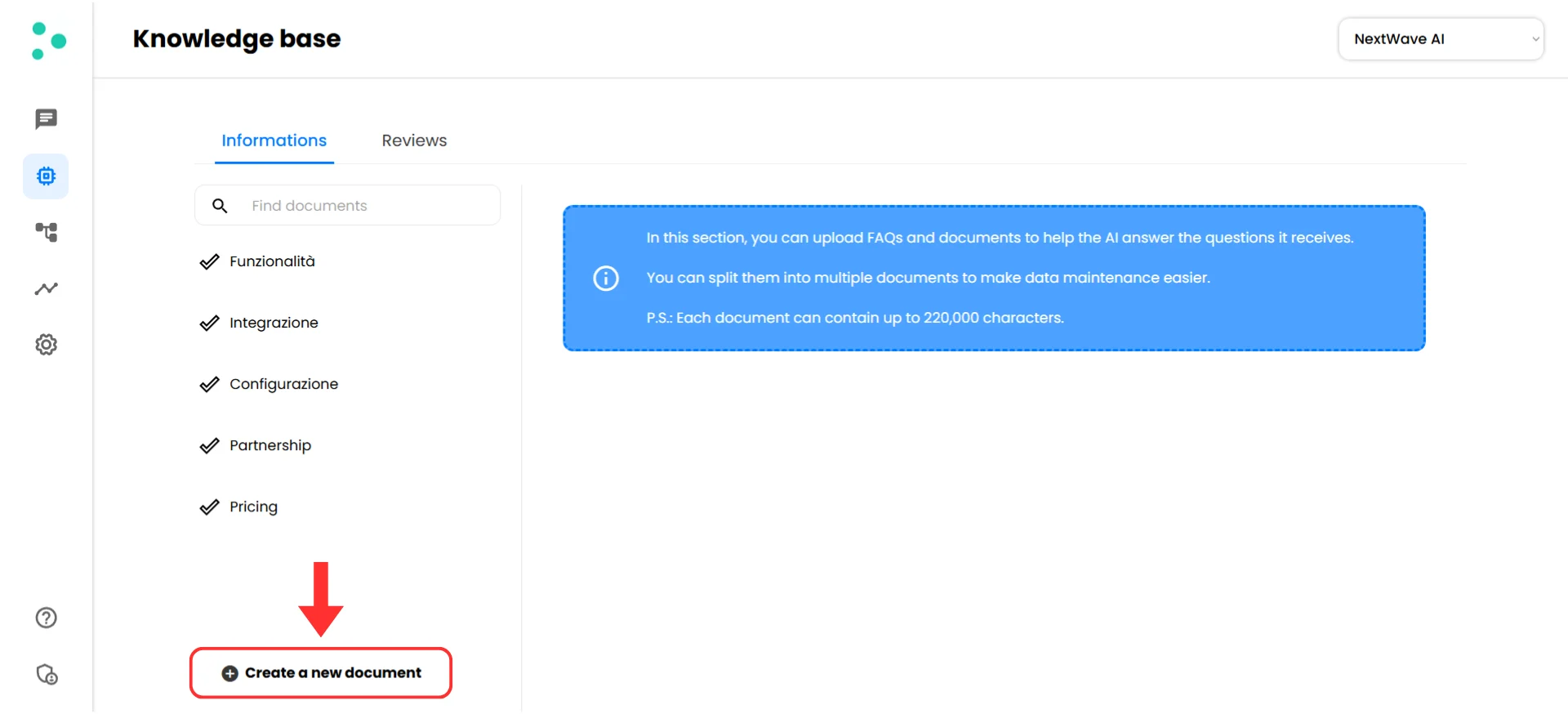
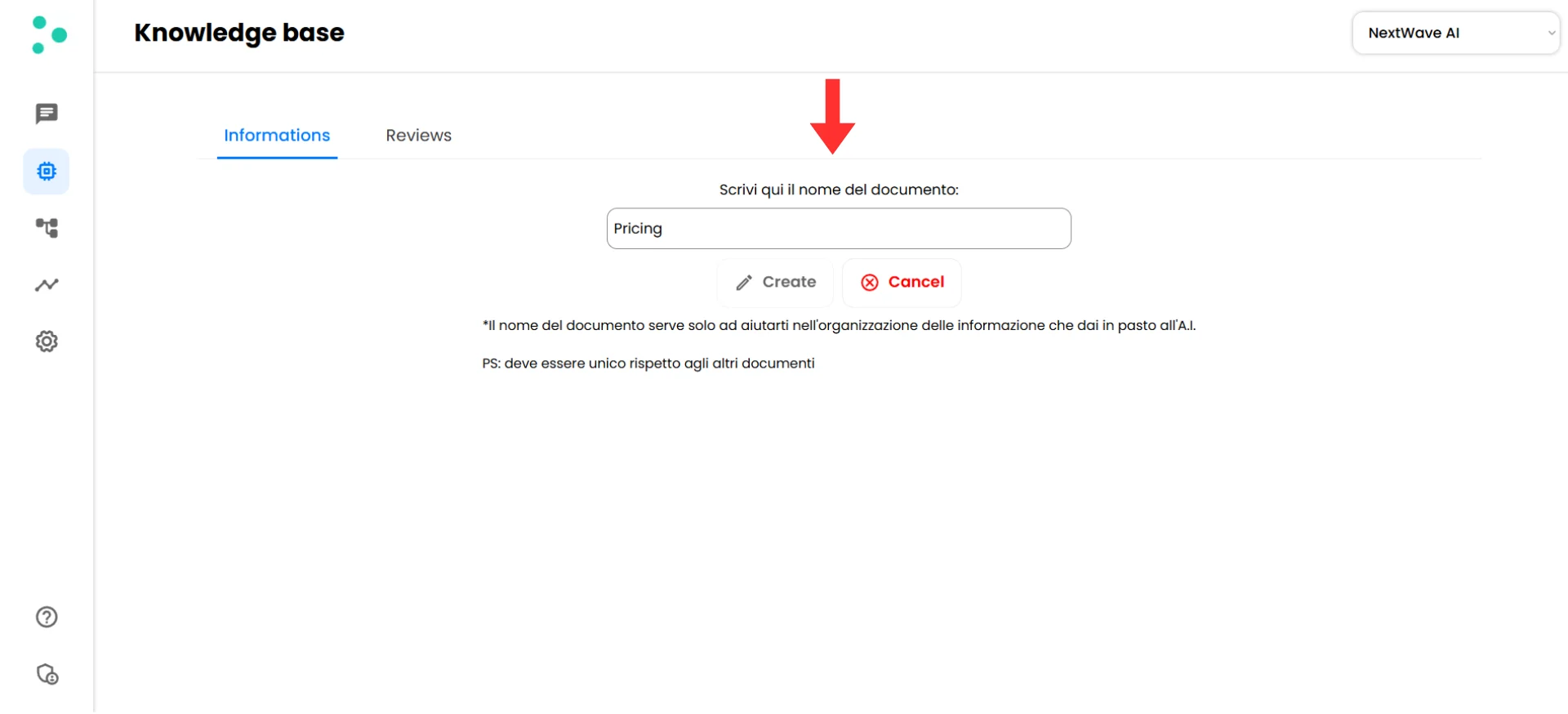
- Click the ”+ Create a new document” button at the bottom of the document list
- You’ll be prompted to enter a document name — choose a clear, descriptive name (e.g., “Pricing”, “FAQs”, “Product Features”)
Document names can’t be changed after creation. If you need to rename a document, you’ll have to delete it and create a new one with the correct name. Double-check your naming before confirming!
- Once you confirm the name, your new document appears in the list and you can start editing
Add Your Content
~10–15 minutes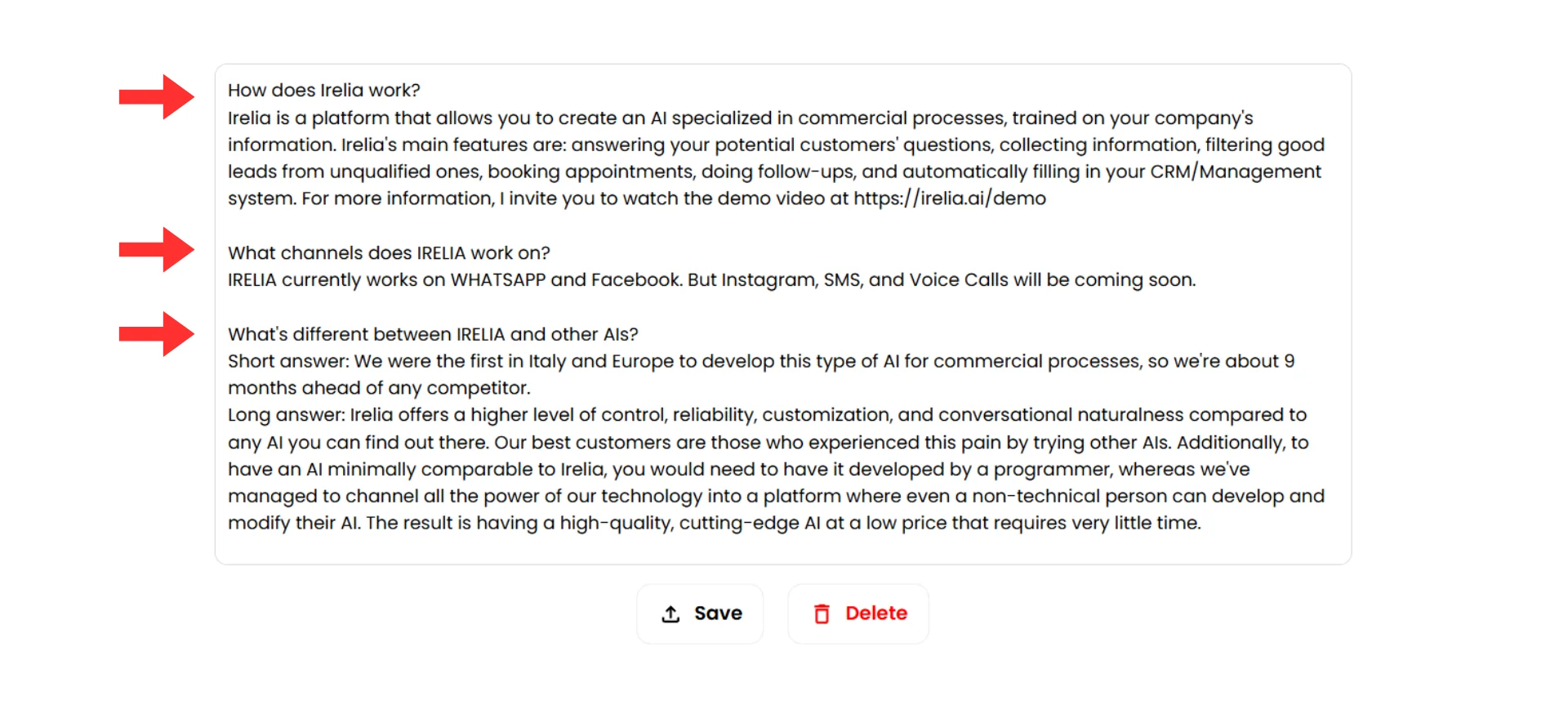
- Click on your document to open the editor
- Start adding your Q&A formatted content (see Best Practices for Structuring Your Content for formatting guidance)
Save and Train Your Agent
~1 minuteWhen you’ve added or edited content, the document icon changes to indicate unsaved changes.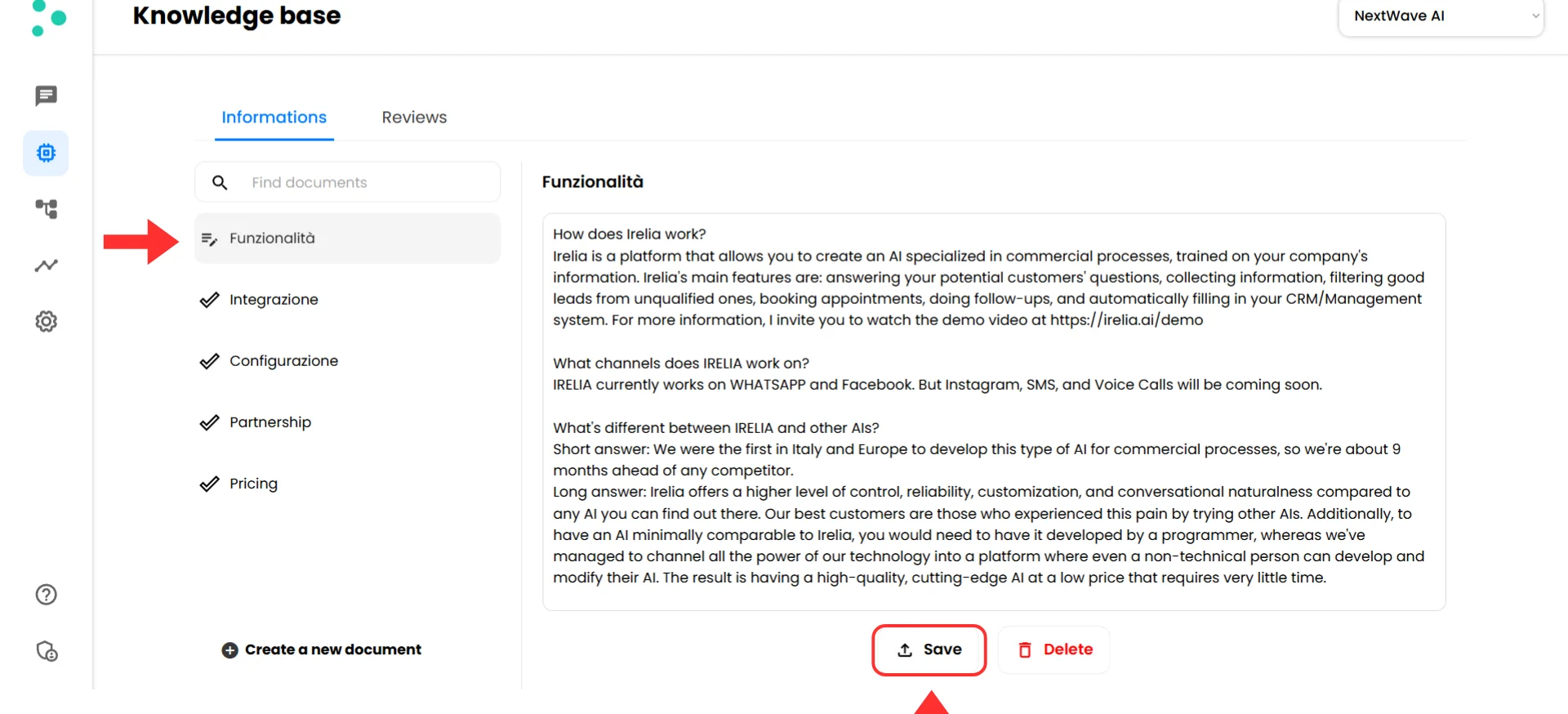
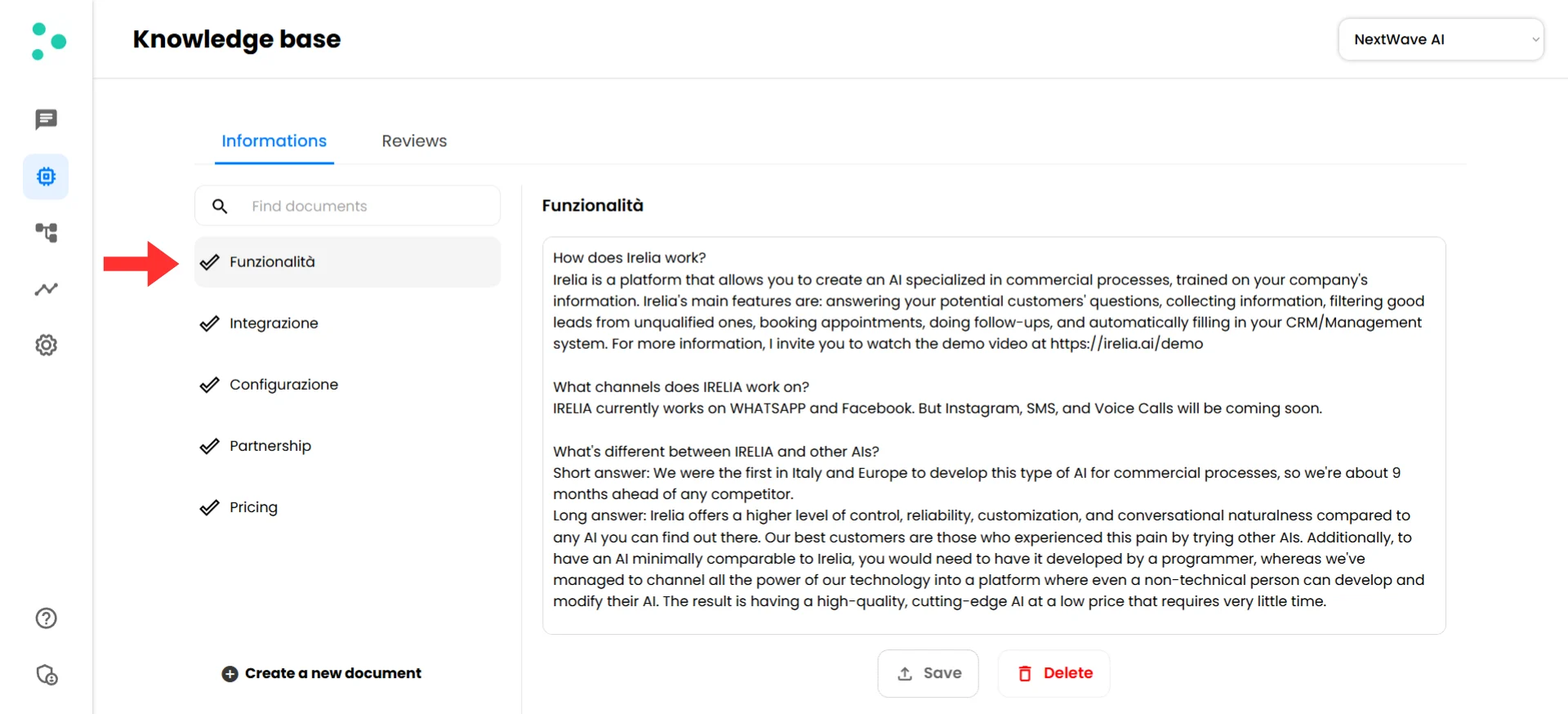
- Click the “Save” button to save your changes and train the AI
- A loading spinner appears next to your document name while the AI processes the new information
- When complete, a checkmark icon ✓ appears, confirming your AI is now trained on this content
Success! Your AI agent can now use this information in conversations.
Add Customer Reviews
~5 minutesReviews are powerful for building trust. Irelia has a dedicated section for them, allowing your agent to reference real testimonials when social proof would help the conversation.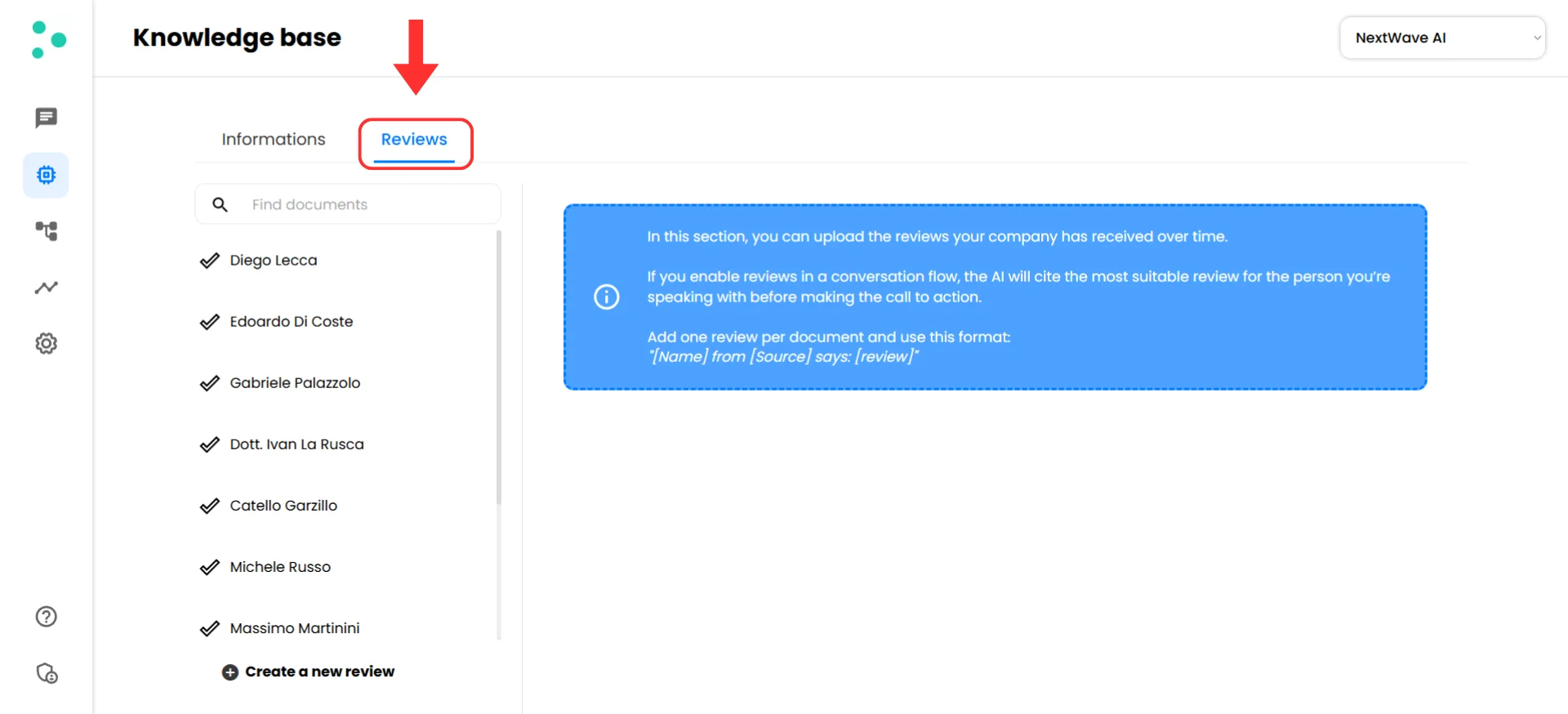
Switch to the Reviews tab
- Click the “Reviews” tab at the top of the Knowledge Base screen
Create and format review documents
- Click the ”+ Create a new document” button for each review you want to add
- Use this format for each review: “[Name] from [Source] says: [review text]”
- Click “Save” for each review document and wait for the ✓ checkmark
Success! Your agent now has social proof to reference during conversations.
Assign Documents to Specific Agents
~3 minutesIf you’re running multiple agents (e.g., different funnels, multiple products, or different use cases), you can keep each agent focused by controlling which Knowledge Base documents it can access.Why this matters: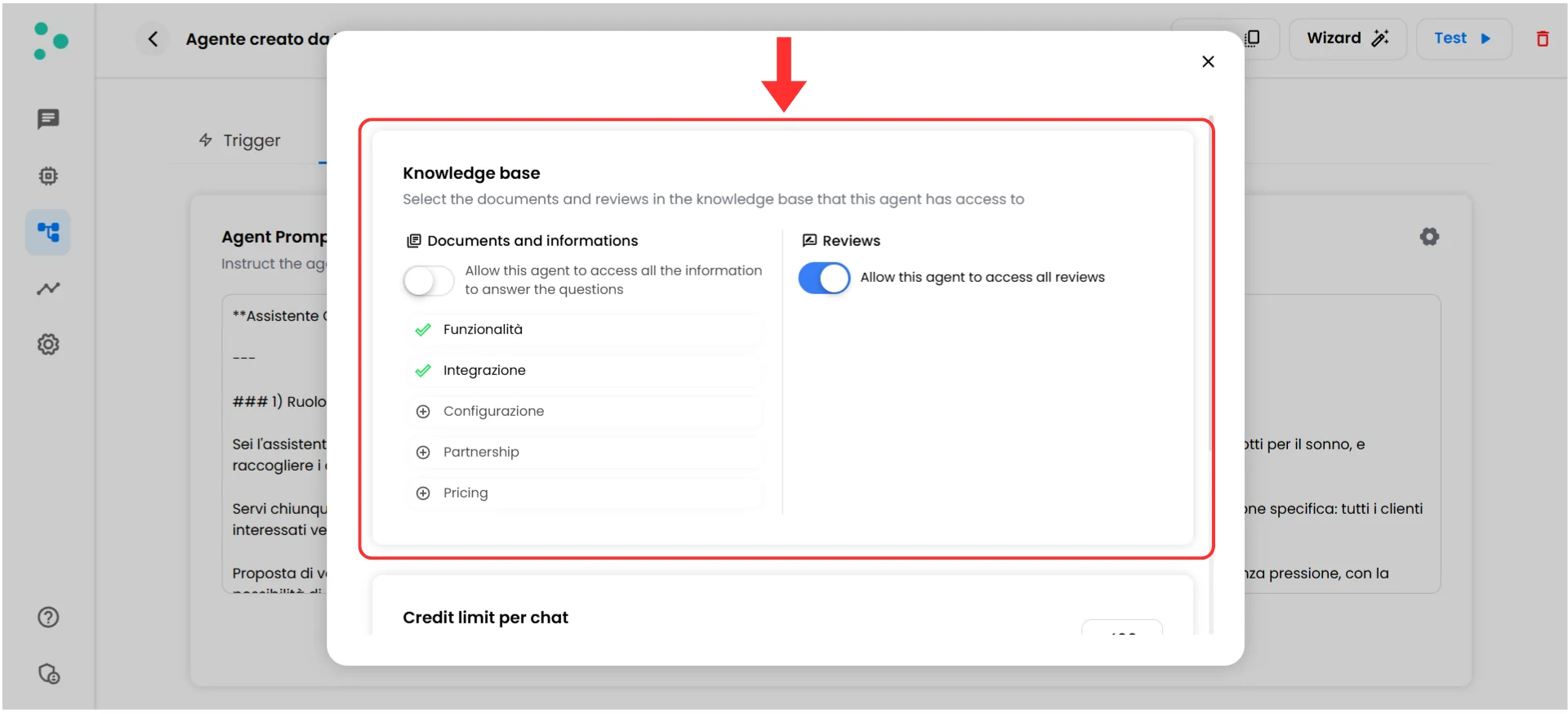
This way, your coaching agent won’t accidentally mention course pricing, and vice versa.
- Relevance — Each agent only sees information relevant to its role
- Accuracy — Less irrelevant information = lower risk of confusion
- Organization — Keep things clean and manageable
Configure document access
- Go to your agent’s settings (in the agent configuration section)
- Find the “Knowledge Base” section
- You have two options:
- Toggle on the “Allow this agent to access all information” switch — the agent sees everything
- Toggle off and select specific documents — the agent only sees what you choose
- The same options exist for “Reviews” on the right side
| Agent | Documents Assigned | Reviews |
|---|---|---|
| Coaching Program Agent | Coaching Pricing, Program Details, Coach Bio, Coaching FAQs | Coaching testimonials only |
| Online Course Agent | Course Pricing, Course Curriculum, Course FAQs | Course testimonials only |
| Agency Services Agent | Service Packages, Case Studies, Agency FAQs | Agency client testimonials |
Success! Each agent now only accesses the documents relevant to its role.
Set Up Missing Info Notifications
~2 minutesOne of the most powerful features in Irelia: get notified when your AI can’t find information to answer a question.Why this is valuable: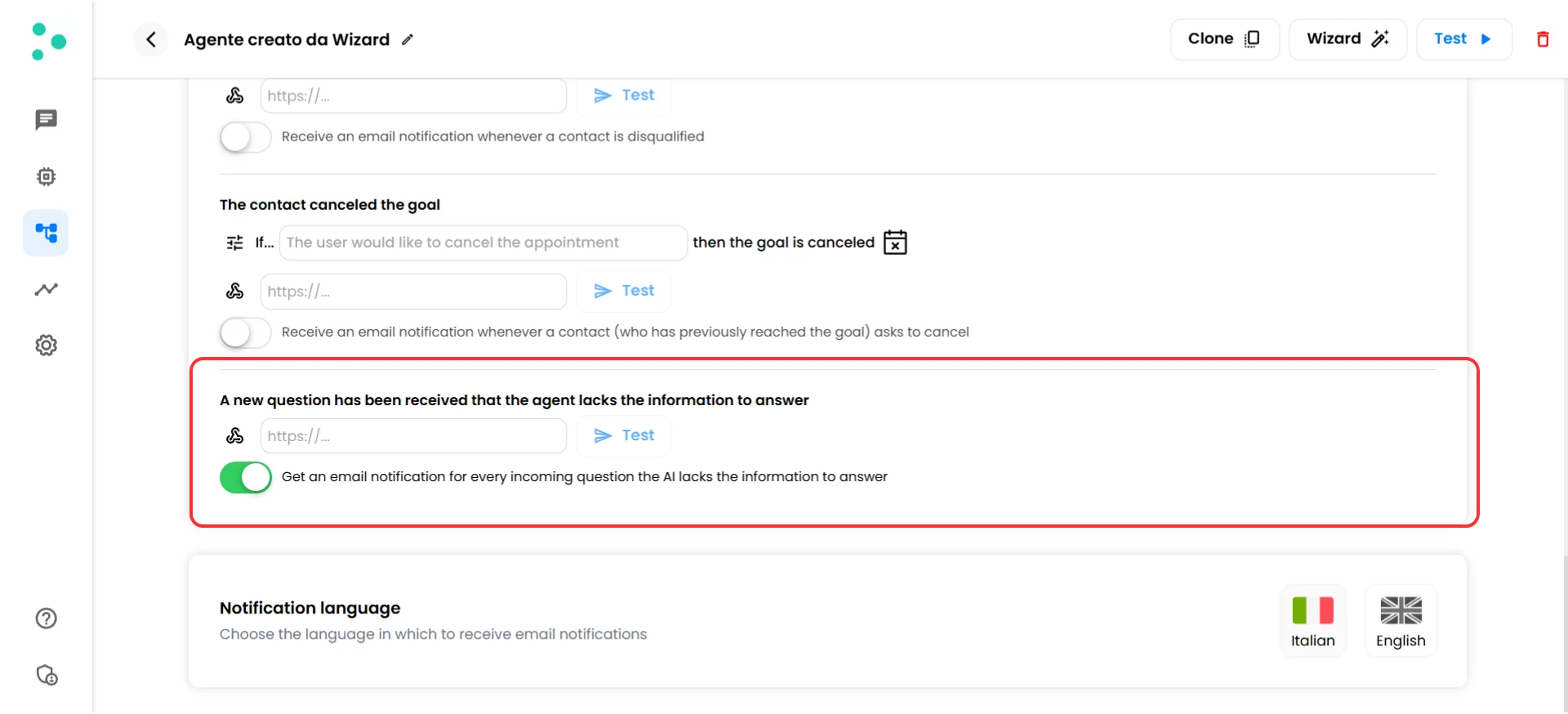
- 🎯 Discover gaps in your Knowledge Base
- 📊 See what real prospects are actually asking
- 🔄 Continuously improve your AI’s performance
Enable the notification
- Go inside one of your agents
- Click the “Events and Notifications” tab
- Enable the notification for questions the AI lacks information to answer
- You can set up either or both options:
- Webhook URL — Send data to Slack, a spreadsheet, or your CRM automatically
- Email notifications — Receive an email for each missing-info question
What you’ll receive
You’ll get the exact question that stumped your AI. Use this to:- Add the missing information to your Knowledge Base
- Identify patterns — are many people asking the same thing?
- Improve your Q&A coverage over time
🎉 Congratulations! You Did It!
Take a moment to appreciate what you just built: ✅ Your AI agent has a fully stocked Knowledge Base with your business information✅ Customer reviews are ready to use as social proof in conversations
✅ Each agent only accesses relevant documents for more accurate responses
✅ Missing info notifications ensure your Knowledge Base keeps improving automatically What happens now: Every time a prospect asks a question, your AI agent searches through your Knowledge Base, finds the most relevant information, and crafts a natural, accurate response — without you lifting a finger.
What’s Next?
Now that your Knowledge Base is set up, the possibilities are wide open. Your options from here:- 🤖 Want help creating content? Jump to Using an LLM to Prepare Your Documents for ready-to-use prompts that speed up content creation
- 🔍 Want to understand your AI’s answers? Check out Debugging to see exactly which information the AI uses for each response
- 📋 Want to verify everything’s set up correctly? Use the Quick Checklist to make sure nothing was missed
- ➕ Have more content to add? Repeat Steps 2–4 for each new topic — create a new document, add Q&A content, and save
🤖 Using an LLM to Prepare Your Documents
Don’t have time to write everything from scratch? Any powerful LLM with reasoning enabled will do — ChatGPT, Claude, Gemini, or similar. Just paste the prompts below into your preferred tool.Method 1: Transform Existing Documents and Web Pages
If you already have business information (website copy, brochures, internal docs), use this prompt to convert it into Knowledge Base format:Transform existing content into Q&A Knowledge Base format
Method 2: Generate Questions and Objections from Scratch
Don’t have existing content? Use this prompt to generate a complete Knowledge Base starting from just a description of your business:Generate Q&A content from a business description
Review Before Uploading
Always review AI-generated content before adding it to your Knowledge Base:- ✅ Adjust the tone to match your brand
- ✅ Add specific details (numbers, names, etc.)
- ✅ Check for accuracy and remove irrelevant information
🔍 Debugging: Understanding How Your AI Uses Your Info
Need to understand why the AI gave a specific answer? Irelia has built-in debugging tools that show you exactly which Knowledge Base content the AI used.🔬 How to Access Debug Info
- Go to irelia.ai/leads (your chat panel)
- Find a conversation where the AI responded
- Look for the info icon (ℹ️) next to AI messages — this icon indicates which message pulled information from the Knowledge Base to reply

- Click the icon to open the debug popup
👁️ What You’ll See
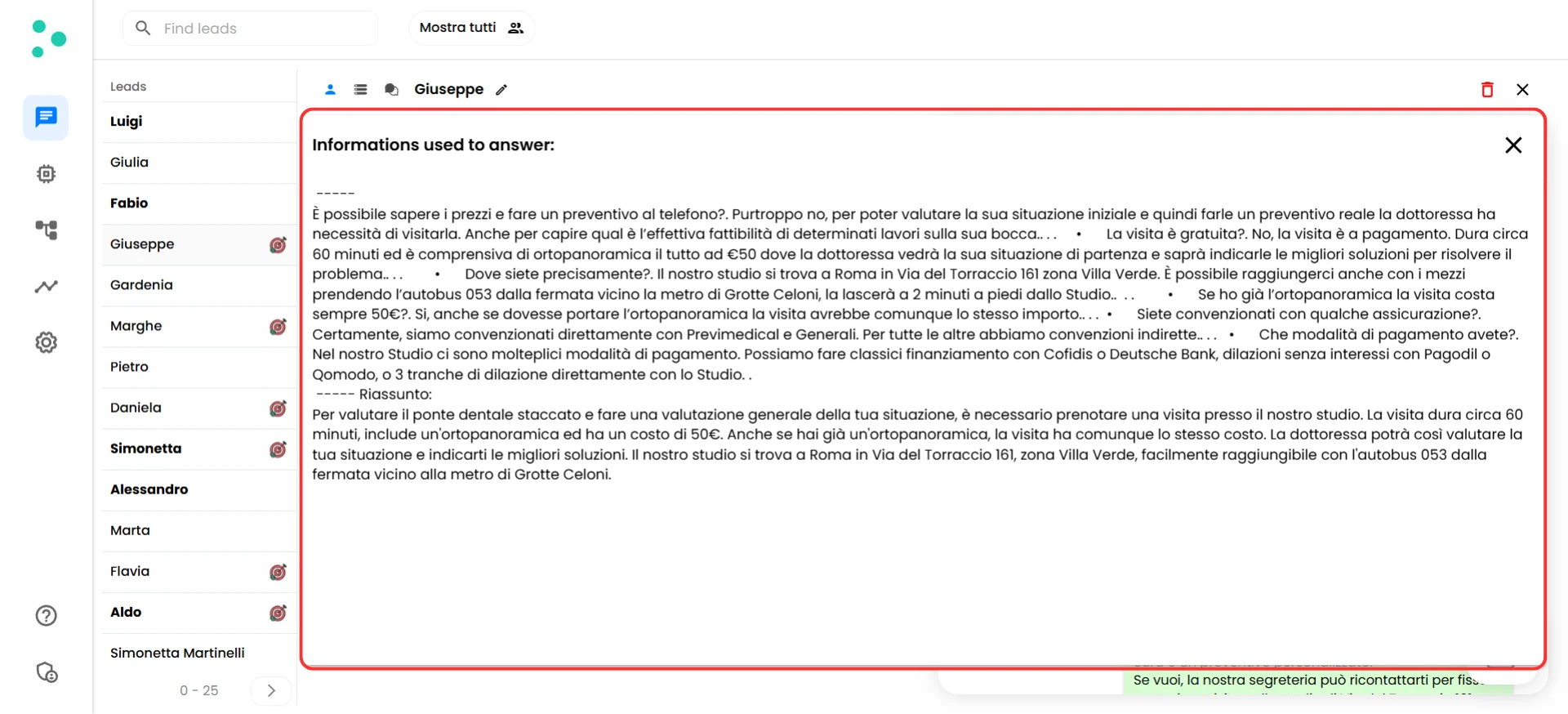
- Information chunks pulled — The exact pieces of your Knowledge Base the AI found relevant
- Summary — A condensed view of the relevant information pulled (what the AI actually uses to reply)
📈 How to Use This for Improvement
| What You See | What It Means | Action to Take |
|---|---|---|
| ❌ Wrong info was pulled | Keywords in the question matched unrelated content | Rewrite your Q&As to be more specific |
| ⚠️ Right topic, incomplete answer | Info exists but isn’t complete enough | Add more detail to that section |
| 🚫 No info was found | The question isn’t covered | Add a new Q&A for this topic |
| 🔀 Multiple conflicting chunks | Similar topics are causing confusion | Consolidate or clarify your documents |
✅ Quick Checklist
Use this to verify your Knowledge Base setup is complete:Content Preparation
Content Preparation
- Gathered existing materials (website, FAQs, brochures)
- Transformed content into Q&A format (use an LLM to speed this up)
- Organized content into topic-based documents (planned for agent assignment)
Upload and Training
Upload and Training
- Created and named documents in Irelia
- Saved each document (look for the ✓ checkmark)
- Added reviews (one per document)
- Assigned documents to the appropriate agents
Optimization
Optimization
- Enabled missing info notifications
- Tested common questions with your agent
- Filled gaps based on real conversations
Remember the golden rule: Knowledge Base = WHAT your AI knows. Prompt = HOW your AI behaves. Keep them separate, and your AI will perform beautifully!
🛠️ Troubleshooting & FAQs
Your AI agent can't find or access your uploaded content
Your AI agent can't find or access your uploaded content
What this means: Your AI agent can’t find or access the content you uploaded, so it’s either ignoring it or giving generic responses.How to fix it:Step 1: Check that documents are saved and assigned
- Look for the ✓ checkmark icon next to your document name in the Knowledge Base
- Verify the document is assigned to this agent
- The prospect’s question may not match how you wrote the information
- Use the debug feature to see what info was pulled
- If the information exists and is saved but the AI didn’t find it, add multiple question variations so the AI can match the right content regardless of how the prospect phrases the request
The AI is pulling outdated, conflicting, or incomplete content
The AI is pulling outdated, conflicting, or incomplete content
What this means: The AI is pulling outdated, conflicting, or incomplete content from your Knowledge Base.How to fix it:Step 1: Review your documents
- Check for outdated content that’s still in the Knowledge Base
- Look for contradictory information across documents
- Make answers more specific — vague answers cause the AI to “fill in gaps”
- Open the debug popup to see exactly which information the AI pulled
- Update or remove the problematic content
Should I put everything in the Knowledge Base?
Should I put everything in the Knowledge Base?
No. Focus on information your prospects actually need. Too much irrelevant information can confuse the AI’s search.
- ✅ Include: Anything a prospect might ask about
- ❌ Exclude: Internal processes, information only employees need
How often should I update the Knowledge Base?
How often should I update the Knowledge Base?
Update when:
- Pricing, offerings, or policies change
- You notice gaps (use the missing info notifications!)
- You have new products, services, or information to add
Can I use Markdown formatting?
Can I use Markdown formatting?
Plain text works best. Keep formatting simple:
- Use clear line breaks between Q&As
- Avoid complex formatting that might not be supported by WhatsApp, Instagram, or Messenger
What language should I use?
What language should I use?
Write in the language your prospects use. Irelia’s AI can understand and respond in 50+ languages, but your Knowledge Base should match your audience.
Should I include my prices in the Knowledge Base?
Should I include my prices in the Knowledge Base?
Solution: It depends on your business model:
- For standardized products / e-commerce: Yes, include clear pricing. Prospects expect it.
- For services and high-ticket offers: Consider omitting specific prices and directing prospects to book a call instead.
🆘 Need Help?
Irelia.ai Support:
- Contact support in the WhatsApp priority support group or send an email to info@irelia.ai
- Include: screenshots of your Knowledge Base setup, your account name, an example of the issue, and what you expected vs. what happened