> ## Documentation Index
> Fetch the complete documentation index at: https://docs.irelia.ai/llms.txt
> Use this file to discover all available pages before exploring further.
# The Chat Panel — Monitor, Analyze, and Manage Your Leads
> Your central command center for every lead, every conversation, and every piece of data your AI agents collect — all in one place at irelia.ai/leads.
\~8 minutes read
***
Understand what each column tells you at a glance
How leads, agents, and chats relate to each other
Find the exact leads you're looking for
Dive into a specific lead's conversation and data
Disable the AI and chat as a human
Common questions answered
***
### Introduction
Your AI agents are having conversations, qualifying leads, and collecting data around the clock. But where does all of that information live? How do you see who's been talking to your agents, what they said, and whether they're worth a follow-up call?
That's what the **chat panel** is for. It's your dashboard at [irelia.ai/leads](https://irelia.ai/leads) — the single place where every conversation, every lead, and every piece of collected data comes together. Think of it as your sales team's mission control.
From here, you can browse all your leads in a filterable table, click into any conversation to read the full transcript, review the data your agent gathered, and even jump in to chat with a lead yourself when the situation calls for a human touch.
**By the end of this article, you'll know how to:**
✅ Read and interpret the leads table — what each column means and why it matters
✅ Understand how leads, agents, and chats relate to each other
✅ Filter and sort your leads to find exactly who you're looking for
✅ Open a lead's detail view to see their conversation, qualification status, and collected data
✅ Take over a conversation from your AI agent and chat as a human
## 📋 The Leads Table
When you open the chat panel, you see a table listing all your leads. Each row gives you a quick snapshot of a conversation — who the lead is, which agent handled them, how interested they are, and when the last message was exchanged.
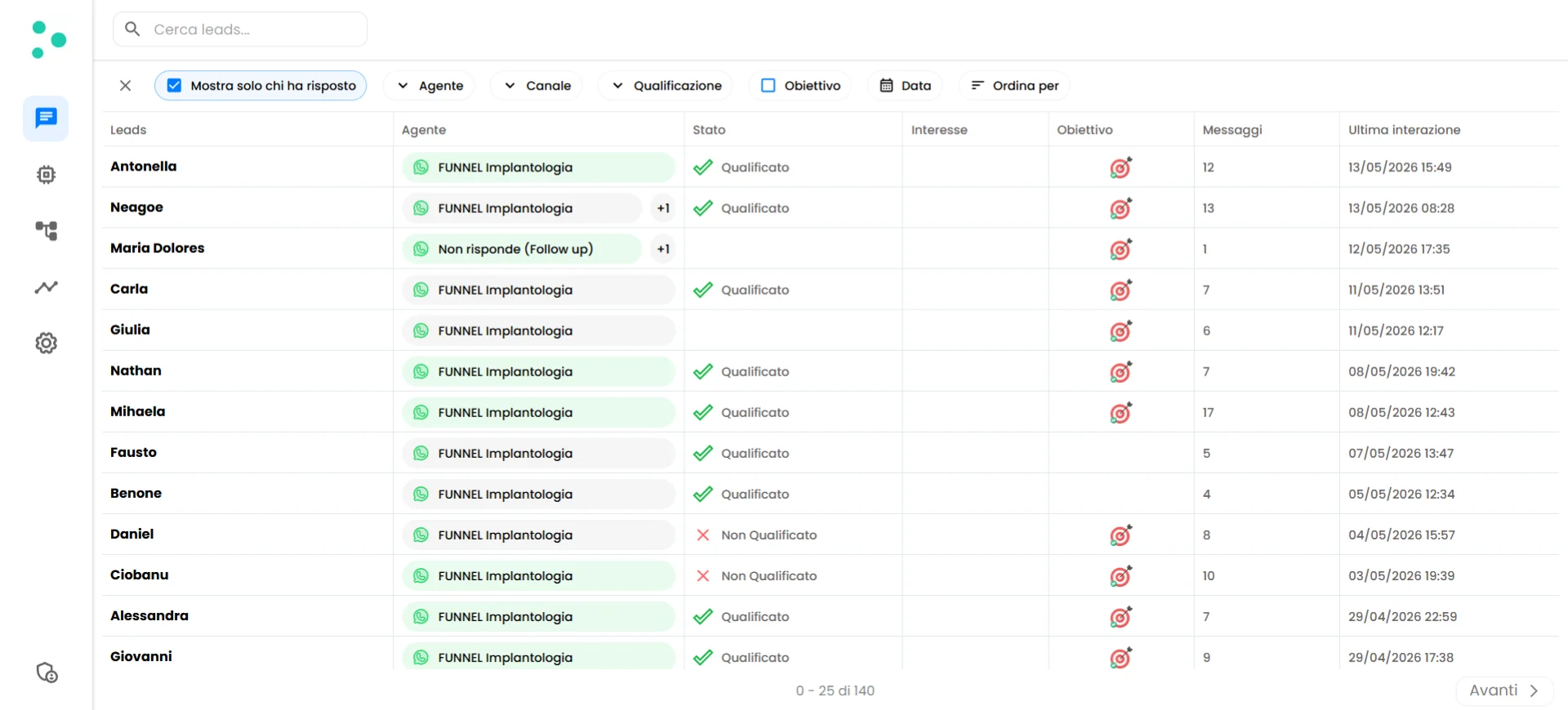 Here's what each column tells you:
| Column | What It Shows |
| :------------------- | :-------------------------------------------------------------------------------------------------------------------------------------------------------------- |
| **Leads** | The lead's name (or phone number if no name is available) |
| **Agent** | Which AI agent this lead is chatting with — shown with the channel icon (WhatsApp, Facebook, Instagram) and agent name |
| **Status** | The lead's qualification status: **Qualified** (green checkmark), **Disqualified** (red), or empty if still **in progress** |
| **Interest** | A percentage score automatically detected from the conversation. **100%** means the lead showed strong interest in that chat; **0%** means no interest detected |
| **Goal** | Whether the lead achieved the goal you defined for that agent (e.g., booked a call, signed up for an event). A target icon appears when achieved |
| **Messages** | Total number of messages received from the lead in that chat |
| **Last Interaction** | Date and time of the most recent message in that conversation |
**Each row represents a lead.** If a lead has chatted with multiple agents, the row shows the data for one chat at a time — you can switch between them. More on that in the next section.
## 🔗 One Lead, Multiple Chats
Here's a concept that's worth understanding early: **a single lead can have multiple chats**, and each chat has its own stats.
This happens because three entities work together in Irelia:
* **Lead** — the person (identified by their phone number or social profile)
* **Agent** — the AI agent configured for a specific purpose
* **Chat** — a conversation between one lead and one agent
Every time a lead talks to a different agent, a new chat is created. That chat has its own qualification status, interest score, goal tracking, and message count — all independent from the lead's other chats.
**Example:** Imagine Maria messages your business. She first talks to your **Booking Agent** (whose goal is to schedule a consultation call) and then later talks to your **Event Agent** (whose goal is to register her for a webinar). That's two separate chats:
* **Chat 1** (Maria + Booking Agent) — Qualified, 100% interest, goal achieved ✅
* **Chat 2** (Maria + Event Agent) — In progress, 60% interest, goal not yet achieved
Both chats live under the same row in the table. The row displays one chat's data at a time — you click the **+N** badge to switch and see the other.
### The +N Indicator
When a lead has chatted with multiple agents, you'll see a small **+N** circle next to the agent name in the table. The number tells you how many additional chats exist for that lead beyond the one currently displayed.
Here's what each column tells you:
| Column | What It Shows |
| :------------------- | :-------------------------------------------------------------------------------------------------------------------------------------------------------------- |
| **Leads** | The lead's name (or phone number if no name is available) |
| **Agent** | Which AI agent this lead is chatting with — shown with the channel icon (WhatsApp, Facebook, Instagram) and agent name |
| **Status** | The lead's qualification status: **Qualified** (green checkmark), **Disqualified** (red), or empty if still **in progress** |
| **Interest** | A percentage score automatically detected from the conversation. **100%** means the lead showed strong interest in that chat; **0%** means no interest detected |
| **Goal** | Whether the lead achieved the goal you defined for that agent (e.g., booked a call, signed up for an event). A target icon appears when achieved |
| **Messages** | Total number of messages received from the lead in that chat |
| **Last Interaction** | Date and time of the most recent message in that conversation |
**Each row represents a lead.** If a lead has chatted with multiple agents, the row shows the data for one chat at a time — you can switch between them. More on that in the next section.
## 🔗 One Lead, Multiple Chats
Here's a concept that's worth understanding early: **a single lead can have multiple chats**, and each chat has its own stats.
This happens because three entities work together in Irelia:
* **Lead** — the person (identified by their phone number or social profile)
* **Agent** — the AI agent configured for a specific purpose
* **Chat** — a conversation between one lead and one agent
Every time a lead talks to a different agent, a new chat is created. That chat has its own qualification status, interest score, goal tracking, and message count — all independent from the lead's other chats.
**Example:** Imagine Maria messages your business. She first talks to your **Booking Agent** (whose goal is to schedule a consultation call) and then later talks to your **Event Agent** (whose goal is to register her for a webinar). That's two separate chats:
* **Chat 1** (Maria + Booking Agent) — Qualified, 100% interest, goal achieved ✅
* **Chat 2** (Maria + Event Agent) — In progress, 60% interest, goal not yet achieved
Both chats live under the same row in the table. The row displays one chat's data at a time — you click the **+N** badge to switch and see the other.
### The +N Indicator
When a lead has chatted with multiple agents, you'll see a small **+N** circle next to the agent name in the table. The number tells you how many additional chats exist for that lead beyond the one currently displayed.
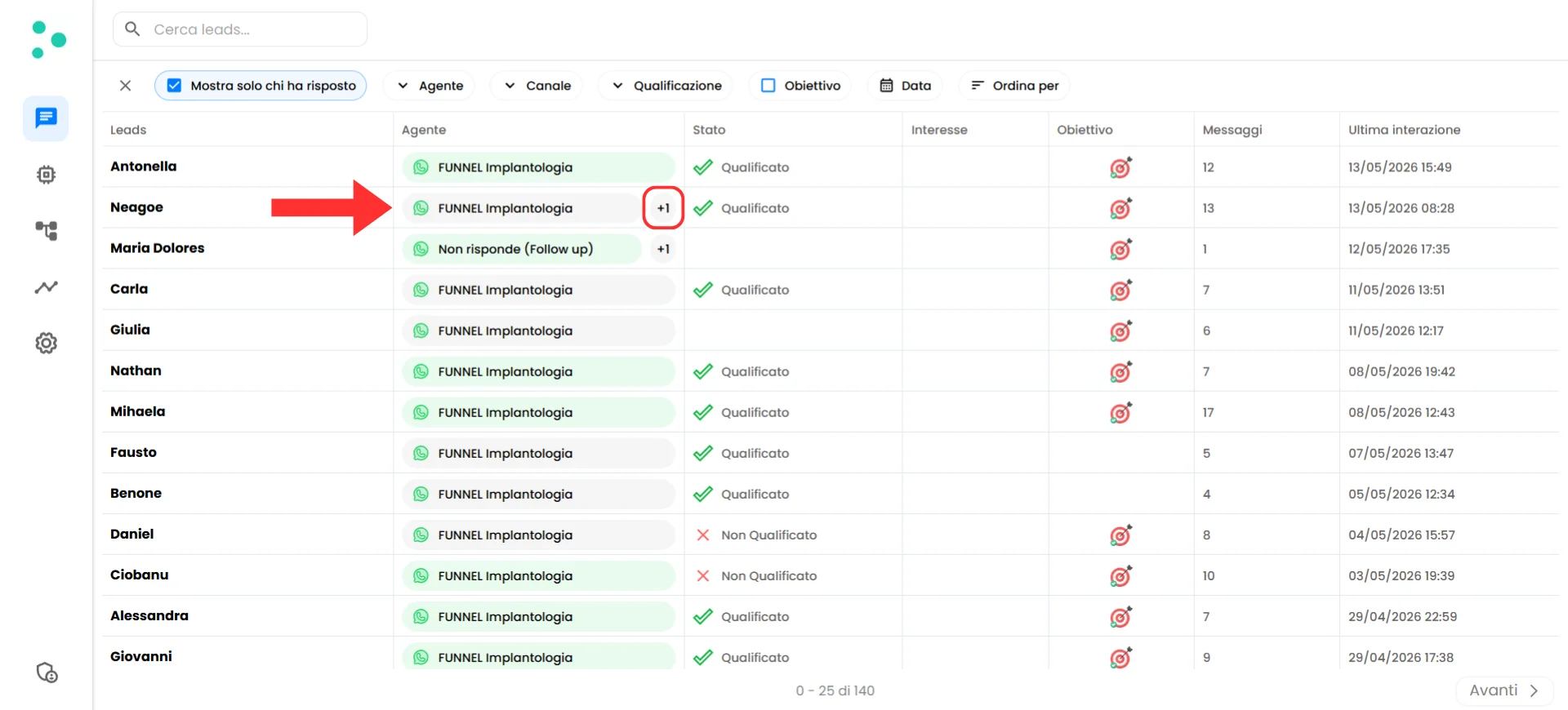 Click the **+N** badge to see a list of all agents this lead has chatted with, each representing a different chat. Select a different agent from the list, and the row's stats update in place — qualification status, interest score, goal, messages, everything switches to reflect the selected chat.
## 🔍 Filtering and Sorting
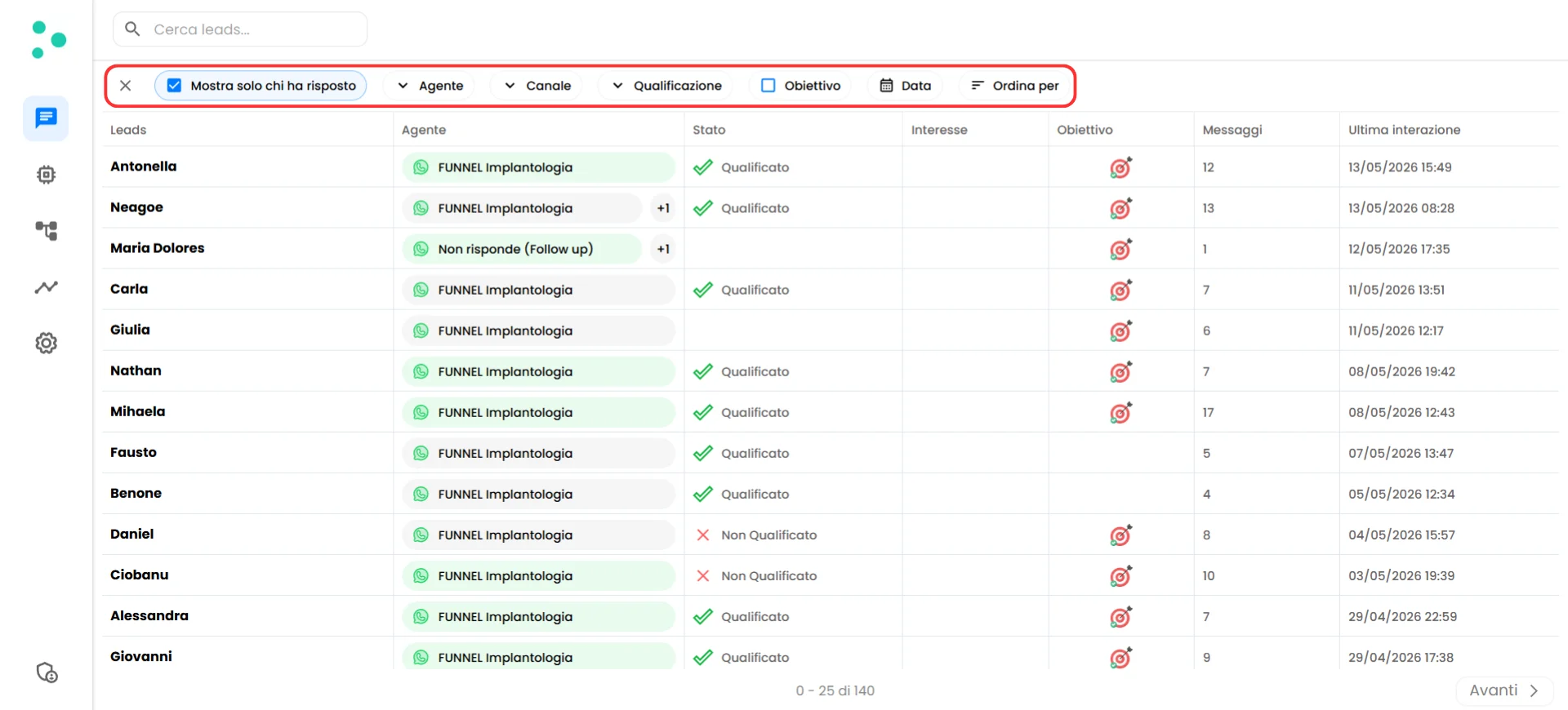
As your leads grow, you'll want to zoom in on specific subsets. The filter bar at the top of the chat panel gives you several ways to narrow down what you see.
Click the **+N** badge to see a list of all agents this lead has chatted with, each representing a different chat. Select a different agent from the list, and the row's stats update in place — qualification status, interest score, goal, messages, everything switches to reflect the selected chat.
## 🔍 Filtering and Sorting
As your leads grow, you'll want to zoom in on specific subsets. The filter bar at the top of the chat panel gives you several ways to narrow down what you see.
 ### Search
At the very top, there's a **search bar** where you can type a lead's **name** or **phone number** to find them instantly. This is the fastest way to locate a specific person.
### Filters
You can combine multiple filters at once to build very specific views of your leads:
| Filter | What It Does |
| :------------------------ | :---------------------------------------------------------------------------------------------------------------------- |
| **Show only who replied** | Hides leads who never replied to your agent's messages. Useful for focusing on leads who actually engaged |
| **Agent** | Shows only leads who chatted with a specific agent. Select the agent from the dropdown |
| **Channel** | Shows only leads from a specific messaging channel — WhatsApp, Facebook, or Instagram |
| **Qualification** | Filters by qualification status: Qualified, Disqualified, or In Progress |
| **Goal** | Shows only leads who achieved (or didn't achieve) the goal defined for that chat |
| **Date** | Filters leads by their **last interaction** date. You can set a **From** date, a **To** date, or both to define a range |
To remove a filter, unselect the specific filter or click the **X** button next to it in the filter bar.
### Sorting
The **Sort by** control lets you change the order of your leads. You can sort by:
* **Last interaction** — when the most recent message was exchanged (default)
* **Creation date** — when the lead first appeared in Irelia
Both options can be sorted **ascending** (oldest first) or **descending** (newest first).
## 👤 The Lead Detail View
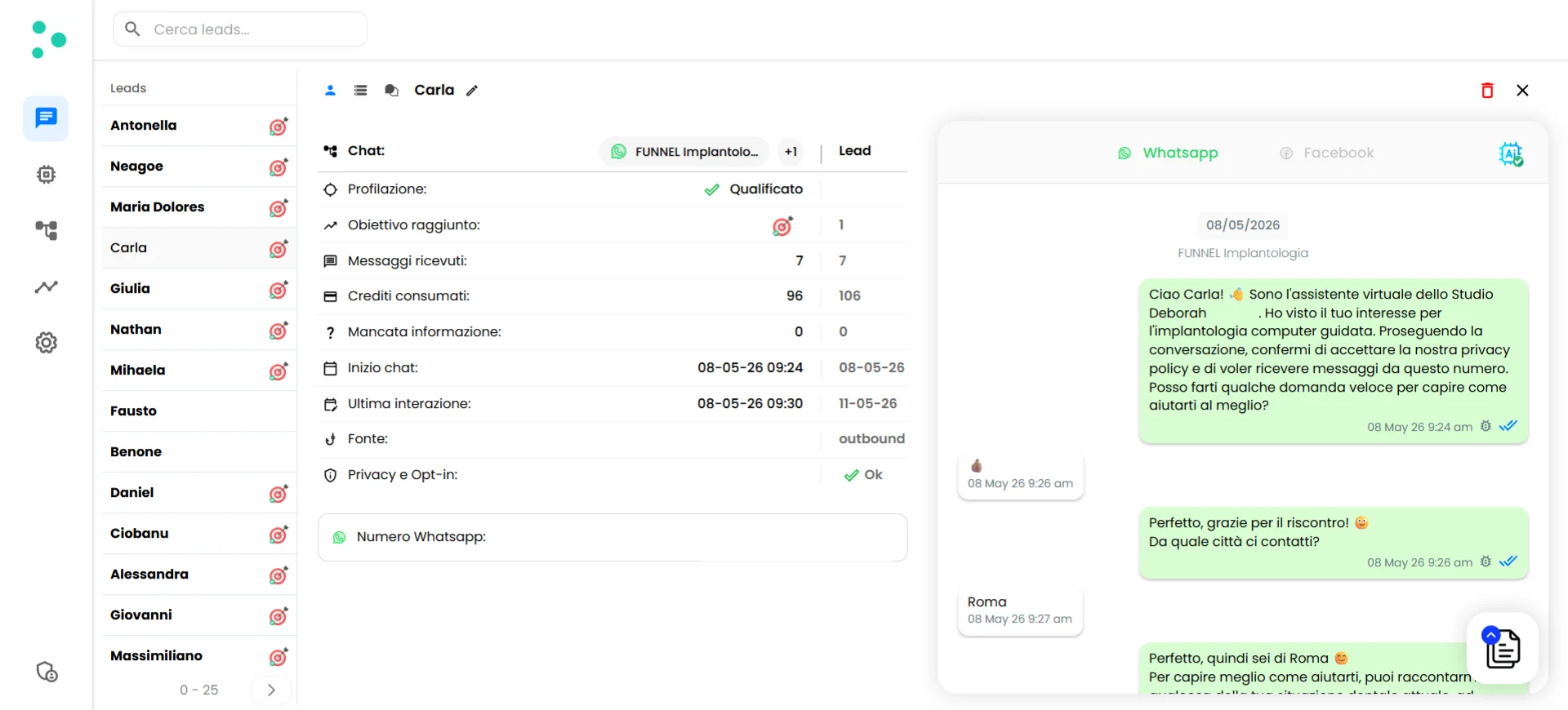
Click on any lead's **name** in the table to open their detail view. This is where you go from a quick glance to a deep dive — seeing the full picture of a specific lead and their conversation.
The detail view is split into three areas: a **lead sidebar** on the left, a **data panel** in the center, and a **conversation panel** on the right.
### Search
At the very top, there's a **search bar** where you can type a lead's **name** or **phone number** to find them instantly. This is the fastest way to locate a specific person.
### Filters
You can combine multiple filters at once to build very specific views of your leads:
| Filter | What It Does |
| :------------------------ | :---------------------------------------------------------------------------------------------------------------------- |
| **Show only who replied** | Hides leads who never replied to your agent's messages. Useful for focusing on leads who actually engaged |
| **Agent** | Shows only leads who chatted with a specific agent. Select the agent from the dropdown |
| **Channel** | Shows only leads from a specific messaging channel — WhatsApp, Facebook, or Instagram |
| **Qualification** | Filters by qualification status: Qualified, Disqualified, or In Progress |
| **Goal** | Shows only leads who achieved (or didn't achieve) the goal defined for that chat |
| **Date** | Filters leads by their **last interaction** date. You can set a **From** date, a **To** date, or both to define a range |
To remove a filter, unselect the specific filter or click the **X** button next to it in the filter bar.
### Sorting
The **Sort by** control lets you change the order of your leads. You can sort by:
* **Last interaction** — when the most recent message was exchanged (default)
* **Creation date** — when the lead first appeared in Irelia
Both options can be sorted **ascending** (oldest first) or **descending** (newest first).
## 👤 The Lead Detail View
Click on any lead's **name** in the table to open their detail view. This is where you go from a quick glance to a deep dive — seeing the full picture of a specific lead and their conversation.
The detail view is split into three areas: a **lead sidebar** on the left, a **data panel** in the center, and a **conversation panel** on the right.
 ### Chat Overview
The center panel shows key stats and metadata for the selected chat:
| Field | What It Means |
| :----------------------- | :----------------------------------------------------------------------------------------------------------------------- |
| **Qualification** | The agent's qualification decision for this lead — Qualified, Disqualified, or Skipped (not yet determined) |
| **Goal achieved** | Whether the lead completed the goal defined for this agent |
| **Received messages** | Number of messages received in this chat (shown as two numbers — one for this chat, one across all chats with this lead) |
| **Credits consumed** | How many credits this conversation used (again, per-chat and total) |
| **Missing informations** | Number of prospect questions the agent couldn't answer from the Knowledge Base |
| **Chat beginning** | When this conversation started (per-chat and overall first contact) |
| **Last interaction** | When the last message was exchanged |
| **Source** | How this conversation started — **inbound** (the lead messaged first) or **outbound** (Irelia reached out first) |
| **Privacy and Opt-in** | The lead's opt-in status for messaging |
| **WhatsApp number** | The lead's phone number |
**Two-column numbers.** Several fields show two values side by side. The **left value** is for the currently selected chat (lead + specific agent). The **right value** is the total across all of that lead's chats, regardless of which agent they talked to.
### Collected Data
Your AI agents don't just chat — they gather information. Every piece of data your agent was configured to collect (budget, company size, timeline, pain points, or whatever custom variables you defined) is stored and accessible here.
To view collected data, click the **database icon** (the list/table icon) next to the lead's name at the top of the center panel.
### Chat Overview
The center panel shows key stats and metadata for the selected chat:
| Field | What It Means |
| :----------------------- | :----------------------------------------------------------------------------------------------------------------------- |
| **Qualification** | The agent's qualification decision for this lead — Qualified, Disqualified, or Skipped (not yet determined) |
| **Goal achieved** | Whether the lead completed the goal defined for this agent |
| **Received messages** | Number of messages received in this chat (shown as two numbers — one for this chat, one across all chats with this lead) |
| **Credits consumed** | How many credits this conversation used (again, per-chat and total) |
| **Missing informations** | Number of prospect questions the agent couldn't answer from the Knowledge Base |
| **Chat beginning** | When this conversation started (per-chat and overall first contact) |
| **Last interaction** | When the last message was exchanged |
| **Source** | How this conversation started — **inbound** (the lead messaged first) or **outbound** (Irelia reached out first) |
| **Privacy and Opt-in** | The lead's opt-in status for messaging |
| **WhatsApp number** | The lead's phone number |
**Two-column numbers.** Several fields show two values side by side. The **left value** is for the currently selected chat (lead + specific agent). The **right value** is the total across all of that lead's chats, regardless of which agent they talked to.
### Collected Data
Your AI agents don't just chat — they gather information. Every piece of data your agent was configured to collect (budget, company size, timeline, pain points, or whatever custom variables you defined) is stored and accessible here.
To view collected data, click the **database icon** (the list/table icon) next to the lead's name at the top of the center panel.
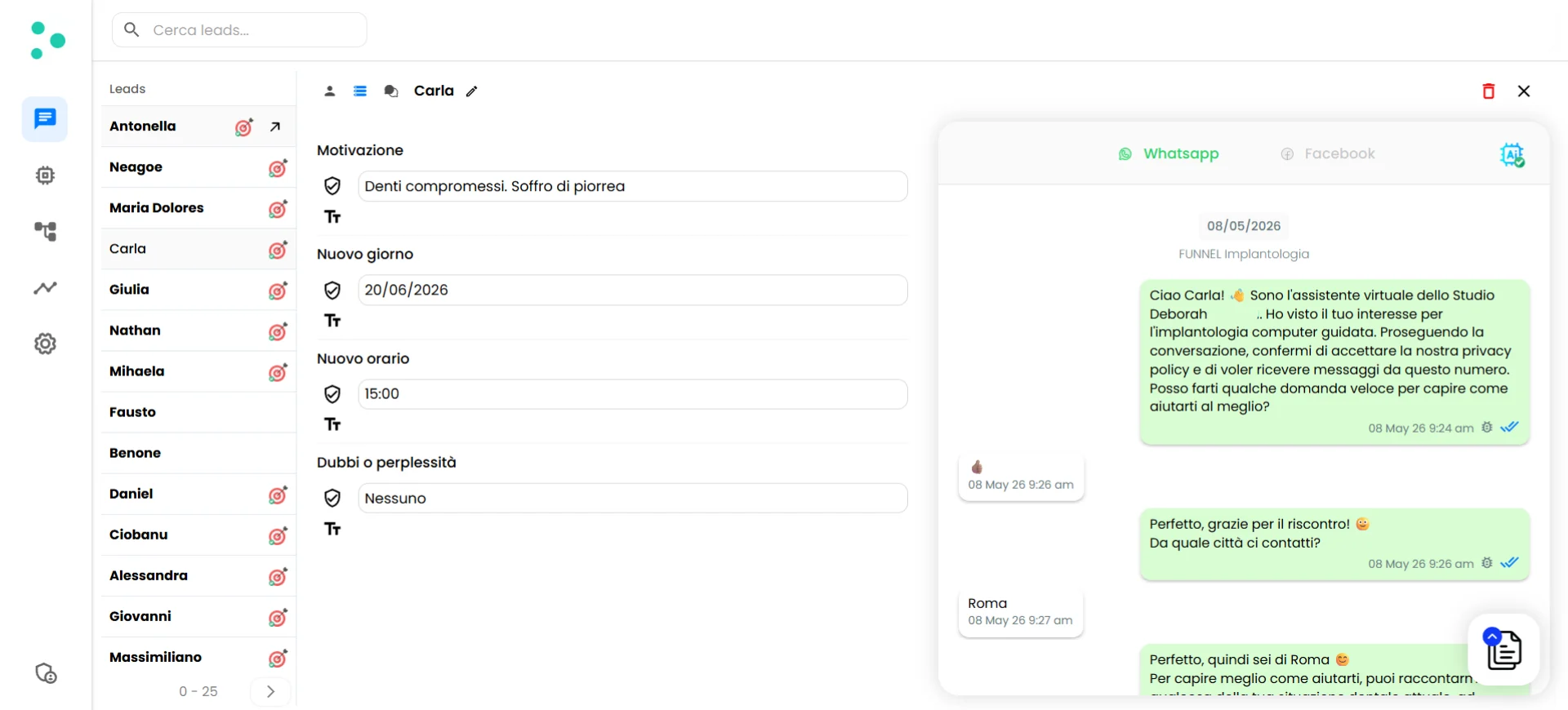 Each variable shows two values:
* ✅ **AI summary** — A clean, categorized interpretation of what the lead said (e.g., "The company handles about 100 clients per month")
* **Raw answer** — The lead's exact words from the conversation (e.g., "intorno ai 100")
This dual view is useful when you need both a quick takeaway and the original context. The AI summary is great for scanning; the raw answer is there when precision matters — like passing exact quotes to your sales team.
### Conversation History
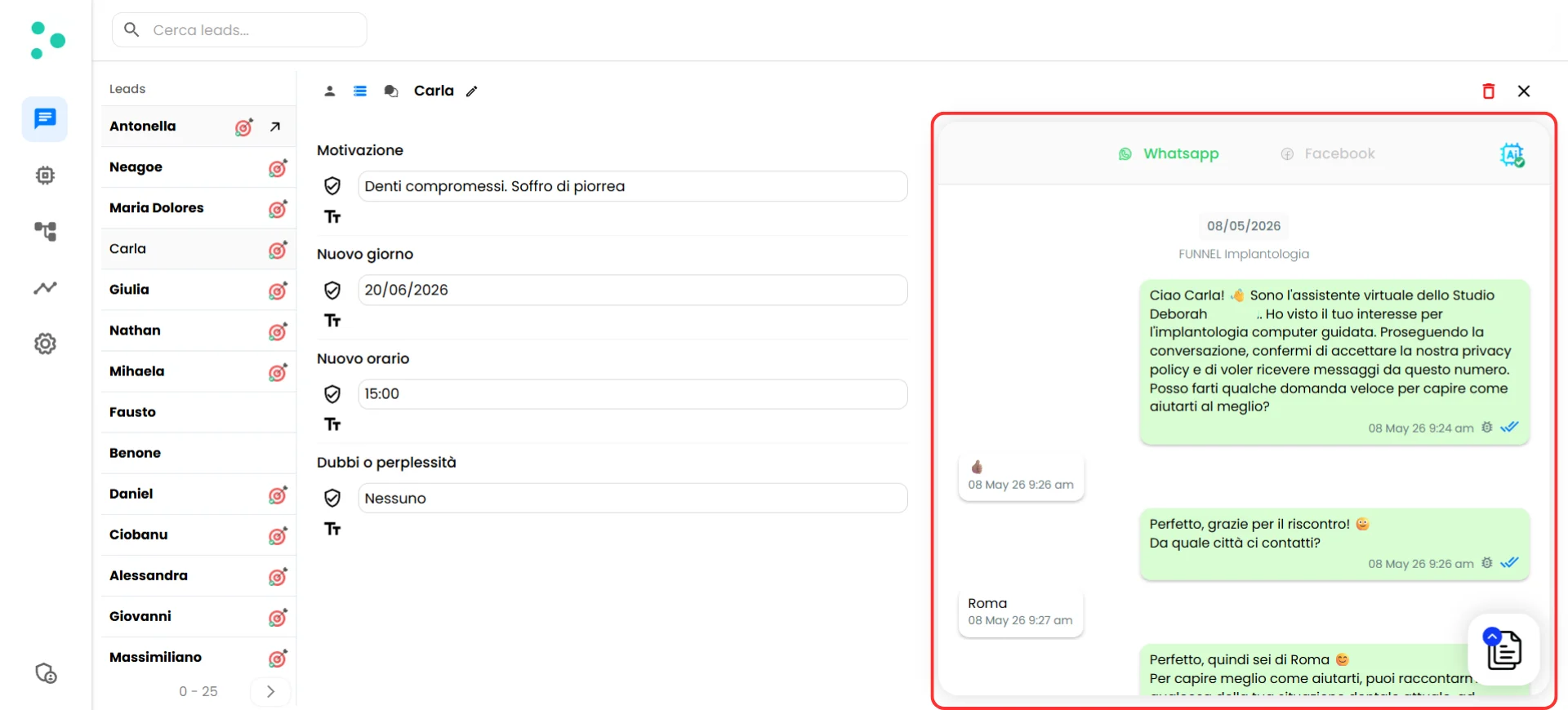
The right panel shows the **full chat transcript** between your agent and the lead. You can read every message, see timestamps, and follow the entire conversation flow.
If the lead has messaged on multiple channels (e.g., WhatsApp and Facebook), you'll see **channel tabs** at the top of the conversation panel. Click a tab to switch between the conversation history on each channel.
Each variable shows two values:
* ✅ **AI summary** — A clean, categorized interpretation of what the lead said (e.g., "The company handles about 100 clients per month")
* **Raw answer** — The lead's exact words from the conversation (e.g., "intorno ai 100")
This dual view is useful when you need both a quick takeaway and the original context. The AI summary is great for scanning; the raw answer is there when precision matters — like passing exact quotes to your sales team.
### Conversation History
The right panel shows the **full chat transcript** between your agent and the lead. You can read every message, see timestamps, and follow the entire conversation flow.
If the lead has messaged on multiple channels (e.g., WhatsApp and Facebook), you'll see **channel tabs** at the top of the conversation panel. Click a tab to switch between the conversation history on each channel.
 ## 💬 Taking Over a Conversation
Sometimes a conversation needs a human. Maybe the lead asked a complex question, the deal is high-value, or the situation is sensitive. Whatever the reason, you can disable your AI agent and take over the conversation yourself — directly from the chat panel.
### How to Disable the AI
Look for the **AI button** in the top-right corner of the conversation panel (the robot icon). Click it to toggle the AI off.
## 💬 Taking Over a Conversation
Sometimes a conversation needs a human. Maybe the lead asked a complex question, the deal is high-value, or the situation is sensitive. Whatever the reason, you can disable your AI agent and take over the conversation yourself — directly from the chat panel.
### How to Disable the AI
Look for the **AI button** in the top-right corner of the conversation panel (the robot icon). Click it to toggle the AI off.
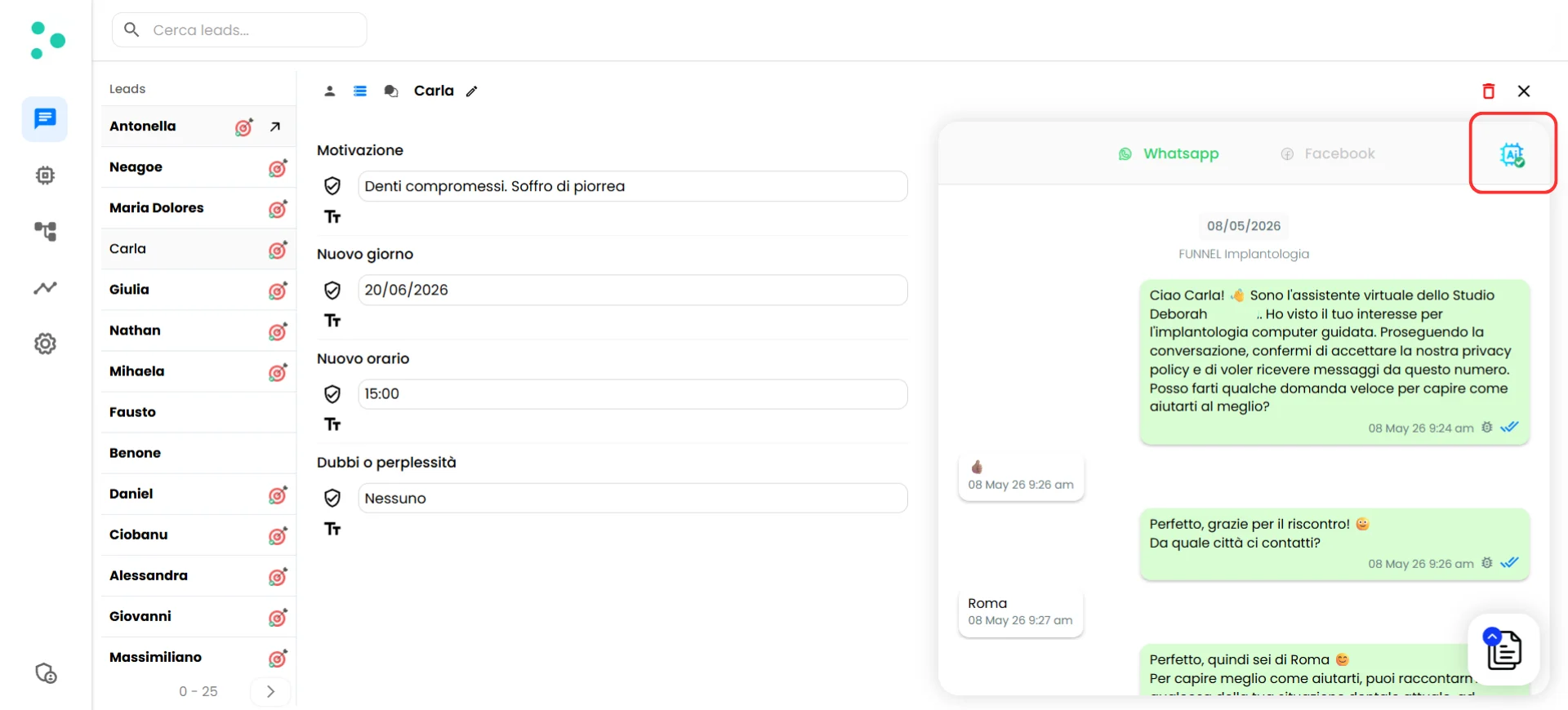 Once the AI is disabled:
* Your agent **stops responding** to that lead's messages
* A text input field appears at the bottom of the conversation panel
* You can type and send messages as yourself — the lead sees them just like any normal message
**This is per-chat.** Disabling the AI for one conversation doesn't affect your other leads. Your agents continue working everywhere else.
### The 24-Hour Window (WhatsApp)
If you're taking over a **WhatsApp** conversation, there's an important rule to know: WhatsApp Business API has a **24-hour messaging window**. You can only send free-form messages to a lead if their last message to you was **less than 24 hours ago**.
Here's what this means in practice:
| Situation | What You See | What You Can Do |
| :---------------------------------------------------- | :------------------------------------------------ | :------------------------------------------------------------------------------------------- |
| Last message from lead was **less than 24 hours ago** | Normal text input field at the bottom of the chat | Type and send any message freely |
| Last message from lead was **more than 24 hours ago** | The text input field is **hidden** | Send a **template message** by clicking the document icon (📄 with a blue arrow) in the chat |
Template messages are pre-approved message formats you've already created in your [agent settings](/Guide-eng/How-to-Create-a-WhatsApp-Template-in-Irelia). They allow you to re-open the conversation outside the 24-hour window — for example, a follow-up reminder or a special offer.
**Not sure how to create template messages?** See the guide on [How to create whatsapp template for an agent](/Guide-eng/How-to-Create-a-WhatsApp-Template-in-Irelia) to set up templates you can use when reaching out beyond the 24-hour window.
## ❓ FAQs
Not at this time. The chat panel currently doesn't support CSV export or bulk data download. If you need lead data in a spreadsheet or CRM, the best approach is to set up a [webhook integration](/Guide-eng/How-to-Connect-Irelia.ai-to-Make.com-Using-Webhooks) (via [Zapier](/Guide-eng/How-to-Connect-Irelia.ai-to-Zapier), [Make.com](/Guide-eng/How-to-Connect-Irelia.ai-to-Make.com-Using-Webhooks), or [Go High Level](/Guide-eng/How-to-Connect-Irelia.ai-to-Go-High-Level)) that automatically sends lead data to your tools as conversations happen — so your external systems stay in sync in real time.
There's no native app, but you don't need one — the chat panel is fully **responsive and optimized for mobile**. It works great in your phone's browser, and you can add it to your home screen so it looks and feels like a regular app.
Here's how to set it up:
1. Open Chrome and go to [irelia.ai/leads](https://irelia.ai/leads)
2. Log in to the Irelia account your sales rep needs access to
3. Tap the **three-dot menu** (⋮) in the top-right corner
4. Tap **"Add to Home screen"**
5. Give it a name (e.g., "Irelia Leads") and tap **Add**
1. Open Safari and go to [irelia.ai/leads](https://irelia.ai/leads)
2. Log in to the Irelia account your sales rep needs access to
3. Tap the **Share button** (the square with an arrow pointing up) at the bottom of the screen
4. Scroll down and tap **"Add to Home Screen"**
5. Give it a name (e.g., "Irelia Leads") and tap **Add**
An Irelia icon now appears on the home screen. Tapping it opens the chat panel directly — full screen, no browser address bar, just like an app. Your sales reps can check leads, read conversations, and take over chats from their phone wherever they are.
This field counts how many times a lead asked a question that your agent **couldn't answer** using the Knowledge Base. A high number here is a signal to review your [Knowledge Base](/Guide-eng/How-to-Train-Your-AI-Agent-with-the-Knowledge-Base-in-Irelia.ai) and add content covering those topics. You can use the [debug tools](/Guide-eng/How-to-Train-Your-AI-Agent-with-the-Knowledge-Base-in-Irelia.ai) to see exactly which questions went unanswered.
Yes. Open the lead's detail view and click the **trash icon** (🗑️) at the top-right corner of the center panel. This removes the lead and their conversation data.
The AI stays off for that specific chat until you manually turn it back on. The lead can still send messages, but they won't get automatic replies from your agent. Other leads and chats are unaffected — the toggle is per-chat, not account-wide. Make sure to re-enable the AI once you've finished the manual interaction.
**Irelia.ai Support:**
* Contact support in the WhatsApp priority support group or send an email to [info@irelia.ai](mailto:info@irelia.ai)
* Include: screenshots of what you're seeing in the chat panel, which lead or conversation is affected, and what you expected vs. what happened
Once the AI is disabled:
* Your agent **stops responding** to that lead's messages
* A text input field appears at the bottom of the conversation panel
* You can type and send messages as yourself — the lead sees them just like any normal message
**This is per-chat.** Disabling the AI for one conversation doesn't affect your other leads. Your agents continue working everywhere else.
### The 24-Hour Window (WhatsApp)
If you're taking over a **WhatsApp** conversation, there's an important rule to know: WhatsApp Business API has a **24-hour messaging window**. You can only send free-form messages to a lead if their last message to you was **less than 24 hours ago**.
Here's what this means in practice:
| Situation | What You See | What You Can Do |
| :---------------------------------------------------- | :------------------------------------------------ | :------------------------------------------------------------------------------------------- |
| Last message from lead was **less than 24 hours ago** | Normal text input field at the bottom of the chat | Type and send any message freely |
| Last message from lead was **more than 24 hours ago** | The text input field is **hidden** | Send a **template message** by clicking the document icon (📄 with a blue arrow) in the chat |
Template messages are pre-approved message formats you've already created in your [agent settings](/Guide-eng/How-to-Create-a-WhatsApp-Template-in-Irelia). They allow you to re-open the conversation outside the 24-hour window — for example, a follow-up reminder or a special offer.
**Not sure how to create template messages?** See the guide on [How to create whatsapp template for an agent](/Guide-eng/How-to-Create-a-WhatsApp-Template-in-Irelia) to set up templates you can use when reaching out beyond the 24-hour window.
## ❓ FAQs
Not at this time. The chat panel currently doesn't support CSV export or bulk data download. If you need lead data in a spreadsheet or CRM, the best approach is to set up a [webhook integration](/Guide-eng/How-to-Connect-Irelia.ai-to-Make.com-Using-Webhooks) (via [Zapier](/Guide-eng/How-to-Connect-Irelia.ai-to-Zapier), [Make.com](/Guide-eng/How-to-Connect-Irelia.ai-to-Make.com-Using-Webhooks), or [Go High Level](/Guide-eng/How-to-Connect-Irelia.ai-to-Go-High-Level)) that automatically sends lead data to your tools as conversations happen — so your external systems stay in sync in real time.
There's no native app, but you don't need one — the chat panel is fully **responsive and optimized for mobile**. It works great in your phone's browser, and you can add it to your home screen so it looks and feels like a regular app.
Here's how to set it up:
1. Open Chrome and go to [irelia.ai/leads](https://irelia.ai/leads)
2. Log in to the Irelia account your sales rep needs access to
3. Tap the **three-dot menu** (⋮) in the top-right corner
4. Tap **"Add to Home screen"**
5. Give it a name (e.g., "Irelia Leads") and tap **Add**
1. Open Safari and go to [irelia.ai/leads](https://irelia.ai/leads)
2. Log in to the Irelia account your sales rep needs access to
3. Tap the **Share button** (the square with an arrow pointing up) at the bottom of the screen
4. Scroll down and tap **"Add to Home Screen"**
5. Give it a name (e.g., "Irelia Leads") and tap **Add**
An Irelia icon now appears on the home screen. Tapping it opens the chat panel directly — full screen, no browser address bar, just like an app. Your sales reps can check leads, read conversations, and take over chats from their phone wherever they are.
This field counts how many times a lead asked a question that your agent **couldn't answer** using the Knowledge Base. A high number here is a signal to review your [Knowledge Base](/Guide-eng/How-to-Train-Your-AI-Agent-with-the-Knowledge-Base-in-Irelia.ai) and add content covering those topics. You can use the [debug tools](/Guide-eng/How-to-Train-Your-AI-Agent-with-the-Knowledge-Base-in-Irelia.ai) to see exactly which questions went unanswered.
Yes. Open the lead's detail view and click the **trash icon** (🗑️) at the top-right corner of the center panel. This removes the lead and their conversation data.
The AI stays off for that specific chat until you manually turn it back on. The lead can still send messages, but they won't get automatic replies from your agent. Other leads and chats are unaffected — the toggle is per-chat, not account-wide. Make sure to re-enable the AI once you've finished the manual interaction.
**Irelia.ai Support:**
* Contact support in the WhatsApp priority support group or send an email to [info@irelia.ai](mailto:info@irelia.ai)
* Include: screenshots of what you're seeing in the chat panel, which lead or conversation is affected, and what you expected vs. what happened