> ## Documentation Index
> Fetch the complete documentation index at: https://docs.irelia.ai/llms.txt
> Use this file to discover all available pages before exploring further.
# How to Connect Meta Messenger and Instant Forms to Irelia.ai
> Connect your Facebook Page and Meta Business Manager to Irelia.ai to unlock automated Messenger conversations and instant lead capture from Meta ad campaigns.
\~2 minutes setup
***
Prerequisites and permissions before starting
Condensed steps for fast setup
Complete walkthrough for your first Meta connection
Walkthrough for subsequent connections
Enable, disable, and reset your Meta integration
Verify your setup is complete
Common issues and fixes
***
### 🔓 What This Integration Unlocks
You've invested in a strong Facebook presence and you're running Meta ad campaigns — but right now, every Messenger conversation and every lead form submission requires manual follow-up. Leads go cold while you're busy, and messages pile up unanswered.
Connecting your Meta assets to Irelia changes everything. Your AI agent takes over Messenger conversations automatically, and leads captured through Instant Forms get contacted instantly — with zero manual work.
Here's what each connection enables:
| Asset Connected | What You Can Do |
| :------------------- | :---------------------------------------------------------------------------------------------------------------------------------------------------------------------------------------------------------------------------------------------------------------------------- |
| **Business Manager** | 📝 Access [Instant Forms](/en/Connect-Meta-Instant-Forms) and automatically send [WhatsApp templates](/en/How-to-Create-a-WhatsApp-Template-in-Irelia) to leads captured from your Meta ad campaigns |
| **Facebook Page** | 💬 Let Irelia handle Messenger conversations — both [**inbound**](/en/How-to-Set-Your-Default-Inbound-Agent) (when prospects message you first) and **outbound** ([auto-reply in DMs when someone comments specific keywords on your posts](/en/How-to-Set-Up-Comment-to-DM)) |
**By the end of this guide, you'll have:**
✅ Your Facebook Page connected to Irelia for automated Messenger conversations
✅ Your Business Manager connected for [Instant Form lead capture](/en/Connect-Meta-Instant-Forms)
✅ Your desired Meta services enabled and ready to use
✅ The knowledge to connect additional accounts in the future
### What You'll Do
1. **Navigate to Irelia settings** and open the Meta connection flow (\~30 seconds)
2. **Log in with Facebook** and authorize the connection (\~30 seconds)
3. **Select one Facebook Page and one Business Manager** (\~30 seconds)
4. **Complete authorization and enable services** (\~30 seconds)
Connecting additional accounts later? The process is nearly identical — with one key difference covered in [Connecting Additional Accounts](#-connecting-additional-accounts).
## 📋 What You'll Need
* **Full control (Admin) access — including finance permissions** — to the Business Manager that manages your Facebook Page and runs your lead campaigns Required
* A Facebook account that has this level of access on the Business Manager Required
**No complex setup required.** If you can log into Facebook and click a few buttons, you can do this.
**For agency accounts:** If you're a marketer or agency setting up for a client, you need to be added as an **Admin with full control — including finance permissions** — on your client's Business Manager. Being added as a "Partner" — which is what Meta's own guidelines recommend — is **not sufficient** for the Embedded Signup process. See [Issue 1 in Troubleshooting](#issue-1) for how to fix this before you begin.
**One Page, one Business Manager — no exceptions.** Select exactly **one** Facebook Page and **one** Business Manager per Irelia account. Selecting multiple causes erratic behavior (e.g., Irelia responding from the wrong page or showing the wrong Instant Forms) and requires a full reset across **every** Irelia account linked to that Facebook profile. Already seeing issues? Jump to [Issue 2 in Troubleshooting](#issue-2).
## ⚡ Quick Path (Experienced Users)
Already comfortable with Meta integrations? Here's the condensed version.
**Which path do you need?** If you've never connected Meta to any Irelia account with your current Facebook profile, follow the **first-time connection** steps below. If you've connected before (even to a different Irelia account), follow the **subsequent connection** steps.
```mermaid actions placement="bottom-right" theme={null}
flowchart TD
A["You clicked Connect Meta"] --> B{"Have you ever connected Meta to any Irelia account with this Facebook profile?"}
B -->|No| C["First-Time Connection Steps 1-6"]
B -->|Yes| D["Connecting Additional Accounts Steps 1-6"]
```
1. **Irelia:** Go to **"Settings"** → **"Channels Configuration"** → Click the **"Connect Meta"** button
2. **Meta:** Log in → Select ONE Facebook Page → Select ONE Business Manager
3. **Irelia:** Enable desired services with toggles
1. **Irelia:** Go to **"Settings"** → **"Channels Configuration"** → Click the **"Connect Meta"** button
2. **Meta:** Click **"Edit previous settings"** → Keep existing selections checked → Add ONE new Page → Add ONE new BM
3. **Irelia:** Enable desired services with toggles
Need more detail? Continue with the full guide below.
## 🔌 First-Time Connection
Follow these steps if this is your **first time** connecting Meta assets to any Irelia account using your Facebook profile.
1 minute
Navigate to your Irelia settings page: 👉 [**https://irelia.ai/settings?menu=settings\&settings\_tab=generale**](https://irelia.ai/settings?menu=settings\&settings_tab=generale)
You'll see the **"Channels Configuration"** section.
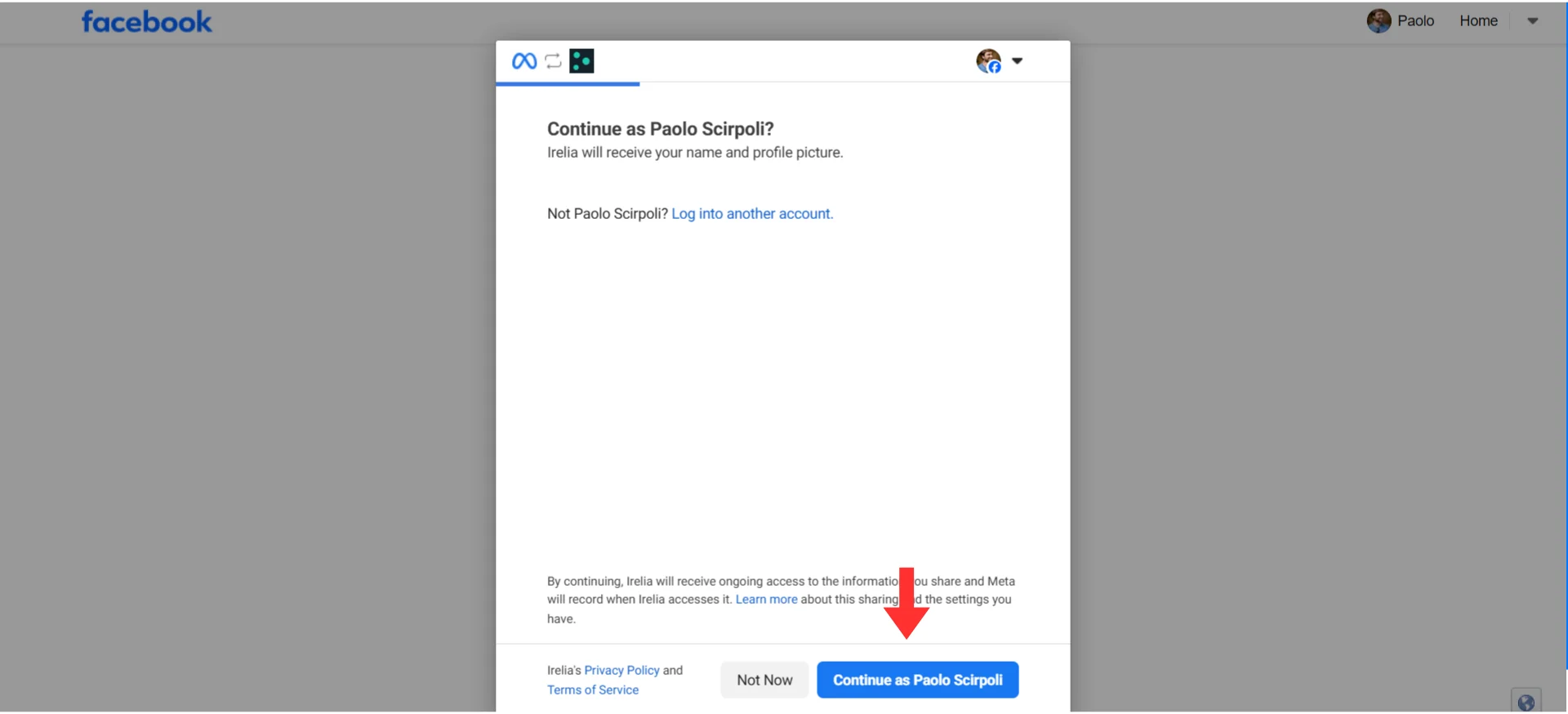
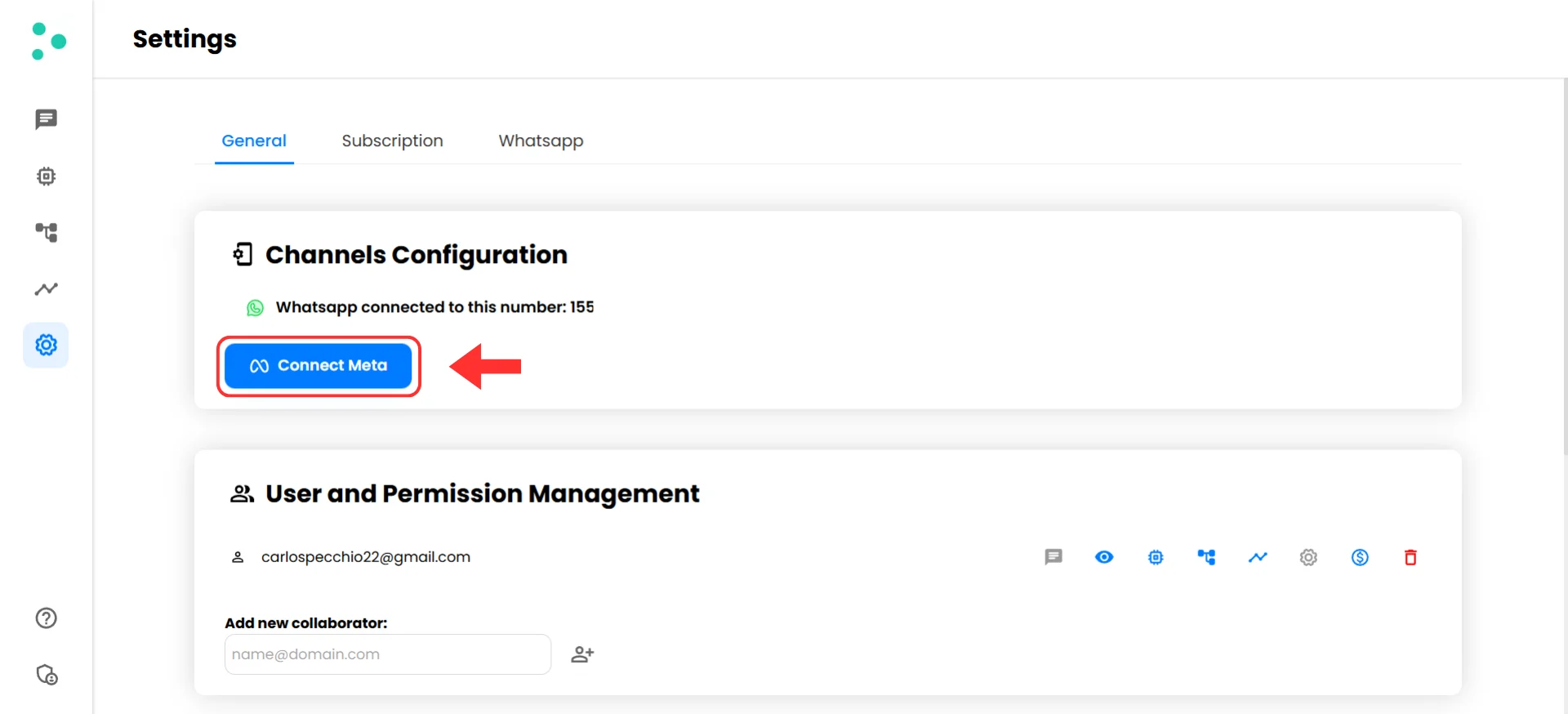 Click the blue **"Connect Meta"** button. A new browser tab will open with Meta's Embedded Signup authorization flow.
If prompted, log in with your Facebook account that has full control (Admin) access to your Business Manager.
Click the blue **"Connect Meta"** button. A new browser tab will open with Meta's Embedded Signup authorization flow.
If prompted, log in with your Facebook account that has full control (Admin) access to your Business Manager.
 1 minute
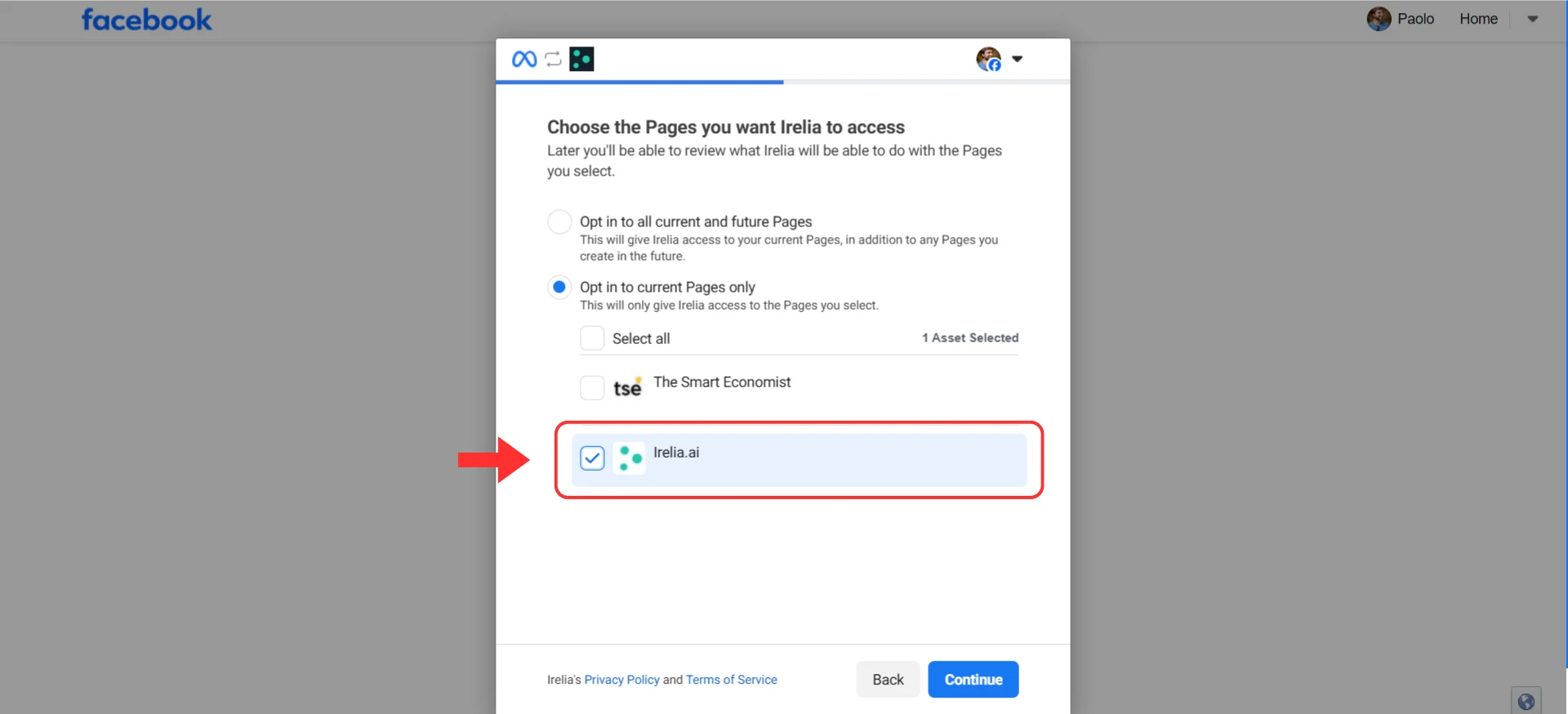
You'll be asked to choose which Facebook Page to connect.
**Most common mistake:** Selecting multiple Facebook Pages. Select **one** and only **one** — the single page you want to use with this specific Irelia account. Selecting multiple causes erratic behavior and requires a full reset.
1. Find your Facebook Page in the list
2. Check the box next to **one** Page only
3. Click **"Next"** or **"Continue"**
1 minute
You'll be asked to choose which Facebook Page to connect.
**Most common mistake:** Selecting multiple Facebook Pages. Select **one** and only **one** — the single page you want to use with this specific Irelia account. Selecting multiple causes erratic behavior and requires a full reset.
1. Find your Facebook Page in the list
2. Check the box next to **one** Page only
3. Click **"Next"** or **"Continue"**
 1 minute
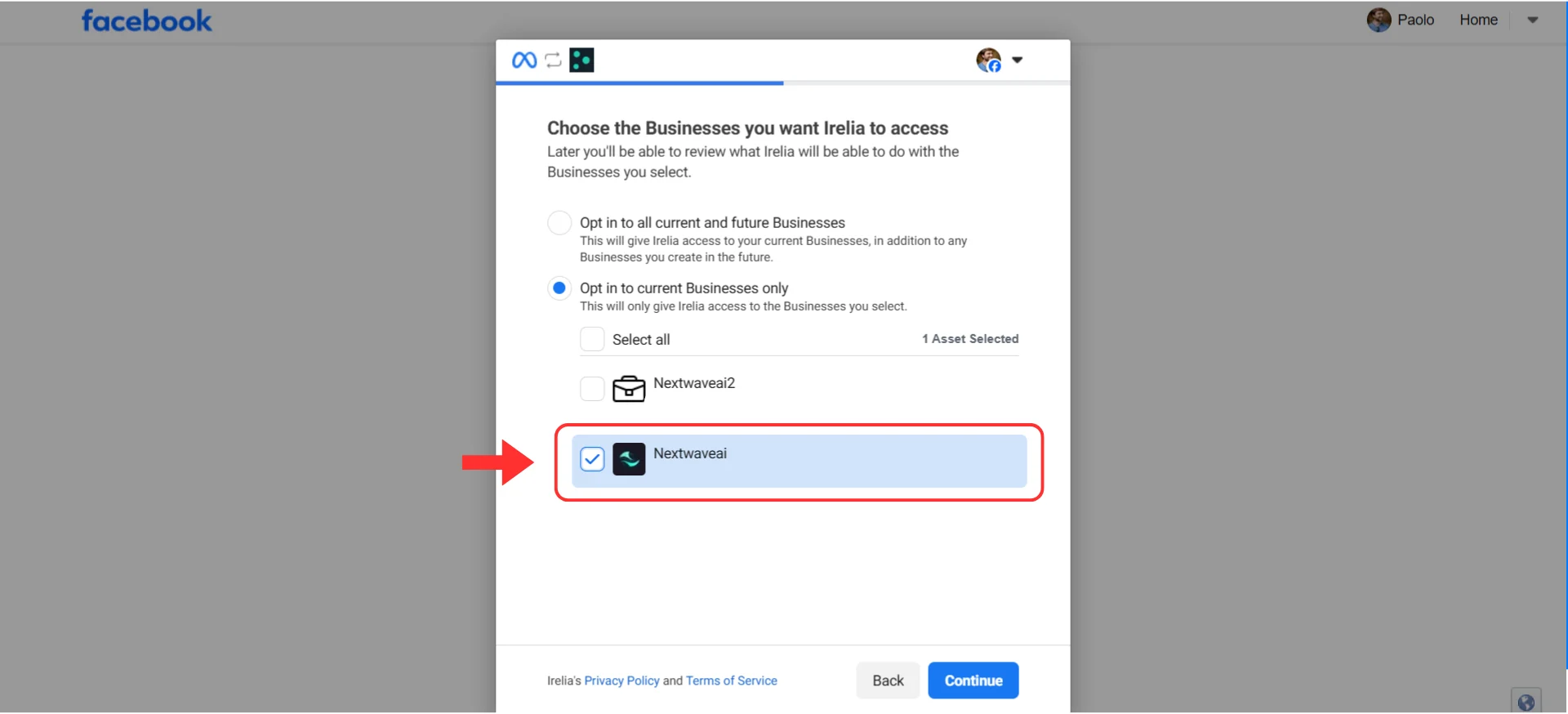
Next, you'll choose which Business Manager to connect.
**Same rule applies:** Select **one** and only **one** Business Manager — the one that contains the ad accounts and Instant Forms you want to use with this Irelia account.
1. Find your Business Manager in the list
2. Check the box next to **one** BM only
3. Click **"Next"** or **"Continue"**
1 minute
Next, you'll choose which Business Manager to connect.
**Same rule applies:** Select **one** and only **one** Business Manager — the one that contains the ad accounts and Instant Forms you want to use with this Irelia account.
1. Find your Business Manager in the list
2. Check the box next to **one** BM only
3. Click **"Next"** or **"Continue"**
 Review your selections and click **"Continue"** or **"Done"** to complete the authorization. You'll be redirected back to Irelia.
### 🎉 Congratulations! Your Meta Connection Is Live!
Take a moment to appreciate what you just set up:
✅ Your Facebook Page is connected to Irelia for automated Messenger conversations
Review your selections and click **"Continue"** or **"Done"** to complete the authorization. You'll be redirected back to Irelia.
### 🎉 Congratulations! Your Meta Connection Is Live!
Take a moment to appreciate what you just set up:
✅ Your Facebook Page is connected to Irelia for automated Messenger conversations
✅ Your Business Manager is linked for [Instant Form lead capture](/en/Connect-Meta-Instant-Forms)
✅ Your AI agent is ready to handle conversations and contacts automatically
**What happens now:** Head to [Managing Your Meta Services](#-managing-your-meta-services) to enable the specific services you need — Messenger, Instant Forms, or both.
## 🔄 Connecting Additional Accounts
Follow these steps if you're connecting a **second (or subsequent) Irelia account** using the **same Facebook profile** you've used before.
Go to your new Irelia account's settings and click the **"Connect Meta"** button, just like before.
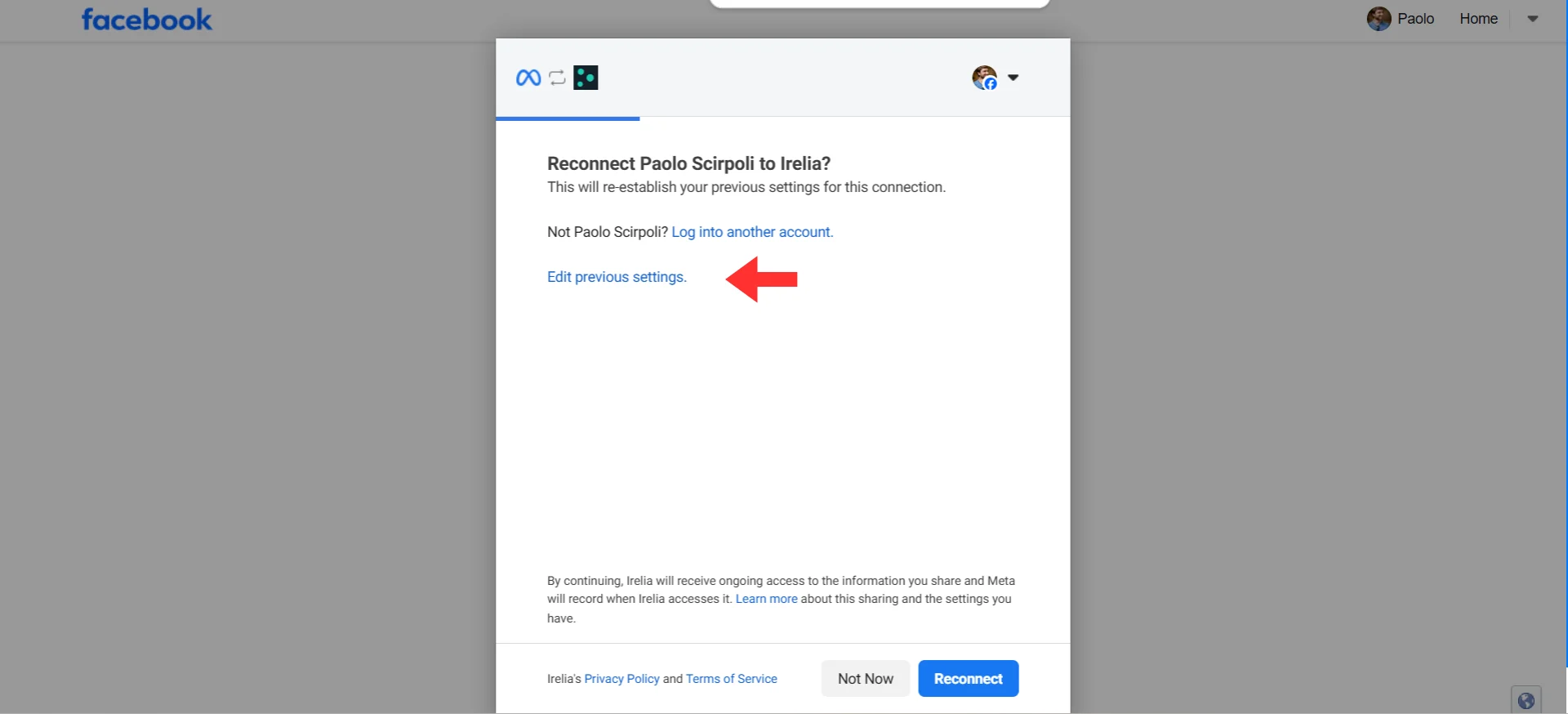
Since you've connected before, Meta will show you a different screen asking if you want to reconnect with your previous settings.
 1 minute
Do **not** click **"Reconnect"** — that would reuse your old settings.
Instead, click the blue **"Edit previous settings"** link.
**Why this matters:** Clicking this link lets you add new assets while keeping your previous connections intact. If you click **"Reconnect"** instead, you'll reapply your old selections without adding anything new.
1 minute
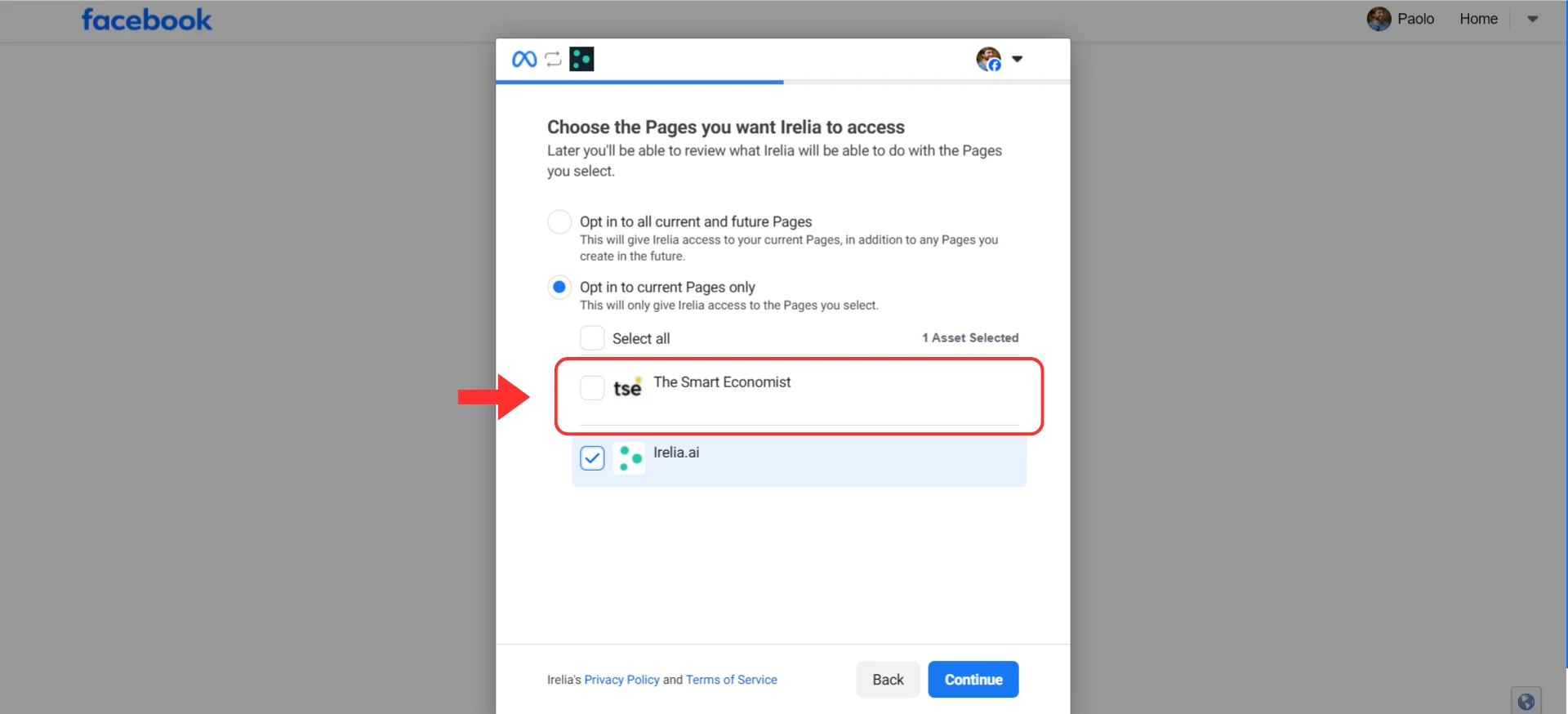
You'll see your previously selected Page(s) already checked.
**Important:** Leave existing selections checked **and** add exactly **one** new Facebook Page.
1. Verify your previously selected page(s) are still checked — do **not** uncheck them
2. Add a checkmark to **one** new page for this Irelia account
3. Do **not** select multiple new pages
1 minute
Do **not** click **"Reconnect"** — that would reuse your old settings.
Instead, click the blue **"Edit previous settings"** link.
**Why this matters:** Clicking this link lets you add new assets while keeping your previous connections intact. If you click **"Reconnect"** instead, you'll reapply your old selections without adding anything new.
1 minute
You'll see your previously selected Page(s) already checked.
**Important:** Leave existing selections checked **and** add exactly **one** new Facebook Page.
1. Verify your previously selected page(s) are still checked — do **not** uncheck them
2. Add a checkmark to **one** new page for this Irelia account
3. Do **not** select multiple new pages
 1 minute
The same rule applies for Business Manager.
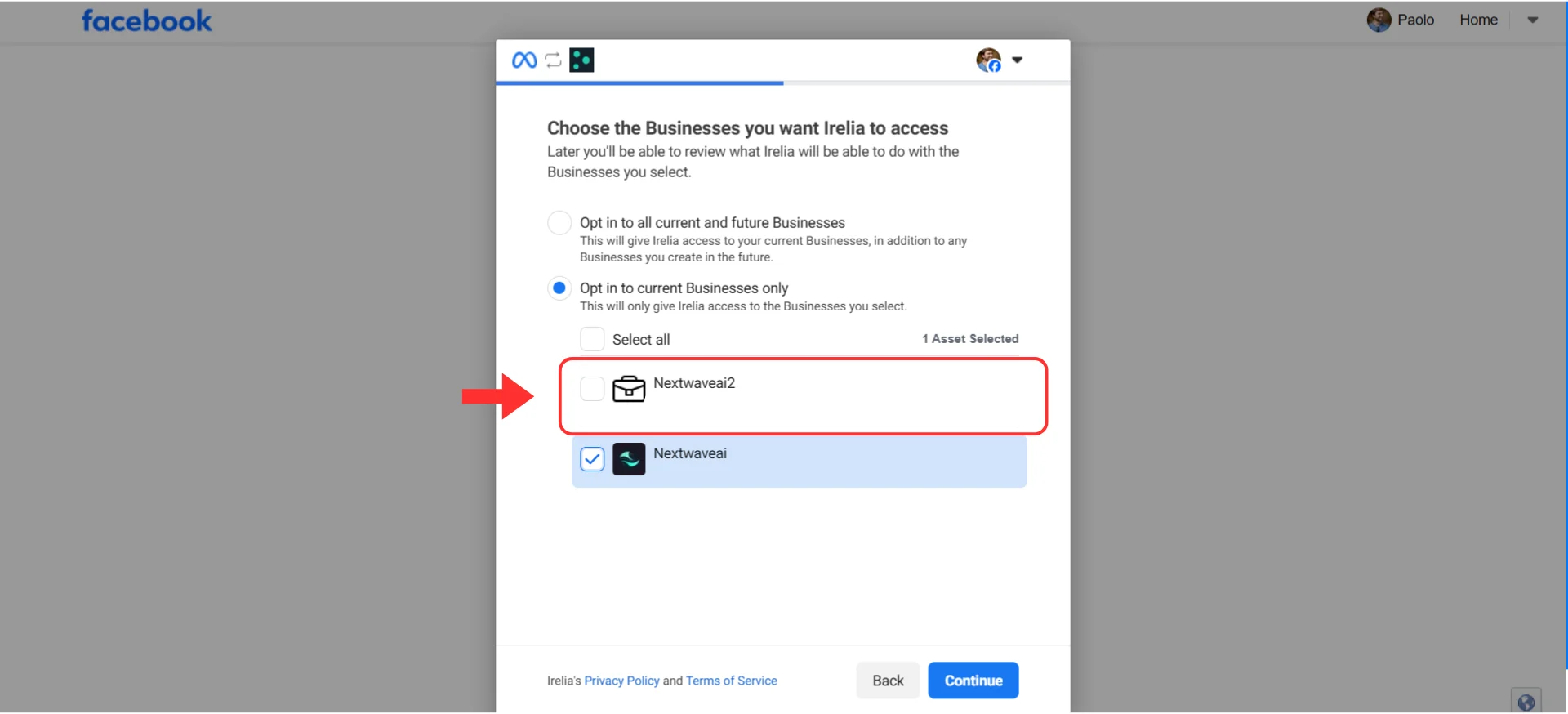
**Important:** Keep existing BM(s) selected **and** add exactly **one** new Business Manager.
1. Verify your previously selected BM(s) are still checked — do **not** uncheck them
2. Add a checkmark to **one** new BM for this Irelia account
3. Do **not** select multiple new BMs
1 minute
The same rule applies for Business Manager.
**Important:** Keep existing BM(s) selected **and** add exactly **one** new Business Manager.
1. Verify your previously selected BM(s) are still checked — do **not** uncheck them
2. Add a checkmark to **one** new BM for this Irelia account
3. Do **not** select multiple new BMs
 Finish the authorization process by clicking **"Continue"** or **"Done"**.
**Success!** Your new Irelia account is now connected to its own Facebook Page and Business Manager.
## ⚙️ Managing Your Meta Services
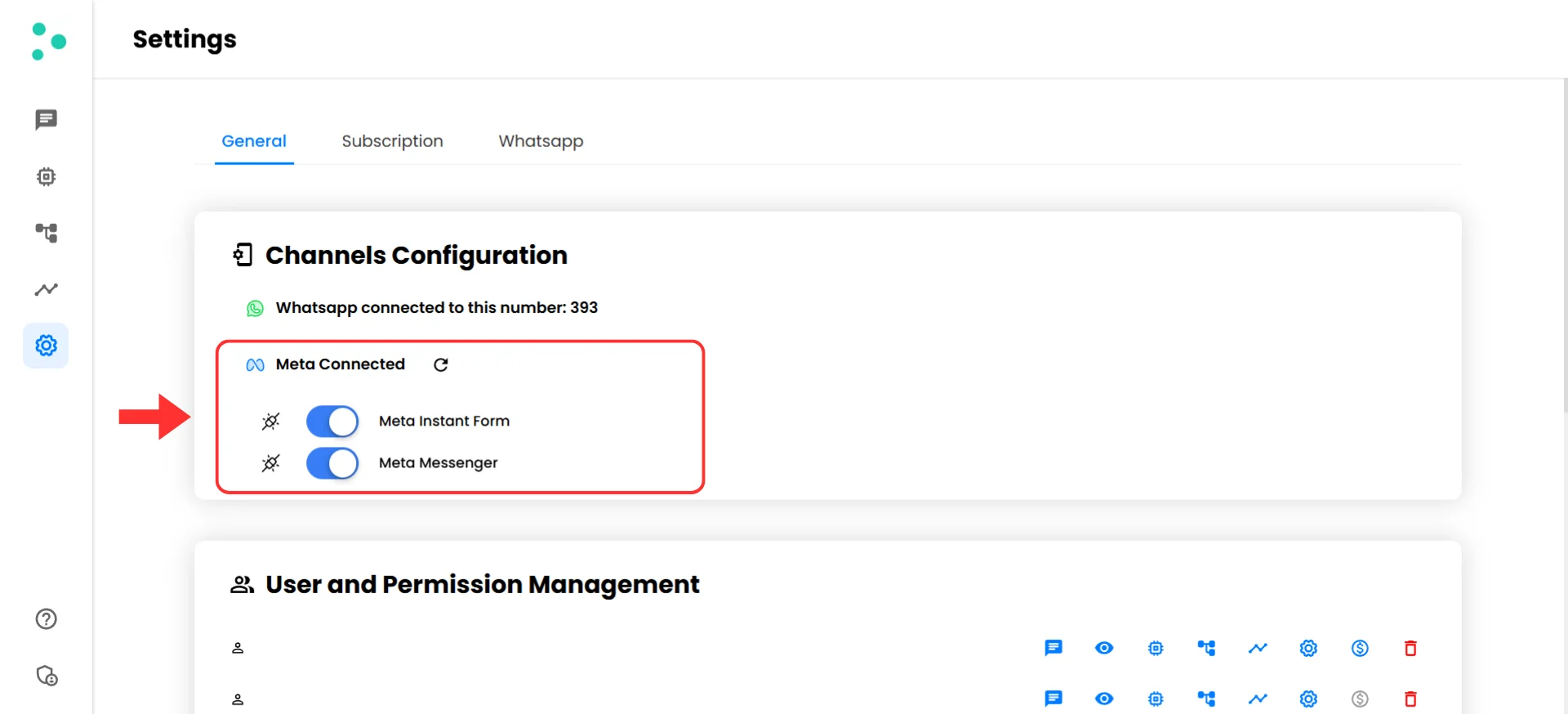
After a successful connection, you'll be redirected to the **"Channels Configuration"** screen where you can manage your Meta services.
Finish the authorization process by clicking **"Continue"** or **"Done"**.
**Success!** Your new Irelia account is now connected to its own Facebook Page and Business Manager.
## ⚙️ Managing Your Meta Services
After a successful connection, you'll be redirected to the **"Channels Configuration"** screen where you can manage your Meta services.
 ### Available Controls
| Element | Function |
| :----------------------------------------------- | :------------------------------------------------------------------- |
| 🔵 **"Meta Instant Form"** toggle | Enable or disable automatic lead sync from your Meta campaigns |
| 🔵 **"Meta Messenger"** toggle | Enable or disable Irelia's ability to handle Messenger conversations |
| 🔄 **reset icon** (next to **"Meta Connected"**) | Disconnect your current Meta connection and start fresh |
### Enabling and Disabling Services
1. **To enable a service:** Click the toggle so it turns **blue**
2. **To disable a service:** Click the toggle so it turns **white**
**Prefer manual Messenger conversations?** Disable the **"Meta Messenger"** toggle if you want to handle Facebook conversations yourself instead of through Irelia.
### Resetting Your Connection
If you need to start over with a completely new connection:
1. Click the **reset icon** next to **"Meta Connected"**
2. Confirm the reset
3. Click the **"Connect Meta"** button again to set up a new connection
### ➕ Adding New Meta Services
We continuously add new Meta integration capabilities. When new services become available, you'll see an **"Add missing Meta service"** button on your **"Channels Configuration"** screen.
### Available Controls
| Element | Function |
| :----------------------------------------------- | :------------------------------------------------------------------- |
| 🔵 **"Meta Instant Form"** toggle | Enable or disable automatic lead sync from your Meta campaigns |
| 🔵 **"Meta Messenger"** toggle | Enable or disable Irelia's ability to handle Messenger conversations |
| 🔄 **reset icon** (next to **"Meta Connected"**) | Disconnect your current Meta connection and start fresh |
### Enabling and Disabling Services
1. **To enable a service:** Click the toggle so it turns **blue**
2. **To disable a service:** Click the toggle so it turns **white**
**Prefer manual Messenger conversations?** Disable the **"Meta Messenger"** toggle if you want to handle Facebook conversations yourself instead of through Irelia.
### Resetting Your Connection
If you need to start over with a completely new connection:
1. Click the **reset icon** next to **"Meta Connected"**
2. Confirm the reset
3. Click the **"Connect Meta"** button again to set up a new connection
### ➕ Adding New Meta Services
We continuously add new Meta integration capabilities. When new services become available, you'll see an **"Add missing Meta service"** button on your **"Channels Configuration"** screen.
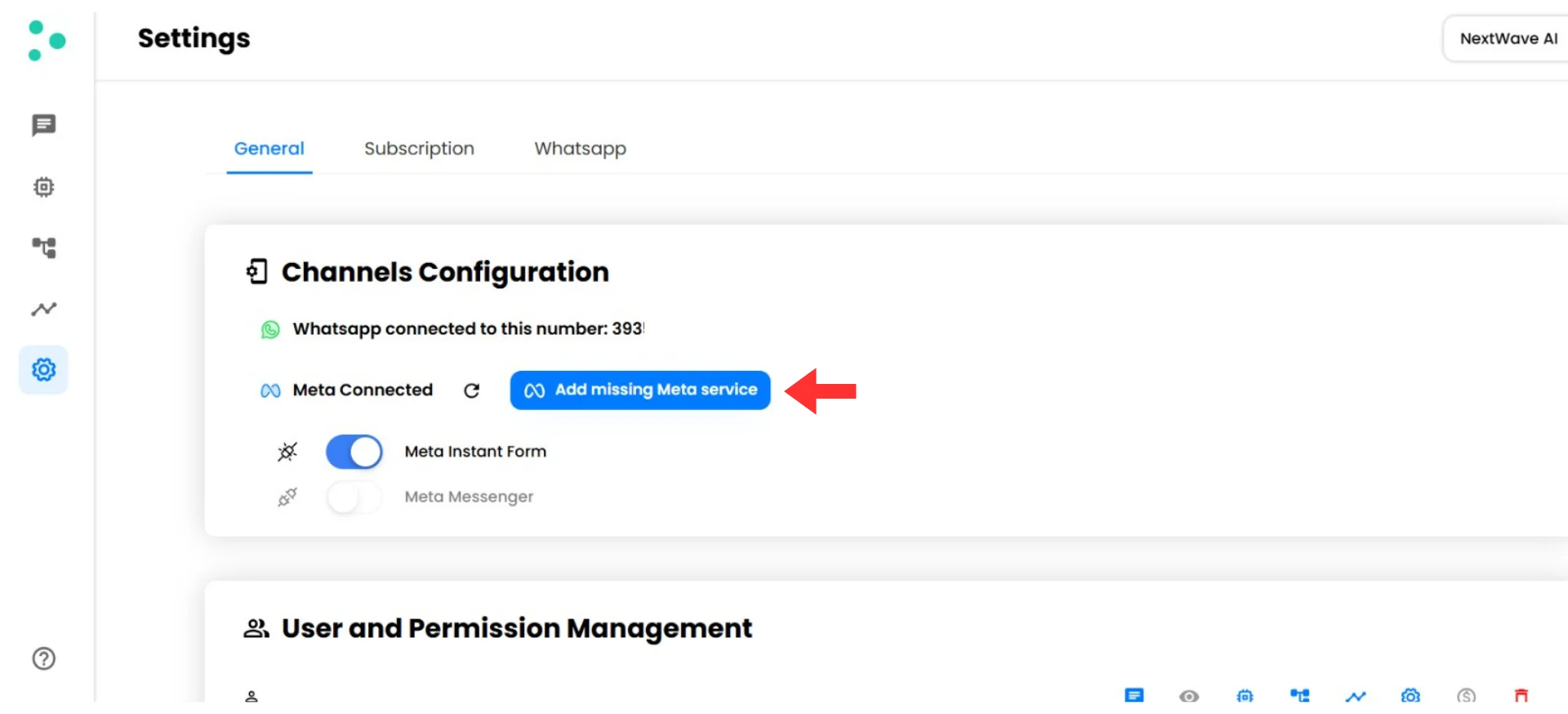 1. Click the blue **"Add missing Meta service"** button
2. Follow the same Meta authorization flow
3. Grant permissions for the new service
4. Return to Irelia and enable the new service with its toggle
## ✅ Quick Checklist
Use this checklist for every connection:
* Navigated to **"Settings"** → **"Channels Configuration"**
* Clicked the **"Connect Meta"** button
* Logged in with Facebook (if prompted)
* Selected ONE Facebook Page only
* Selected ONE Business Manager only
* Completed the authorization
* Enabled desired services with toggles
* Confirmed **"Meta Connected"** status appears
* Tested your integration
✅ **All checked? You're good to go!**
## 🛠️ Troubleshooting & FAQs
**What this means:** During the Meta authorization flow, the Facebook Page or Business Manager you need doesn't show up in the selection screen — usually because your Facebook account doesn't have the right permission level on the Business Manager.
**How to fix it:**
**Step 1: Verify you're logged into the correct Facebook account**
* The selection screen only shows assets where your logged-in Facebook account has the required permissions.
* If you have multiple Facebook accounts, make sure you're using the right one.
**Step 2: Check your Business Manager permissions**
| Access Level | BM & its Pages Appear? |
| :------------------------------------------------ | :-------------------------------- |
| Partner (Meta's recommendation for agencies) | ❌ No |
| Partial access (Employee) | ❌ No |
| Full control without finance permissions | ❌ No |
| **Full control (Admin) with finance permissions** | ✅ **Yes — this is what you need** |
* **How to check:** Go to **"Meta Business Suite"** → **"Settings"** → **"People"** → Find your name → Verify your role is **Admin with full control** and that **finance permissions** are enabled.
**Step 3: If you're an agency or marketer connecting for a client**
This is by far the most common cause. Your client likely added you as a **Partner** on their Business Manager — which is exactly what Meta recommends for agencies — but Partner access is **not enough** for the Embedded Signup connection process.
Ask your client to add you (temporarily or permanently) as an **Admin with full control — including finance permissions** — on their Business Manager.
Share the instructions below directly with your client:
#### Instructions for your client
1. Go to [**Meta Business Suite**](https://business.facebook.com/) and click the **gear icon** to open **"Business Settings"**
2. In the left sidebar, click **"People"**, then click the blue **"Invite People"** button
1. Click the blue **"Add missing Meta service"** button
2. Follow the same Meta authorization flow
3. Grant permissions for the new service
4. Return to Irelia and enable the new service with its toggle
## ✅ Quick Checklist
Use this checklist for every connection:
* Navigated to **"Settings"** → **"Channels Configuration"**
* Clicked the **"Connect Meta"** button
* Logged in with Facebook (if prompted)
* Selected ONE Facebook Page only
* Selected ONE Business Manager only
* Completed the authorization
* Enabled desired services with toggles
* Confirmed **"Meta Connected"** status appears
* Tested your integration
✅ **All checked? You're good to go!**
## 🛠️ Troubleshooting & FAQs
**What this means:** During the Meta authorization flow, the Facebook Page or Business Manager you need doesn't show up in the selection screen — usually because your Facebook account doesn't have the right permission level on the Business Manager.
**How to fix it:**
**Step 1: Verify you're logged into the correct Facebook account**
* The selection screen only shows assets where your logged-in Facebook account has the required permissions.
* If you have multiple Facebook accounts, make sure you're using the right one.
**Step 2: Check your Business Manager permissions**
| Access Level | BM & its Pages Appear? |
| :------------------------------------------------ | :-------------------------------- |
| Partner (Meta's recommendation for agencies) | ❌ No |
| Partial access (Employee) | ❌ No |
| Full control without finance permissions | ❌ No |
| **Full control (Admin) with finance permissions** | ✅ **Yes — this is what you need** |
* **How to check:** Go to **"Meta Business Suite"** → **"Settings"** → **"People"** → Find your name → Verify your role is **Admin with full control** and that **finance permissions** are enabled.
**Step 3: If you're an agency or marketer connecting for a client**
This is by far the most common cause. Your client likely added you as a **Partner** on their Business Manager — which is exactly what Meta recommends for agencies — but Partner access is **not enough** for the Embedded Signup connection process.
Ask your client to add you (temporarily or permanently) as an **Admin with full control — including finance permissions** — on their Business Manager.
Share the instructions below directly with your client:
#### Instructions for your client
1. Go to [**Meta Business Suite**](https://business.facebook.com/) and click the **gear icon** to open **"Business Settings"**
2. In the left sidebar, click **"People"**, then click the blue **"Invite People"** button
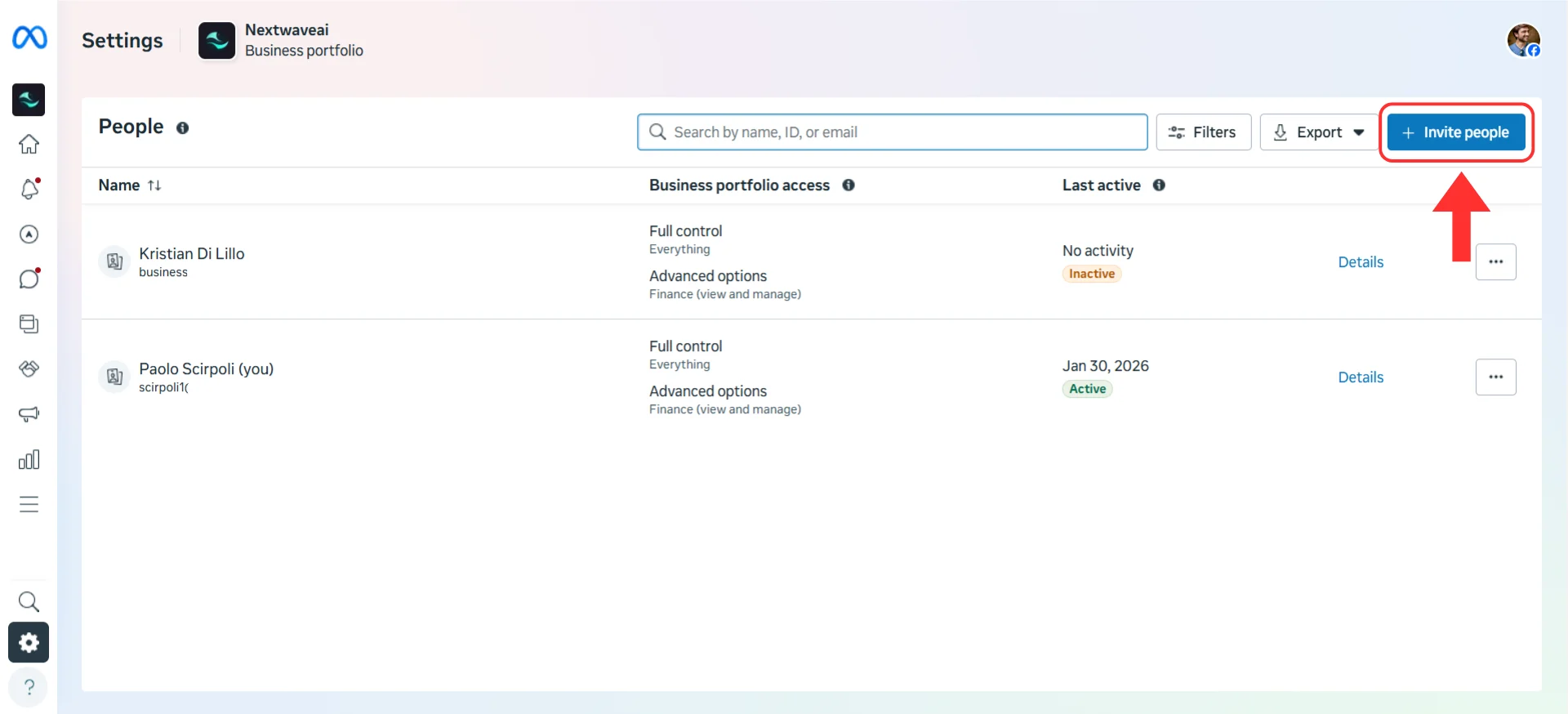 3. Enter the **email address** associated with the marketer or agency's Facebook account
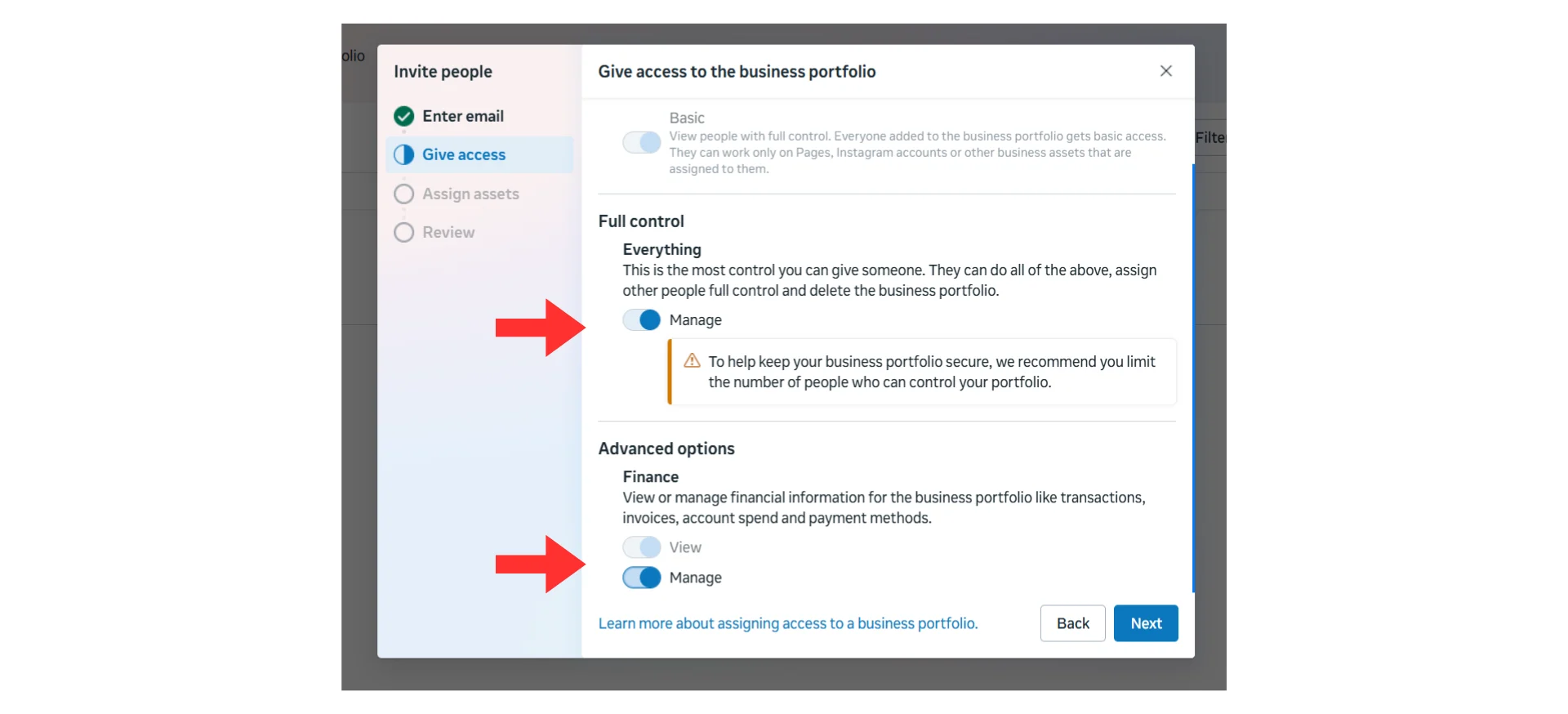
4. Select **"Full control"** (Admin access) and ensure **finance permissions are enabled** — this is critical, do **not** select **"Partial access"**
3. Enter the **email address** associated with the marketer or agency's Facebook account
4. Select **"Full control"** (Admin access) and ensure **finance permissions are enabled** — this is critical, do **not** select **"Partial access"**
 5. Click the **"Send Invitation"** button
#### After your client sends the invitation
1. Check your **email** and **Facebook notifications** for the invitation
2. **Accept** the invitation
3. **Restart** the Meta connection process from [Step 1 of First-Time Connection](#-first-time-connection)
4. Your client's Page and Business Manager should now appear in the selection screens
**Concerned about long-term permissions?** You can ask your client to downgrade your access back to Partner after the Meta setup is fully complete and working. The connection will continue to function.
**What this means:** Multiple Pages or multiple Business Managers were selected during the connection flow — either in this account or in another Irelia account that shares the same Facebook profile.
**Symptoms:**
* Irelia sends Messenger replies from a Page that doesn't belong to this account
* The **"Meta Instant Form"** module displays forms from the wrong Business Manager
* Generally unpredictable behavior across connected accounts
**How to fix it:**
**Step 1: Identify all affected accounts**
* Find every Irelia account that was connected using the same Facebook profile.
**Step 2: Reset every Meta connection**
* In **each** affected account, go to **"Settings"** → **"Channels Configuration"** → Click the **reset icon** next to **"Meta Connected"** and confirm.
* Wait until all connections are removed before proceeding. All the connections made from the same Facebook account must be resetted before moving to step 3.
**Step 3: Reconnect each account one by one**
* *First account:* Follow [First-Time Connection (Steps 1–6)](#-first-time-connection) — select **one** Page and **one** BM.
* *Each subsequent account:* Follow [Connecting Additional Accounts (Steps 1–6)](#-connecting-additional-accounts) — keep previous selections checked, add **one** new Page and **one** new BM.
1. Click the **reset icon** next to **"Meta Connected"** to disconnect
2. Click the **"Connect Meta"** button again
3. Select your new Page and BM
**What this means:** The connection process completed successfully and "Meta Connected" appears in Irelia, but the integration isn't functioning — services appear broken or unresponsive.
This is usually caused by Irelia not being automatically registered in your Business Manager's CRM access. It normally happens automatically during the connection process, but in some cases it doesn't.
**How to fix it:**
**Step 1: Check CRM access in Meta**
* In **Meta Business Suite**, go to **Business Settings** → **Integrations** and locate the **Leads Access** (or **CRM**) section
* Look for **Irelia** in the list of connected platforms
**Step 2: If Irelia is not listed, add it manually**
* Click the option to add or connect a new CRM platform
* Search for and add **Irelia** manually
**What this means:** Irelia can't manage Messenger conversations because messaging isn't enabled on your Facebook Page itself.
**How to fix it:**
**Step 1: Enable messaging on your Facebook Page**
* Go to your Facebook Page **"Settings"** → **"Messaging"** and make sure messaging is turned on.
**Step 2: Return to Irelia and try the toggle again**
* Go to **"Settings"** → **"Channels Configuration"** and enable the **"Meta Messenger"** toggle.
**What this means:** Irelia isn't receiving lead data from your Meta ad campaign forms.
**How to fix it:**
**Step 1: Verify the form is attached to an active campaign**
* Open Meta Ads Manager and confirm the campaign using your Instant Form is active and running.
**Step 2: Check your Business Manager connection**
* Make sure the BM you connected to Irelia contains the ad account running the campaign.
**Step 3: Verify the toggle is enabled**
* Go to **"Settings"** → **"Channels Configuration"** and make sure the **"Meta Instant Form"** toggle is **enabled** (blue).
**What this means:** Irelia is receiving lead data from your forms but can't send WhatsApp messages to the captured leads.
**How to fix it:**
**Step 1: Check phone number format**
* Leads may be entering their phone number without the correct country code or with an incorrect format.
* If possible, set a default country prefix in your Meta form based on the country where you're advertising.
**Step 2: Verify your form includes a phone number field**
* Your Instant Form might not include a phone number field, so Irelia can't contact leads.
* Edit your form in Meta Ads Manager and add a phone number field.
**Step 3: Use Meta's standard fields**
* Irelia pulls data from Meta's default fields (name and phone number). If you're using custom fields, Irelia won't recognize them.
* Use Meta's standard **"Name"** and **"Phone Number"** fields in your Instant Form. Irelia uses the name for personalization and the phone number to send messages.
**Irelia.ai Support:**
* Contact support in the WhatsApp priority support group or send an email to [info@irelia.ai](mailto:info@irelia.ai)
* Include: screenshots of your configuration, the error message, and what you expected vs. what happened
**Meta Support:**
* Visit: [Meta Business Help Center](https://www.facebook.com/business/help)
* Check: [Meta Platform Status](https://metastatus.com/) for outages
5. Click the **"Send Invitation"** button
#### After your client sends the invitation
1. Check your **email** and **Facebook notifications** for the invitation
2. **Accept** the invitation
3. **Restart** the Meta connection process from [Step 1 of First-Time Connection](#-first-time-connection)
4. Your client's Page and Business Manager should now appear in the selection screens
**Concerned about long-term permissions?** You can ask your client to downgrade your access back to Partner after the Meta setup is fully complete and working. The connection will continue to function.
**What this means:** Multiple Pages or multiple Business Managers were selected during the connection flow — either in this account or in another Irelia account that shares the same Facebook profile.
**Symptoms:**
* Irelia sends Messenger replies from a Page that doesn't belong to this account
* The **"Meta Instant Form"** module displays forms from the wrong Business Manager
* Generally unpredictable behavior across connected accounts
**How to fix it:**
**Step 1: Identify all affected accounts**
* Find every Irelia account that was connected using the same Facebook profile.
**Step 2: Reset every Meta connection**
* In **each** affected account, go to **"Settings"** → **"Channels Configuration"** → Click the **reset icon** next to **"Meta Connected"** and confirm.
* Wait until all connections are removed before proceeding. All the connections made from the same Facebook account must be resetted before moving to step 3.
**Step 3: Reconnect each account one by one**
* *First account:* Follow [First-Time Connection (Steps 1–6)](#-first-time-connection) — select **one** Page and **one** BM.
* *Each subsequent account:* Follow [Connecting Additional Accounts (Steps 1–6)](#-connecting-additional-accounts) — keep previous selections checked, add **one** new Page and **one** new BM.
1. Click the **reset icon** next to **"Meta Connected"** to disconnect
2. Click the **"Connect Meta"** button again
3. Select your new Page and BM
**What this means:** The connection process completed successfully and "Meta Connected" appears in Irelia, but the integration isn't functioning — services appear broken or unresponsive.
This is usually caused by Irelia not being automatically registered in your Business Manager's CRM access. It normally happens automatically during the connection process, but in some cases it doesn't.
**How to fix it:**
**Step 1: Check CRM access in Meta**
* In **Meta Business Suite**, go to **Business Settings** → **Integrations** and locate the **Leads Access** (or **CRM**) section
* Look for **Irelia** in the list of connected platforms
**Step 2: If Irelia is not listed, add it manually**
* Click the option to add or connect a new CRM platform
* Search for and add **Irelia** manually
**What this means:** Irelia can't manage Messenger conversations because messaging isn't enabled on your Facebook Page itself.
**How to fix it:**
**Step 1: Enable messaging on your Facebook Page**
* Go to your Facebook Page **"Settings"** → **"Messaging"** and make sure messaging is turned on.
**Step 2: Return to Irelia and try the toggle again**
* Go to **"Settings"** → **"Channels Configuration"** and enable the **"Meta Messenger"** toggle.
**What this means:** Irelia isn't receiving lead data from your Meta ad campaign forms.
**How to fix it:**
**Step 1: Verify the form is attached to an active campaign**
* Open Meta Ads Manager and confirm the campaign using your Instant Form is active and running.
**Step 2: Check your Business Manager connection**
* Make sure the BM you connected to Irelia contains the ad account running the campaign.
**Step 3: Verify the toggle is enabled**
* Go to **"Settings"** → **"Channels Configuration"** and make sure the **"Meta Instant Form"** toggle is **enabled** (blue).
**What this means:** Irelia is receiving lead data from your forms but can't send WhatsApp messages to the captured leads.
**How to fix it:**
**Step 1: Check phone number format**
* Leads may be entering their phone number without the correct country code or with an incorrect format.
* If possible, set a default country prefix in your Meta form based on the country where you're advertising.
**Step 2: Verify your form includes a phone number field**
* Your Instant Form might not include a phone number field, so Irelia can't contact leads.
* Edit your form in Meta Ads Manager and add a phone number field.
**Step 3: Use Meta's standard fields**
* Irelia pulls data from Meta's default fields (name and phone number). If you're using custom fields, Irelia won't recognize them.
* Use Meta's standard **"Name"** and **"Phone Number"** fields in your Instant Form. Irelia uses the name for personalization and the phone number to send messages.
**Irelia.ai Support:**
* Contact support in the WhatsApp priority support group or send an email to [info@irelia.ai](mailto:info@irelia.ai)
* Include: screenshots of your configuration, the error message, and what you expected vs. what happened
**Meta Support:**
* Visit: [Meta Business Help Center](https://www.facebook.com/business/help)
* Check: [Meta Platform Status](https://metastatus.com/) for outages