

Connect Your Channels
Create Your AI Agents
The Wizard
Knowledge Base
Appointment Booking
Start Conversations
Monitor Leads & Conversations
Events & Notifications
Track Performance
Automatic Follow-Ups
Setup Roadmap
FAQs
Introduction
You’re running a business. Prospects reach out on WhatsApp, comment on your Instagram posts, message your Facebook Page — and every one of those conversations is an opportunity. But handling them manually doesn’t scale. You miss messages, responses are slow, and by the time you follow up, the lead has gone cold. Irelia.ai solves this by placing AI-powered sales agents directly inside the messaging channels your prospects already use. These agents don’t just reply — they qualify leads, collect data, answer questions, book appointments, and follow up automatically, 24/7. But how does it all fit together? This article gives you the complete picture — from connecting your social channels to monitoring results — so you understand exactly how Irelia works before diving into setup guides.✅ How the Wizard lets you build a fully configured agent in minutes — just by having a conversation
✅ Why you’d create multiple AI agents and how they serve different purposes
✅ How conversations start — both when prospects message you and when Irelia reaches out first
✅ How your agents can book appointments directly within the conversation
✅ How to monitor leads, automate data flow to your other tools, and track performance
✅ How Irelia automatically follows up with leads based on criteria you define
✅ The exact setup sequence to go from zero to live
How It All Fits Together
Before diving into each piece, here’s the big picture of how Irelia works end to end: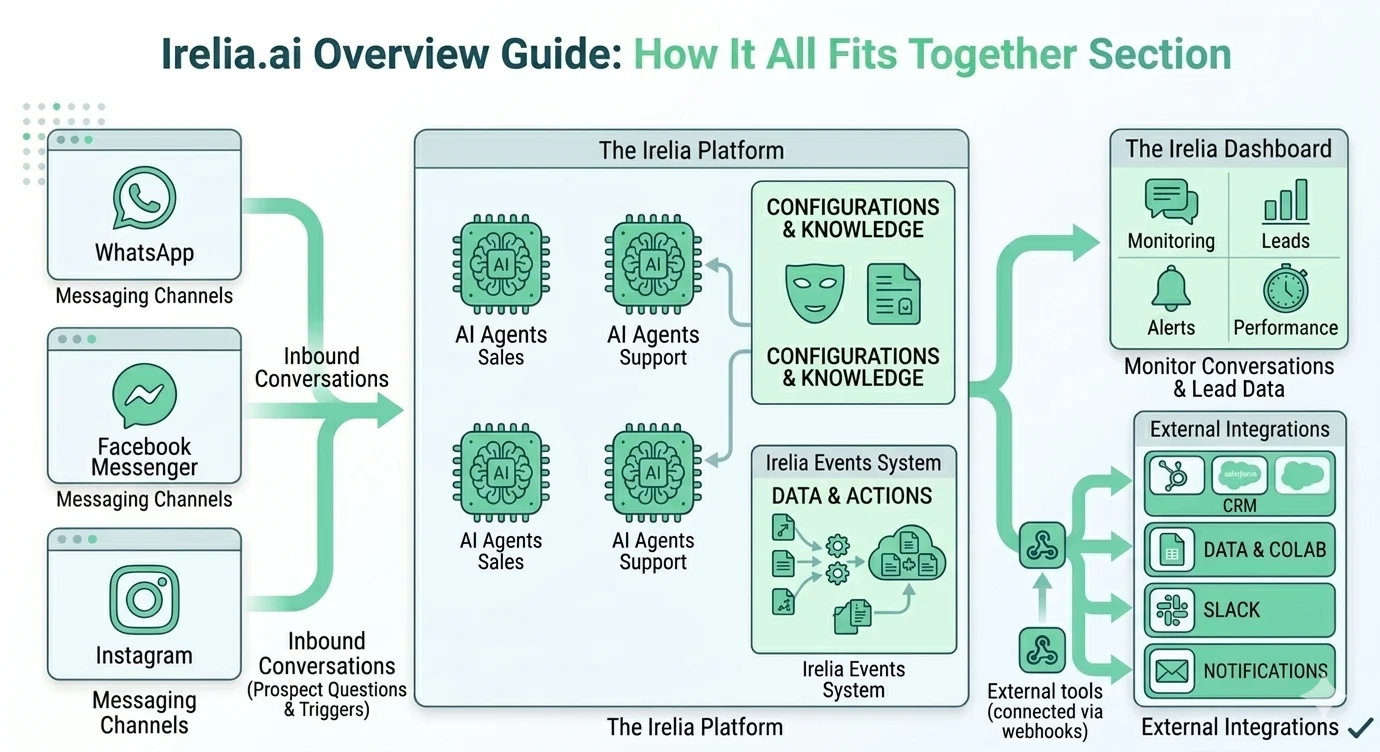
End-to-end system overview: channels → AI agents → dashboard and external integrations
- Channels bring conversations in — WhatsApp, Facebook, Instagram
- AI agents handle those conversations — qualifying, answering, collecting data, and booking appointments
- Your dashboard shows you everything that’s happening
- Automations push data out to your other tools in real time
- Follow-ups re-engage leads who haven’t converted yet
🔌 Connect Your Channels
Everything starts with connecting your messaging channels. Irelia doesn’t replace your WhatsApp, Facebook, or Instagram — it plugs into them, so your AI agents can send and receive messages directly through the accounts your prospects already know. Irelia supports three channels: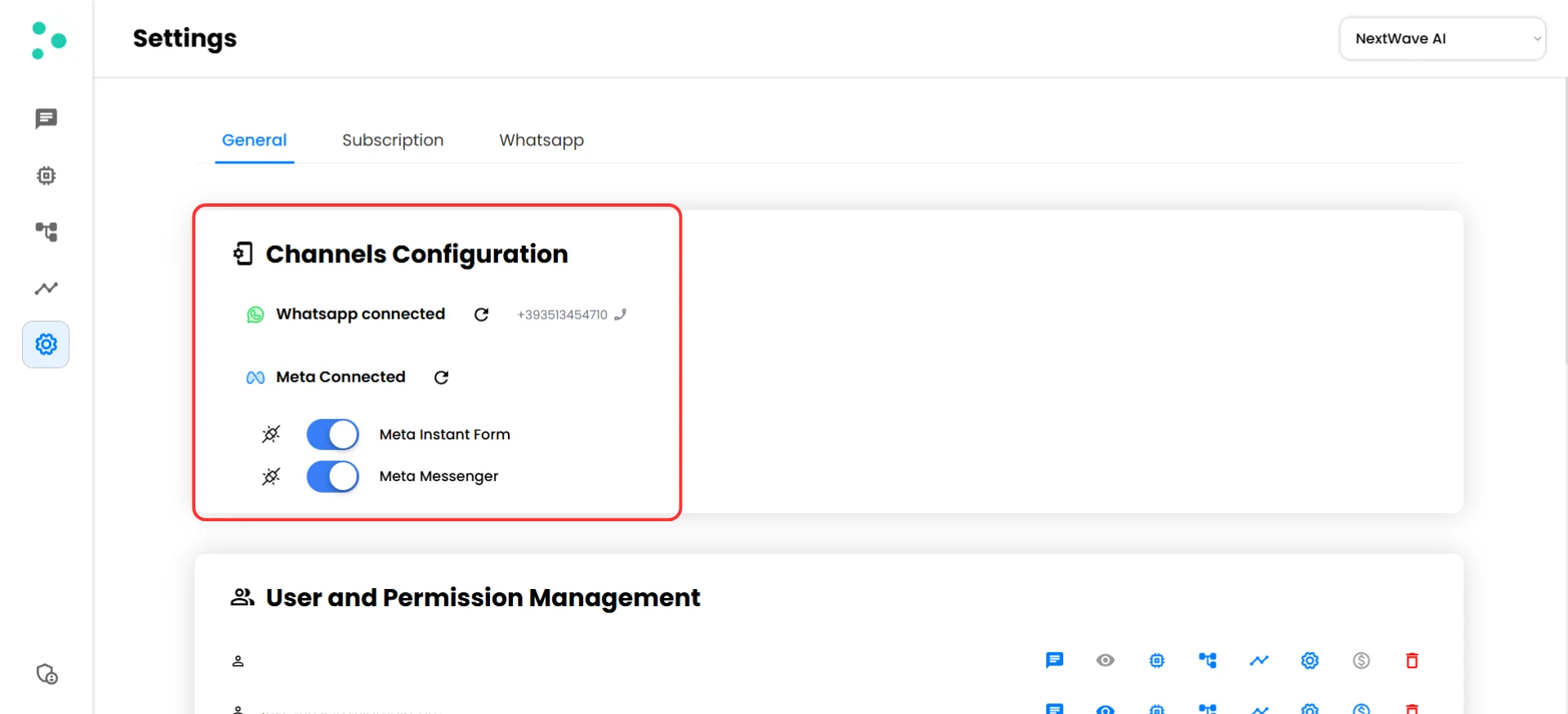
Channel configuration with WhatsApp and Meta connected
🤖 Create Your AI Agents
With your channels connected, you need someone to handle the conversations. That’s where AI agents come in. An agent is your AI-powered team member. You give it a personality, a knowledge base, a set of goals, and instructions on how to interact with prospects — and it handles conversations autonomously, 24/7. That includes qualifying leads, answering questions, collecting information, and even booking appointments — all within the same conversation. Here’s the key: you can create as many agents as you need. Each one can be trained differently, assigned different goals, and connected to different conversation entry points.Why multiple agents?
Think of agents as specialized team members, each suited for a different job:- 🎯 One agent per promotion — Running a summer campaign? Create a dedicated agent with knowledge about that offer, pricing, and deadlines. When the campaign ends, deactivate it.
- 👤 One agent per customer avatar — Selling to both restaurant owners and dental clinics? Each audience asks different questions and needs different language. Give each one a tailored agent.
- 🔄 One agent per funnel phase — Use one agent to qualify new leads and a different agent to nurture existing contacts who haven’t converted yet.
- 📅 One agent for appointment booking — Create an agent specifically designed to qualify prospects and book them into your calendar, handling availability checks and confirmations inside the chat.
- 🏢 One agent per product or service line — If your business offers multiple services (e.g., coaching and online courses), each can have its own agent with the right knowledge and conversation flow.
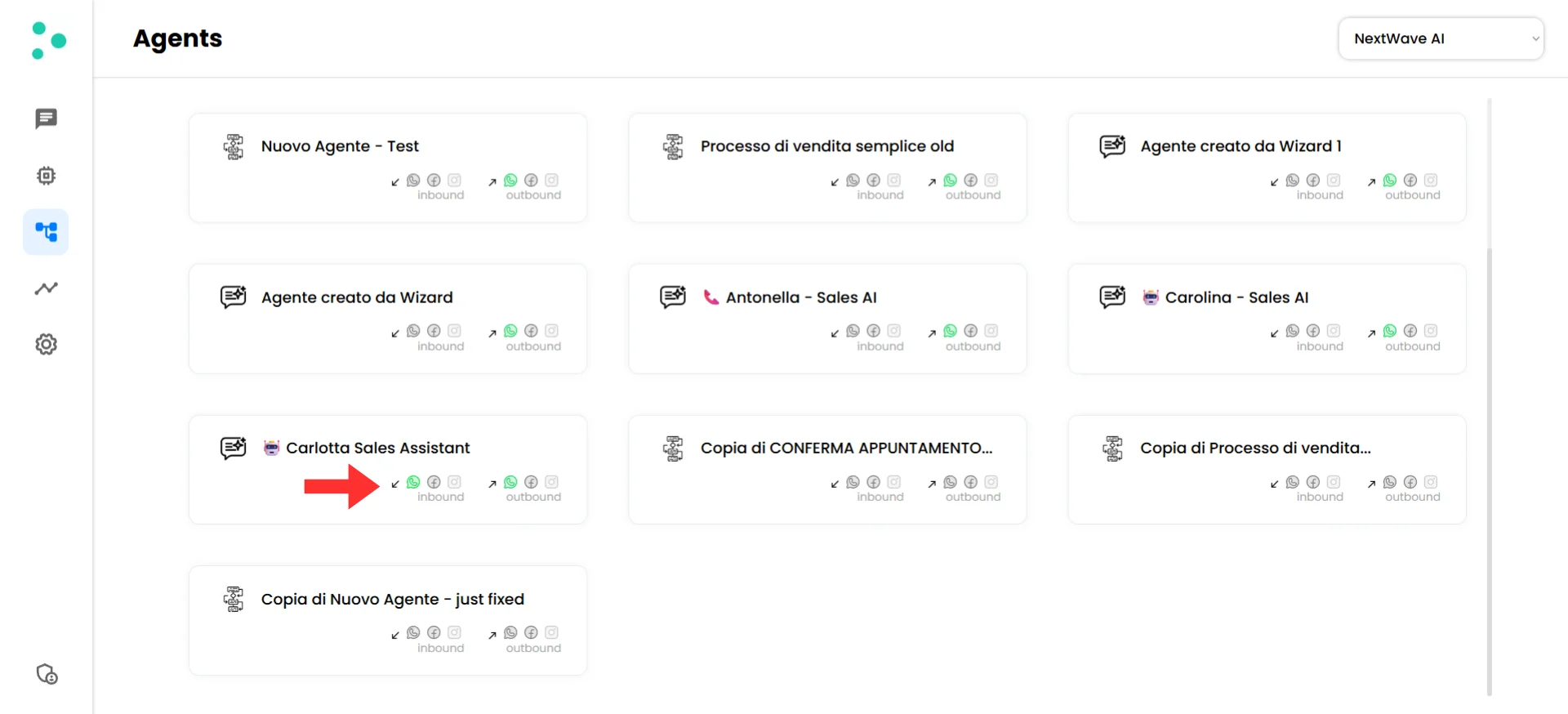
Multiple agents organized in a single Irelia account
🧙 The Wizard — Build Agents by Talking
Here’s where Irelia is different from most platforms: you don’t need to fill out forms or configure settings manually. Instead, you build your agent through a conversation. The Wizard is a guided, AI-powered conversation inside Irelia. You talk to it — describe your business, your offer, your target audience, what you want to achieve — and it builds a fully configured agent for you. The whole process takes about 2–3 minutes.What the Wizard configures for you
When you finish the conversation, the Wizard has set up everything your agent needs to go live:- ✅ The Prompt — Your agent’s personality, tone, conversation flow, qualifying questions, and goals — all generated from what you described
- ✅ Channel entry points — How and where prospects can reach this agent (inbound and outbound)
- ✅ WhatsApp templates — Pre-written message templates for outbound conversations, ready for Meta’s approval
- ✅ Appointment booking flow — If your goal involves scheduling, the Wizard configures your agent to propose available times, handle prospect preferences, and confirm bookings — all inside the conversation
- ✅ Follow-up sequences — Automatic re-engagement messages (and their WhatsApp templates) for prospects who go silent
- ✅ Event triggers — Which conversation milestones (like lead qualified, goal achieved, or appointment booked) fire notifications and webhook calls
- ✅ Notification settings — Where those event alerts go — email, webhook URL, or both
- ✅ Variables to gather — The specific data points your agent should collect during conversations (budget, company size, timeline, etc.)
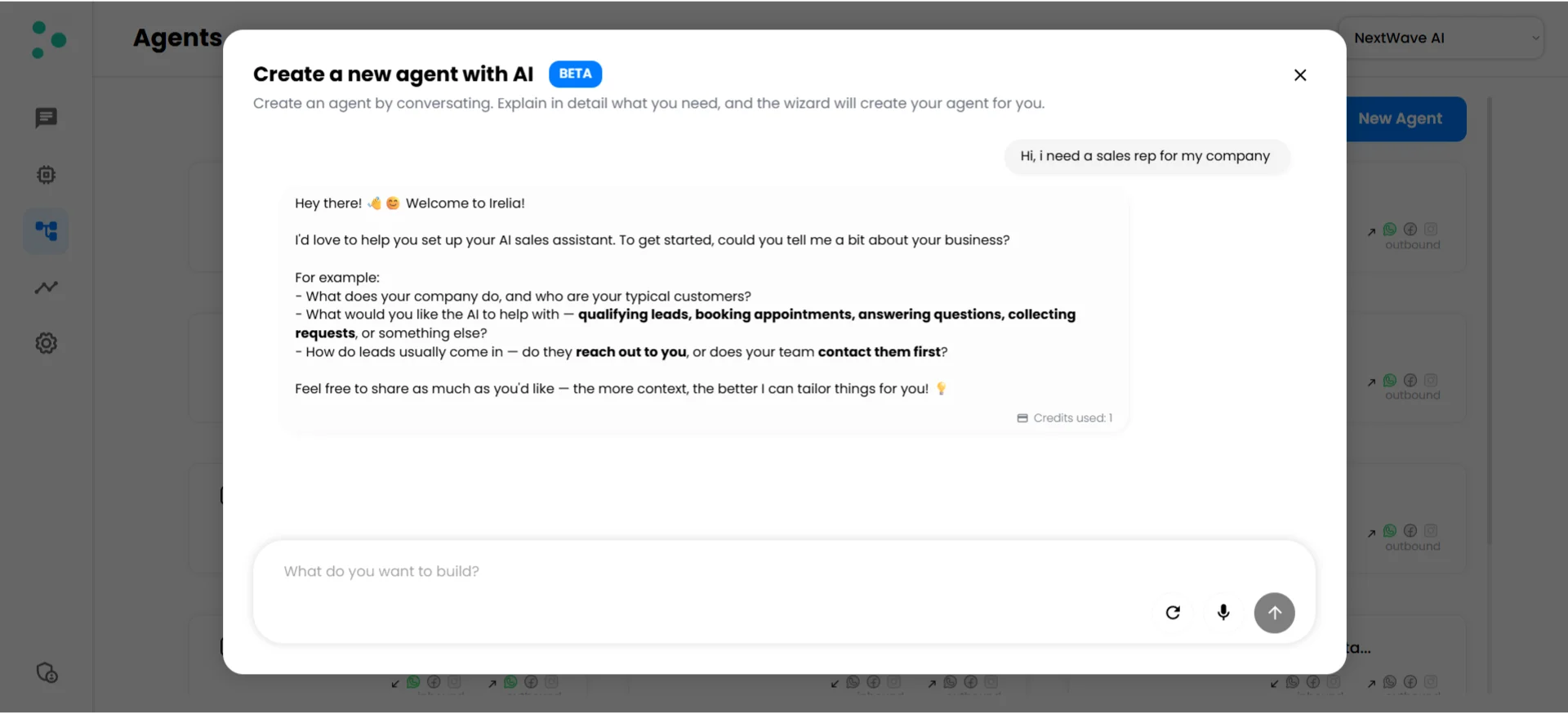
Building an agent through a guided conversation with the Wizard
Modifying your agent
Need to change something after your agent is live? You don’t have to dig through settings. The Wizard also works in editing mode — open it on an existing agent, tell it what you want to change, and it updates the configuration for you. Same conversational experience, same speed.🧠 Train Your Agents with the Knowledge Base
The Wizard gives your agent a personality and a conversation flow. The Knowledge Base gives it the facts it needs to answer real questions. Think of it this way: the Wizard sets up how your agent behaves (its Prompt). The Knowledge Base provides what your agent knows — pricing, product details, FAQs, policies, customer reviews. When a prospect asks “How much does your premium plan cost?”, the agent searches the Knowledge Base, finds your pricing, and responds naturally.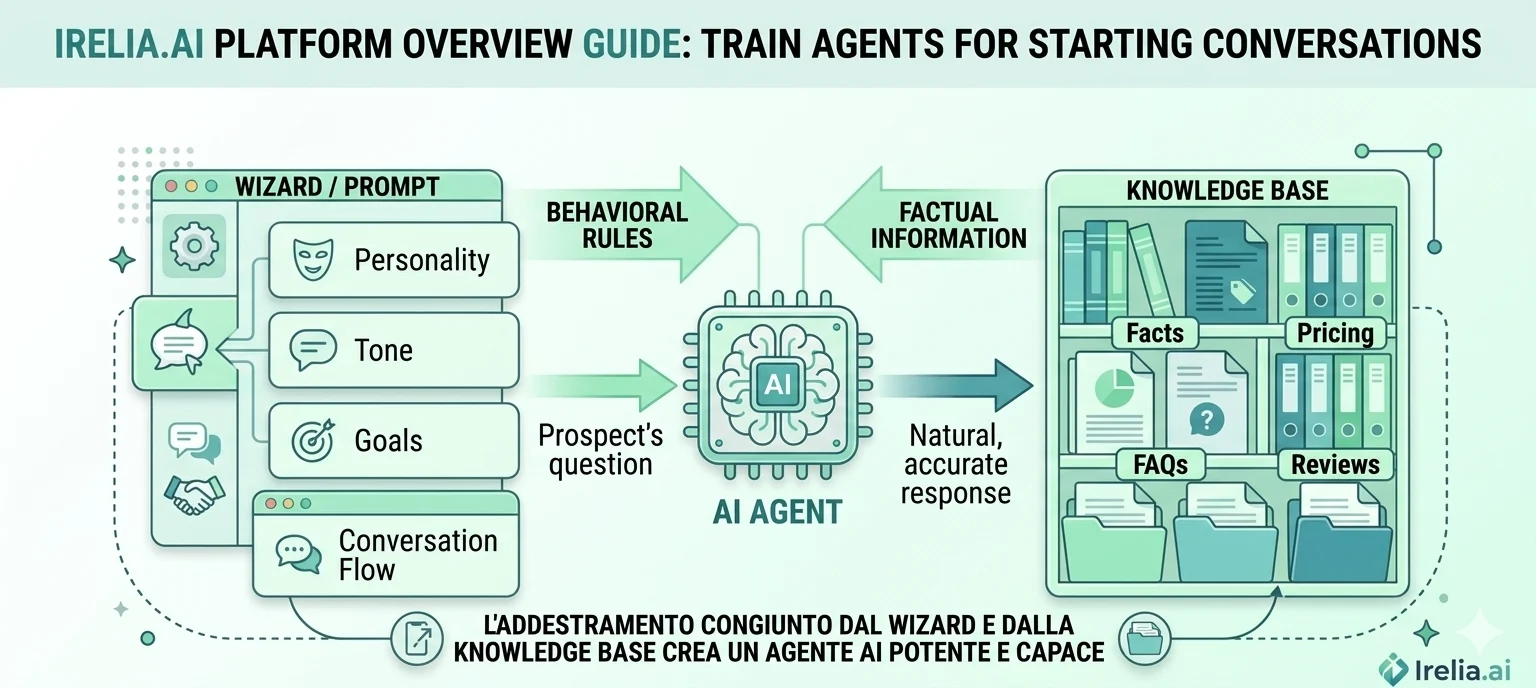
The Wizard defines how your agent behaves; the Knowledge Base provides what it knows
How the Knowledge Base works
You create documents inside the Knowledge Base — one per topic (e.g., “Pricing”, “FAQs”, “Service Details”, “Customer Reviews”). Each document contains the facts your agent can reference during conversations. Updates are instant: change a price, and your agent immediately uses the new number.Shared library, targeted access
The Knowledge Base is shared across your entire Irelia account — all agents can access it by default. But when you’re running multiple agents for different purposes, you don’t want every agent seeing every document. A coaching agent shouldn’t accidentally reference course pricing, and vice versa. That’s why you can assign specific documents to specific agents. Toggle off the “access all information” setting on an agent, and hand-pick which documents it can see. This keeps each agent focused on the information relevant to its role — improving accuracy and preventing cross-contamination between different offers or audiences.📅 Appointment Booking
One of the most powerful things your AI agents can do is book appointments directly inside the conversation — no links to external scheduling pages, no back-and-forth emails, no manual coordination. When a prospect is qualified and ready to take the next step, your agent can propose available time slots, handle the prospect’s preferences, and confirm the booking — all without leaving the chat. The experience feels natural: the prospect simply picks a time during the conversation, and the appointment is locked in.How it works
During agent setup (either through the Wizard or manual configuration), you define your availability rules — days, hours, time zones, and any constraints. Your agent uses these rules to offer real-time availability to prospects during the conversation. Here’s what a typical booking flow looks like from the prospect’s perspective:- The agent qualifies the prospect through conversation
- Once qualified, the agent proposes available time slots
- The prospect picks a time
- The agent confirms the appointment and can send a summary with the details
Why this matters
Every extra step between “I’m interested” and “I’m booked” is a chance for the prospect to drop off. By handling scheduling inside the same conversation where interest was built, Irelia removes friction and increases the chances that qualified leads actually show up. This is especially valuable for:- Service businesses — consultations, demos, discovery calls
- Agencies — prospect strategy sessions
- Clinics and professionals — patient or client intake appointments
- Sales teams — booking qualified prospects directly onto a rep’s calendar
👁️ Understands Images & Voice Notes
Your prospects don’t always type. Sometimes they snap a photo, send a screenshot, or record a voice note instead of writing a message — and your agent handles all of it. Irelia reads images directly (it actually sees the picture, not a text description of it) and understands voice notes, then responds in context just like it would to written text.Why this matters
Real conversations are messy. A prospect sends a photo of the product they’re asking about, a screenshot of what’s on their screen, or a quick voice note because typing is inconvenient. Instead of hitting a dead end, your agent understands what came in and keeps the conversation moving.💬 Start Conversations
Your agent is trained and your channels are connected. Now conversations need to happen. There are two ways they start: the prospect writes first (inbound) or Irelia writes first (outbound).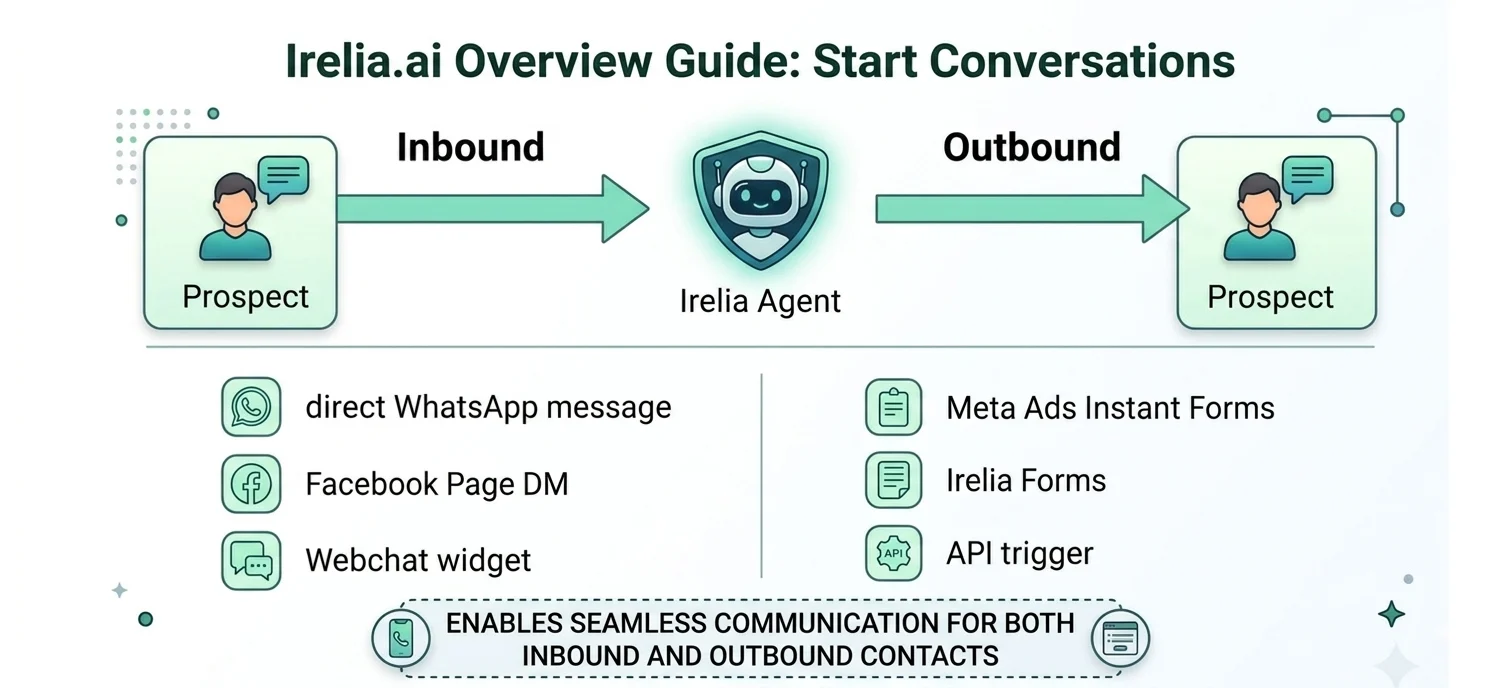
Inbound vs. outbound conversation paths
Inbound — The prospect messages you
The simplest path. A prospect messages your WhatsApp number, sends a DM to your Facebook Page, or reaches out on Instagram. Irelia picks up the message and your AI agent responds instantly. This works across all connected channels — no additional setup beyond connecting the channel. Irelia automatically assigns a default agent to handle incoming messages, so you’re covered from day one. Common inbound entry points:- A prospect taps your WhatsApp number from your website, social media bio, or business card
- A visitor uses the WhatsApp chat widget on your website
- Someone messages your Facebook Page directly
Outbound — Irelia reaches out first
Instead of waiting for prospects to come to you, Irelia can send the first message. Something triggers it — a form submission, a social media comment, a CRM event — and your agent proactively starts the conversation. Common outbound methods:- 📣 Meta Ads Instant Forms — A prospect fills out a lead form on Facebook or Instagram, and Irelia sends them a WhatsApp message within seconds
- 📝 Irelia Forms — A prospect fills out a form you built in Irelia (hosted or embedded on your site), and Irelia messages them on WhatsApp automatically
- ⚙️ Irelia API — Your CRM, Zapier, Make.com, or any tool that can send an HTTP request triggers Irelia to message a contact
- 💬 Comment-to-DM — A prospect comments on your Facebook post, and Irelia sends them a private message on Messenger automatically
📊 Monitor Leads & Conversations
Every conversation your AI agents handle is tracked in your Irelia dashboard. This is your command center — where you see every lead, every message, and every piece of data your agents have collected.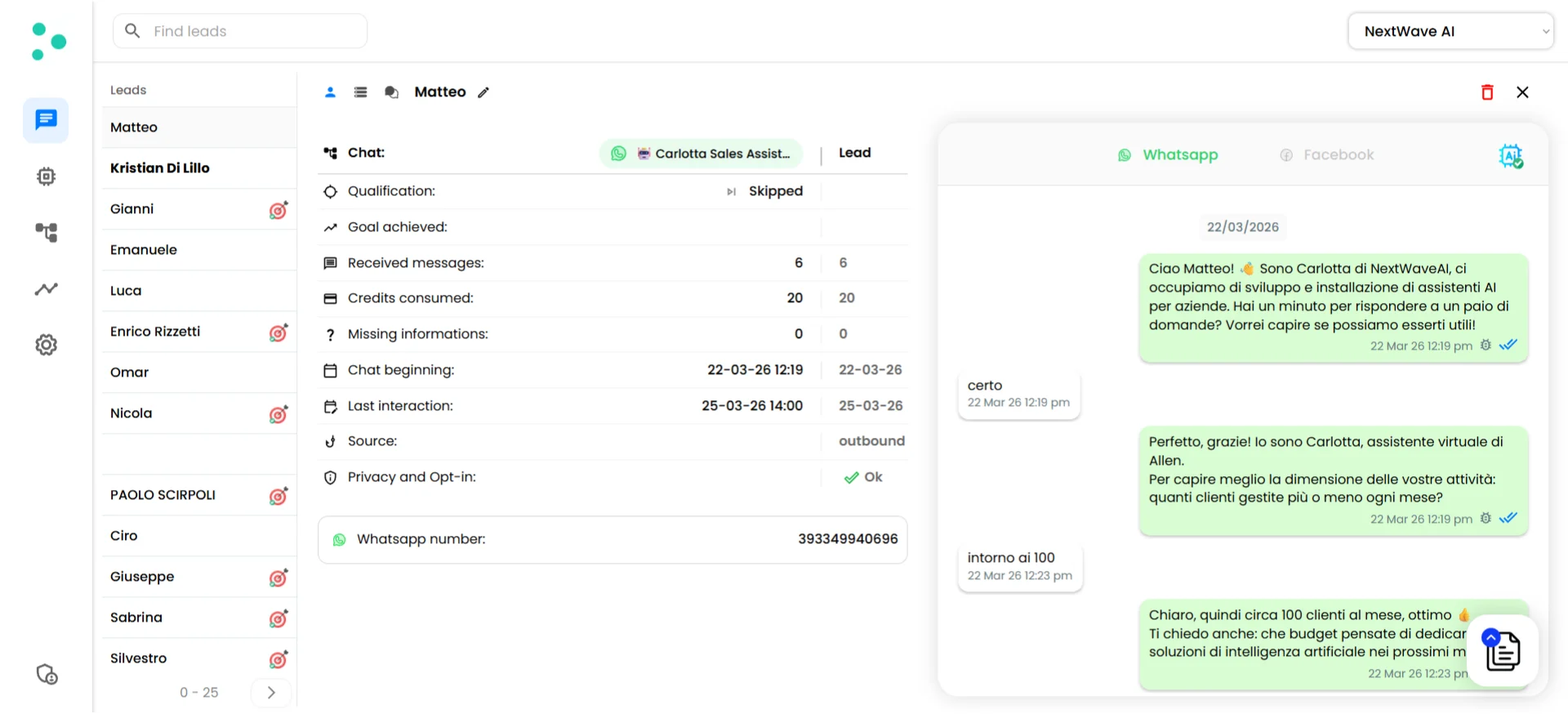
Dashboard showing conversation list and full chat transcript
What you can see
- 💬 Full conversation history — Read the complete chat transcript between your agent and each prospect, across all channels
- 👤 Lead details — Name, phone number, channel, which agent handled the conversation, and when they first reached out
- 📝 Collected data — Every piece of information your agent gathered during the conversation (budget, company size, timeline, pain points — whatever you configured it to collect)
- 🎯 Qualification status — Whether your agent determined the lead is qualified or not, with a descriptive label and score
- 📊 Engagement metrics — Number of messages exchanged, interest score, goals completed
Why this matters
Your dashboard isn’t just for monitoring — it’s where your sales team finds actionable intelligence. A rep can open any conversation, see exactly what the prospect asked, what information was collected, and whether the lead is qualified — all before picking up the phone. You can also step in manually at any time. If a conversation needs a human touch — a complex question, a sensitive situation, or a high-value prospect — you can take over the conversation directly from the dashboard.⚡ Automate with Events & Notifications
Monitoring conversations manually is valuable, but the real power comes from automating what happens when something important occurs. As your AI agents chat with prospects, Irelia tracks key milestones called events — the “moments that matter” in your conversations. When an event fires, Irelia can automatically notify you and send data to your other tools.What kind of events?
Here are some examples:What can you do with events?
Two things:- Email notifications — Receive an email whenever an event fires, so you’re always informed without checking the dashboard
- Webhooks — Send the event data (prospect name, phone number, qualification status, collected data, conversation history) to any external tool — your CRM, Google Sheets, Slack, or any app that accepts HTTP requests
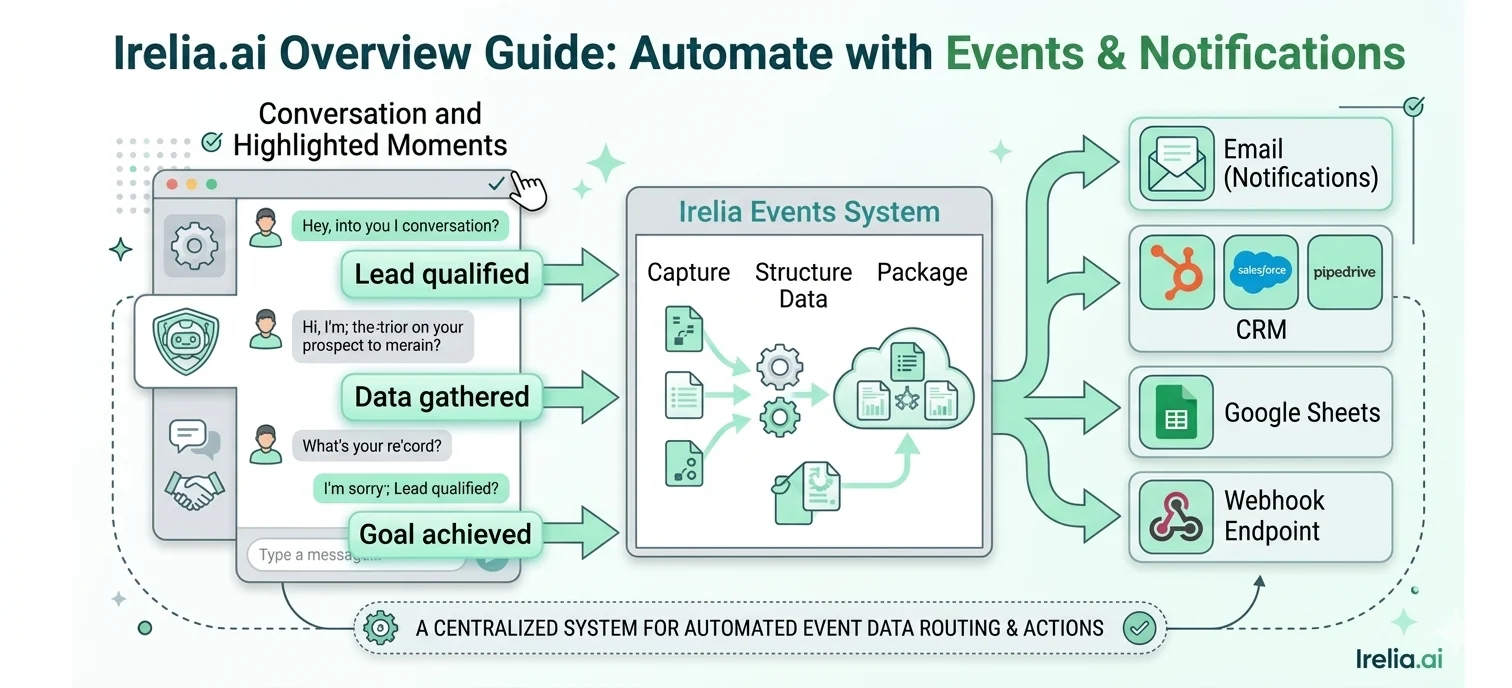
Events flow from conversations to email, CRM, Sheets, Slack, and webhooks
- New lead qualified → automatically create a contact in your CRM and notify your sales team on Slack
- Appointment booked → add the event to your Google Calendar, send a confirmation email, and update the lead’s pipeline stage in your CRM
- Data gathered → update a Google Sheet with the prospect’s budget and timeline
- Goal achieved → move the lead to the next pipeline stage and send a confirmation email
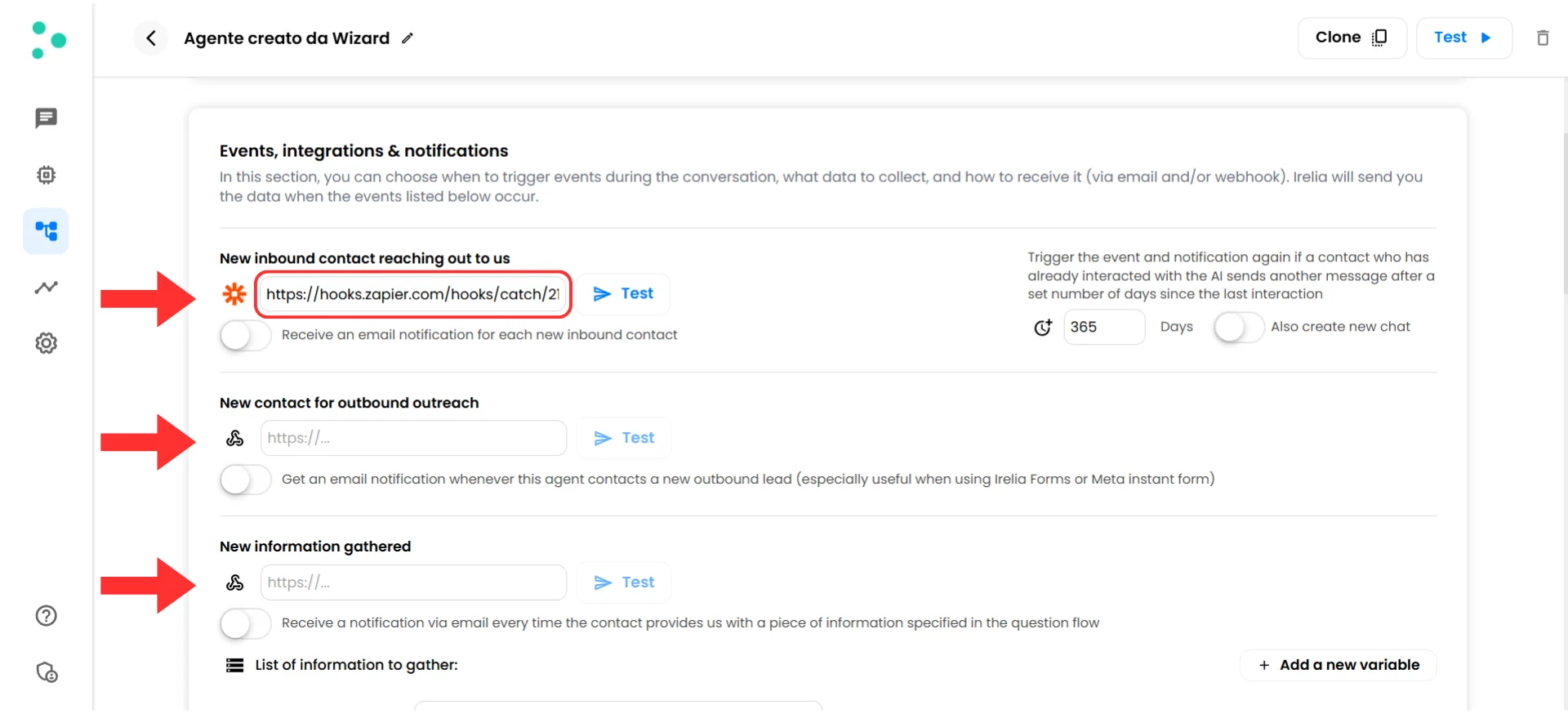
Events and Notifications panel with webhook URL fields and Test buttons
📈 Track Performance
Your agents are live, conversations are flowing, and data is being captured. Now you need to know: is it actually working? Irelia provides a performance dashboard so you can see exactly how your agents are doing. Here’s what you can track: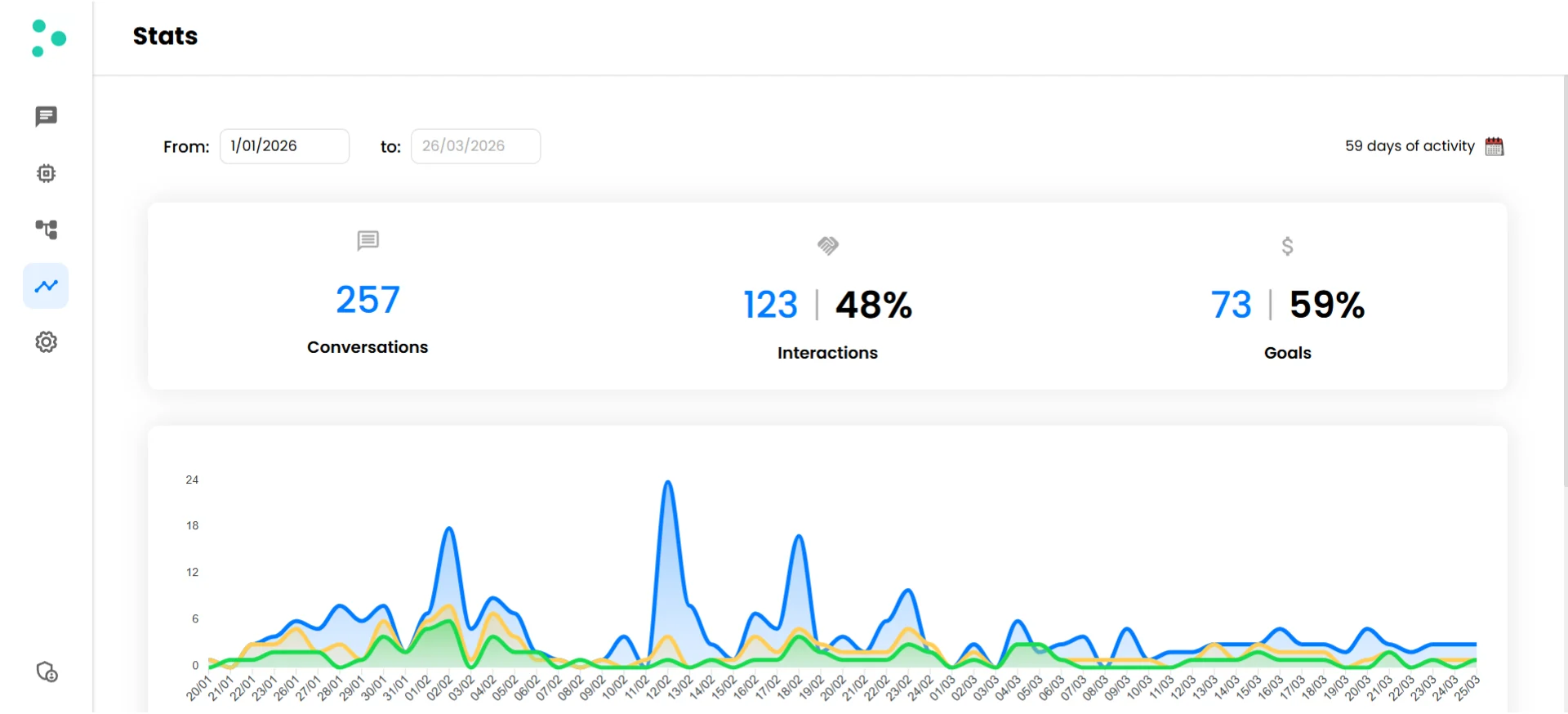
Performance dashboard with conversations, goals, qualification, and credit metrics
🔄 Automatic Follow-Ups
Not every prospect converts on the first conversation. Some go silent after a few messages. Others show interest but don’t take the next step — they were ready to book an appointment but never picked a time, or they said they’d think about it and disappeared. Without follow-up, these leads slip away. Irelia handles this automatically. You can configure your agents to follow up with leads based on criteria you define — so prospects who haven’t responded or haven’t completed a goal get re-engaged without anyone on your team needing to remember or intervene.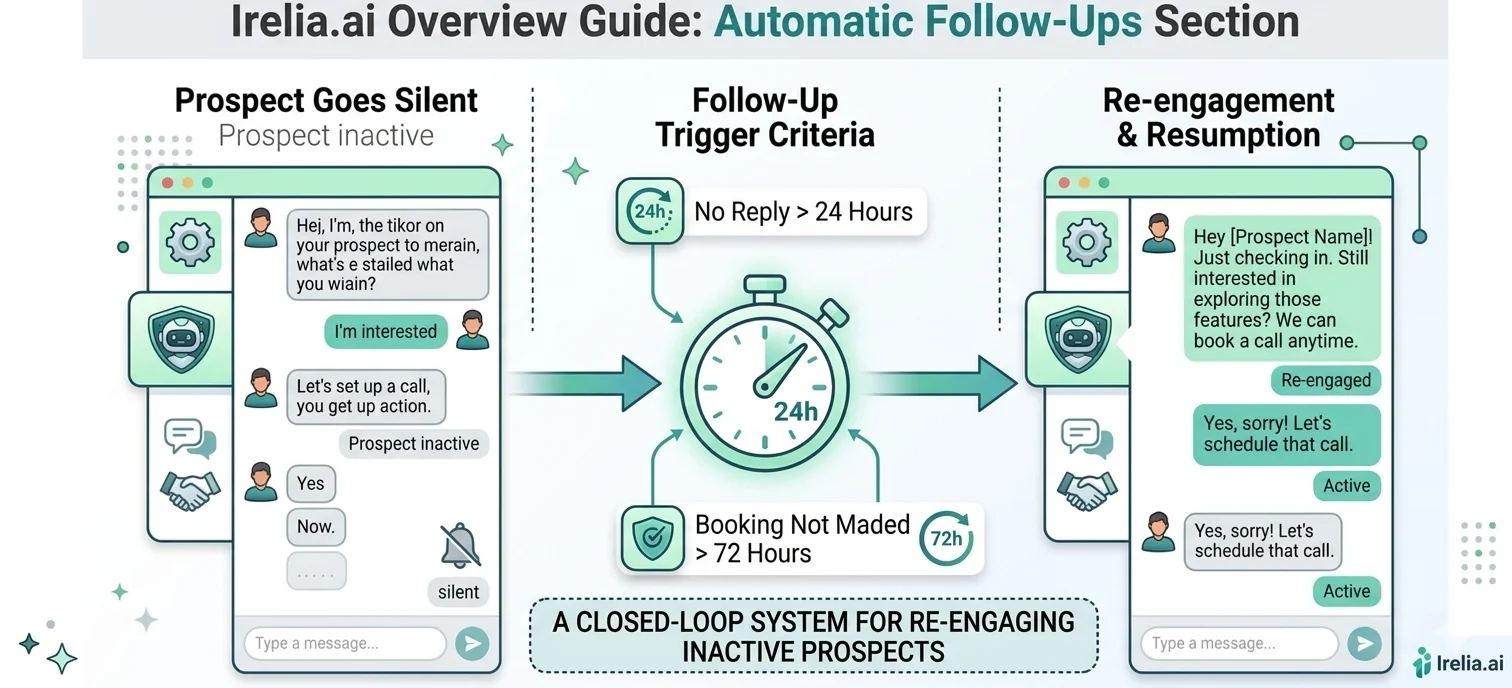
Automatic re-engagement flow for leads who go silent
🚀 Getting Started — Your Setup Roadmap
Now that you understand how all the pieces fit together, here’s the exact sequence to go from zero to your first live AI-powered conversation.❓ FAQs
Do I need technical skills to use Irelia?
Do I need technical skills to use Irelia?
How many agents can I create?
How many agents can I create?
Can I use Irelia on WhatsApp, Facebook, and Instagram at the same time?
Can I use Irelia on WhatsApp, Facebook, and Instagram at the same time?
Can Irelia book appointments for me?
Can Irelia book appointments for me?
What happens if my agent can't answer a question?
What happens if my agent can't answer a question?
Can I take over a conversation from the AI?
Can I take over a conversation from the AI?
Can Irelia understand images and voice notes my prospects send?
Can Irelia understand images and voice notes my prospects send?
Can I modify my agent after creating it?
Can I modify my agent after creating it?
Does Irelia work in languages other than English?
Does Irelia work in languages other than English?
🆘 Need Help?
- Contact support in the WhatsApp priority support group or send an email to info@irelia.ai
- Include: screenshots of your configuration, the error message, and what you expected vs. what happened