

This guide covers: Meta Instant Forms (for lead campaigns) & Facebook Messenger (for automated conversations).
Table of Contents
What This Integration Unlocks
Features you’ll enable
What You'll Need
Prerequisites before starting
Quick Path
Condensed steps for experienced users
First-Time Connection
Complete walkthrough (Steps 1-6)
Connecting Additional Accounts
For subsequent connections
Troubleshooting & FAQs
Common issues & fixes
🚀 What This Integration Unlocks
Connecting your Meta assets to Irelia.ai opens up powerful automation capabilities for your marketing:| Asset Connected | What You Can Do |
|---|---|
| Business Manager (BM) | 📝 Access Meta Instant Forms and automatically send WhatsApp templates to leads captured from your Meta ad campaigns |
| Facebook Page | 💬 Let Irelia handle Messenger conversations — both inbound (when prospects message you first) and outbound (auto-reply in DMs when someone comments specific keywords on your posts) |
✅ What You’ll Need
Make sure you have:- Admin access to the Facebook Page you want to connect
- Admin access to the Business Manager that runs your lead campaigns
- A Facebook account that has permissions to both assets above
🏢 Agencies & Marketers setting up for a client?
🏢 Agencies & Marketers setting up for a client?
You need to be added as an Admin with full control on your client’s Business Manager. Being added as a “Partner” — which is what Meta’s own guidelines recommend — is not sufficient for the Embedded Signup process. See how to fix this before you begin.
⚡ Quick Path (Experienced Users)
Already comfortable with Meta integrations? Here’s the condensed version:- First-time connection
- Subsequent connections
- Irelia: Settings → Channels Configuration → Click “Connect Meta”
- Meta: Log in → Select ONE Facebook Page → Select ONE Business Manager
- Irelia: Enable desired services with toggles
🔌 Connecting Meta for the First Time
Follow these steps if this is your first time connecting Meta assets to any Irelia account using your Facebook profile.Access Channel Settings
Navigate to your Irelia settings page: 👉 https://irelia.ai/settings?menu=settings&settings_tab=generaleYou’ll see the Channels Configuration section.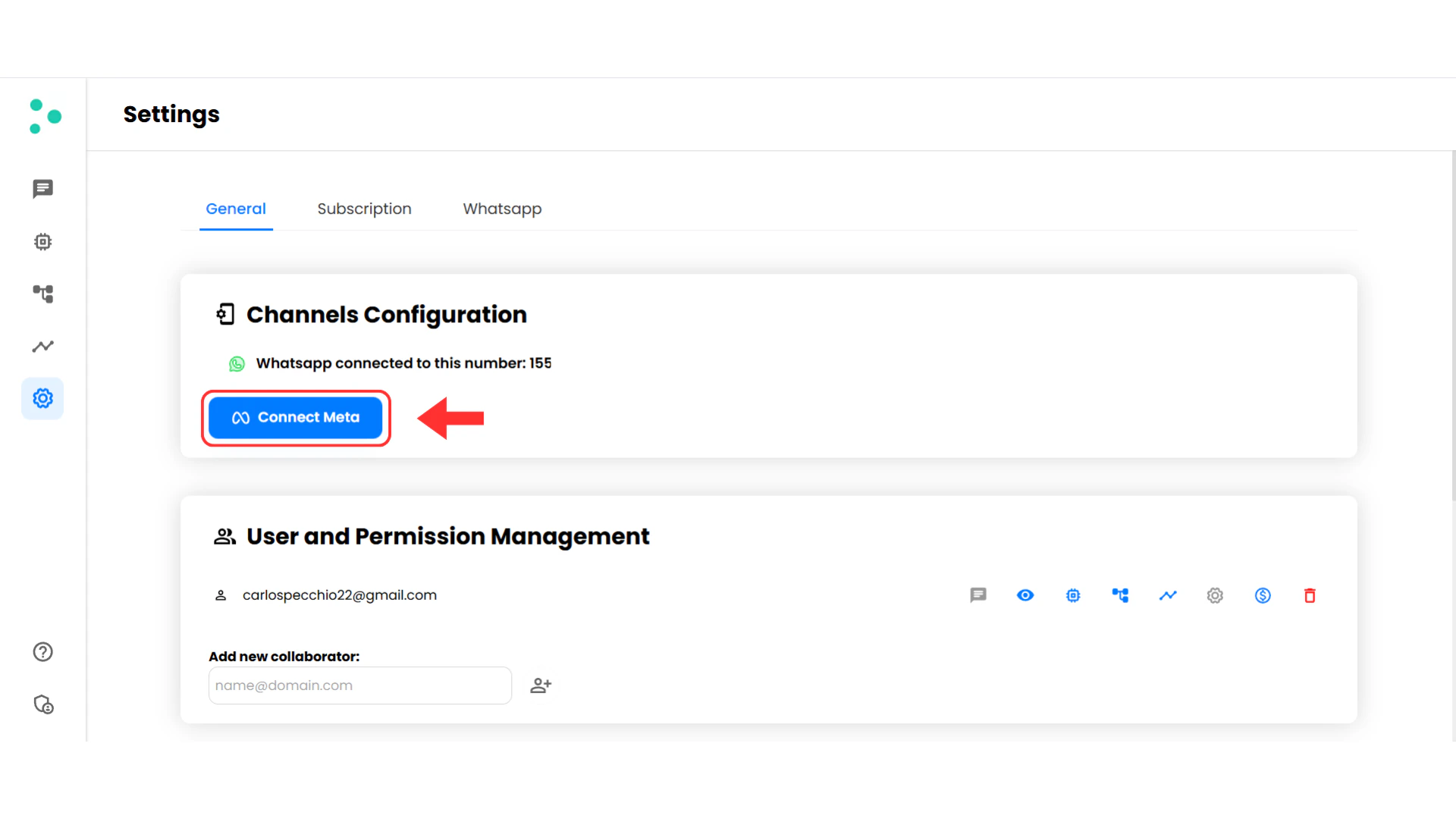
Click 'Connect Meta'
Click the blue “Connect Meta” button. A new browser tab will open with Meta’s authorization flow.
Log In with Facebook
If prompted, log in with your Facebook account that has admin access to your Page and Business Manager.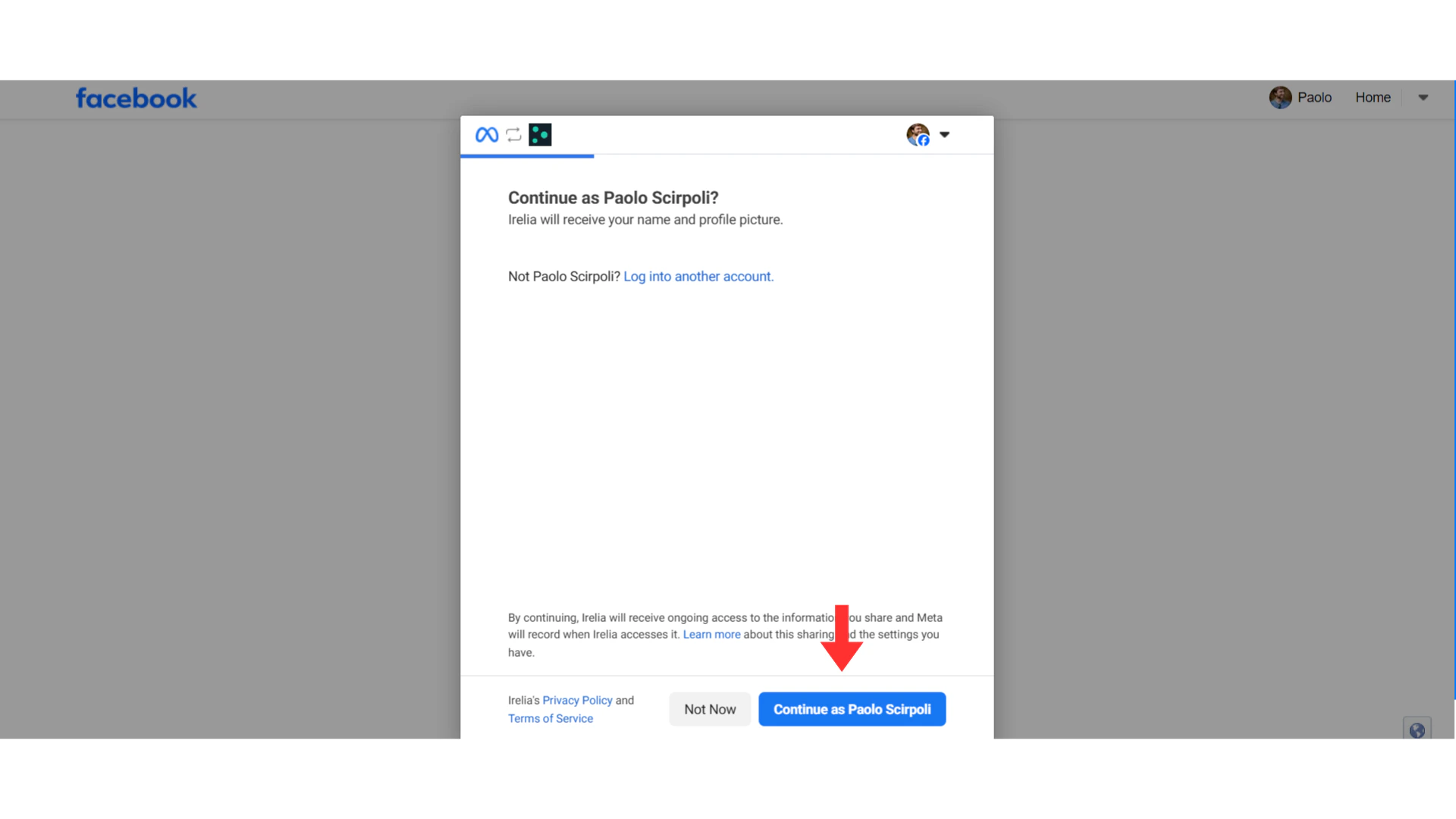
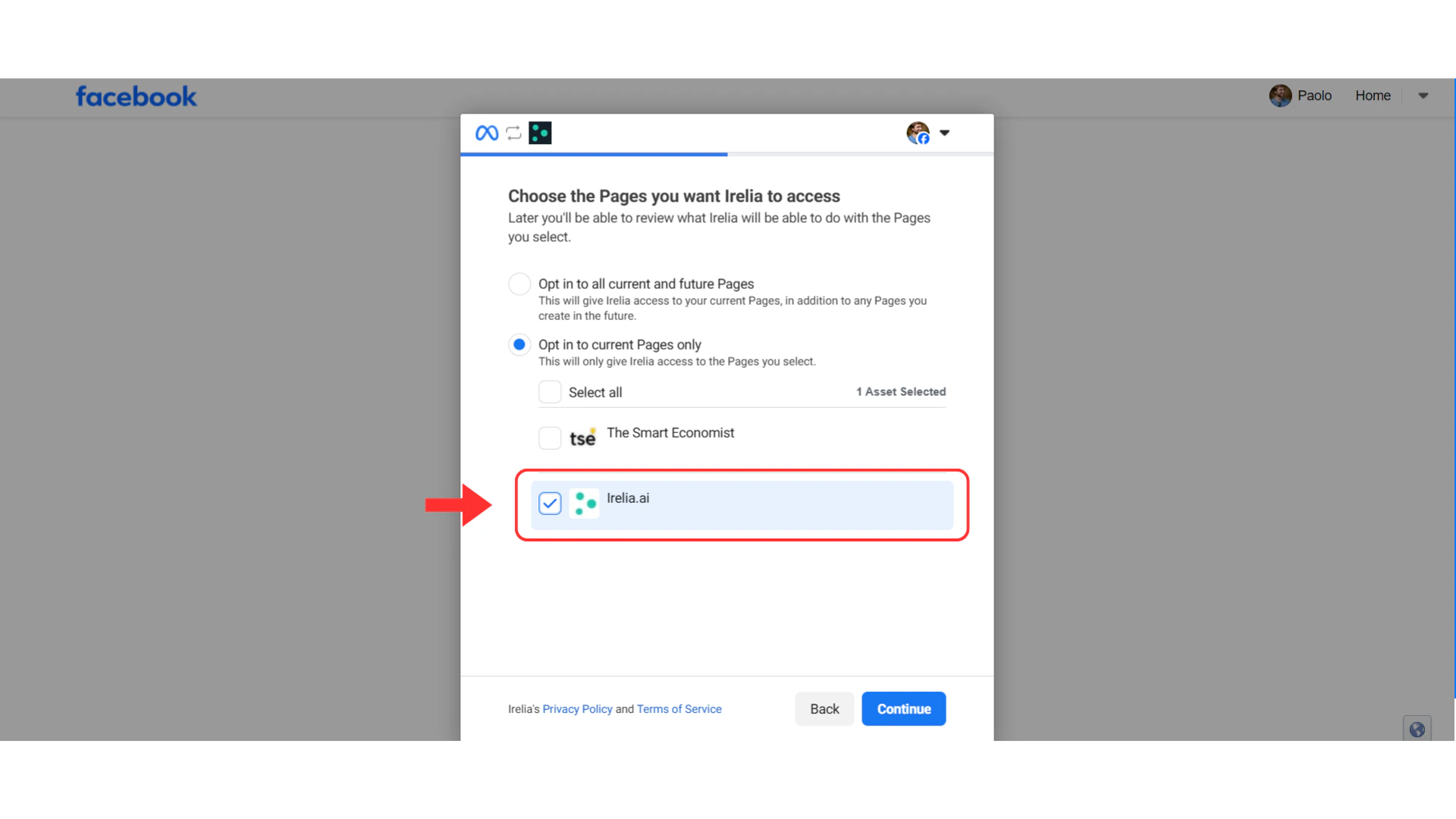
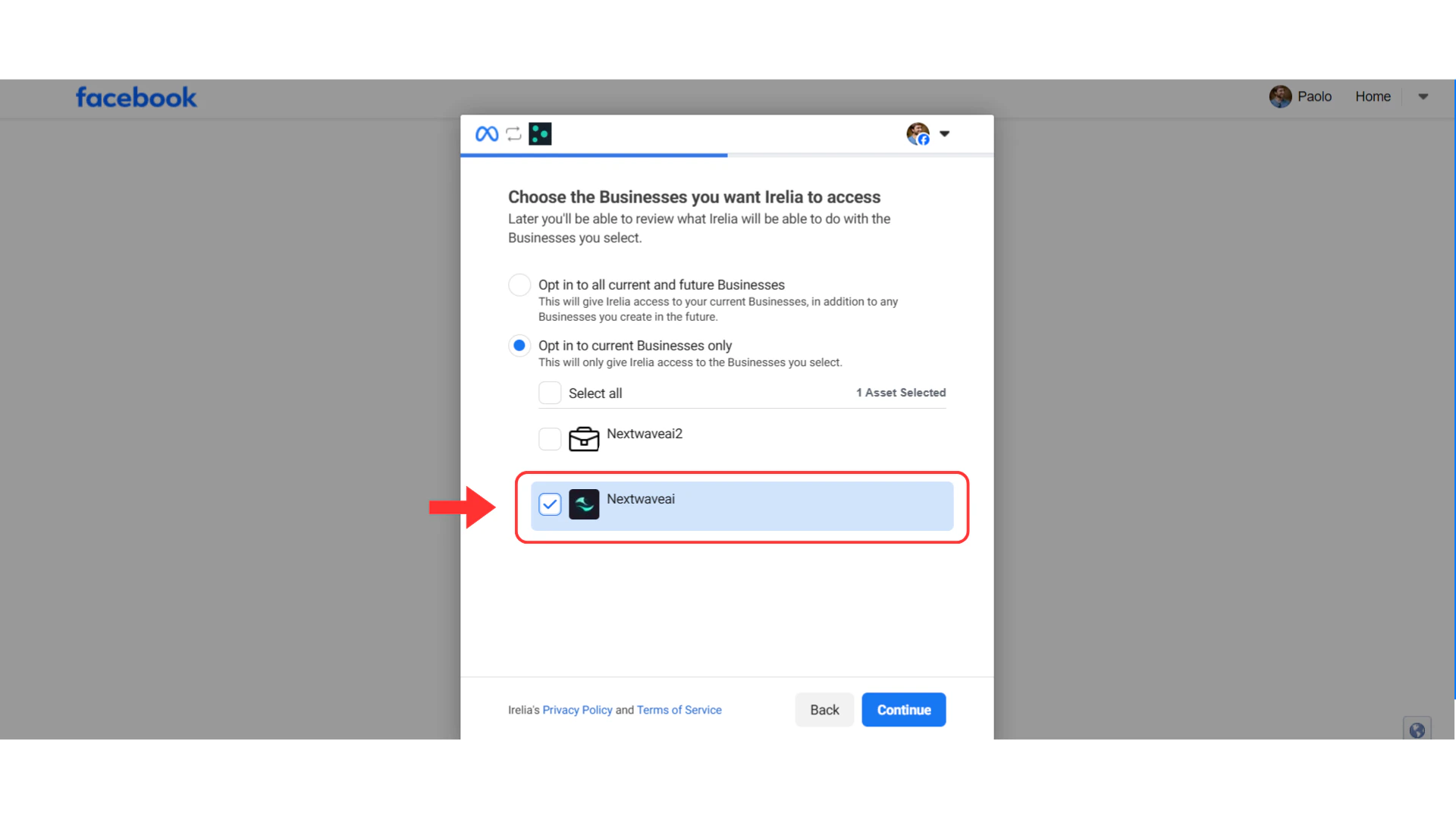
🔄 Connecting Additional Accounts
If you’re connecting a second (or subsequent) Irelia account using the same Facebook profile, follow this process.Recognize the Reconnection Screen
Since you’ve connected before, Meta will show you a different screen asking if you want to reconnect with your previous settings.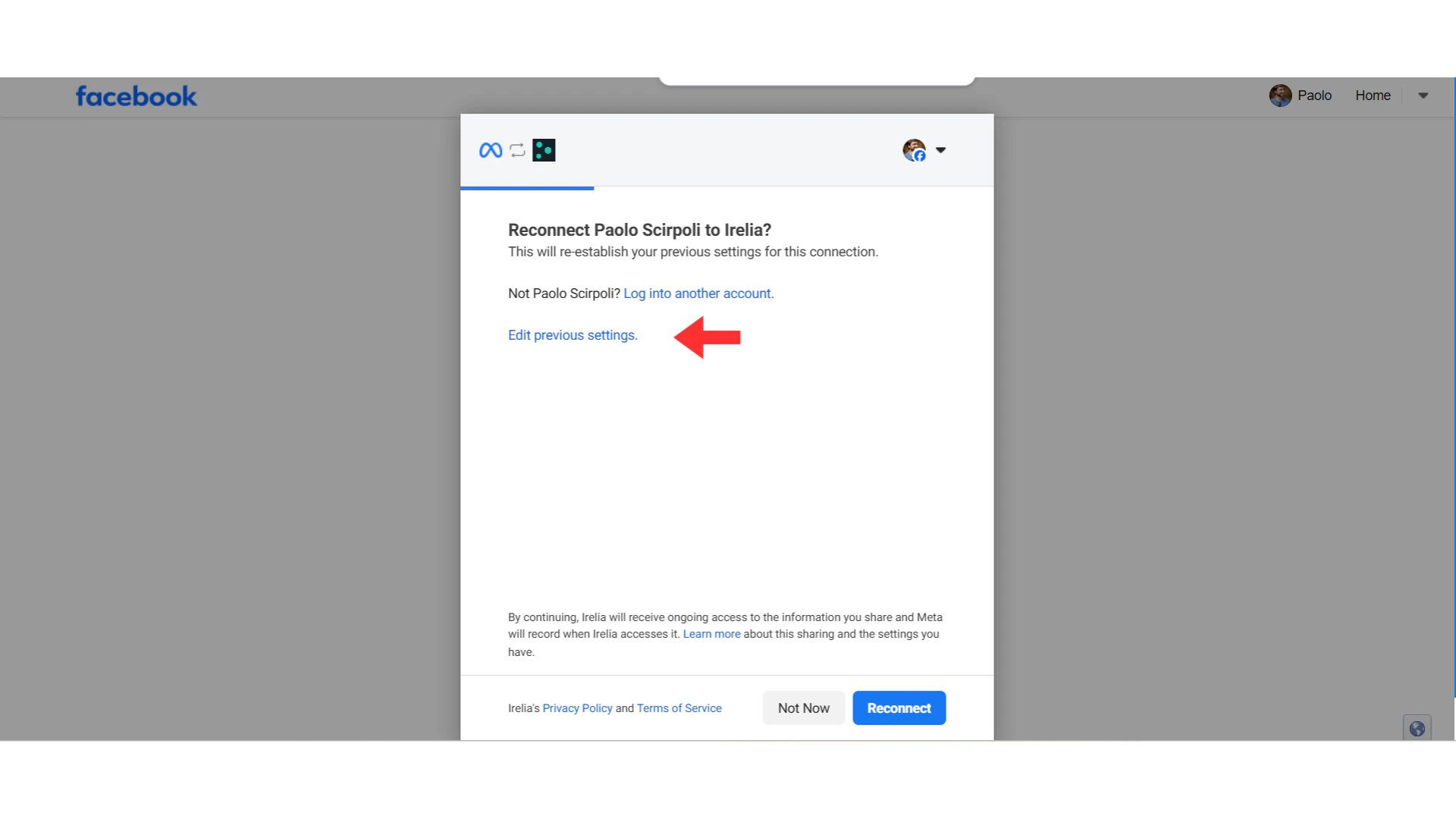
Click 'Edit Previous Settings'
Do NOT click “Reconnect” — this would use your old settings.Instead, click the blue link that says “Edit previous settings”
Add ONE More Facebook Page
You’ll see your previously selected Page(s) already checked.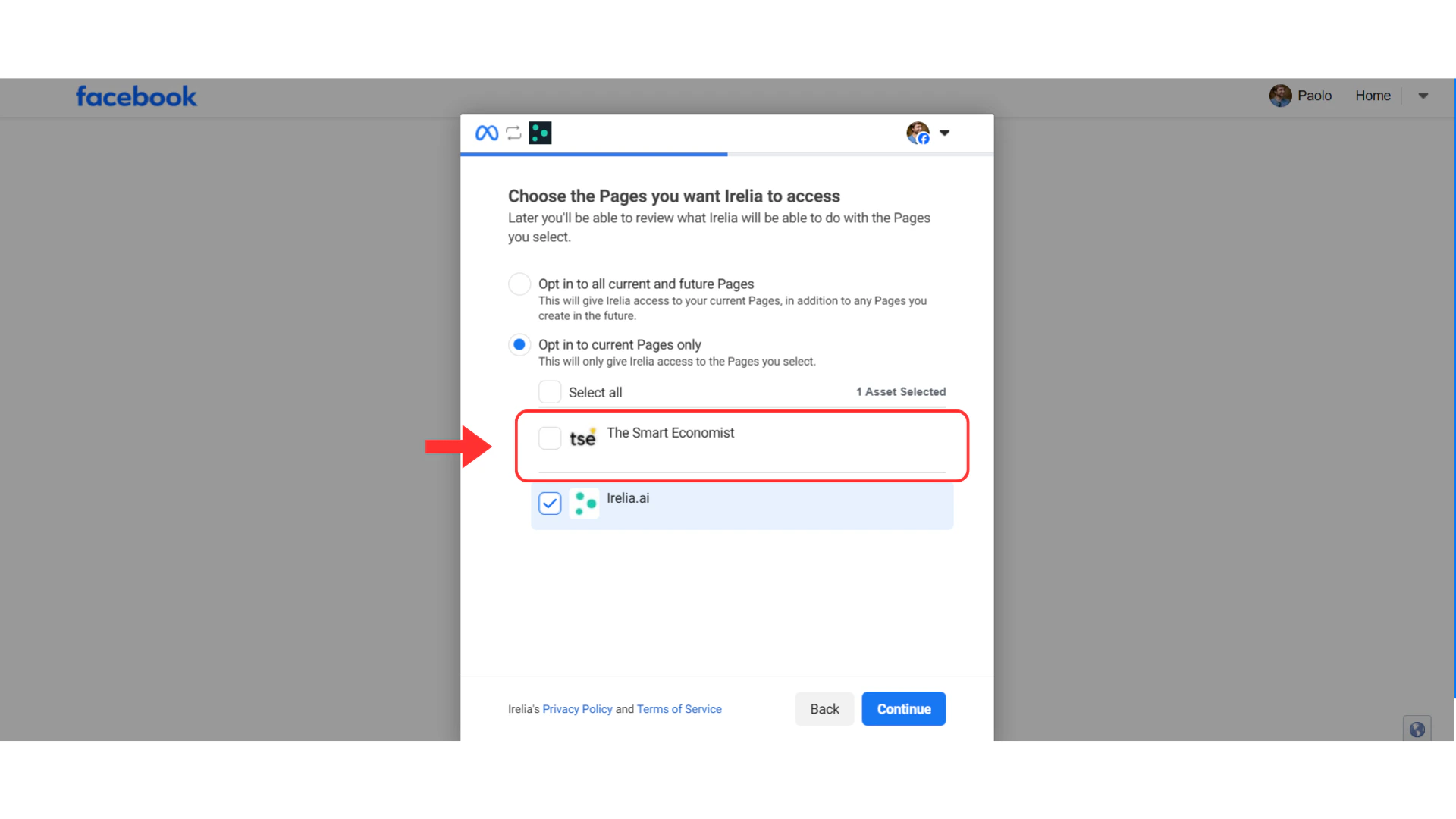
- ✅ Keep the previously selected page(s) checked
- ✅ Add checkmark to ONE new page for this Irelia account
- ❌ Do NOT uncheck previously selected pages
- ❌ Do NOT select multiple new pages
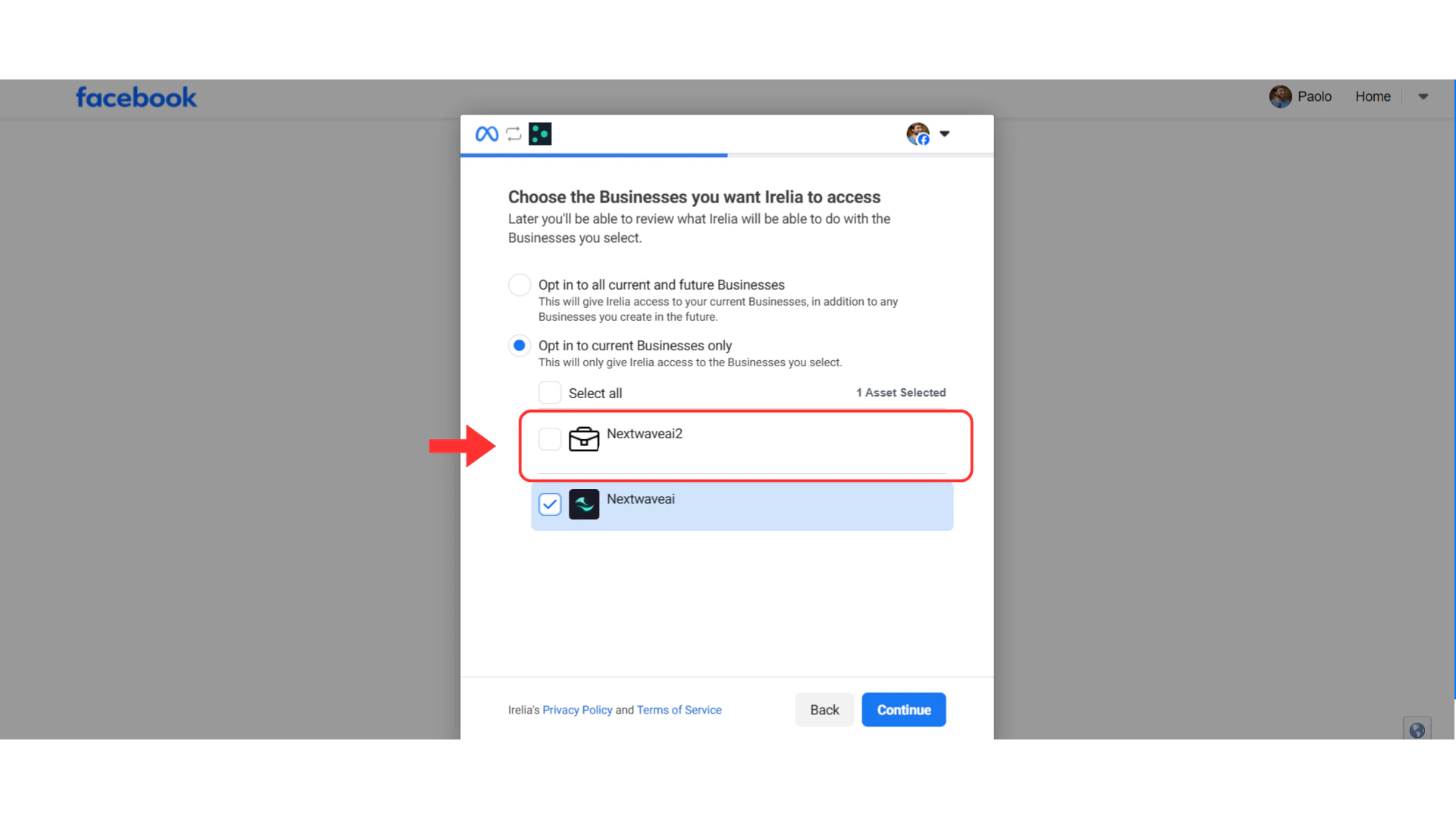
⚙️ Managing Your Meta Services
After successful connection, you’ll be redirected to the Channels Configuration screen where you can manage your Meta services.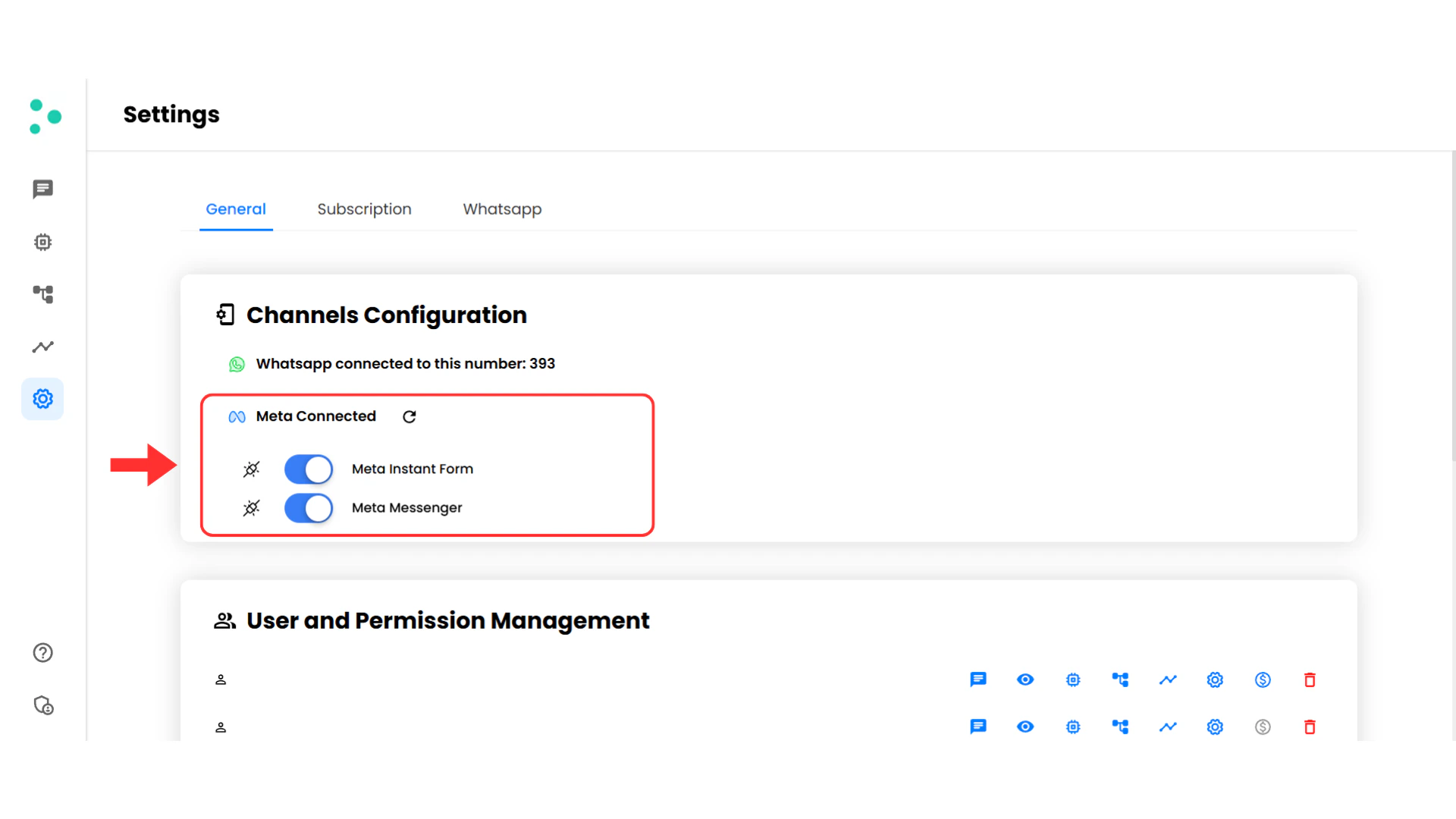
Available Controls
| Element | Function |
|---|---|
| 🔵 Meta Instant Form toggle | Enable/disable automatic lead sync from your Meta campaigns |
| 🔵 Meta Messenger toggle | Enable/disable Irelia’s ability to handle Messenger conversations |
| 🔄 Reset icon (next to “Meta Connected”) | Disconnect current Meta connection and start fresh |
How to Enable/Disable Services
- To enable: Click the toggle so it turns blue
- To disable: Click the toggle so it turns white
How to Reset Your Connection
If you need to start over with a completely new connection:- Click the 🔄 reset icon next to “Meta Connected”
- Confirm the reset
- Click “Connect Meta” again to set up a new connection
➕ Adding New Meta Services
The Irelia team continuously adds new Meta integration capabilities. When new services become available, you’ll see an “Add missing Meta service” button.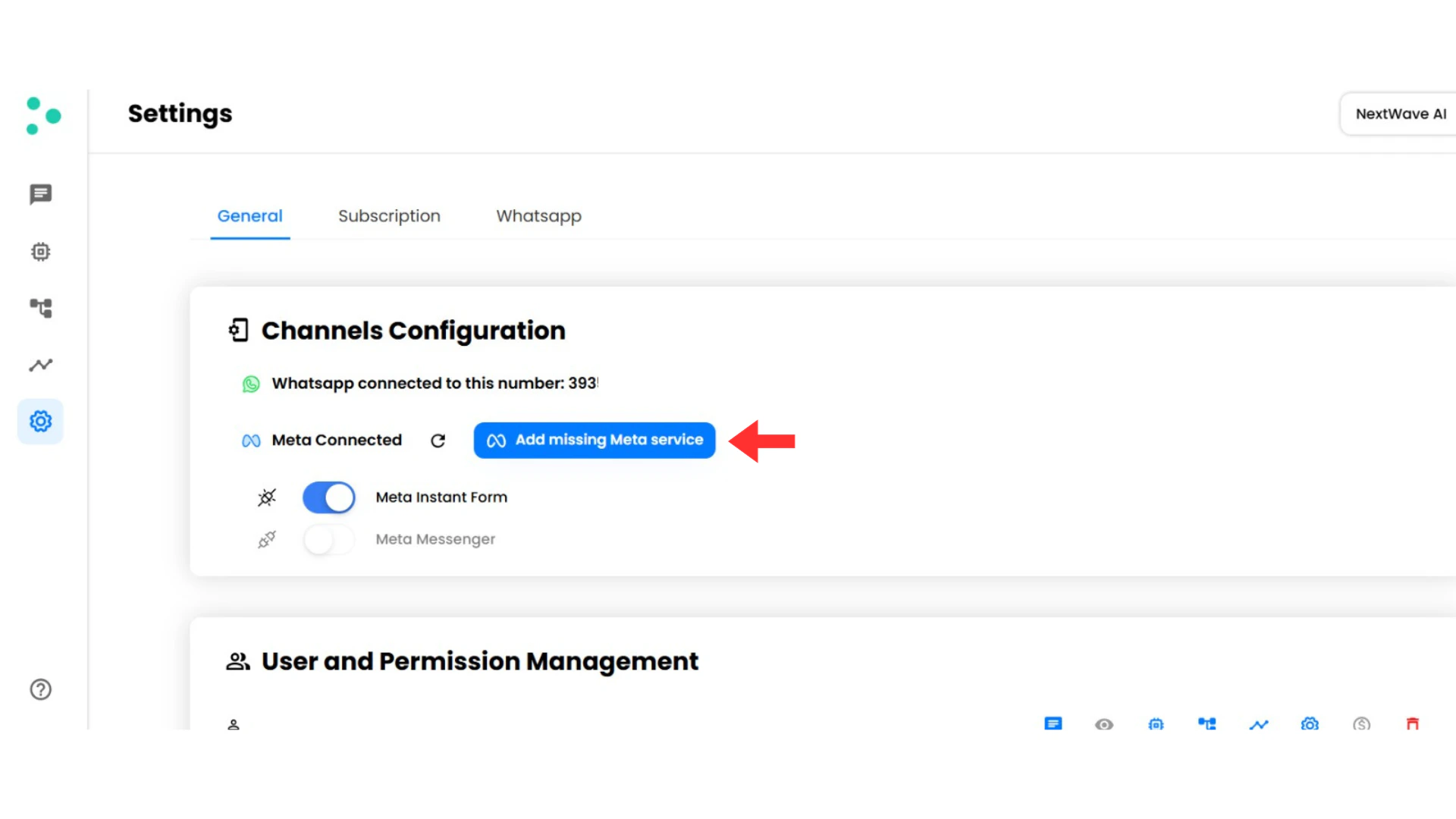
To Add New Services
- Click the blue “Add missing Meta service” button
- Follow the same Meta authorization flow
- Grant permissions for the new service
- Return to Irelia and enable the new service with its toggle
❓ Troubleshooting & FAQs
I don't see my Facebook Page or Business Manager during connection
I don't see my Facebook Page or Business Manager during connection
Problem: During the Meta authorization flow, the Facebook Page or Business Manager you need doesn’t appear in the selection screen.Start here — quick fixes:
How to check: Meta Business Suite → Settings → Page Access → verify your role is listed as Admin.
How to check: Meta Business Suite → Settings → People → find your name → verify your role is Admin with full control.
- ✅ Logged into the wrong Facebook account? — The selection screen only shows assets where your Facebook account has admin access. Make sure you’re logged into the correct account.
- ✅ You have the asset but it’s still not showing? — You likely don’t have the right permission level. Read on 👇
Facebook Page Not Showing
| Access Level | Page Appears in Selection? |
|---|---|
| No role on the Page | ❌ No |
| Partial roles (Moderator, Advertiser, Analyst, etc.) | ❌ No |
| Admin ✅ | ✅ Yes — this is what you need |
Business Manager Not Showing
| Access Level | BM Appears in Selection? |
|---|---|
| Partner (Meta’s recommendation for agencies) | ❌ No |
| Partial access (Employee) | ❌ No |
| Full control (Admin) ✅ | ✅ Yes — this is what you need |
🏢 Most Common Cause: Agency / Marketer Connecting for a Client
This is by far the most frequent reason. If you’re a marketer or agency setting up Meta integration on behalf of a client, your client likely added you as a Partner on their Business Manager — which is exactly what Meta’s own guidelines recommend for agencies.The problem? Partner access is not enough for the connection process.Solution: Ask your client to add you (temporarily or permanently) as an Admin with full control on their Business Manager, and as an Admin on the Facebook Page you need to connect.Share the instructions below directly with your client:📋 Instructions for Your Client
Open Business Settings
Go to Meta Business Suite and click the gear icon (⚙️) to open Business Settings
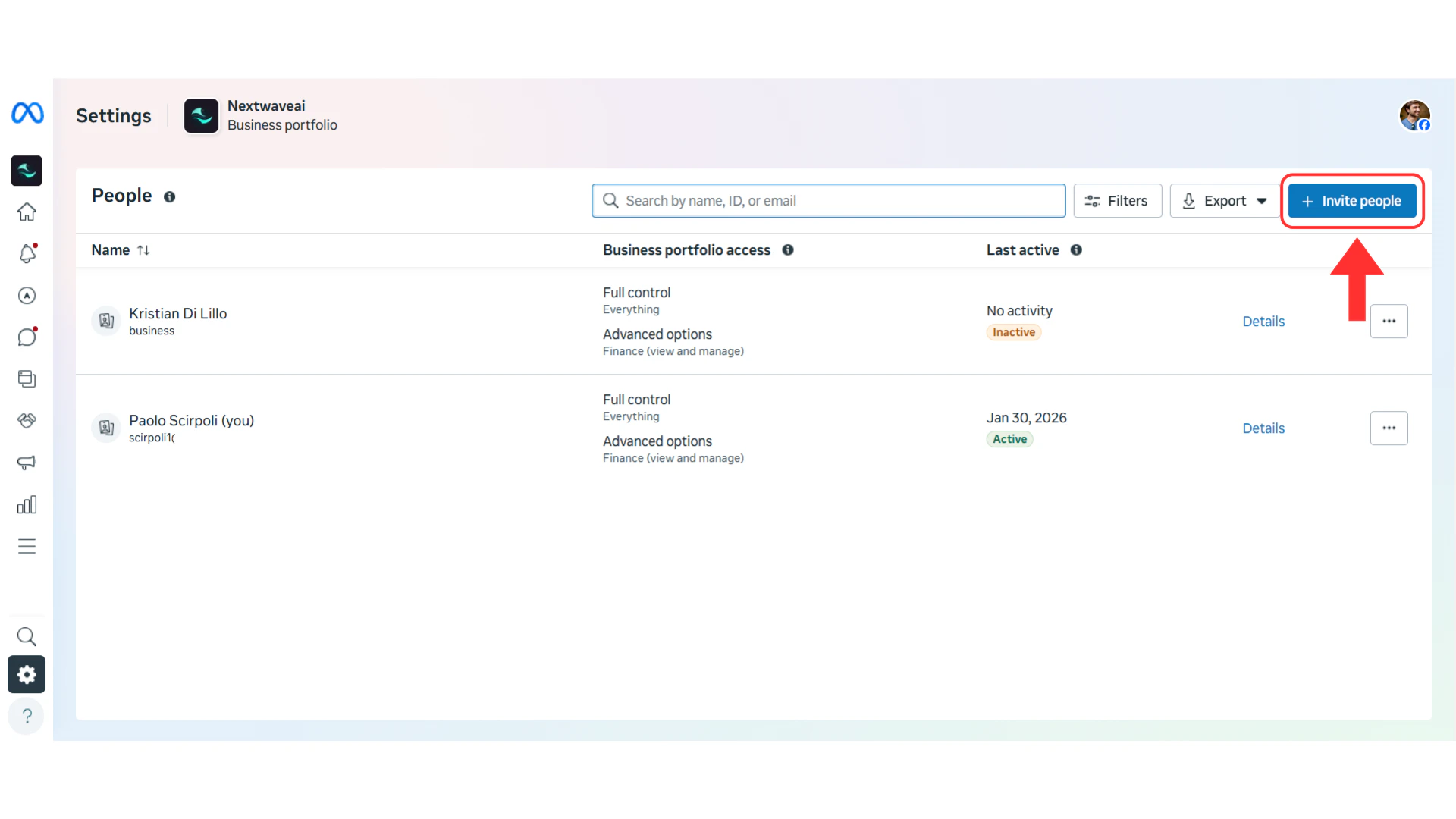
Enter Email and Select Full Control
Enter the email address associated with your marketer/agency’s Facebook accountSelect “Full control” (Admin access) — this is critical, do not select “Partial access”
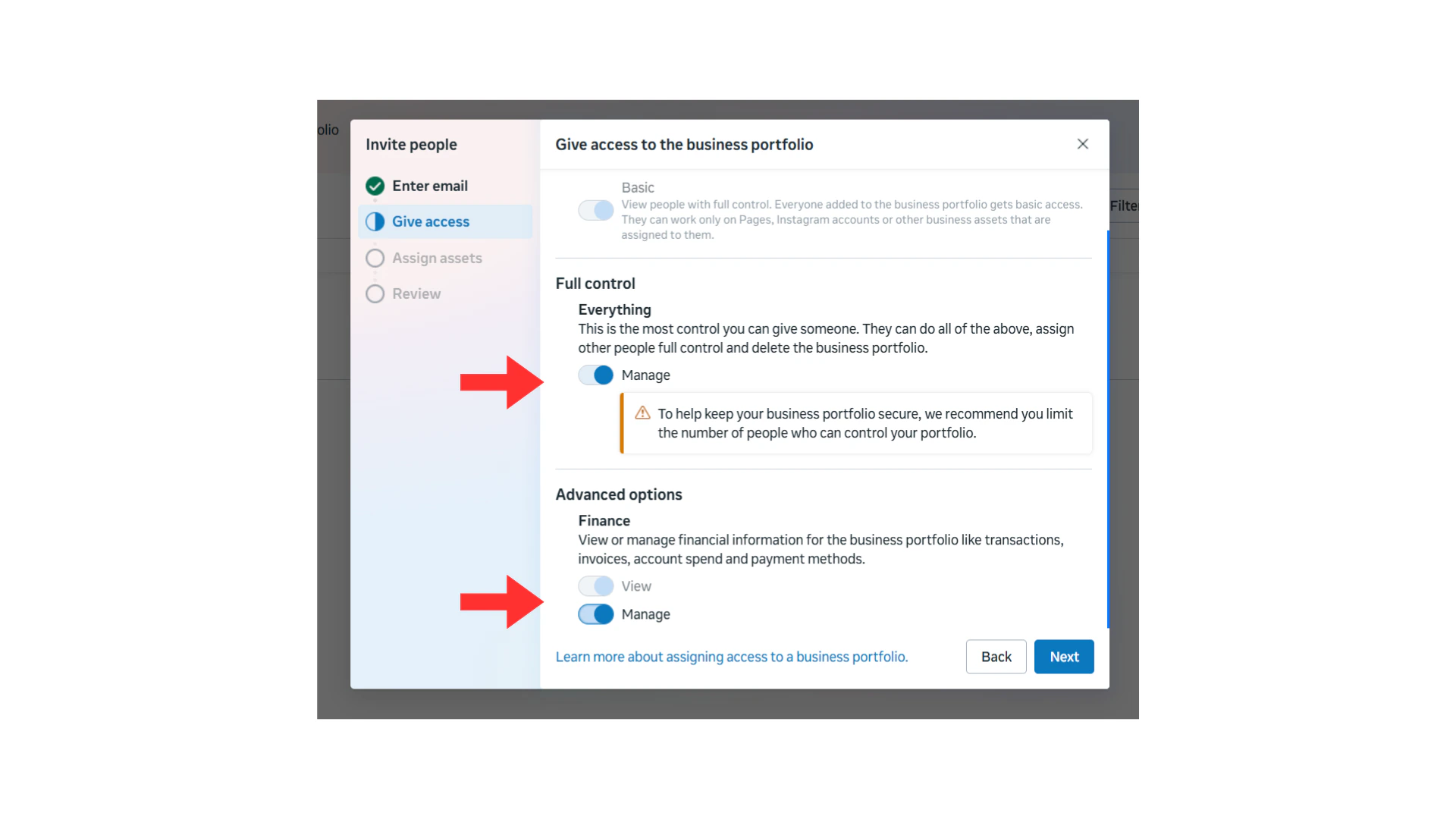
After Your Client Sends the Invitation
- ✅ Check your email and Facebook notifications for the invitation
- ✅ Accept the invitation
- ✅ Restart the Meta connection process from Step 1
- ✅ Your client’s Page and Business Manager should now appear in the selection screens
Irelia is responding from the wrong Page or showing the wrong Instant Form
Irelia is responding from the wrong Page or showing the wrong Instant Form
This typically happens when multiple Pages or multiple Business Managers were selected during the connection flow — either in this account or in another Irelia account that shares the same Facebook profile.Symptoms:
- Irelia sends Messenger replies from a Page that doesn’t belong to this account
- The Meta Instant Form module displays forms from the wrong Business Manager
- Generally unpredictable behavior across connected accounts
- Identify every Irelia account that was connected using the same Facebook profile
- Reset the Meta connection in each one of them: go to Settings → Channels Configuration → click the 🔄 reset icon next to “Meta Connected” and confirm
- Wait until all connections are removed before proceeding
- Reconnect each account one by one, carefully following the correct procedure:
- First account: follow First-Time Connection (Steps 1–6) — select ONE Page and ONE BM
- Each subsequent account: follow Connecting Additional Accounts (Steps 1–6) — keep previous selections checked, add ONE new Page and ONE new BM
I want to connect a different Page to this Irelia account
I want to connect a different Page to this Irelia account
Solution:
- Click the reset icon to disconnect
- Click “Connect Meta” again
- Select your new Page and BM
The Messenger toggle isn't working
The Messenger toggle isn't working
Solution: Ensure your Facebook Page has Messenger enabled. Go to your Page Settings → Messaging and make sure messaging is turned on.
My Instant Forms aren't syncing
My Instant Forms aren't syncing
Solution:
- Verify the form is attached to an active campaign
- Check that the BM you connected contains the ad account running the campaign
- Make sure the Meta Instant Form toggle is enabled (blue)
Leads from Meta Instant Forms are not being contacted
Leads from Meta Instant Forms are not being contacted
Possible causes and solutions:
-
Wrong phone number prefix: Leads may be entering their phone number without the correct country code, or with an incorrect format.
- Fix: If possible, set a default country prefix in your Meta form based on the country where you’re advertising.
-
Missing phone number field: Your Instant Form doesn’t include a phone number field.
- Fix: Edit your form in Meta Ads Manager and add a phone number field.
-
Non-standard Meta fields: Irelia pulls data from Meta’s default fields (name and phone number). If you’re using custom fields, Irelia won’t recognize them.
- Fix: Use Meta’s standard Name and Phone Number fields in your Instant Form. Irelia uses the name for personalization (e.g., “Hi paolo”) and the phone number to send messages.
📝 Quick Checklist
Use this checklist for every connection:Essential Setup
- Navigated to Irelia Settings → Channels Configuration
- Clicked “Connect Meta”
- Logged in with Facebook (if needed)
- Selected ONE Facebook Page only
- Selected ONE Business Manager only
- Completed the authorization
- Enabled desired services with toggles
Verification
- Confirmed “Meta Connected” status appears
- Tested your integration
All checked? You’re good to go!
🆘 Need Help?
Irelia.ai Support:- Contact support in the WhatsApp priority support group or send an email to info@irelia.ai
- Include: Screenshots of your configuration, the error message, and what you expected vs. what happened