

Table of Contents
- 📋 What You’ll Need — Prerequisites before starting
- 🎯 Common Use Cases — find your own use case
- ⚡ Quick Path — Condensed steps for experienced users
- 🔧 Step-by-Step Setup — Complete walkthrough (Steps 1-7)
- 🛠️ Troubleshooting — Common issues & fixes
- ✅ Quick Checklist — Verify your setup is complete
- 🚀 Advanced Automations — Filters, paths & real-world examples
Introduction
You’ve built your conversational AI agent on Irelia.ai, and it’s actively chatting with prospects on WhatsApp, Facebook, and Instagram. But what happens when something important occurs—like when a lead gets qualified, when your bot collects key information, or when someone books a meeting? Right now, you might be manually checking your Irelia dashboard and copying information to other tools. There’s a better way. This guide shows you how to automatically send information from Irelia to your other business tools the instant something important happens—no manual work, no delays, no checking dashboards. By the end of this guide, you’ll have:- A working automation that triggers when specific events happen in your Irelia conversations
- Data flowing automatically from Irelia to your CRM, spreadsheets, or team chat
- The knowledge to build unlimited additional automations
What You’ll Need
- An Irelia.ai account with at least one active agent
- A Zapier account (free tier works fine) — Sign up here if needed
- A destination for your data (Google Sheets, Slack, or your CRM)
🎯 Common Use Cases — Start Here
80% of readers need one of these two setups. Find yours, note the guidance, then follow the Step-by-Step Setup below — you’ll just make different selections at Step 2 and Step 4.Use Case 1: Update my CRM or spreadsheet when a lead qualifies or a goal is completed
Examples: lead marked as qualified → update HubSpot status · meeting booked → log it in your sheet · goal completed → notify your sales team 📡 Select this event in Step 2:Lead Qualified or Goal Achieved
Which steps do I follow?
- Contact already exists in your CRM / spreadsheet → Follow Steps 1–3, then use the Search & Update pattern for Step 4.
- Contact is brand new (not yet in your system) → Follow Steps 1–6 as written (Example A, B, or C in Step 4).
View as a diagram
View as a diagram
Use Case 2: Push collected data (budget, company size, timeline, etc.) to my CRM or spreadsheet
Examples: bot collects budget → populate CRM field · company size gathered → update spreadsheet row · timeline captured → segment lead automatically 📡 Select this event in Step 2:Data Gathered
Which steps do I follow?
- Contact already exists in your CRM / spreadsheet → Follow Steps 1–3, then use the Search & Update pattern for Step 4.
- Contact is brand new (not yet in your system) → Follow Steps 1–6 as written (Example A, B, or C in Step 4).
View as a diagram
View as a diagram
Quick Path (Experienced Users)
Already comfortable with Zapier? Here's the condensed version
Already comfortable with Zapier? Here's the condensed version
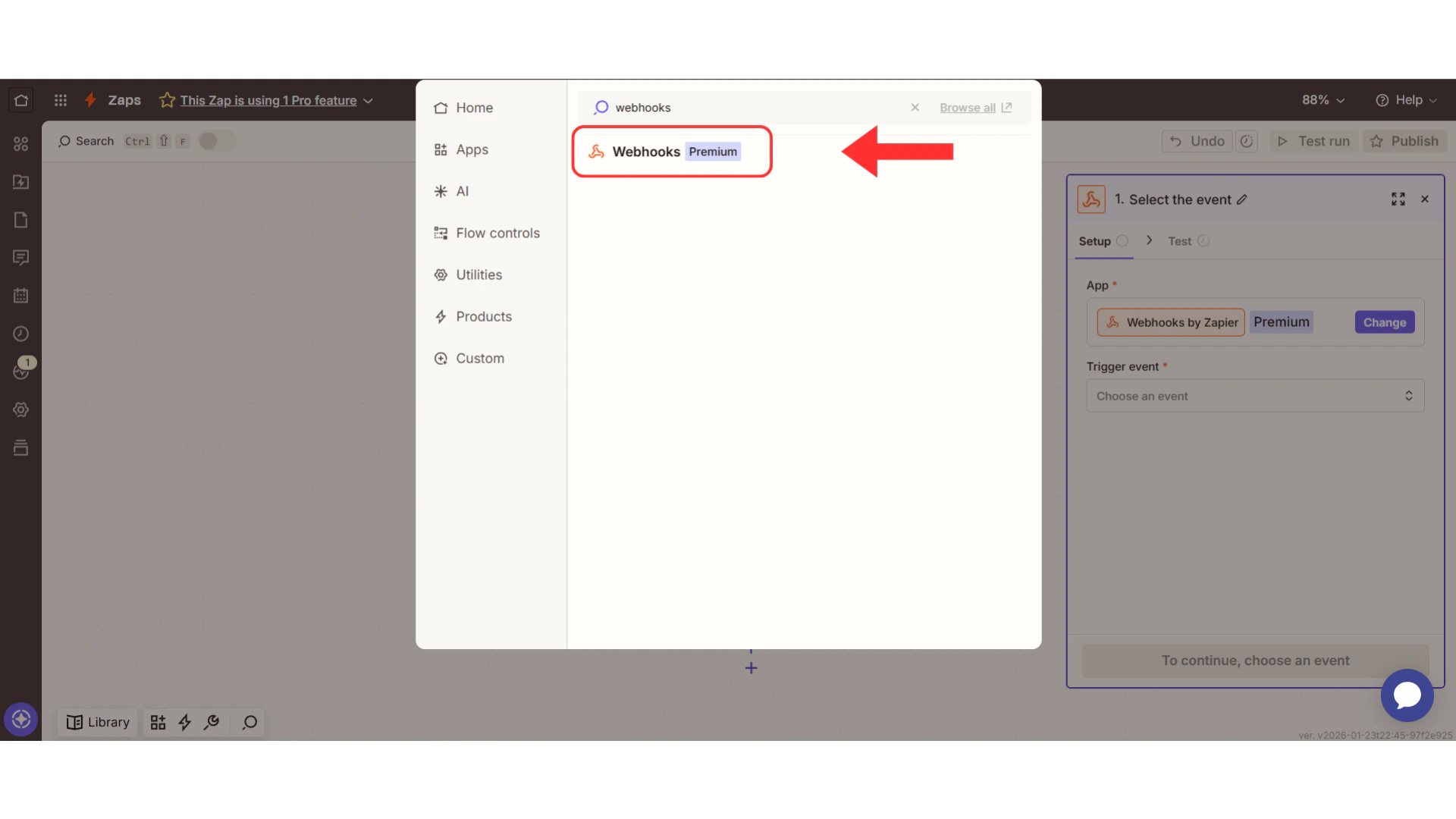
- Zapier: Create Zap → Trigger: “Webhooks by Zapier” → Event: “Catch Hook” → Copy webhook URL
- Irelia: Settings → Select Agent → Events and Notifications → Paste URL into desired event field
- Test: Click “Test” button in Irelia → Return to Zapier → Verify data received
- Action: Add your action app → Map fields → Test → Publish
Quick Overview: What You’ll Do
Total: ~15-20 minutes
How This Works
Think of this connection like a smart doorbell system:| Doorbell System | Your Automation |
|---|---|
| 🏠 Something happens at your door (doorbell rings, package arrives) | Your AI agent has an important moment (lead qualified, goal achieved, data collected) |
| 📹 Doorbell camera captures it and sends info | Irelia’s webhook packages the details (who, what, when) |
| 📱 Your phone receives the notification | Zapier receives the data instantly |
| ⚡ Automatic action triggers (save video, alert family) | Your apps do their thing (add to CRM, send Slack message, update spreadsheet) |
What Events Can Irelia Notify You About?
As your AI agent chats with prospects, Irelia tracks important milestones called events—the “moments that matter” in your conversations. Below you can find a few examples of Irelia events:| Event | What It Means | Example Use |
|---|---|---|
| 💬 New Inbound Contact | Someone messages you first | → Notify sales team |
| 🎯 Lead Qualified | Prospect meets your criteria | → Add to CRM |
| ❌ Lead Disqualified | Prospect doesn’t fit | → Add to nurture campaign |
| ✅ Goal Achieved | Prospect completed an objective | → Send confirmation email |
| 📝 Data Gathered | Bot collected specific information | → Update spreadsheet |
| ❓ Question Lacking Answer | Prospect asked something bot couldn’t answer | → Create task for team |
Step 1: Set Up Zapier to Receive Irelia Notifications
Time needed: 3 minutes
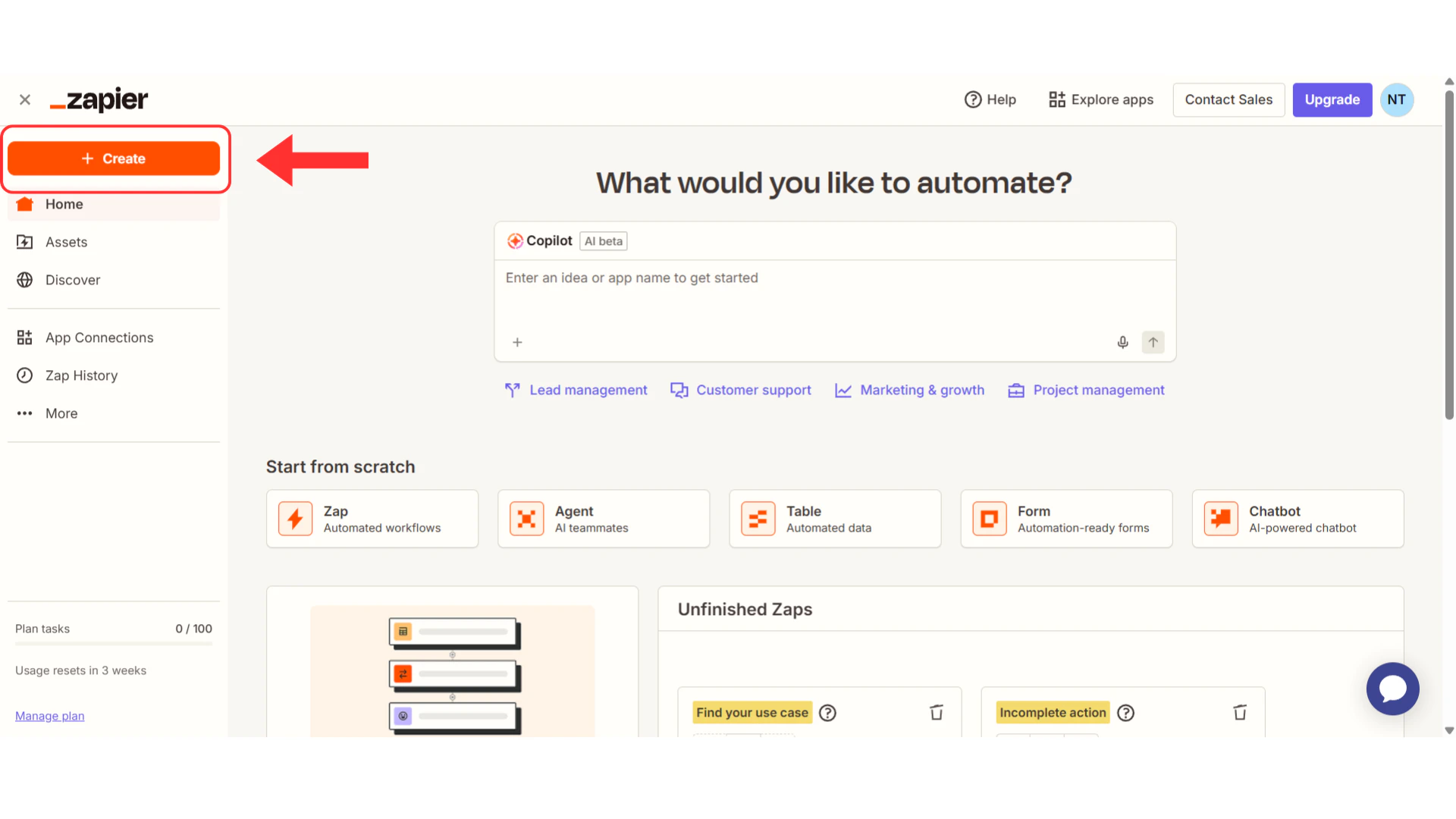
Create Your Zap
Log into your Zapier account
Log into your Zapier account at zapier.com
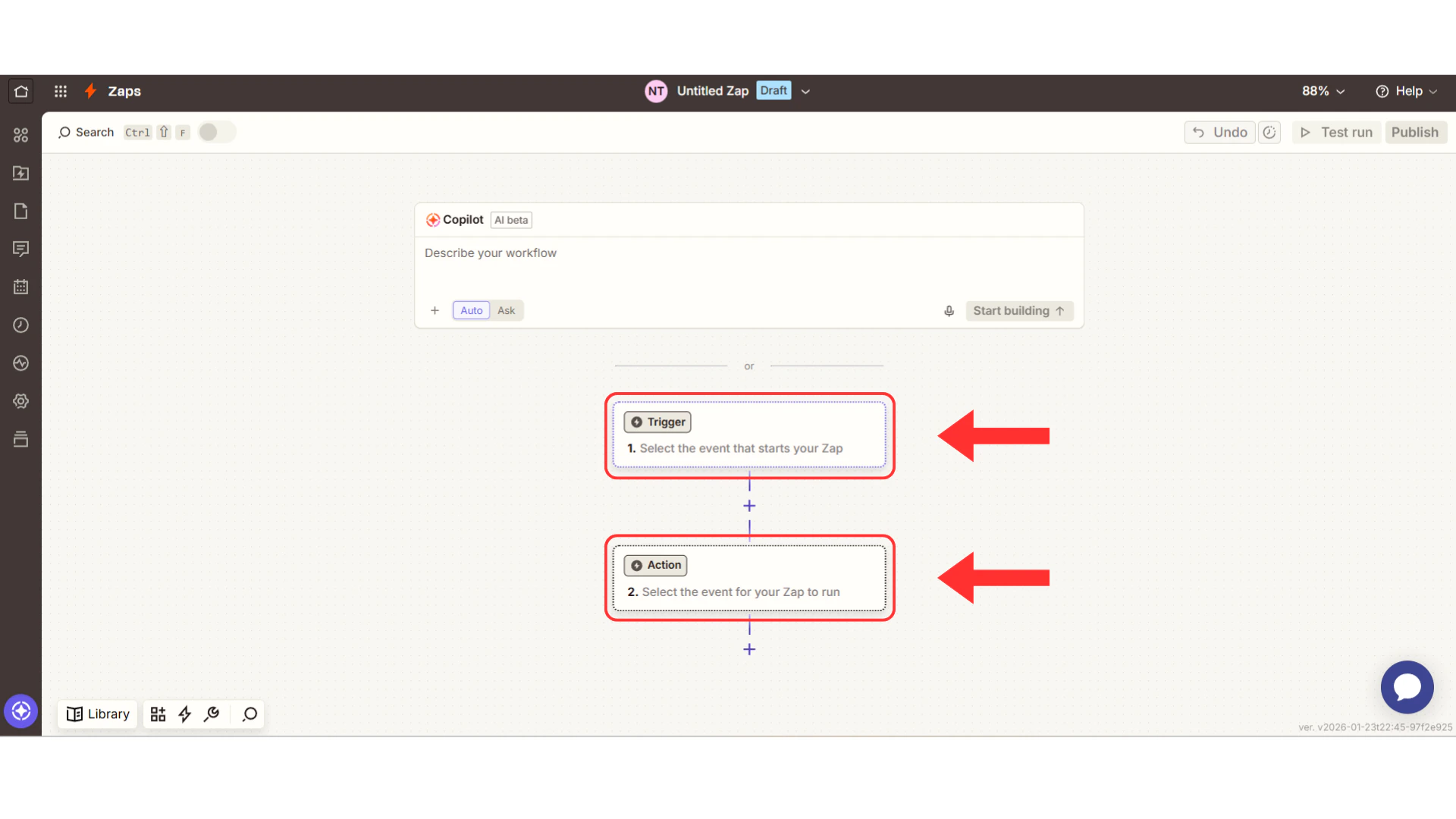
Choose Webhooks as Your Trigger
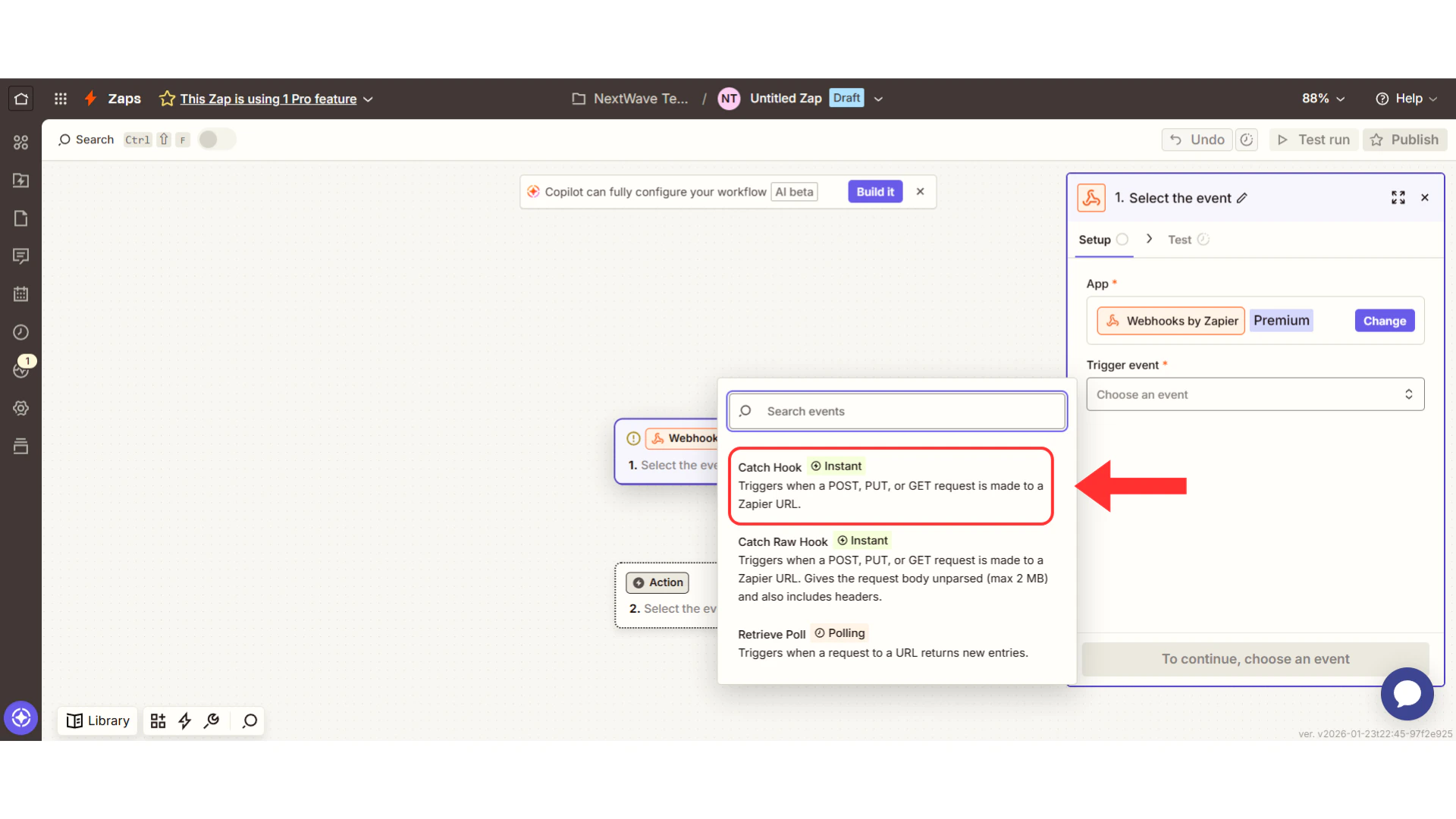
Get Your Webhook URL
This is the most important part—you’re getting a unique URL that tells Irelia exactly where to send information.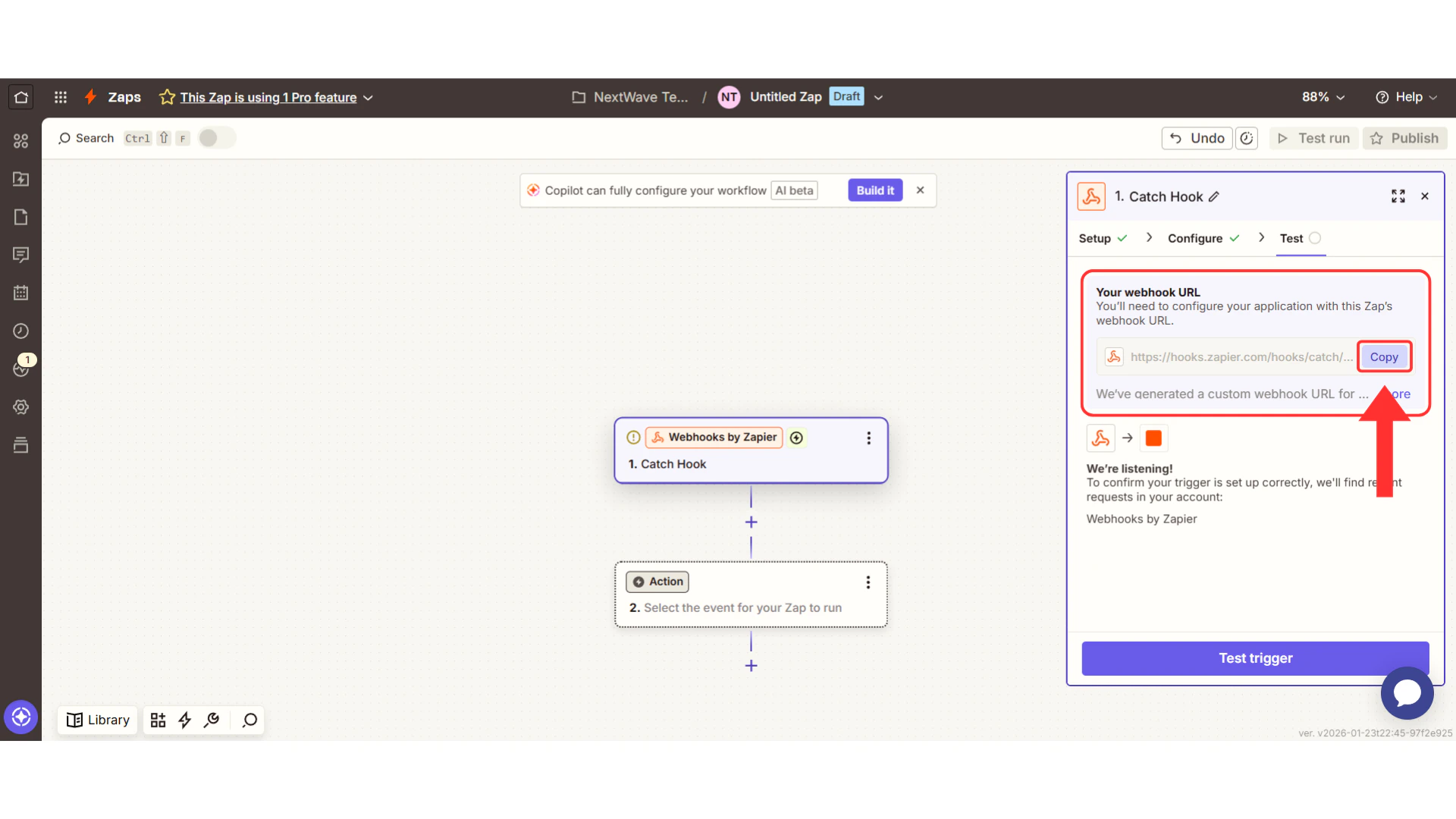
Keep this Zapier tab open! You’ll need to return here in a few minutes.
Step 2: Tell Irelia Where to Send Notifications
Time needed: 2 minutes
Quick Context: Agents and Events
In Irelia, each AI agent can have its own automations. For this guide, you’ll configure ONE event for ONE agent. Once you understand how it works, you can easily set up more.Access Your Agent Settings
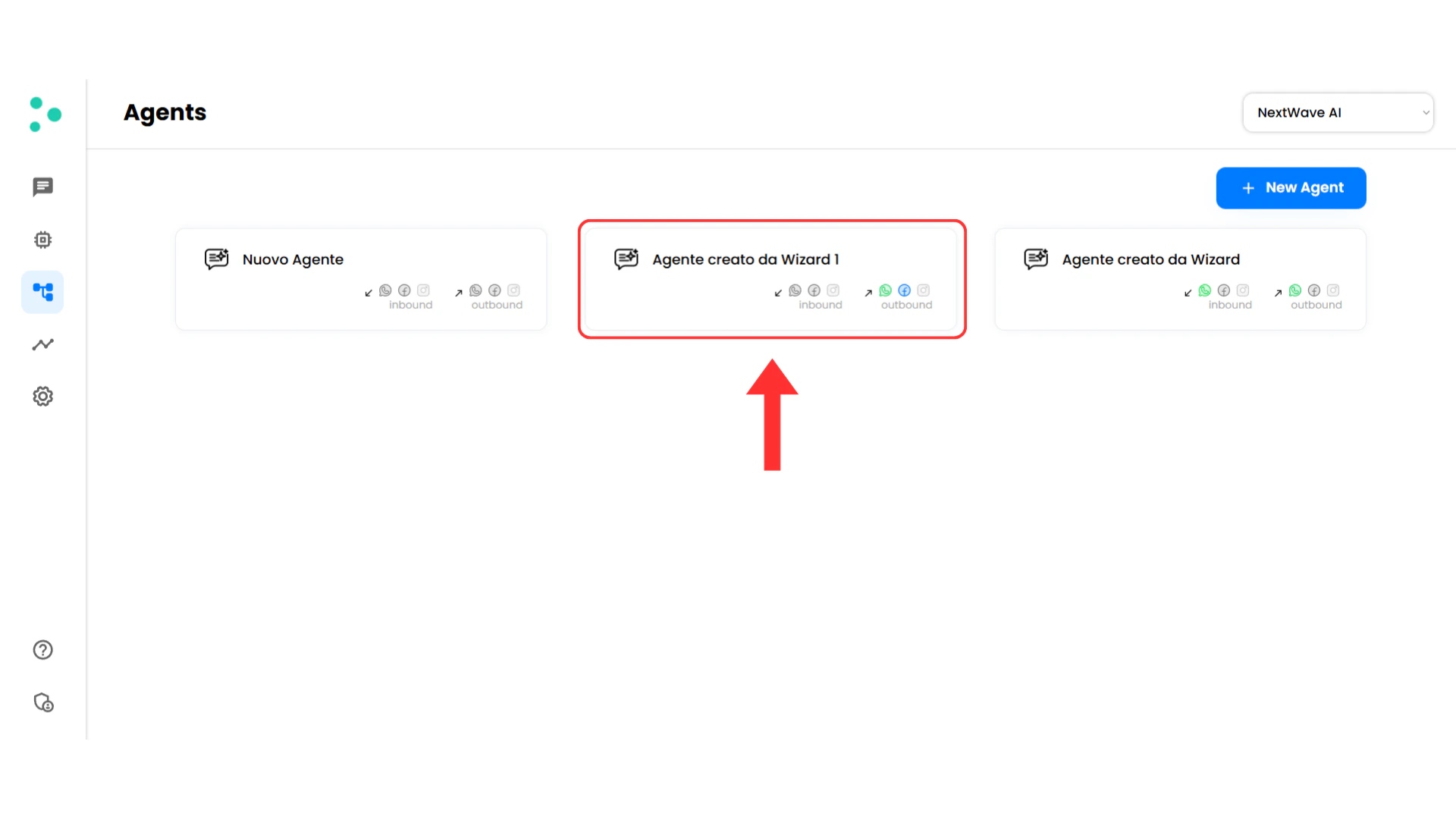
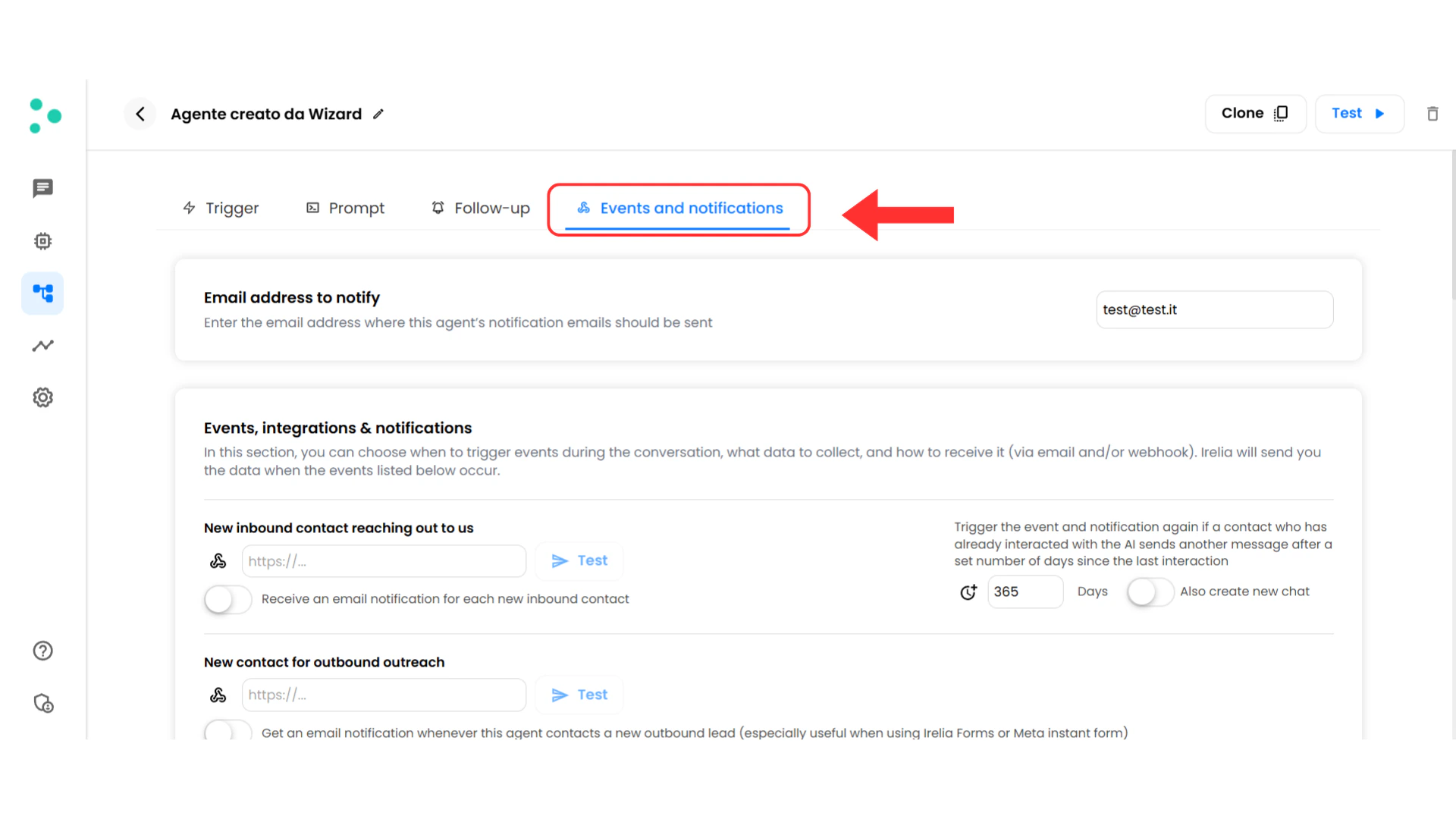
Configure Your Webhook
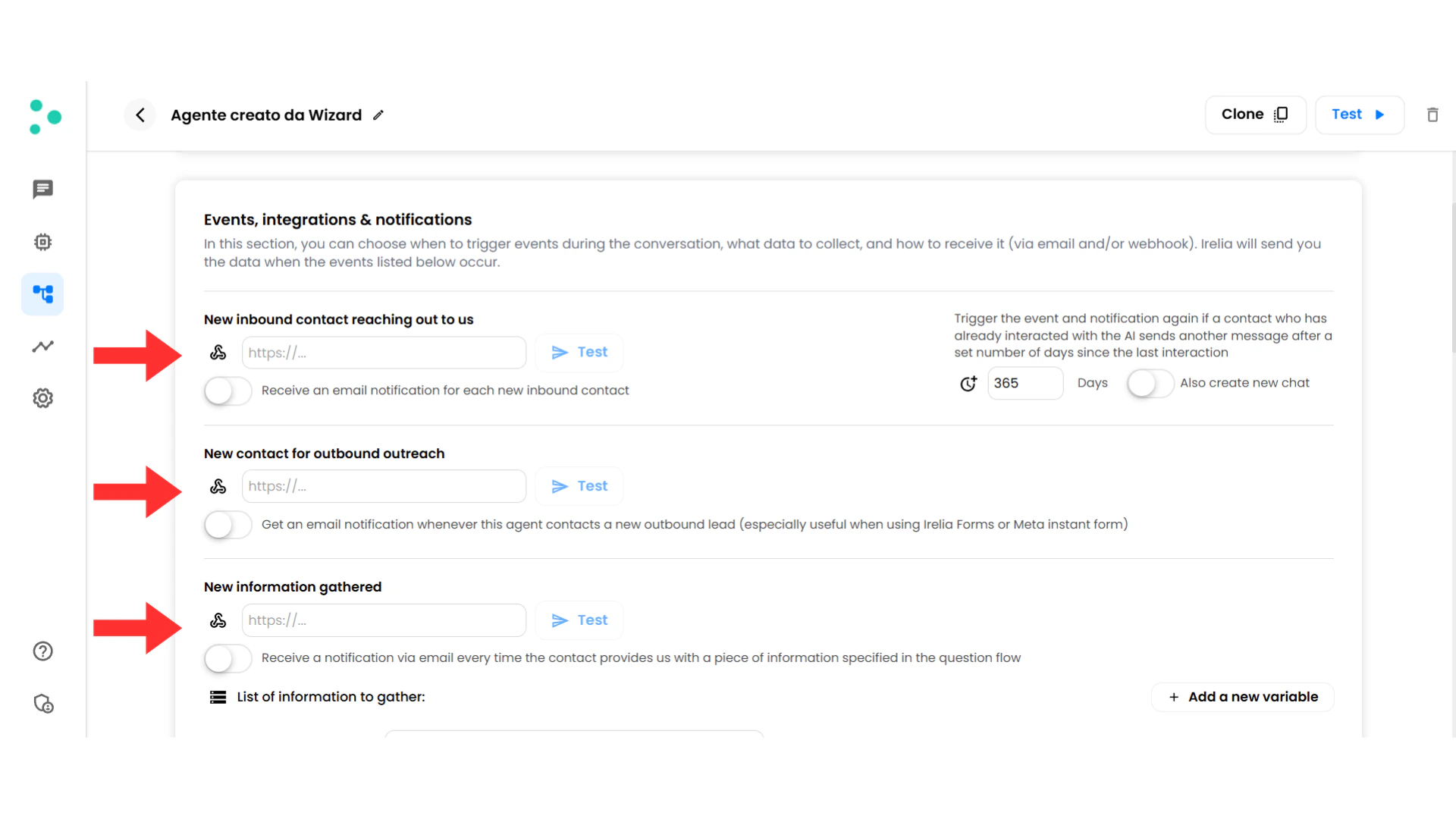
Find your event
Find “New inbound contact reaching out to us” or the event you wish to configure in the list
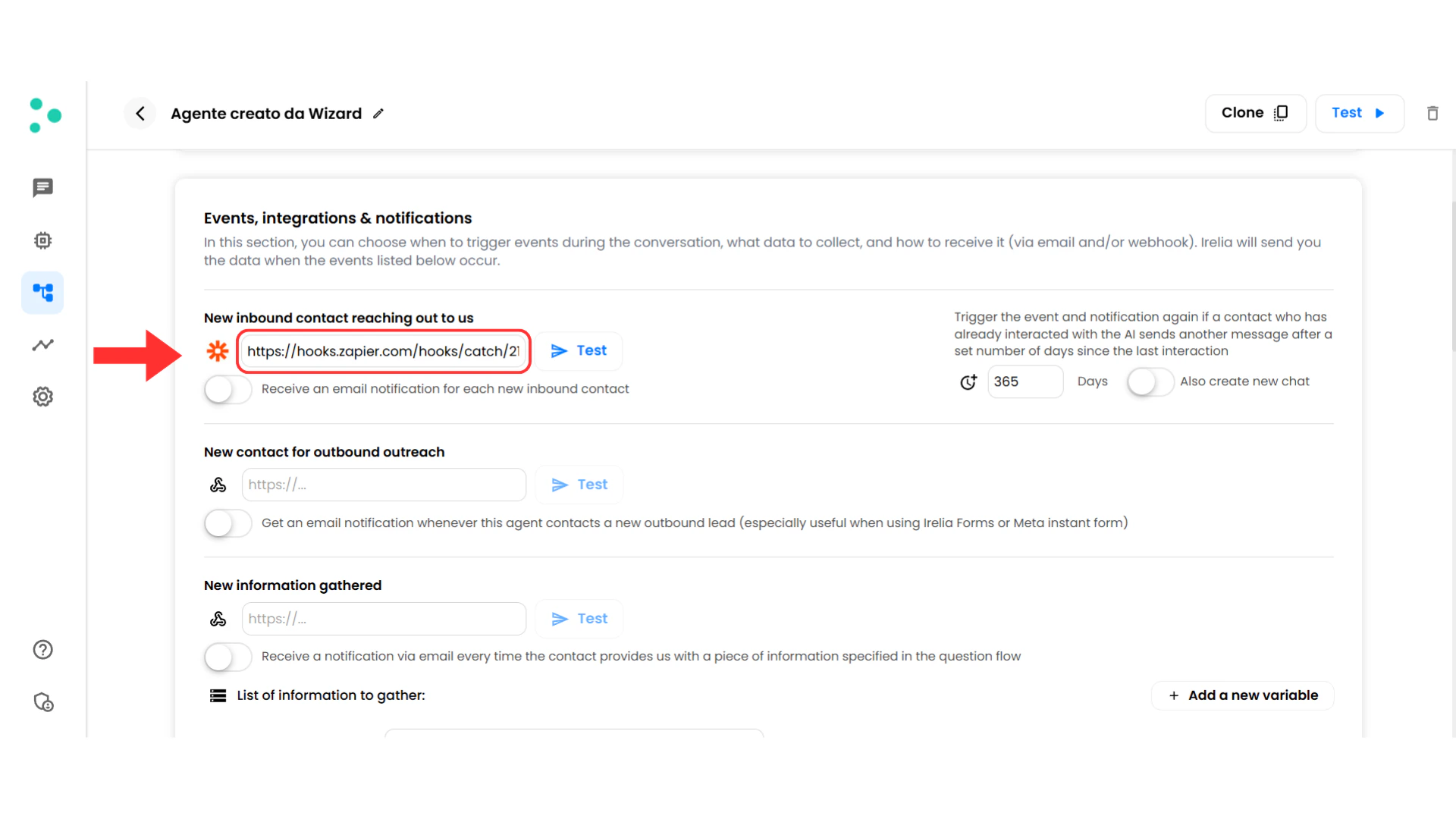
Connected! This event will now send data to Zapier whenever someone first contacts this agent.
Step 3: Test the Connection
Time needed: 2 minutes
Send Test Data from Irelia
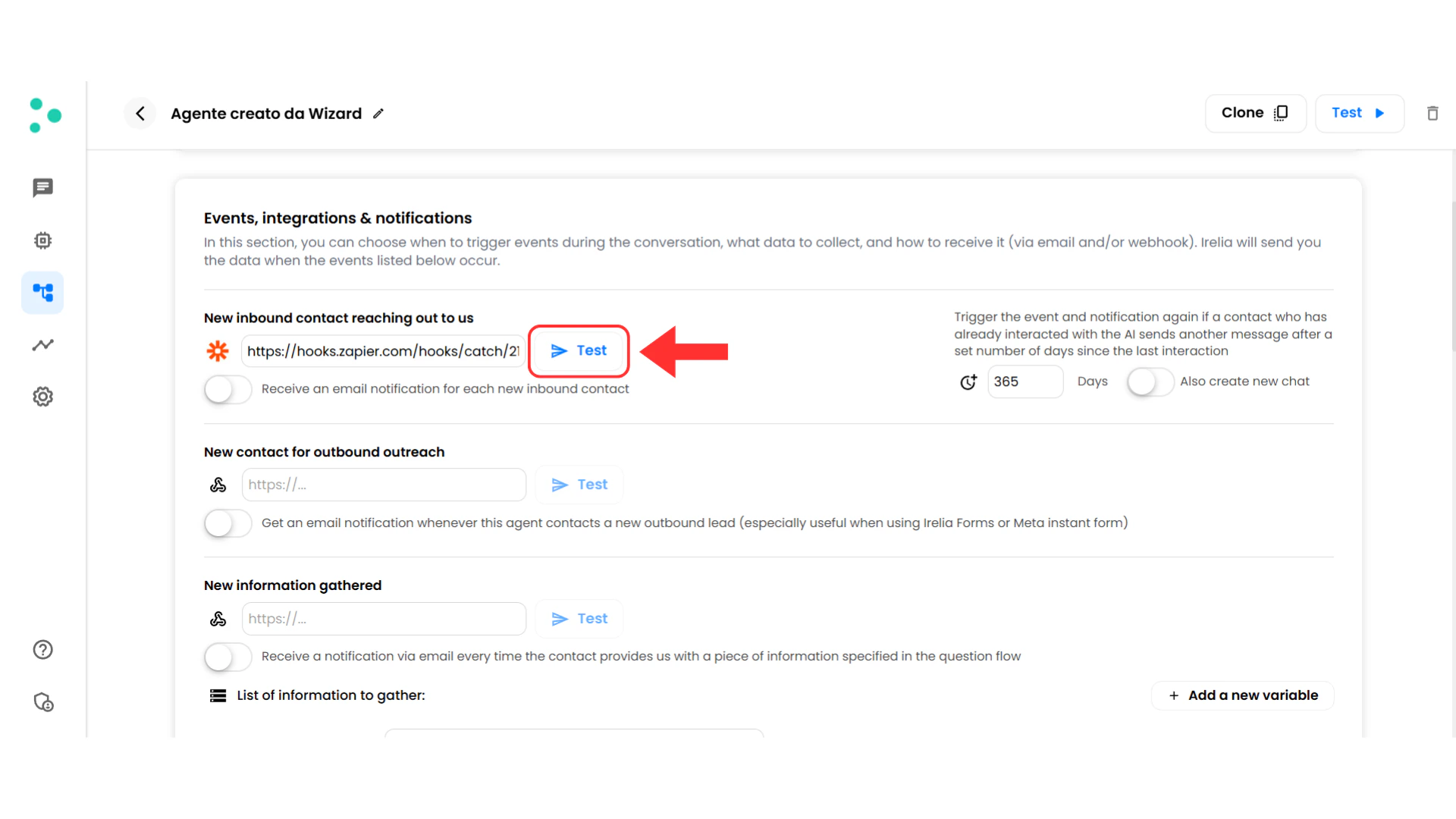
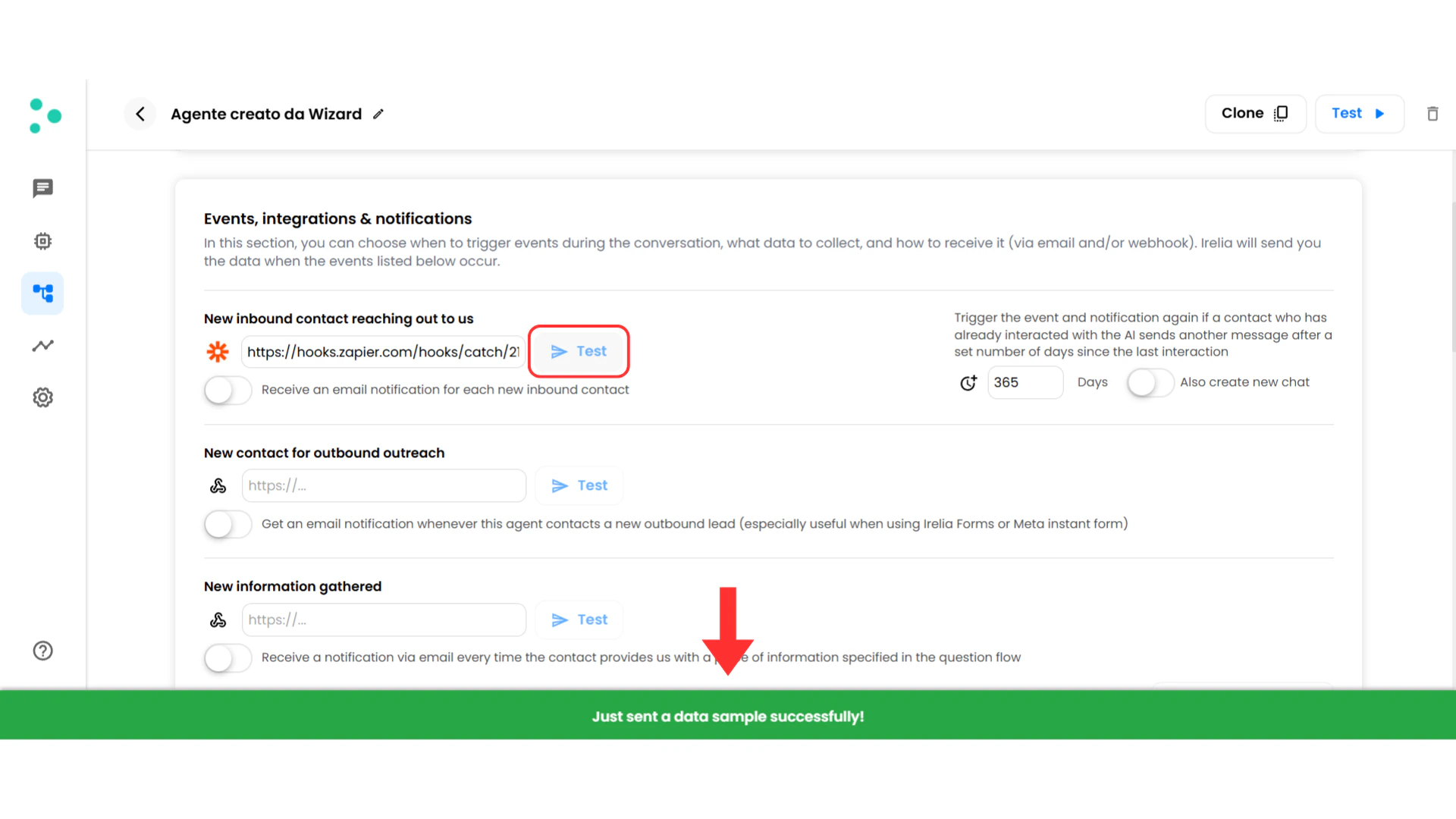
Verify Zapier Received the Data
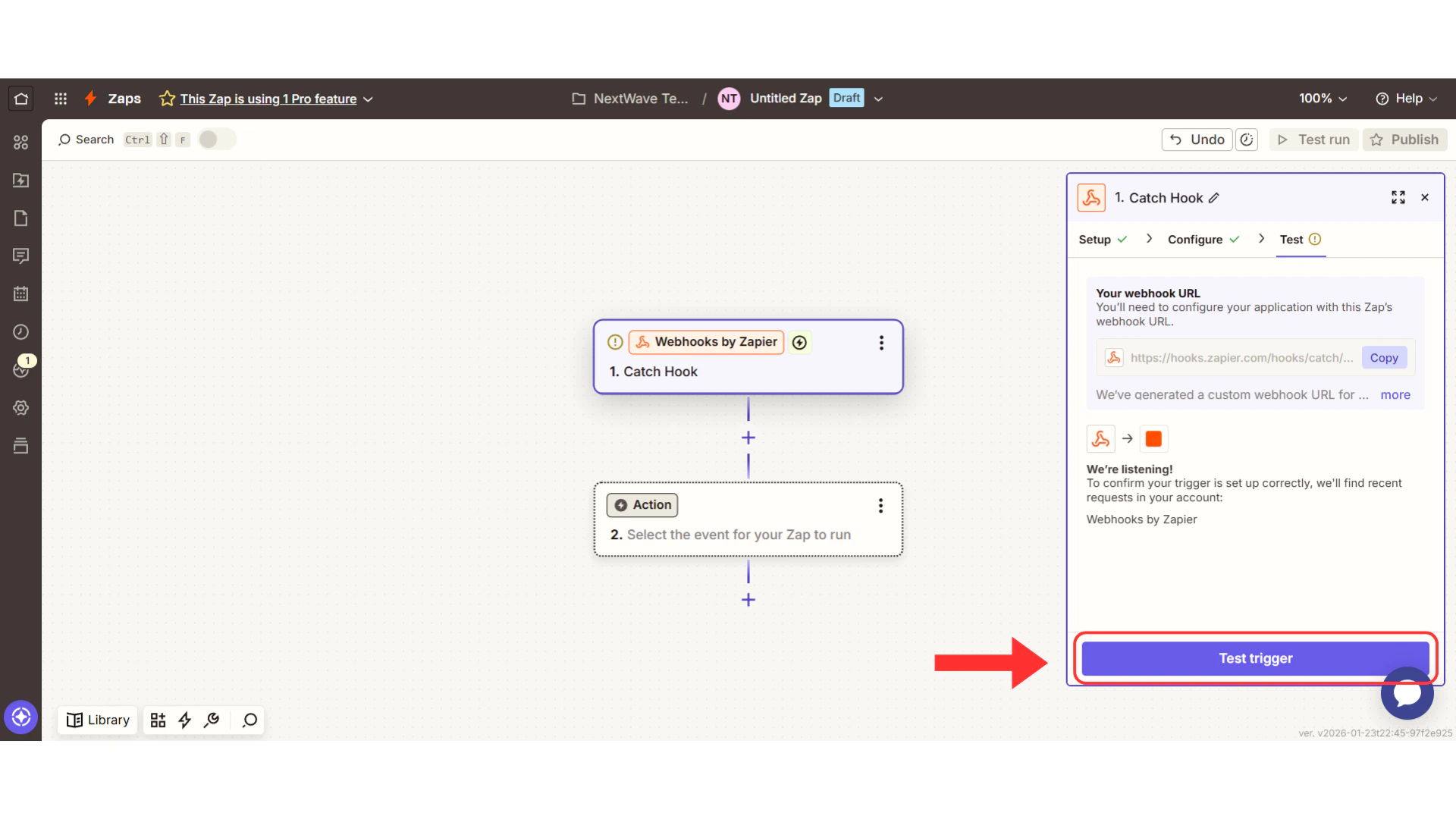
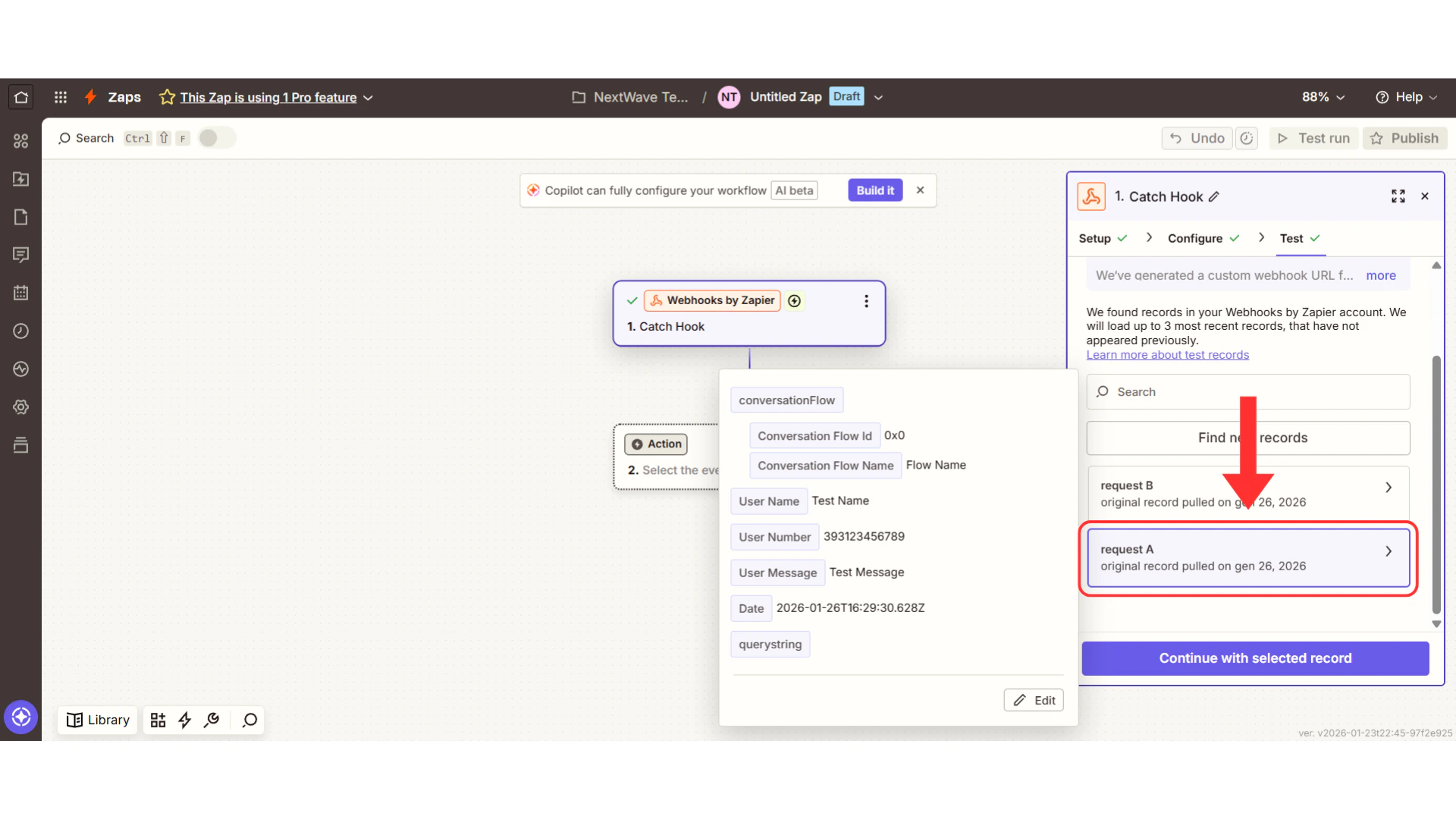
Success! Irelia and Zapier are connected and talking to each other.
Understanding What Irelia Sends You
Before setting up actions, let’s take 60 seconds to understand what Irelia just sent to Zapier.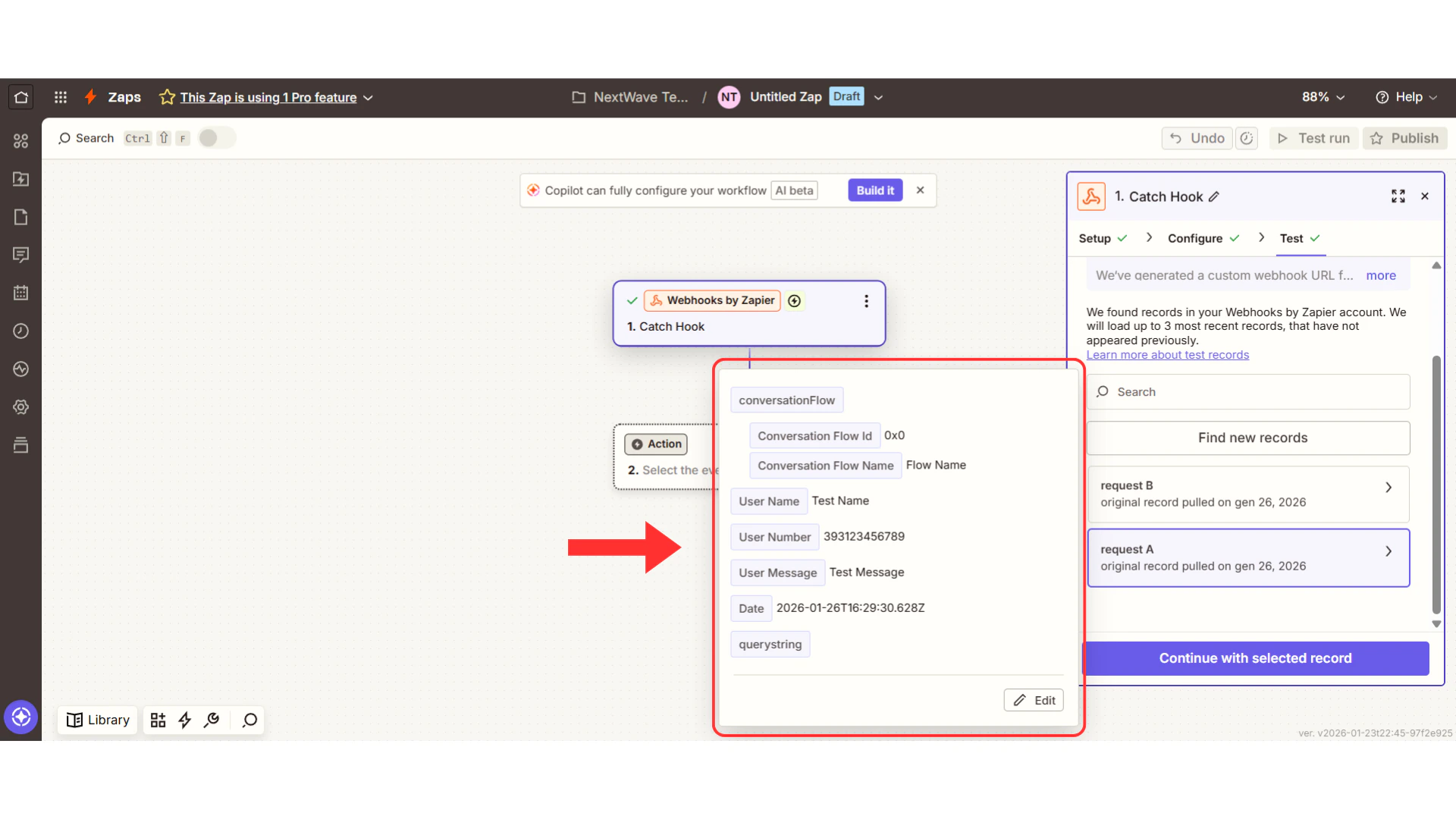
userName- The prospect’s nameuserNumber- Their phone numberinboundLead- Did they message first (true) or did you (false)?
id- Unique agent identifiername- Name of the conversation agentchatHistory- Complete conversation transcript with this agentleadQualification- Are they qualified by this agent? (“fit”, “not a fit”, or “TBD”)interestScore- How interested are they in this conversation? (0.0 to 1.0, like 0% to 100%)reasonNotQualified- Why they didn’t qualify (if applicable)goalAchieved- Number of goals completed with this agentnumberOfMessageSent- Messages sent by this agentnumberOfMessageReceived- Messages received from prospectnumberOfQuestionLackingData- Questions the AI couldn’t answer from knowledge basecreditConsumedForThisChat- Credits used for this conversation
chatHistory- Complete chat history across all agentsoptStatus- Opt-in status (e.g., “in”, “out”)creditConsumedForThisLead- Total credits consumednumberOfMessageSent- Total messages sentnumberOfMessageReceived- Total messages receivednumberOfQuestionLackingData- Total questions lacking answersnumberOfGoalAchieved- Total goals achieved
customVariables- Specific information your bot collected (budget, company size, timeline, etc.)
name- What you asked about (“Budget”)value- Categorized answer (“$10k-50k”)valueRaw- Exact words they used (“We have around 30k to spend”)
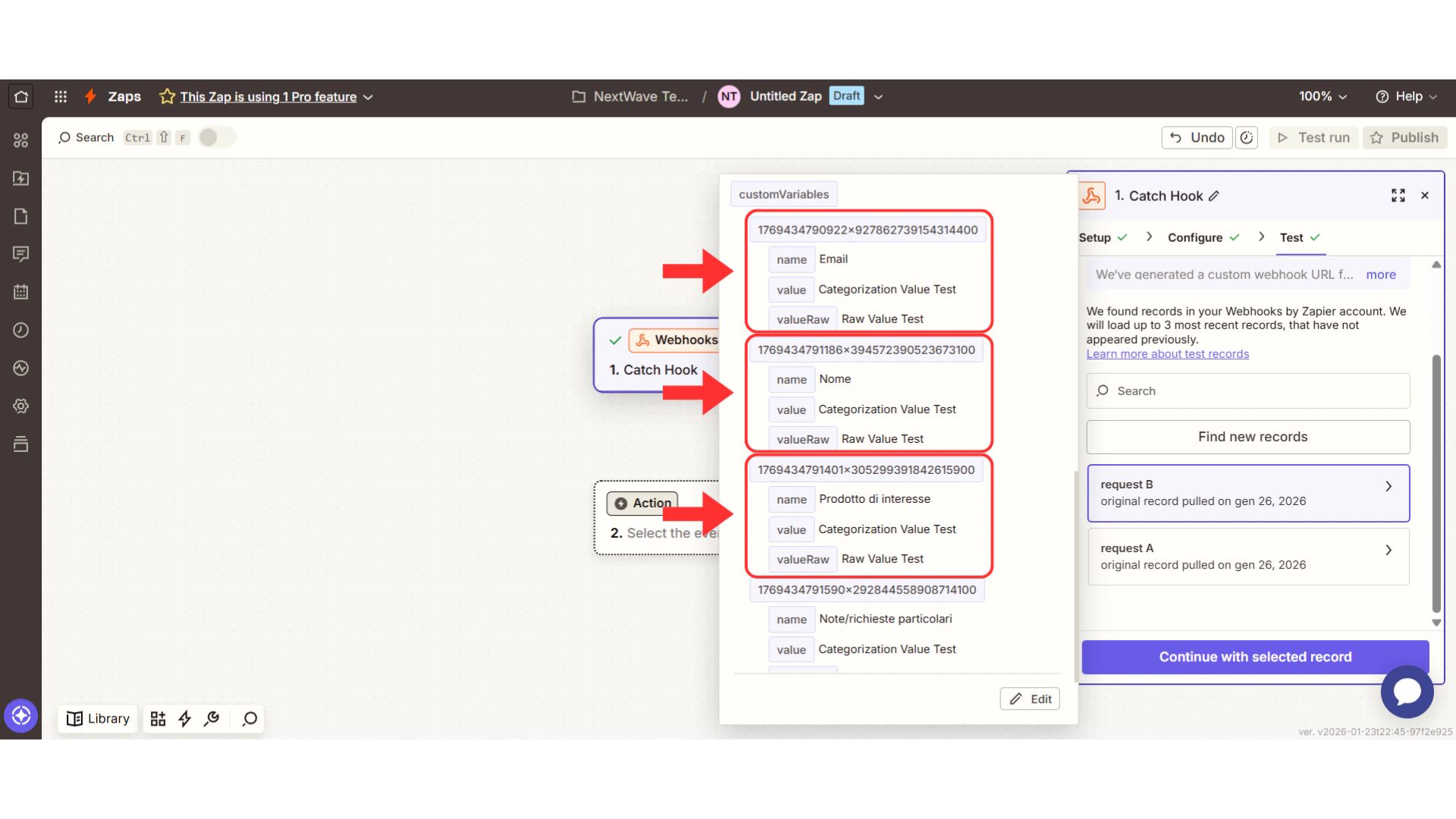
Important: Not All Events Send All Data
The test you just ran shows you the data for “New inbound contact” events. Different events send different data. Don’t worry if you don’t see every field mentioned above—you’re seeing exactly what’s relevant for your event.Step 4: Set Up Your Action
Time needed: 5 minutes
Choose Your First Action
Ask yourself: “When someone first contacts my agent, what’s the ONE most valuable thing that should happen automatically?” Common answers:- Log it immediately → Google Sheets (simplest, great for testing)
- Alert my team → Slack (immediate visibility)
- Add to my CRM → HubSpot, Salesforce, Pipedrive (most business value)
- Start a sequence → Email marketing tool (begins nurture process)
- Example A: Google Sheets
- Example B: Slack
- Example C: CRM
Example A: Log New Contacts in Google Sheets
Recommended for first-timersSearch for Google Sheets
In the Action section, click the search boxSearch for and select “Google Sheets”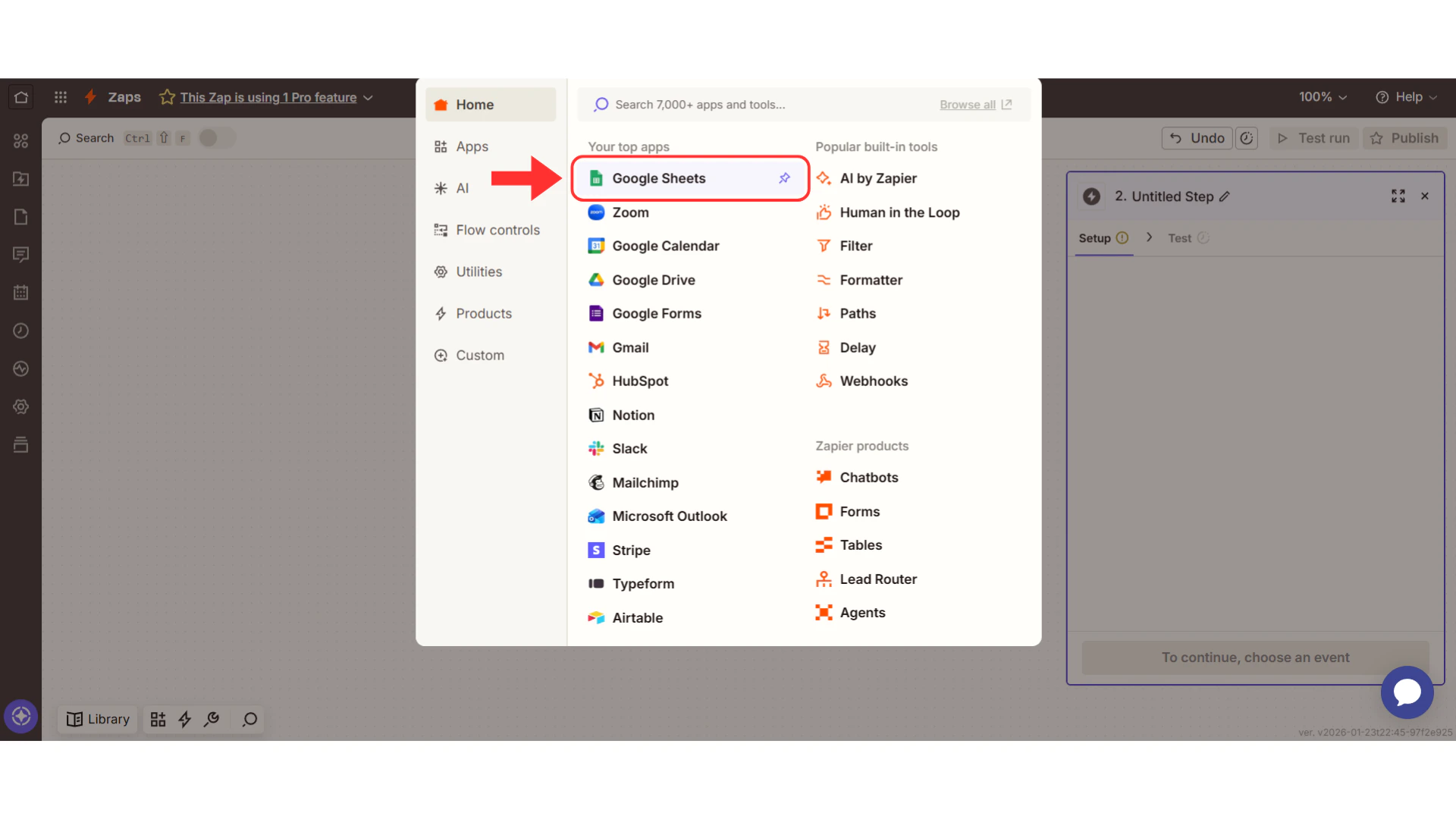
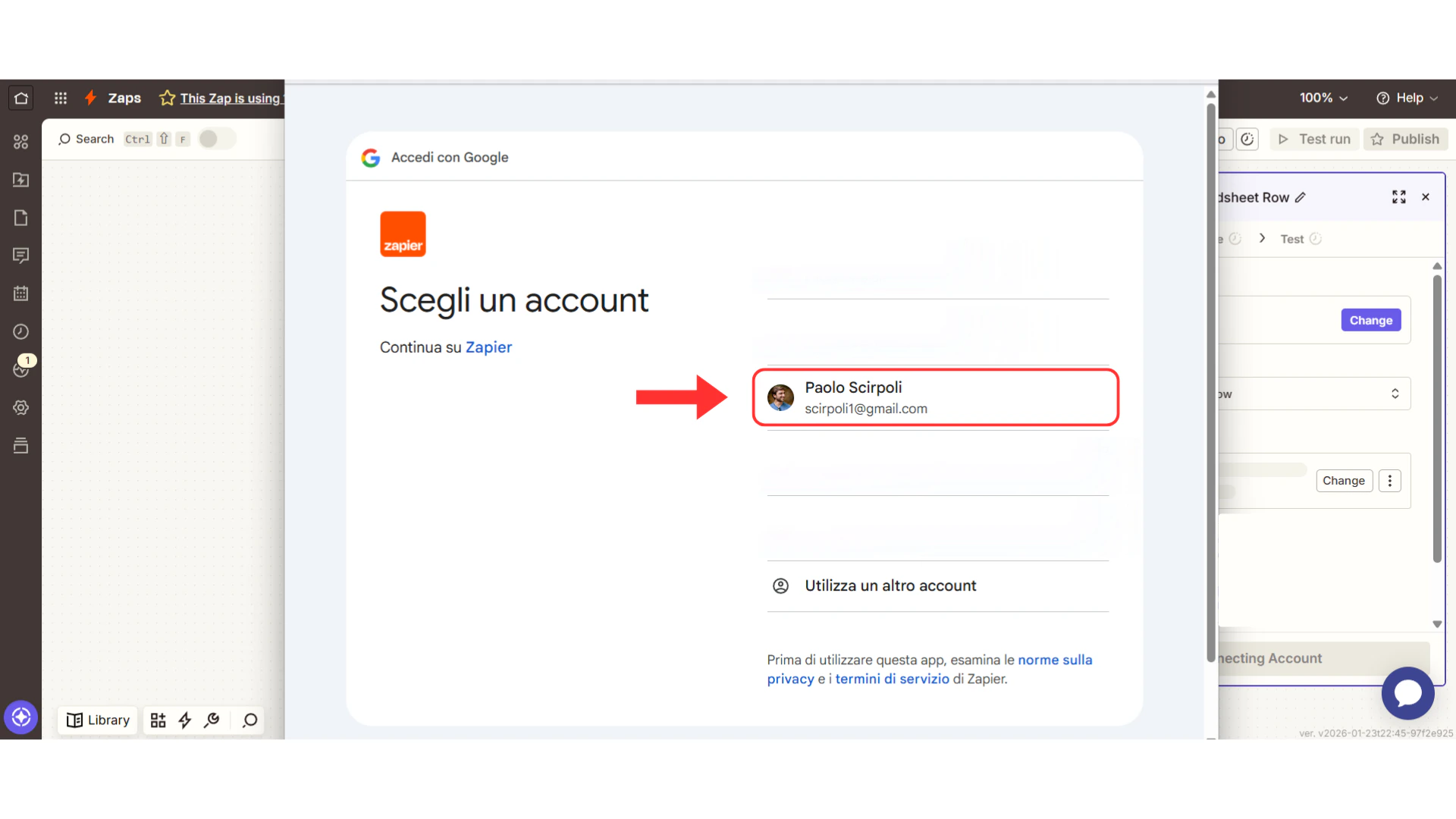
Select your spreadsheet
Select your Spreadsheet (or create a new one first)Select your Worksheet (usually “Sheet1”)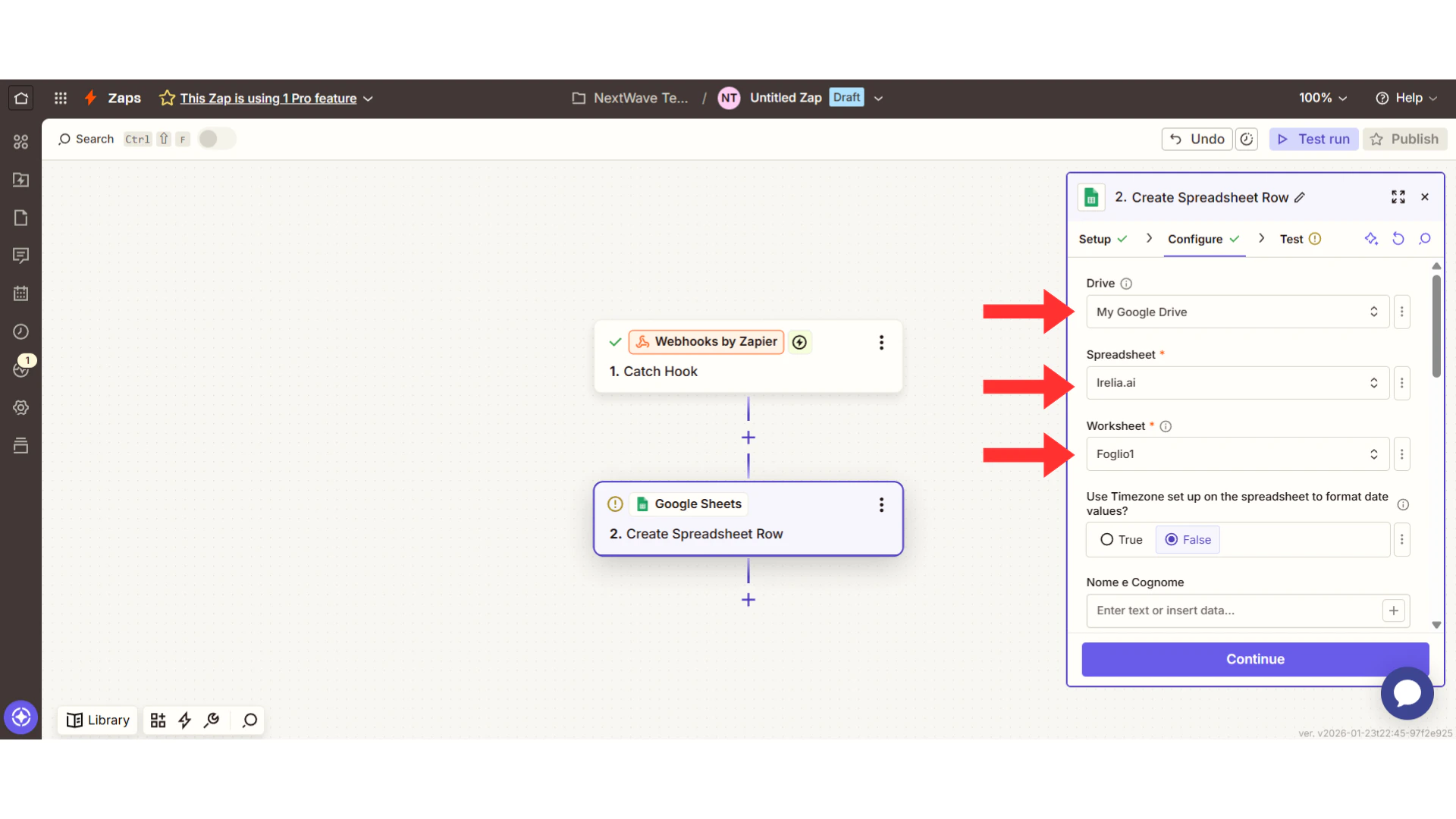
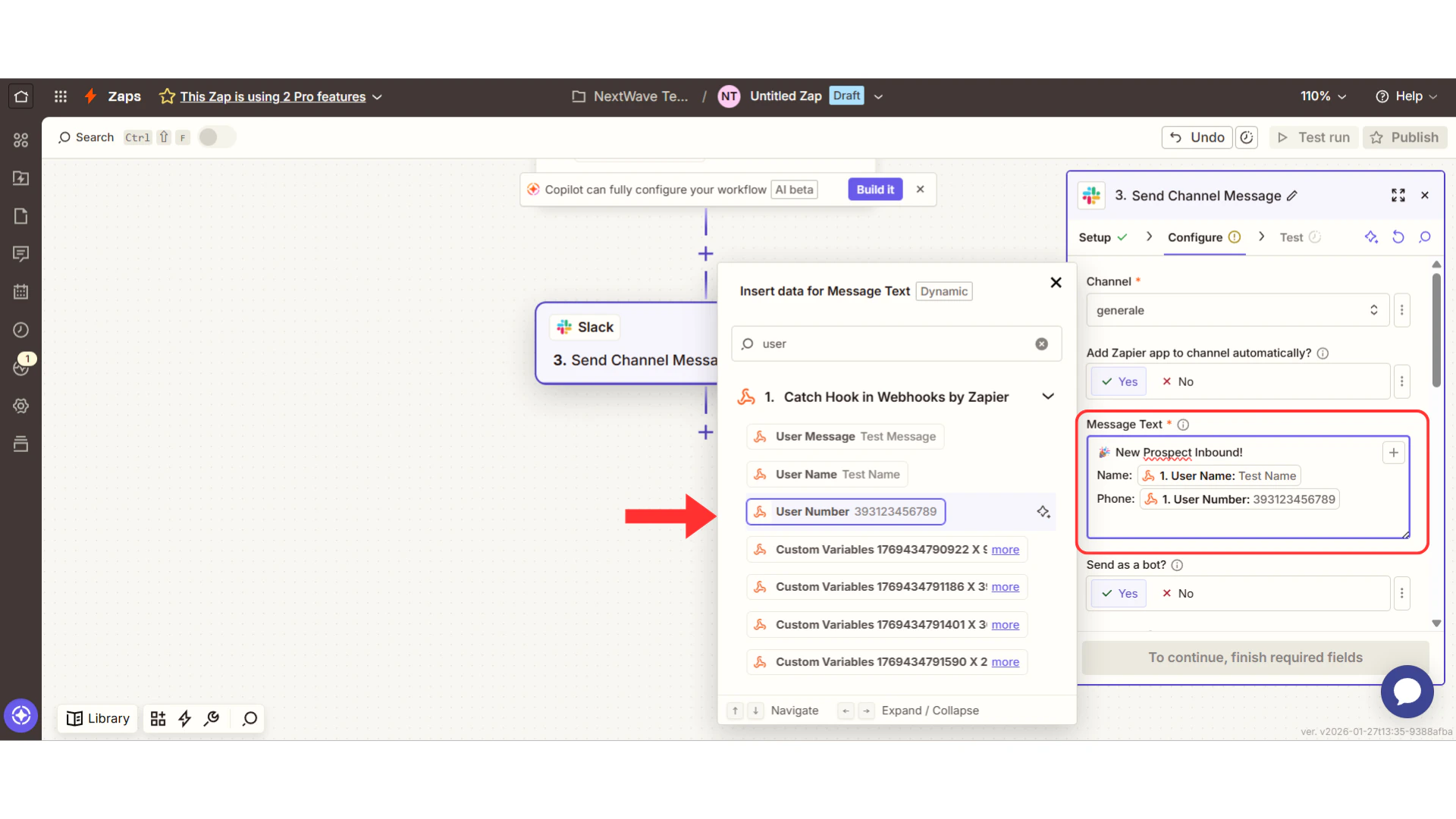
Map your fields
Map your fields — This is where you tell Zapier which Irelia data goes into which spreadsheet column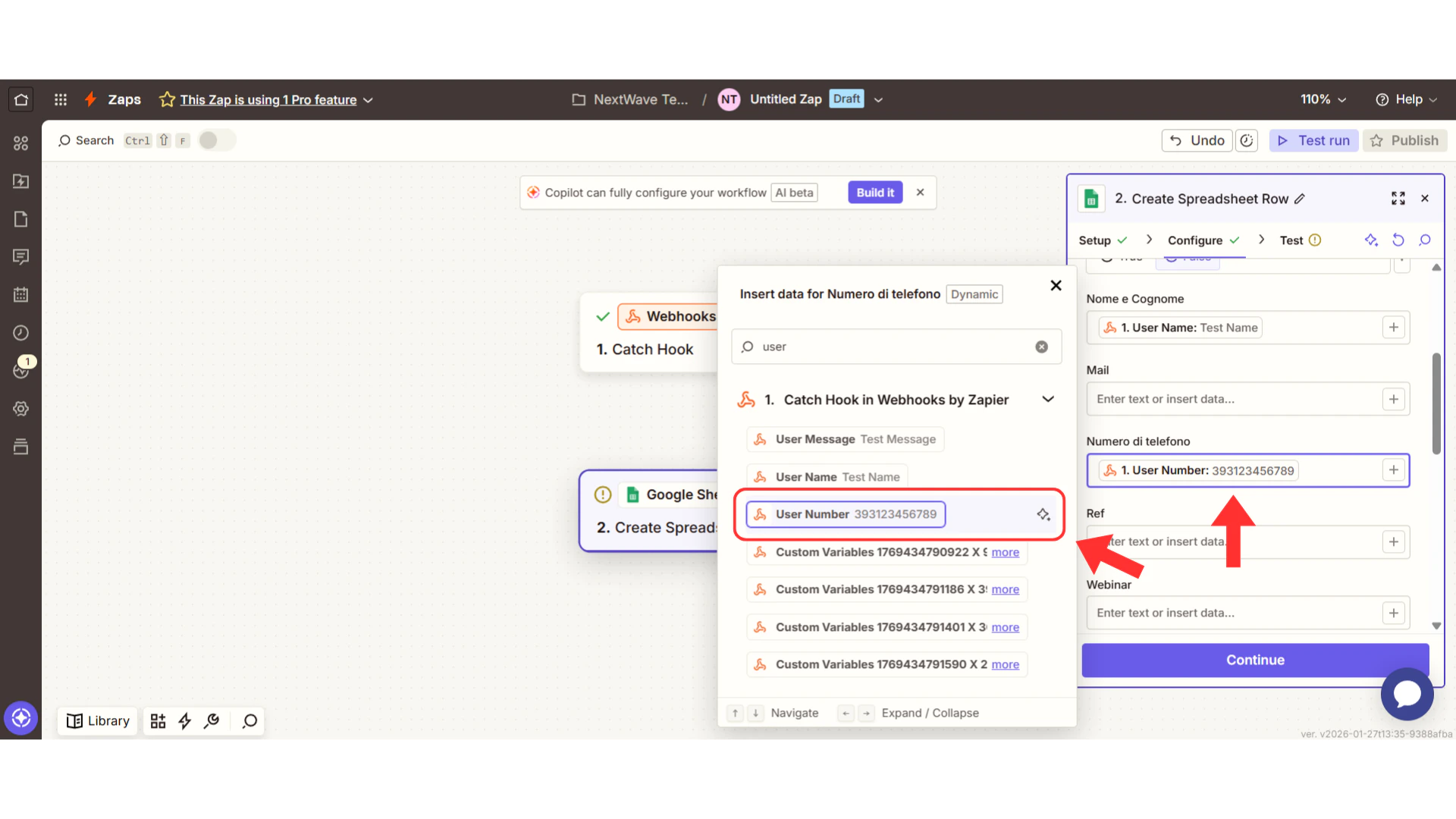
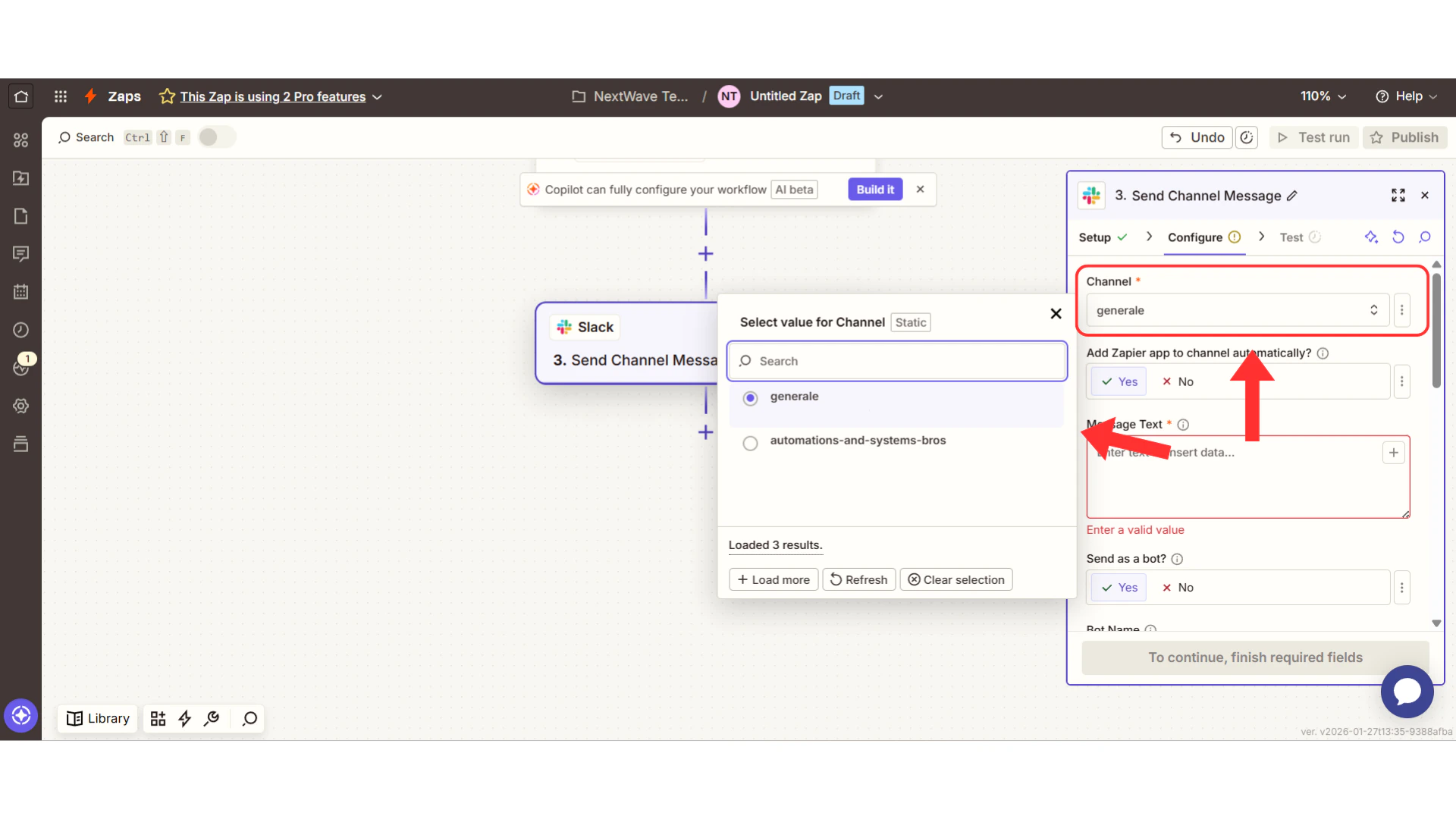
Step 5: Test Your Complete Automation
Time needed: 3 minutes
Run Your Test
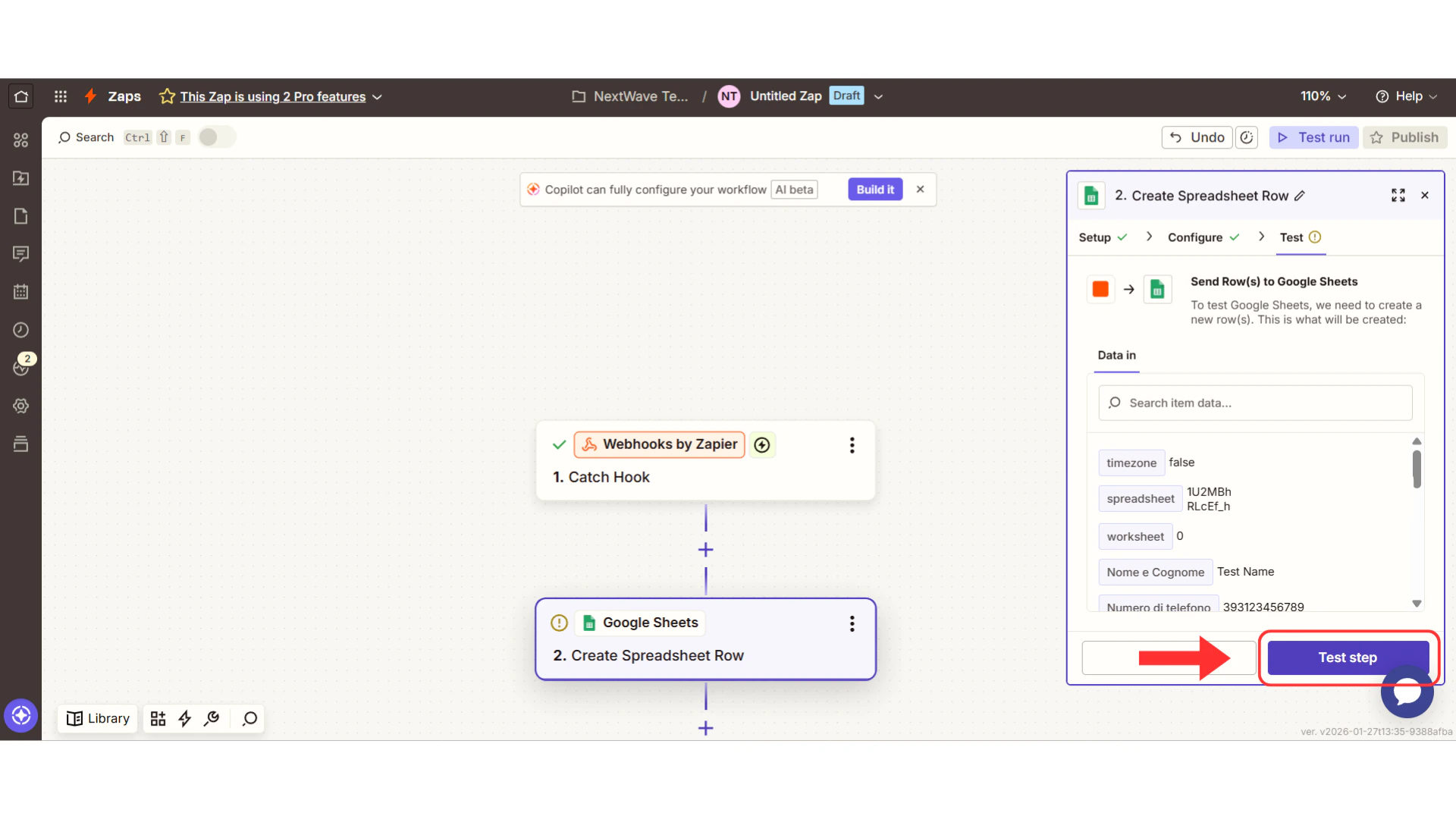
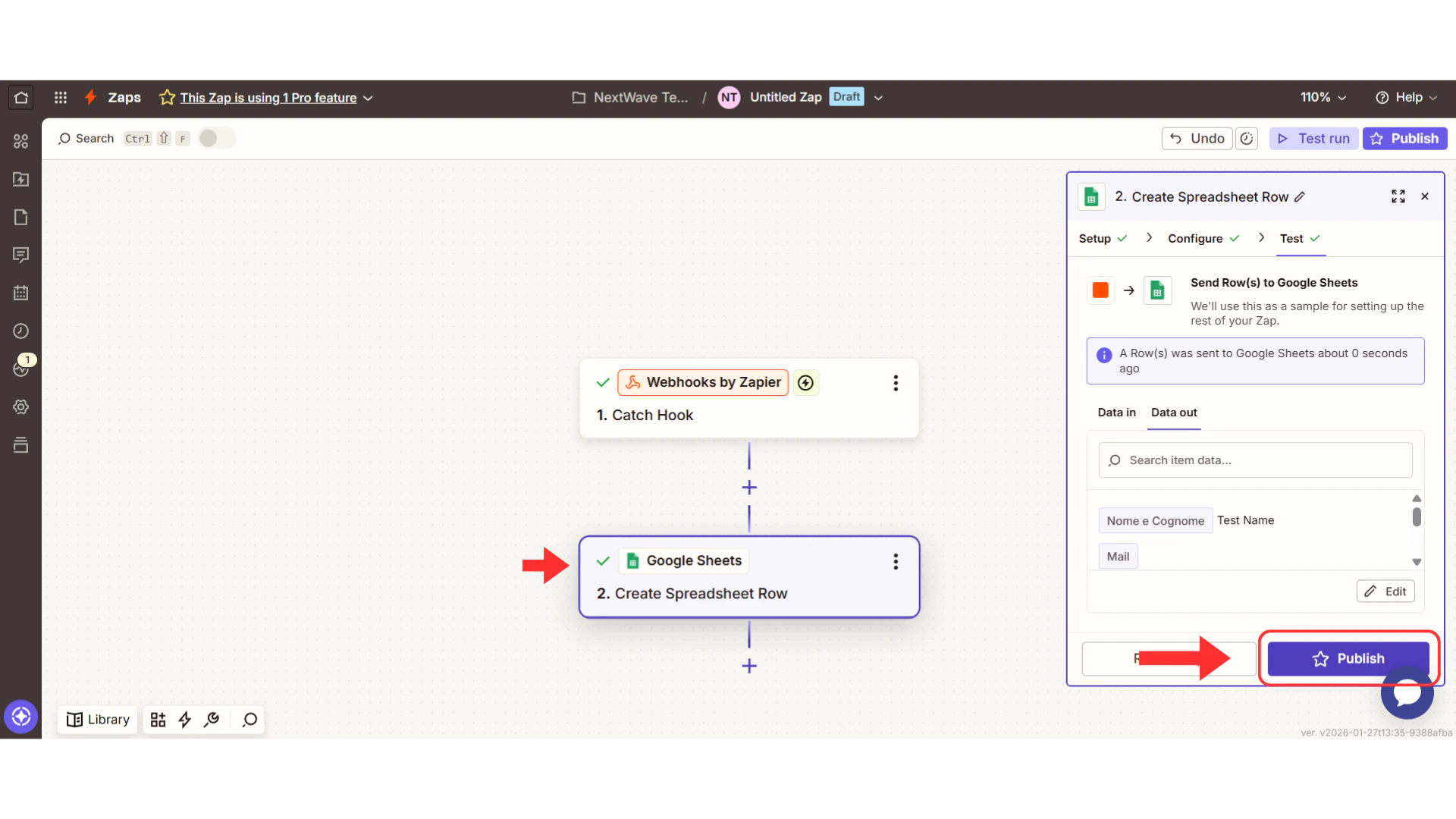
Verify It Worked
Now check your destination to confirm:- Google Sheets
- Slack
- CRM
If you chose Google Sheets: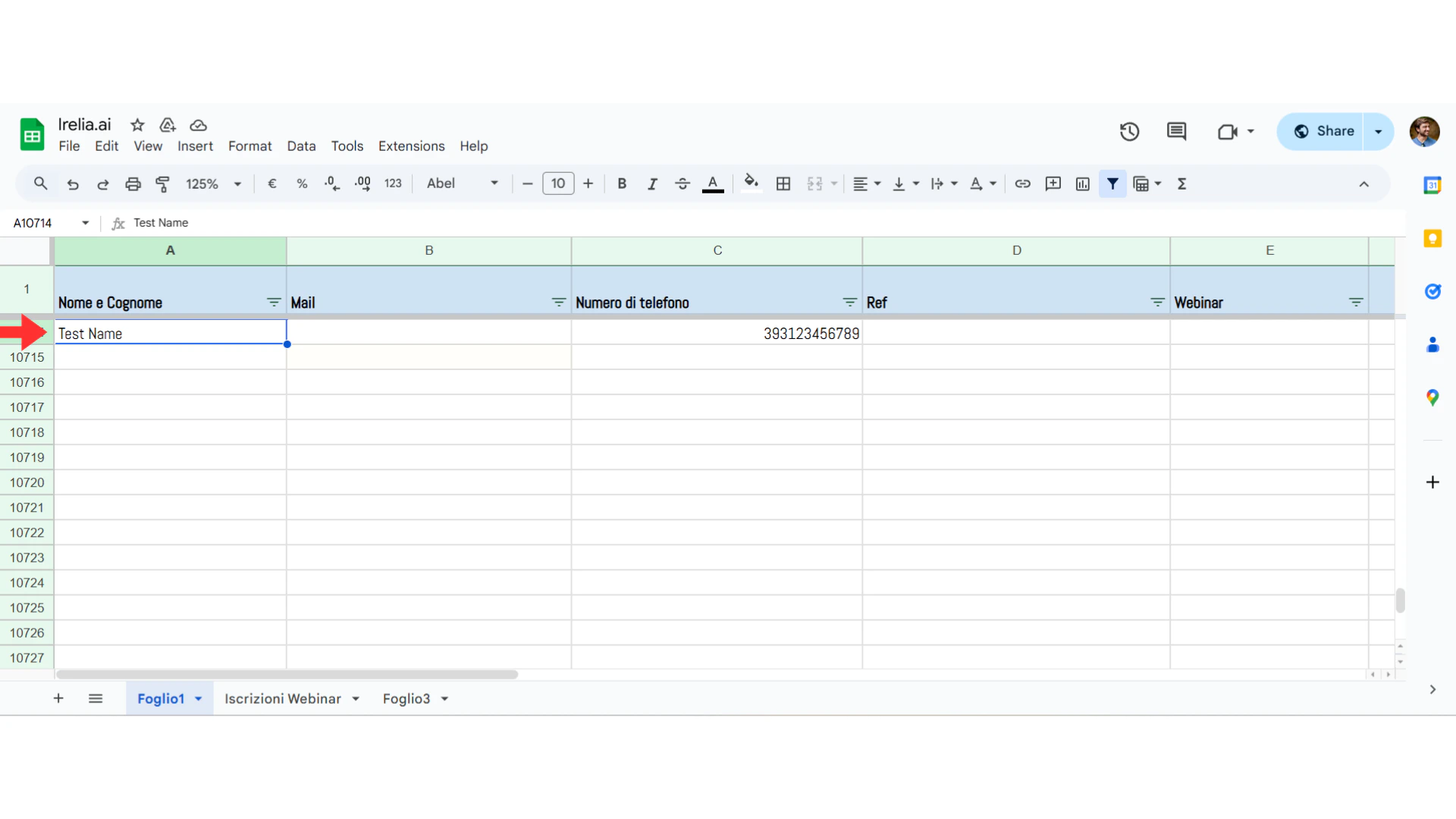
- Open your spreadsheet
- Look for a new row at the bottom with the test data
- You should see the prospect’s name, phone, status, etc.
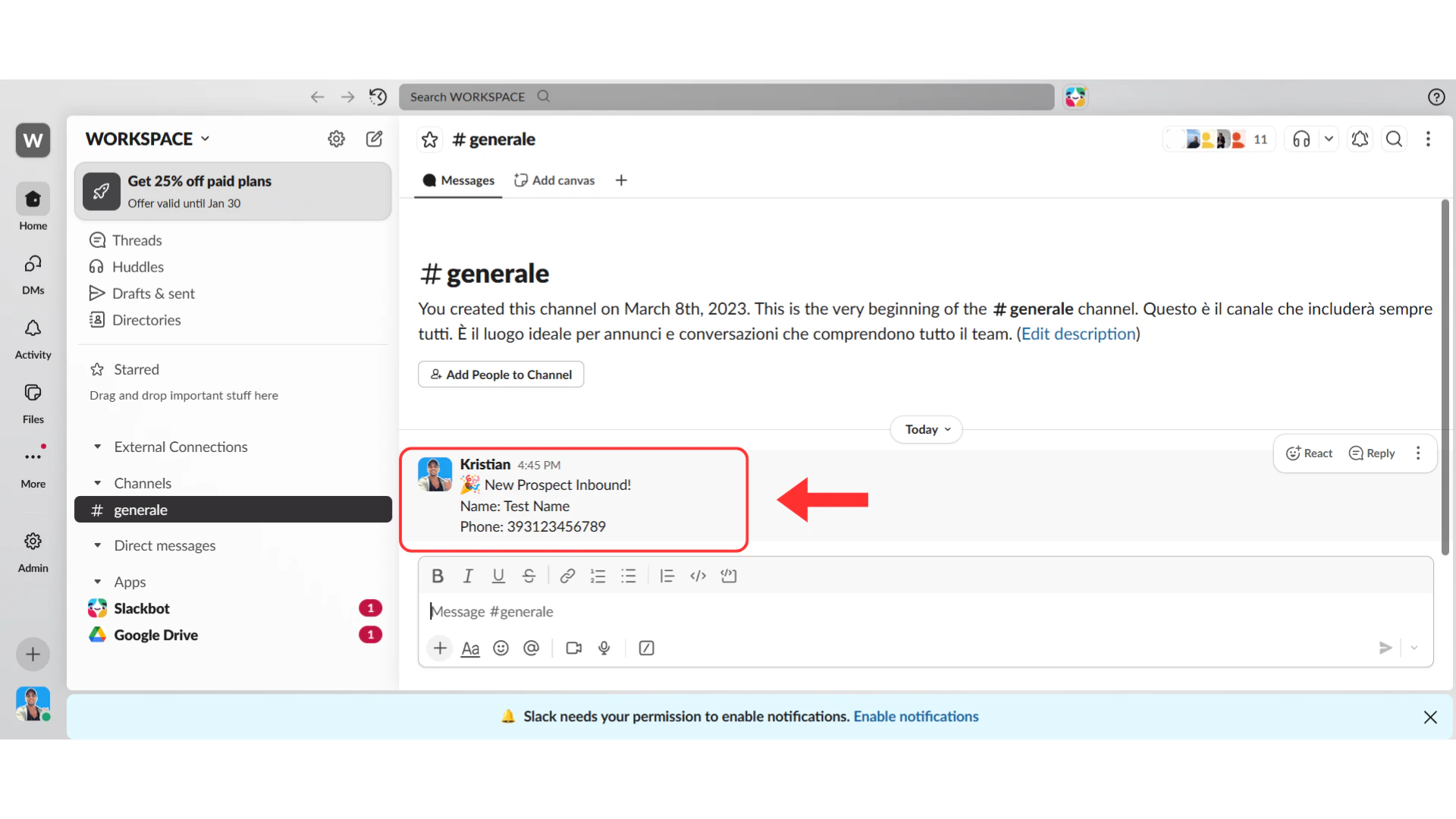
Did you see your data in the right place? Your automation works!
Step 6: Turn It ON
Time needed: 1 minute
Activate Your Zap
Publish your Zap
At the top of your Zap editor, click the toggle or “Publish” button to turn your Zap ONYou’ll see a confirmation: “Your Zap is ON”
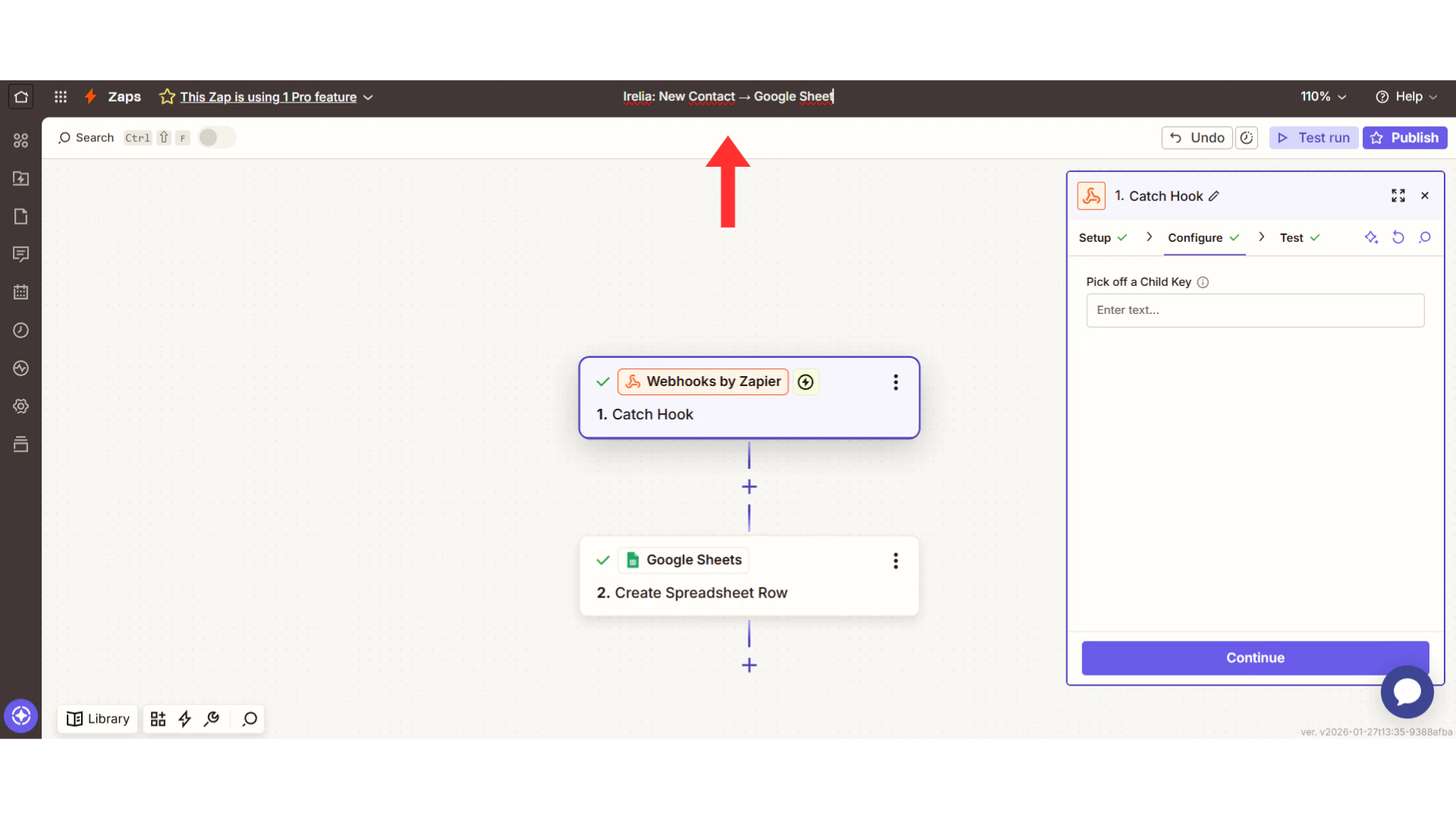
Your automation is now live!
🎉 Congratulations!
You did it! Take a moment to appreciate what you just built:- Your AI agent now talks to your other tools automatically
- Important moments trigger instant actions
- No more manual data entry or checking dashboards, your system are always up-to-date
- Your leads get faster, better follow-up
Step 7: Monitor Your Automation
Time needed: Ongoing (just a few minutes when needed)
Check Your Zap History
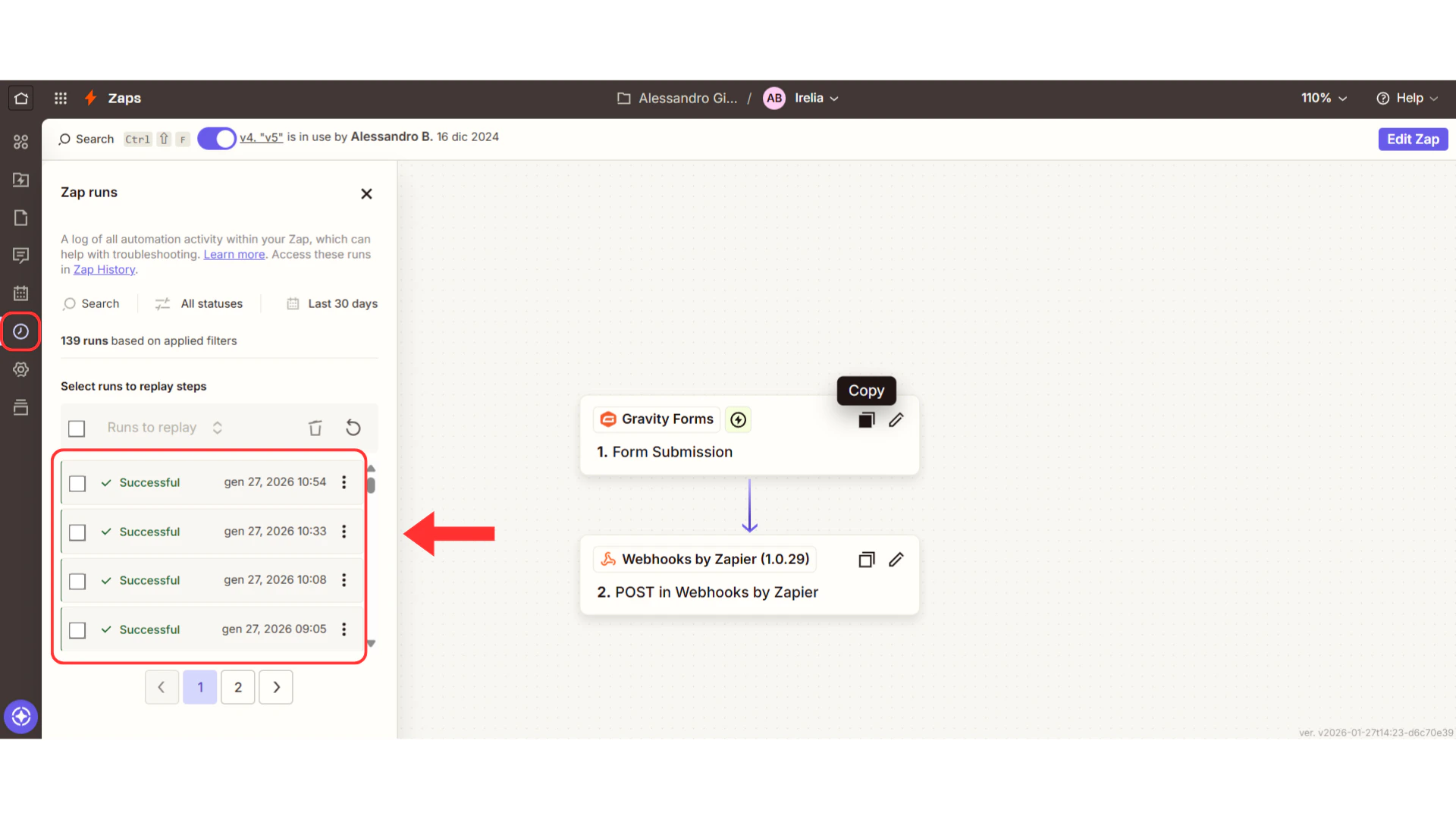
What to Monitor
First few days: Check daily to ensure Zaps run successfully and data looks correct. Ongoing: Zapier sends you email notifications when Zaps error out, so you don’t need to check constantly. Just verify things are working during the first few days.What’s Next?
Now that you have one working automation, the possibilities are endless. If you want to connect to more events like “New Data Gathered”, “New Lead Qualified”, or “New Goal Achieved”, simply repeat the steps we just did and customize the actions (Step 4) to achieve your desired result. Your options from here:- 🎯 Want to track another event? Create a new Zap and repeat this guide — just select a different event in Step 2
- ➕ Want this Zap to do more things? Edit your Zap and click the + button below your action to add more actions/steps
- 🤖 Have another agent to connect? Repeat this guide for your other agents — each can have its own automations
- ⚡ Ready for advanced workflows? Check out the Advanced Automations section below
Reference Sections
Use these sections when you need help or want to go deeper.Troubleshooting Common Issues
Don’t panic! Here are the most common issues and exactly how to fix them.Issue 1: Zapier Says 'Waiting for data' or 'No request found'
Issue 1: Zapier Says 'Waiting for data' or 'No request found'
What this means: Zapier hasn’t received any data from Irelia yet.How to fix it:Step 1: Verify the webhook URL in Irelia
- Go to Irelia → Events and Notifications
- Check that the webhook URL is filled in for your event
- Make sure it matches EXACTLY the URL from Zapier (no extra spaces)
- Click the blue “Test” button in Irelia next to your webhook URL
- Wait 5-10 seconds
- Go back to Zapier and click “Test trigger” again
- If still not working, edit your Zap trigger and copy a NEW webhook URL
- Delete the old URL in Irelia and paste the new one
- Click Test again in Irelia
Issue 2: Data Appears in Zapier But Action Fails
Issue 2: Data Appears in Zapier But Action Fails
What this means: Irelia is sending data correctly, but something’s wrong with your action setup.How to fix it:Step 1: Read the error message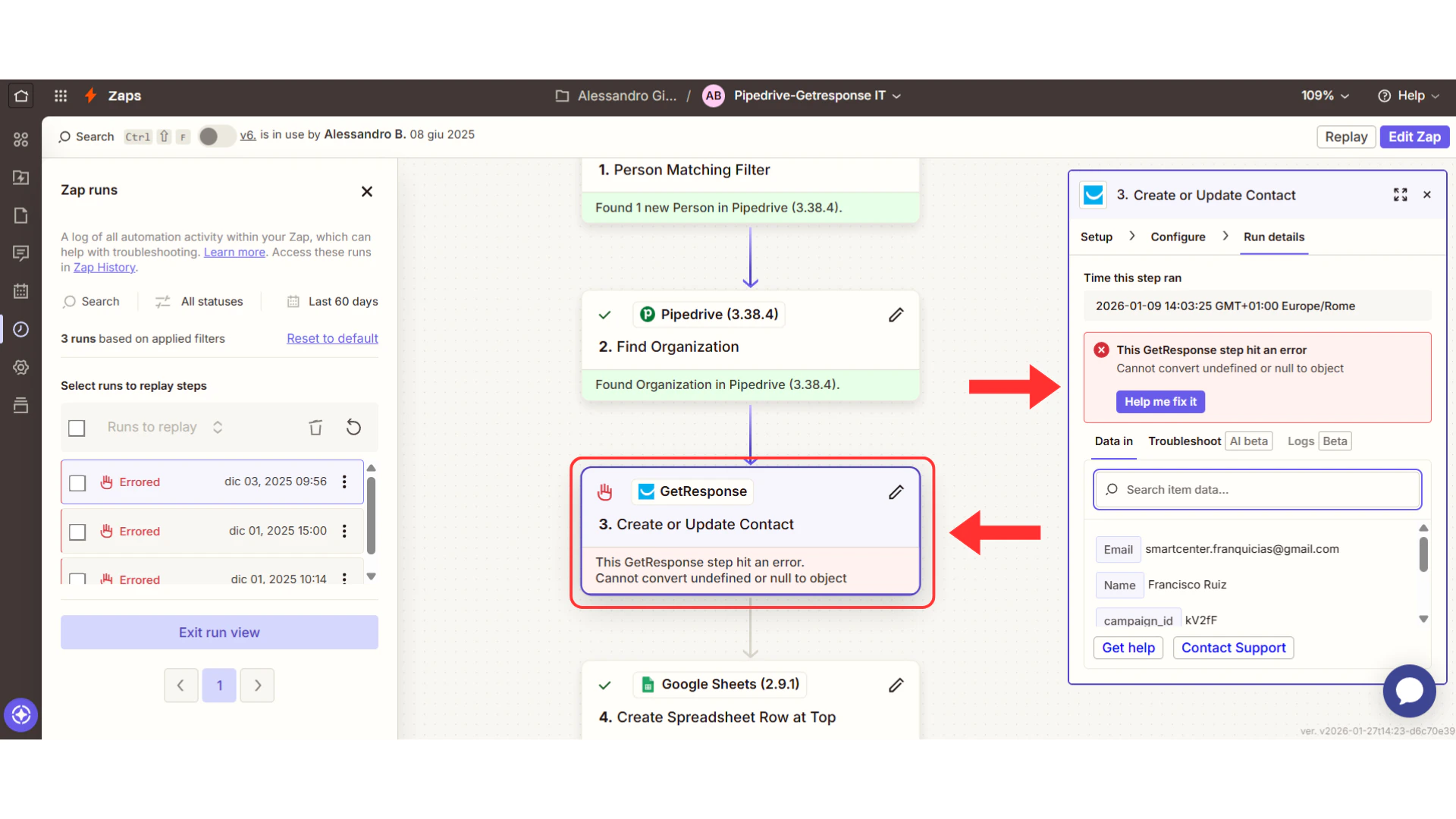
- Zapier shows detailed error messages in red
- Look for phrases like “Required field missing” or “Authentication failed”
- Look for fields marked with a red asterisk (*)
- Make sure each required field has data mapped
- In your action setup, click “Reconnect” or the account name
- Sign in again and grant permissions
- Test the action again
- Google Sheets: Confirm the spreadsheet wasn’t deleted
- Slack: Check the channel wasn’t archived
- CRM: Verify pipeline/status values still exist
Issue 3: Zap Runs But I Don't See the Result
Issue 3: Zap Runs But I Don't See the Result
What this means: The Zap says it succeeded, but you can’t find the data.How to fix it:Step 1: Check Zap History for details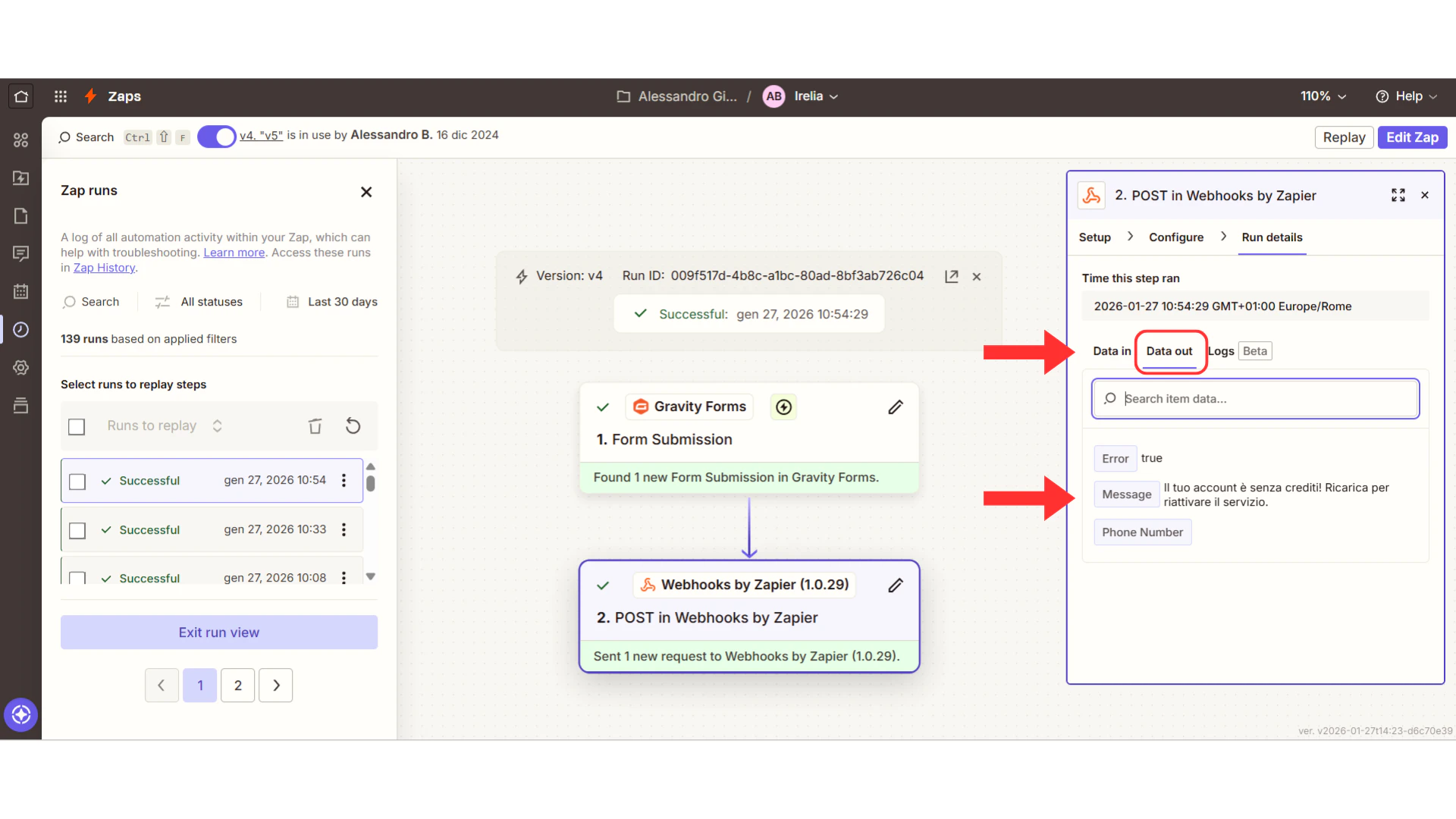
- Go to Zapier → Zap History
- Click on your recent run to expand details
- Look at “Data Out” to see exactly what was sent
- Google Sheets: Scroll to the bottom (new rows are added at the end). Try Ctrl+F to search.
- Slack: Check you’re in the right channel. Search for messages from “Zapier.”
- CRM: Search by phone number instead of name. Check if you’re in a filtered view.
- Go back to your Zap editor
- Look for any Filter steps between trigger and action
- Verify your data passes the filter conditions
Issue 4: Zap Worked Once But Stopped
Issue 4: Zap Worked Once But Stopped
What this means: Your automation worked during testing but stopped working for real events.How to fix it:Step 1: Check if your Zap is ON
- Go to your Zapier dashboard
- Verify your Zap shows “ON” in green
- If it says “OFF” or “Paused,” turn it back on
- Edit your Zap and look for yellow warning icons
- Reconnect any apps that show warnings
- This is especially common with Google accounts
- Go to Irelia → Events and Notifications
- Confirm the webhook URL is still there
- Go to Account → Usage
- Free plans have 100 tasks/month
- If you’ve hit the limit, upgrade or wait for reset
Issue 5: Getting Duplicate Entries
Issue 5: Getting Duplicate Entries
What this means: The same contact is being processed multiple times.How to fix it:Step 1: Audit your Zaps
- Check all your active Zaps
- Look for duplicates with the same trigger
- Turn off or delete duplicate Zaps
- Verify each event has a UNIQUE webhook URL
- If you pasted the same URL in multiple events, that’s the problem
Issue 6: Custom Variables Are Empty
Issue 6: Custom Variables Are Empty
What this means: The customVariables field is empty or doesn’t have expected data.How to fix it:Step 1: Use the right event
- “New Inbound Contact” fires BEFORE data collection
- Use “Data Gathered”, “Goal Achieved” or “New Lead Qualified” events instead if you need collected data
- Custom variables are numbered (0x1, 0x2, 0x3, etc.)
- Make sure you’re mapping the correct index
- Instead of using the Test button, have a full conversation that reaches data collection
- Then check if data flows through
🆘 Still Stuck?
Irelia.ai Support:- Contact support in the Whatsapp priority support group or send an email to “info@irelia.ai”
- Include: Screenshots of your configuration, the error message, and what you expected vs. what happened
- Visit: help.zapier.com
- Check: status.zapier.com for outages
Quick Checklist
Use this to verify your setup is complete:Essential Setup
- Webhook URL copied from Zapier
- URL pasted into Irelia for your chosen event
- Test data sent from Irelia
- Test data received in Zapier
- Action configured (Google Sheets, Slack, or CRM)
- Action tested successfully
- Zap turned ON
- Zap given a descriptive name
Verification
- Triggered a real event (or used Test button)
- Confirmed data appeared in destination app
- Checked Zap History shows successful run
All checked? You’re good to go!
Advanced Automations (Optional)
Ready to do more? These sections show you how to build sophisticated workflows.Search and Update Existing Records
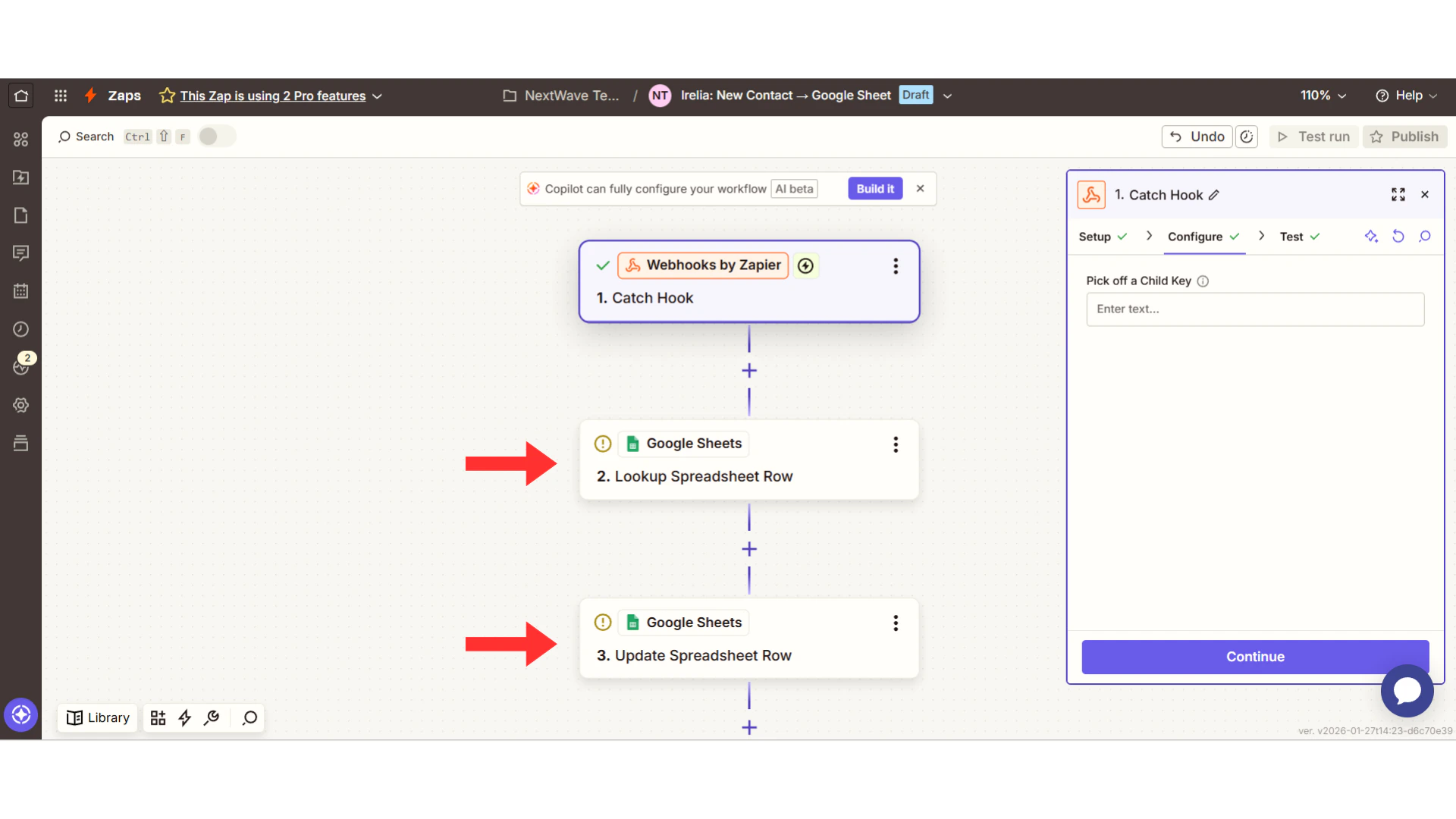
Sometimes you don’t want to create a new record—you want to update an existing one. For example, when a lead you already added gets qualified, or when new data is gathered for someone already in your system. This requires a two-step approach: Search first, then Update. Example: Update an existing lead’s row when they get qualified Trigger: Lead Qualified Actions:Search for the existing row
- Add action: Google Sheets → Lookup Spreadsheet Row
- Set Lookup Column to “Phone”
- Set Lookup Value to
userNumberfrom Irelia - This finds the row matching the prospect’s phone number
Using Filters to Control When Actions Run
Filters let you add conditions so your action doesn’t run for EVERY event. Example: Only add to CRM if the prospect’s budget is “$10k-50k” or higher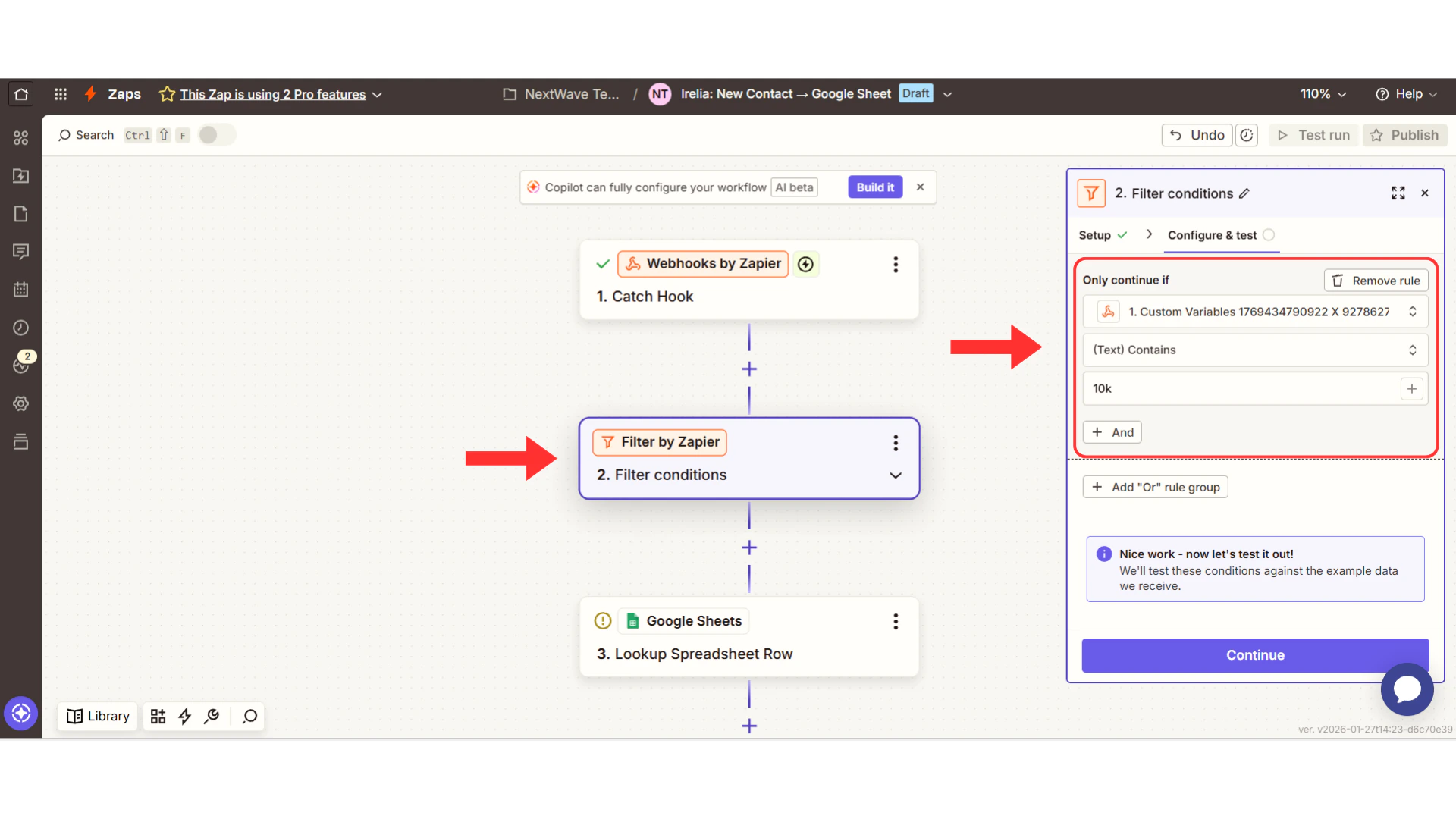
- Only add to CRM if budget matches your target →
customVariables Valueequals$10k-50k - Only notify team if company size is “Enterprise” →
customVariables ValuecontainsEnterprise - Only send to sales if lead is qualified →
Lead Qualificationequalsfit
Multi-Step Zaps (Multiple Actions from One Trigger)
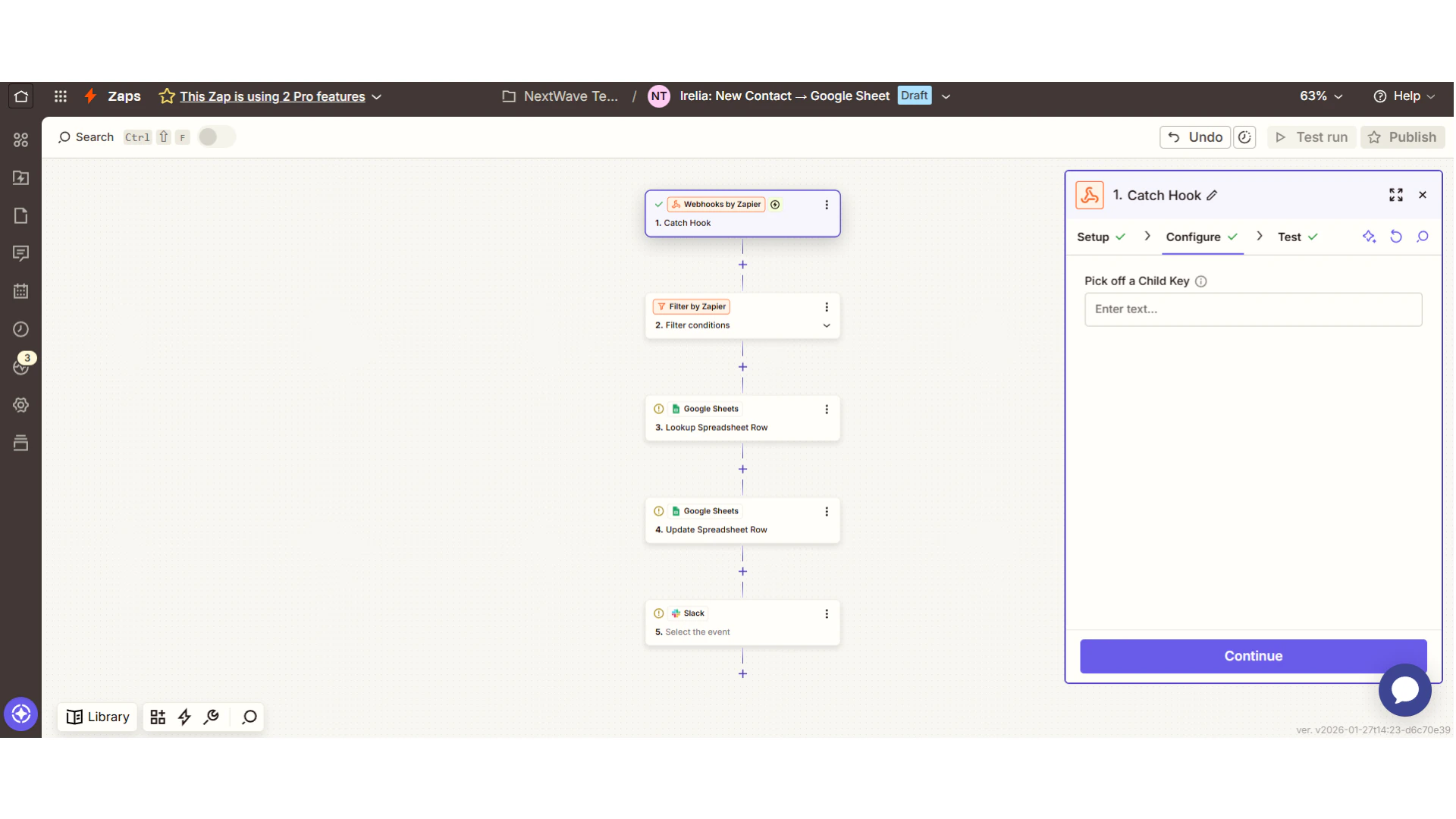
Why do one thing when you can do several? Example: When a lead is qualified:- Add to HubSpot CRM
- Send Slack notification to sales team
- Add to “Hot Leads” Google Sheet
- Send welcome email
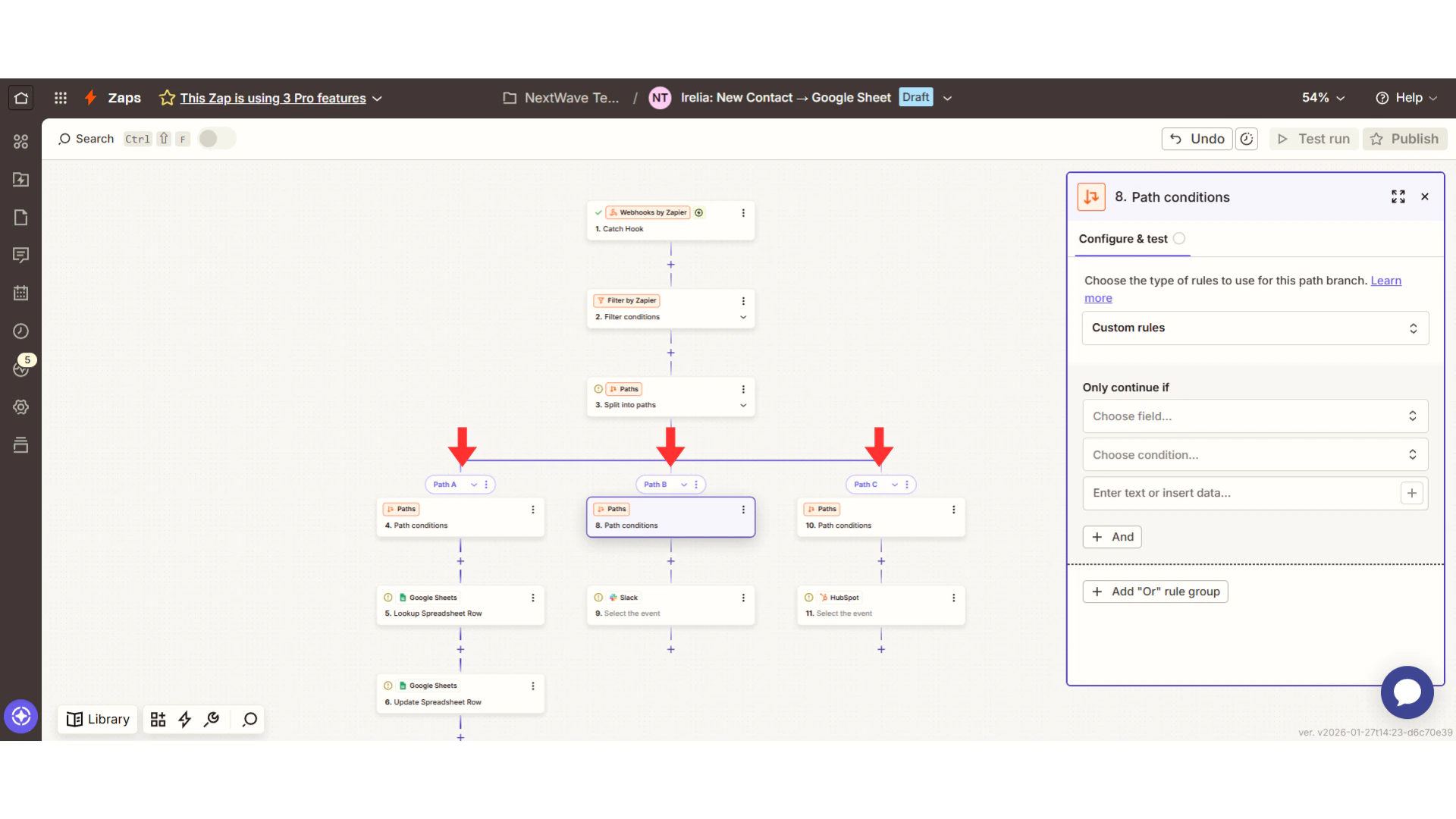
Using Paths for If/Then Logic
Paths let you create branching logic based on data. Example: Route leads based on qualification status- If
Lead Qualificationequals “fit” → Path A: Add to HubSpot + Notify sales - Else If
Lead Qualificationequals “not a fit” → Path B: Add to nurture campaign - Else (TBD) → Path C: Add to “Needs Review” spreadsheet
Using Formatter for Data Transformation
Zapier’s Formatter tool lets you transform data before sending it:- Format phone numbers consistently (add country code)
- Split
userNameinto first name and last name - Convert
interestScorefrom decimal (0.85) to percentage (85%) - Change date formats to match your CRM
Real-World Use Case Examples
Use Case 1: Qualified Lead Fast Track
Use Case 1: Qualified Lead Fast Track
Trigger: Lead QualifiedActions:
- Create contact in HubSpot with “Hot Lead” status
- Send Slack notification to sales team
- Add to “Qualified Leads” Google Sheet
- Send welcome email via Gmail
Use Case 2: Disqualified Lead Nurture
Use Case 2: Disqualified Lead Nurture
Trigger: Lead DisqualifiedActions:
- Add to Mailchimp nurture campaign
- Log in “Nurture Pipeline” spreadsheet
- Create task in Asana to follow up in 3 months
Use Case 3: Knowledge Gap Tracking
Use Case 3: Knowledge Gap Tracking
Trigger: Question Lacking AnswerActions:
- Send Slack notification to content team so they can reply manually through Irelia dashboard
- Log in “Knowledge Base Gaps” spreadsheet
Use Case 4: Goal Achievement Flow
Use Case 4: Goal Achievement Flow
Trigger: Goal AchievedActions:
- Send confirmation email with next steps
- Update CRM with goal completion
- Notify account manager in Slack
Use Case 5: Rich Data Capture
Use Case 5: Rich Data Capture
Trigger: Data GatheredActions:
- Update CRM with custom variables (budget, timeline, company size)
- Add to segment-specific sheet (Enterprise vs SMB)
- Trigger personalized email based on answers
Final Tips
🎯 Start simple — One event, one action. Master that before expanding. 🧪 Test thoroughly — Always verify with real data before relying on automation. 📊 Monitor regularly — Check Zap History weekly, especially at first. 🔄 Iterate — Your first automation doesn’t have to be perfect. Refine over time. 🤝 Ask for help — Both Irelia and Zapier have great support teams.Remember: Every automation expert started with one simple Zap. You just built yours. The possibilities from here are endless. Happy automating! 🚀