

Table of Contents
What You'll Need
Quick Path
Step-by-Step Guide
Update Display Name
Business Verification
Troubleshooting & FAQs
Quick Checklist
✅ What You’ll Need
Before starting, make sure you have everything ready:📋 Required Information
- Legal business name — Your company’s official registered name
- Business address — Your company’s official address
- Business website — A working website that matches your business
👤 Account Requirements
- Facebook account — A personal Facebook account (not a Page)
- Admin access to an existing Meta Business Manager, OR willingness to create one
🛡️ Highly Recommended
- Start Business Verification early — If the option is available in your Business Manager’s Security Center, begin the process before or right after setup. It protects your account from restrictions and unlocks higher messaging limits. → Learn more
📞 Choosing Your Phone Number
You have two options when connecting WhatsApp to Irelia:- Option A: Use Your Own Number 🏷️
- Option B: Meta-Provided US Number 🇺🇸
- Landline number, SIM card or eSIM (active subscription NOT required — just needs to receive one code)
- Number must NOT be registered on WhatsApp or WhatsApp Business app
- Able to receive SMS or voice call for one-time verification
| ✅ Why choose this | ⚠️ Keep in mind |
|---|---|
| Customers see a familiar local number | Can’t use WhatsApp app on same number simultaneously |
| Better brand recognition | Must disconnect from WhatsApp app before setup |
| Landlines work too (verified via voice call) | Oftentimes, landlines can only verify via voice call, not SMS |
⚡ Quick Path (Experienced Users)
Condensed steps for those familiar with Meta Business tools
Condensed steps for those familiar with Meta Business tools
- Irelia: Settings → Channels Configuration → Click “Connect WhatsApp”
- New Tab: Review requirements → Click “Continue with Facebook”
- Meta Popup: Log in → Click “Begin/Get Started”
- Select Business Portfolio and Create WhatsApp Business Account
- Enter: Account name, country, category, website
- Phone: Add your number and verify via SMS/voice call — OR select “Use only display name” for a free Meta-provided US number
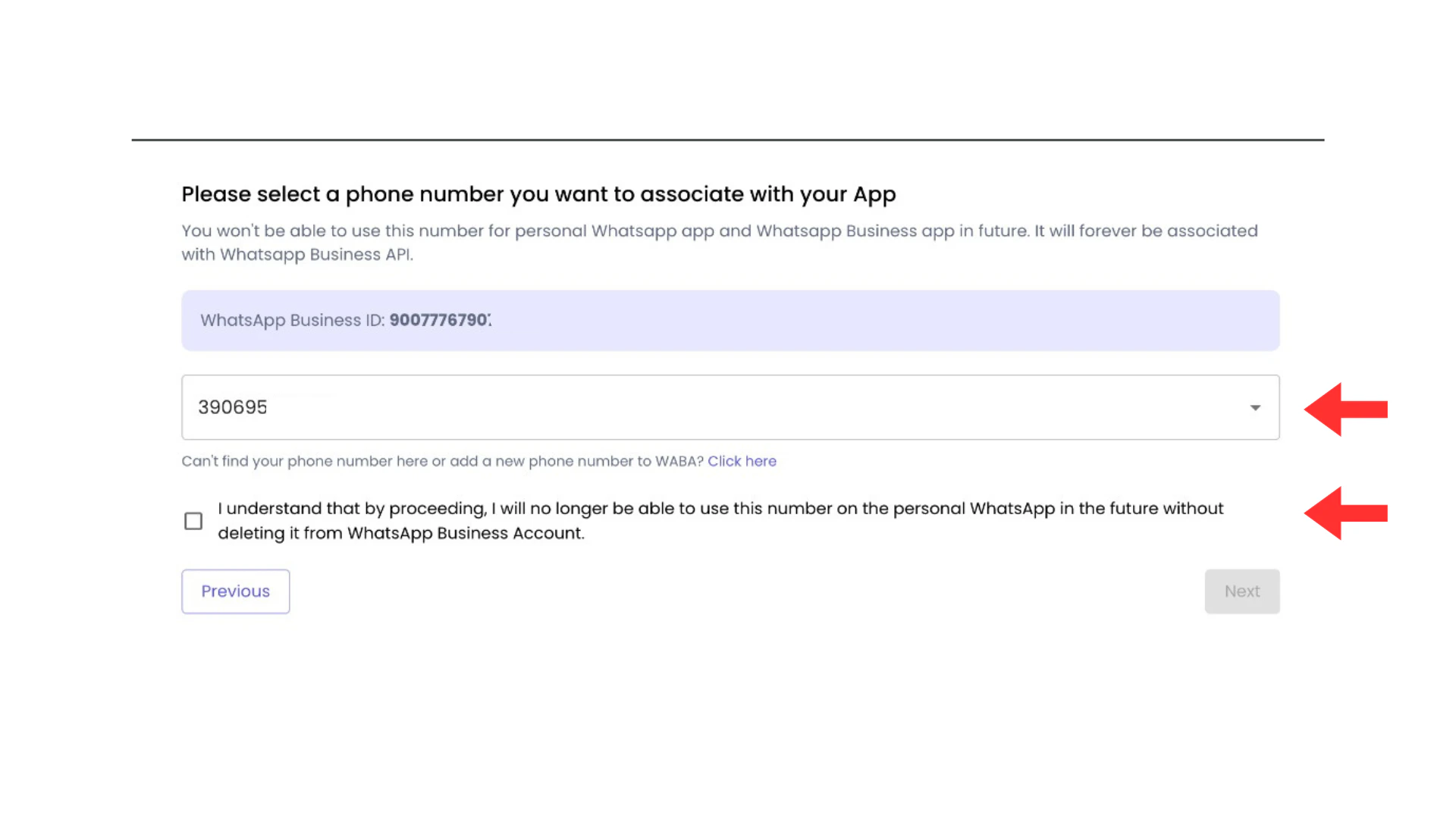
- Irelia: Select your phone number → Click “Confirm”
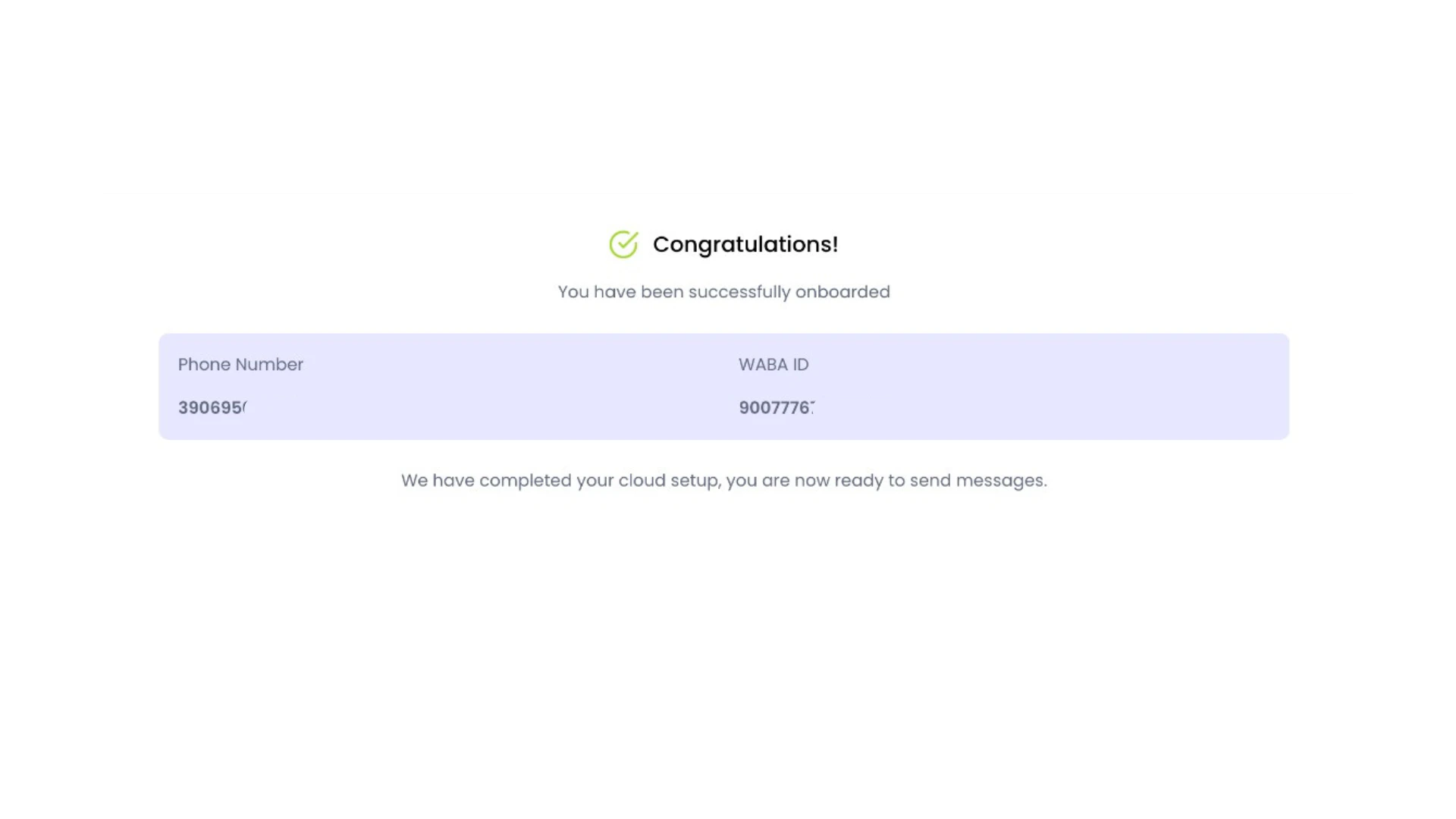
- Done: See congratulations screen ✅
- Display Name: Update in WhatsApp Manager (defaults to your Business Manager name) — see guide
- Business Verification: Start the process in Security Center as soon as possible, especially for new Business Managers — why it matters
🔌 Step-by-Step Connection Guide
Access Channel Settings 📍
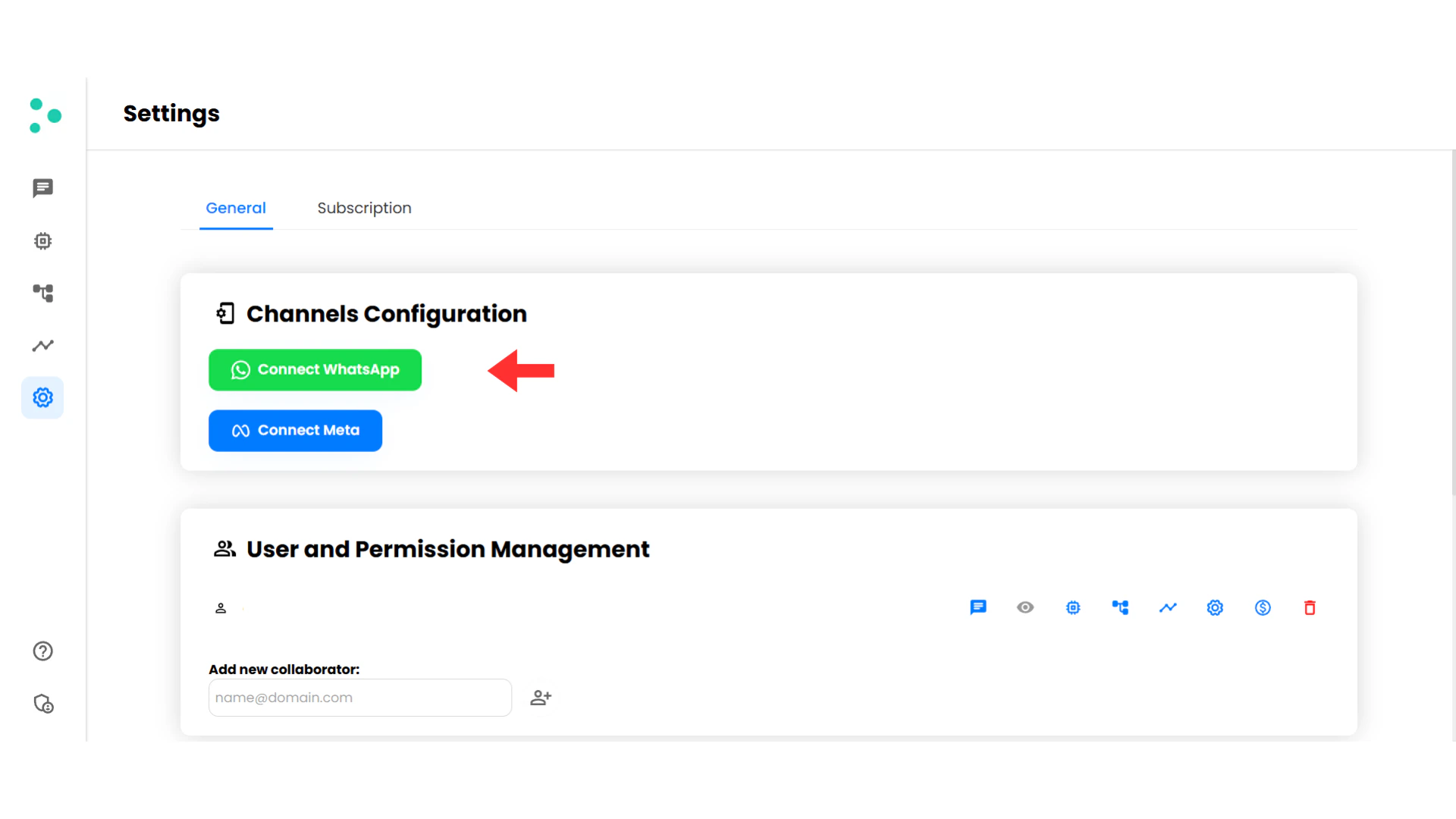
Click 'Connect WhatsApp' 🟢
Review Requirements & Start Connection 📋
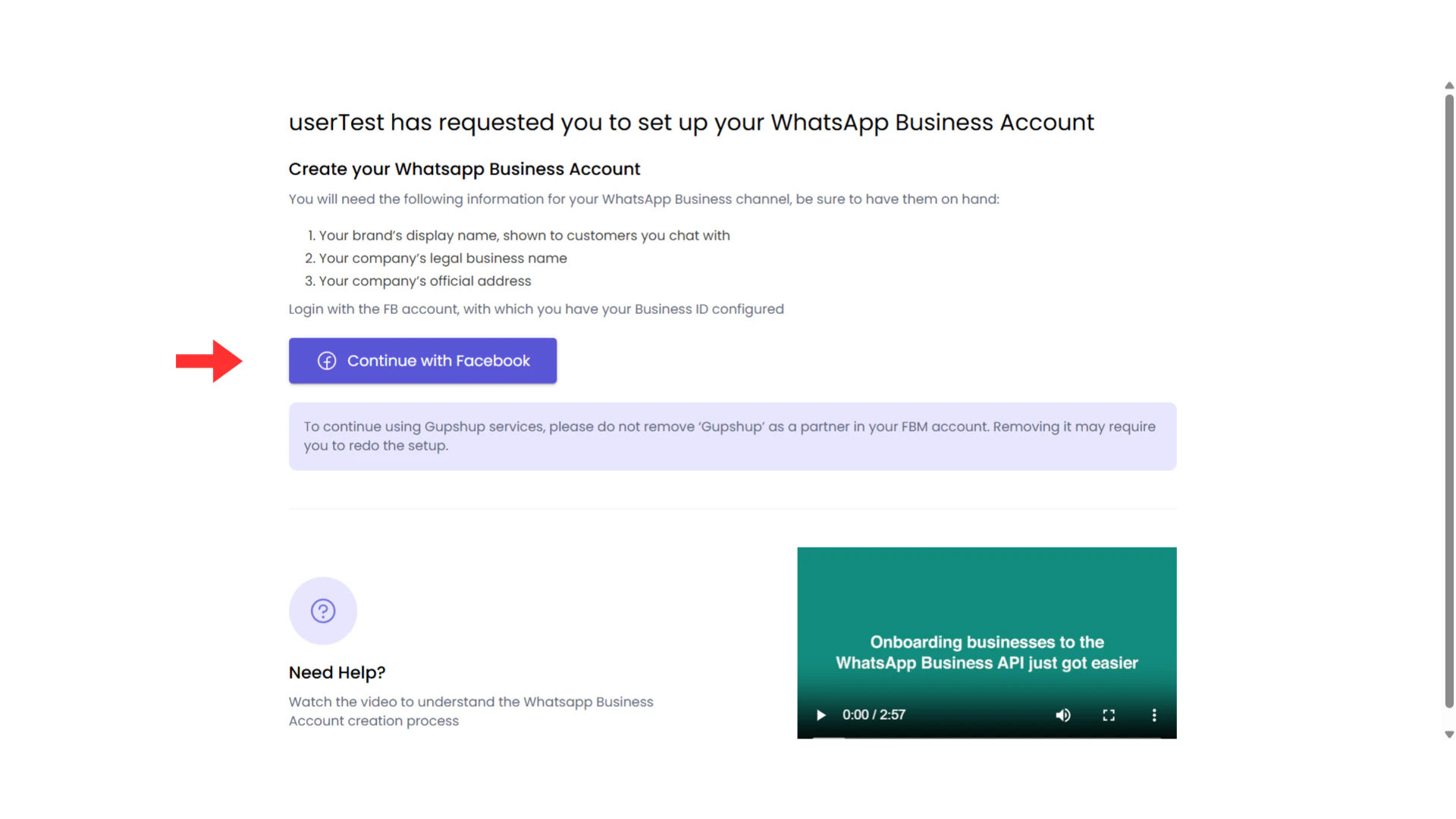
Log In with Facebook 🔵
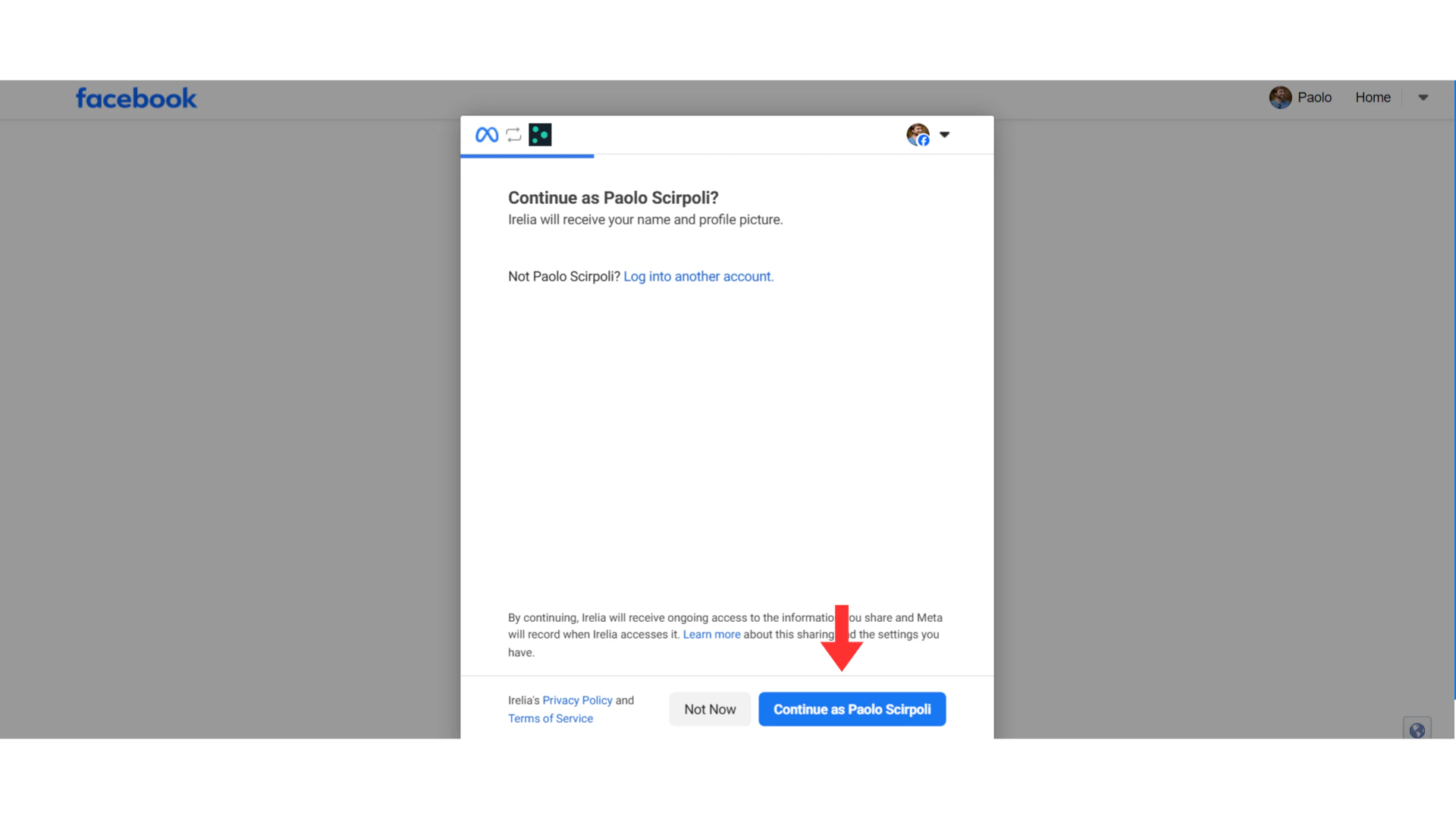
Begin the Connection Process ▶️
- WhatsApp Business Account Access — Allows managing phone numbers, message templates, sending/receiving messages
- Billing Management — Associates billing for WhatsApp API usage.
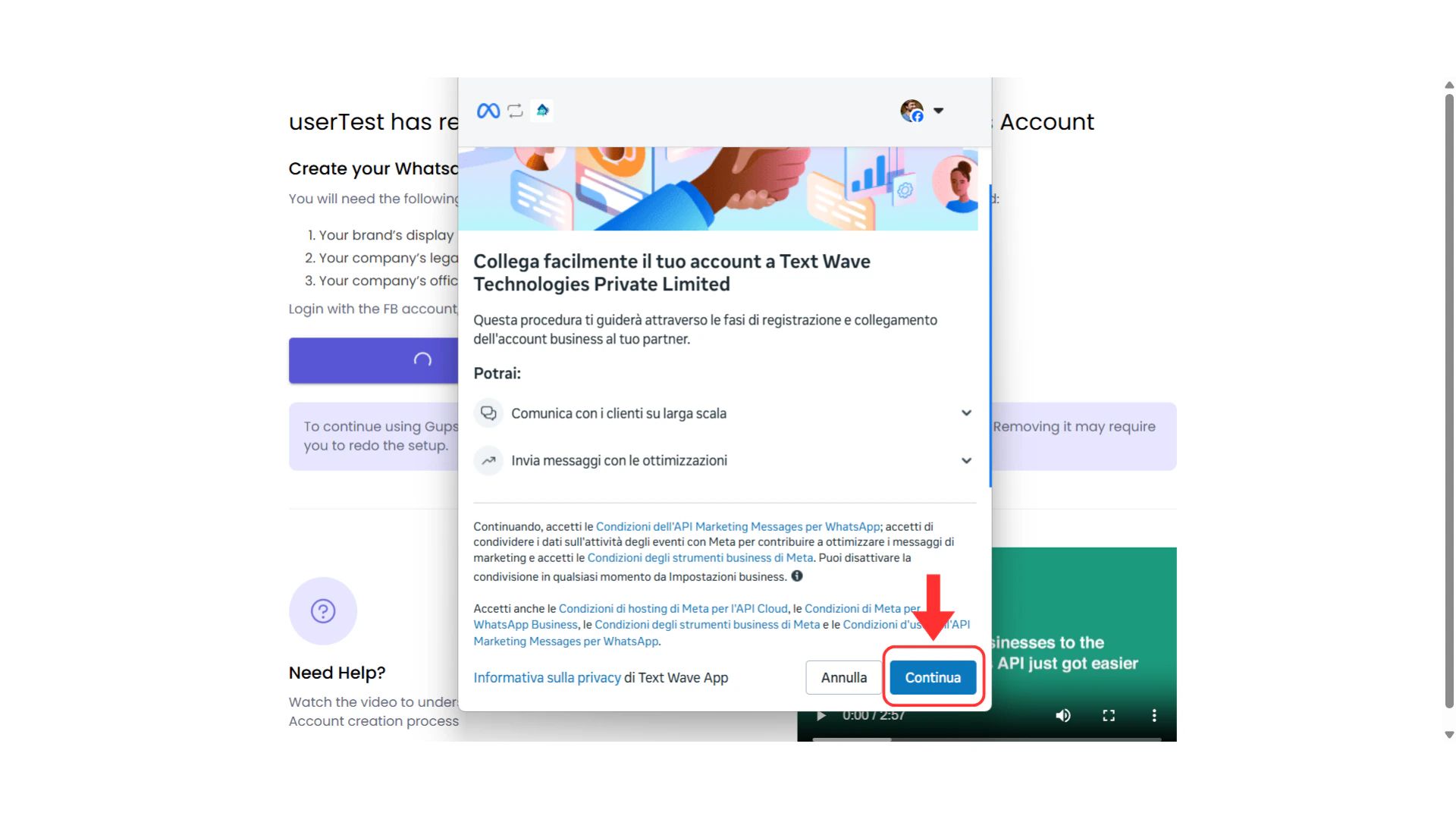
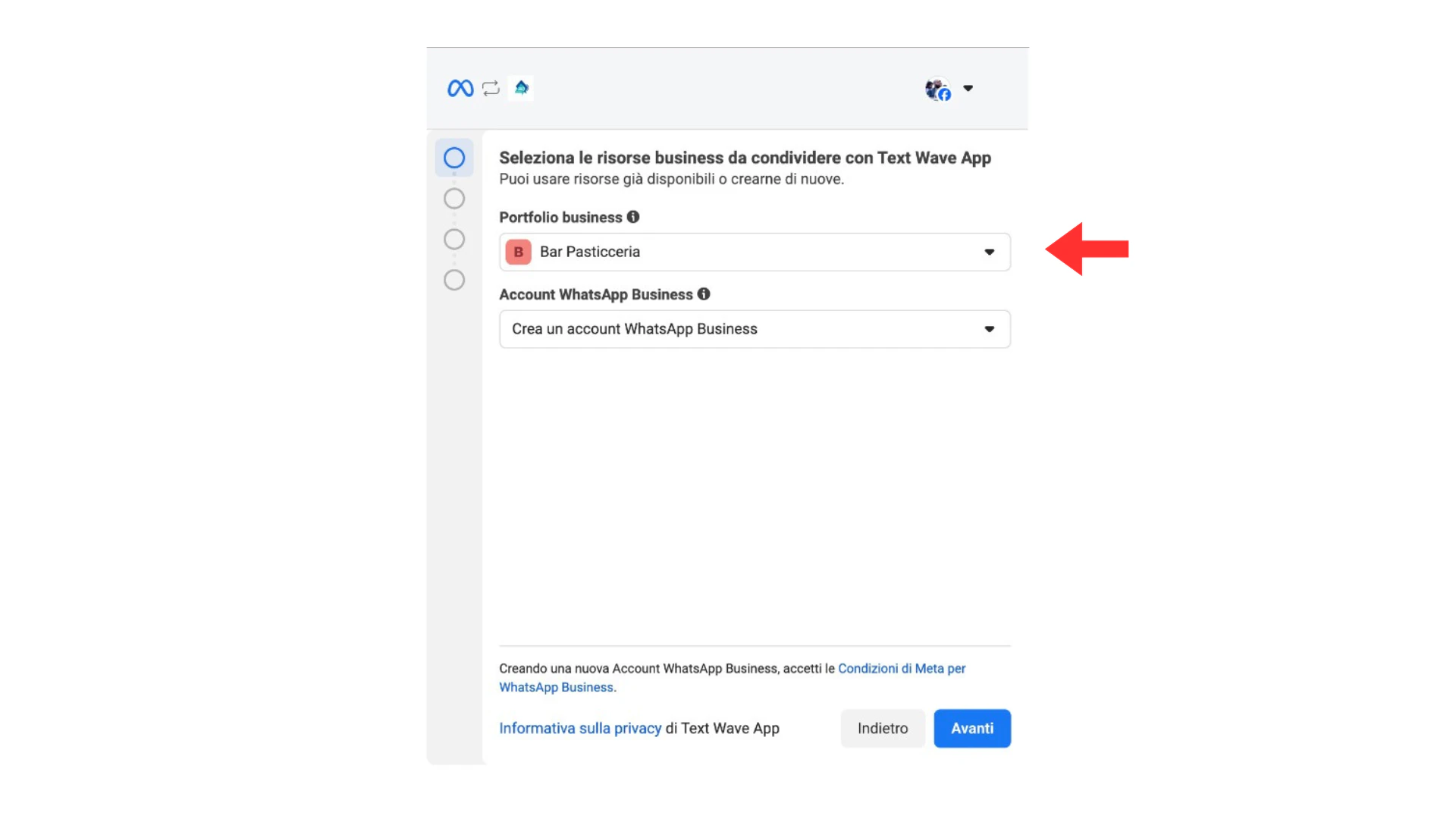
Select Business Portfolio & Create WhatsApp Business Account 🏢
- Business Portfolio — Select your existing Business Portfolio (also called “Business Manager”) from the dropdown or create a new one
- WhatsApp Business Account — Select “Create a new WhatsApp Business Account” (Do not select already existing ones in the list)
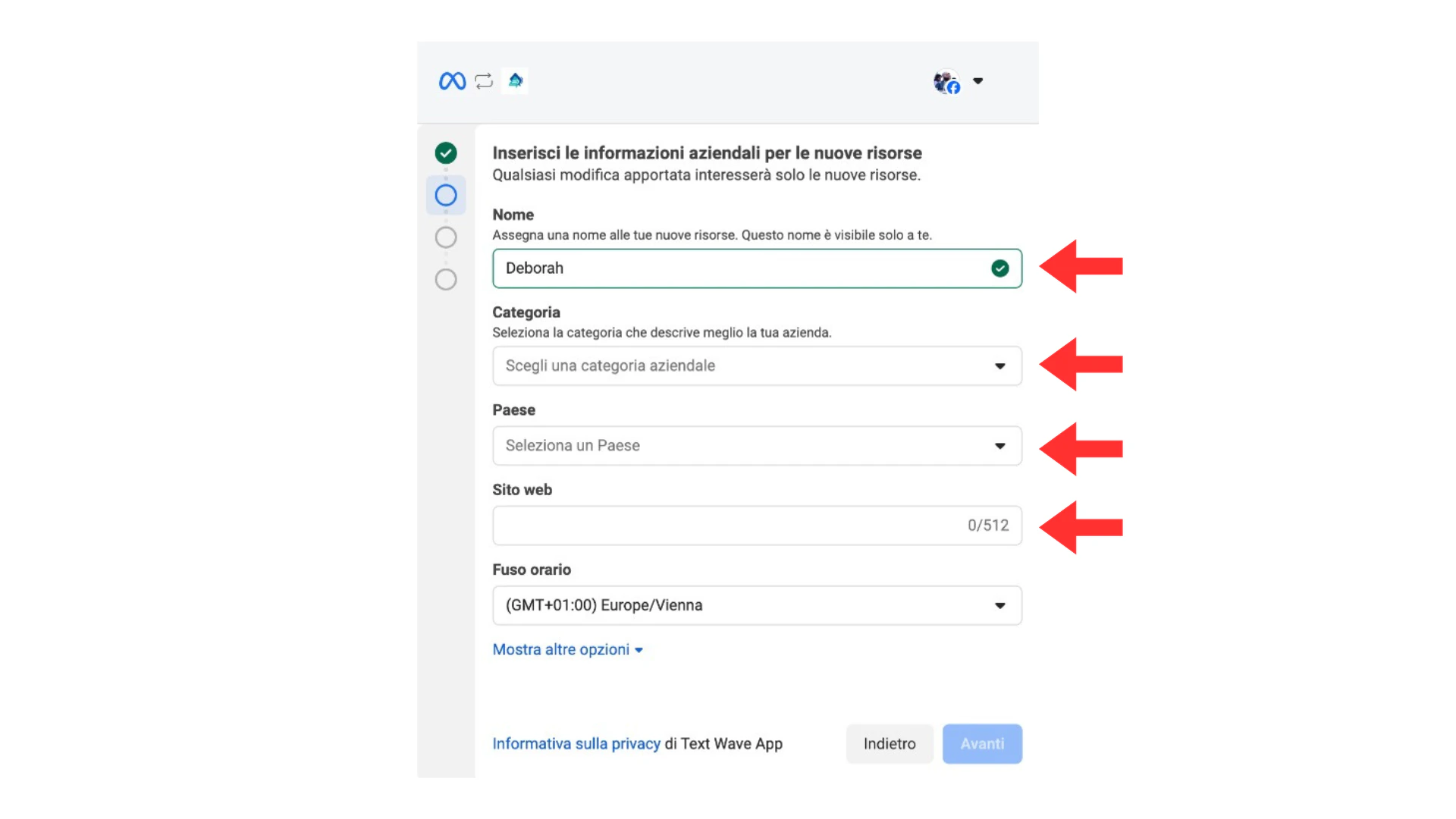
Enter Your Account Details ✏️
| Field | What to Enter | Example |
|---|---|---|
| Account Name | Internal name for this account (customers won’t see this) | “Acme WhatsApp” |
| Country | Your business country | ”Italy” |
| Category / Vertical | Your business type | ”Marketing Agency” |
| Website | Your business website | ”https://acme.com” |
Add and Verify Your Phone Number 📱
Option A: Add a New Phone Number
- Enter your phone number with country code (e.g., +1 555 123 4567)
- Choose verification method:
- 📱 SMS — Receive a text message with code
- 📞 Voice Call — Receive an automated call with code
- Enter the verification code when received
Option B: Use Only Display Name (Meta-Provided US Number)
Select “Use only display name” — Meta will assign a free US (+1) number automatically. No phone verification needed.Complete Meta Signup ✅
Congratulations! 🎉
- Update your display name — It currently defaults to your Business Manager name. Continue to the next section to update it to your preferred customer-facing name.
- Start Business Verification — If you haven’t already, head to Security Center and begin the process now. This is especially important for new Business Managers to avoid potential restrictions. → Full guide
📝 Update Your Display Name
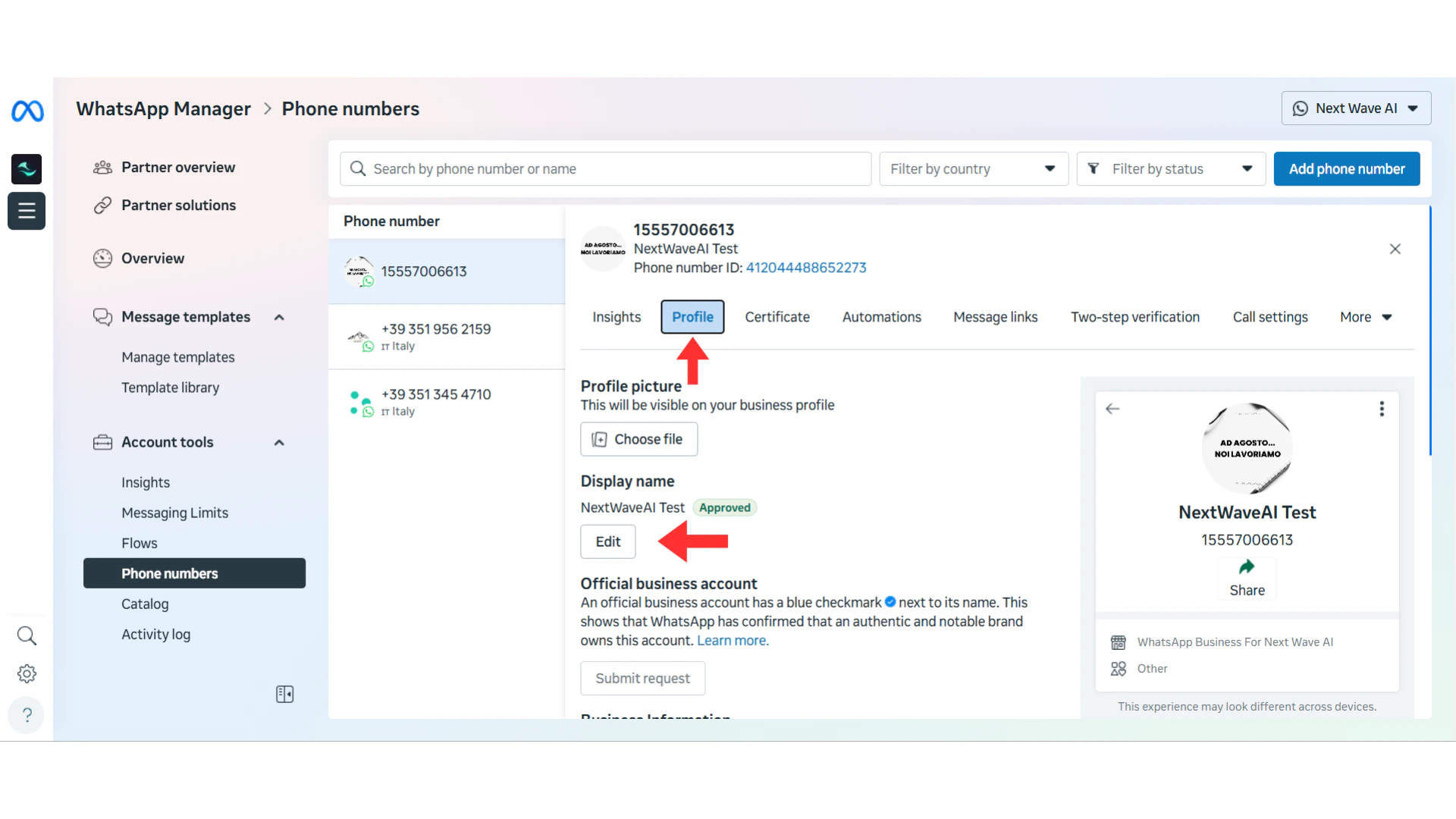
During the embedded signup, your WhatsApp display name — the name customers see when they chat with you — is automatically set to your Business Manager name. This default likely isn’t the name you want customers to see, so updating it should be your first post-setup action. Before heading to WhatsApp Manager to change it, review the guidelines below so your new name gets approved on the first try.Display Name Guidelines
How Display Name Approval Works 🔍
Meta’s approval system checks the alignment between your Business Manager profile information and your display name. Here’s how it works:- Your BM Profile contains your official company name (e.g., “SalesX SPA”)
- Business Verification confirms this with official documents
- Display Name should align with this verified company identity
✅ Approved Display Name Examples
| Business Type | Good Display Name |
|---|---|
| Agency | ”Acme Marketing” |
| E-commerce | ”GreenLeaf Store” |
| Local Business | ”Mario’s Pizza Roma” |
| SaaS | ”Irelia.ai” |
❌ Rejected Display Name Examples
| Bad Example | Why It’s Rejected |
|---|---|
| ”Support” | Too generic |
| ”WhatsApp Help” | Contains “WhatsApp" |
| "Best Company Ever!!!” | Excessive punctuation |
| ”click.here.now” | Looks like a URL |
| ”Test Account” | Not a real business name |
| ”Random Brand XYZ” | Doesn’t match verified business name |
Display Name Rules 📜
- Must be related to your business — Clearly represent your brand
- Must match your documentation — Align with your BM profile and verification documents
- No prohibited words — Avoid “WhatsApp”, “Meta”, “Facebook”, etc.
- No generic terms alone — “Customer Service” alone won’t work, but “Acme Customer Service” will
- Proper grammar — No AlL cApS, excessive punctuation!!!, or $pecial ch@racters
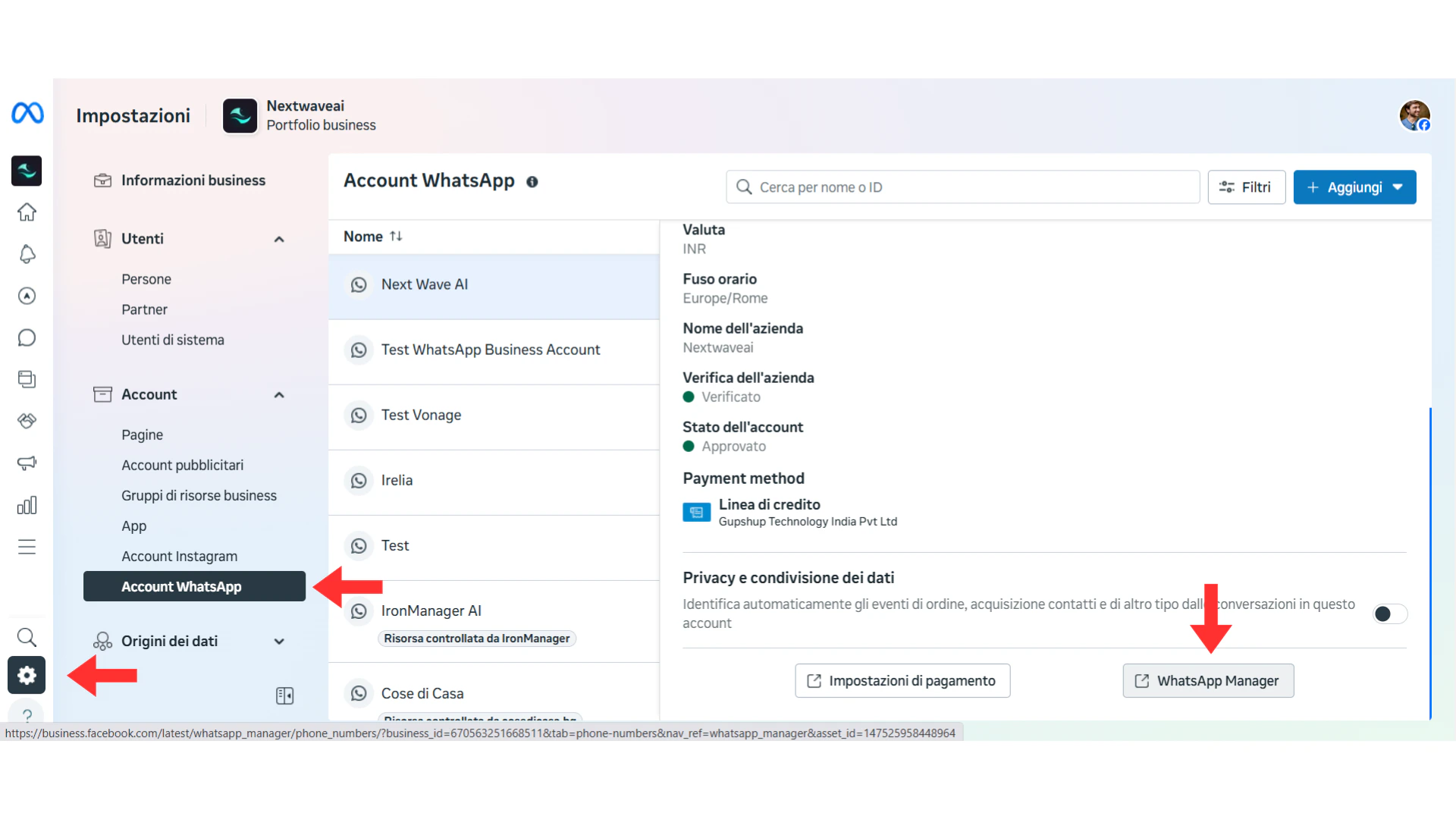
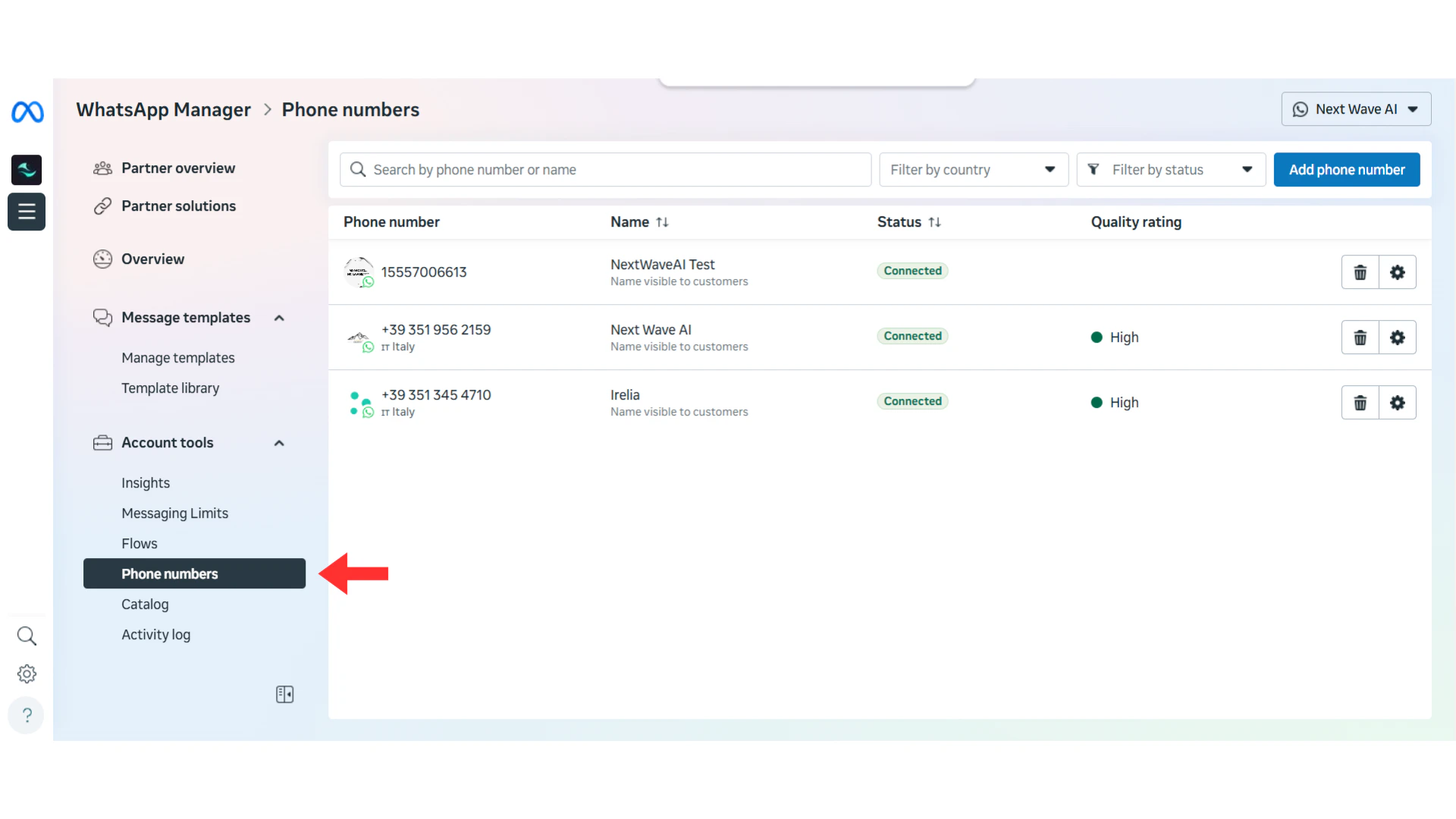
How to Change Your Display Name
Once you’ve chosen a name that follows the guidelines above, here’s how to update it:Navigate to Business Settings
Select Your WABA
🏢 Business Verification Explained
What is Business Verification?
Business Verification is Meta’s process to confirm your business is legitimate. It involves submitting official documents to prove your business identity.Why Does It Matter? 📊
| Status | Capabilities |
|---|---|
| Not Verified | Reply to unlimited incoming messages; Send templates to max 50 unique customers/day |
| Verified ✅ | All of the above PLUS: Send templates to 1K-100K+ customers/day |
Why We Highly Recommend Doing It Upfront 🛡️
If the verification option is available to you, start it right away — ideally before or immediately after connecting WhatsApp. This is especially important for new Business Managers. Here’s why:- Avoid Future Problems — New, unverified Business Managers are more likely to be flagged or restricted by Meta’s automated systems. Verifying early significantly reduces this risk.
- WhatsApp Longevity — Verified accounts are more stable and less likely to face sudden restrictions down the road
- Future-Proofing — Meta increasingly favors verified businesses with new features and higher limits
- US Number Access — The free Meta-provided US phone number option may not appear if your Business Manager is not verified
Can You Start Without It?
Yes — you can connect WhatsApp and start using it immediately without verification. You won’t be blocked from setting up.- ✅ Respond to unlimited customer-initiated conversations
- ✅ Send business-initiated messages to 50 unique customers per 24-hour rolling period
- ✅ Use your AI agent for all incoming conversations
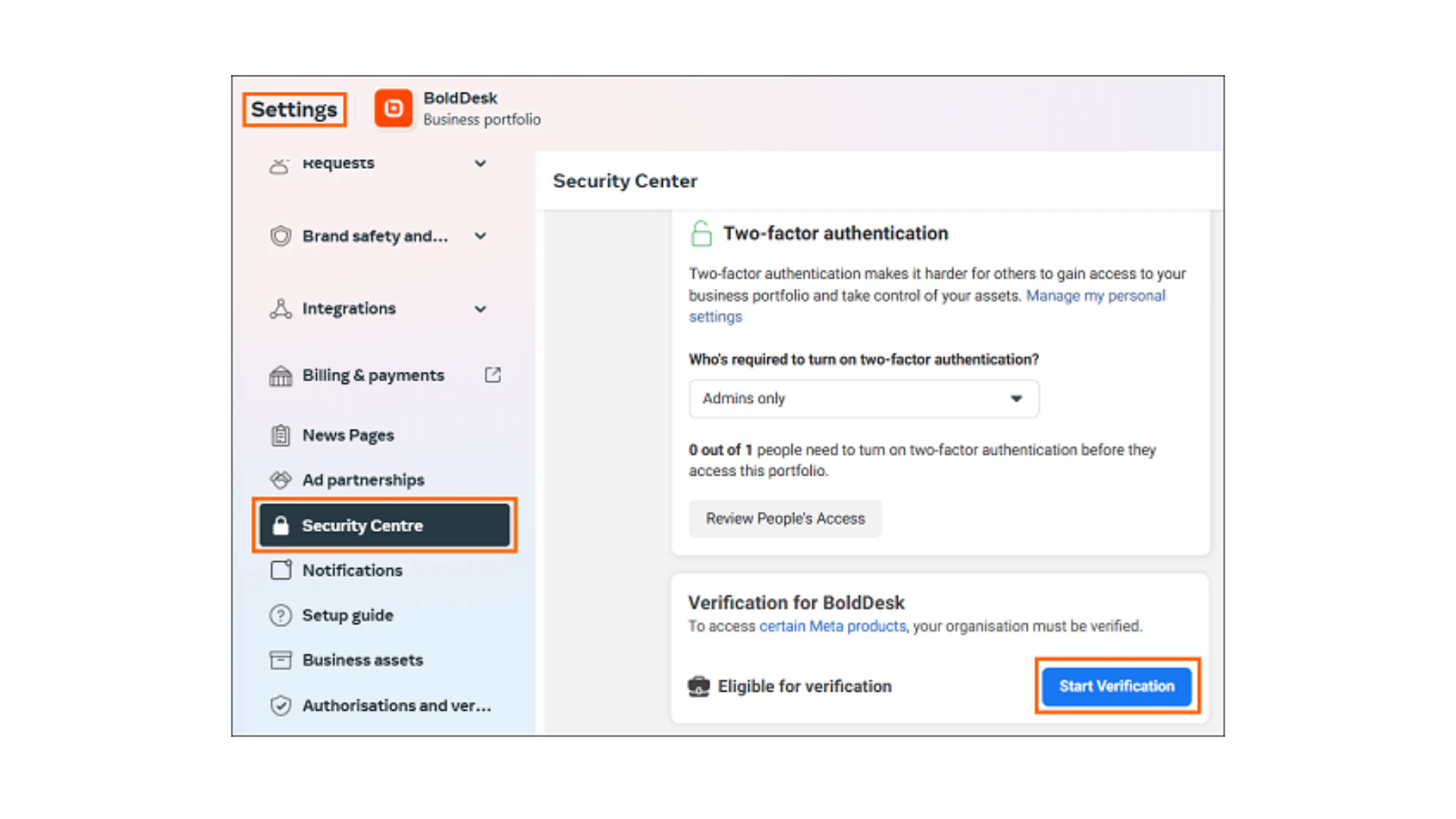
How to Start Verification
Access Security Center
What If Verification Is Not Available?
If you don’t see the verification option, Meta doesn’t have enough information about your business yet. Complete your Business Manager profile:Access Business Info
Complete Required Fields
- ✅ Complete business address
- ✅ Working website URL
- ✅ Business details (legal name, phone, email)
🚩 Dealing with a Flagged Account
Sometimes your WABA setup completes successfully, but the account is immediately flagged or restricted by Meta. Don’t panic — it’s usually fixable!What Does “Flagged” Mean? ⚠️
A flagged account means Meta’s automated systems detected something that seems to violate their policies — even if nothing is actually wrong.| Warning Sign | Common Cause |
|---|---|
| ”Restricted” or “Flagged” status | Business name mismatch with website/documents |
| ”Policy Violation” warnings | Website issues (misleading content, missing info) |
| “Low” quality rating from the start | Previous violations on other BM assets |
| Can’t send business-initiated messages | High-risk business category |
How to Check Status & Request a Review 📝
Both tasks happen in the same place. Follow these steps:Access Business Settings
Open WhatsApp Manager
Check Overview for Warnings
Review Restriction Details
Before Requesting Review — Fix the Root Cause!
Meta will reject your appeal if the underlying problem isn’t resolved. If Meta gives you a vague error like “policy violation,” check the two most common culprits:- your website might have issues (see website troubleshooting),
- or your Business Manager profile has incomplete or inconsistent information.
⏱️ What to Expect
- Review time: 24-72 hours (up to 7 business days)
- If approved: Restrictions lifted automatically
- If denied: Fix remaining issues and appeal again
❓ Troubleshooting & FAQs
'This number is registered to an existing WhatsApp account'
'This number is registered to an existing WhatsApp account'
- “This number is registered to an existing WhatsApp account. To use this number, disconnect it from the existing account. Then, return to this page and re-enter the number.” — Number is active on the WhatsApp or WhatsApp Business app
- “This phone number is already connected to another WhatsApp Business Account” — Number is tied to an existing WABA in a different Business Manager
- “The phone number was already registered on our platform (i.e., WhatsApp Messenger, WhatsApp Business App or WhatsApp Business API)” — General variant covering any of the above
- Number active on the WhatsApp app (smartphone)? Delete the account from the app:
WhatsApp → Settings → Account → Delete Account→ Wait 5-10 minutes - Number tied to an existing WABA? Delete that WABA from your Business Manager — see step-by-step deletion instructions
'I'm not receiving the verification code'
'I'm not receiving the verification code'
- ✅ Try the Voice Call option — It’s more reliable than SMS and almost always works
- ✅ Disconnect any auto-dialer or IVR system on the line — these will intercept the verification call and prevent the code from reaching you. Temporarily disconnect, receive the code, then reconnect
- ✅ Check you entered the correct country code
- ✅ Check if your carrier blocks automated messages
- ✅ Make sure your phone number can receive phone calls or SMS messages
- ✅ Make sure the phone has signal/service
- ✅ Wait 60 seconds and request a new code
'My website is blocking the process'
'My website is blocking the process'
- ✅ Make sure your website is live and accessible — no downtime or server errors
- ✅ Remove any password protection, “coming soon” pages, or maintenance mode
- ✅ Ensure the website clearly displays your business name (matching what you entered)
- ✅ Check for a valid SSL certificate (https:// not http://)
- ✅ Verify the site loads properly on mobile devices
- ✅ Make sure your site isn’t geo-blocked (accessible from different countries)
- ✅ Check that Meta’s crawler can access your site — no robots.txt blocking
- ✅ Ensure your site has real content (not just a single landing page with no info)
'My display name was rejected'
'My display name was rejected'
- Review the Display Name Guidelines section
- Make sure your display name aligns with your verified business name in Business Manager
- Choose a name that clearly represents your business
- Avoid generic terms, special characters, or prohibited words
- Resubmit with a compliant name — see How to Change Your Display Name for step-by-step instructions
'I don't see my (or my client's) Business Manager in the dropdown'
'I don't see my (or my client's) Business Manager in the dropdown'
- ✅ Logged into the wrong Facebook account? — The dropdown only shows Business Managers where your Facebook account has admin access. Make sure you’re logged into the correct account.
- ✅ Don’t have a Business Manager yet? — No problem. Select “Create a new Business Manager” directly in the dropdown during signup.
- ✅ You have a BM but it’s still not showing? — You likely don’t have the right permission level. Read on 👇
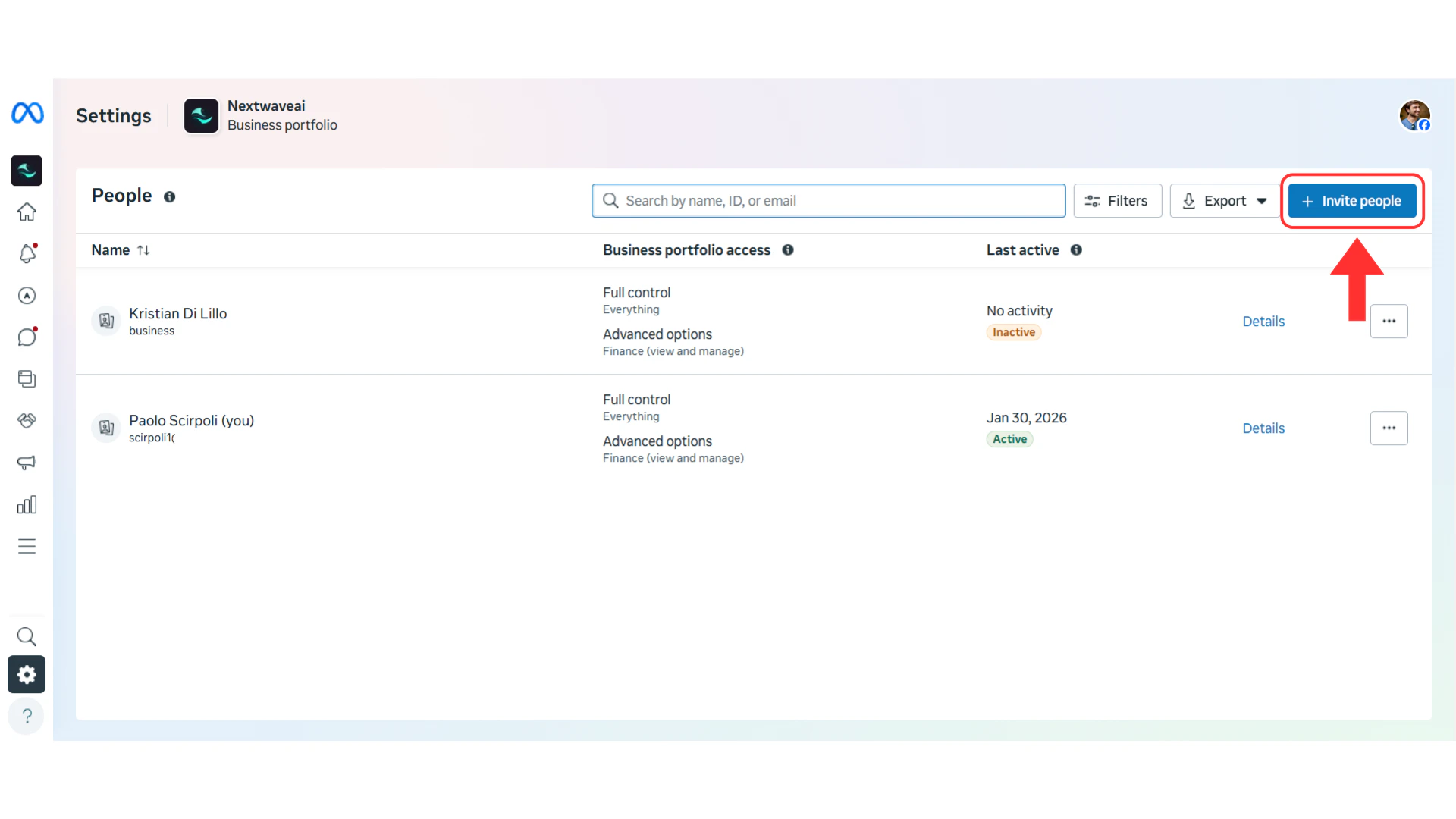
🏢 Most Common Cause: Agency / Marketer Connecting for a Client
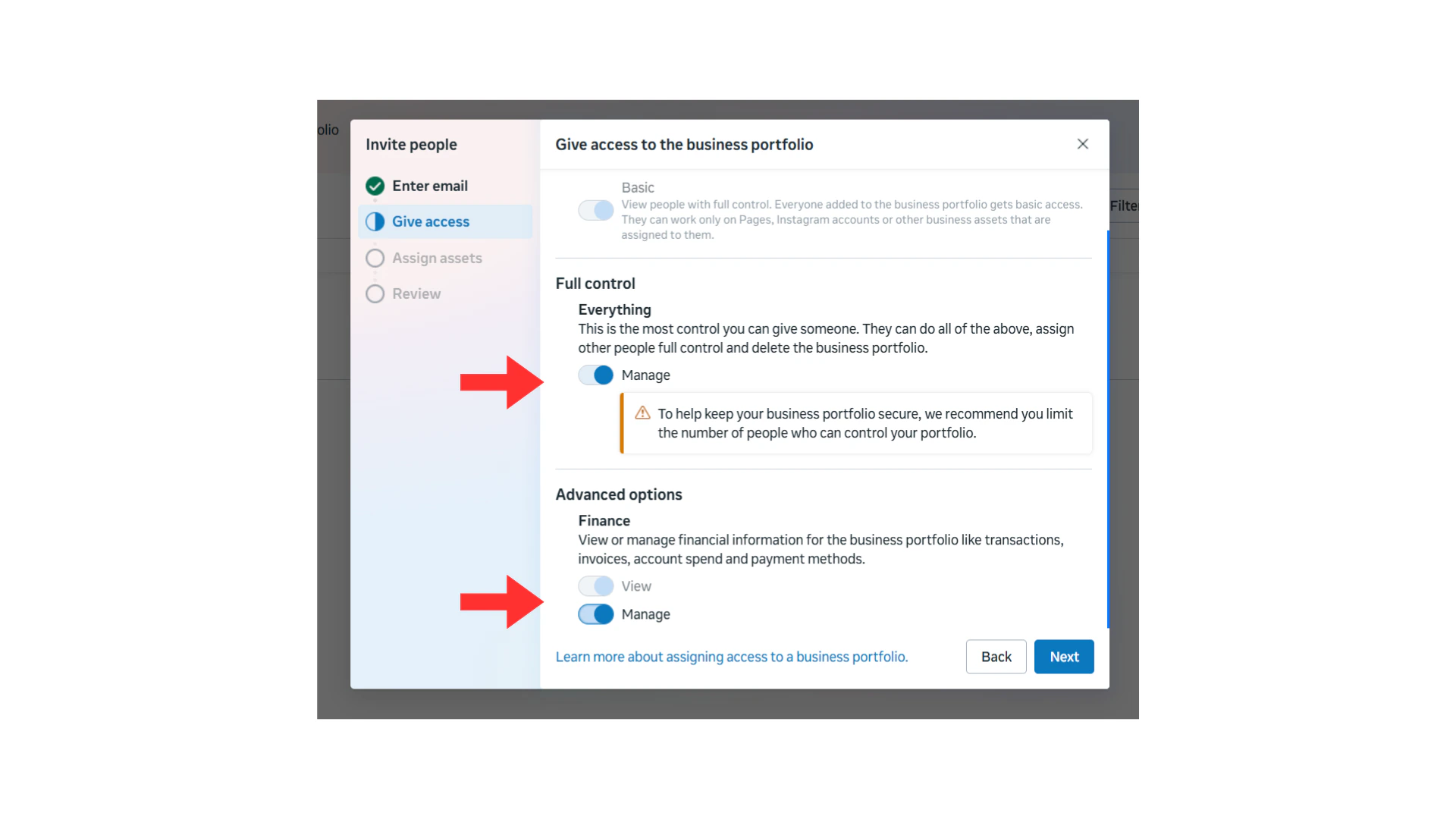
This is by far the most frequent reason. If you’re a marketer or agency setting up WhatsApp on behalf of a client, your client likely added you as a Partner on their Business Manager — which is exactly what Meta’s own guidelines recommend for agencies.The problem? Partner access is not enough for the Embedded Signup process.| Access Level | BM Appears in Dropdown? |
|---|---|
| Partner (Meta’s recommendation for agencies) | ❌ No |
| Partial access (Employee) | ❌ No |
| Full control (Admin) without finance | ❌ No |
| Full control (Admin) with finance ✅ | ✅ Yes — this is what you need |
📋 Instructions for Your Client
Access Business Settings
Select Full Control
Enable Finance Permissions
After Your Client Sends the Invitation
'The connection process stopped/froze'
'The connection process stopped/froze'
- ✅ Clear your browser cache and cookies
- ✅ Disable browser extensions (especially ad blockers)
- ✅ Try using Google Chrome in incognito mode
- ✅ Disable any VPN you might be using
- ✅ Restart the process from Step 1
'I can't find my phone number here'
'I can't find my phone number here'
- ✅ Wait 30-60 seconds and refresh the page
- ✅ If the issue persists, repeat the process from step 1 and ensure the phone verification completed successfully
- ✅ Contact Irelia support if you’re still experiencing issues
'The Meta-provided US number option doesn't appear'
'The Meta-provided US number option doesn't appear'
'My messaging limit is only 50 customers'
'My messaging limit is only 50 customers'
'My WhatsApp integration has stopped working'
'My WhatsApp integration has stopped working'
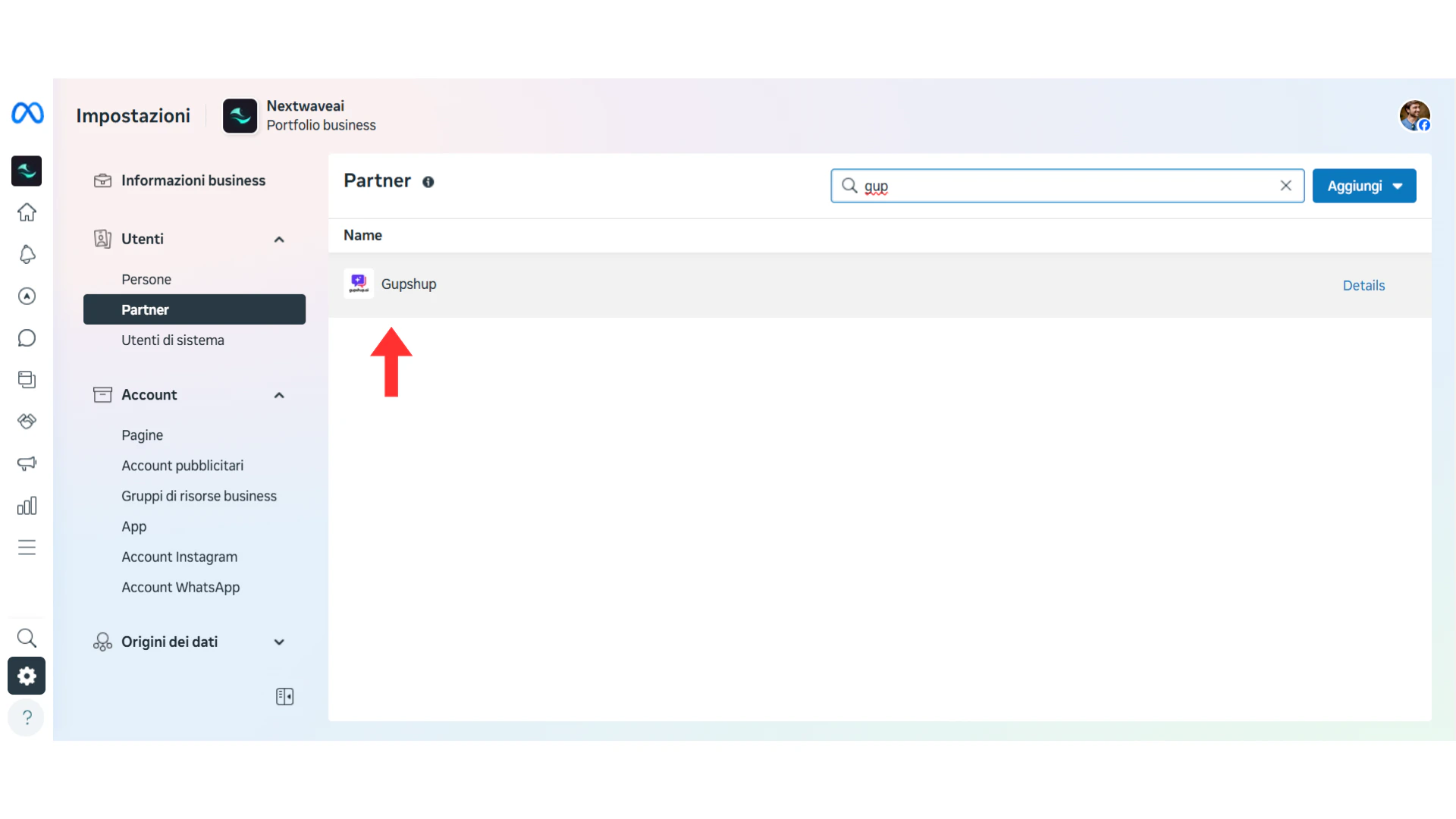
1️⃣ Gupshup was removed as a partner
Someone may have accidentally removed Gupshup (Irelia’s WhatsApp technology provider) from your Meta Business Manager.How to check:- Go to Meta Business Suite → Business Settings → Partners
- Look for “Gupshup” in the list
2️⃣ Your WABA was restricted or flagged by Meta
👉 See Dealing with a Flagged Account for detailed steps3️⃣ The phone number was registered on WhatsApp app
If someone registered your business number on the WhatsApp or WhatsApp Business app, it disconnects from the API.How to check: Open WhatsApp app from your phone(s) and see if your business number is active there.How to fix:- Delete the account from the app: Settings → Account → Delete Account
- Wait 5-10 minutes
- Contact Irelia support to re-register the number
4️⃣ Your WABA or phone number was deleted
Another admin may have accidentally deleted the WhatsApp Business Account or removed the phone number.How to check:- Go to Meta Business Suite → Business Settings → WhatsApp Accounts
- Verify your WABA still exists
- Click into it and confirm your phone number is still listed
'My account was flagged or restricted immediately after setup'
'My account was flagged or restricted immediately after setup'
✔️ Quick Checklist
Use this checklist before and during setup:Before You Start
- Facebook account ready with login credentials
- Business information prepared (name, address, website)
- Phone number ready (not connected to WhatsApp app) OR will use Meta-provided number
- Phone nearby to receive verification code (if using own number); if landline with auto-dialer, plan to disconnect it temporarily.
During Setup
- Clicked “Connect WhatsApp” in Irelia settings
- Logged into correct Facebook account
- Created or selected Business Portfolio and WhatsApp Business Account
- Entered account details (name, country, category, website)
- Added and verified phone number (used Voice Call if SMS didn’t arrive or if landline) OR selected Meta-provided number
- Waited 1-2 minutes for confirmation page to load (didn’t close the page!)
- Selected phone number in Irelia confirmation screen
- Saw “Congratulations” success screen
After Setup
- Updated display name from default (Business Manager name) to your preferred name — see guide
- Started Business Verification process — Do this right away if available; critical for new Business Managers → guide
- Tested sending a message to the WhatsApp number
- Noted: Never remove Gupshup as a partner!
🆘 Need Help?
Contact Support
- Screenshots of any error messages
- The step where you got stuck
- Your phone number (with country code)
- Your Irelia account name
- Your Meta Business Manager ID