Turn your Facebook and Instagram lead generation campaigns into instant WhatsApp conversations. Every time a prospect fills out your Meta Instant Form, Irelia.ai automatically sends them a WhatsApp message and your AI agent handles the conversation — no third-party tools, no manual work.
You’re running Facebook or Instagram lead generation campaigns. Prospects see your ad, tap through, and fill out your Instant Form. Leads pile up in Ads Manager… and then what? Someone on your team has to download those leads, reach out one by one, and hope the prospect still remembers your ad by the time you make contact.That delay is where leads go cold.Irelia’s native Meta Instant Form integration closes that gap entirely. The moment a prospect submits your form, Irelia sends them a WhatsApp message automatically — and your AI agent takes over the conversation from there. No Zapier. No Make.com. No manual exports. Just instant, automated outreach on the channel your prospects actually check.This integration is purpose-built for marketers running Facebook or Instagram campaigns with Meta Instant Forms. If that’s you, this is the fastest way to turn ad form fills into real conversations.By the end of this guide, you’ll have:✅ One or more Meta Instant Forms connected to a WhatsApp template in Irelia
✅ Automatic WhatsApp outreach triggered the instant a prospect fills out your form
✅ Your AI agent handling every conversation from that point — qualifying leads, answering questions, and collecting data without you lifting a finger
Think of it like hiring an assistant who watches your ad campaigns around the clock. The moment someone fills out your form, your assistant sends them a friendly WhatsApp message — except it all happens automatically, in seconds, powered by AI.Here’s the flow:
A prospect sees your Facebook or Instagram ad
They tap through and fill out your Instant Form (Meta’s built-in lead capture form)
Irelia instantly detects the new submission
Irelia sends the prospect a WhatsApp template message — the first message that opens the conversation
The prospect receives your message on WhatsApp and replies
Your AI agent takes over — qualifying the lead, answering questions, and collecting the information you need
One template, many forms: The configuration lives inside your WhatsApp template. You connect one or more Instant Forms to a single template. So if you’re running five different campaigns with five different forms, all five can trigger the same WhatsApp message and AI agent conversation.
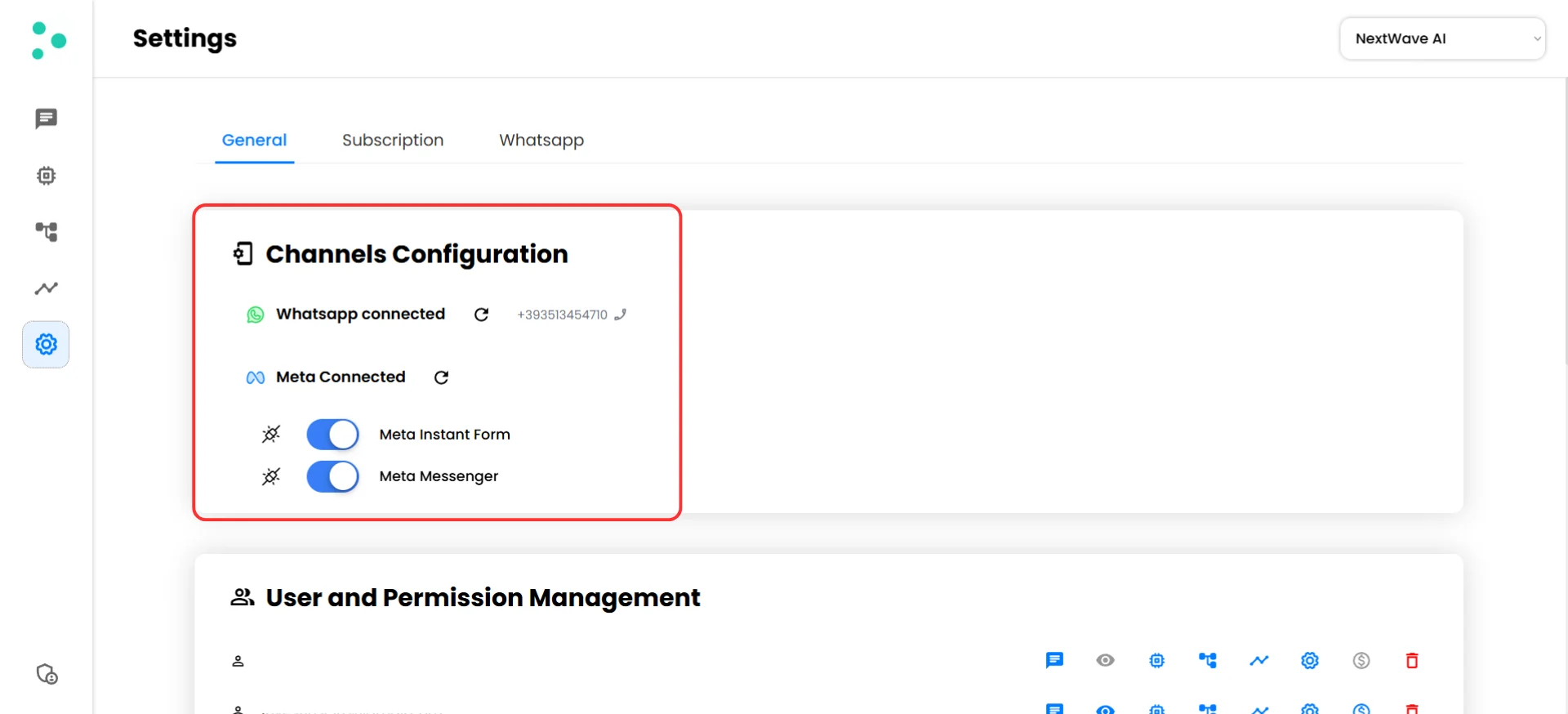
The “Meta Instant Form” toggle enabled in your Irelia settings (see below) Required
At least one Meta Instant Form in your Ads Manager that collects the prospect’s phone number using Meta’s default phone number field Required
No coding required. If you can click a few buttons, you’re all set.
Your Instant Forms must include Meta’s default phone number field. Irelia uses this field to know where to send the WhatsApp message. Without it, the integration can’t reach your leads. Irelia also pulls the prospect’s name from Meta’s default name field — this identifies the contact in your Irelia dashboard and fills the x placeholder in your template message if present.
Template placeholder limit: This integration supports templates with at most one placeholder (x). If your template contains x, it will be automatically filled with the prospect’s name. Templates with two or more placeholders are not supported via this method — use an automation tool like Zapier or Make.com instead.
Already comfortable with Irelia’s WhatsApp templates? Here’s the condensed version:
Irelia: Open an approved WhatsApp template → Click to open the sending setup popup
Sending method: Under “Configure form”, click the “Meta” card
Select forms: Click one or more Instant Forms in the list (green checkmark = selected)
Confirm: Click “I completed the configuration”
Every new lead from those forms will now automatically receive your WhatsApp template message — and your AI agent handles it from there.Need more detail? Continue with the full guide below.
~1 minuteStart by navigating to the WhatsApp template you want to connect to your Meta Instant Forms.
In your Irelia dashboard, go to your WhatsApp templates section
Find the approved template you want to use and click on it
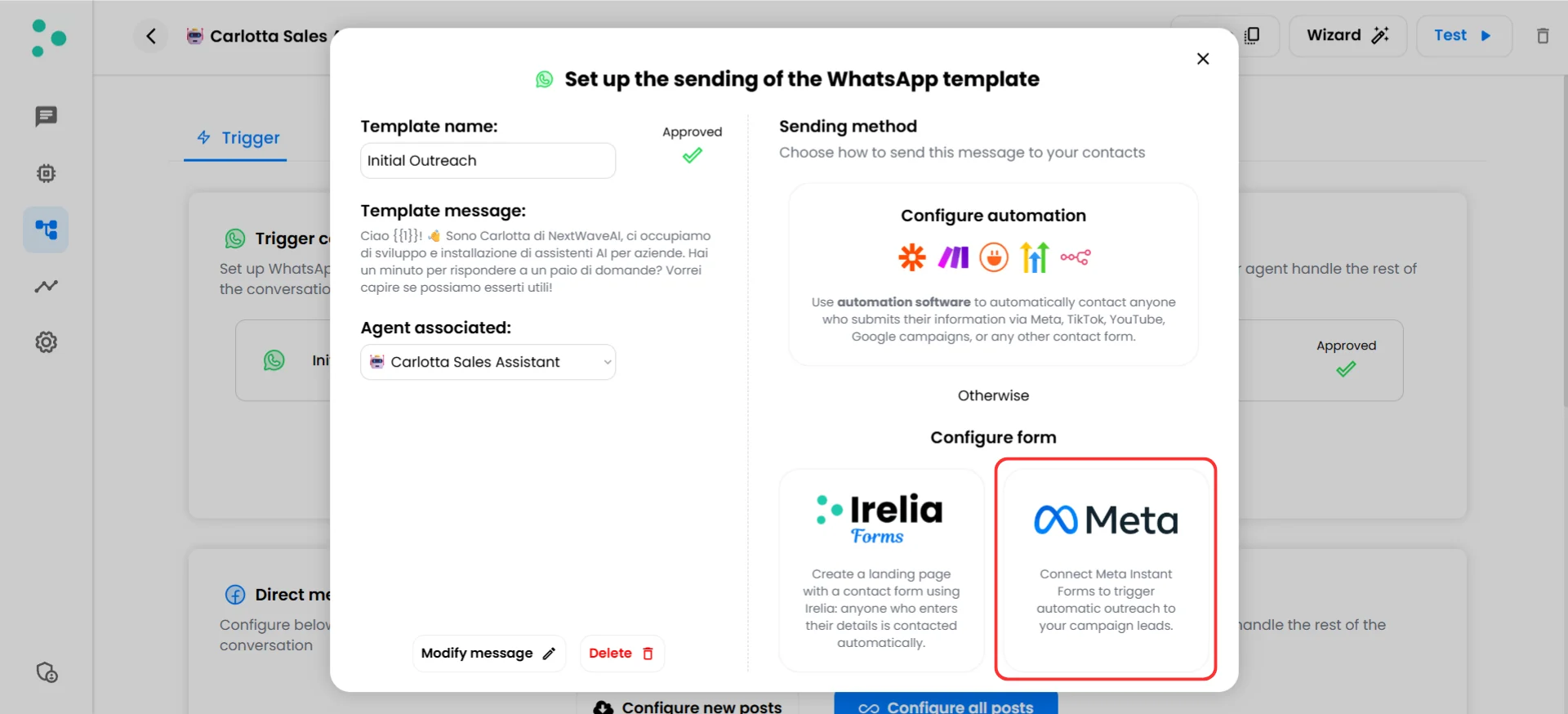
The “Set up the sending of the WhatsApp template” popup will appear
You’ll see your template details on the left side — the template name, message preview, approval status, and the AI agent assigned to handle conversations. On the right side, you’ll see the available sending methods.
Template setup popup — sending method options are on the right side
~1 minuteNow tell Irelia that you want this template to be triggered by Meta Instant Forms.
In the “Sending method” section on the right side of the popup, look for the “Configure form” area at the bottom
You’ll see two cards: “Irelia Forms” and “Meta”
Click the “Meta” card
This opens the form selection screen where you’ll choose which Instant Forms trigger this WhatsApp template.
You can use multiple sending methods at the same time for the same template. Choosing Meta doesn’t disable Irelia Forms or automation tools. Each method works independently — so your template can be triggered by an Instant Form submission and by a Zapier automation and by an Irelia Form, all at once.
3
Connect Your Meta Instant Forms
~2 minutesThis is where you link your specific Instant Forms to the WhatsApp template. Every form you select here will trigger this template message when a prospect fills it out.
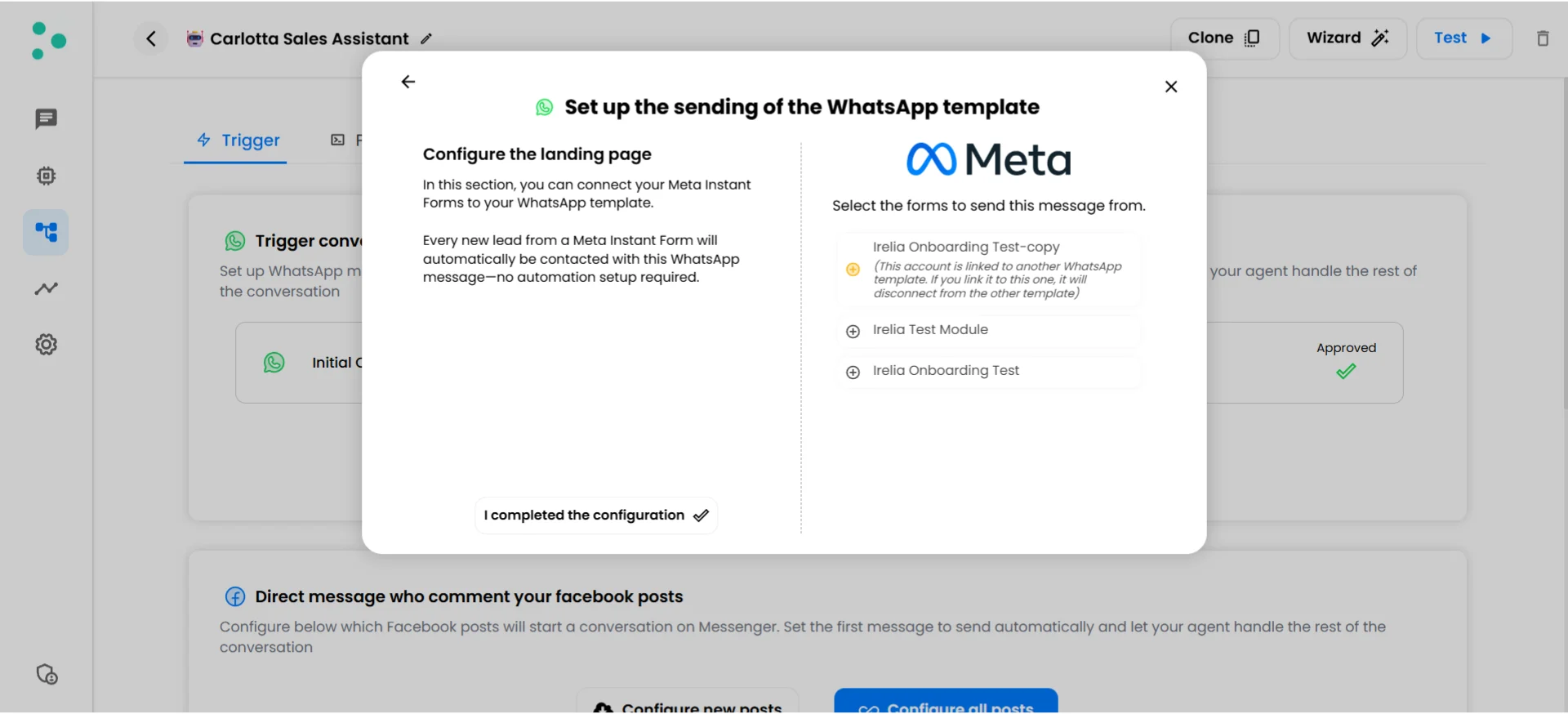
After clicking the “Meta” card, you’ll see a list of all Instant Forms from your connected Meta account
Click on a form to select it — a green checkmark will appear next to its name
To connect additional forms, click on them as well — you can select as many forms as you need
To deselect a form, simply click on it again (the green checkmark will switch back to a plus icon)
Select Instant Forms to connect — green checkmark means selected
Once you’ve selected all the forms you want, click the “I completed the configuration” button at the bottom left
Done! Your Meta Instant Forms are now connected to this WhatsApp template. From this point on, every prospect who fills out one of those forms will automatically receive your WhatsApp message — and your AI agent will handle the conversation.
One template, many forms — and that’s the point. Running multiple campaigns? Connect all their Instant Forms to the same template. For example, if you have separate Facebook campaigns targeting different audiences but want every lead to receive the same initial WhatsApp greeting, just select all the relevant forms here. One template handles them all.
Take a moment to appreciate what you just built:✅ Your Meta Instant Forms are connected to your WhatsApp template
✅ Every form submission automatically triggers a WhatsApp message to the prospect
✅ Your AI agent takes over the conversation instantly — qualifying, answering, and collecting data
✅ No manual lead downloads, no delays, no third-party tools requiredWhat happens now:A prospect sees your Facebook or Instagram ad → fills out your Instant Form → Irelia instantly sends them your WhatsApp template message → your AI agent handles the entire conversation → you get qualified leads delivered to your dashboard. All without you lifting a finger.
Now that your first integration is live, here are some ways to get even more out of it:
🎯 Connect more forms — Running new campaigns? Open the same template and select additional Instant Forms anytime
💬 Create targeted templates — Want different campaigns to trigger different opening messages? Create additional WhatsApp templates and connect each one to specific forms
🤖 Fine-tune your AI agent — Now that conversations are flowing in, review how your agent handles them and adjust its knowledge base or prompt to improve qualification accuracy
📊 Monitor your conversations — Check your Irelia dashboard regularly to see incoming leads, conversation outcomes, and qualification results
Wrong Meta Business Manager is connected to Irelia
What this means: Irelia is connected to a that doesn’t contain the Instant Forms you’re looking for.How to fix it:Reconnect with the correct Business Manager
If the wrong Business Manager is connected, you’ll need to disconnect and reconnect Meta using the correct one
Follow the Meta connection guide to reconnect with the Business Manager that contains your ad campaigns and Instant Forms
Form submissions work but WhatsApp messages are not being sent
What this means: The form submission is happening, but something is preventing Irelia from sending the message.Possible causes:
The Instant Form doesn’t include Meta’s default phone number field
The WhatsApp template is no longer approved
The form isn’t actually selected in the template’s configuration
Your Irelia account has run out of message credits
How to fix it:Step 1: Verify the phone number field
Open your Instant Form in Ads Manager and confirm it includes Meta’s default phone number field — not a custom text field where users type their number, but Meta’s built-in phone number question
Without this field, Irelia doesn’t know where to send the message
Step 2: Check the template status
Open your WhatsApp template in Irelia and confirm it still shows “Approved”
Templates can occasionally be rejected by Meta after initial approval — if the status has changed, you’ll need to modify and resubmit it
Step 3: Confirm the form is selected
Open the template’s sending setup popup, click the “Meta” card, and verify the correct form(s) have a green checkmark
Step 4: Verify Irelia is registered in your Business Manager’s CRM access
During the Meta connection process, Irelia is normally registered automatically in your Business Manager’s CRM access — but in some cases it doesn’t happen
In Meta Business Suite, go to Business Settings → Integrations and locate the Leads Access (or CRM) section
If Irelia is not listed, click the option to add or connect a new CRM platform and search for Irelia manually
Step 5: Check your message credits
Go to your Irelia account settings and verify you have available message credits
If your credits are exhausted, no outbound WhatsApp messages can be sent — including those triggered by Instant Forms
Can I connect the same form to multiple WhatsApp templates?
Each Instant Form can be connected to one WhatsApp template at a time. If you need different messaging for different audiences, create separate Instant Forms for each campaign and connect each one to the appropriate template.
Can I use Meta Instant Forms alongside other sending methods?
Yes — all sending methods work independently. You can have the same WhatsApp template triggered by Meta Instant Forms, Irelia Forms, and third-party automation tools like Zapier or Make.com simultaneously. Each method runs on its own without interfering with the others.
What data does Irelia pull from the Instant Form?
Irelia uses two fields from Meta’s default form fields:
Field
What Irelia Uses It For
Phone number (default Meta field)
Determines where to send the WhatsApp template message
Name (default Meta field)
Identifies the contact in your Irelia dashboard and fills the x placeholder in the template (if present)
Irelia specifically reads Meta’s default phone number and name fields — the pre-built ones that Meta auto-fills from the user’s profile. Custom text fields with similar names won’t work.
What happens after the WhatsApp message is sent?
Once the prospect receives your template message and replies, the AI agent associated with that template takes over the conversation. The agent follows its configured prompt and knowledge base to qualify the lead, answer questions, and collect the information you’ve defined — exactly as it would for any other Irelia conversation.
🆘 Need Help?
Irelia.ai Support:
Contact support in the WhatsApp priority support group or send an email to info@irelia.ai
Include: screenshots of your configuration, the issue you’re experiencing, and what you expected vs. what happened
Meta Ads Support:
For issues related to Instant Form creation or ad campaign setup, visit the Meta Business Help Center