

Inbound vs. Outbound
Inbound Methods
Outbound Methods
Agent Routing
Quick Reference Table
FAQs
Introduction
Every AI-powered conversation has to start somewhere. Maybe a prospect clicks your WhatsApp link and asks about pricing. Maybe they fill out a lead form on Instagram and receive a WhatsApp message within seconds. Maybe they comment on your Facebook post and get a private message moments later. Irelia supports all of these — and more. But with multiple channels, directions, and entry points available, it’s easy to wonder: which method should I use? This article is your map. It covers every available way to start a conversation with your Irelia AI agent, organized by the most important distinction: who sends the first message — the customer (inbound) or Irelia (outbound). You won’t find step-by-step setup instructions here. Instead, each method links to its dedicated configuration guide so you can dive deeper when you’re ready. By the end of this article, you’ll understand: ✅ The difference between inbound and outbound conversations in Irelia✅ Every available method for starting a conversation, across all supported channels
✅ When each method makes sense based on your goals and existing setup
✅ Where to go to configure each method
🧭 Two Directions: Inbound vs. Outbound
Before looking at specific methods, there’s one distinction that shapes everything: who sends the first message.- Inbound — The customer messages you first. They write to your WhatsApp number or your Facebook Page. Irelia receives the message and handles the conversation.
- Outbound — Irelia sends the first message. Something triggers it — a form submission, a comment on your post, a CRM event — and Irelia proactively starts the conversation.
📥 Inbound Methods — The Customer Writes First
Inbound is the most straightforward way to start a conversation: the customer messages you, and your Irelia agent responds instantly. Here are all the inbound entry points available today, organized by channel.Direct contact
You share your WhatsApp number anywhere — social media bios, website, business cards, email signatures, offline signage — and prospects message it directly. Irelia receives the message and starts the conversation. Once your WhatsApp channel is connected, this works immediately — no additional configuration needed. Just share your number wherever your prospects are.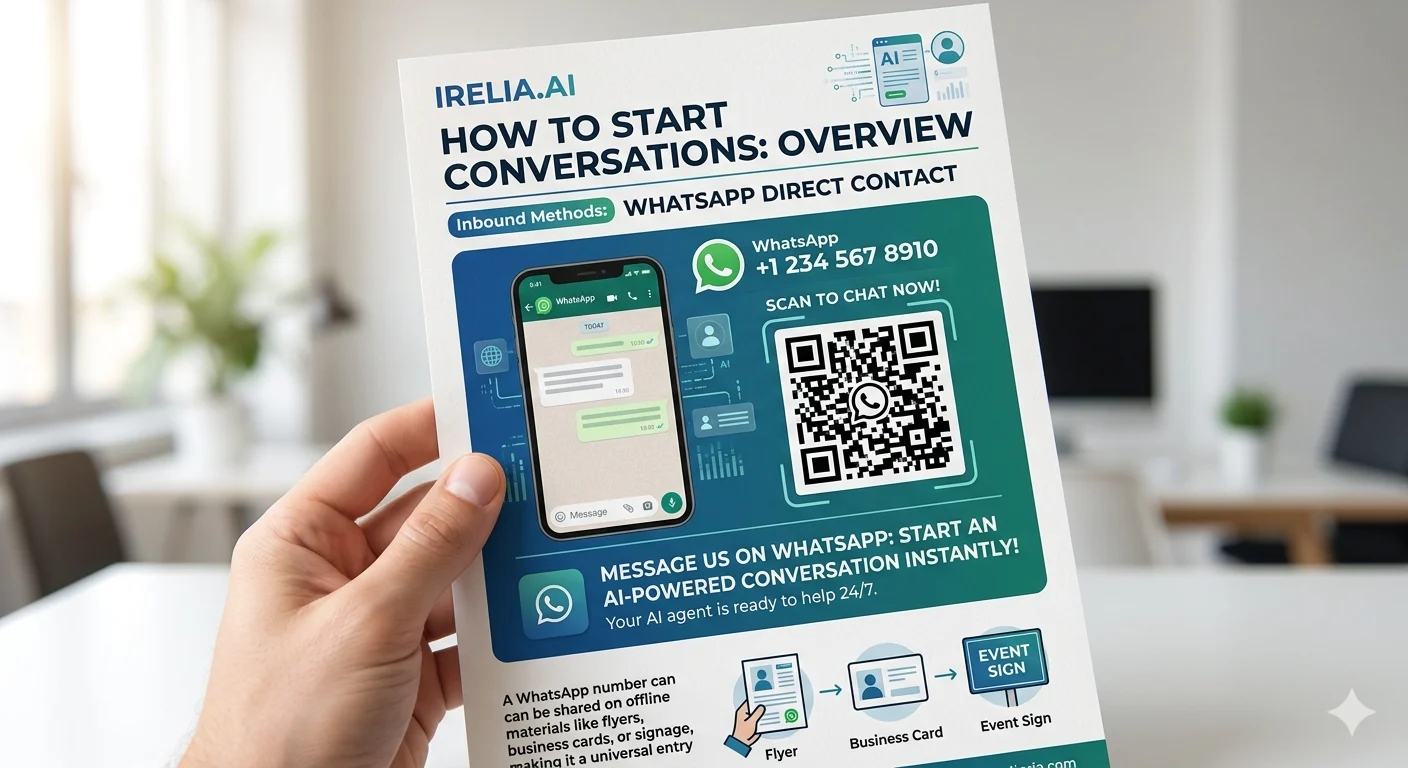
A marketing flyer with WhatsApp number and QR code for direct contact
Webchat WhatsApp widget
A chat widget on your website that looks and feels like a live chat — but when the visitor types a message and hits send, it opens WhatsApp with a pre-filled message. From that moment, the conversation lives in WhatsApp, and you have their phone number. Why not just a regular live chat? Because traditional web chat is a dead end. An anonymous visitor asks a question, maybe gets an answer — and then closes the tab. No name, no number, no way to reach them again. The conversation dies when they leave your site. The WhatsApp webchat widget solves this entirely. The moment a visitor sends their first message, you’ve captured their WhatsApp number. The conversation doesn’t end when they close the browser — Irelia continues it on WhatsApp, answering questions and qualifying the prospect whether they’re on your site or not.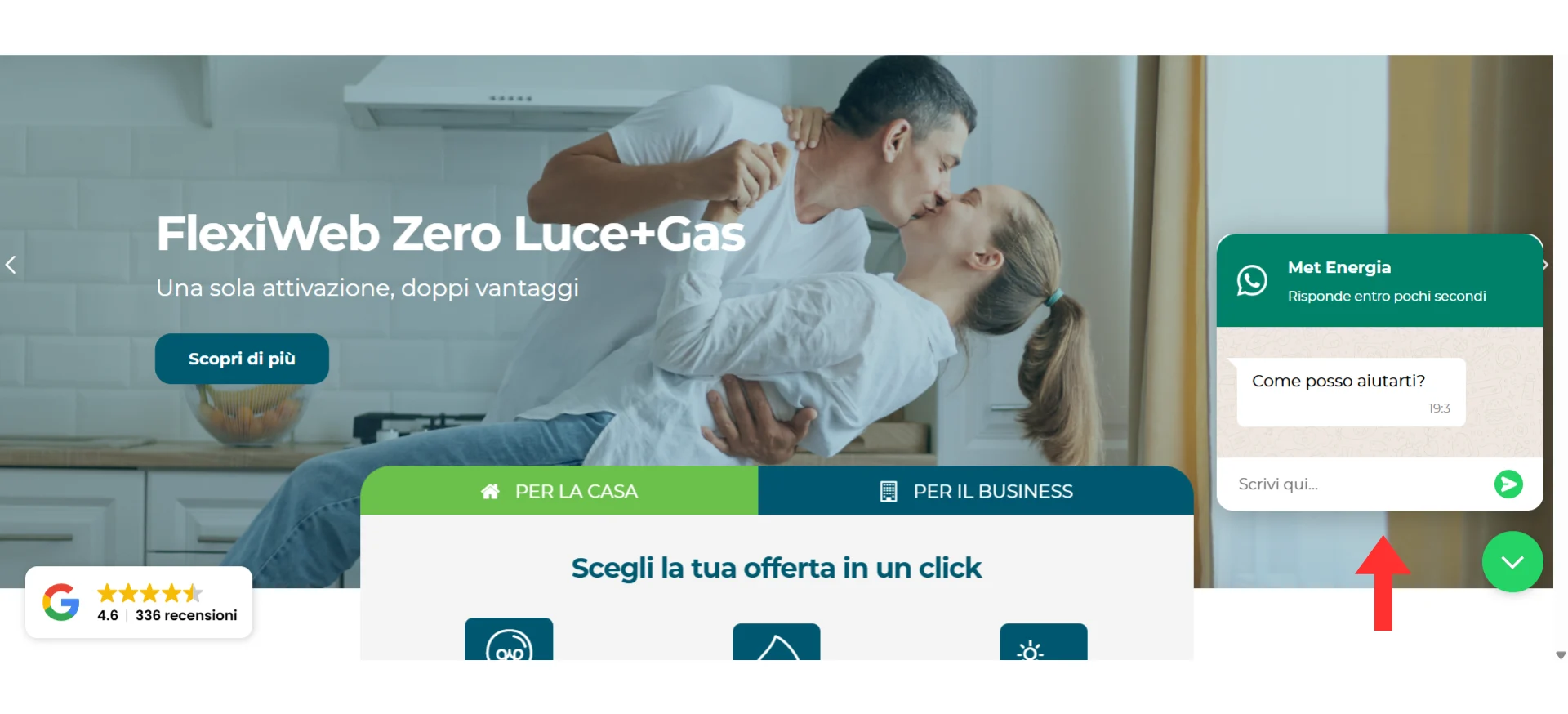
The webchat widget on a website, transitioning conversations to WhatsApp
💬 Facebook Messenger
All Messenger inbound methods require your Facebook Page to be connected to Irelia. If you haven’t done this yet, start with the Connect Meta to Irelia guide.Direct message to your page
A customer visits your Facebook Page, taps the “Send Message” button, and starts a conversation. Irelia picks up the message in real time and handles it from there. Once your Facebook Page is connected, this works immediately — no additional configuration needed. When to use it: You have an active Facebook Page and want every incoming Messenger conversation handled by your AI agent — no manual replies, no delays.📤 Outbound Methods — Irelia Writes First
Outbound flips the script: instead of waiting for the customer to message you, Irelia sends the first message. This is powerful for lead nurturing, proactive outreach, and instant responses to form fills, post comments, or CRM events. Most outbound methods use WhatsApp — if you haven’t connected your WhatsApp channel yet, see Connect WhatsApp to Irelia first.📣 Meta Ads — Instant Forms
Irelia integrates natively with Meta’s Instant Forms (the lead capture forms built into Lead Ads on Facebook and Instagram). When a prospect fills out an Instant Form, Irelia automatically sends a WhatsApp message — all without the prospect ever leaving Facebook or Instagram. This is the most common starting point for outbound. If you’re already running Meta Ads (or plan to), this integration connects your ad spend directly to AI-powered conversations.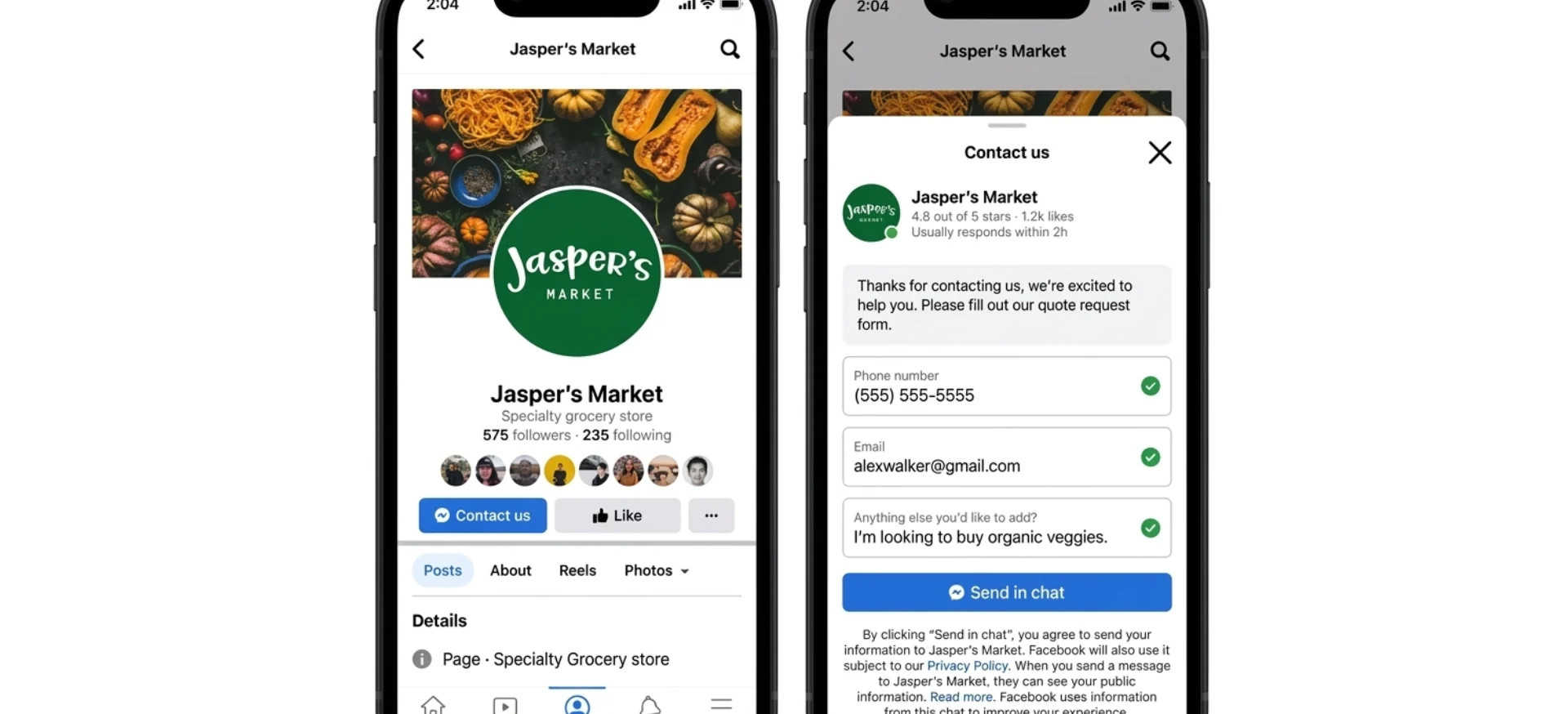
A Meta Instant Form on mobile — submission triggers a WhatsApp message from Irelia
📝 Irelia Form
A form built with Irelia’s native form builder. When a prospect fills it out, Irelia automatically sends them a WhatsApp message — no CRM, no automation platform, no code required. You can deploy it in two ways:- Hosted link — Irelia generates a direct URL to the form. Share it anywhere: social media, emails, QR codes, you name it.
- Embedded (iframe) — Embed the form as a full-page iframe on your own website or landing page, keeping your branding and domain.
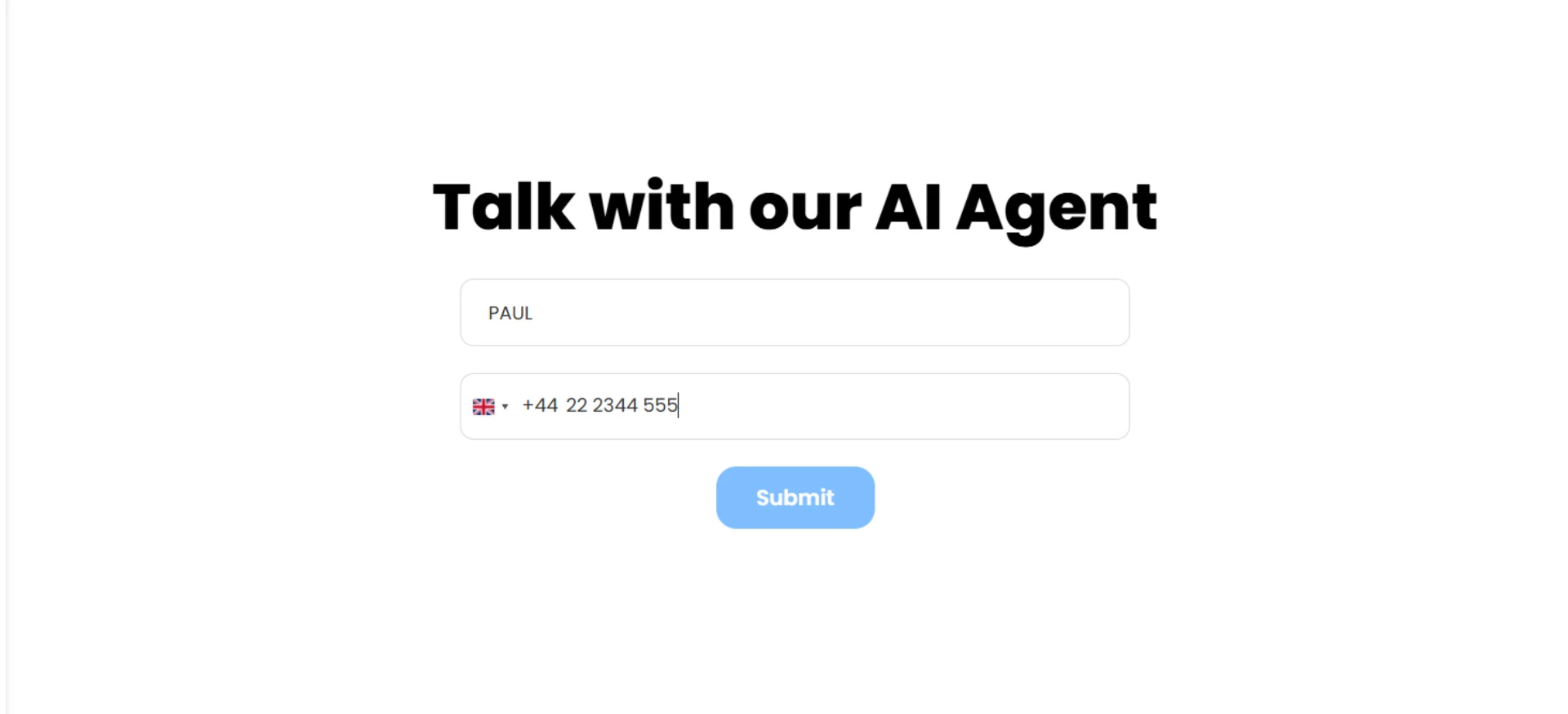
An Irelia-hosted form with contact fields and submit button
⚙️ Irelia API
A system — your CRM, an automation platform like Zapier or Make.com, or any tool that can send HTTP requests — triggers the Irelia API call to send a WhatsApp message to a specific contact. Any event in your tech stack can become the trigger. This is the most flexible outbound method. If something in your stack can fire a webhook or API call, it can trigger an Irelia conversation. When to use it: You already have automations, a CRM, or technical resources in place and want full control over when and why a message gets sent. Example scenarios:- A new lead enters your CRM → Irelia sends a WhatsApp message within seconds
- A prospect books a demo → Irelia sends preparation details automatically
- A Zapier or Make.com automation detects a trigger → Irelia reaches out to the prospect
💬 Comment-to-DM Automation
A customer comments on one of your Facebook posts, and Irelia automatically sends them a private message on Messenger. The comment is the trigger; the conversation moves to DM. The customer didn’t message you — they interacted with your content — and Irelia proactively opens the conversation. If you’ve used tools like ManyChat, this concept will feel familiar — turn public engagement into private conversations. The difference is that your Irelia AI agent handles the entire conversation from the first DM forward, qualifying and assisting the prospect automatically.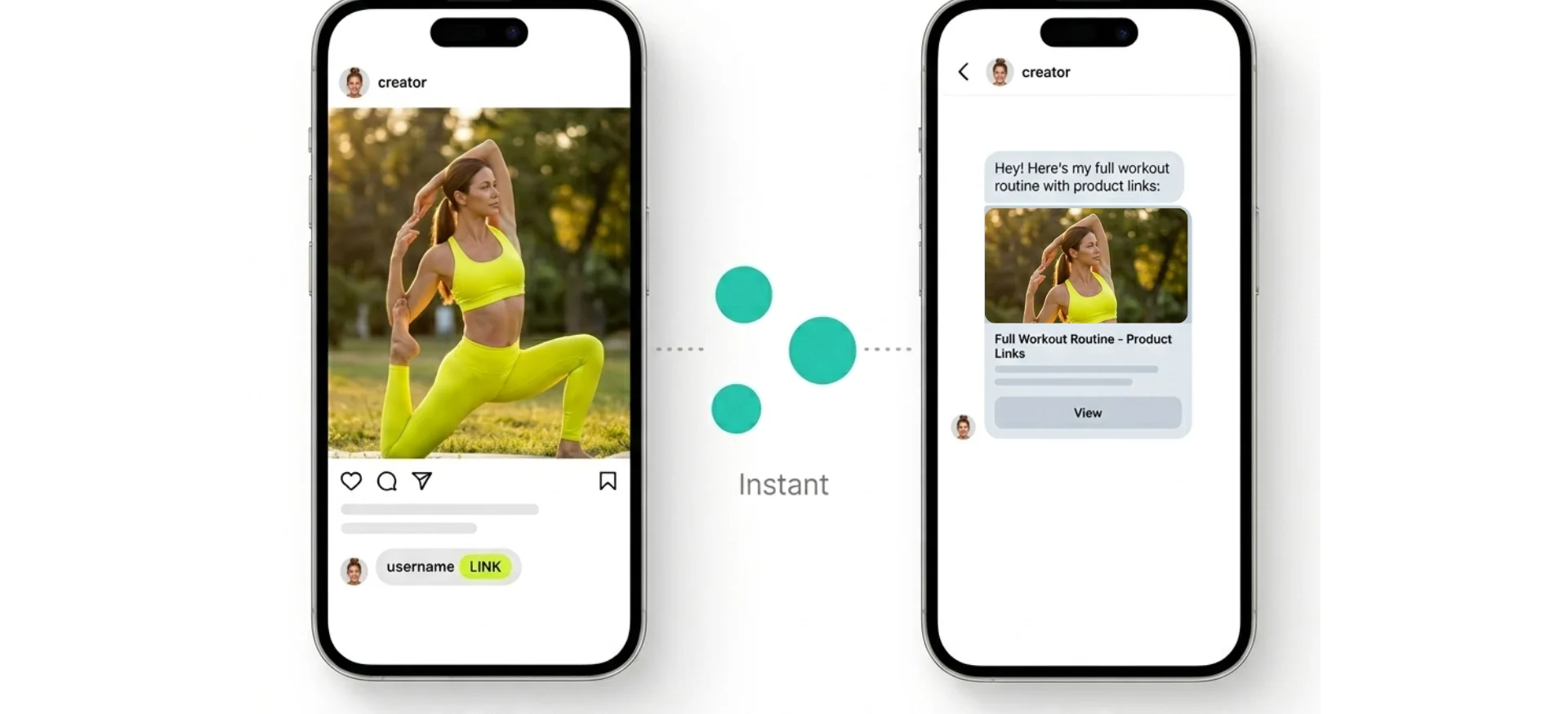
Comment-to-DM flow: a Facebook comment triggers an automatic Messenger DM
🔀 Agent Routing — Moving Leads Between Agents
Every trigger mechanism in Irelia — WhatsApp templates, Comment-to-DM automations — is linked to a specific AI agent. When you use a trigger mechanism to reach a lead, that lead becomes handled by the agent the trigger belongs to — regardless of which agent was handling them before. This is the only way to move a lead from one agent to another. There’s no “reassign” button anywhere in Irelia. The routing happens through trigger mechanisms. Here’s how it works: say a lead is currently in a conversation with Agent X (a general sales agent). You send that lead a WhatsApp template that belongs to Agent Y (a specialized onboarding agent). From that moment, the lead is handled by Agent Y. The conversation logic, prompt, and knowledge base all switch to Agent Y’s configuration. The same applies if the lead comments on a Facebook post connected to a Comment-to-DM automation that belongs to Agent Y — the lead moves to Agent Y. This works across every sending method — API/automation, Irelia Forms, Meta Instant Forms and Comment-to-DM automations. The mechanism is always the same: the trigger carries the agent identity, and using it reassigns the lead.Why this matters
Once you understand that trigger mechanisms control routing, you can build multi-agent workflows — where different agents handle different stages of your lead journey:- Lead qualification → specialist handoff. A lead generation agent qualifies the prospect, then an automation sends a template from a specialized agent (onboarding, pricing, booking) to hand off the conversation.
- API-driven follow-ups that shift agents. When you send follow-ups through the API using Trigger-tab templates, each template can belong to a different agent. This lets you move leads to a new conversation flow at the follow-up stage — something built-in follow-up sequences can’t do.
- Comment-to-DM routing on Facebook. Different Comment-to-DM automations can belong to different agents. A lead who comments on a post handled by Agent A’s automation gets routed to Agent A — even if they were previously talking to Agent B.
- Manual routing from the Chat Panel. An operator reviewing conversations can send a template from a different agent to transfer a stuck or misrouted lead to a better-suited agent.
📊 Quick Reference Table
Here’s every method at a glance. Use this to quickly compare your options or find the right fit for your situation.❓ FAQs
Can I use multiple methods at the same time?
Can I use multiple methods at the same time?
Do I need a separate AI agent for each method?
Do I need a separate AI agent for each method?
Can I move a lead from one agent to another?
Can I move a lead from one agent to another?
What happens if I haven't set a default inbound agent?
What happens if I haven't set a default inbound agent?
Can Irelia send the first message on Facebook Messenger?
Can Irelia send the first message on Facebook Messenger?
What's a WhatsApp message template, and why do some outbound methods need one?
What's a WhatsApp message template, and why do some outbound methods need one?
Which method should I start with?
Which method should I start with?
- Running Meta Ads? Start with Meta Ads Instant Forms. It’s the most direct path from ad spend to AI-powered conversation.
- Want outbound without a CRM or ads? Use Irelia Form — build a form, share the link, done.
- Posting organic content on Facebook? Set up Comment-to-DM to turn engagement into conversations.
- Have a CRM or existing automations? Use the Irelia API for maximum flexibility.
- Have website traffic? Add the Webchat WhatsApp widget to capture visitor intent.
- Already have a Facebook Page? Enable direct message to your page — it’s the simplest inbound setup.
Does the webchat widget replace my existing live chat?
Does the webchat widget replace my existing live chat?
🆘 Need Help?
- Contact support in the WhatsApp priority support group or send an email to info@irelia.ai
- Include: screenshots of your configuration, the error message, and what you expected vs. what happened