

What You'll Need
Quick Path
Step-by-Step Setup
Quick Checklist
Troubleshooting & FAQs
Introduction
A prospect messages your WhatsApp number or Facebook Page — but the wrong agent responds. Your support agent is greeting a sales lead, or your generic onboarding bot is handling prospects who should be getting a tailored pitch. The culprit? Your default inbound agent isn’t set to the right one. Irelia.ai automatically assigns a default inbound agent during initial setup so you’re covered from day one. But as you create specialized agents, refine flows, or delete older ones, that original default may no longer be the best fit. In rarer cases — if you’ve deleted the auto-assigned agent — you might have no default at all, leaving inbound messages completely unanswered. The fix is simple: check which agent is handling inbound, and change it if needed. By the end of this guide, you’ll have: ✅ A clear understanding of what the default inbound agent does and why it matters✅ The ability to check which agent is currently your default — at a glance or in detail
✅ Your default inbound agent set to the right one for WhatsApp, Facebook, or both
How This Works
Think of it this way: you have a team of specialists, and the default inbound agent is the one stationed at the front door. If the wrong person is greeting visitors, sales leads get a support script. If nobody is at the door, visitors walk into an empty lobby and leave.- 🔀 One default per channel. WhatsApp and Messenger each get their own separate default. You can assign the same agent to both, or use different agents.
- 🔒 Only one agent per channel. Setting a new default automatically replaces the old one.
- 🌐 Covers all inbound entry points. Direct WhatsApp messages, Facebook Page DMs, and webchat widget conversations all route through this setting.
- ⚙️ Auto-assigned during setup. Irelia assigns one automatically during initial configuration — this guide helps you verify it’s the right one.
What You’ll Do
- Open the Default inbound agent bar at the top of the Agents list (~30 seconds)
- Choose your agent for each channel from its dropdown (~30 seconds)
📋 What You’ll Need
- An Irelia.ai account with at least one agent created Required
- At least one channel connected (WhatsApp or Messenger) Required
⚡ Quick Path (Experienced Users)
Already comfortable navigating Irelia? Here’s the condensed version: To check the current default:- Go to “Settings” → “Agent” section
- At the top of the Agents list, the “Default inbound agent” bar shows the current agent for each channel inside its dropdown
- In the bar, open the dropdown for the channel you want — WhatsApp or Messenger
- Select the agent you want to handle inbound for that channel
- The dropdown updates to the agent you picked — the change is live immediately
🔧 Step-by-Step Setup
Open the Default Inbound Agent Bar
- Go to “Settings” → “Agent” section
- At the top of the Agents list, find the “Default inbound agent” bar
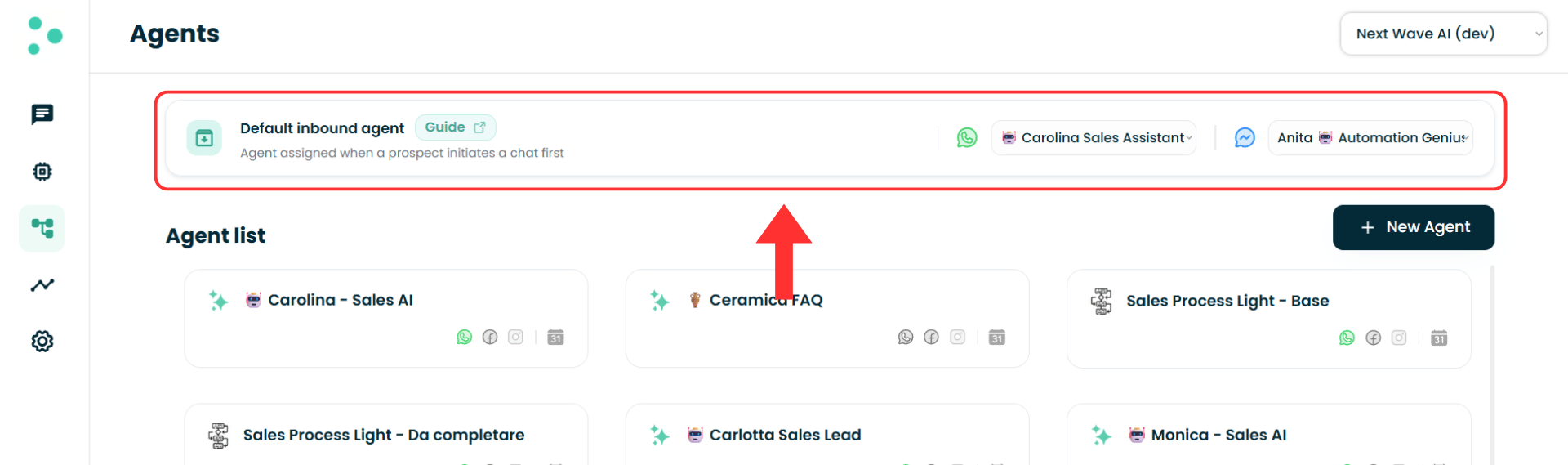
The Default inbound agent bar at the top of the Agents list, with one dropdown per connected channel
Choose Your Agent for Each Channel
- To set the WhatsApp inbound agent, open the WhatsApp dropdown and select your agent
- To set the Messenger inbound agent, open the Messenger dropdown and select your agent
- To use the same agent on both channels, select it in both dropdowns
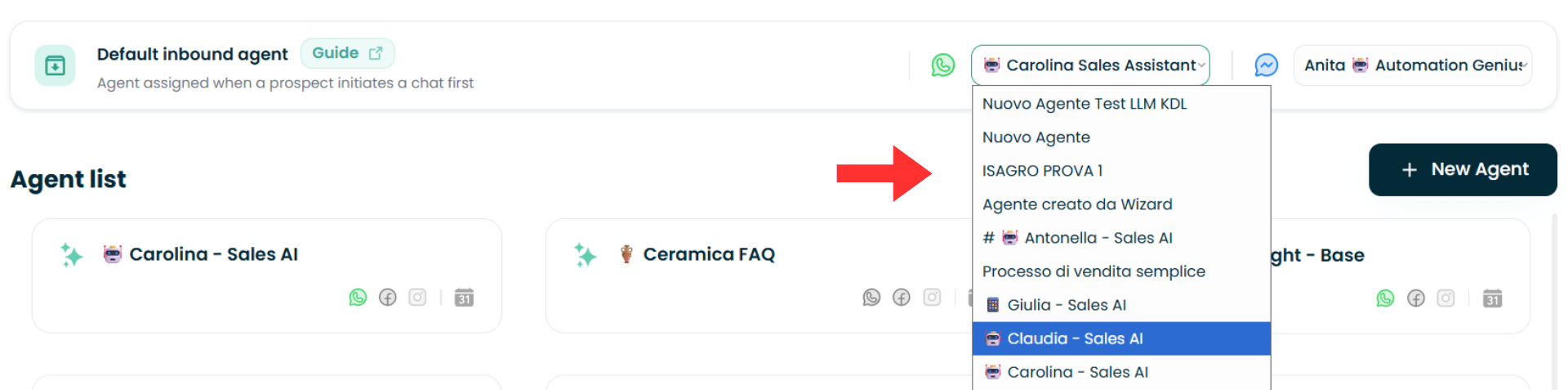
The WhatsApp dropdown expanded, showing the available agents to choose from
🎉 You’re All Set!
✅ Inbound prospects on your configured channel(s) now reach the right agent with the right flow✅ No inbound message goes unanswered on channels where you’ve set a default From now on, when someone messages your WhatsApp number or Facebook Page for the first time → Irelia routes the conversation to your default inbound agent → who greets, qualifies, and engages them automatically, 24/7.
🔎 How to Check Your Current Default Inbound Agent
Checking is now instant. The “Default inbound agent” bar shows your current defaults directly — no need to scan the agent list.- Go to “Settings” → “Agent” section
- Look at the “Default inbound agent” bar at the top of the Agents list
✅ Quick Checklist
Use this to verify your setup is complete:Configuration
Configuration
- Opened the “Default inbound agent” bar at the top of the Agents list
- Selected an agent in the WhatsApp dropdown (if needed)
- Selected an agent in the Messenger dropdown (if needed)
Verification
Verification
- The WhatsApp dropdown shows the agent you want handling WhatsApp inbound
- The Messenger dropdown shows the agent you want handling Messenger inbound (if applicable)
🛠️ Troubleshooting & FAQs
"The wrong agent is responding to my inbound leads"
The auto-assigned default from initial setup may still be active
"The wrong agent is responding to my inbound leads"
The auto-assigned default from initial setup may still be active
"Prospects are messaging me but nobody is responding at all"
Inbound messages going completely unanswered
"Prospects are messaging me but nobody is responding at all"
Inbound messages going completely unanswered
- The agent set as inbound default for that channel was deleted — so no agent is handling new inbound leads
- The default agent is misconfigured
"I can't find where to set the default inbound agent"
The setting is now on the Agents list, not inside the agent
"I can't find where to set the default inbound agent"
The setting is now on the Agents list, not inside the agent
"I only see one channel in the bar, not both"
Only connected channels appear in the bar
"I only see one channel in the bar, not both"
Only connected channels appear in the bar
How do I find which agent is currently the default for a channel?
How do I find which agent is currently the default for a channel?
Can I use the same agent as default for both WhatsApp and Messenger?
Can I use the same agent as default for both WhatsApp and Messenger?
Can I change the default inbound agent later?
Can I change the default inbound agent later?
🆘 Need Help?
- Contact support in the WhatsApp priority support group or send an email to info@irelia.ai
- Include: a screenshot of the “Default inbound agent” bar at the top of your Agents list, which channel is affected, and what you expected vs. what happened