

What You'll Need
Common Use Cases
Quick Path
Step-by-Step Setup
Quick Checklist
Troubleshooting & FAQs
Introduction
You’ve built your AI agent, created a WhatsApp template, and it got approved — now what? The real power of Irelia kicks in when messages are sent automatically. Instead of manually reaching out to every new lead, you can connect Irelia to your existing tools and let automations do the heavy lifting. Imagine this: a prospect fills out a contact form on your landing page at 2 AM. Within seconds, they receive a personalized WhatsApp message from your AI agent — who qualifies them, answers their questions, and books a meeting. All while you sleep. This guide walks you through exactly how to set that up using Zapier, Make.com, or Go High Level (GHL).✅ A clear understanding of every piece of information Irelia needs to send a message
✅ The ability to test messages directly from Irelia’s built-in panel
✅ The confidence to build unlimited automation scenarios across any platform
How This Works
Think of it like a relay race between your automation platform and Irelia:- Something happens in one of your tools (a form is submitted, a CRM deal moves, a tag is added)
- Your automation platform (Zapier, Make.com, or GHL) detects that event and grabs the contact’s details
- Your platform sends those details to Irelia — the contact’s name, phone number, and a few settings
- Irelia receives the details, sends your approved WhatsApp template to the contact, and your AI agent takes over the conversation from there
What You’ll Do
- Find your template’s send panel — Locate the URL and fields Irelia needs (~2 minutes)
- Test from Irelia — Send a test message to verify everything works (~2 minutes)
- Understand the fields — Learn what each piece of information means (~3 minutes)
- Build the automation — Connect your trigger to Irelia in your platform (~8 minutes)
- Verify end-to-end — Confirm the full flow works together (~3 minutes)
📋 What You’ll Need
- An Irelia.ai account with an active AI agent Required
- An approved WhatsApp template — follow this guide to create one if you haven’t yet Required
- Sufficient credits in your Irelia account (each template send costs 10 credits) Required
- A Zapier account (sign up here), a Make.com account (sign up here), or a Go High Level account — depending on which platform you use Required
- A trigger source (e.g., a form, a CRM, an ad platform) that will start the automation Required
- A phone number to test with (your own is perfect) Required
🎯 Common Use Cases
Not sure what to automate? Here are the most popular scenarios Irelia users set up:⚡ Quick Path (Experienced Users)
Already comfortable with HTTP requests and JSON? Here’s the condensed version:- Irelia: Open your approved WhatsApp template → Click “Configure automation” → Copy the POST URL and note the body structure
-
Your platform: Create an automation with your desired trigger → Add an HTTP/webhook action → Method:
POST→ URL: paste Irelia’s endpoint → Body type:raw JSON (application/json) -
Body:
- Test: Run the automation → Verify WhatsApp message is received → Check the conversation appears in Irelia
- Activate: Turn on the automation
🔧 Step-by-Step Setup
Step 1: Open Your Template and Access the API Panel
~2 minutes Let’s start inside Irelia, where you’ll find everything you need to connect your automation platform.- Log into your Irelia.ai dashboard
- Go to the WhatsApp template (inside one of your agents) you want to automate
- Click on the template to open its configuration popup
- On the right side, under “Sending method”, you’ll see two options: “Configure automation” and “Configure form”
- Click “Configure automation”
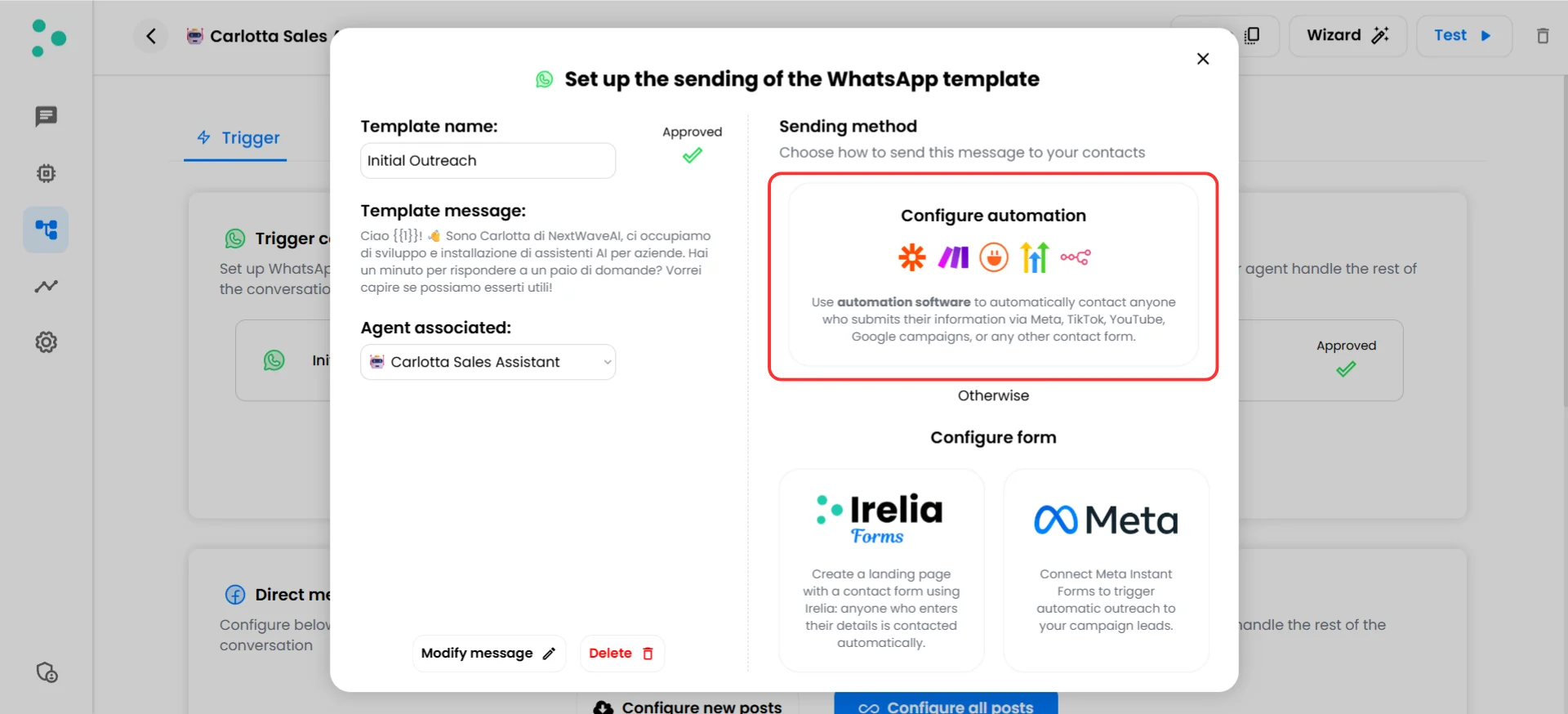
Template configuration popup with the Configure automation card
- You’ll see the API panel. “API” just means “the connection point between apps” — in this case, between your automation platform and Irelia. The panel shows two things:
- A URL at the top — your template’s unique address, where your automation platform will send contact details
- Fields below it — the pieces of information Irelia needs to send a message (name, phone number, etc.)
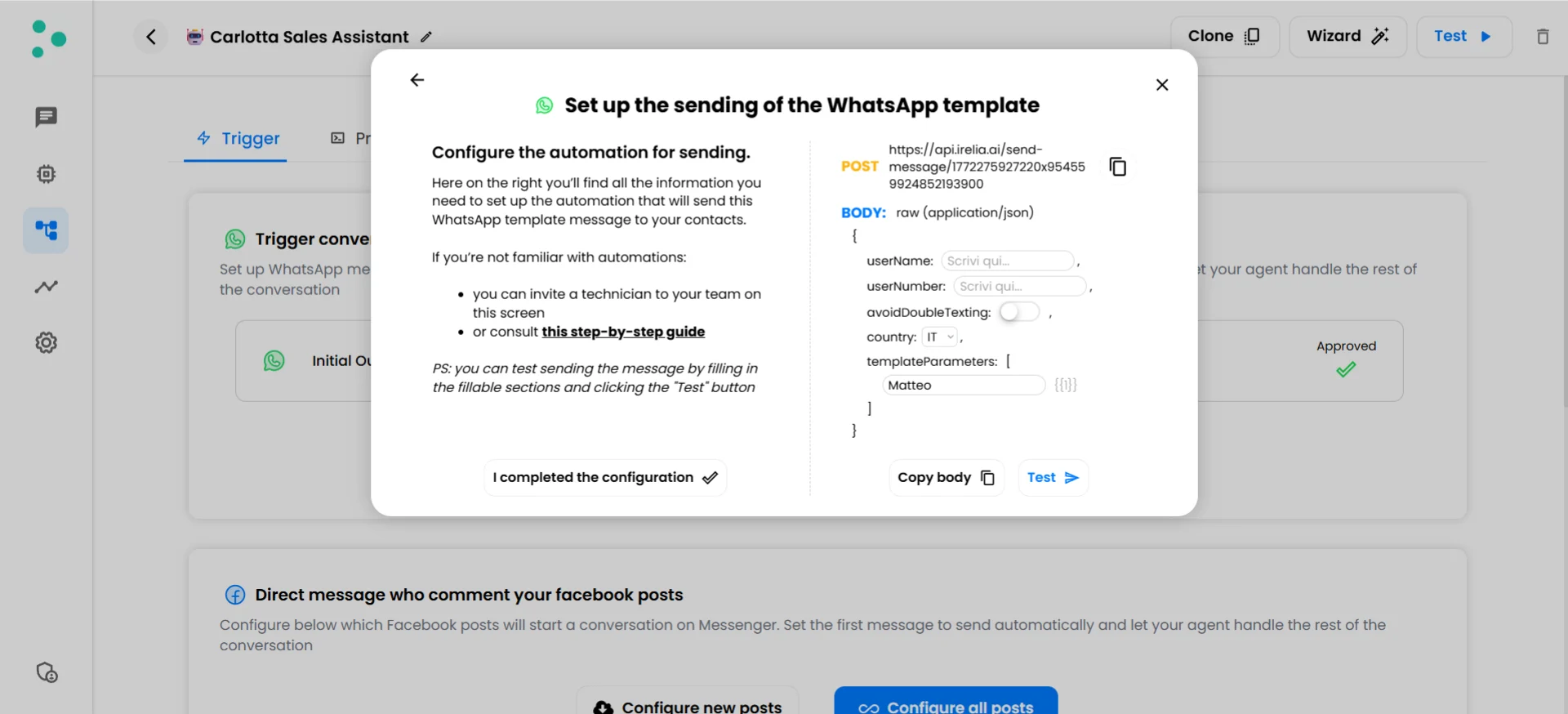
API panel showing the POST endpoint URL and JSON body fields
- Click the copy icon next to the URL at the top to copy it to your clipboard. Save it somewhere — you’ll need it in Step 4.
Step 2: Send a Test Message from Irelia
~2 minutes Before connecting any automation platform, let’s verify that everything works by sending a test message directly from Irelia’s panel.- In the API panel (from Step 1), type a contact name in the “userName” field (e.g.,
Test) - Type your own phone number (with country prefix) in the “userNumber” field (e.g.,
+393334622758) - Leave the “skipIfAlreadyContacted”, “skipIfAIOff”, and “skipIfAgentChanged” dropdowns set to
false(we’ll explain these fields in Step 3) - Select the appropriate “country” from the dropdown
- If your template has dynamic variables, type test values in the “templateParameters” field (e.g.,
Test value) - Click the “Test” button
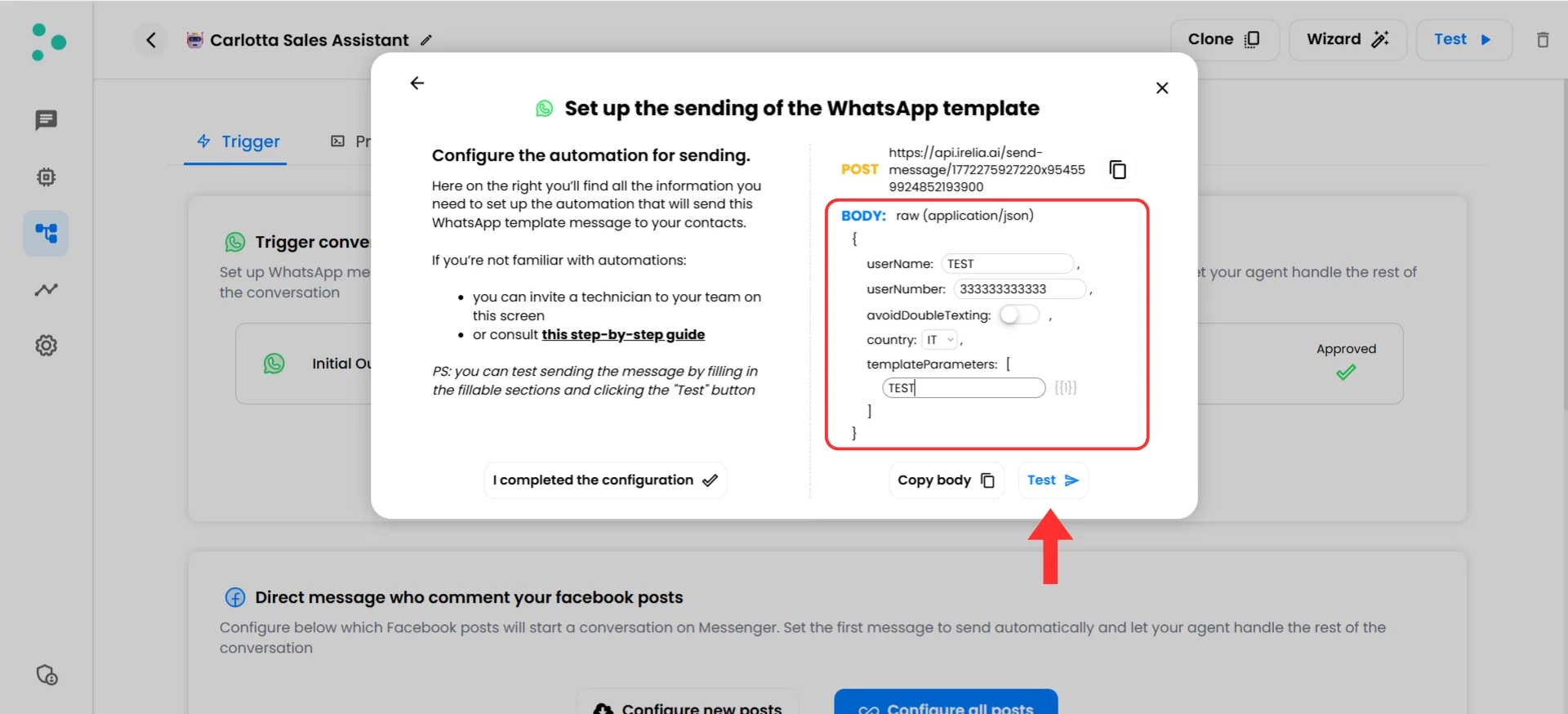
API panel with test values filled in, ready to send
- Check your phone — you should receive the WhatsApp template message within a few seconds
- Open Irelia’s conversation list — you should see the new conversation appear
+39 or +1), or insufficient credits in your Irelia account. Since this panel only appears for approved templates, template status is never the issue here. See Troubleshooting for more help.Step 3: Understand What You’re Sending to Irelia
~3 minutes You just sent a test message by filling in fields and clicking a button. In Step 4, your automation platform will fill in those same fields automatically every time your trigger fires. Before building that automation, let’s make sure you understand what each field does — this makes the setup much easier.The fields Irelia needs
Here’s a quick overview, followed by deeper explanations where needed:skipIfAlreadyContacted
This tells Irelia what to do if the person you’re about to message has already had a conversation through your agent.false(default) → The message is sent regardless of whether they’ve been contacted before.true→ If the contact already exists in your agent’s conversations, the message is skipped.
avoidDoubleTexting parameter, which still works and behaves identically. If your existing automations use avoidDoubleTexting, no changes are needed.skipIfAIOff
This tells Irelia what to do if the contact you’re about to message has AI turned off in their conversation.false(default) → The message is sent regardless of the contact’s AI status.true→ If AI is currently off for this contact, the message is skipped.
skipIfAgentChanged
This tells Irelia what to do if the contact you’re about to message is currently in conversation with a different agent than the one this template belongs to.false(default) → The message is sent regardless of which agent the contact is currently talking to.true→ If the contact has moved to a different agent’s conversation, the message is skipped.
country
The country prefix (e.g.,+39 for Italy, +1 for the US) is essential for WhatsApp to deliver a message to the right number. The country field acts as a safety net for phone numbers that arrive without one.
Here’s how it works:
- If
userNumberis"3334622758"andcountryis"IT"→ Irelia adds+39automatically and sends to+393334622758✅ - If
userNumberis"+393334622758"→ the prefix is already there, so Irelia ignores thecountryfield ✅
templateParameters
This is where you pass values for the dynamic variables in your WhatsApp template. It’s a list of text values, matched in order to the variables in your template.- No variables in your template → skip this field entirely, or leave it empty:
[] - One variable →
["John"] - Multiple variables →
["John", "Premium Plan", "Friday at 3 PM"]
X, the second replaces X, and so on. Make sure the order matches your template.
What the data looks like for your automation platform
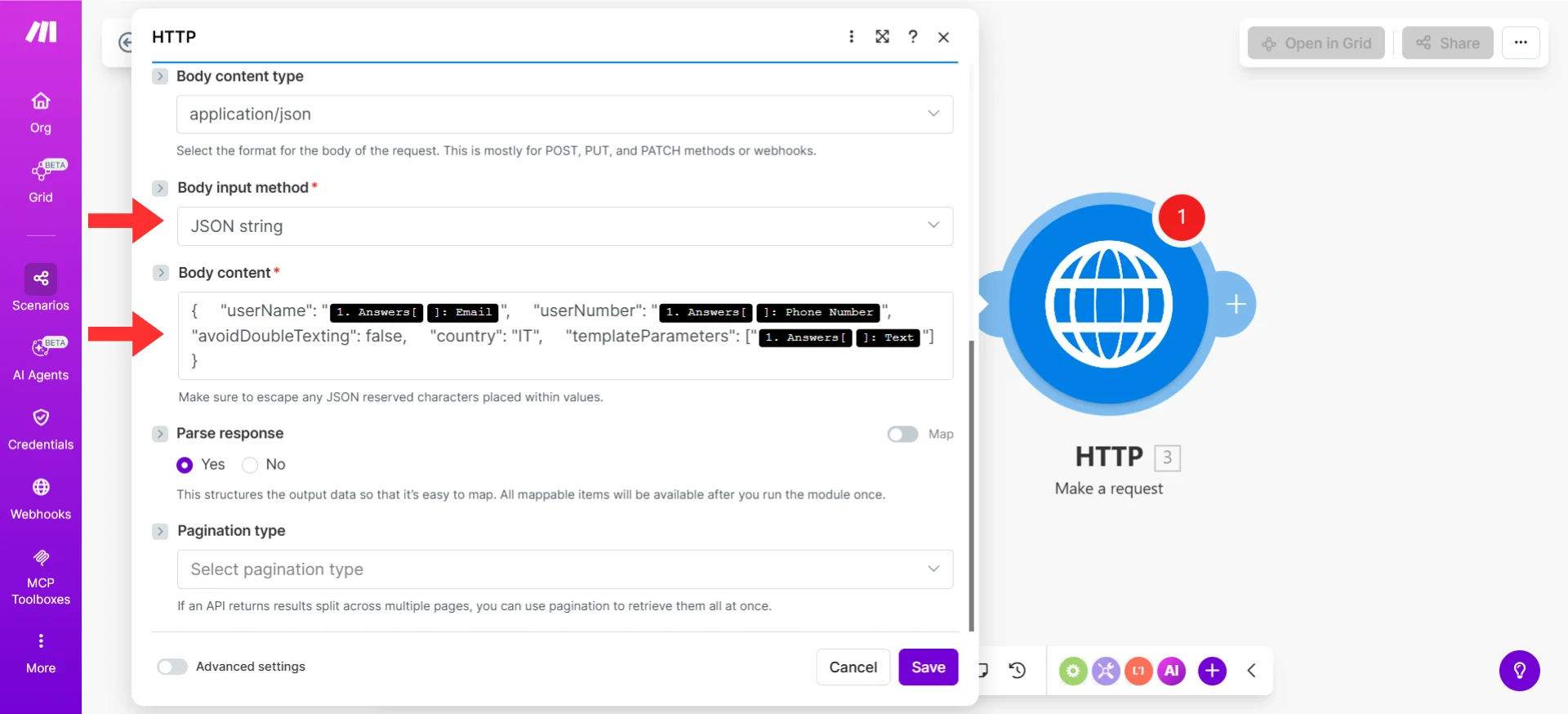
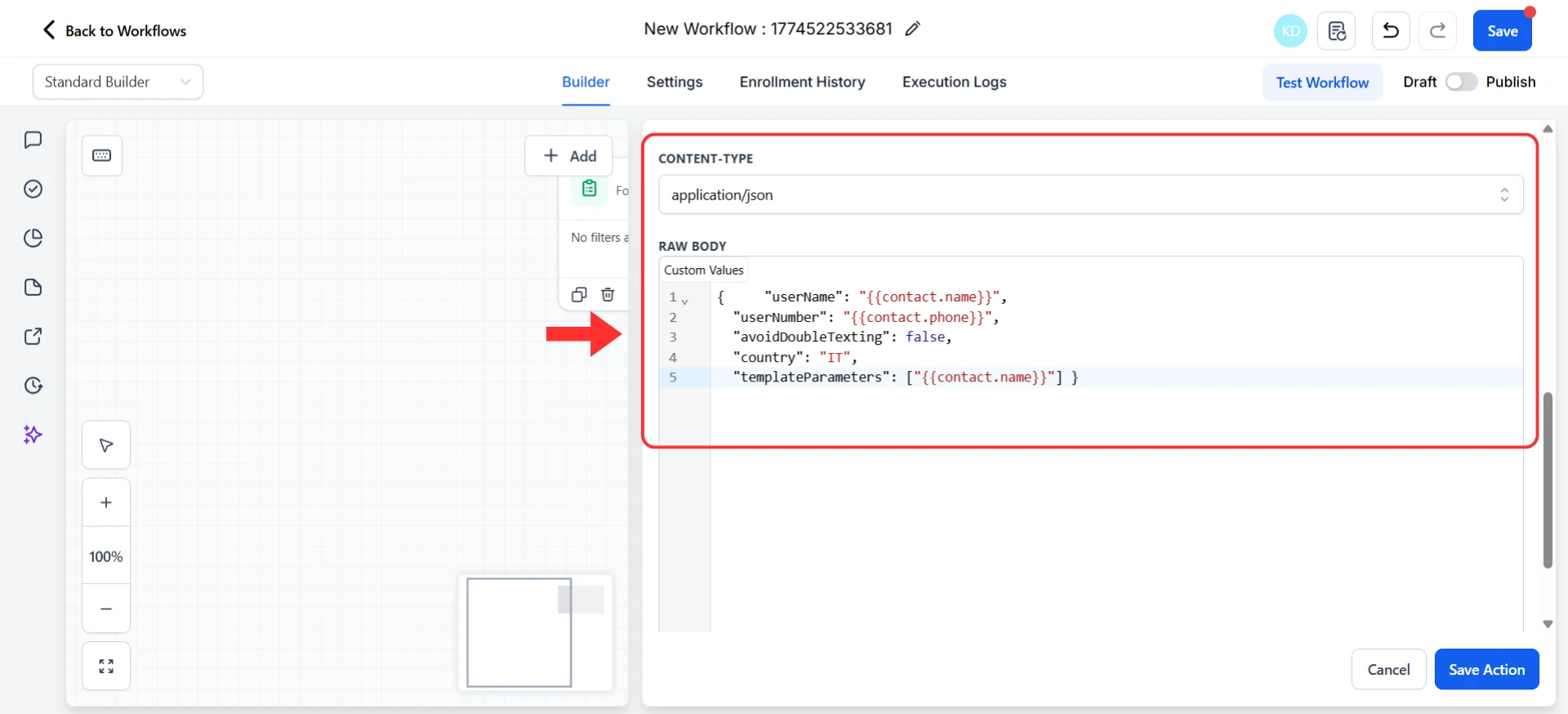
Now you know what each field means. When your automation platform sends these details to Irelia, it packages them in a standard text format called JSON. Here’s what the same information you just filled in during Step 2 looks like as JSON:Step 4: Build the Automation in Your Platform
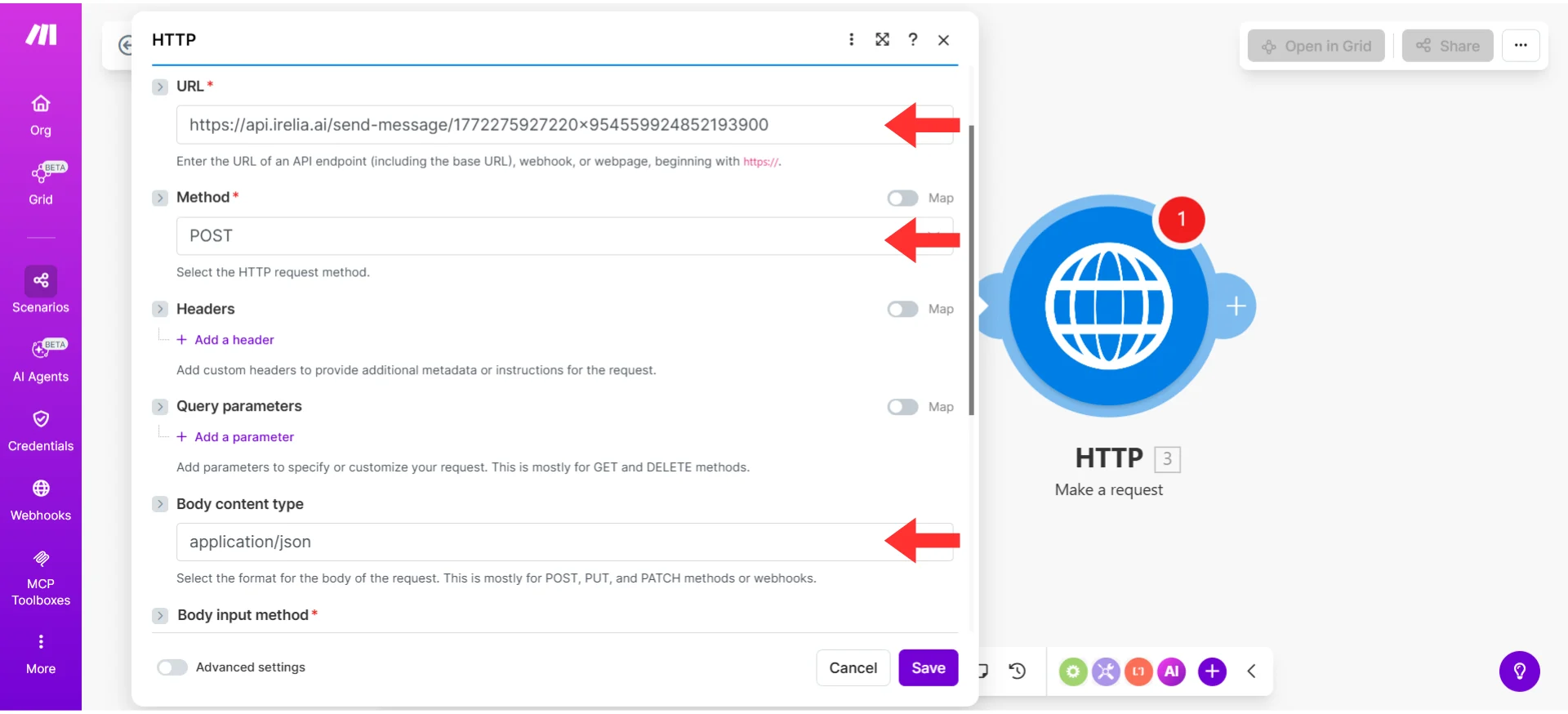
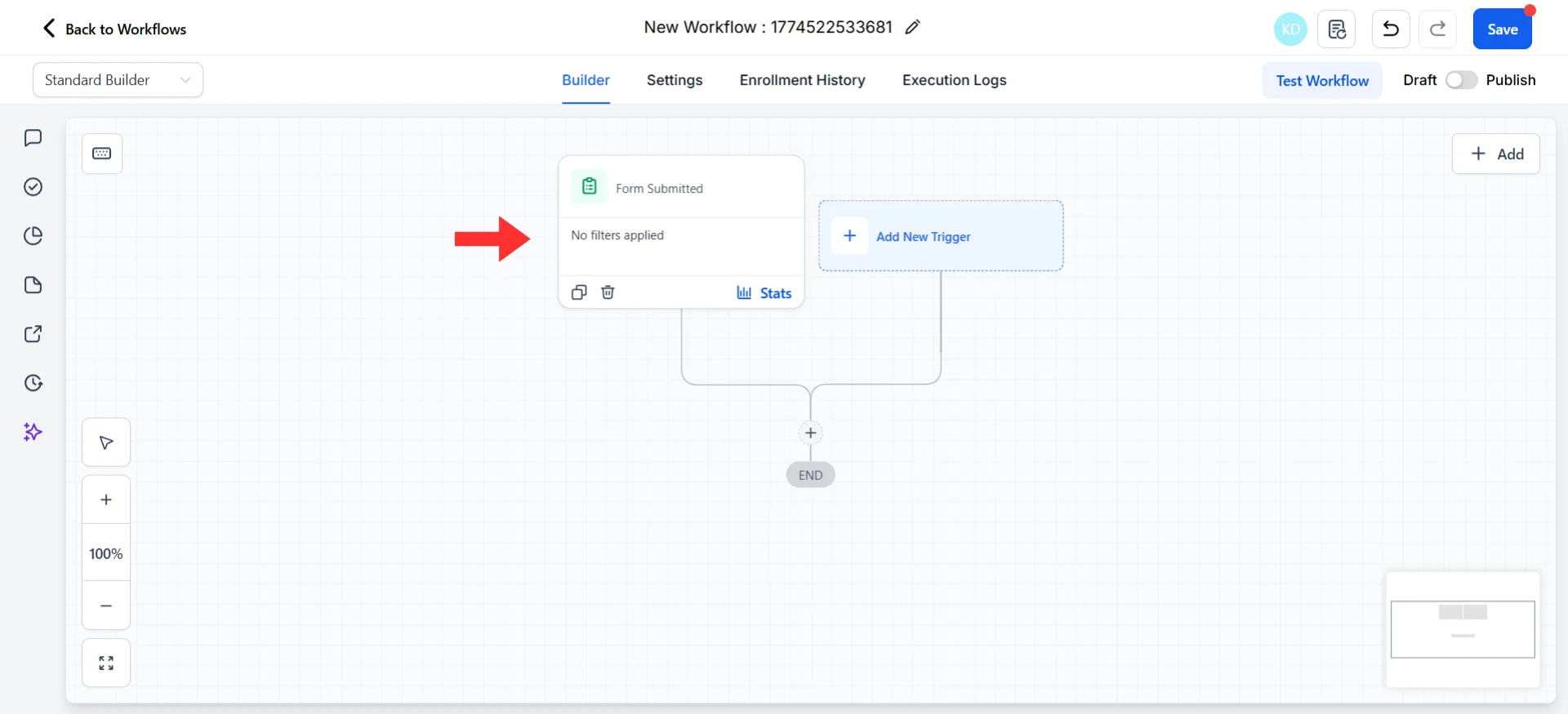
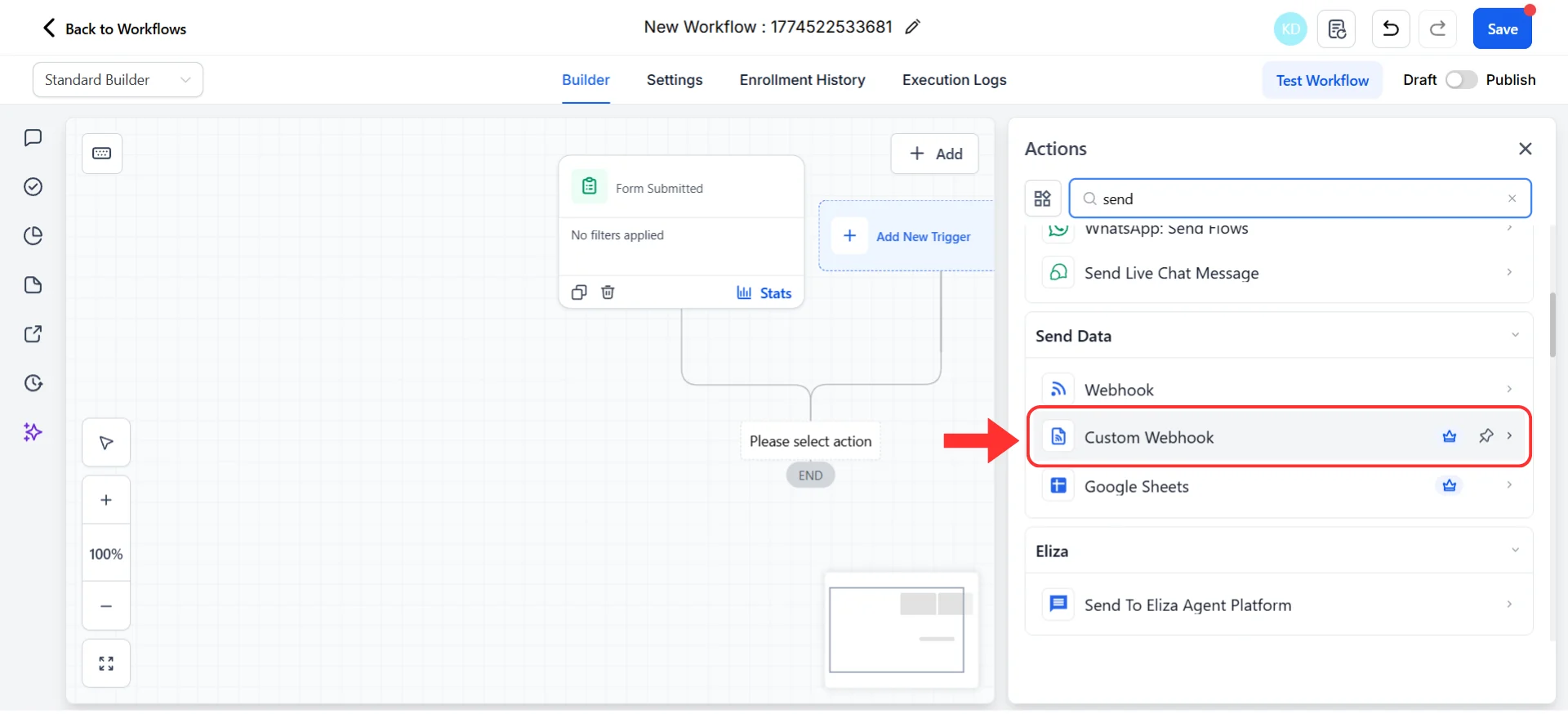
~8 minutes This is where everything comes together. You’ll connect your trigger to Irelia so that contact details are sent automatically every time the trigger fires. Before you start — one concept to know: In your automation platform, you’re used to adding action steps like “Send an email” or “Add a row to Google Sheets.” These use pre-built connectors — someone built a ready-made integration for that specific app. Since Irelia doesn’t have a pre-built connector in these platforms yet, you’ll use a universal connector that every platform provides. Think of it as a blank action step where you tell the platform: “Send this data to this URL.” Each platform calls it something slightly different — Webhooks by Zapier in Zapier, HTTP Module in Make.com, and Custom Webhook in GHL — but the concept is identical. That’s all there is to it. Pick your platform below and follow along:- Zapier
- Make.com
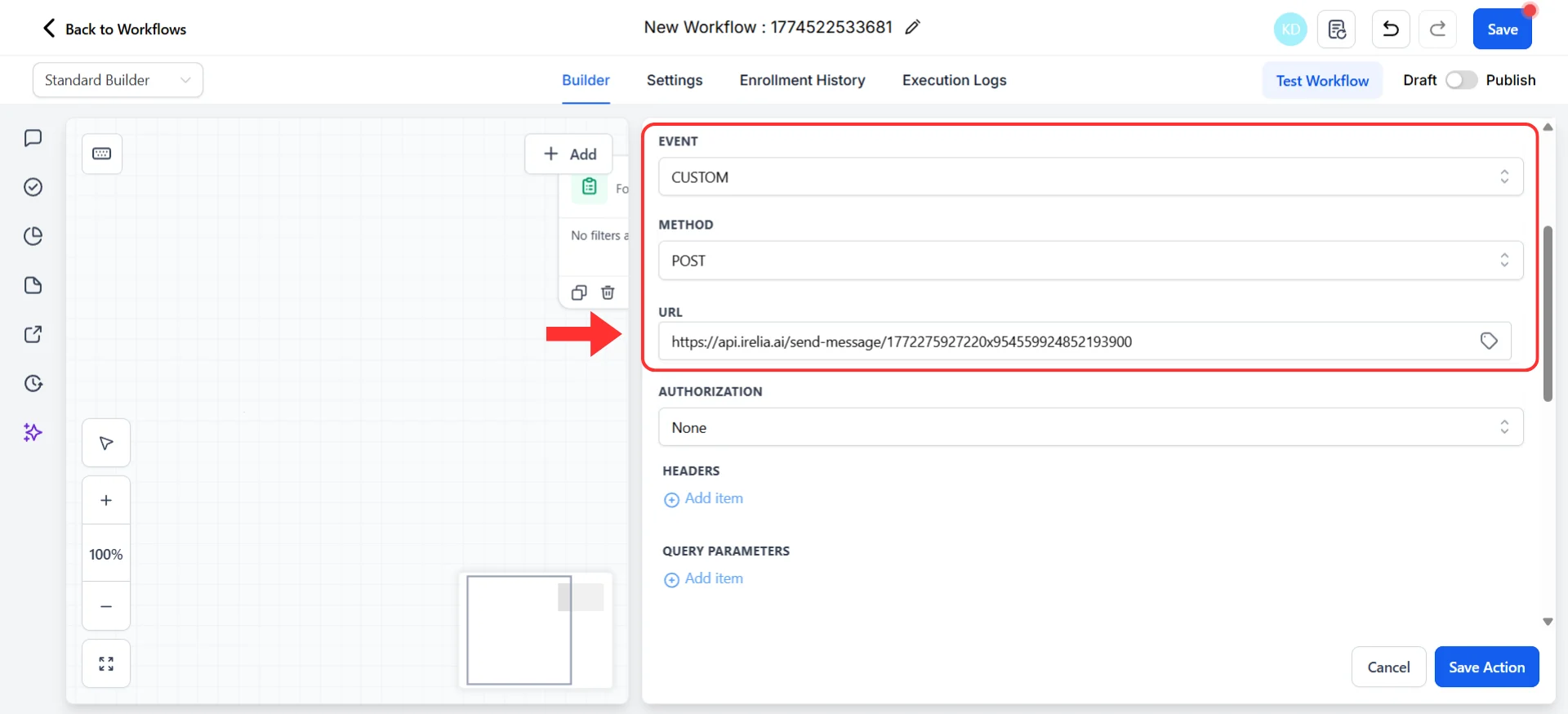
- Go High Level
Set up your trigger
- Log into Zapier and click “Create” → “Zaps”
- Click on the “Trigger” step
- Search for and select the app that starts your automation (e.g., “Typeform”, “HubSpot”, “Google Sheets”, or whatever tool fires the event)
- Choose the specific trigger event (e.g., “New Entry” for Typeform)
- Connect your account and configure the trigger as prompted
- Click “Test trigger” and confirm that sample data loads (you should see test fields like name, phone number, email, etc.)
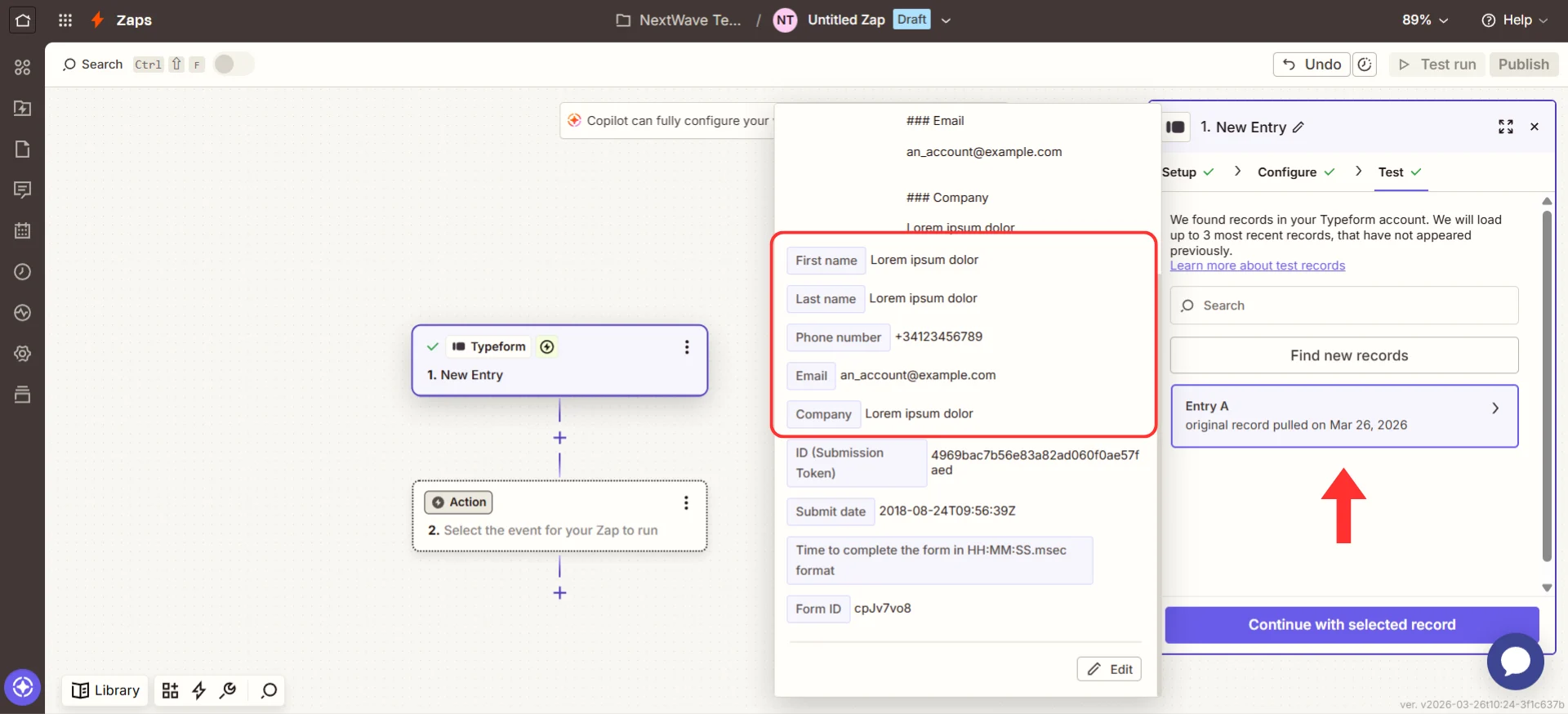
Zapier trigger step with sample contact data loaded
Add the action that sends data to Irelia
- Click the plus (+) icon below your trigger to add an action step
- Search for
Webhooks by Zapierand select it - Click the “Event” dropdown and select “POST”
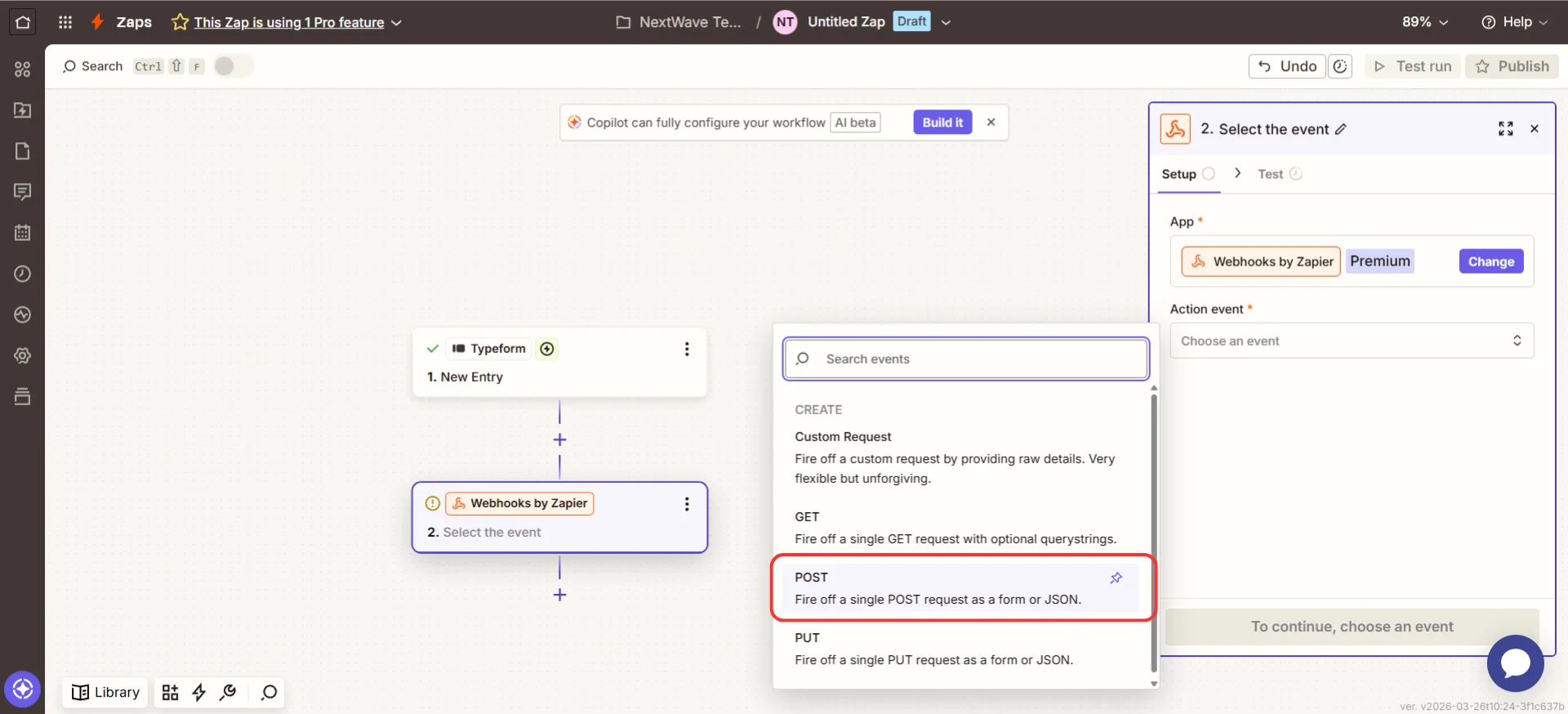
Selecting Webhooks by Zapier with POST event
- Click “Continue”
Configure the request
- In the “URL” field, paste the URL you copied in Step 1 (e.g.,
https://api.irelia.ai/send-message/1772216707789x385682060741759040) - From the “Payload Type” dropdown, select “Json” — this tells Zapier to send the data in the format Irelia expects.
- In the “Data” section, you’ll create key-value pairs. Enter the field name on the left and the value on the right. Add the following rows:
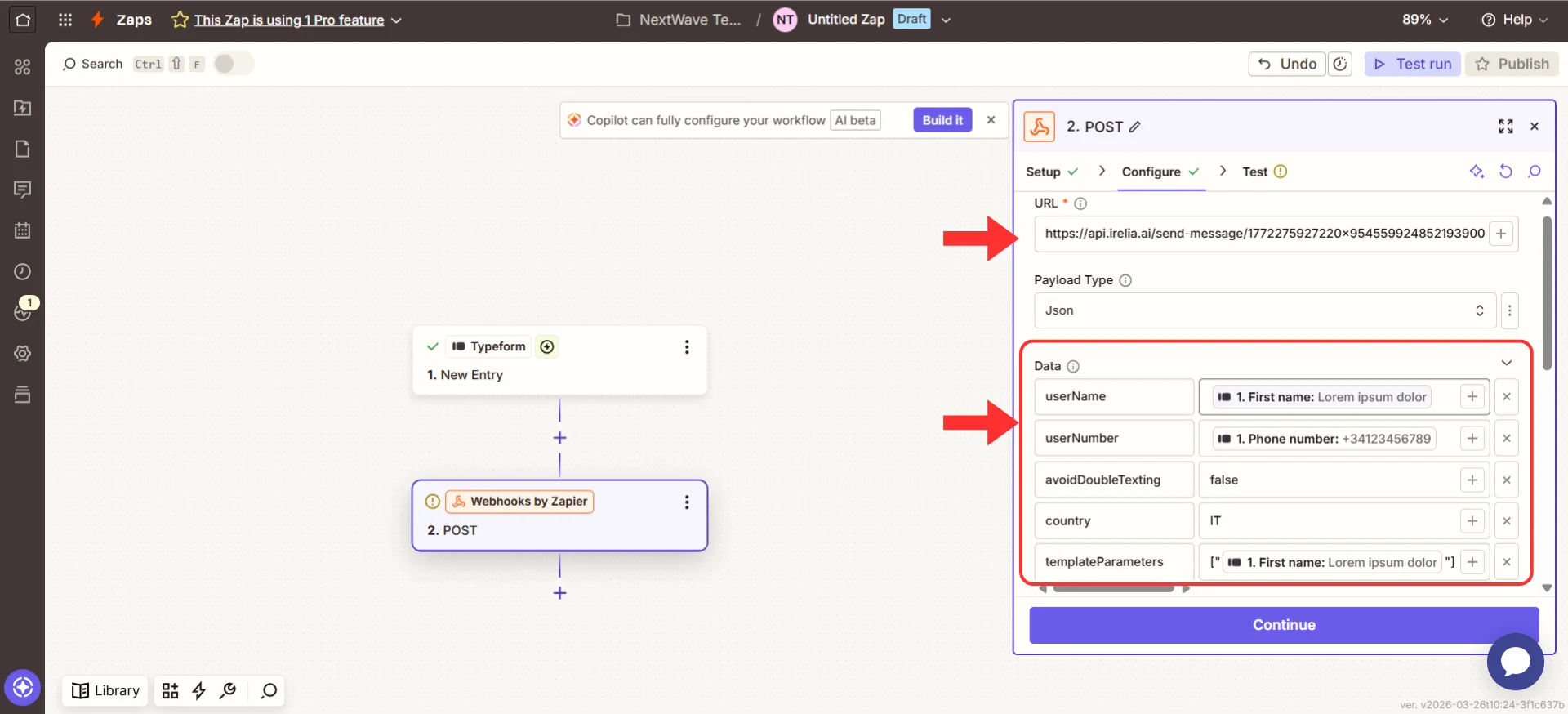
Zapier POST configuration with Irelia API endpoint and data fields
- Click “Continue”
- Click “Test step” — Zapier will send the data to Irelia
- If the test succeeds, click “Publish” to activate your Zap
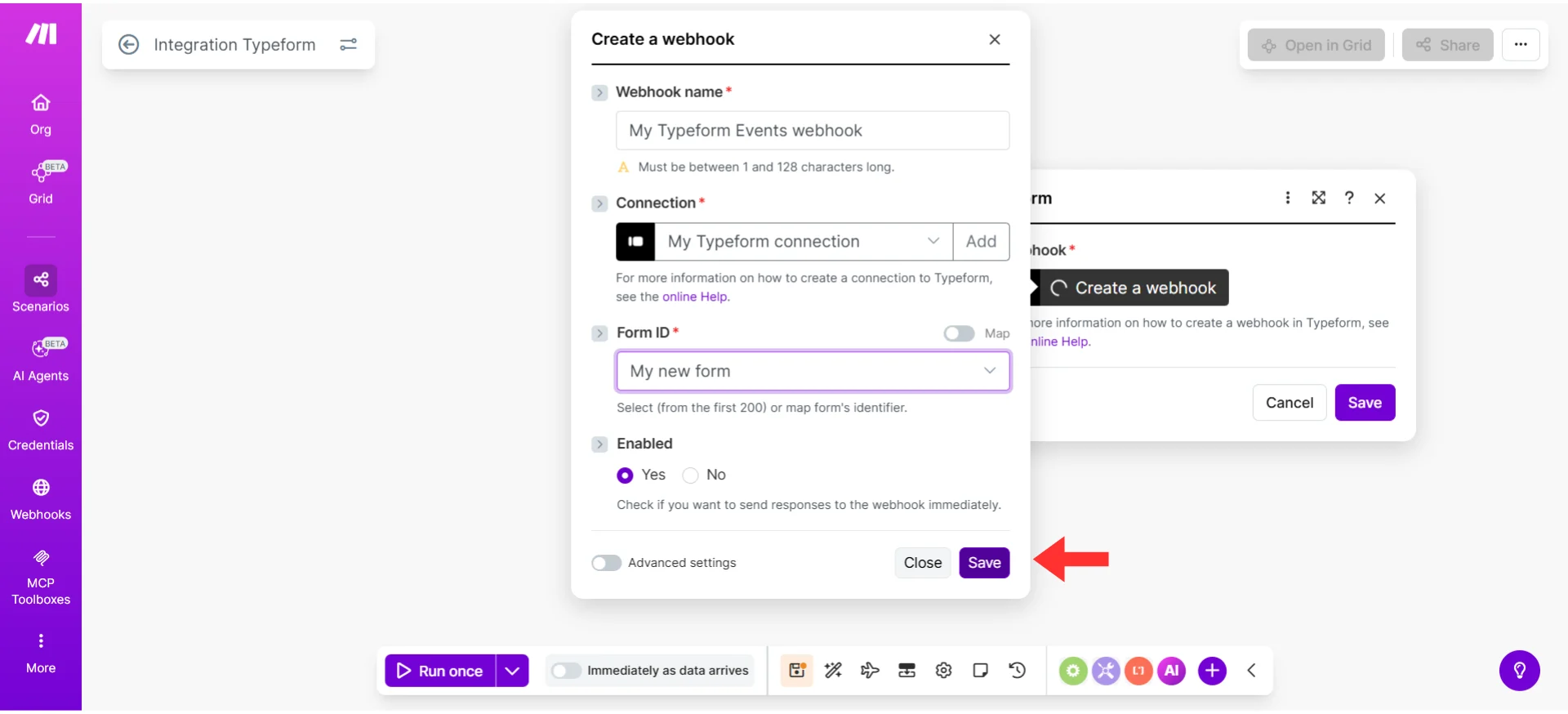
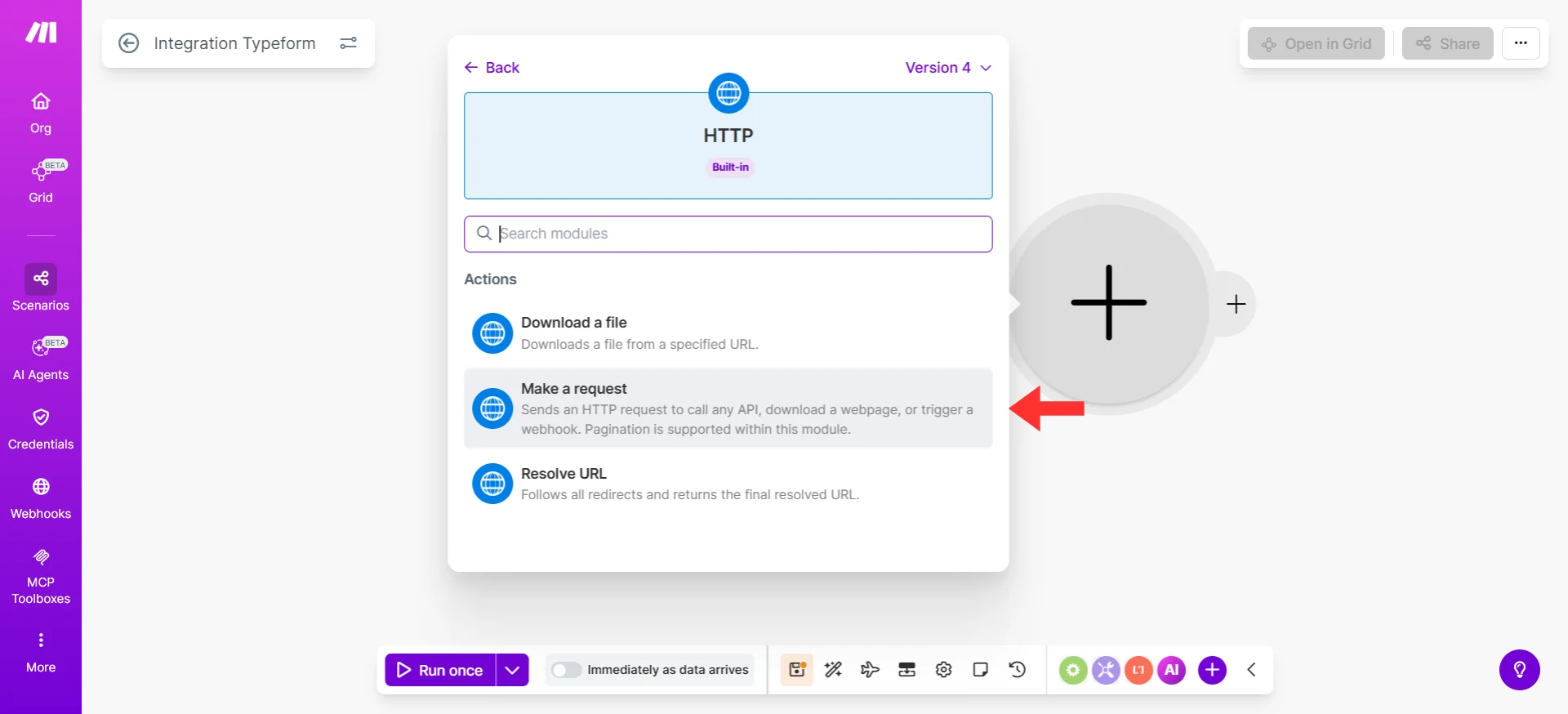
Step 5: Verify the Full Automation
~3 minutes Regardless of which platform you chose, let’s verify the complete flow end-to-end.- Trigger a real event (or a realistic test): submit your form, move a CRM contact, or perform whatever action starts your automation
- Wait 10–30 seconds
- Check the following:
- Your phone received the WhatsApp template message
- The conversation appears in Irelia’s conversation list
- The AI agent responded correctly when you replied to the message
- Your automation platform shows a successful run in its history/logs
- Name your automation clearly — give your Zap/Scenario/Workflow a descriptive name like
"Typeform Leads → Irelia WhatsApp Follow-Up"so you can find it later - Review the skip settings —
skipIfAlreadyContacted,skipIfAIOff, andskipIfAgentChangedall default tofalse. Review the field explanations in Step 3 to decide if any should betruefor your use case - Check
countryaccuracy — if your leads come from multiple countries, make sure thecountryvalue covers the majority, or ensure your trigger passes phone numbers with the full prefix - Verify
templateParametersmapping — if your template says “Hi X, thanks for your interest in X”, make sure the first value is the contact’s name and the second is the product/service name
🎉 Congratulations! You did it!
Take a moment to appreciate what you just built: ✅ Every new lead, form submission, or CRM event now triggers an instant WhatsApp message✅ Your AI agent takes over the conversation automatically — qualifying leads, answering questions, and booking meetings
✅ No manual follow-up needed — your system works 24/7, even while you sleep
✅ You can duplicate this setup for any trigger, any template, any audience What happens from here: Every time your trigger event occurs → your automation platform sends the contact details to Irelia → Irelia delivers the WhatsApp template → the contact receives a personalized message → your AI agent handles the rest of the conversation. All without you lifting a finger.
What’s Next?
Now that you have one working automation, the possibilities are endless. Your options from here:- 🎯 Want to automate another template? Repeat this guide with a different WhatsApp template — each has its own unique URL
- ➕ Want multiple triggers for the same template? Create additional automations in your platform — they can all point to the same Irelia URL
- 🔄 Want to combine methods? You can use automation, Irelia Forms, AND Meta Instant Forms simultaneously — they all work independently
- 📊 Want to enrich the data? Add intermediate steps in your automation (e.g., look up the contact in your CRM, add tags, log to a spreadsheet) before sending to Irelia
✅ Quick Checklist
Use this to verify your setup is complete:Template & Irelia
Template & Irelia
- WhatsApp template is in “Approved” status
- Template URL copied from Irelia’s “Configure automation” panel
- Test message sent successfully from Irelia’s panel
- URL stored securely (not shared publicly)
- Sufficient credits available in your Irelia account
Automation Platform
Automation Platform
- Trigger configured and pulling sample data correctly
- HTTP/webhook action added and set to
POST - URL field contains the correct Irelia URL
- Body type set to
raw JSON/application/json userNamemapped to the contact’s name from triggeruserNumbermapped to the contact’s phone number from triggerskipIfAlreadyContacted,skipIfAIOff,skipIfAgentChangedset intentionally (allfalserecommended to start)countryset to the correct default country codetemplateParameterscorrectly mapped (if template has variables)
Verification
Verification
- Full automation test completed end-to-end
- WhatsApp message received on test phone
- Conversation visible in Irelia’s conversation list
- AI agent responds when replying to the message
- Automation platform shows successful run in history/logs
- Automation is turned ON / published
🛠️ Troubleshooting & FAQs
The data either didn't reach Irelia, or Irelia couldn't deliver the message
The data either didn't reach Irelia, or Irelia couldn't deliver the message
- Make sure the phone number includes the country prefix (e.g.,
+39for Italy,+1for US) - If the prefix is missing, verify that the
countryfield is set correctly - Remove any spaces, dashes, or parentheses from the number
- Confirm that all required fields (
userName,userNumber,country) are present and not empty
- Each template send costs 10 credits. If your account has insufficient credits, the message won’t be sent.
- Check your credit balance in the Irelia dashboard and top up if needed.
- If
skipIfAlreadyContactedistrueand you’ve already contacted this number through Irelia, the message will be intentionally skipped - If
skipIfAIOffistrueand AI is turned off for this contact, the message will be skipped - If
skipIfAgentChangedistrueand the contact is in conversation with a different agent, the message will be skipped - Set all three to
falsefor testing, or whenever you want to ensure every lead receives the message
The data reached Irelia but wasn't in the right format
The data reached Irelia but wasn't in the right format
- Copy your JSON body and paste it into jsonlint.com
- Look for missing quotes, extra commas, or mismatched brackets
- Every text value must be in double quotes:
"value", notvalue
- Make sure the request is sending
application/jsonas the Content-Type - In Zapier: the “Payload Type” dropdown should be set to “Json”
- In Make.com: select “Raw” body type → “JSON (application/json)”
- In GHL: set “Event” to “CUSTOM” and “Content-Type” to
application/json
- Make sure you copied the full URL from Irelia (it’s long — don’t truncate it)
- Confirm there are no extra spaces before or after the URL
The values you're sending don't match the expected format
The values you're sending don't match the expected format
templateParametersmust be a list of text values in this format:["value1", "value2"]- Each value must be in double quotes
- The order must match the order of variables in your template (
Xfirst,Xsecond, etc.)
- If a mapped field from your trigger is empty (e.g., the lead didn’t provide their name), the variable will be replaced with a blank space
- Add a fallback value in your automation platform, or use a default value
Can I use the same URL for multiple automations?
Can I use the same URL for multiple automations?
What happens after the WhatsApp template is sent?
What happens after the WhatsApp template is sent?
Does sending via automation cost extra credits?
Does sending via automation cost extra credits?
Can I send messages to contacts in different countries in the same automation?
Can I send messages to contacts in different countries in the same automation?
+1, +44, +39), Irelia will deliver to any country. The country field only matters as a fallback when the prefix is missing. If your leads come from multiple countries, encourage the form to capture the full international number.Why is there no pre-built Irelia connector in Zapier/Make.com/GHL?
Why is there no pre-built Irelia connector in Zapier/Make.com/GHL?
🆘 Need Help?
- Contact support in the WhatsApp priority support group or send an email to info@irelia.ai
- Include: screenshots of your automation configuration, the error message (or status code), your JSON body, and what you expected vs. what happened
- Visit: help.zapier.com
- Check: status.zapier.com for outages
- Visit: make.com/en/help
- Community forum: community.make.com
- Visit: help.gohighlevel.com
- Check: status.gohighlevel.com for outages