

What You'll Need
Common Use Cases
Quick Path
Step-by-Step Setup
Advanced Automations
Quick Checklist
Troubleshooting & FAQs
Introduction
You’ve built your conversational AI agent on Irelia.ai, and it’s actively chatting with prospects on WhatsApp, Facebook, and Instagram. But what happens when something important occurs — like when a lead gets qualified, when your agent collects key information, or when someone books a meeting? Right now, you might be manually checking your Irelia dashboard and copying information to your Go High Level CRM. There’s a better way. This guide shows you how to automatically send information from Irelia to your GHL account the instant something important happens — no manual work, no delays, no checking dashboards. By the end of this guide, you’ll have: ✅ A working automation that triggers when specific events happen in your Irelia conversations✅ Data flowing automatically from Irelia to your GHL CRM, pipelines, or other connected tools
✅ The knowledge to build unlimited additional automations
How This Works
Think of this connection like a smart doorbell system:📡 What Events Can Irelia Notify You About?
As your AI agent chats with prospects, Irelia tracks important milestones called events — the “moments that matter” in your conversations. Below are a few examples of Irelia events:What You’ll Do
🔗 Get a webhook URL from Go High Level — 3 min📋 Paste the URL into Irelia — 2 min
🧪 Send test data — 2 min
⚡ Set up your action (Update CRM, Google Sheets, etc.) — 5 min
✅ Test everything end-to-end — 3 min
🚀 Turn it on and name it — 1 min Total: ~15–20 minutes
📋 What You’ll Need
- An Irelia.ai account with at least one active agent Required
- A Go High Level account with access to Workflows — Sign up here if needed Required
- A destination for your data (GHL CRM, Google Sheets, or Slack) Required
🎯 Common Use Cases
80% of readers need one of these two setups. Find yours, note the guidance, then follow the Step-by-Step Setup below — you’ll just make different selections at Step 2 and Step 4.- CRM Update on Qualification
- Push Collected Data to CRM
- Updating contact fields and tags only? → Follow Steps 1–6 as written (use Example A in Step 4 — GHL auto-updates the existing contact).
- Updating a pipeline or opportunity? → Follow Steps 1–3, then jump to Search and Update Existing Records for your Step 4.
⚡ Quick Path (Experienced Users)
Already comfortable with Go High Level Workflows? Here’s the condensed version:- GHL: Go to “Automation” → “Workflows” → Click “Create Workflow” button → Add Trigger: “Inbound Webhook” → Copy webhook URL
- Irelia: Go to “Settings” → Select Agent → “Events and Notifications” → Paste URL into desired event field
- Test: Click the “Test” button in Irelia → Return to GHL → Verify data received
- Action: Add your action (Update Contact, Add to Pipeline, etc.) → Map fields → Test → Publish
🔧 Step-by-Step Setup
Step 1: Set Up Go High Level to Receive Irelia Notifications
~3 minutes In this step, you’ll create a new Workflow in Go High Level and configure it to listen for events from Irelia.Navigate to Workflows
- Log into your Go High Level account
- Select your sub-account (if applicable)
- Go to “Automation” → “Workflows” in the left sidebar
Create your Workflow
- Click the “Create Workflow” button (top right)
- Select “Start from Scratch” (or choose a blank template)
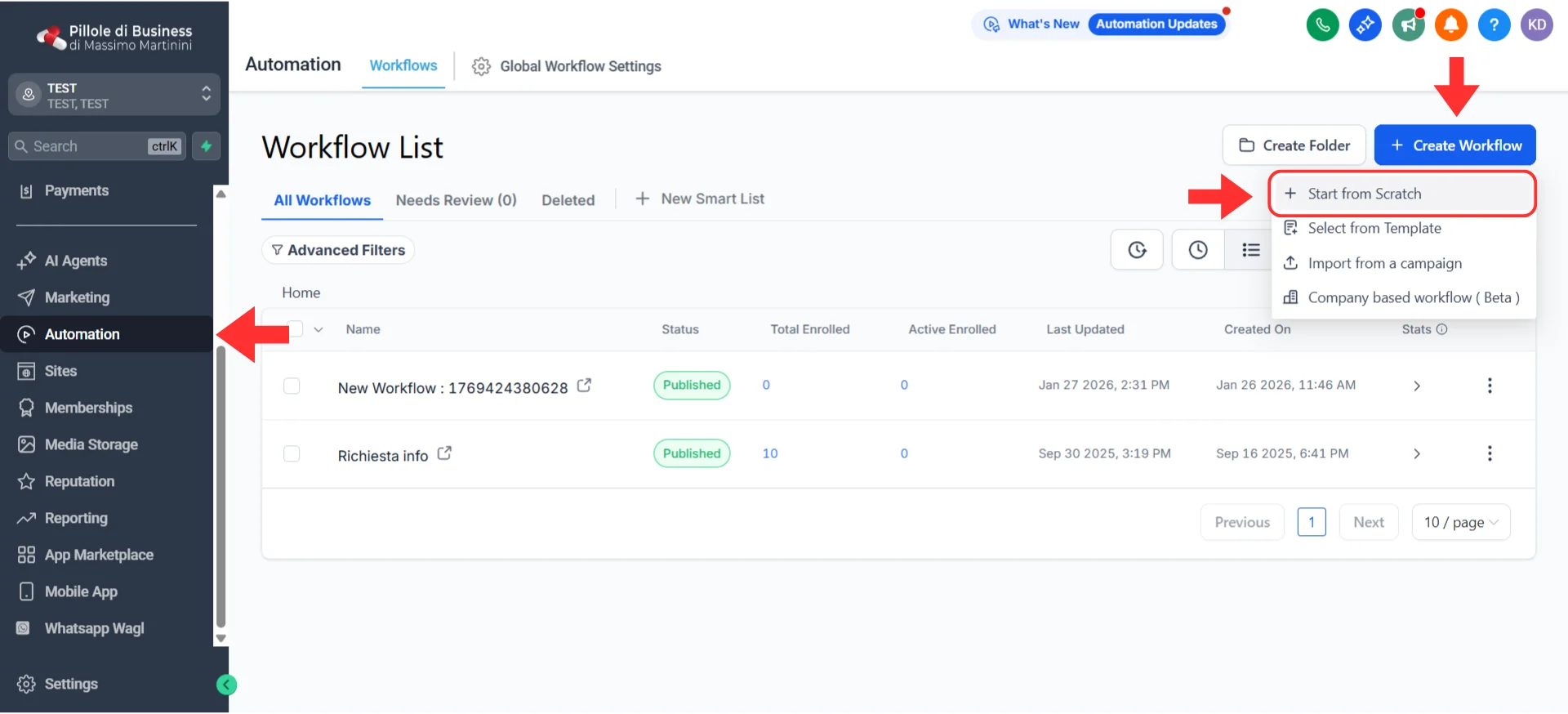
Create a new blank Workflow from the Automation menu
Add the webhook trigger
- You’ll see the Workflow builder with an “Add New Trigger” prompt
- Click “Add New Trigger”
- In the trigger search box, type webhook
- Select “Inbound Webhook”
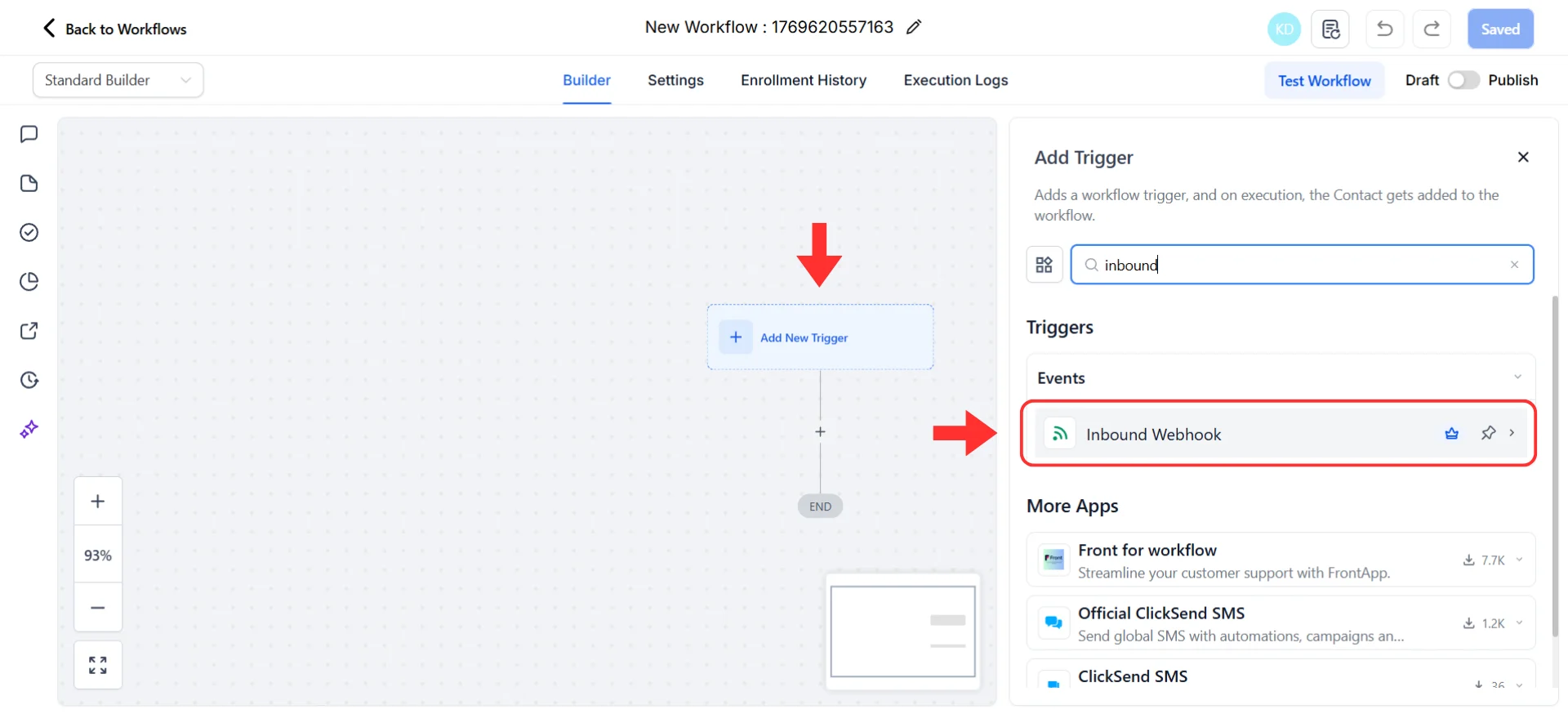
Select Inbound Webhook as the trigger type
Get your webhook URL
This is the most important part — you’re getting a unique URL that tells Irelia exactly where to send information.- After selecting “Inbound Webhook”, GHL will display a webhook URL
- It looks like:
https://services.leadconnectorhq.com/hooks/... - Click the “Copy” icon next to the URL
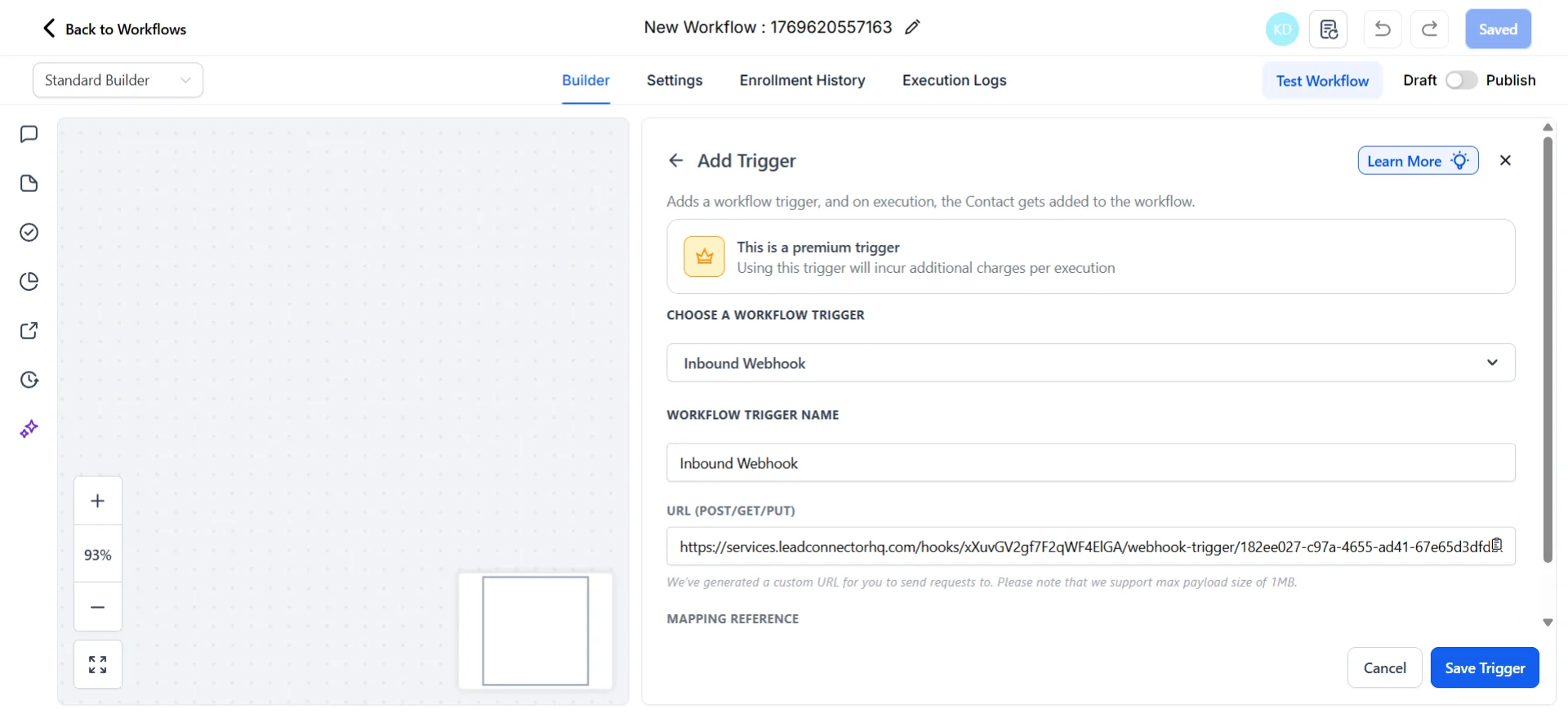
Copy the webhook URL and keep this tab open
Step 2: Tell Irelia Where to Send Notifications
~2 minutes Now you’ll log into Irelia and paste the webhook URL you just copied. Your Go High Level webhook panel should still be open in another tab.Quick context: agents and events
In Irelia, each AI agent can have its own automations. For this guide, you’ll configure one event for one agent. Once you understand how it works, you can easily set up more.Access your agent settings
- Log into your Irelia.ai settings dashboard
- Select the agent you want to connect to Go High Level
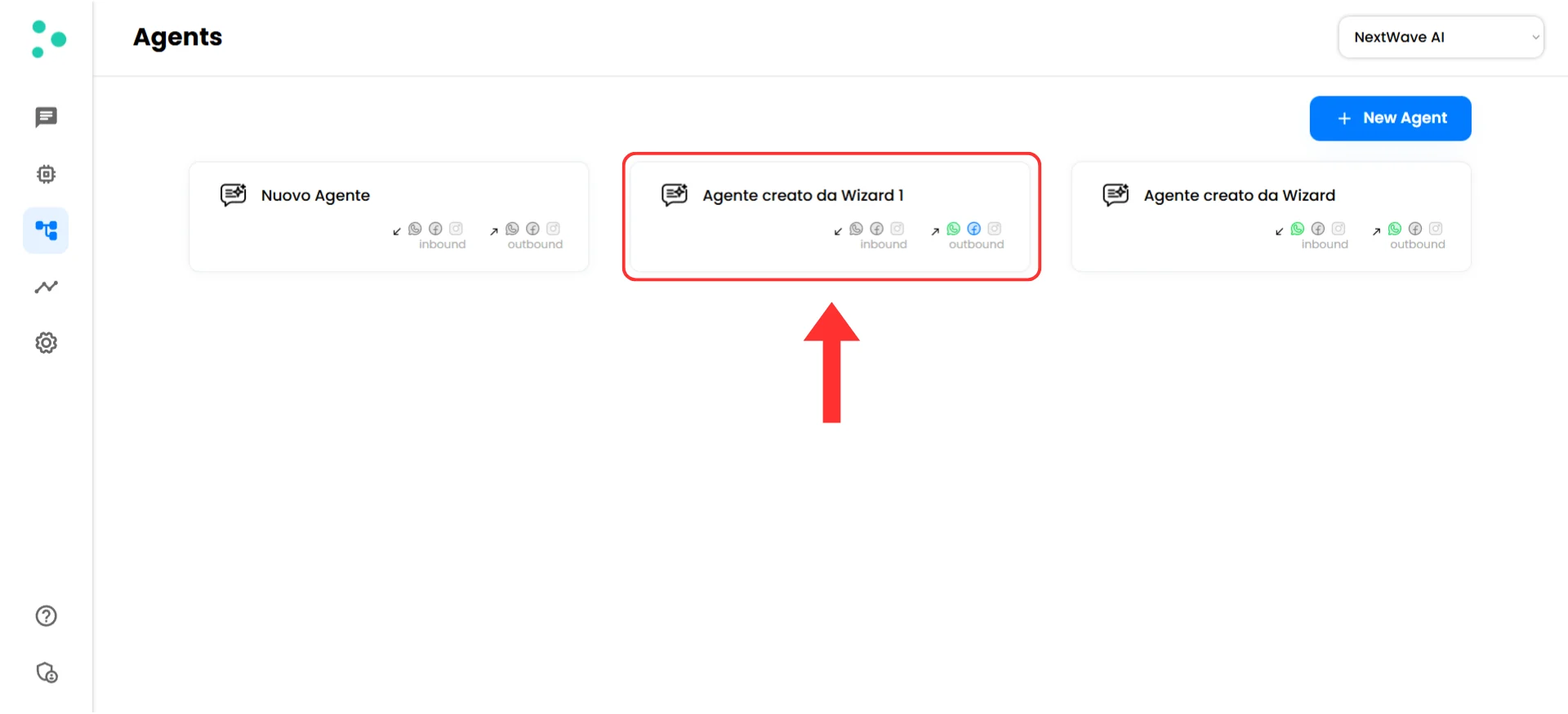
Select the agent to connect to Go High Level
- Navigate to “Events and Notifications”
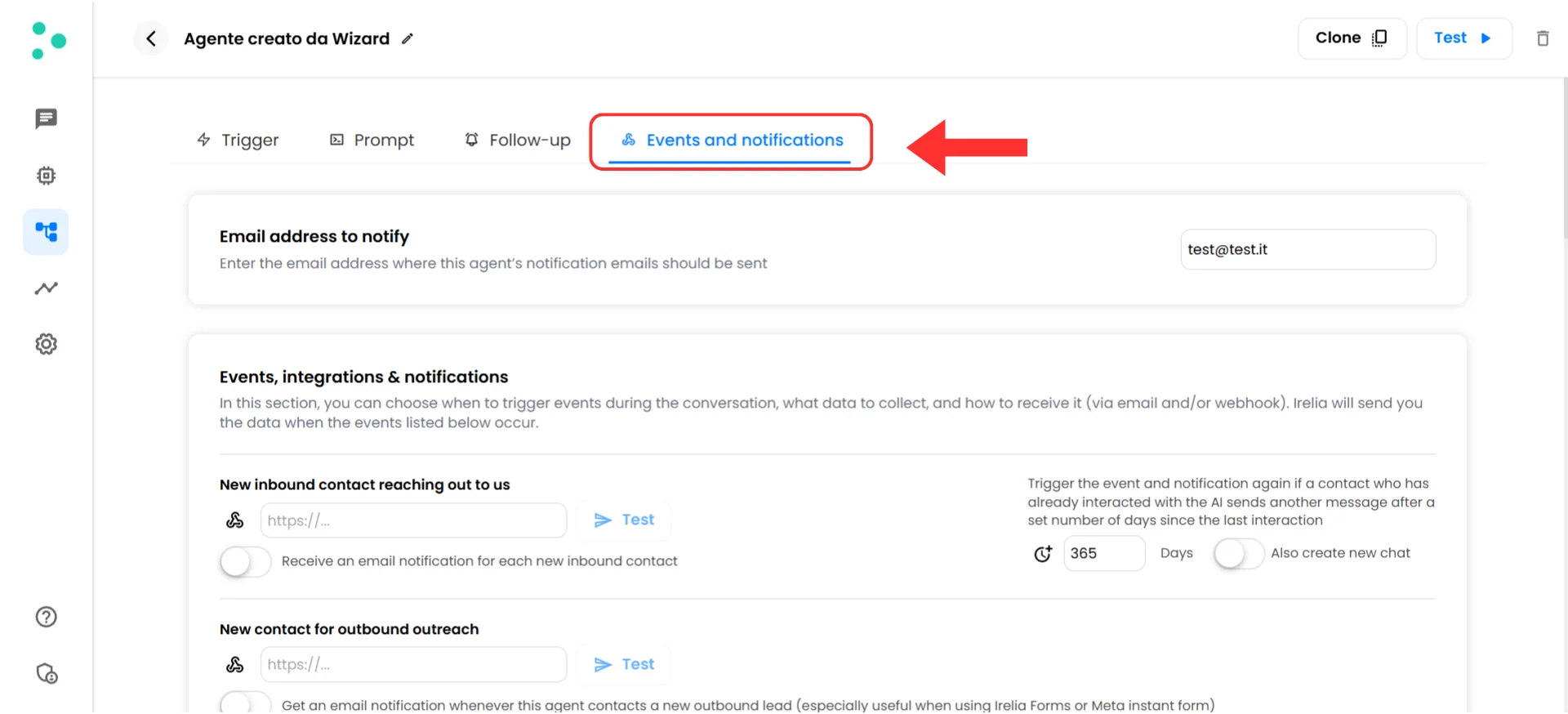
Open the Events and Notifications settings
Configure your webhook
You’ll see a list of available events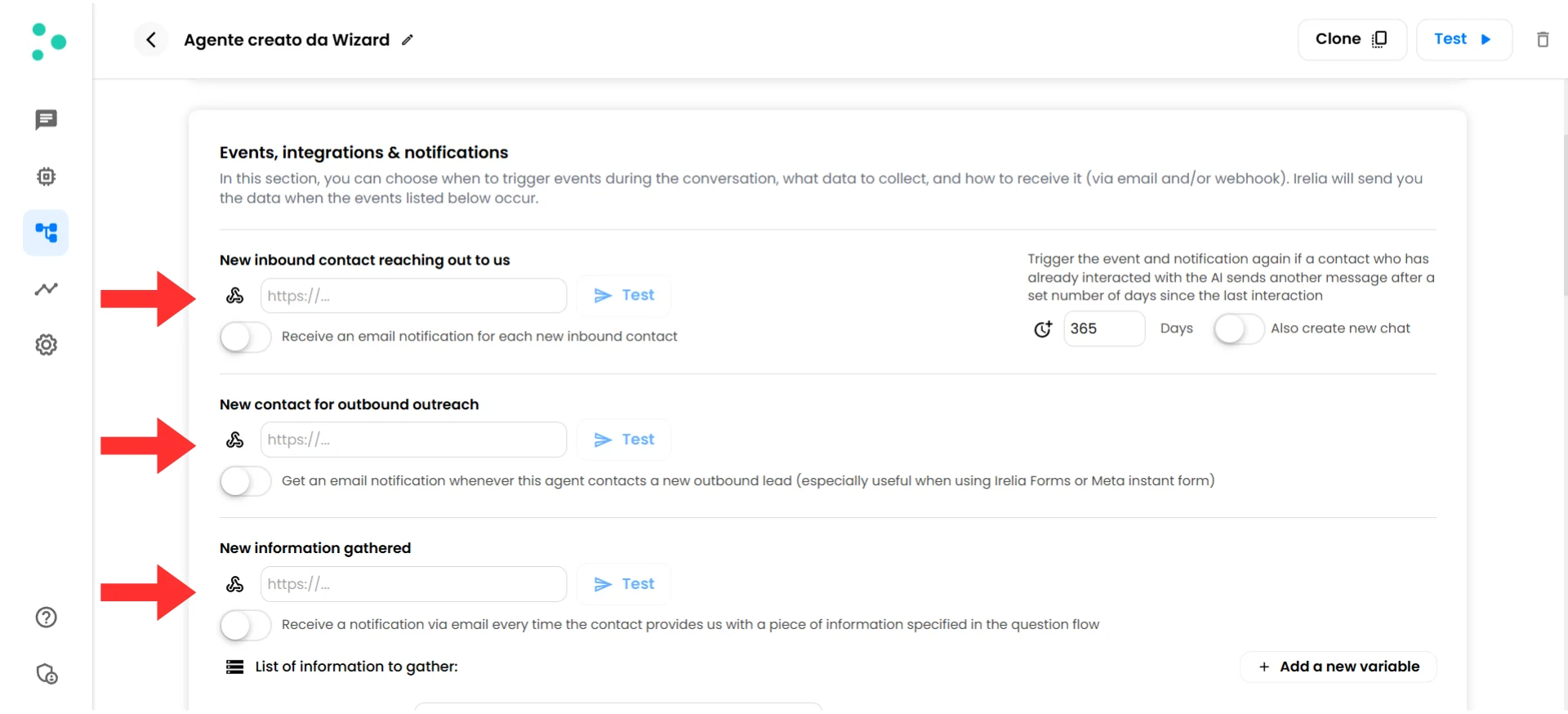
Available event types in Irelia
- Find “New inbound contact reaching out to us” (or the event you wish to configure) in the list
- Click in the “URL” field next to this event
- Paste the webhook URL you copied from Go High Level (the URL will auto-save)
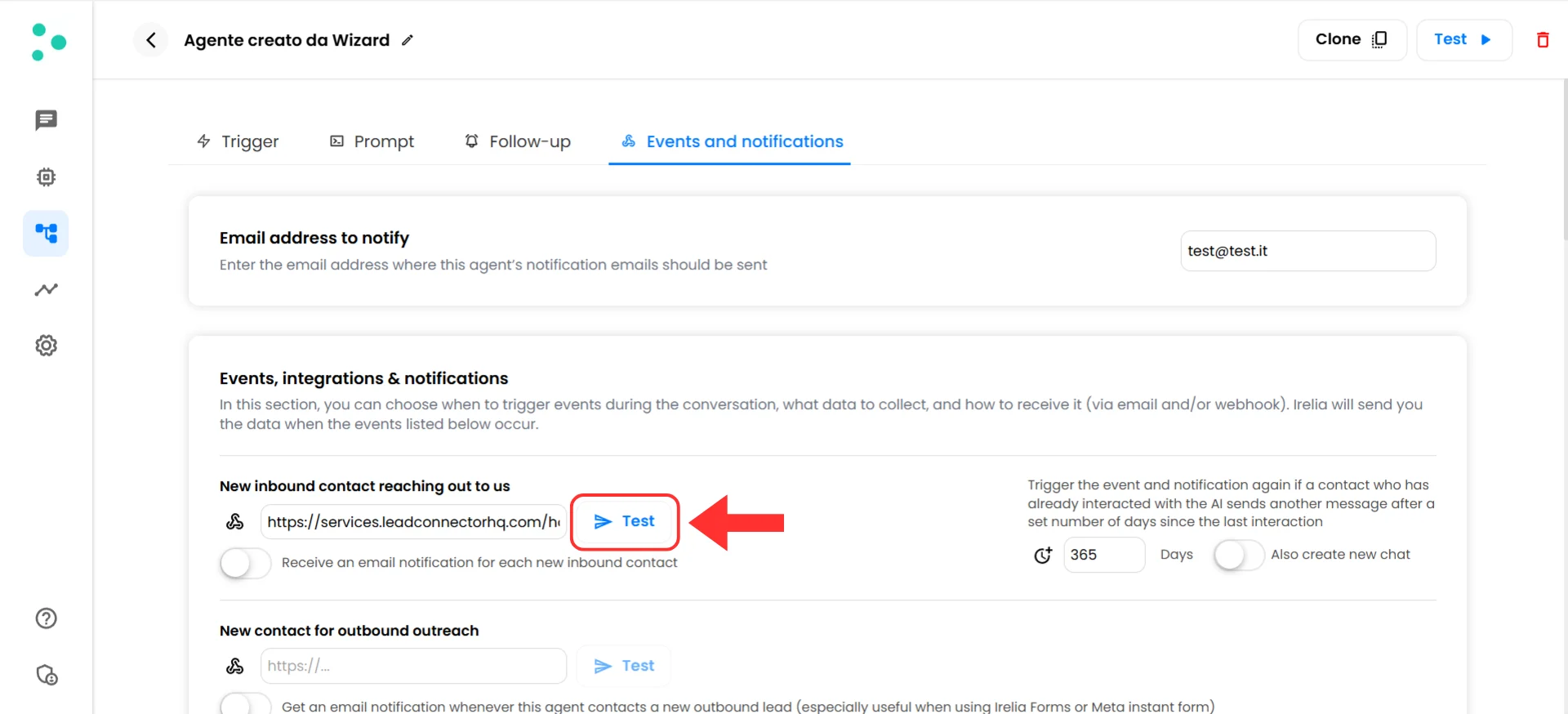
Paste the GHL webhook URL into the event field
Step 3: Test the Connection and Complete GHL Setup
~2 minutes Now let’s send test data from Irelia and configure Go High Level to recognize the data structure. This step is crucial — GHL needs to receive sample data before you can save and use the webhook trigger.Send test data from Irelia
- In your Irelia webhook configuration (where you just pasted the URL), find the blue “Test” button next to the webhook URL field
- Click “Test”
- You should see a green success indicator in Irelia that says “Just sent a data sample successfully”
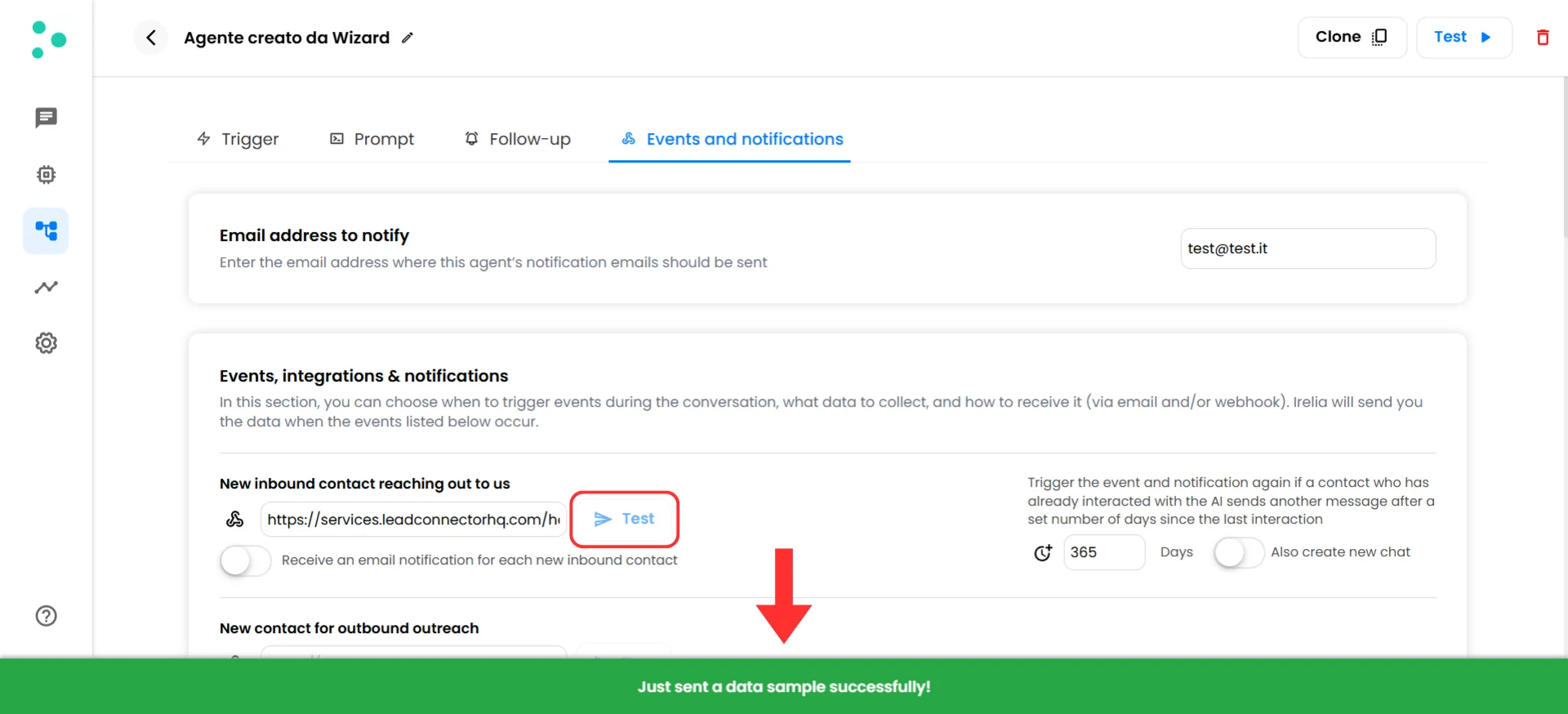
Green success confirmation after sending test data
Fetch and select the sample data in Go High Level
- Go back to your Go High Level tab (the webhook configuration panel you left open)
- Click the “Fetch Sample Requests” button
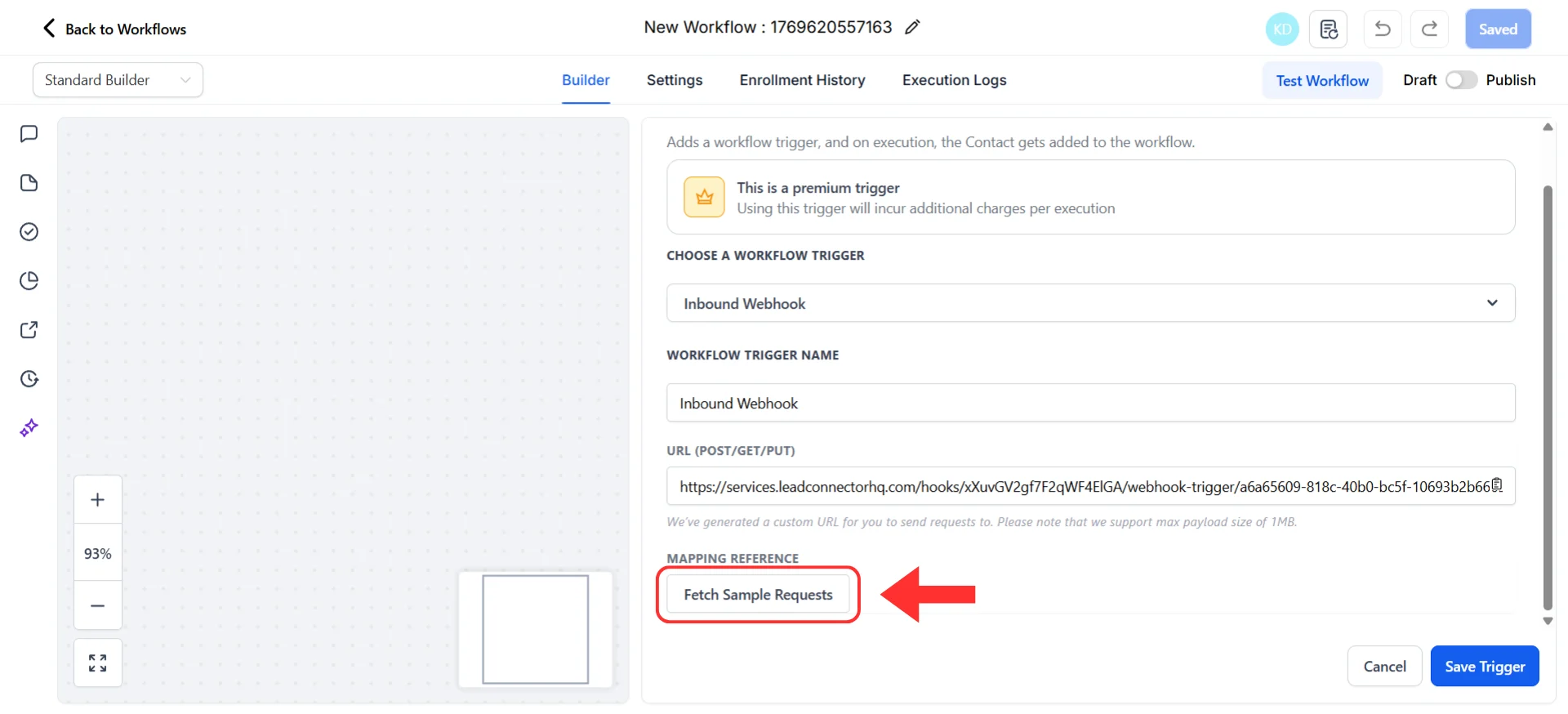
Click Fetch Sample Requests to retrieve test data
- GHL will retrieve the test data you just sent from Irelia
- You’ll see a list of incoming payloads — select the most recent one (the payload you just sent)
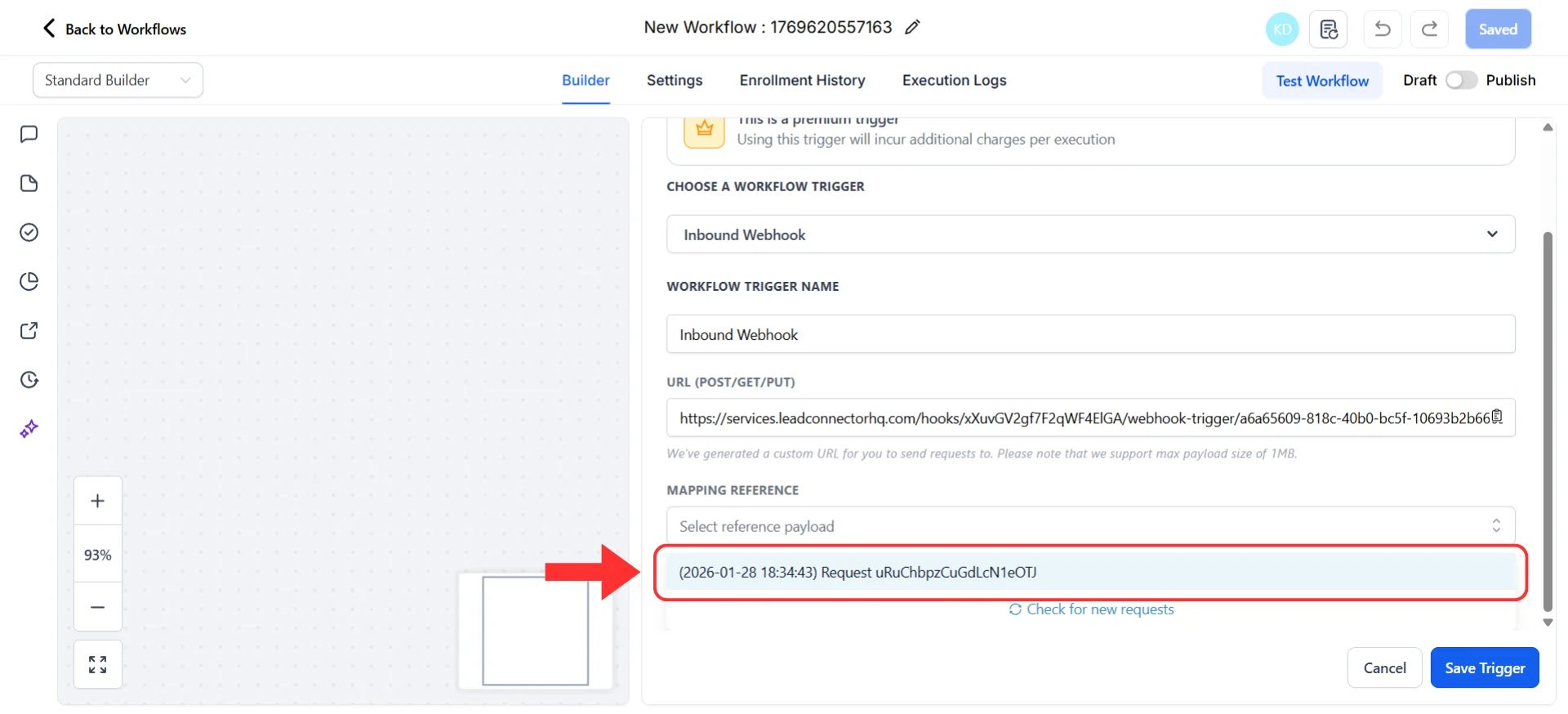
Select the most recent payload from Irelia
- GHL will now display all the data fields it received from Irelia
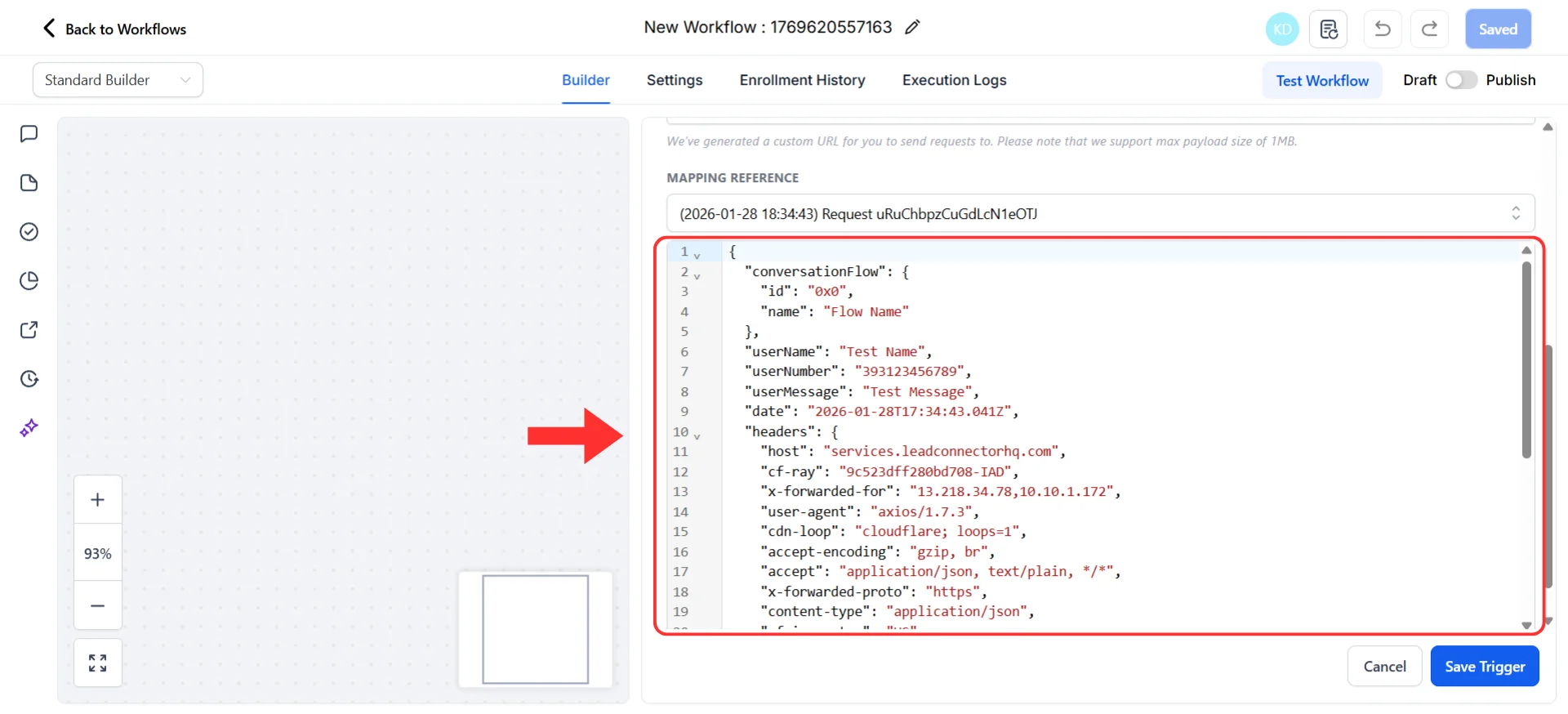
All data fields received from Irelia
- Click the “Save Trigger” button to complete the webhook setup
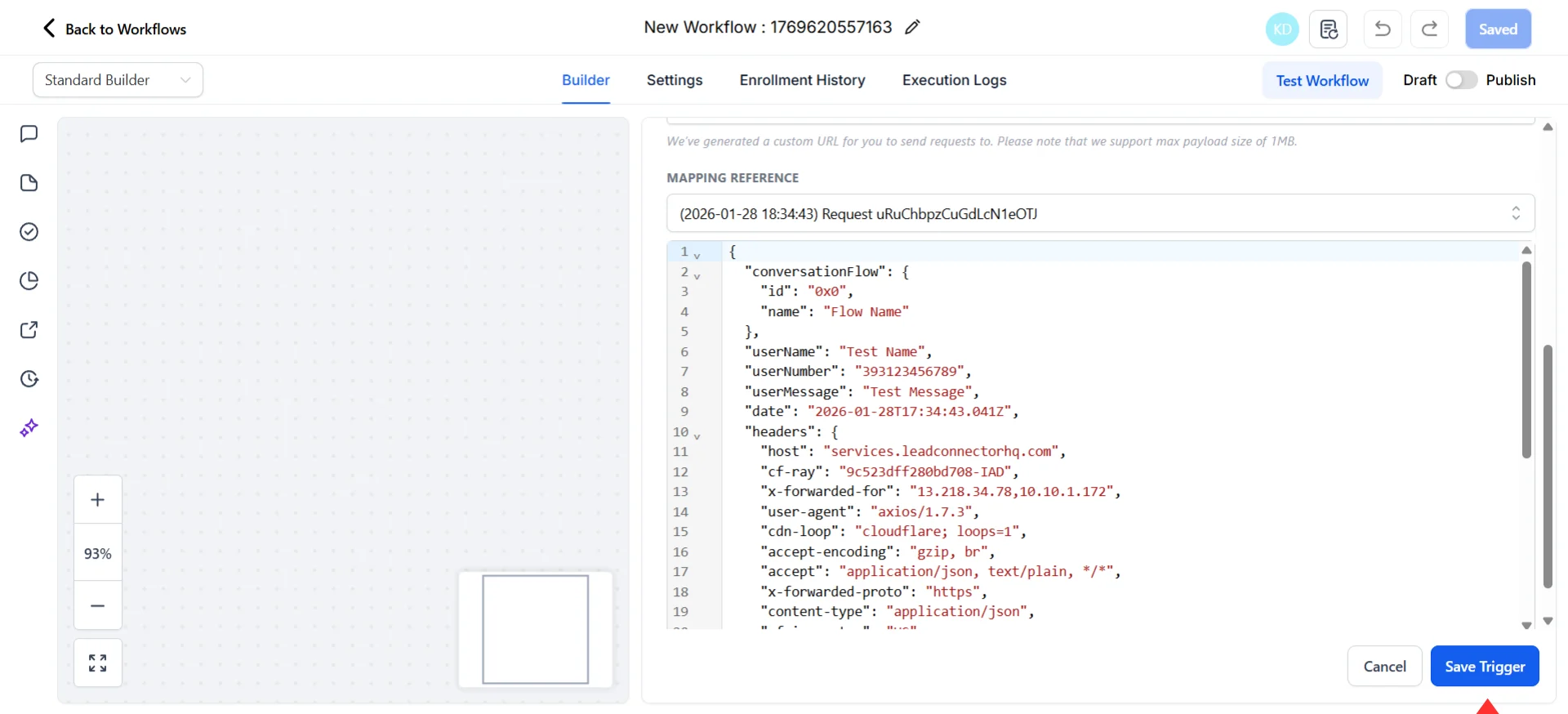
Save the trigger to lock in the data structure
📦 Understanding What Irelia Sends You
Before setting up actions, let’s take 60 seconds to understand what Irelia just sent to Go High Level.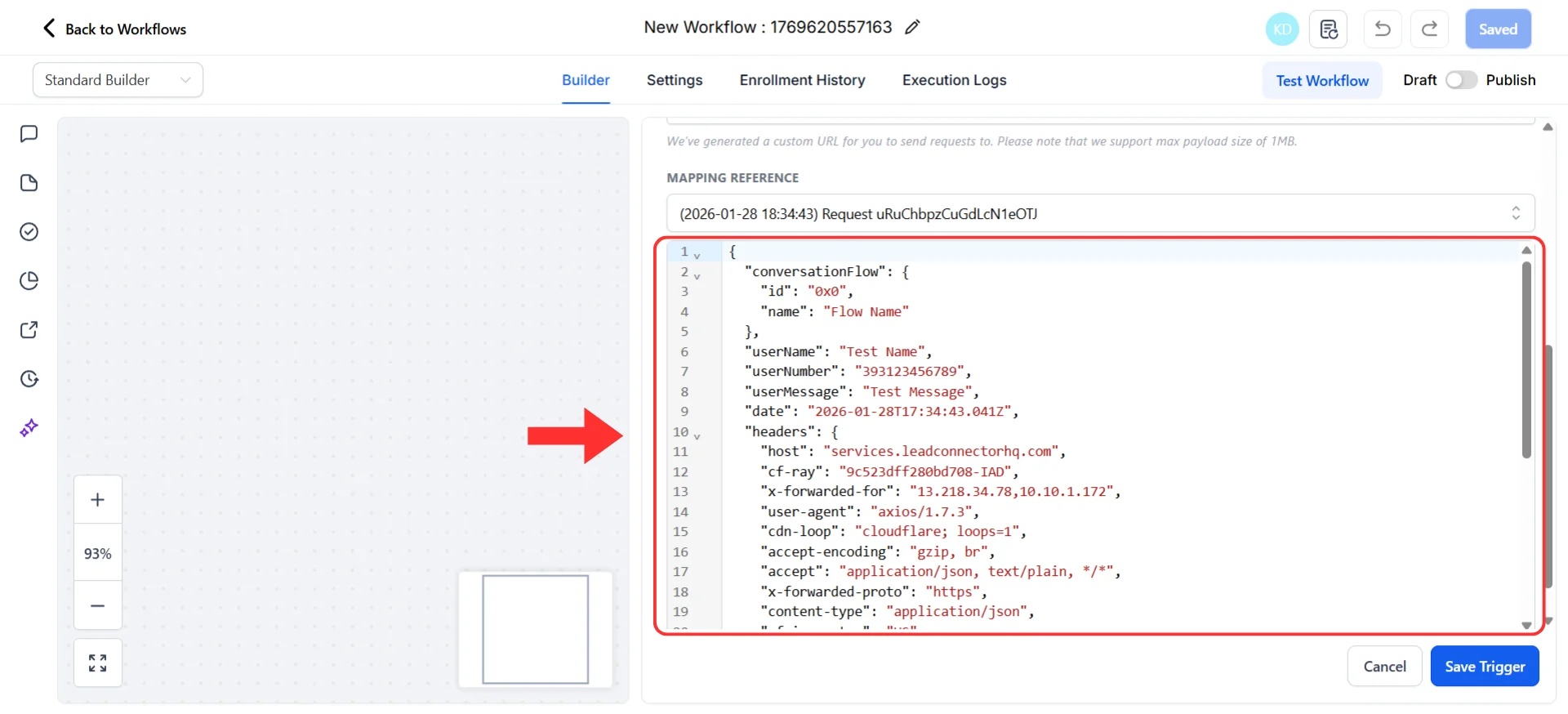
Complete webhook payload structure from Irelia
1. 👤 Who They Are (Contact Info)
- userName — The prospect’s name
- userNumber — Their phone number
- inboundLead — Did they message first (true) or did you (false)?
2. 💬 What Happened (Conversation Details)
Per agent — the specific chat the user had with a specific agent (under the conversationFlow section):- id — Unique agent identifier
- name — Name of the conversation agent
- chatHistory — Complete conversation transcript with this agent
- leadQualification — Are they qualified by this agent? (“fit”, “not a fit”, or “TBD”)
- interestScore — How interested are they? (0.0 to 1.0, like 0% to 100%)
- reasonNotQualified — Why they didn’t qualify (if applicable)
- goalAchieved — Number of goals completed with this agent
- numberOfMessageSent — Messages sent by this agent
- numberOfMessageReceived — Messages received from prospect
- numberOfQuestionLackingData — Questions the AI couldn’t answer from the Knowledge Base
- creditConsumedForThisChat — Credits used for this conversation
- chatHistory — Complete chat history across all agents
- optStatus — Opt-in status (e.g., “in”, “out”)
- creditConsumedForThisLead — Total credits consumed
- numberOfMessageSent — Total messages sent
- numberOfMessageReceived — Total messages received
- numberOfQuestionLackingData — Total questions lacking answers
- numberOfGoalAchieved — Total goals achieved
3. 📝 What You Learned (Custom Data)
customVariables — Specific information your agent collected (budget, company size, timeline, etc.) Each custom variable (referred to as custom variables in prose, or customVariables in the API payload) has:- name — What you asked about (“Budget”)
- value — Categorized answer (“$10k-50k”)
- valueRaw — Exact words they used (“We have around 30k to spend”)
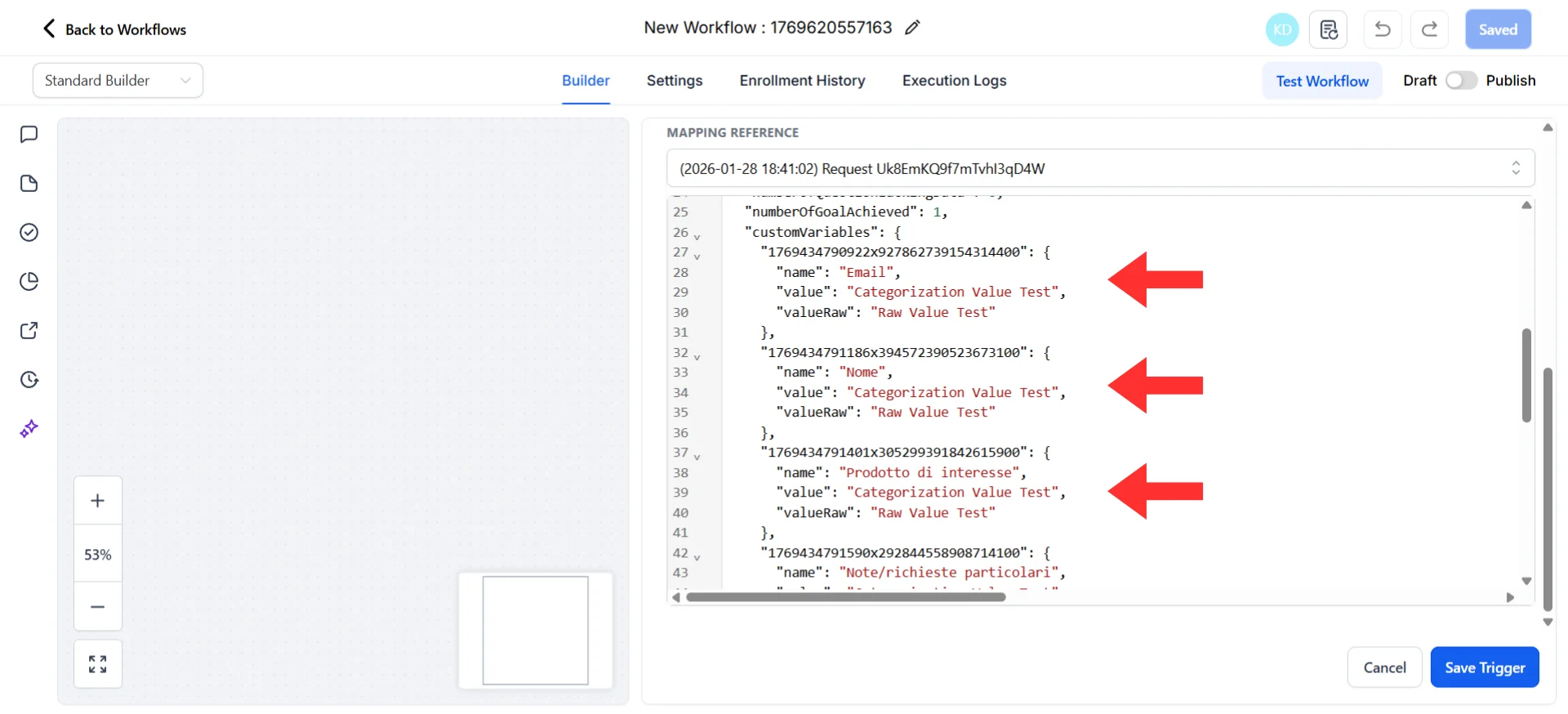
Custom variables structure with name, value, and valueRaw fields
Step 4: Set Up Your Action
~5 minutes Now comes the fun part: deciding what should automatically happen when Irelia sends data to Go High Level.Choose your first action
Ask yourself: “When someone first contacts my agent, what’s the ONE most valuable thing that should happen automatically?” Common answers:- ✅ Update my CRM → Create/Update Contact (native GHL, most common)
- ✅ Alert my team → Send Internal Notification or Slack (immediate visibility)
- ✅ Log it for reporting → Google Sheets (external tracking)
- ✅ Start a sequence → Add to Campaign or Workflow (begins nurture process)
- Example A: GHL CRM Contact
- Example B: Slack Notifications
- Example C: Google Sheets
- In your Workflow, click the ”+” button below your “Inbound Webhook” trigger
- Select “Add Action”
- Search for “Create Contact” and select it
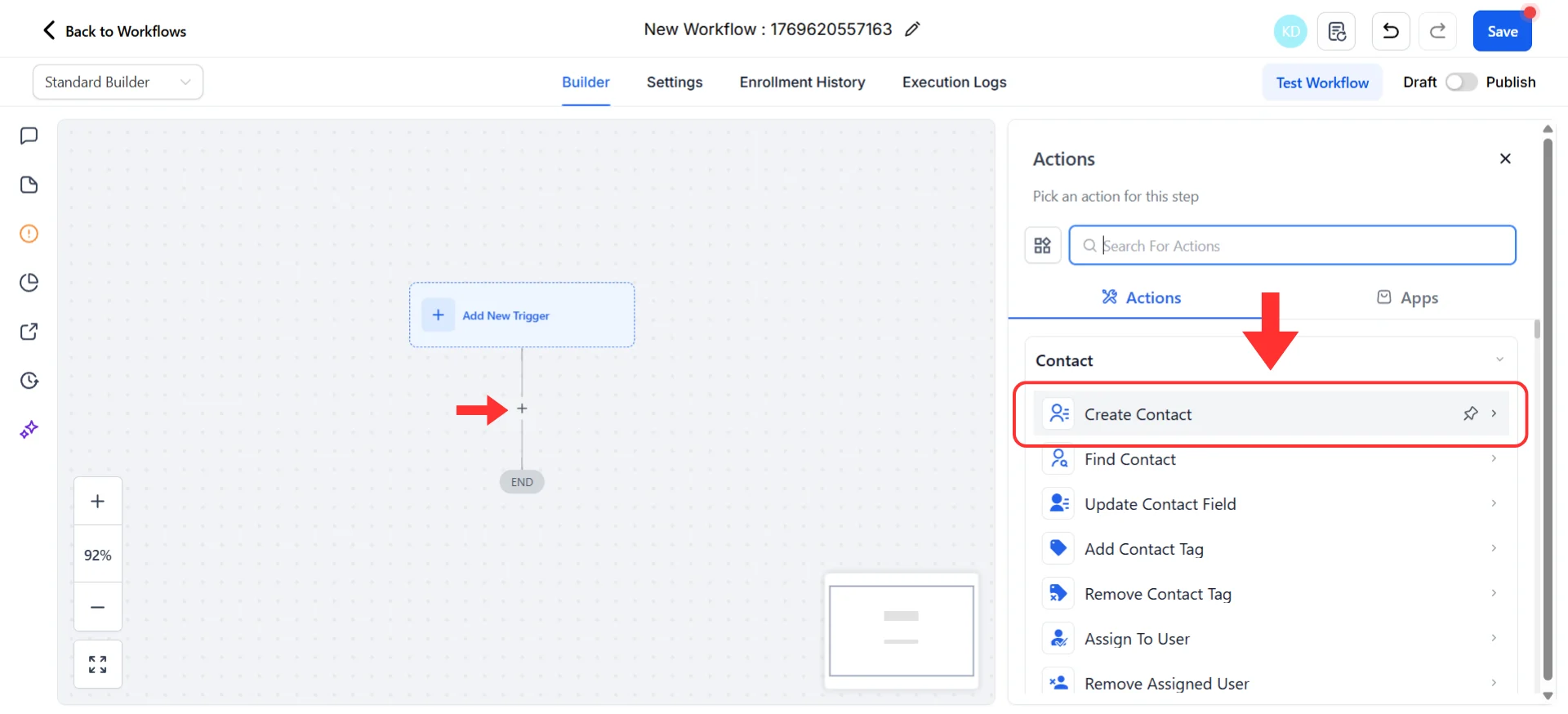
Select Create Contact from the action list
- The fields section will appear empty at first — you need to add the specific fields you want to populate
- Click the ”+” icon to add a field to the contact
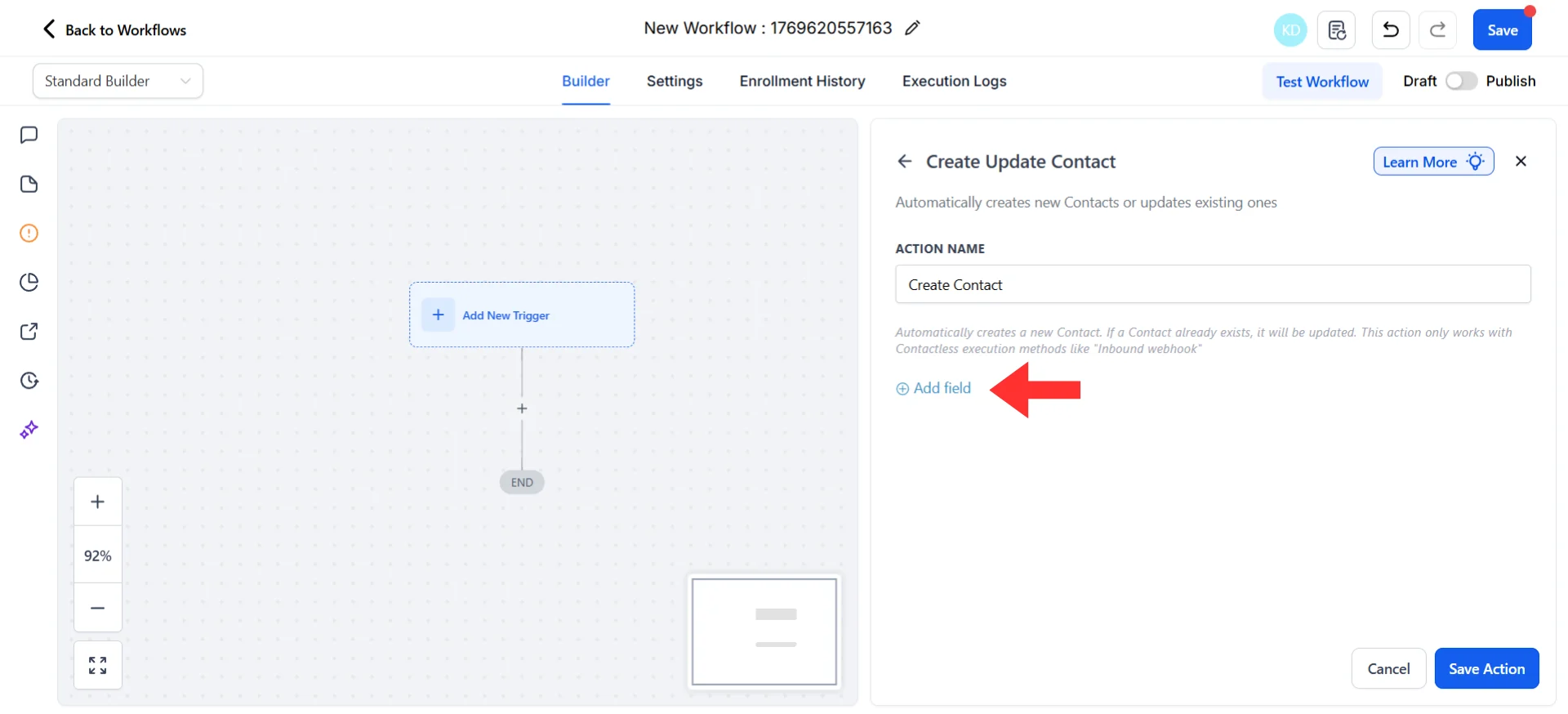
Click the + icon to add contact fields
- From the dropdown, select “Full Name” and click to add it
- Repeat to add “Phone” (and any other fields you need)
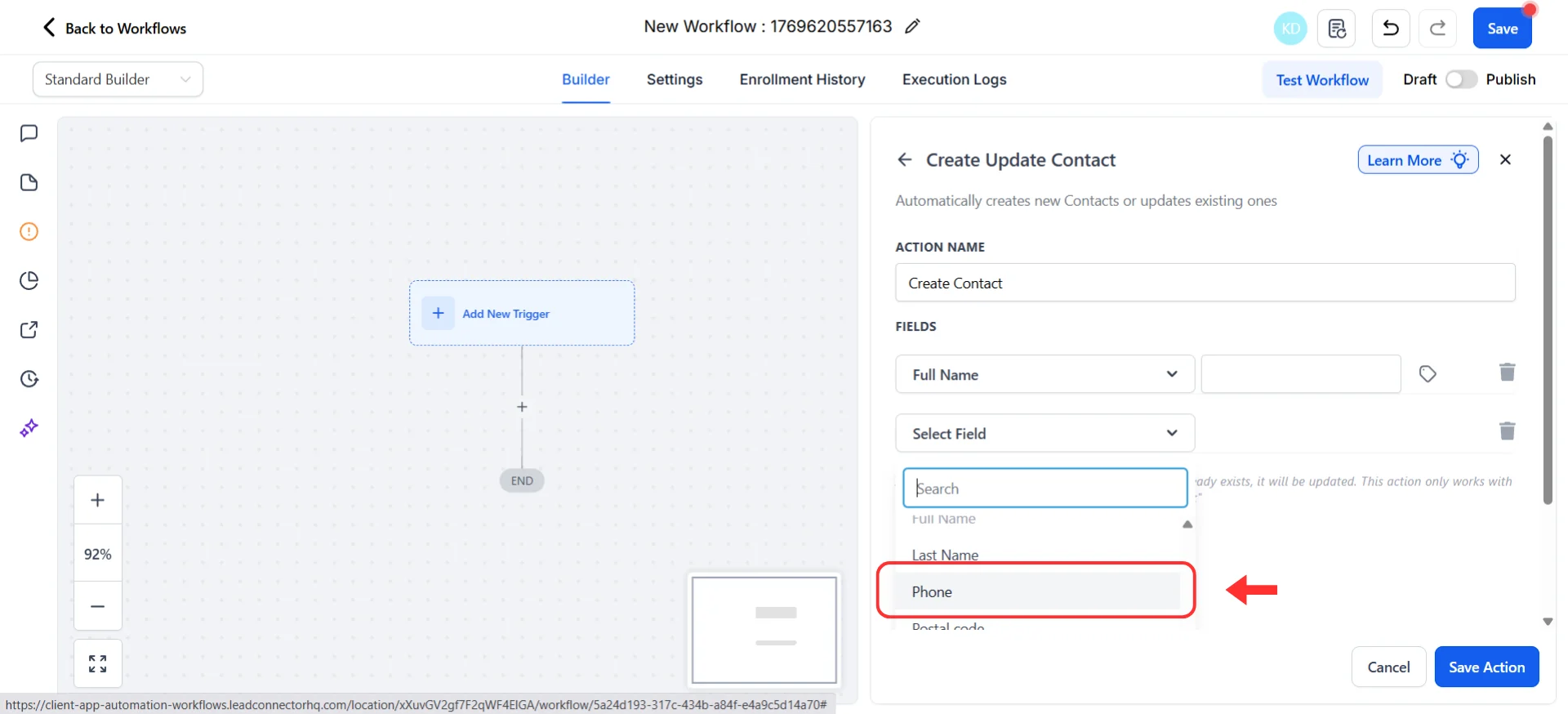
Add Full Name and Phone fields from the dropdown
- Next to the “Full Name” field, click the custom variable picker icon → Select “Inbound Webhook Trigger” → Choose userName
- Next to the “Phone” field, click the custom variable picker icon → Select “Inbound Webhook Trigger” → Choose userNumber
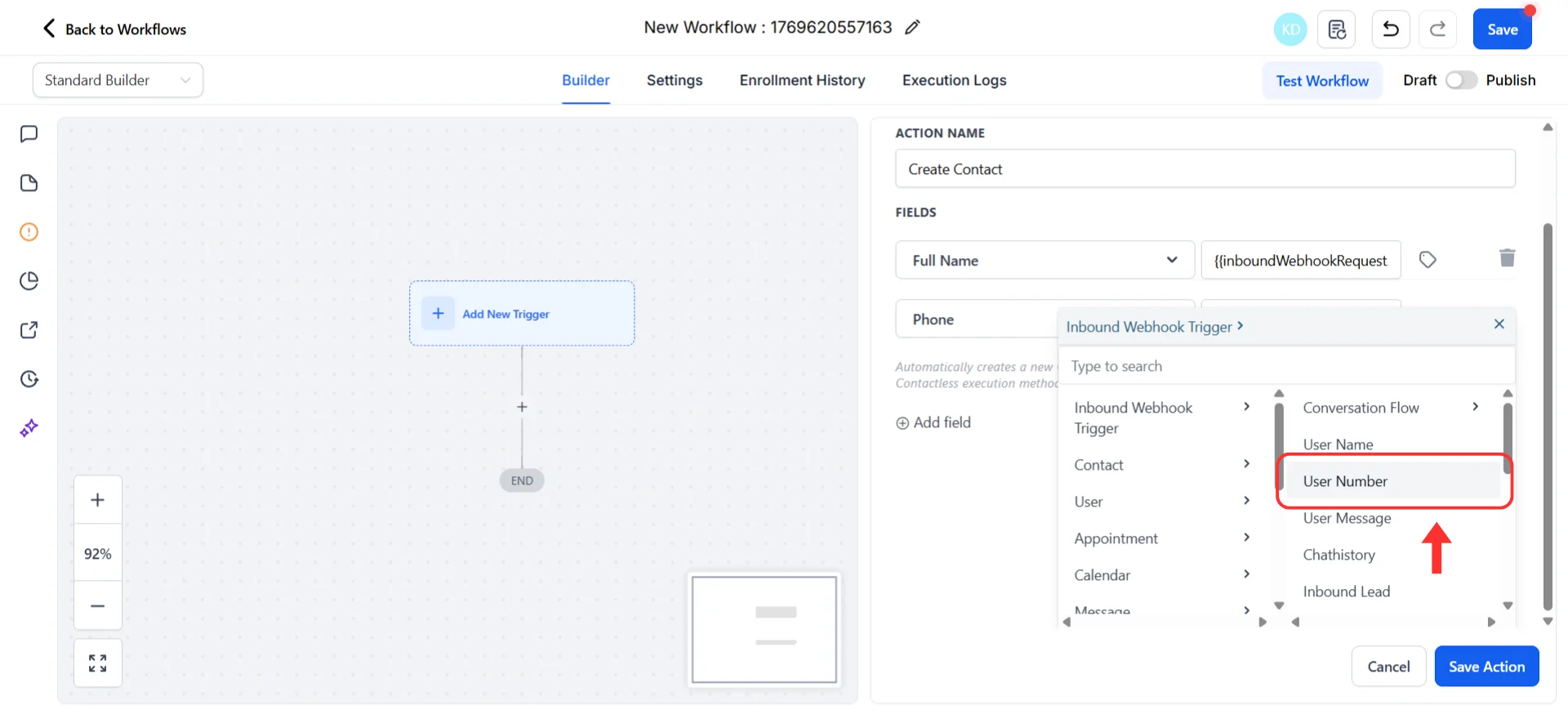
Map webhook data to contact fields using the variable picker
- Contact Source: Add this field → Type Irelia as a static value
- Custom Fields: Add any custom fields you’ve created → Use the custom variable picker to map customVariables values from the webhook (budget, company size, etc.)
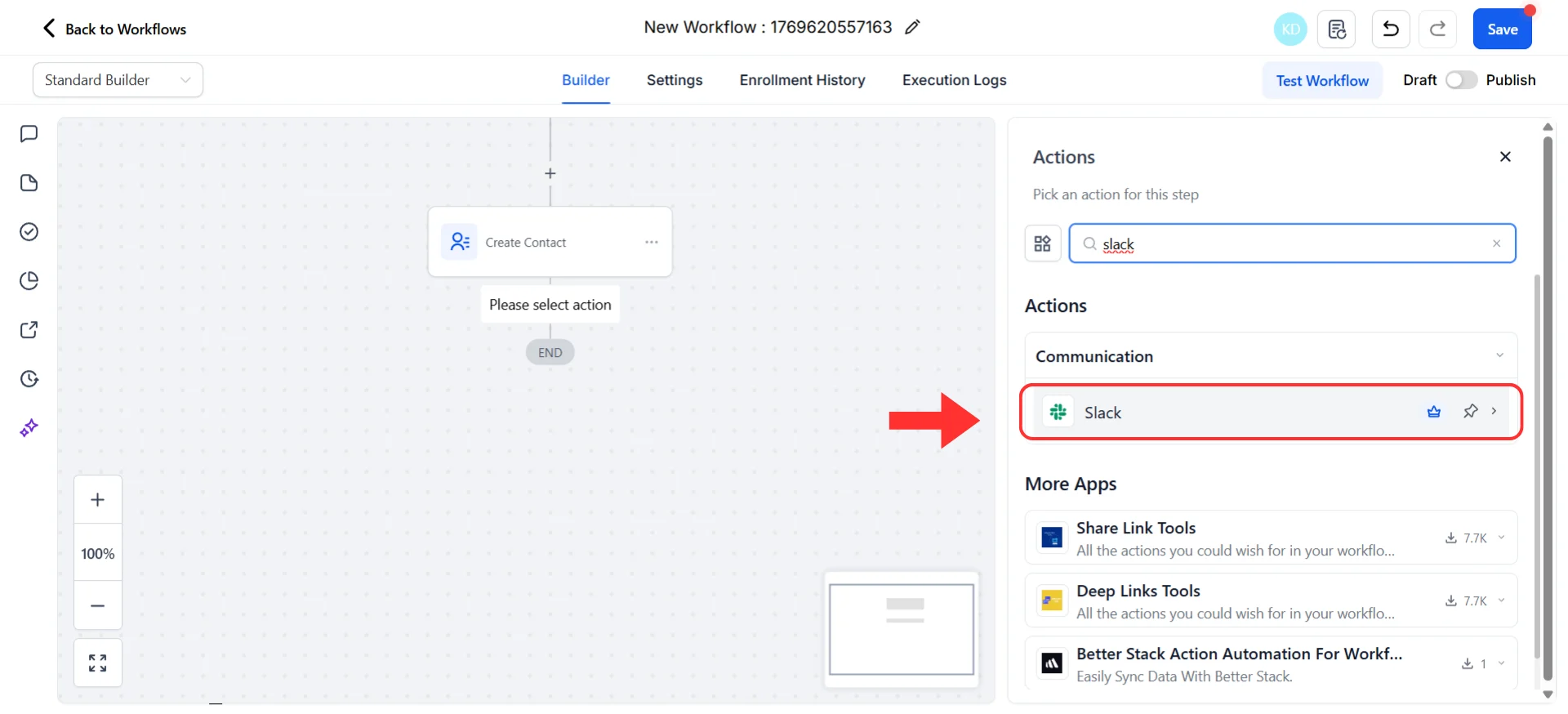
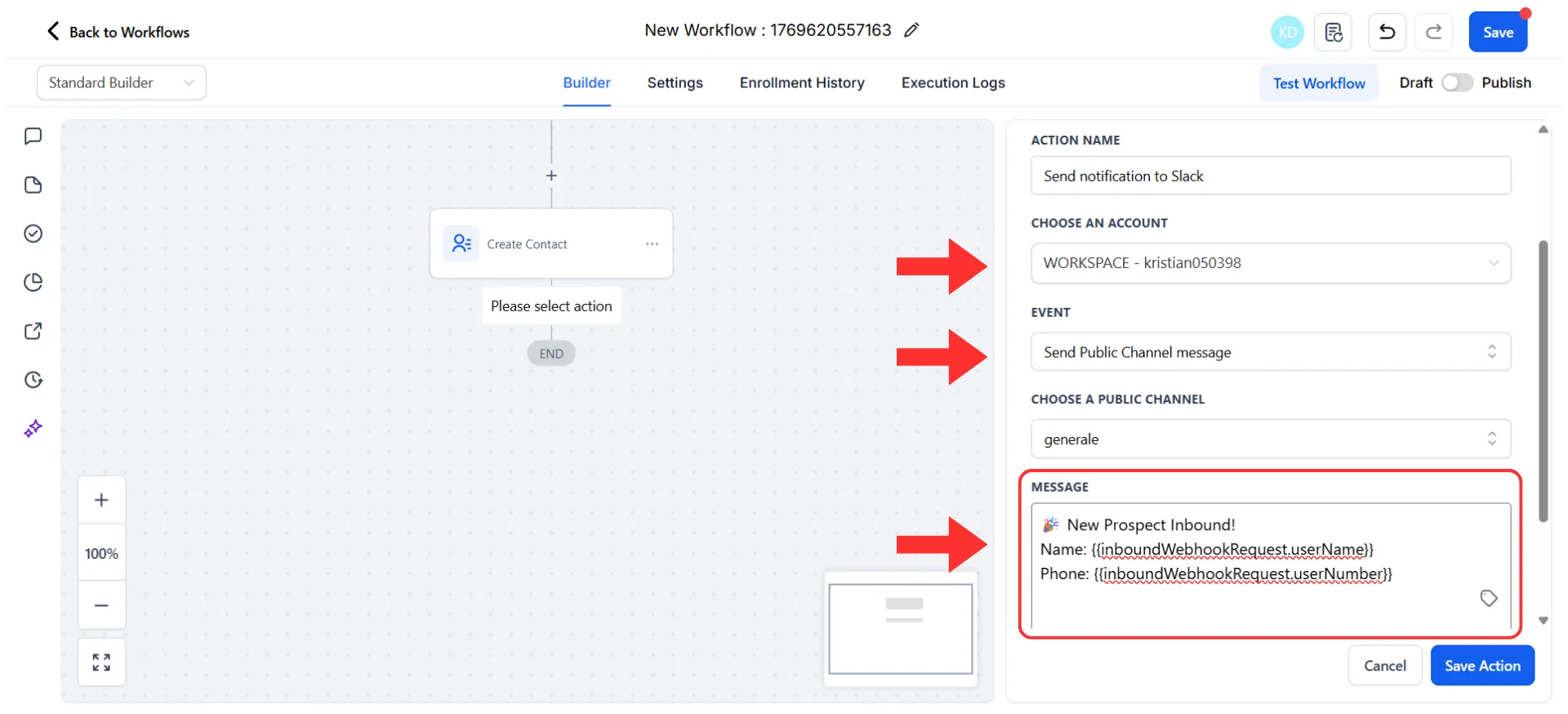
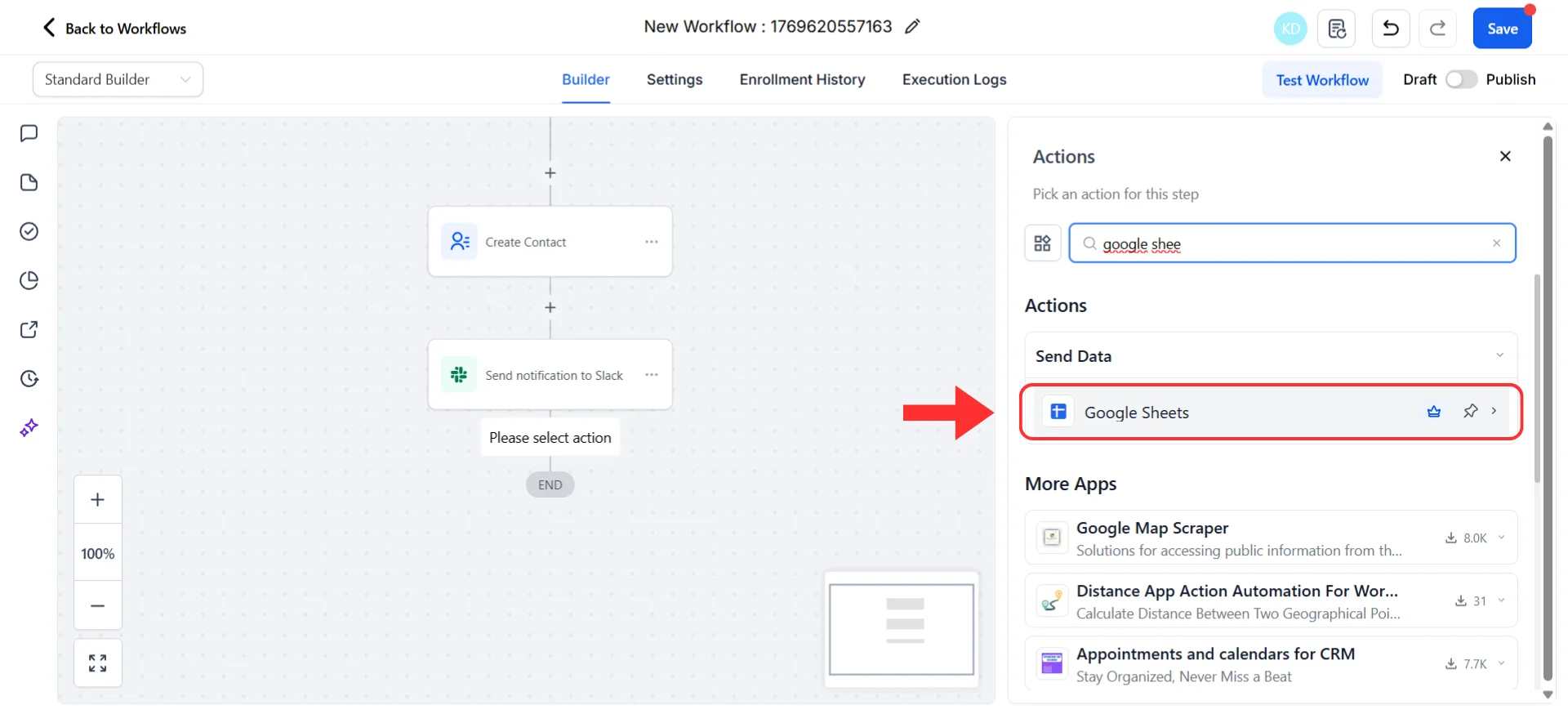

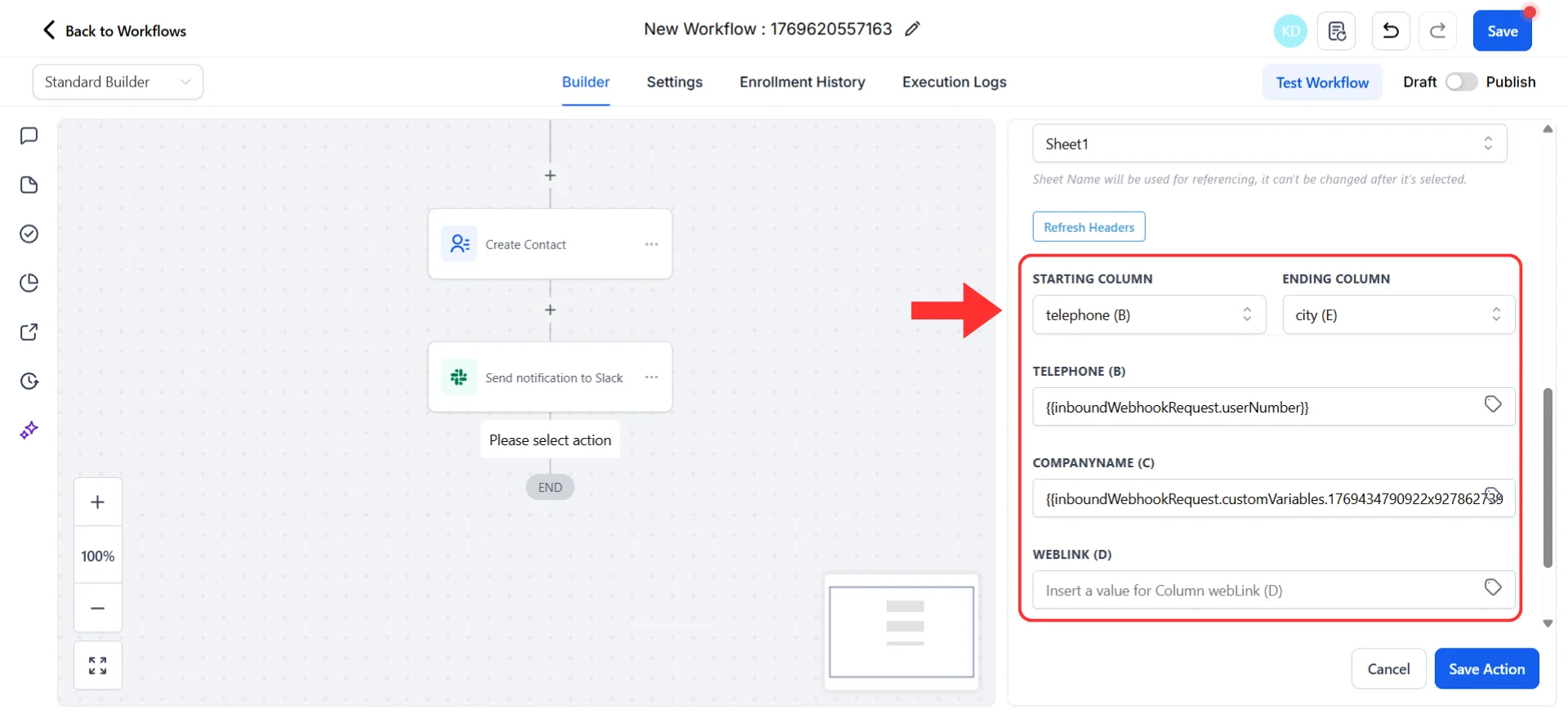
Step 5: Test Your Complete Automation
~3 minutes Let’s test the entire Workflow end-to-end to make sure everything works together.Run your test
- In your Workflow builder, click the “Test Workflow” button (top right)
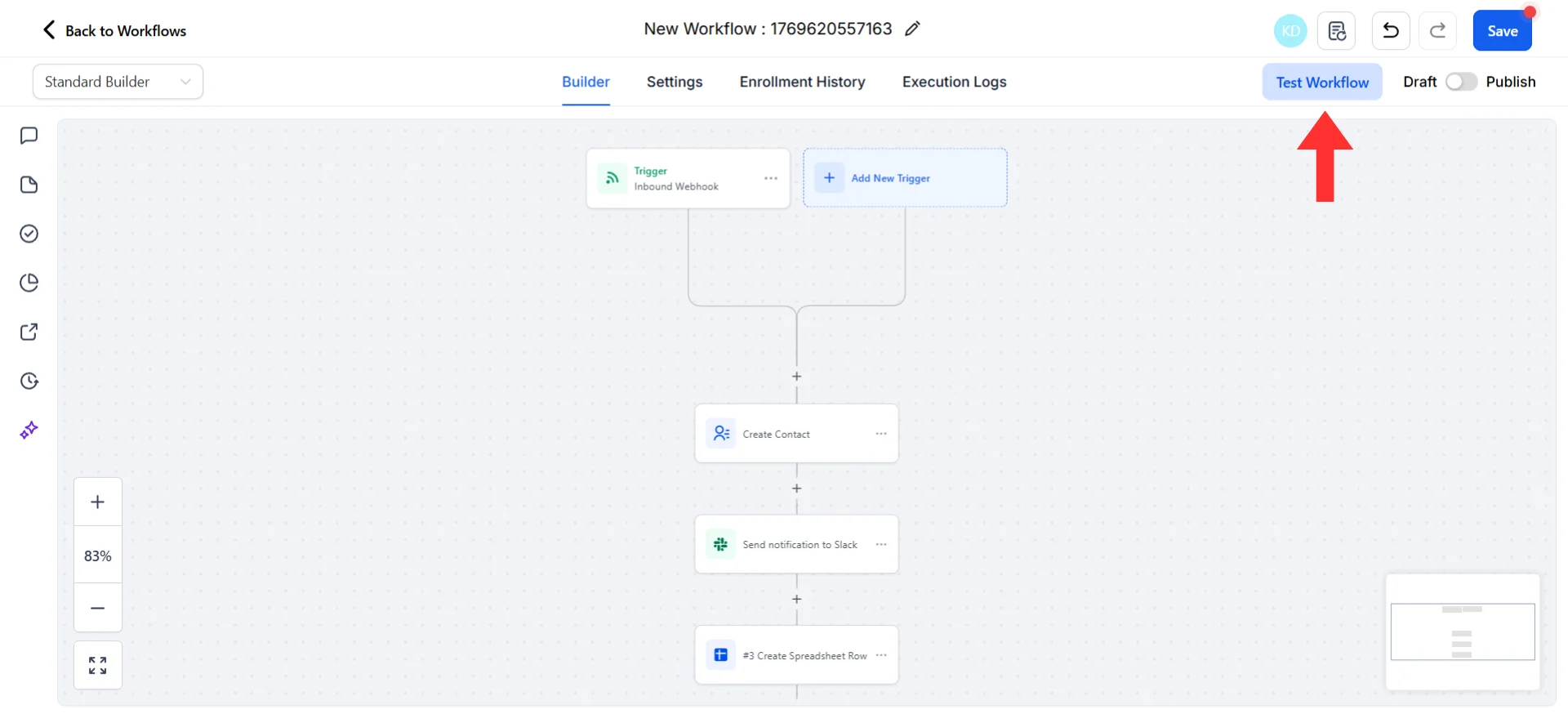
Click Test Workflow to run an end-to-end test
- Select a user from your CRM to run your Workflow with
- Run the test
Verify it worked
Now check your destination to confirm:- GHL CRM Contact
- Slack
- Google Sheets
- Go to “Contacts” in the left sidebar
- Search for the test contact by phone number
- Verify the contact was created or updated with the correct information
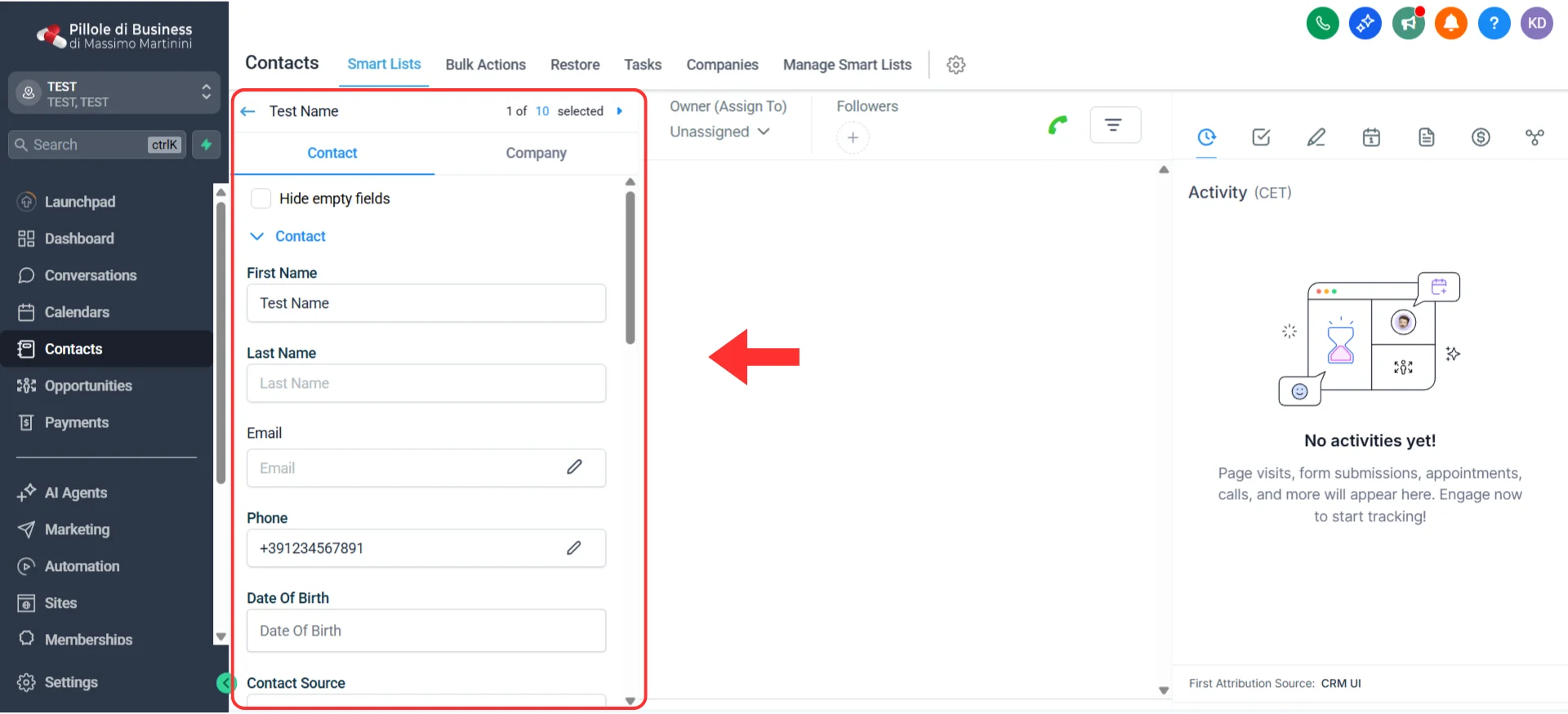
Contact record populated with Irelia webhook data
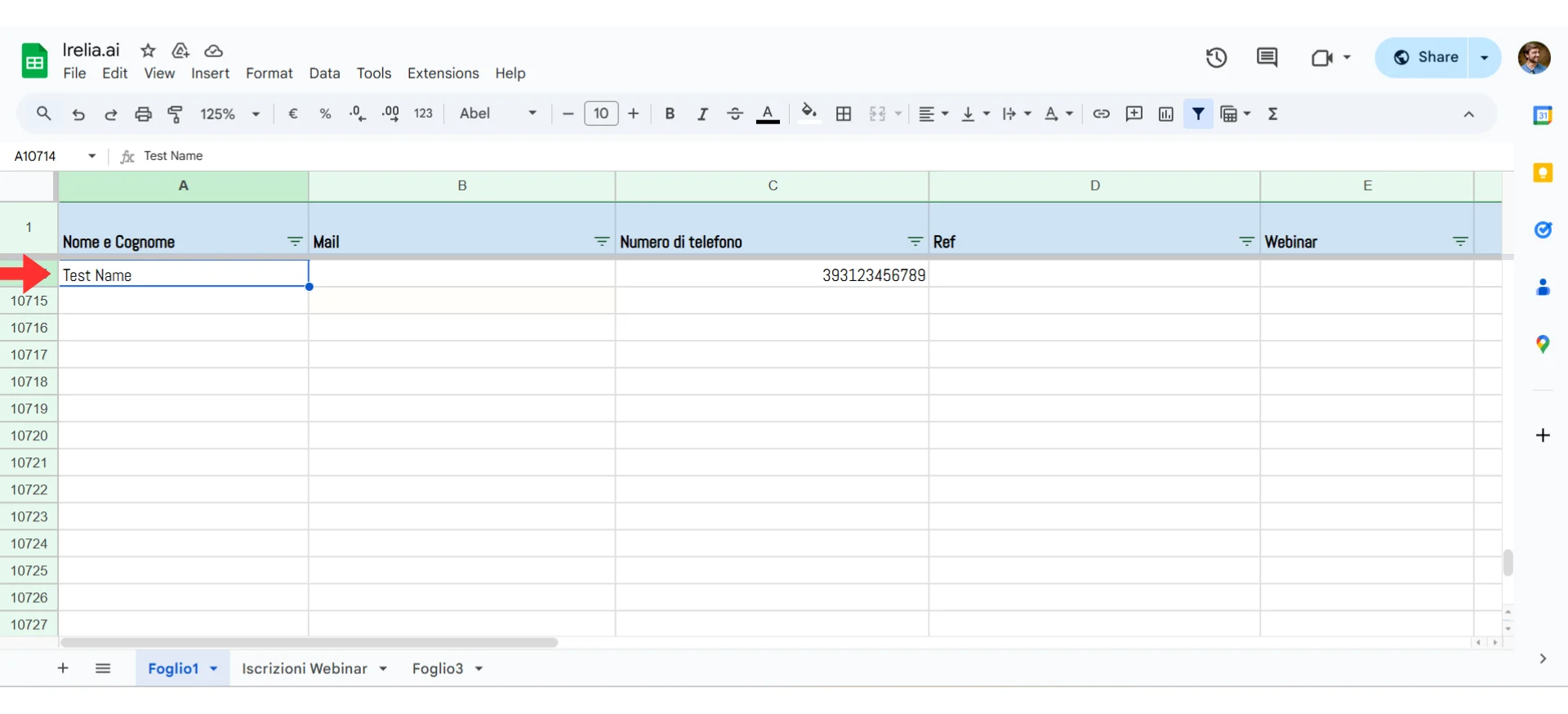
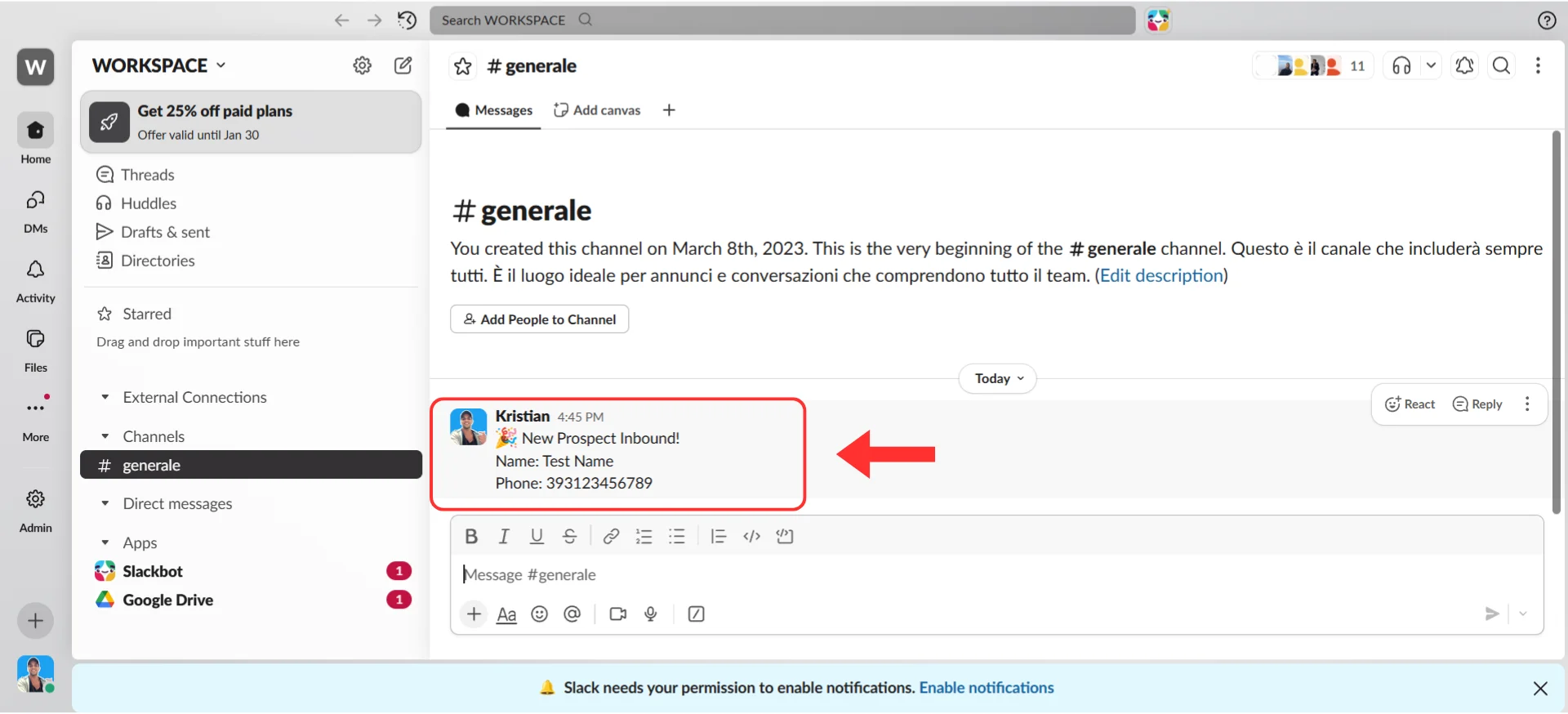
Step 6: Turn It On
~1 minutePublish your Workflow
- At the top right of your Workflow builder, find the “Publish” toggle
- Click to switch the Workflow to “Published” status
- You’ll see a confirmation that your Workflow is now active
Give your Workflow a name
- Click on the Workflow name at the top (it probably says something like “Untitled Workflow”)
- Rename it to something descriptive like: Irelia: New Contact → Update CRM
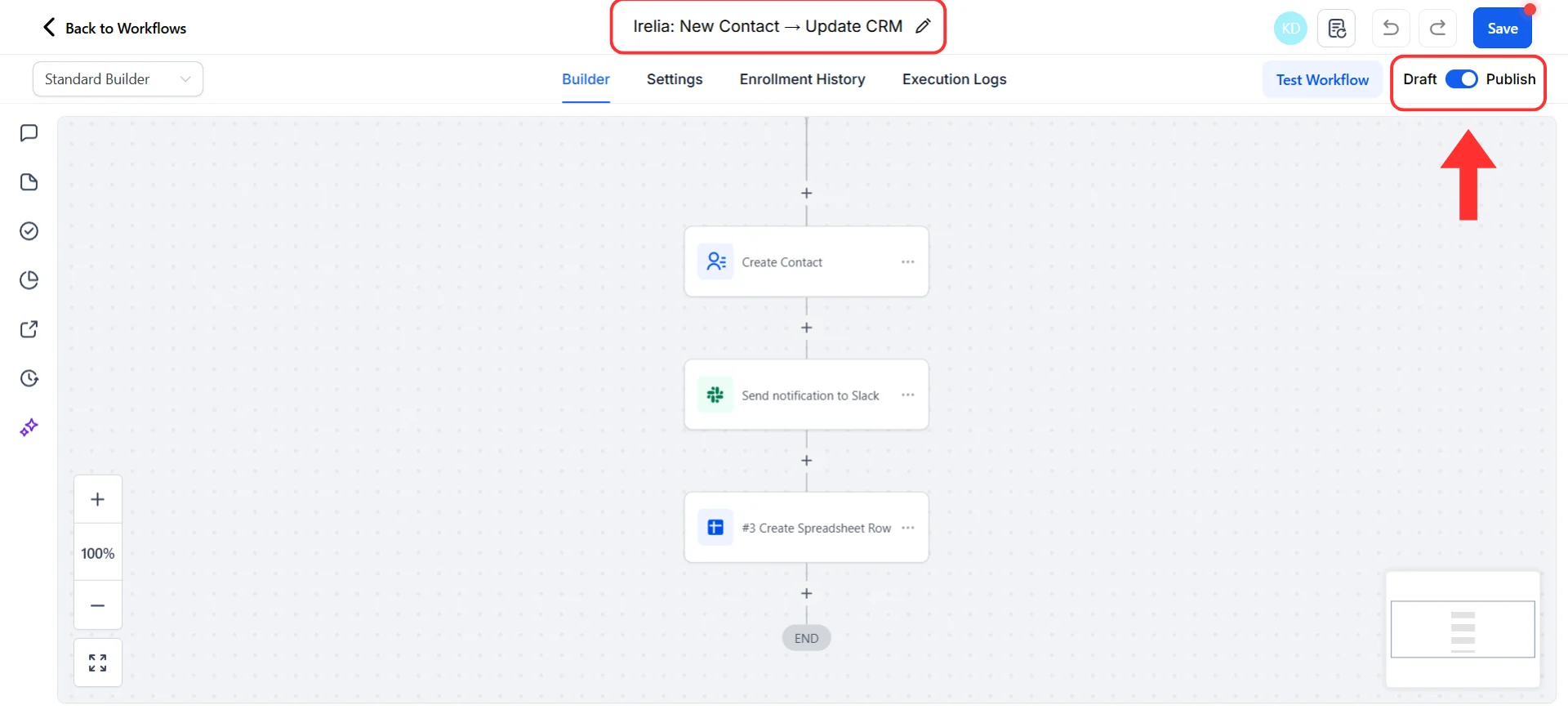
Rename your Workflow to something descriptive
- Click the “Save” button
🎉 Congratulations! You Did It!
Take a moment to appreciate what you just built: ✅ Your AI agent now talks to your Go High Level CRM automatically✅ Important moments trigger instant actions
✅ No more manual data entry or checking dashboards — your systems are always up-to-date
✅ Your leads get faster, better follow-up What happens now: Every time someone reaches out to your Irelia agent for the first time → Irelia automatically sends their information to Go High Level → GHL immediately performs your action → All without you lifting a finger.
What’s Next?
Now that you have one working automation, the possibilities are endless. If you want to connect to more events like “Data Gathered”, “Lead Qualified”, or “Goal Achieved”, simply repeat the steps you just completed and customize the actions (Step 4) to achieve your desired result. Your options from here:- 🎯 Want to track another event? Create a new Workflow and repeat this guide — just select a different event in Step 2
- ➕ Want this Workflow to do more things? Edit your Workflow and click the ”+” button below your action to add more actions
- 🤖 Have another agent to connect? Repeat this guide for your other agents — each can have its own automations
- ⚡ Ready for advanced Workflows? Check out the Advanced Automations section below
Monitoring Your Automation
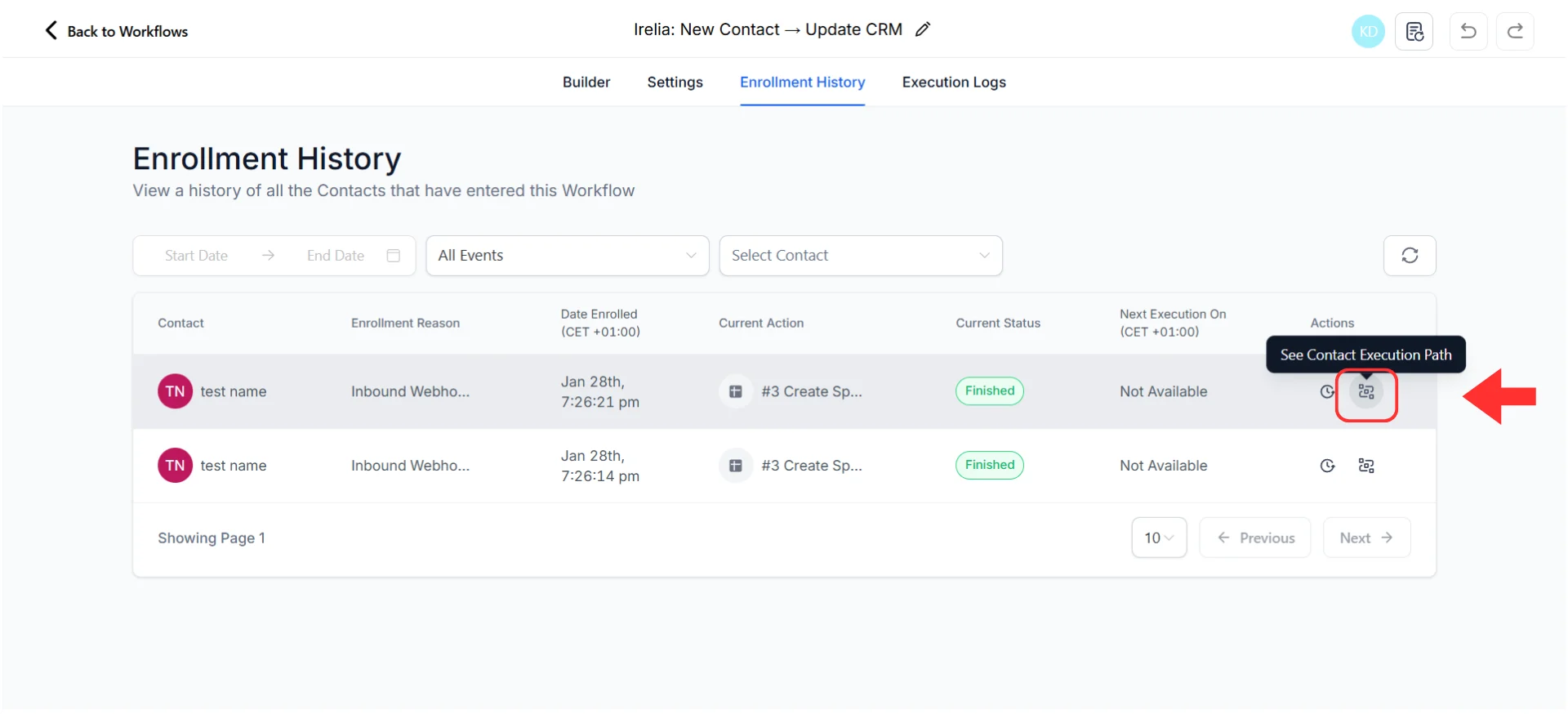
Check your Workflow history
- Go to “Automation” → “Workflows” in the left sidebar
- Click on your Workflow
- Click the “Enrollment History” tab
- Here you can see every contact that entered the Workflow
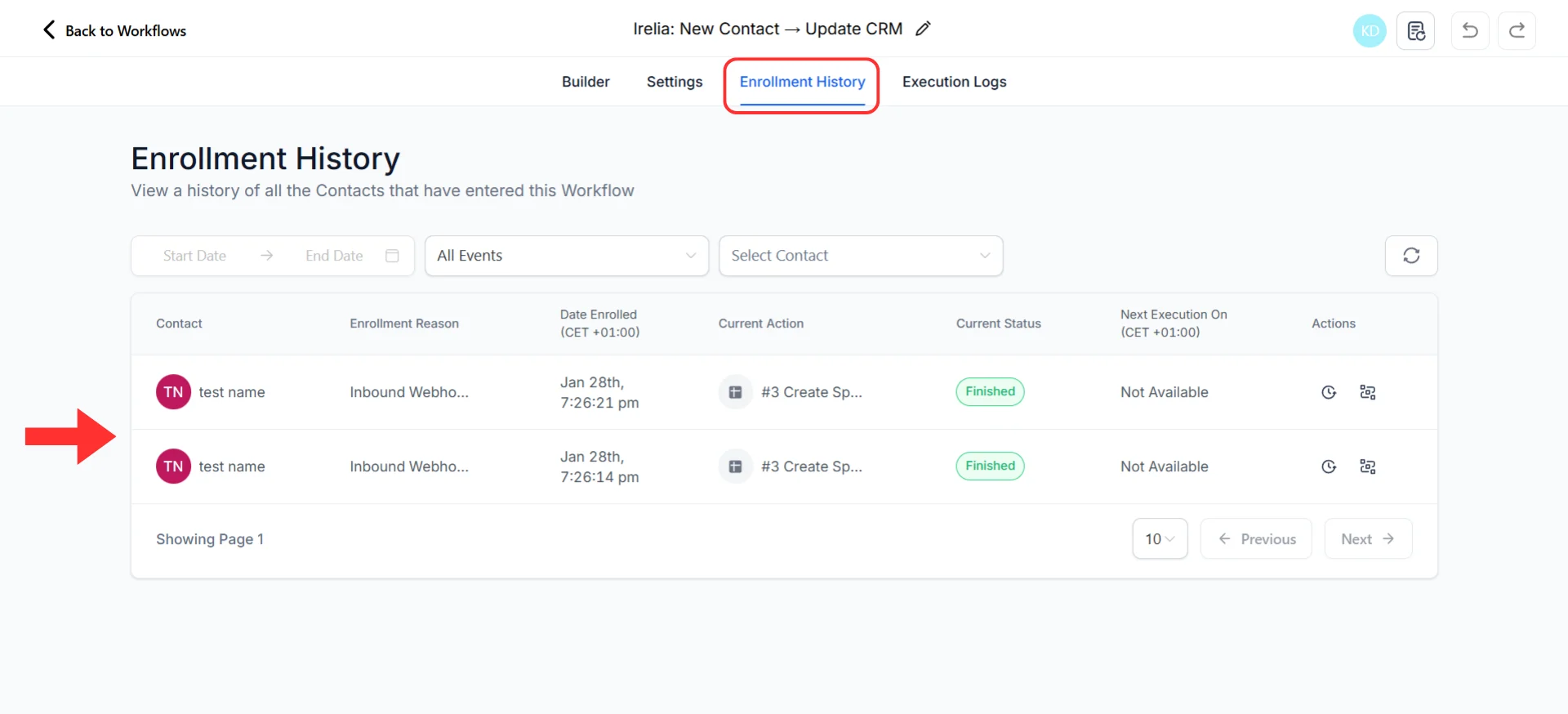
Enrollment History showing contacts and their status
- ✅ Finished (completed)
- ❌ Error (with details)
Detailed execution logs for a specific Workflow run
What to monitor
First few days: Check daily to ensure Workflows run successfully and data looks correct. Ongoing: GHL shows Workflow errors in your notification center, so you don’t need to check constantly. Just verify things are working during the first few days.🚀 Advanced Automations
Ready to do more? These sections show you how to build sophisticated Workflows that go beyond a single trigger and action.Search and Update Existing Records
Since GHL’s “Create Contact” action handles deduplication automatically by phone number, you’re already covered for basic contact updates. However, for more advanced scenarios like updating opportunities or pipeline stages, you may need a two-step approach. Example: Update an existing opportunity when a lead gets qualified. Trigger: Lead Qualified Actions:-
Find the contact
- Add action: “Find Contact”
- Set search criteria to userNumber from the webhook
- This finds the contact matching the prospect’s phone number
-
Update their opportunity
- Add action: “Update Opportunity”
- Use the contact ID from the previous action
- Update the pipeline stage to “Qualified”
- Add notes with qualification details
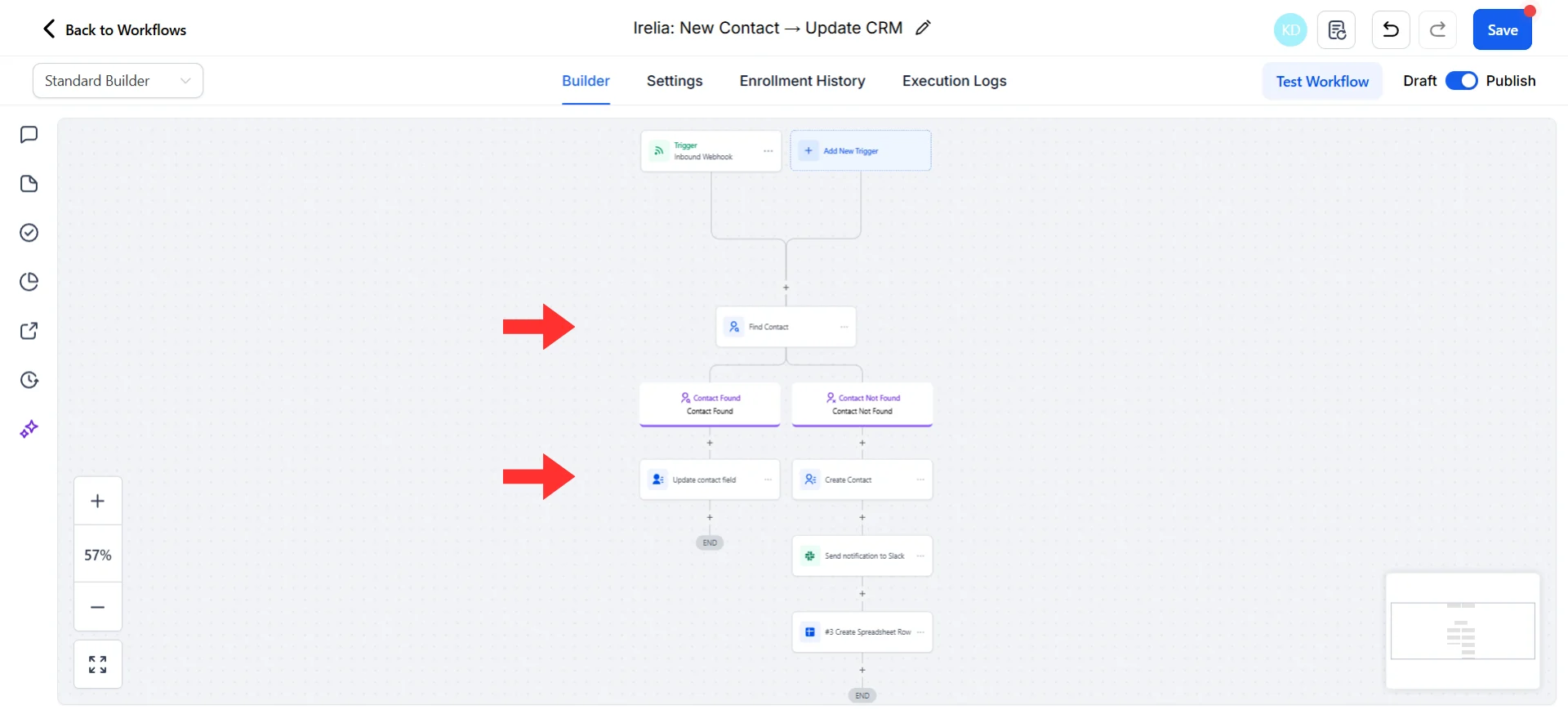
Multi-step Workflow: Webhook → Find Contact → Update Opportunity
Using Conditions to Control When Actions Run
Conditions let you add branching logic so different actions run based on data values. Example: Only add to the “Hot Leads” pipeline if the prospect’s budget is “$10k+” or higher.- In your Workflow, click the ”+” button between your trigger and action
- Select “If/Else” (or “Condition”)
- Set your condition: customVariables Value contains $10k
- Add your “Update Pipeline” action under the “If Yes” branch
- Add a different action (or nothing) under the “If No” branch
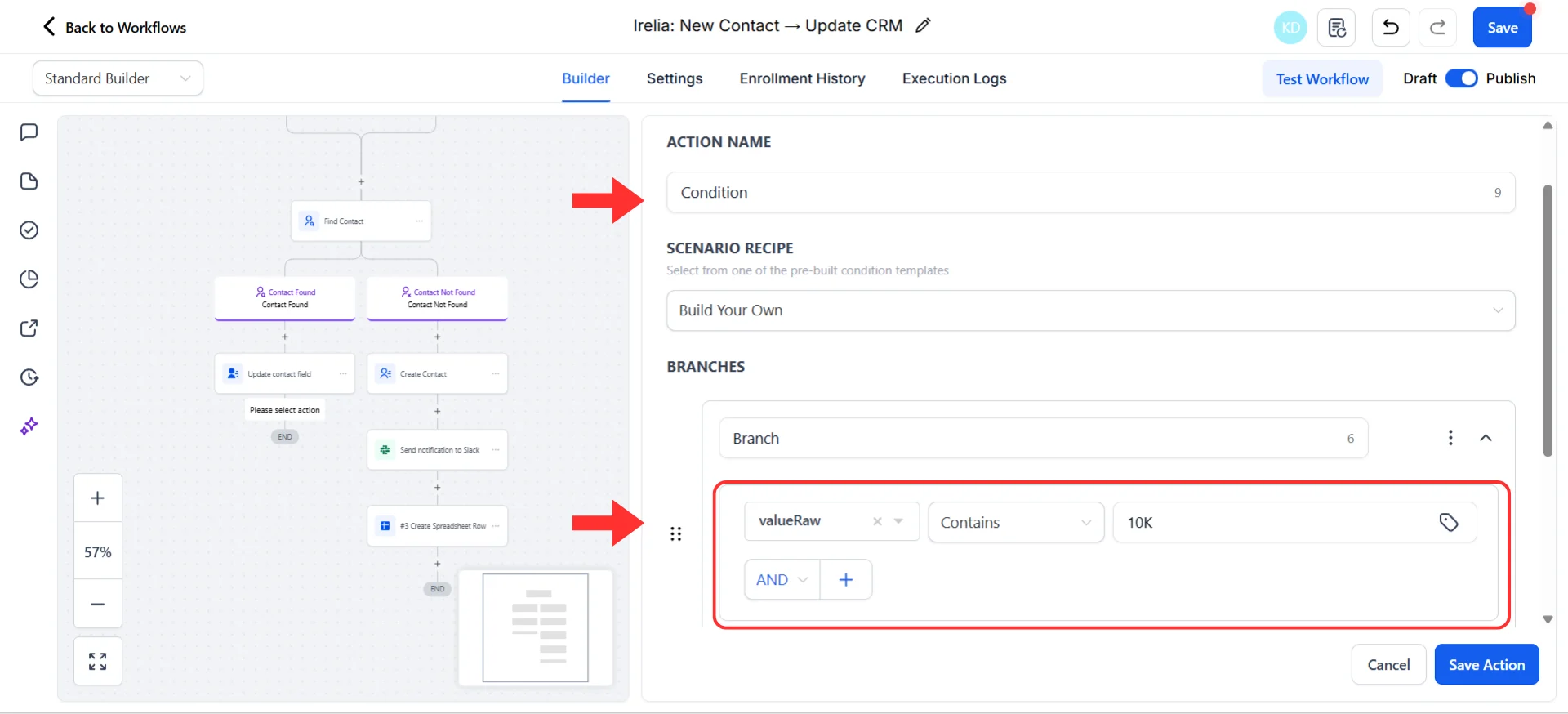
If/Else condition based on customVariables budget value
- Only add to hot pipeline if budget matches your target → customVariables Value equals $10k-50k
- Only notify sales manager if company size is “Enterprise” → customVariables Value contains Enterprise
- Only send to sales if lead is qualified → leadQualification equals “fit”
Multi-Step Workflows
Why do one thing when you can do several? Example: When a lead is qualified:- Update contact with “Qualified” tag
- Move opportunity to “Qualified” stage
- Send internal notification to sales team
- Add to email nurture campaign
- Log in Google Sheet for reporting
- After your first action, click the ”+” button below it
- Select “Add Action”
- Add your second action and configure it
- Repeat for additional actions
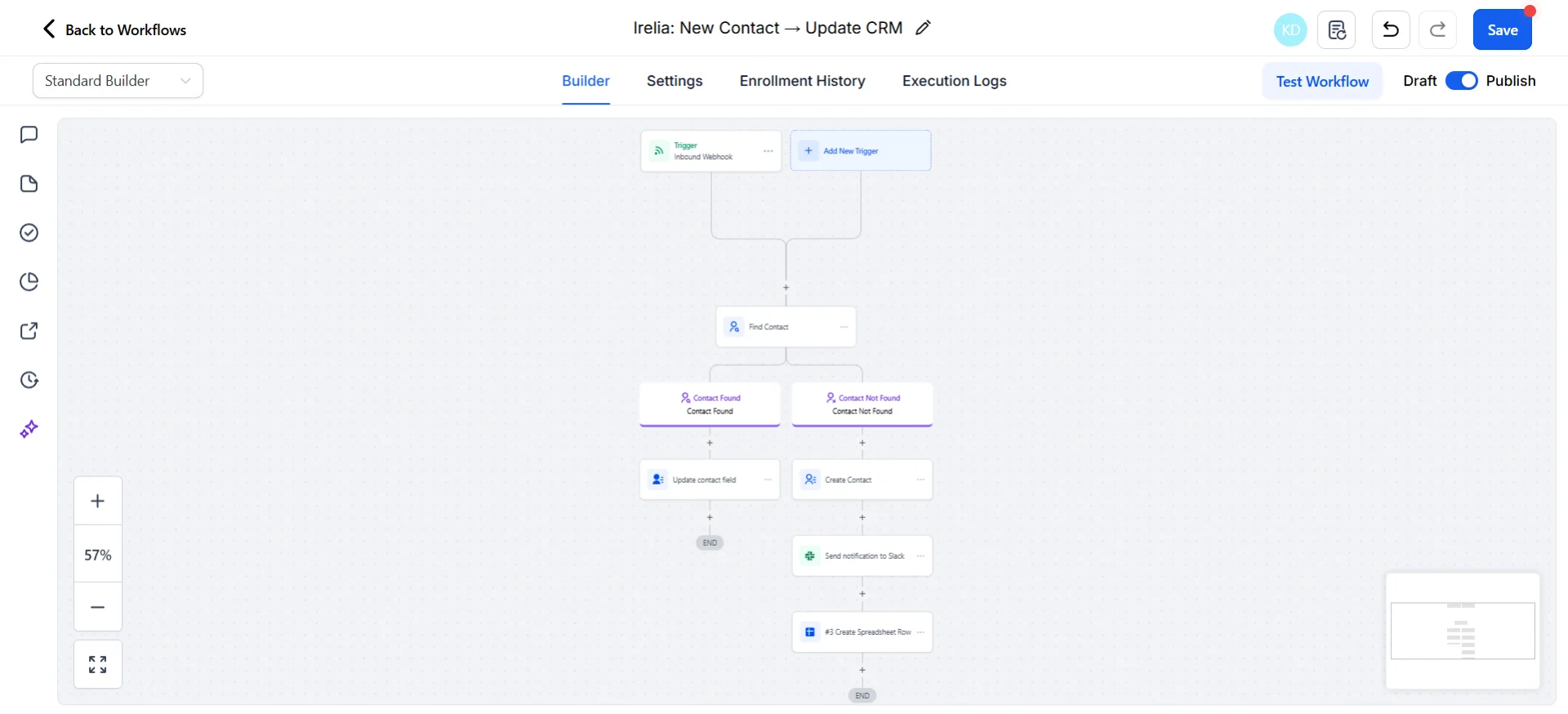
Multi-step Workflow with sequential actions from a single trigger
Using Go High Level’s Native Power
GHL has powerful built-in features you can trigger from your Irelia webhook:- 🔄 Create/Update Opportunity — Add leads to pipelines automatically and update deal stages based on conversation progress
- 👤 Assign to User — Route leads to specific sales reps based on criteria, or use round-robin assignment for fair distribution
- ✅ Create Task — Generate follow-up tasks for your team with conversation context from Irelia
- 🔔 Send Internal Notification — Alert team members instantly with lead details and qualification status
Real-World Use Case Examples
Qualified lead fast track
Trigger: Lead Qualified Actions:- Update contact with “Qualified” and “AI-Qualified” tags
- Create opportunity in “Hot Leads” pipeline
- Send internal notification to sales team via SMS
- Add to “Hot Lead Welcome” email sequence Workflow
- Log in “Qualified Leads” Google Sheet for reporting
Disqualified lead nurture
Trigger: Lead Disqualified Actions:- Update contact with “Nurture” tag
- Add to long-term email nurture sequence Workflow
- Create task for follow-up in 3 months
- Log in “Nurture List” Google Sheet
Knowledge gap tracking
Trigger: Question Lacking Answer Actions:- Send Slack notification to content team with the question
- Create task in GHL for manual response
- Log in “Knowledge Base Gaps” Google Sheet for review
Goal achievement flow
Trigger: Goal Achieved Actions:- Update contact with “Goal Completed” tag and custom field
- Move opportunity to next pipeline stage
- Send confirmation SMS to the prospect
- Notify account manager via internal notification
- Trigger “Post-Goal” email sequence Workflow
Rich data capture
Trigger: Data Gathered Actions:- Update contact custom fields (budget, timeline, company size, pain points)
- Add appropriate tags based on responses
- Route to segment-specific pipeline (Enterprise vs SMB)
- Trigger personalized email based on their answers
- Log full data in Google Sheet for analysis
Final Tips
- 🎯 Start simple — One event, one action. Master that before expanding.
- 🧪 Test thoroughly — Always verify with real data before relying on automation.
- 📊 Monitor regularly — Check execution logs weekly, especially at first.
- 🔄 Iterate — Your first automation doesn’t have to be perfect. Refine over time.
- 🔗 Leverage GHL’s power — Use pipelines, campaigns, and opportunities to maximize value.
- 🤝 Ask for help — Both Irelia and Go High Level have great support teams and communities.
✅ Quick Checklist
Use this to verify your setup is complete:Essential Setup
Essential Setup
- Webhook URL copied from Go High Level
- URL pasted into Irelia for your chosen event
- Test data sent from Irelia
- Test data received in GHL Workflow
- Action configured (Update CRM, Google Sheets, or Slack)
- Action tested successfully
- Workflow published
- Workflow given a descriptive name
Verification
Verification
- Triggered a real event (or used the “Test” button)
- Confirmed data appeared in destination (CRM, Sheet, Slack)
- Checked execution logs show successful run
🛠️ Troubleshooting & FAQs
Don’t panic! Here are the most common issues and exactly how to fix them.GHL hasn't received any data from Irelia yet
GHL hasn't received any data from Irelia yet
- Go to Irelia → “Events and Notifications”
- Check that the webhook URL is filled in for your event
- Make sure it matches exactly the URL from GHL (no extra spaces)
- Click the blue “Test” button in Irelia next to your webhook URL
- Wait 5–10 seconds
- Go back to GHL and check if data appeared in your trigger settings
- If still not working, delete the “Inbound Webhook” trigger and add a new one
- Copy the new webhook URL
- Delete the old URL in Irelia and paste the new one
- Click “Test” again in Irelia
Irelia is sending data correctly, but something's wrong with your action setup
Irelia is sending data correctly, but something's wrong with your action setup
- Go to your Workflow → “Execution Logs”
- Click on the failed run to see details
- Look for error messages that explain what went wrong
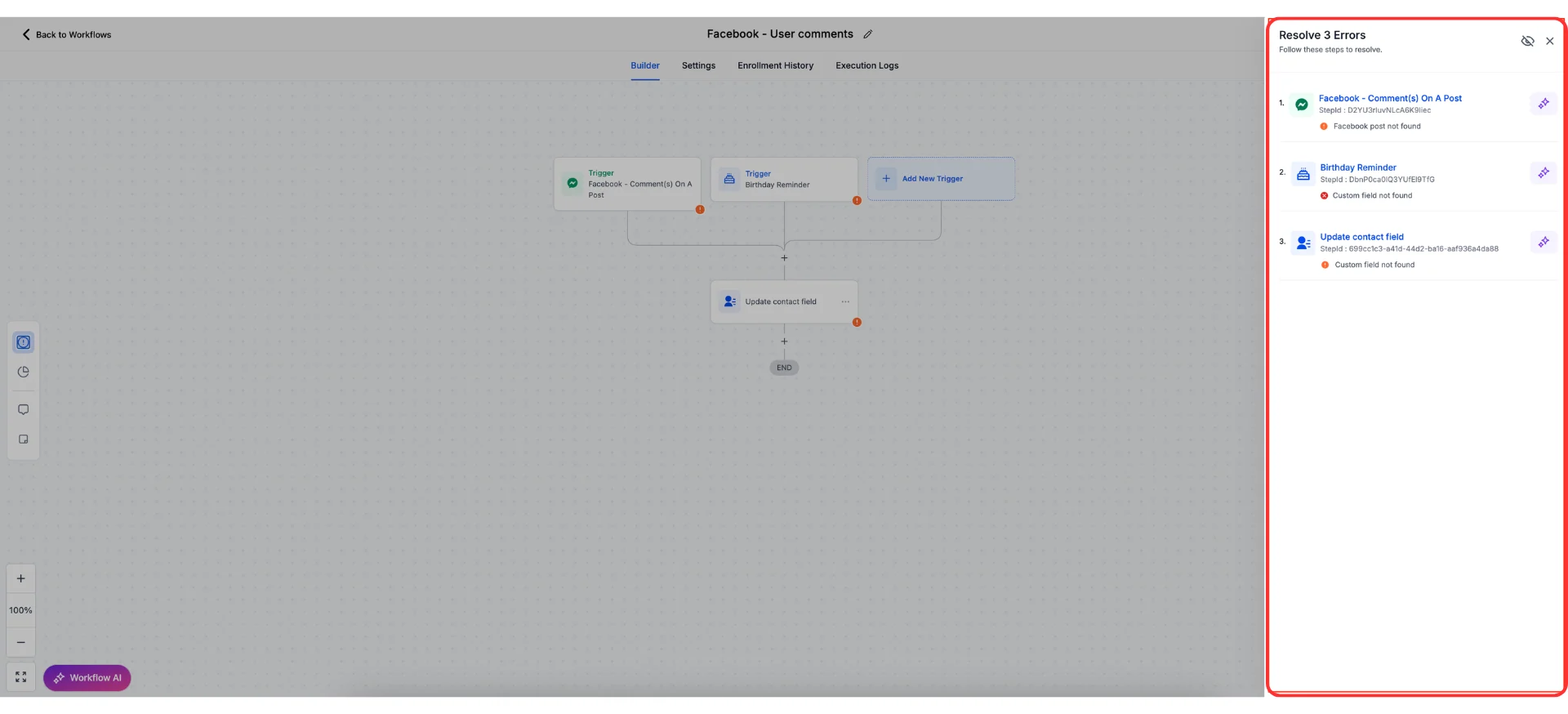
Execution log showing error details for a failed run
- Edit your action
- Look for fields marked as required
- Make sure each required field has data mapped
- If using external apps (Google Sheets, Slack), go to “Settings” → “Integrations”
- Disconnect and reconnect the problematic integration
- Update your Workflow action with the new connection
- Google Sheets: Confirm the spreadsheet wasn’t deleted
- Slack: Check the channel wasn’t archived
- GHL: Verify custom fields, tags, or pipeline stages still exist
The Workflow says it succeeded, but you can't find the data
The Workflow says it succeeded, but you can't find the data
- Go to your Workflow → “Execution Logs”
- Click on your recent run to expand details
- Look at each step to see exactly what data was processed
Expanded execution log showing step-by-step data details
- GHL Contacts: Use the search bar and search by phone number. Check if you’re viewing a filtered list.
- Google Sheets: Scroll to the bottom (new rows are added at the end). Try Ctrl+F to search.
- Slack: Check you’re in the right channel. Search for messages from the app.
- Go back to your Workflow editor
- Look for any “If/Else” branches or conditions
- Verify your data passes the conditions
Your automation worked during testing but stopped working for real events
Your automation worked during testing but stopped working for real events
- Go to “Automation” → “Workflows”
- Verify your Workflow shows “Published” status
- If it says “Draft”, click to publish it
- Go to “Settings” → “Integrations”
- Look for any disconnected apps (yellow warning icons)
- Reconnect any integrations that show issues
- Go to Irelia → “Events and Notifications”
- Confirm the webhook URL is still there and matches your GHL Workflow
- Some GHL plans have Workflow execution limits
- Check your account usage and upgrade if needed
The same contact is being created multiple times instead of updating the existing record
The same contact is being created multiple times instead of updating the existing record
- Go to “Contacts” in GHL and review your existing records
- Update phone numbers to include the country prefix (e.g., 39 for Italy, 1 for US)
- This ensures GHL can match incoming data from Irelia to your existing contacts
- Irelia sends phone numbers with the international prefix by default
- Make sure any contacts you manually add also include the prefix
- This prevents future mismatches
- In GHL, go to “Contacts” and search for duplicates
- Select the duplicate records and use the “Merge” function to combine them
- Choose which record to keep as the primary and merge the data
The customVariables field is empty or doesn't have expected data
The customVariables field is empty or doesn't have expected data
- “New Inbound Contact” fires before data collection
- Use “Data Gathered”, “Goal Achieved”, or “Lead Qualified” events instead if you need collected data
- Custom variables are nested in the webhook data
- Make sure you’re selecting the correct path to the variable values
- Instead of using the “Test” button, have a full conversation that reaches data collection
- Then check if data flows through
🆘 Need Help?
- Contact support in the WhatsApp priority support group or send an email to info@irelia.ai
- Include: screenshots of your configuration, the error message, and what you expected vs. what happened
- Visit: help.gohighlevel.com
- Use the in-app chat support
- Check the GHL Facebook community for common solutions