

The Leads Table
Understand what each column tells you at a glance
One Lead, Multiple Chats
How leads, agents, and chats relate to each other
Filtering and Sorting
Find the exact leads you’re looking for
The Lead Detail View
Dive into a specific lead’s conversation and data
Taking Over a Conversation
Disable the AI and chat as a human
FAQs
Common questions answered
Introduction
Your AI agents are having conversations, qualifying leads, and collecting data around the clock. But where does all of that information live? How do you see who’s been talking to your agents, what they said, and whether they’re worth a follow-up call? That’s what the chat panel is for. It’s your dashboard at irelia.ai/leads — the single place where every conversation, every lead, and every piece of collected data comes together. Think of it as your sales team’s mission control. From here, you can browse all your leads in a filterable table, click into any conversation to read the full transcript, review the data your agent gathered, and even jump in to chat with a lead yourself when the situation calls for a human touch. By the end of this article, you’ll know how to: ✅ Read and interpret the leads table — what each column means and why it matters✅ Understand how leads, agents, and chats relate to each other
✅ Filter and sort your leads to find exactly who you’re looking for
✅ Open a lead’s detail view to see their conversation, qualification status, and collected data
✅ Take over a conversation from your AI agent and chat as a human
📋 The Leads Table
When you open the chat panel, you see a table listing all your leads. Each row gives you a quick snapshot of a conversation — who the lead is, which agent handled them, how interested they are, and when the last message was exchanged.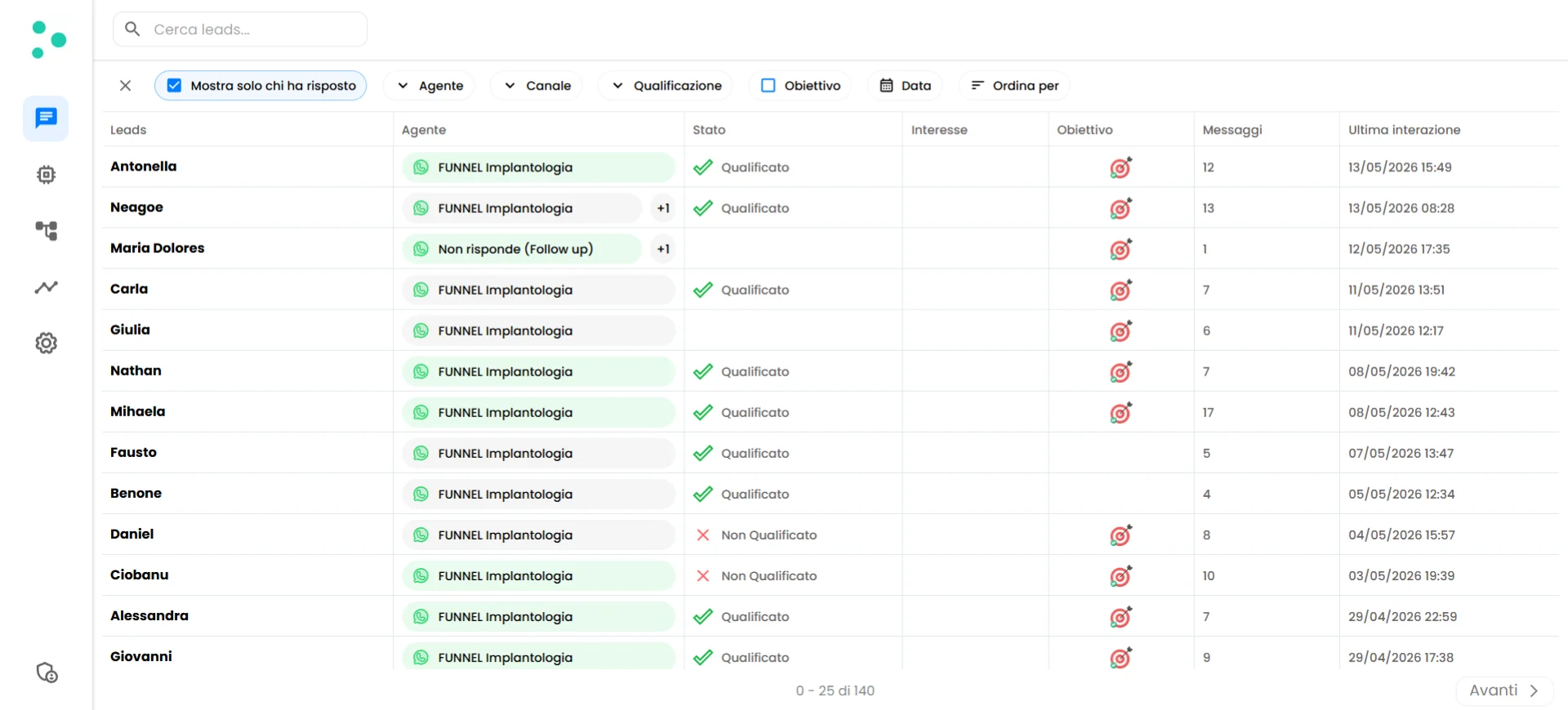
The leads table at irelia.ai/leads with all columns visible
Each row represents a lead. If a lead has chatted with multiple agents, the row shows the data for one chat at a time — you can switch between them. More on that in the next section.
🔗 One Lead, Multiple Chats
Here’s a concept that’s worth understanding early: a single lead can have multiple chats, and each chat has its own stats. This happens because three entities work together in Irelia:- Lead — the person (identified by their phone number or social profile)
- Agent — the AI agent configured for a specific purpose
- Chat — a conversation between one lead and one agent
The +N Indicator
When a lead has chatted with multiple agents, you’ll see a small +N circle next to the agent name in the table. The number tells you how many additional chats exist for that lead beyond the one currently displayed.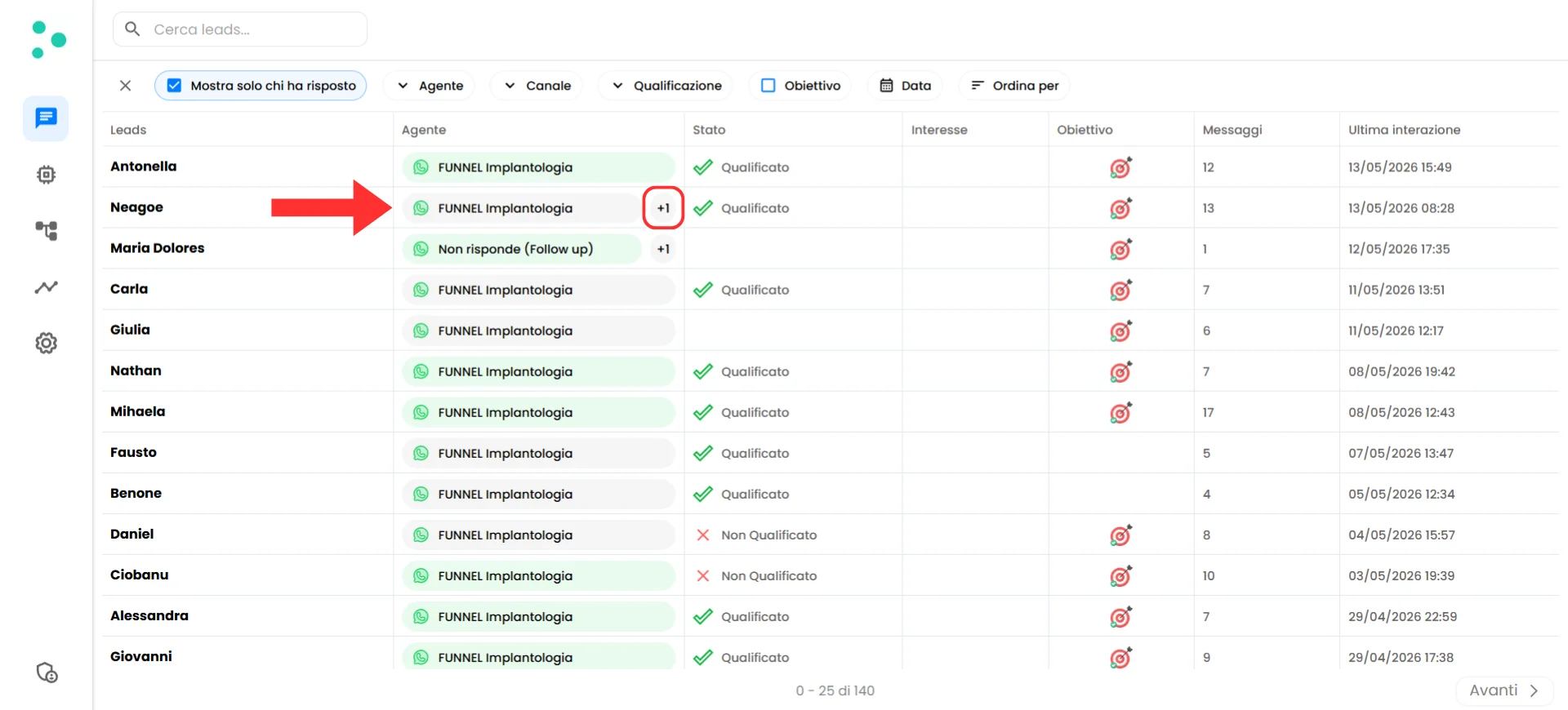
The +N badge next to an agent name indicates additional chats for this lead
🔍 Filtering and Sorting
As your leads grow, you’ll want to zoom in on specific subsets. The filter bar at the top of the chat panel gives you several ways to narrow down what you see.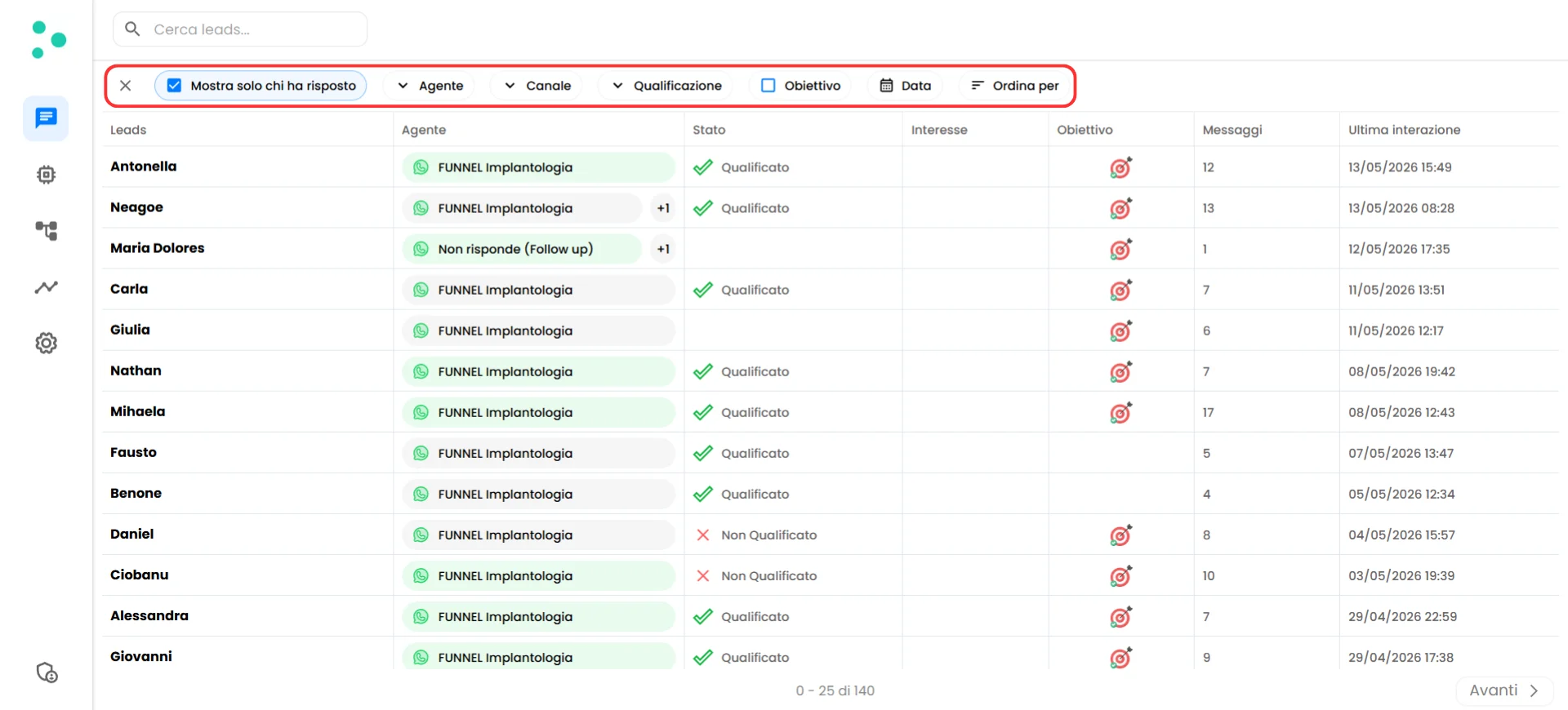
The filter bar with all available filter options
Search
At the very top, there’s a search bar where you can type a lead’s name or phone number to find them instantly. This is the fastest way to locate a specific person.Filters
You can combine multiple filters at once to build very specific views of your leads:
To remove a filter, unselect the specific filter or click the X button next to it in the filter bar.
Sorting
The Sort by control lets you change the order of your leads. You can sort by:- Last interaction — when the most recent message was exchanged (default)
- Creation date — when the lead first appeared in Irelia
👤 The Lead Detail View
Click on any lead’s name in the table to open their detail view. This is where you go from a quick glance to a deep dive — seeing the full picture of a specific lead and their conversation. The detail view is split into three areas: a lead sidebar on the left, a data panel in the center, and a conversation panel on the right.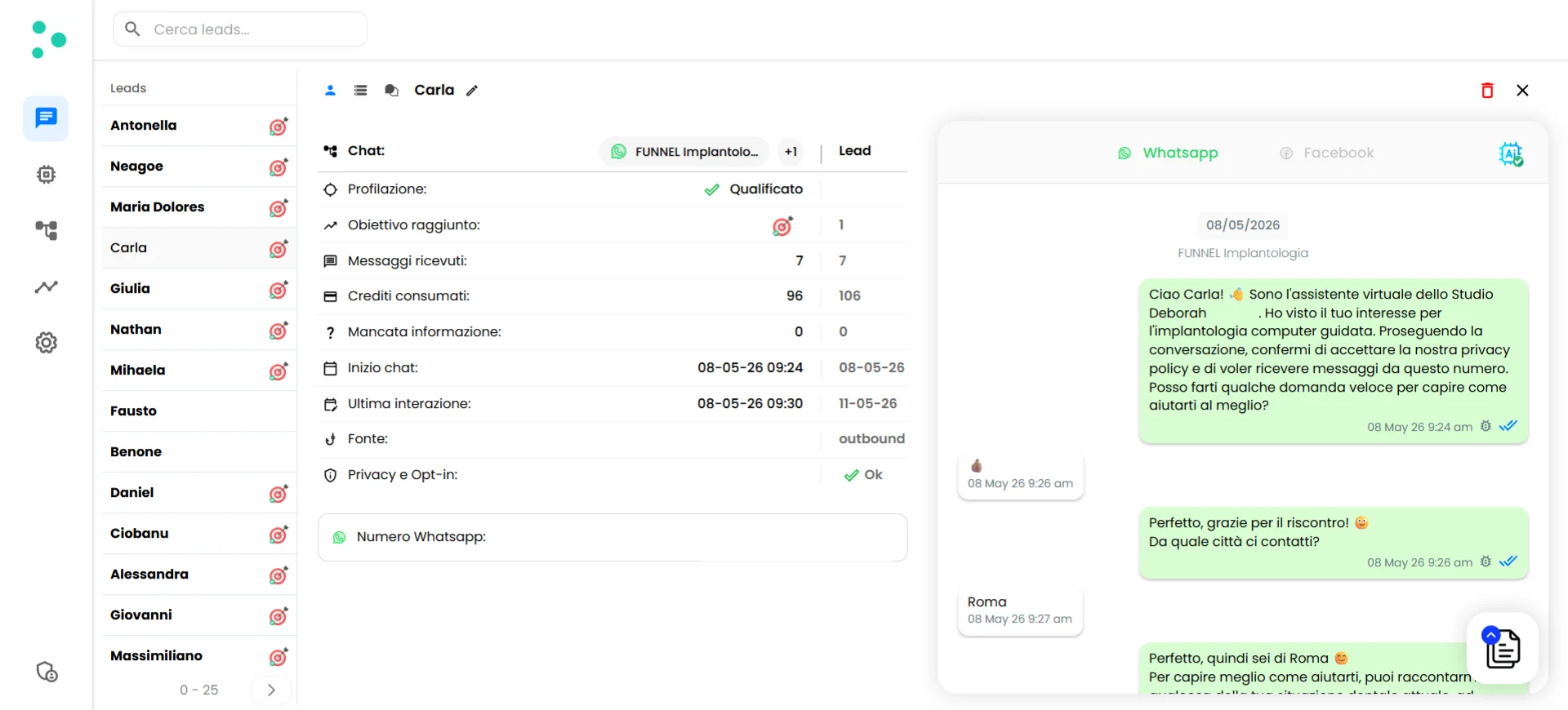
The full lead detail view with lead sidebar, data panel, and conversation panel
Chat Overview
The center panel shows key stats and metadata for the selected chat:Two-column numbers. Several fields show two values side by side. The left value is for the currently selected chat (lead + specific agent). The right value is the total across all of that lead’s chats, regardless of which agent they talked to.
Collected Data
Your AI agents don’t just chat — they gather information. Every piece of data your agent was configured to collect (budget, company size, timeline, pain points, or whatever custom variables you defined) is stored and accessible here. To view collected data, click the database icon (the list/table icon) next to the lead’s name at the top of the center panel.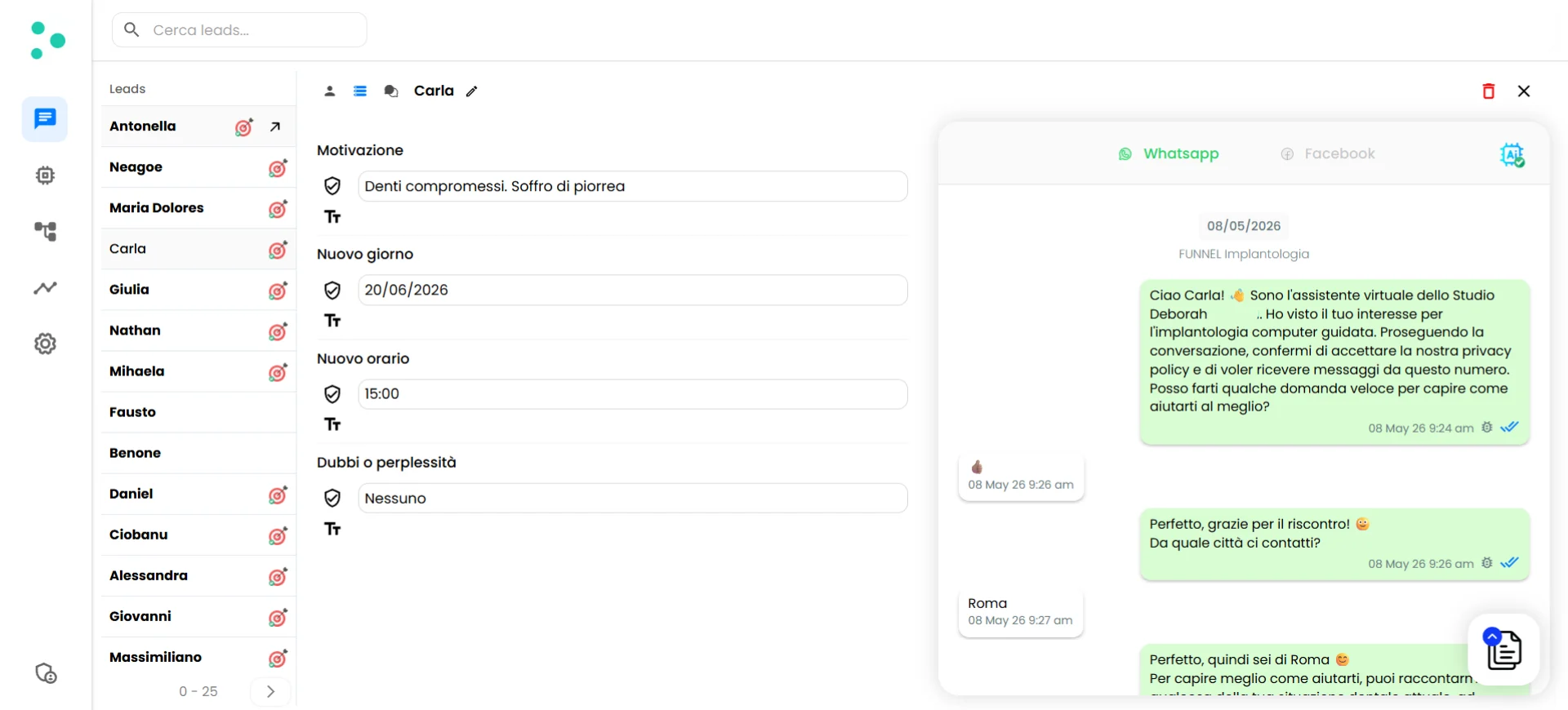
Collected data view showing AI summaries and raw answers for each variable
- ✅ AI summary — A clean, categorized interpretation of what the lead said (e.g., “The company handles about 100 clients per month”)
- Raw answer — The lead’s exact words from the conversation (e.g., “intorno ai 100”)
Conversation History
The right panel shows the full chat transcript between your agent and the lead. You can read every message, see timestamps, and follow the entire conversation flow. If the lead has messaged on multiple channels (e.g., WhatsApp and Facebook), you’ll see channel tabs at the top of the conversation panel. Click a tab to switch between the conversation history on each channel.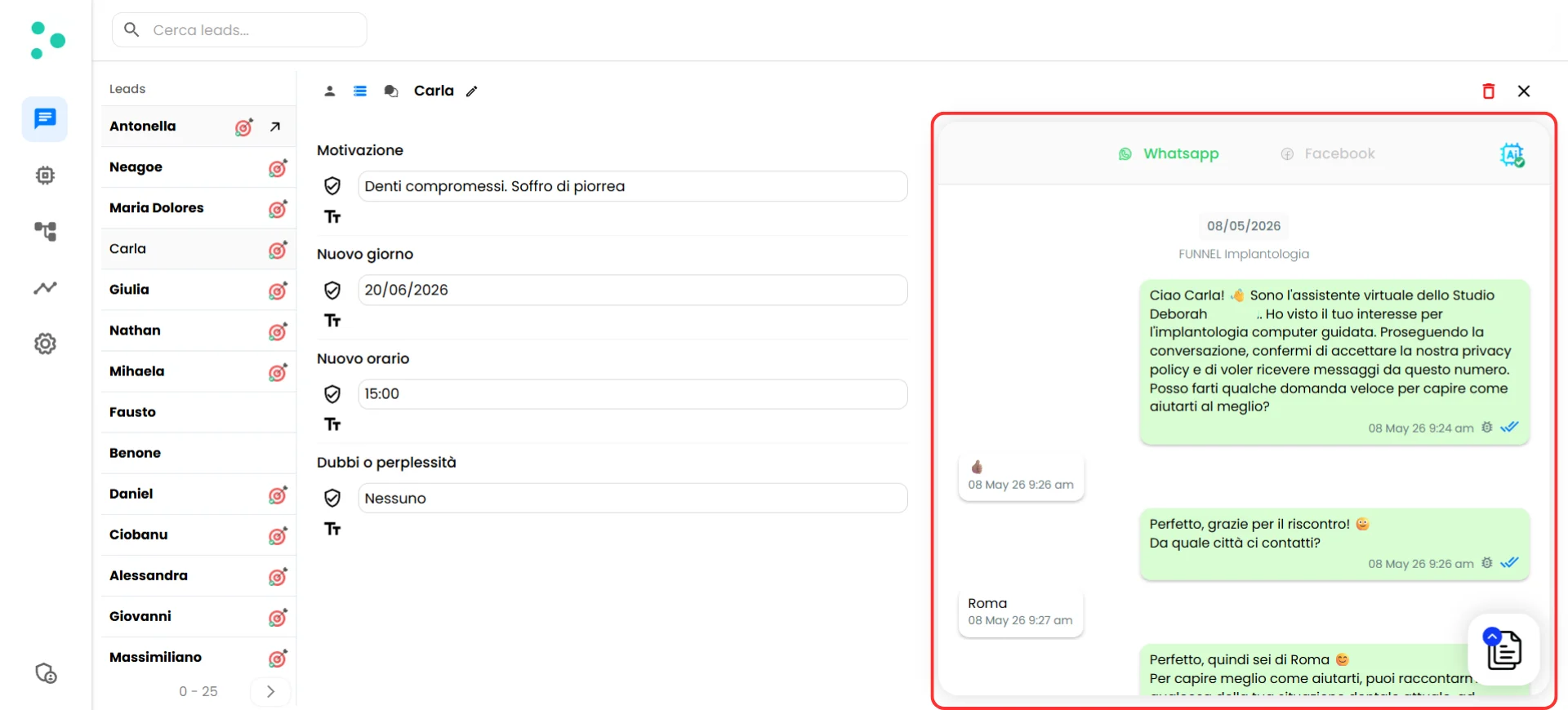
Conversation transcript with channel tabs for switching between WhatsApp and Facebook
💬 Taking Over a Conversation
Sometimes a conversation needs a human. Maybe the lead asked a complex question, the deal is high-value, or the situation is sensitive. Whatever the reason, you can disable your AI agent and take over the conversation yourself — directly from the chat panel.How to Disable the AI
Look for the AI button in the top-right corner of the conversation panel (the robot icon). Click it to toggle the AI off.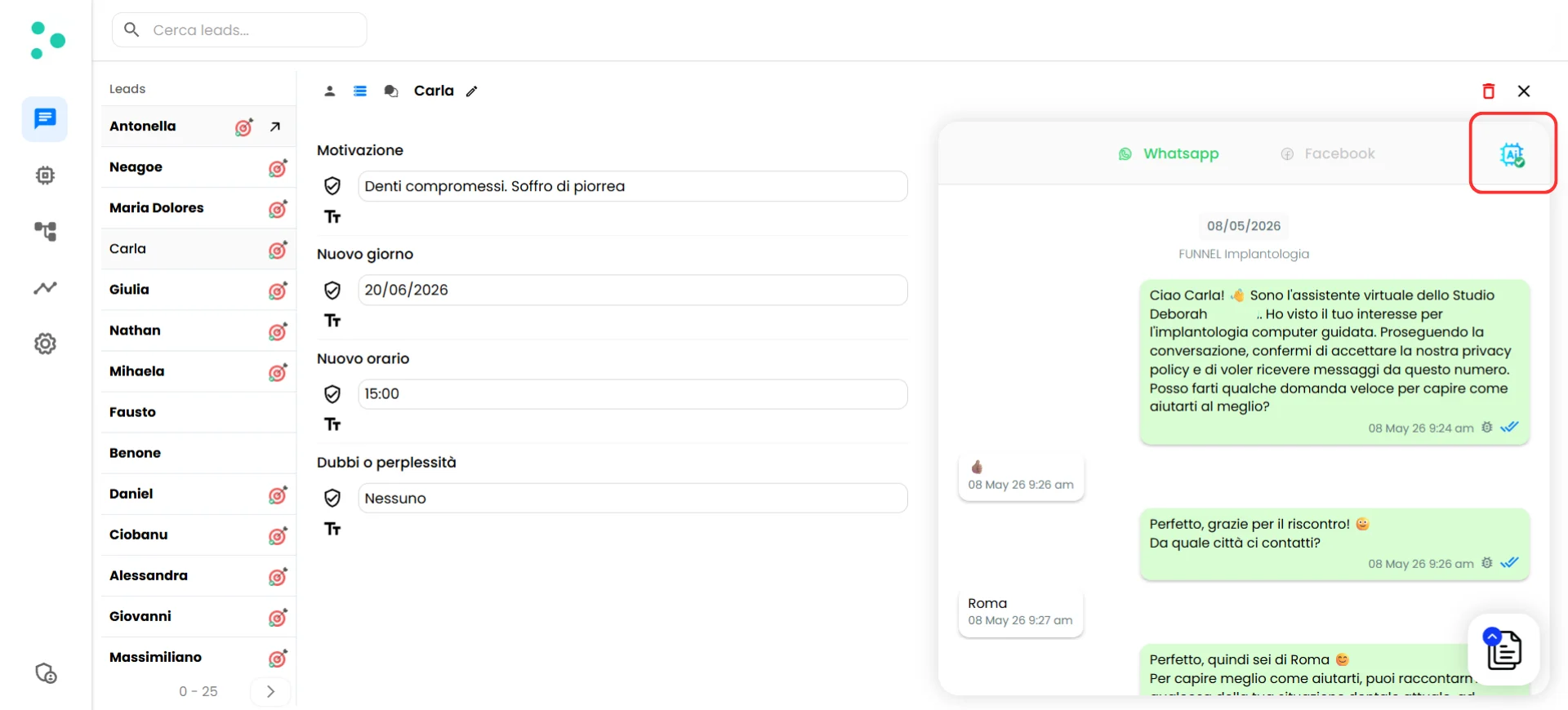
The AI toggle button in its active state
- Your agent stops responding to that lead’s messages
- A text input field appears at the bottom of the conversation panel
- You can type and send messages as yourself — the lead sees them just like any normal message
This is per-chat. Disabling the AI for one conversation doesn’t affect your other leads. Your agents continue working everywhere else.
The 24-Hour Window (WhatsApp)
If you’re taking over a WhatsApp conversation, there’s an important rule to know: WhatsApp Business API has a 24-hour messaging window. You can only send free-form messages to a lead if their last message to you was less than 24 hours ago. Here’s what this means in practice:
Template messages are pre-approved message formats you’ve already created in your agent settings. They allow you to re-open the conversation outside the 24-hour window — for example, a follow-up reminder or a special offer.
❓ FAQs
Can I download or export my leads as a CSV?
Can I download or export my leads as a CSV?
Not at this time. The chat panel currently doesn’t support CSV export or bulk data download. If you need lead data in a spreadsheet or CRM, the best approach is to set up a webhook integration (via Zapier, Make.com, or Go High Level) that automatically sends lead data to your tools as conversations happen — so your external systems stay in sync in real time.
Is there an Irelia mobile app for sales reps?
Is there an Irelia mobile app for sales reps?
There’s no native app, but you don’t need one — the chat panel is fully responsive and optimized for mobile. It works great in your phone’s browser, and you can add it to your home screen so it looks and feels like a regular app.Here’s how to set it up:An Irelia icon now appears on the home screen. Tapping it opens the chat panel directly — full screen, no browser address bar, just like an app. Your sales reps can check leads, read conversations, and take over chats from their phone wherever they are.
- Android (Chrome)
- iPhone (Safari)
- Open Chrome and go to irelia.ai/leads
- Log in to the Irelia account your sales rep needs access to
- Tap the three-dot menu (⋮) in the top-right corner
- Tap “Add to Home screen”
- Give it a name (e.g., “Irelia Leads”) and tap Add
What does 'Missing informations' mean in the lead detail view?
What does 'Missing informations' mean in the lead detail view?
This field counts how many times a lead asked a question that your agent couldn’t answer using the Knowledge Base. A high number here is a signal to review your Knowledge Base and add content covering those topics. You can use the debug tools to see exactly which questions went unanswered.
Can I delete a lead from the chat panel?
Can I delete a lead from the chat panel?
Yes. Open the lead’s detail view and click the trash icon (🗑️) at the top-right corner of the center panel. This removes the lead and their conversation data.
What happens if I disable the AI and then forget to re-enable it?
What happens if I disable the AI and then forget to re-enable it?
The AI stays off for that specific chat until you manually turn it back on. The lead can still send messages, but they won’t get automatic replies from your agent. Other leads and chats are unaffected — the toggle is per-chat, not account-wide. Make sure to re-enable the AI once you’ve finished the manual interaction.
🆘 Need Help?
Irelia.ai Support:
- Contact support in the WhatsApp priority support group or send an email to info@irelia.ai
- Include: screenshots of what you’re seeing in the chat panel, which lead or conversation is affected, and what you expected vs. what happened