

Why WhatsApp Templates Exist
Two Entry Points, One Process
What You'll Need
Quick Path
Step-by-Step Setup
Quick Checklist
Troubleshooting & FAQs
Introduction
You’ve built your AI agent, connected WhatsApp, and you’re ready to start reaching out to prospects. To do that — to send the first outbound message that kicks off a conversation — you need a WhatsApp template. Templates are how every business on WhatsApp starts outbound conversations. Meta requires them to keep the platform safe and spam-free, and Irelia makes creating and submitting them straightforward. In about five minutes, you’ll have a template submitted, and once Meta approves it, you’ll be ready to start sending. This article walks you through the entire process — from understanding why templates exist to submitting your first one for approval.✅ A template created inside Irelia with your message content and dynamic variables
✅ That template submitted to Meta for approval
✅ The knowledge to track its status and take next steps once it’s approved
💡 Why WhatsApp Templates Exist
WhatsApp protects its users from unwanted messages with a strict rule called the 24-hour messaging window. Here’s how it works: when a contact messages you (or replies to a message you sent), a 24-hour window opens. During that window, your AI agent can send free-form messages — any text, in any format, with no restrictions. This is how your agent carries on natural conversations, asks qualifying questions, and responds to inquiries. But the moment that 24-hour window closes — meaning 24 hours have passed since the contact’s last message — free-form messaging stops. To message that contact again, you must use an approved template.- Starting a new conversation — When you reach out to a contact who hasn’t messaged you yet (outbound). This is the most common use case: a lead fills out a form, and your AI agent sends the first WhatsApp message using a template.
- Re-engaging a silent contact — When a lead stopped replying and the 24-hour window expired. You send a follow-up template to bring them back into the conversation.
🚪 Two Entry Points, One Process
You can create a WhatsApp template from two places inside your agent’s settings. The creation process is identical — but where you start determines how you’ll use the template later.From the Trigger tab — for conversation starters
Open your agent and click the Trigger tab. This is where you create templates for starting new conversations — the first outbound message a prospect receives.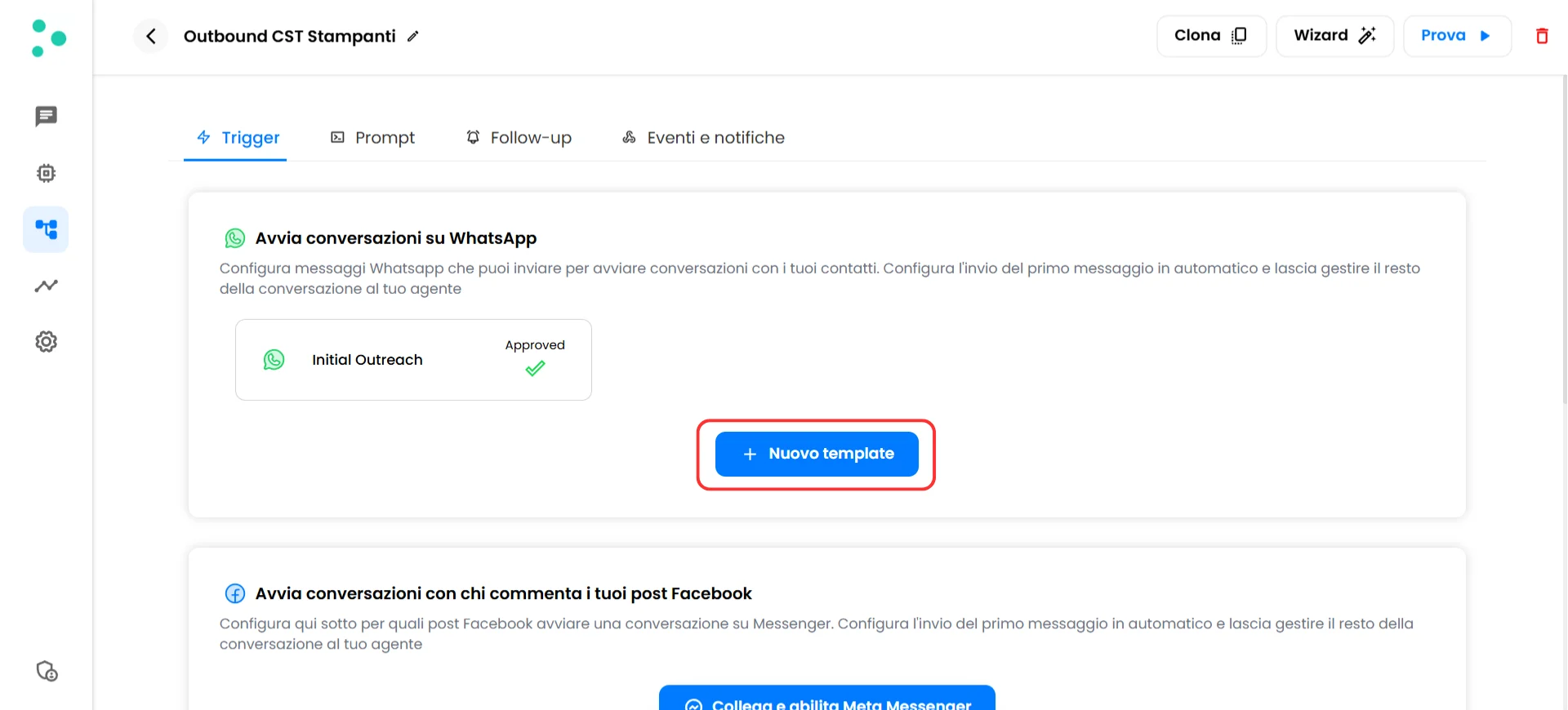
The Trigger tab with an approved template and the + New template button
- Irelia Forms — A landing page with a contact form that triggers the template automatically
- Meta Instant Forms — A native integration that sends the template to leads from your Facebook and Instagram ad campaigns
- API / automation — Connect Zapier, Make.com, Go High Level, or any other platform to trigger the template from your existing tools
From the Follow-up tab — for re-engagement messages
Open your agent and click the Follow-up tab. This is where you create templates for follow-up sequences — messages sent automatically to contacts who stopped replying.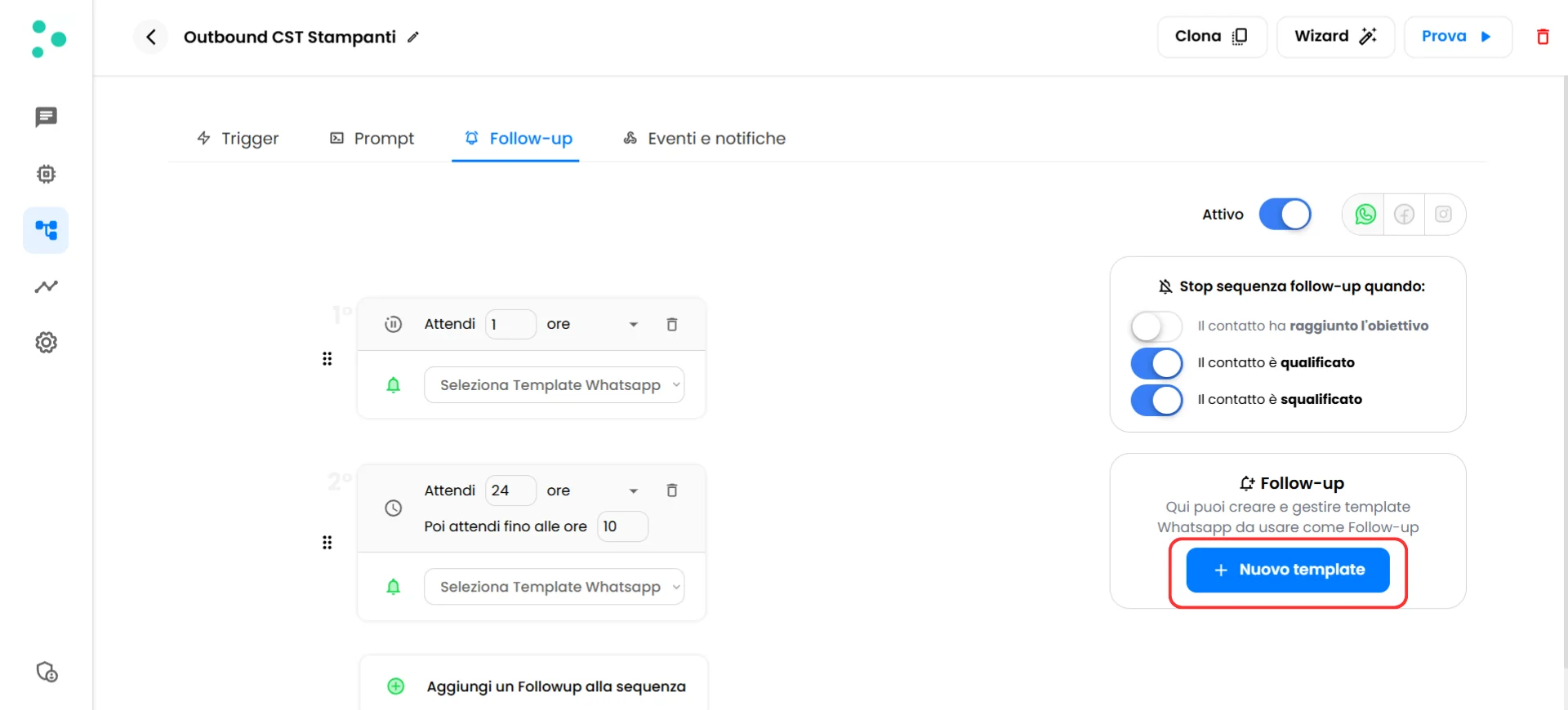
The Follow-up tab showing the sequence builder and available templates
What You’ll Do
- Click ”+ New template” from the Trigger or Follow-up tab (~30 seconds)
- Name your template and write your message (~2 minutes)
- Add example values for any dynamic variables (~1 minute)
- Submit to Meta and track the approval status (~1 minute)
📋 What You’ll Need
- An Irelia.ai account with at least one active AI agent Required
- A connected WhatsApp channel — learn how to connect WhatsApp to Irelia here if you haven’t yet Required
- Your message content ready (or use one of Irelia’s pre-built templates as a starting point) Optional
⚡ Quick Path (Experienced Users)
Already comfortable with Irelia? Here’s the condensed version:- Navigate → Open your agent → Trigger tab (for conversation starters) or Follow-up tab (for re-engagement) → Click ”+ New template”
- Name it → Enter a descriptive template name
- Write it → Type your message in the content field (or click a pre-fill option). Use
{{1}},{{2}}, etc. for dynamic variables. Don’t skip numbers, don’t add spaces inside the braces - Confirm → Click “Confirm message”
- Add examples → Fill in a sample value for each variable (e.g.,
Mariofor{{1}}) - Submit → Click “Send to Meta for approval”
- Wait → Template appears with “Pending” status. It usually switches to “Approved” within a few minutes — the status updates automatically
🔧 Step-by-Step Setup
Open the Template Creator
- Log into your Irelia.ai dashboard
- Open the agent you want to create the template for
- Choose where to create it based on your use case:
- For conversation starters → Click the Trigger tab
- For follow-up messages → Click the Follow-up tab
- Click the blue ”+ New template” button
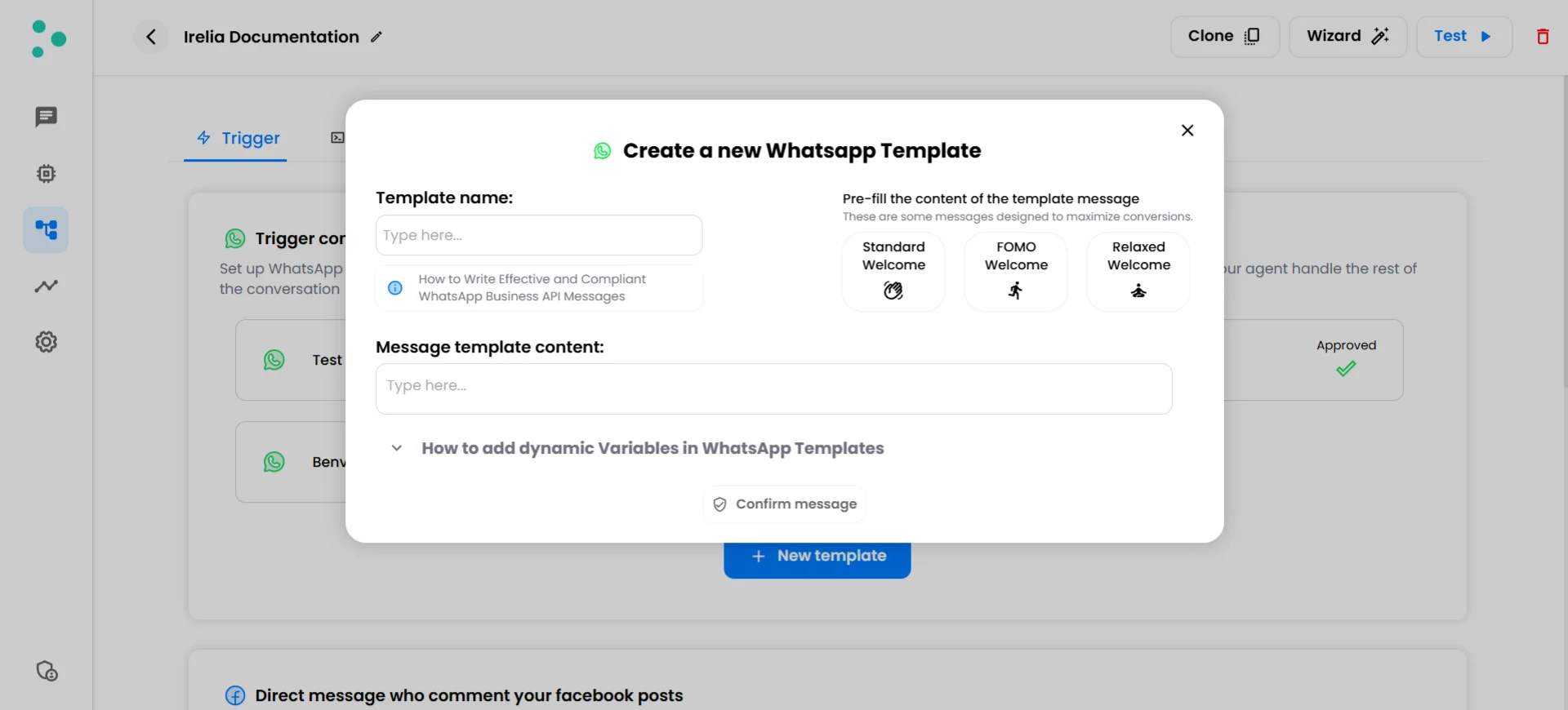
The template creation popup with pre-fill options and content field
Name Your Template and Write Your Message
Choose a template name
Type a name in the “Template name” field. This name is for your reference inside Irelia — your contacts won’t see it. Make it descriptive so you can easily recognize it later (e.g., “Welcome — Dental Promo” or “Follow-up 1 — Reminder”).Write (or pre-fill) your message
You have two options for writing the template content:Option A — Write from scratch. Click the “Message template content” field and type your message. This is the actual text your contacts will receive on WhatsApp.Option B — Start from a pre-fill. Click one of the three cards in the upper-right corner of the popup — “Standard Welcome”, “FOMO Welcome”, or “Relaxed Welcome”. Each one fills the content field with a proven message structure designed to maximize conversions. You can edit the pre-filled text to match your specific offer and tone.Add dynamic variables (optional)
Dynamic variables are placeholders that get replaced with real contact data when the message is sent. For example,Hi {{1}}! becomes Hi Gianluca! at the time of delivery.To use them, type {{1}} where you want the first data field, {{2}} for the second, and so on.Variable rules:- Always start from
{{1}}and go in order — don’t skip numbers - Use exactly two curly braces with no spaces:
{{1}}is correct {{ 1 }},{1},{{x}}, and{x}are all incorrect and will cause errors
Before you continue
Make sure the “Confirm message” button at the bottom of the popup is clickable (not grayed out). If it’s disabled, the most likely cause is that you already have another template with the same name or the same message content. Each template must have a unique name and unique content.Confirm and Add Example Values
- Click the “Confirm message” button at the bottom of the popup
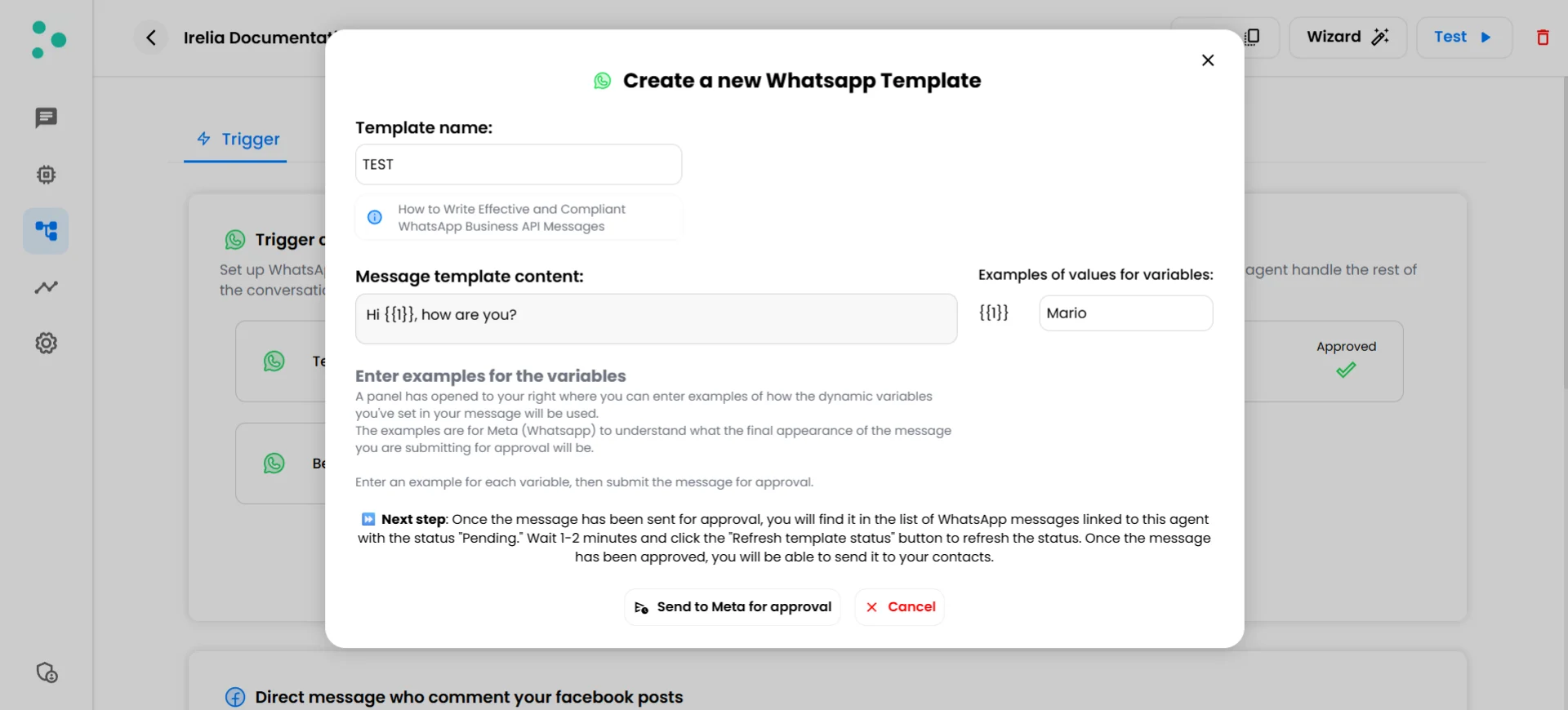
Template confirmed with example value fields for each variable
- In the “Examples of values for variables” panel on the right, enter a realistic sample value for each variable (e.g.,
Mariofor{{1}},Romefor{{2}})
Submit to Meta for Approval
- Click the “Send to Meta for approval” button
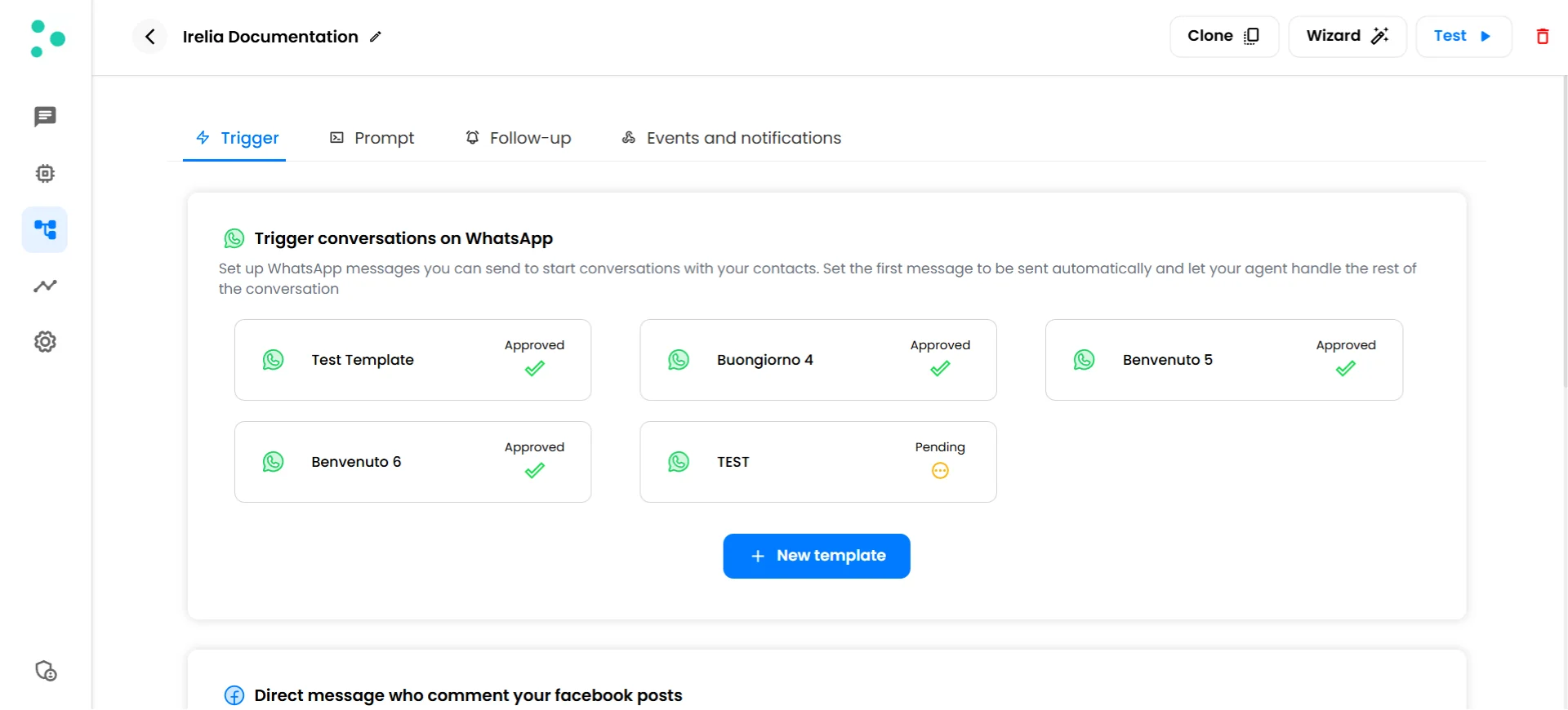
Template list showing Approved and Pending status badges
- The status updates automatically — most templates are approved within a few minutes. You don’t need to refresh the page.
What’s Next — After Approval
Templates created in the Trigger tab
Once a template in the Trigger tab is approved, clicking on it opens the “Set up the sending of the WhatsApp template” panel. This is where you choose how to send the template to your contacts.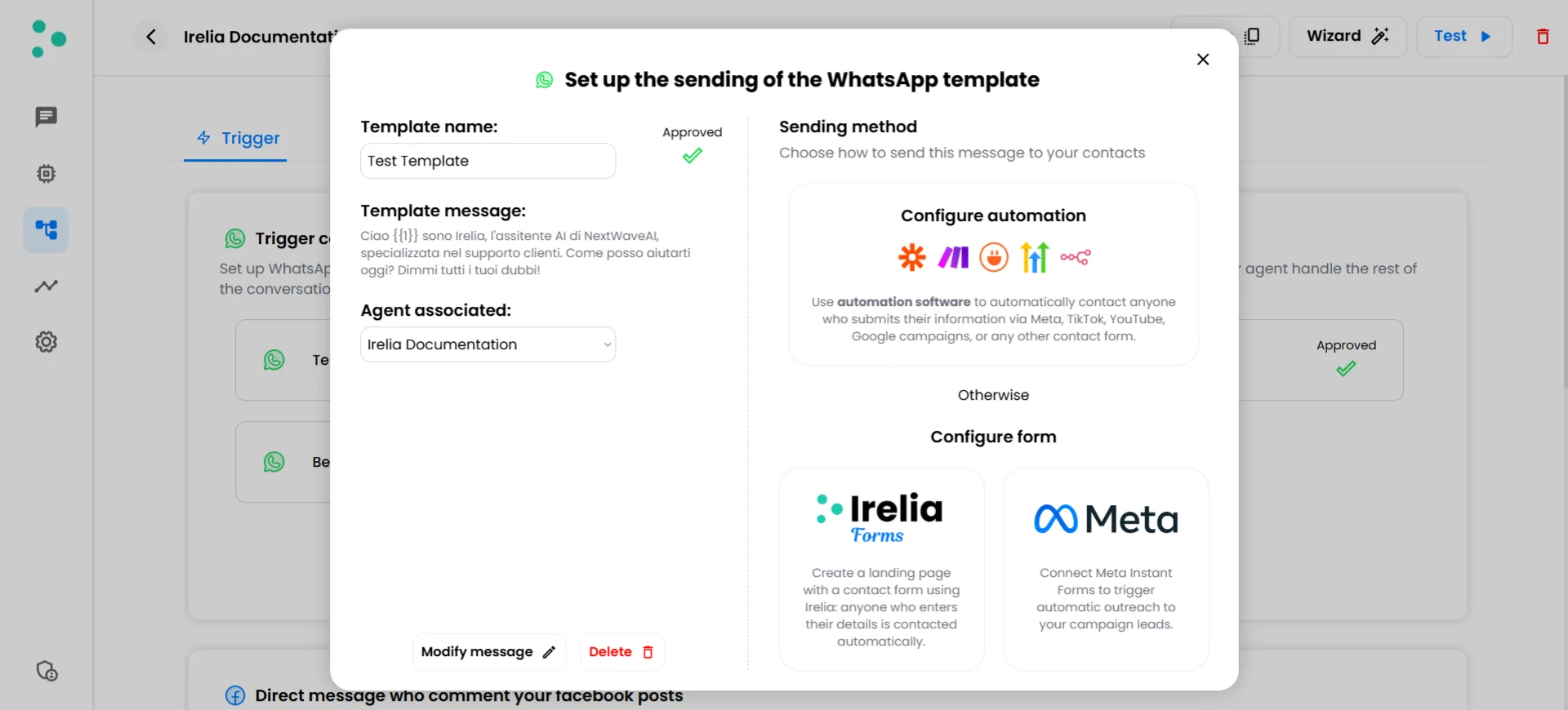
Sending method options for an approved Trigger template
Templates created in the Follow-up tab
Once a follow-up template is approved, it becomes available in the follow-up sequence builder. You can add it to your automatic follow-up sequence, where it will be sent to contacts who stop replying — at the timing intervals you define. See How to Set Up Follow-Up Sequences for the full configuration guide.Changing the associated agent
At any time, you can change which agent owns a template. Click on the template to open its configuration panel, then use the “Agent associated” dropdown to select a different agent. This is useful when you want to reuse a template across different agent configurations.How to Avoid Your Template Getting Rejected
Meta reviews every template for compliance with their messaging policies. Most rejections come from a few common issues:- Typos and grammar mistakes — Proofread your message carefully before submitting. Obvious errors signal low quality to Meta’s review process.
- Variable at the very start — Starting your message with a placeholder (like
{{1}}, how are you?) without any text before it increases rejection risk. Always open with a word or greeting first. - Promotional or spammy language — Messages that read like marketing blasts rather than conversations are more likely to be rejected. Keep the tone natural and conversational.
- Prohibited content — Templates promoting restricted products, containing misleading claims, or using URL shorteners (like bit.ly) will be rejected. See Meta’s template guidelines for the full list.
Editing and Deleting Templates
Editing a template
You can modify a template’s message content after it’s been created. Click on the template and use the “Modify message” button to make changes.Deleting a template
To delete a template, click on it and use the “Delete” button. Deleted templates are permanently removed and can’t be recovered. If the template was part of a follow-up sequence, it will be automatically removed from that sequence.✅ Quick Checklist
Template Creation
Template Creation
- Chose the correct tab — Trigger for conversation starters, Follow-up for re-engagement
- Template name is descriptive and unique
- Message content is written and finalized
- Dynamic variables (if used) start from
{{1}}and are sequential - Realistic example values provided for all variables
- Template submitted via “Send to Meta for approval”
After Submission
After Submission
- Template status changed to “Approved” (if rejected, review and resubmit)
- Sending method configured (Trigger tab) or follow-up sequence updated (Follow-up tab)
🛠️ Troubleshooting & FAQs
Irelia detected a conflict with an existing template
Irelia detected a conflict with an existing template
- Each template must have a unique name. If another template already uses the same name, rename yours to something different
- Two templates can’t have the exact same message body. If you’re creating a variation, change enough of the content to make it distinct
Meta's review is taking longer than usual
Meta's review is taking longer than usual
- Most templates are approved within a few minutes, but Meta’s review can occasionally take 24 hours or more. You don’t need to refresh the page — the status updates on its own
- If you need to move forward and can’t wait, create a new template with a small tweak to the content (even a minor wording change) and submit it. The new one may go through faster
- In rare cases, issues with your Meta Business Manager (unverified business, policy violations on other products) can delay template reviews. Make sure your Business Manager is in good standing
Meta found an issue with the template content or structure
Meta found an issue with the template content or structure
- Check the rejection reasons list above and identify which one applies
- Click on the rejected template and use the “Modify message” button to fix the issue. Once you’ve corrected the content, submit it again for approval. You can also create a brand-new template if you prefer to start fresh
What's the difference between Trigger templates and Follow-up templates?
What's the difference between Trigger templates and Follow-up templates?
Can I use the same template for both conversation starters and follow-ups?
Can I use the same template for both conversation starters and follow-ups?
How many templates can I create?
How many templates can I create?
How long does Meta's approval take?
How long does Meta's approval take?
Can I edit a template after it's been approved?
Can I edit a template after it's been approved?
What happens to my follow-up sequence if I edit a template in it?
What happens to my follow-up sequence if I edit a template in it?
Can I move a template from the Trigger tab to the Follow-up tab (or vice versa)?
Can I move a template from the Trigger tab to the Follow-up tab (or vice versa)?
What does 'Agent associated' mean?
What does 'Agent associated' mean?
🆘 Need Help?
- Contact support in the WhatsApp priority support group or send an email to info@irelia.ai
- Include: a screenshot of your template creation popup, the template name, the error or status you’re seeing, and what you expected vs. what happened