

What Follow-ups Are in Irelia
What You'll Need
Step-by-Step Setup
Quick Checklist
FAQs
Introduction
Not every prospect replies right away. Some get distracted, some need a nudge, some forget the conversation ever happened. Without a follow-up strategy, those leads quietly disappear — and so does the money you spent acquiring them. Irelia’s follow-up sequences solve this. You build an ordered series of WhatsApp messages that get sent automatically at the intervals you choose, and the sequence keeps running step by step until it reaches the end — or until the lead hits one of the stop conditions you’ve set (goal reached, qualified, or disqualified) — or until AI is disabled for the contact. If the lead is moved to a different agent mid-sequence, the current sequence stops as well — see the FAQs below for details. Every agent has its own follow-up settings, so you can tune the cadence and tone to match each agent’s role. This guide walks you through setting up a follow-up sequence from scratch — from understanding why follow-ups in Irelia work the way they do, to activating your first sequence on a live agent.✅ One or more WhatsApp templates created and ready to use as follow-up messages
✅ A multi-step follow-up sequence configured on your agent with custom timing
✅ Stop conditions set so the sequence ends automatically when a lead converts or disqualifies
✅ The sequence active and running on WhatsApp
💡 What Follow-ups Are in Irelia
In Irelia, a follow-up is a pre-approved WhatsApp template message that gets sent automatically to a lead who hasn’t replied — scheduled at a specific delay after the conversation started. You chain multiple follow-ups together to form a sequence, and each agent has its own sequence configured in its Follow-up tab. There’s one design choice that shapes everything: Irelia follow-ups are templates, not free-form messages. Here’s why that matters.Why templates (and not dynamic messages)
WhatsApp enforces a strict rule called the 24-hour messaging window. Once a contact replies to your agent, you have 24 hours to send free-form messages. After that window closes, you can only re-engage that contact using a pre-approved WhatsApp template — a message Meta has reviewed and stamped as compliant. If Irelia tried to send follow-ups as dynamic, AI-generated messages, you’d be locked out the moment a lead went silent for more than a day. That’s exactly when follow-ups matter most. By building the follow-up system on templates, Irelia lets you:- Re-engage leads at any point in time — even days or weeks after their last reply, with no 24-hour window restriction.
- Stay on the right side of Meta’s rules — every follow-up message has already been reviewed and approved by Meta before it goes out.
- Protect your WhatsApp number’s quality rating — templates are the safest way to reach inactive contacts, since they’re the channel Meta sanctions for re-engagement.
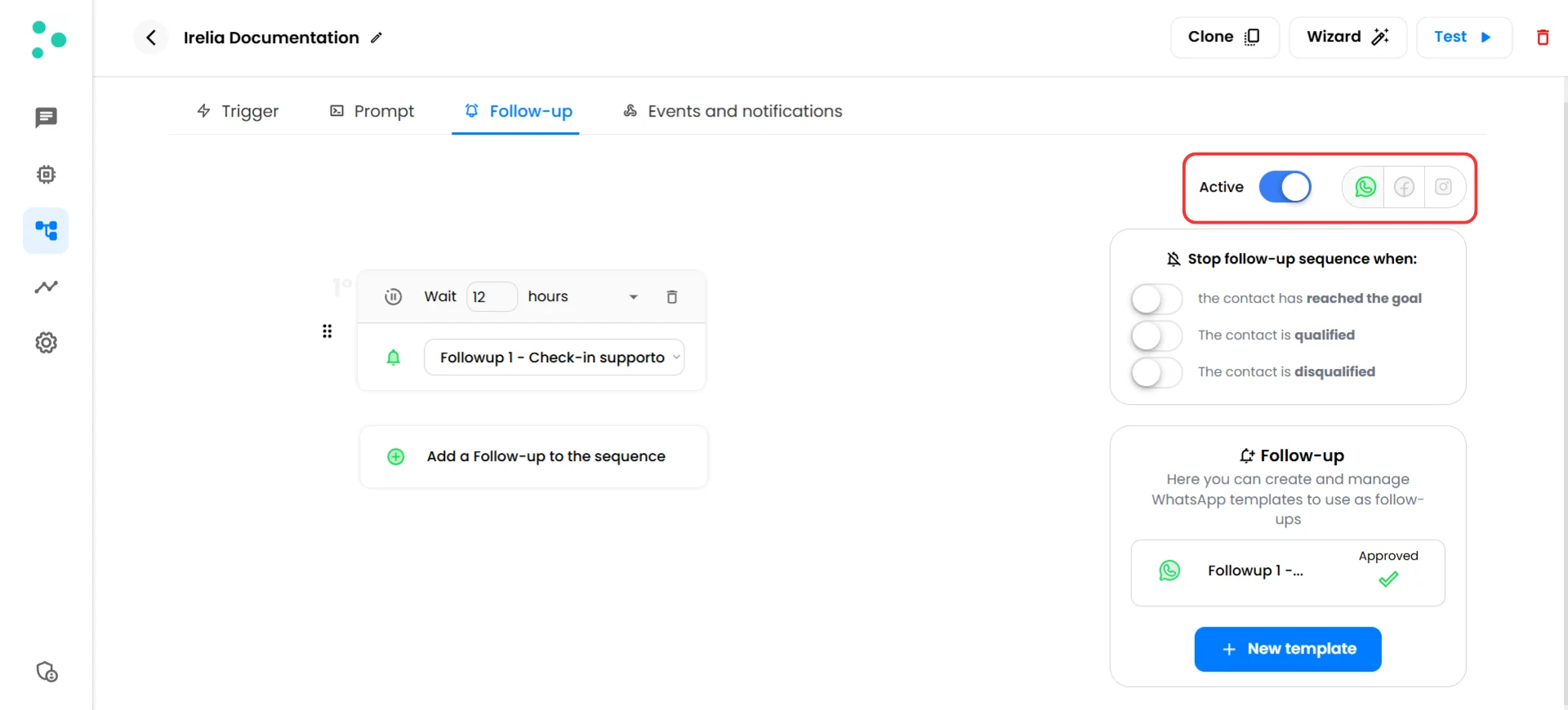
Follow-up tab showing WhatsApp as the only active channel
Per-agent configuration
Every AI agent in your Irelia account has its own Follow-up tab and its own sequence. Different agents can run completely different cadences — a high-urgency booking agent might follow up after 2, 6, and 24 hours, while a long-cycle B2B agent might wait days between touches. Activating, editing, or pausing follow-ups on one agent has no effect on any other agent.What you’ll configure
A complete follow-up setup has three pieces, and you’ll build all of them in the steps below:- Templates — the WhatsApp messages that get sent.
- A sequence of steps — the order and timing of those templates.
- Stop conditions — the rules that decide when to halt the sequence early for a specific lead.
📋 What You’ll Need
Before you start configuring the sequence, make sure you have:- A WhatsApp channel connected to your Irelia account. If not, start with How to Connect WhatsApp Business to Irelia. Required
- At least one AI agent created and configured. The follow-up sequence lives inside the agent. Required
- One or more WhatsApp templates ready to use as follow-up messages — each with at most one placeholder (
X). You’ll create these in Step 1 below if you don’t have them yet. Required
🔧 Step-by-Step Setup
Create your follow-up templates
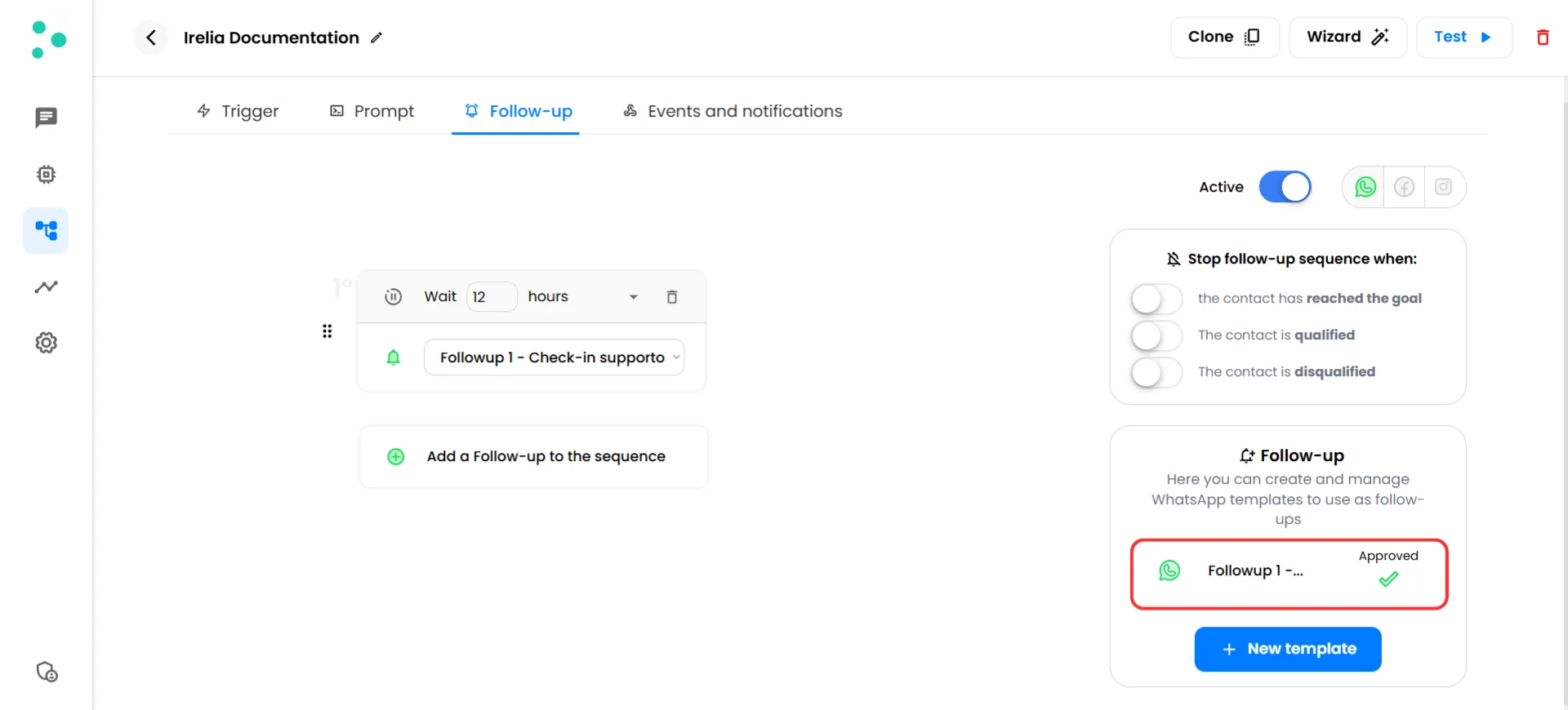
An approved follow-up template ready to use in a sequence
Build the sequence
1. Wait time (hours) — required
How many hours Irelia should wait before sending this step. The reference point depends on which step you’re configuring:- Step 1 counts from the moment the chat was created.
- Step 2 and every step after it count from the moment the previous step was sent — so the number you type is the gap between consecutive follow-ups, not a delay from the start of the chat.
2. Send at hour (clock time) — optional
If you want the step to land within a specific hour of the day, enable this and enter an hour between 0 and 23. Leave it off if you’re happy for the message to fire as soon as the wait time is up.When set, the two fields run in sequence: first Irelia waits the hours you set in Wait, then it holds the message until the next occurrence of the hour you chose in Send at hour and sends it within that hour range. It’s not a precise scheduler — “Send at hour 8” means the message goes out somewhere between 8:00 and 8:59.For example: Step 2 is set to “wait 19 hours” with “Send at hour 8”. If Step 1 was sent at 1 PM, 19 hours later would be 8 AM the next day → Irelia sends Step 2 during the 8 AM hour. If Step 1 was sent at 8 AM, 19 hours later would be 3 AM → Irelia waits a few more hours and sends during the 8 AM hour later that morning.3. Template — required
Open the template dropdown and pick one of the approved templates you created in Step 1. The dropdown only lists templates that fit a single rule: at most one dynamic placeholder.A placeholder is a dynamic spot inside the template’s text — written asX — that gets replaced with a real value at the moment the message is sent. For follow-ups, that single allowed placeholder is automatically filled with the lead’s name as it appears in the Chat Panel. For example, a template written as “Hi X, just checking in — did you get a chance to think it over?” will go out to a lead named Marco as “Hi Marco, just checking in — did you get a chance to think it over?” — with no extra setup on your side. Every Irelia lead has a name on file, so this works for every send. If your template has no placeholders at all, it’s sent exactly as written.If a template you expected is missing from the dropdown, it likely has 2+ variables and needs a follow-up-friendly version with one placeholder or none.Repeat for every step in your sequence. You can drag steps to reorder them using the handle on the left side of each step block.
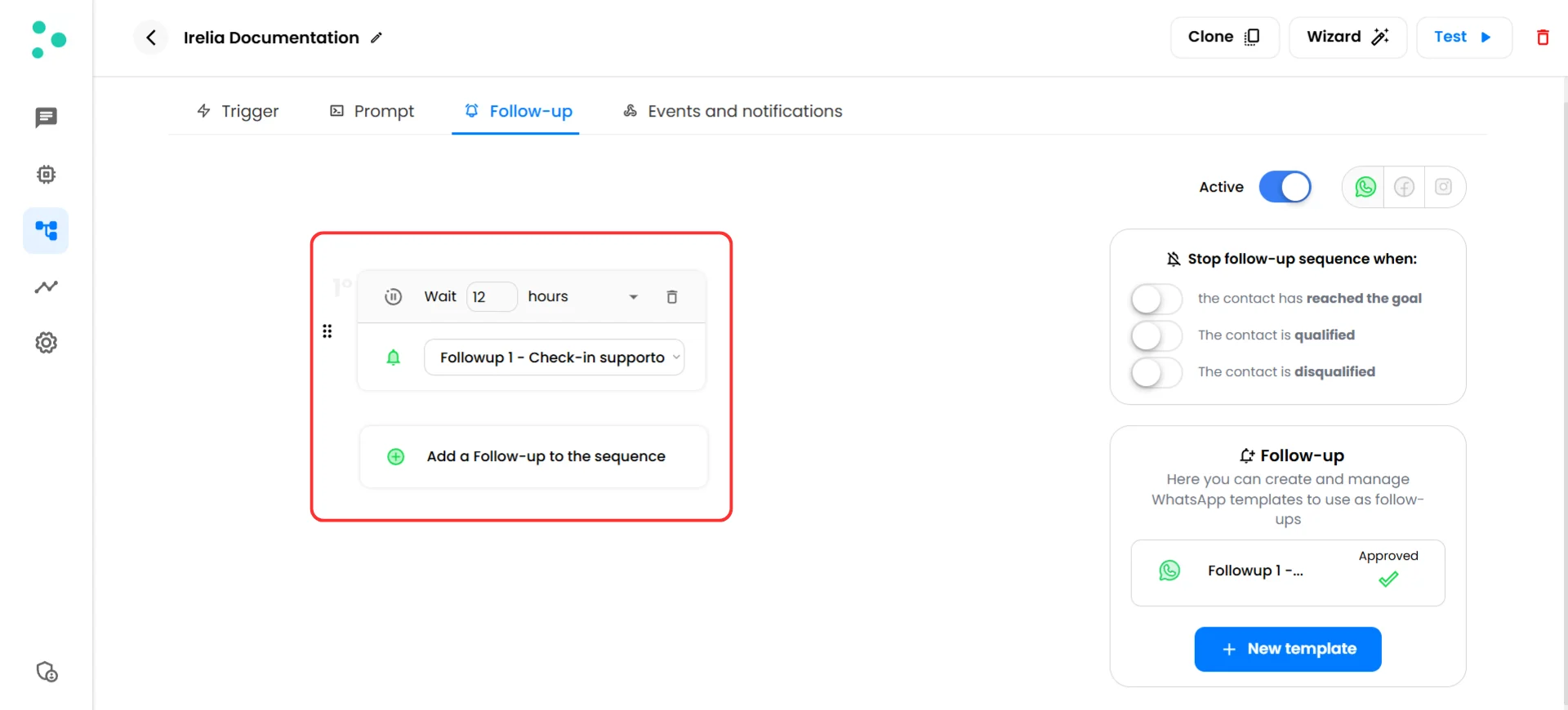
A multi-step follow-up sequence with wait times and templates configured
Set the stop conditions
- The contact has reached the goal — Stop the sequence as soon as the lead reaches the goal you defined for the agent (e.g. booked a call, completed a purchase).
- The contact is qualified — Stop the sequence as soon as the lead is marked as qualified.
- The contact is disqualified — Stop the sequence as soon as the lead is marked as disqualified.
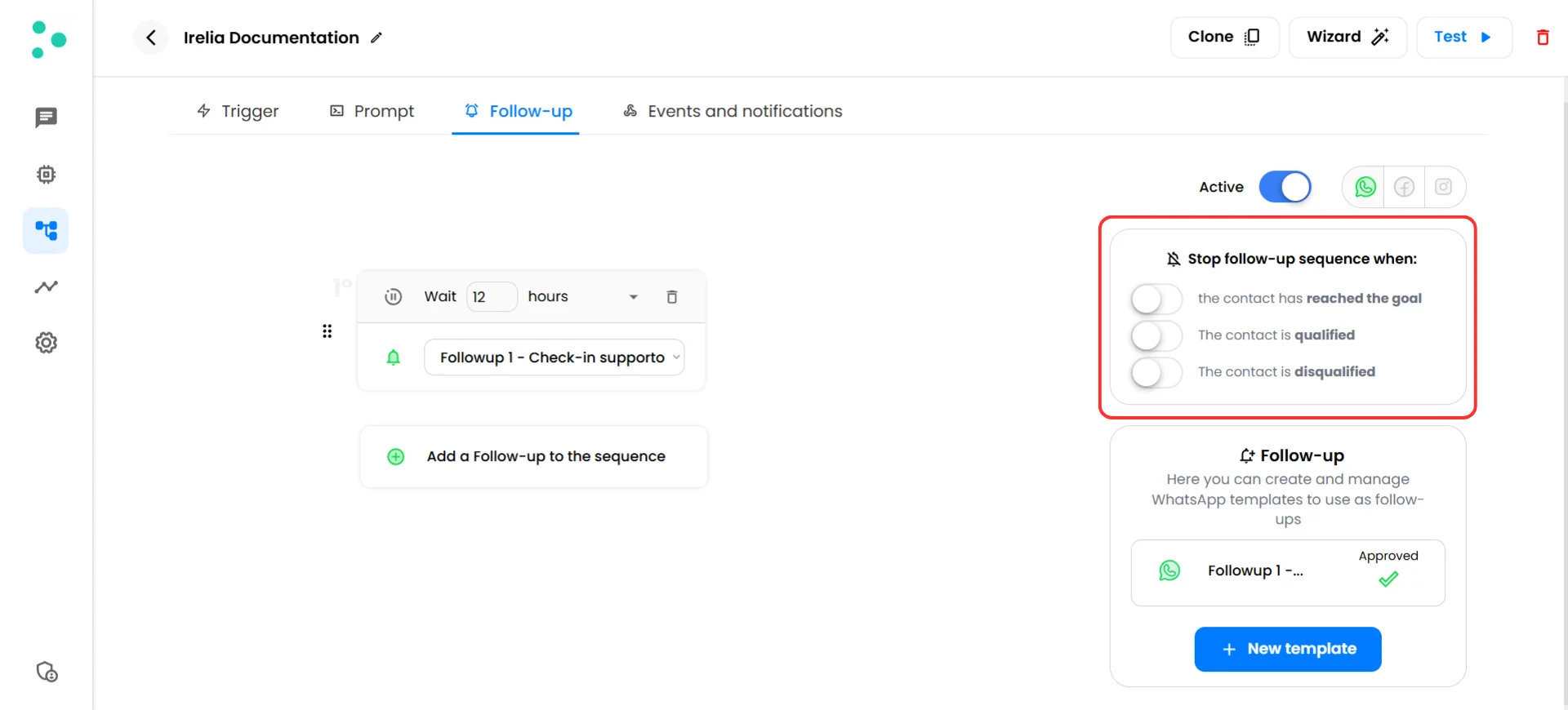
Stop conditions panel with all three toggles enabled
Activate the sequence
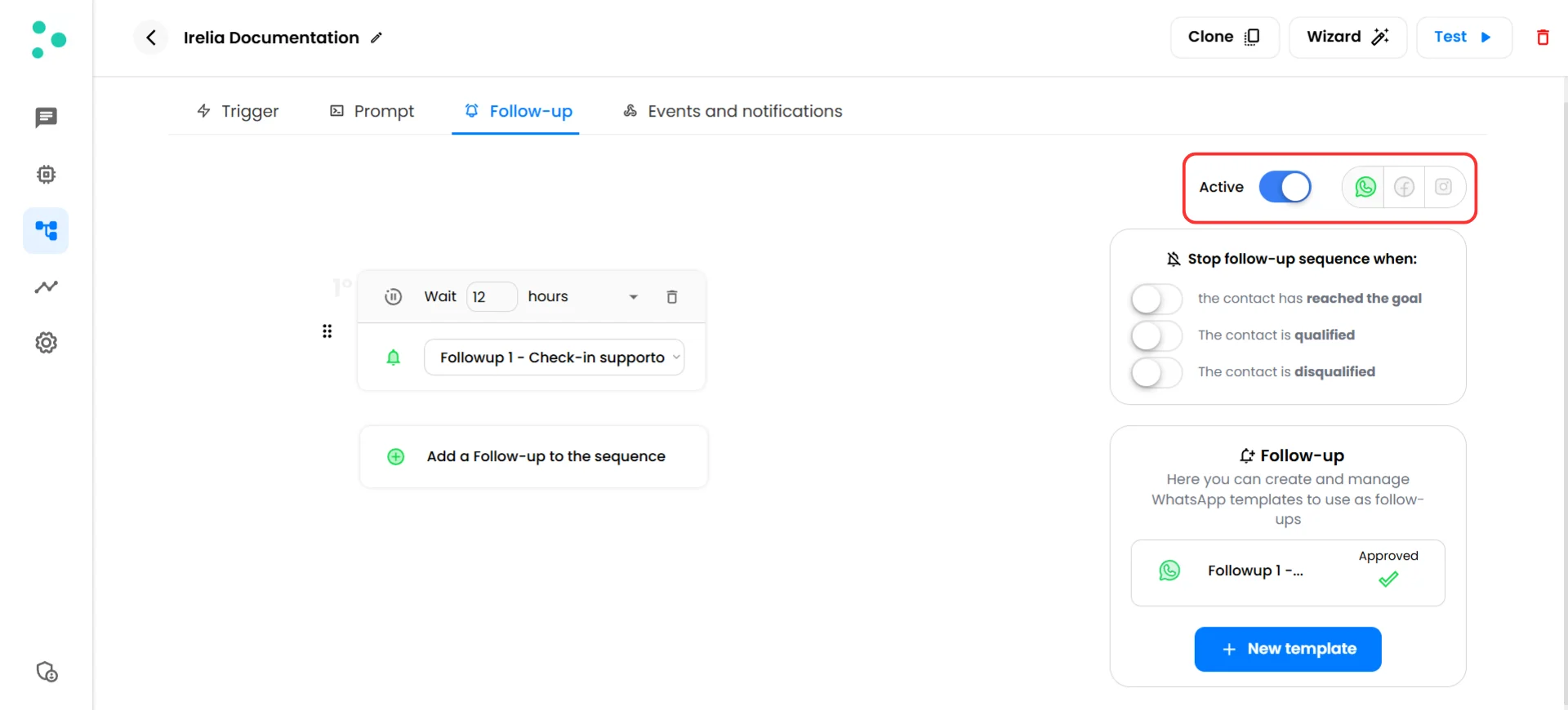
The Active toggle switched on to start the follow-up sequence
✅ Quick Checklist
Before you walk away from the Follow-up tab, double-check that everything is in place:Setup Checklist
Setup Checklist
- WhatsApp channel is connected to your Irelia account
- All follow-up templates are created and show as Approved in the right-side panel
- Every template you’re using has 0 or 1 placeholder (
Xonly) - Each step in the sequence has a template assigned
- Wait times are set correctly (Step 1 from chat creation; Step 2+ from the previous step’s send time)
- Time-of-day values, if used, are within human-friendly hours (e.g. 8–21)
- Stop conditions match how you want the sequence to end for converted or disqualified leads
- The Active toggle is switched ON
❓ FAQs
Why are follow-ups templates instead of dynamic AI messages?
Why are follow-ups templates instead of dynamic AI messages?
Do follow-ups work on Facebook Messenger or Instagram?
Do follow-ups work on Facebook Messenger or Instagram?
How is the wait time calculated?
How is the wait time calculated?
What does the 'Send at hour' option actually do?
What does the 'Send at hour' option actually do?
Why can't I select some of my templates in the sequence dropdown?
Why can't I select some of my templates in the sequence dropdown?
X), and that placeholder is automatically filled with the lead’s name. Templates with more variables can’t run automatically because there’s no operator in the loop to fill in custom values per lead. Either use a template with 0 or 1 placeholders, or create a new follow-up version of the template that fits the rule.What gets filled into X?
What gets filled into X?
X is filled in automatically for every send. See The Chat Panel — Monitor, Analyze, and Manage Your Leads for how lead names are stored and displayed.What happens if the lead replies in the middle of the sequence?
What happens if the lead replies in the middle of the sequence?
If I activate a sequence today, does it apply to leads I already had in conversation?
If I activate a sequence today, does it apply to leads I already had in conversation?
- Wait time is longer than the chat’s current age → the trigger point is still in the future, so the follow-up will fire normally when that point is reached.
- Wait time is shorter than the chat’s current age → the trigger point is already in the past, and Irelia does not fire the step retroactively. That lead is skipped for Step 1.
- If you set Step 1 to wait > 48 hours (say, 50 hours), the lead hasn’t yet reached the threshold — they’ll receive the follow-up in roughly 2 hours, when their chat age hits 50 hours.
- If you set Step 1 to wait < 48 hours (say, 24 hours), the threshold is already in the past for that lead — Irelia won’t fire the follow-up retroactively, and the lead is skipped.
How much do follow-ups cost?
How much do follow-ups cost?
Can I have a different sequence for different agents?
Can I have a different sequence for different agents?
Can I edit the sequence after it's active?
Can I edit the sequence after it's active?
What happens to follow-ups if the lead is moved to a different agent?
What happens to follow-ups if the lead is moved to a different agent?
What happens if I disable AI for a contact?
What happens if I disable AI for a contact?
- AI is re-enabled before the next follow-up fires — the sequence resumes normally as if nothing happened.
- The next follow-up’s send time passes while AI is still disabled — that step is lost, and the sequence stops permanently for that lead. It won’t pick back up even if AI is re-enabled later.
🆘 Need Help?
- Contact support in the WhatsApp priority support group or send an email to info@irelia.ai
- Include: a screenshot of your Follow-up tab configuration, the agent name, and the lead phone number you’re investigating (if the issue is about a specific conversation)